
One UI 릴리스 · 펌웨어 기록
One UI 5.1
정식정확한 갤럭시 모델과 펌웨어 지역별로 One UI 5.1의 문서화된 빌드와 추적 기록을 살펴보세요.
83기종
4708모델/지역 조합
214펌웨어 지역
One UI 릴리스 · 펌웨어 기록
모델과 지역별 One UI 5.1 살펴보기
출처에 기록된 빌드추적기 관측동일 빌드 단서여러 국가에 걸친 펌웨어 시장
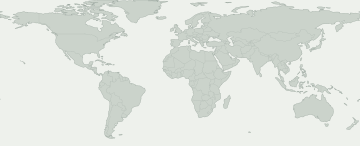
색칠된 지역을 선택하면 펌웨어 기록을 볼 수 있습니다. 파란색은 국가별 기록이 아닌 유럽이나 코카서스 같은 넓은 시장을 나타냅니다.
여러 국가에 걸친 펌웨어 시장
시장을 선택해 출처 기록을 확인하세요. 색칠된 지역 안에서도 제공 여부는 다를 수 있습니다.
이 선택에 맞는 지도상의 펌웨어 지역이 없습니다. 정확한 기록은 CSC 기록에서 확인하세요.
일부 펌웨어 지역은 지도에서 위치를 특정할 수 없습니다. 해당 기록은 표에서 볼 수 있습니다.
모델별 확인 현황
모델과 펌웨어 지역
공식 일정
공식 일정
삼성 발표는 추적 기록과 별도로 표시합니다. 발표의 적용 범위와 배포 유형을 확인하세요.
검증된 공식 일정 기록이 없습니다.
검증된 출처 메타데이터
검증된 출처 메타데이터
이 버전의 승인된 빌드 기록이며, 각각 정확한 모델, 펌웨어 지역 및 출처와 연결됩니다.
Galaxy A73 5G · SM-A736B / CAU
A736BXXU3CWB7이 정확한 모델과 펌웨어 지역의 빌드 기록입니다.
검증된 출처 메타데이터 →근거 ↗출처의 릴리스 노트
One UI 5.1 Update One UI 5.1 takes your phone to the next level with new Gallery features as well as productivity and personalization enhancements. Camera and Gallery Quickly change the color tone for selfies It's easier to change the color tone of your selfies using the Effects button at the top of the screen. More powerful search You can now search your Gallery for more than one person or subject at the same time. You can even search for people without tagging their names just by tapping their faces. Enhanced image remastering Remastering does more to make your pictures look great by removing shadows and reflections. You can also remaster GIFs for better resolution and clarity. Preview has also been improved to make it easier to compare the original picture with the remaster. Create a shared family album It’s easier than ever to share pictures with your family. Gallery will recommend pictures to add to your shared family album by recognizing the faces of family members you select. You get 5 GB of storage for each family member (up to 6 people). Revamped info display When you swipe up while viewing a picture or video in your Gallery, you can see when and where the picture was taken, which device took the picture, where the picture is stored, and more. Now with a simpler layout. Multitasking Easily minimize or switch to full screen You can now minimize or maximize an app window without going to the options menu. Just drag one of the corners. Access your most used apps in split screen When you start a split-screen view, the apps you use most often will be shown below your recently used apps to help you find the apps you need faster. Improved multitasking in DeX In split-screen view, you can now drag the divider in the center of the screen to resize both windows. You can also snap a window to one of the corners to make it fill a quarter of the screen. Modes and Routines Change wallpapers based on your mode Set a different wallpaper based on your current activity. Choose one wallpaper for work, one for exercising, and more. More actions for routines New actions let you control Quick Share and Touch sensitivity, change your ringtone, and change your font style. Weather Quick access to useful information Check severe weather alerts, daily weather summaries, and sunrise/sunset times at the top of the Weather app. The temperature graph now uses colors to show how the temperature changes throughout the day. Hourly precipitation graph An hourly graph now shows how much precipitation has fallen at different times of the day. Summary on Weather widget A brief summary of the current weather conditions now appears on the weather widget to let you know if it's sunny, cloudy, raining, or snowing. Samsung Internet Continue browsing on another device If you're browsing the web on one Galaxy phone or tablet and later open the Internet app on another Galaxy device signed in to the same Samsung account, a button will appear that lets you open the last webpage you were viewing on the other device. Improved search Your searches now include the names of bookmark folders and tab groups. Improved search logic lets you find what you're looking for even if something isn't spelled correctly. Additional changes Check the battery level of your devices The new Battery widget lets you check the battery level of your devices, right from the Home screen. You can see how much battery is left on your phone, Galaxy Buds, Galaxy Watch, and other supported devices. Settings suggestions While signed in to your Samsung account, suggestions will appear at the top of the Settings screen to help you share, connect, and enhance your experience across your Galaxy devices. Spotify suggestions The Smart suggestions widget now recommends Spotify tracks and playlists based on your current activity. Get the perfect tunes for driving, exercising, and more. To get suggestions, you need to sign in to a Spotify account in the latest version of the Spotify app. Choose where to save screenshots and screen recordings You can now change the folder where screenshots and screen recordings are saved.
Galaxy Tab S8 · SM-X700 / SER
X700XXU5BWH6이 정확한 모델과 펌웨어 지역의 빌드 기록입니다.
검증된 출처 메타데이터 →근거 ↗출처의 릴리스 노트
One UI 5.1.1 Update Multitasking Better app previews on the Recents screen The Recents screen now shows apps as they will appear after you open them. You can easily see if an app is opened in split screen, full screen, or as a pop-up. Easily switch from pop-up view to split screen Press and hold the handle at the top of the pop-up window, then drag the app to the side of the screen where you want it to be shown. Restore pop-ups snapped to the edge of the screen Drag an app in pop-up view to the edge of the screen to snap it to the edge and keep it out of the way. When you need it again, tap anywhere on the pop-up to bring it back to its previous location. Check minimized apps with the S Pen Hover your S Pen above a floating app icon to see a preview of how the app will appear when you open it. Taskbar More recent apps You can now choose how many recently used apps to show on the taskbar (up to 4). Quick Share Share files privately Protect private content when you share it. You can set expiration dates for the files you send, cancel sharing at any time, and prevent recipients from saving or resharing. Camera and Gallery More date and time styles for watermarks Customize the date and time separately with more style options to get the perfect look for your watermark. Enhanced remaster previews Thumbnail images are now shown below the image you're remastering. Tap a thumbnail to compare the remastered image to the original with a larger view. Apply effects more easily Filter and tone effects in Gallery now use a dial instead of a slider making it easier to make precise adjustments with just one hand. Copy and paste effects You can now copy and paste filters and tones from one picture you’ve edited to another. Additional changes Drag and drop with two hands Start dragging files, app icons, or other items with one hand, then use your other hand to navigate to the folder or location where you want to drop them. Supported in My Files and the Home screen. Keep storage space available When you’re running low on space in your internal storage, app cache information will be shown when you analyze storage in My Files. Clearing app caches can help you free up space without deleting files or apps. Enhanced memory management in Device care More information is provided about apps using memory on your tablet, giving you the option to put apps to sleep if too much memory is being used. Change your mode from the Lock screen Change between Sleep mode, Driving mode, and other modes directly from the Lock screen. Customize your layout in Samsung Internet You can now make the taskbar appear at the bottom of the screen. When you do this, the tab bar and bookmark bar will also be shown at the bottom.
Galaxy Tab S8 · SM-X700 / SER
X700XXU3BWB4이 정확한 모델과 펌웨어 지역의 빌드 기록입니다.
검증된 출처 메타데이터 →근거 ↗출처의 릴리스 노트
One UI 5.1 Update One UI 5.1 takes your tablet to the next level with new Gallery features as well as productivity and personalization enhancements. Camera and Gallery Quickly change the color tone for selfies It's easier to change the color tone of your selfies using the Effects button on the side of the screen. More powerful search You can now search your Gallery for more than one person or subject at the same time. You can even search for people without tagging their names just by tapping their faces. Enhanced image remastering Remastering does more to make your pictures look great by removing shadows and reflections. You can also remaster GIFs for better resolution and clarity. Preview has also been improved to make it easier to compare the original picture with the remaster. Create a shared family album It's easier than ever to share pictures with your family. Gallery will recommend pictures to add to your shared family album by recognizing the faces of family members you select. You get 5 GB of storage for each family member (up to 6 people). Revamped info display When you swipe up while viewing a picture or video in your Gallery, you can see when and where the picture was taken, which device took the picture, where the picture is stored, and more. Now with a simpler layout. Multitasking Easily minimize or switch to full screen You can now minimize or maximize an app window without going to the options menu. Just drag one of the corners. Access your most used apps in split screen When you start a split-screen view, the apps you use most often will be shown below your recently used apps to help you find the apps you need faster. Improved multitasking in DeX In split-screen view, you can now drag the divider in the center of the screen to resize both windows. You can also snap a window to one of the corners to make it fill a quarter of the screen. Modes and Routines Change wallpapers based on your mode Set a different wallpaper based on your current activity. Choose one wallpaper for work, one for exercising, and more. More actions for routines New actions let you control Quick Share and Touch sensitivity or change your font style. Weather Quick access to useful information Check severe weather alerts, daily weather summaries, and sunrise/sunset times at the top of the Weather app. The temperature graph now uses colors to show how the temperature changes throughout the day. Hourly precipitation graph An hourly graph now shows how much precipitation has fallen at different times of the day. Summary on Weather widget A brief summary of the current weather conditions now appears on the weather widget to let you know if it's sunny, cloudy, raining, or snowing. Samsung Internet Continue browsing on another device If you're browsing the web on one Galaxy phone or tablet and later open the Internet app on another Galaxy device signed in to the same Samsung account, a button will appear that lets you open the last webpage you were viewing on the other device. Improved search Your searches now include the names of bookmark folders and tab groups. Improved search logic lets you find what you're looking for even if something isn't spelled correctly. Additional changes Check the battery level of your devices The new Battery widget lets you check the battery level of your devices, right from the Home screen. You can see how much battery is left on your tablet, Galaxy Buds, S Pen, and other supported devices. Use up to 3 emojis in AR Emoji Camera Take fun pictures and videos with your friends in Mask mode. You can assign a different emoji to each person’s face. Settings suggestions While signed in to your Samsung account, suggestions will appear at the top of the Settings screen to help you share, connect, and enhance your experience across your Galaxy devices. Spotify suggestions The Smart suggestions widget now recommends Spotify tracks and playlists based on your current activity. Get the perfect tunes for driving, exercising, and more. To get suggestions, you need to sign in to a Spotify account in the latest version of the Spotify app. Choose where to save screenshots and screen recordings You can now change the folder where screenshots and screen recordings are saved.
Galaxy Tab S8 Ultra 5G · SM-X906B / SKZ
X906BXXU5BWH6이 정확한 모델과 펌웨어 지역의 빌드 기록입니다.
검증된 출처 메타데이터 →근거 ↗출처의 릴리스 노트
One UI 5.1.1 Update Multitasking Better app previews on the Recents screen The Recents screen now shows apps as they will appear after you open them. You can easily see if an app is opened in split screen, full screen, or as a pop-up. Easily switch from pop-up view to split screen Press and hold the handle at the top of the pop-up window, then drag the app to the side of the screen where you want it to be shown. Restore pop-ups snapped to the edge of the screen Drag an app in pop-up view to the edge of the screen to snap it to the edge and keep it out of the way. When you need it again, tap anywhere on the pop-up to bring it back to its previous location. Check minimized apps with the S Pen Hover your S Pen above a floating app icon to see a preview of how the app will appear when you open it. Taskbar More recent apps You can now choose how many recently used apps to show on the taskbar (up to 4). Quick Share Share with contacts You can now send files to your contacts anytime, even if they're not near you. Share files privately Protect private content when you share it. You can set expiration dates for the files you send, cancel sharing at any time, and prevent recipients from saving or resharing. Camera and Gallery More date and time styles for watermarks Customize the date and time separately with more style options to get the perfect look for your watermark. Enhanced remaster previews Thumbnail images are now shown below the image you're remastering. Tap a thumbnail to compare the remastered image to the original with a larger view. Apply effects more easily Filter and tone effects in Gallery now use a dial instead of a slider making it easier to make precise adjustments with just one hand. Copy and paste effects You can now copy and paste filters and tones from one picture you’ve edited to another. Additional changes Drag and drop with two hands Start dragging files, app icons, or other items with one hand, then use your other hand to navigate to the folder or location where you want to drop them. Supported in My Files and the Home screen. Keep storage space available When you’re running low on space in your internal storage, app cache information will be shown when you analyze storage in My Files. Clearing app caches can help you free up space without deleting files or apps. Enhanced memory management in Device care More information is provided about apps using memory on your tablet, giving you the option to put apps to sleep if too much memory is being used. Change your mode from the Lock screen Change between Sleep mode, Driving mode, and other modes directly from the Lock screen. Customize your layout in Samsung Internet You can now make the taskbar appear at the bottom of the screen. When you do this, the tab bar and bookmark bar will also be shown at the bottom.
Galaxy Tab S8 Ultra 5G · SM-X906B / SKZ
X906BXXU3BWB4이 정확한 모델과 펌웨어 지역의 빌드 기록입니다.
검증된 출처 메타데이터 →근거 ↗출처의 릴리스 노트
One UI 5.1 Update One UI 5.1 takes your tablet to the next level with new Gallery features as well as productivity and personalization enhancements. Camera and Gallery Quickly change the color tone for selfies It's easier to change the color tone of your selfies using the Effects button on the side of the screen. More powerful search You can now search your Gallery for more than one person or subject at the same time. You can even search for people without tagging their names just by tapping their faces. Enhanced image remastering Remastering does more to make your pictures look great by removing shadows and reflections. You can also remaster GIFs for better resolution and clarity. Preview has also been improved to make it easier to compare the original picture with the remaster. Create a shared family album It's easier than ever to share pictures with your family. Gallery will recommend pictures to add to your shared family album by recognizing the faces of family members you select. You get 5 GB of storage for each family member (up to 6 people). Revamped info display When you swipe up while viewing a picture or video in your Gallery, you can see when and where the picture was taken, which device took the picture, where the picture is stored, and more. Now with a simpler layout. Multitasking Easily minimize or switch to full screen You can now minimize or maximize an app window without going to the options menu. Just drag one of the corners. Access your most used apps in split screen When you start a split-screen view, the apps you use most often will be shown below your recently used apps to help you find the apps you need faster. Improved multitasking in DeX In split-screen view, you can now drag the divider in the center of the screen to resize both windows. You can also snap a window to one of the corners to make it fill a quarter of the screen. Modes and Routines Change wallpapers based on your mode Set a different wallpaper based on your current activity. Choose one wallpaper for work, one for exercising, and more. More actions for routines New actions let you control Quick Share and Touch sensitivity or change your font style. Weather Quick access to useful information Check severe weather alerts, daily weather summaries, and sunrise/sunset times at the top of the Weather app. The temperature graph now uses colors to show how the temperature changes throughout the day. Hourly precipitation graph An hourly graph now shows how much precipitation has fallen at different times of the day. Summary on Weather widget A brief summary of the current weather conditions now appears on the weather widget to let you know if it's sunny, cloudy, raining, or snowing. Samsung Internet Continue browsing on another device If you're browsing the web on one Galaxy phone or tablet and later open the Internet app on another Galaxy device signed in to the same Samsung account, a button will appear that lets you open the last webpage you were viewing on the other device. Improved search Your searches now include the names of bookmark folders and tab groups. Improved search logic lets you find what you're looking for even if something isn't spelled correctly. Additional changes Check the battery level of your devices The new Battery widget lets you check the battery level of your devices, right from the Home screen. You can see how much battery is left on your tablet, Galaxy Buds, and other supported devices. Use up to 3 emojis in AR Emoji Camera Take fun pictures and videos with your friends in Mask mode. You can assign a different emoji to each person’s face. Settings suggestions While signed in to your Samsung account, suggestions will appear at the top of the Settings screen to help you share, connect, and enhance your experience across your Galaxy devices. Spotify suggestions The Smart suggestions widget now recommends Spotify tracks and playlists based on your current activity. Get the perfect tunes for driving, exercising, and more. To get suggestions, you need to sign in to a Spotify account in the latest version of the Spotify app. Choose where to save screenshots and screen recordings You can now change the folder where screenshots and screen recordings are saved.
Galaxy Tab S8 5G · SM-X706B / PAK
X706BXXU5BWH6이 정확한 모델과 펌웨어 지역의 빌드 기록입니다.
검증된 출처 메타데이터 →근거 ↗출처의 릴리스 노트
One UI 5.1.1 Update Multitasking Better app previews on the Recents screen The Recents screen now shows apps as they will appear after you open them. You can easily see if an app is opened in split screen, full screen, or as a pop-up. Easily switch from pop-up view to split screen Press and hold the handle at the top of the pop-up window, then drag the app to the side of the screen where you want it to be shown. Restore pop-ups snapped to the edge of the screen Drag an app in pop-up view to the edge of the screen to snap it to the edge and keep it out of the way. When you need it again, tap anywhere on the pop-up to bring it back to its previous location. Check minimized apps with the S Pen Hover your S Pen above a floating app icon to see a preview of how the app will appear when you open it. Taskbar More recent apps You can now choose how many recently used apps to show on the taskbar (up to 4). Quick Share Share with contacts You can now send files to your contacts anytime, even if they're not near you. Share files privately Protect private content when you share it. You can set expiration dates for the files you send, cancel sharing at any time, and prevent recipients from saving or resharing. Camera and Gallery More date and time styles for watermarks Customize the date and time separately with more style options to get the perfect look for your watermark. Enhanced remaster previews Thumbnail images are now shown below the image you're remastering. Tap a thumbnail to compare the remastered image to the original with a larger view. Apply effects more easily Filter and tone effects in Gallery now use a dial instead of a slider making it easier to make precise adjustments with just one hand. Copy and paste effects You can now copy and paste filters and tones from one picture you’ve edited to another. Additional changes Drag and drop with two hands Start dragging files, app icons, or other items with one hand, then use your other hand to navigate to the folder or location where you want to drop them. Supported in My Files and the Home screen. Keep storage space available When you’re running low on space in your internal storage, app cache information will be shown when you analyze storage in My Files. Clearing app caches can help you free up space without deleting files or apps. Enhanced memory management in Device care More information is provided about apps using memory on your tablet, giving you the option to put apps to sleep if too much memory is being used. Change your mode from the Lock screen Change between Sleep mode, Driving mode, and other modes directly from the Lock screen. Customize your layout in Samsung Internet You can now make the taskbar appear at the bottom of the screen. When you do this, the tab bar and bookmark bar will also be shown at the bottom.
Galaxy Tab S8 5G · SM-X706B / PAK
X706BXXU3BWB4이 정확한 모델과 펌웨어 지역의 빌드 기록입니다.
검증된 출처 메타데이터 →근거 ↗출처의 릴리스 노트
One UI 5.1 Update One UI 5.1 takes your tablet to the next level with new Gallery features as well as productivity and personalization enhancements. Camera and Gallery Quickly change the color tone for selfies It's easier to change the color tone of your selfies using the Effects button on the side of the screen. More powerful search You can now search your Gallery for more than one person or subject at the same time. You can even search for people without tagging their names just by tapping their faces. Enhanced image remastering Remastering does more to make your pictures look great by removing shadows and reflections. You can also remaster GIFs for better resolution and clarity. Preview has also been improved to make it easier to compare the original picture with the remaster. Create a shared family album It's easier than ever to share pictures with your family. Gallery will recommend pictures to add to your shared family album by recognizing the faces of family members you select. You get 5 GB of storage for each family member (up to 6 people). Revamped info display When you swipe up while viewing a picture or video in your Gallery, you can see when and where the picture was taken, which device took the picture, where the picture is stored, and more. Now with a simpler layout. Multitasking Easily minimize or switch to full screen You can now minimize or maximize an app window without going to the options menu. Just drag one of the corners. Access your most used apps in split screen When you start a split-screen view, the apps you use most often will be shown below your recently used apps to help you find the apps you need faster. Improved multitasking in DeX In split-screen view, you can now drag the divider in the center of the screen to resize both windows. You can also snap a window to one of the corners to make it fill a quarter of the screen. Modes and Routines Change wallpapers based on your mode Set a different wallpaper based on your current activity. Choose one wallpaper for work, one for exercising, and more. More actions for routines New actions let you control Quick Share and Touch sensitivity or change your font style. Weather Quick access to useful information Check severe weather alerts, daily weather summaries, and sunrise/sunset times at the top of the Weather app. The temperature graph now uses colors to show how the temperature changes throughout the day. Hourly precipitation graph An hourly graph now shows how much precipitation has fallen at different times of the day. Summary on Weather widget A brief summary of the current weather conditions now appears on the weather widget to let you know if it's sunny, cloudy, raining, or snowing. Samsung Internet Continue browsing on another device If you're browsing the web on one Galaxy phone or tablet and later open the Internet app on another Galaxy device signed in to the same Samsung account, a button will appear that lets you open the last webpage you were viewing on the other device. Improved search Your searches now include the names of bookmark folders and tab groups. Improved search logic lets you find what you're looking for even if something isn't spelled correctly. Additional changes Check the battery level of your devices The new Battery widget lets you check the battery level of your devices, right from the Home screen. You can see how much battery is left on your tablet, Galaxy Buds, S Pen, and other supported devices. Use up to 3 emojis in AR Emoji Camera Take fun pictures and videos with your friends in Mask mode. You can assign a different emoji to each person’s face. Settings suggestions While signed in to your Samsung account, suggestions will appear at the top of the Settings screen to help you share, connect, and enhance your experience across your Galaxy devices. Spotify suggestions The Smart suggestions widget now recommends Spotify tracks and playlists based on your current activity. Get the perfect tunes for driving, exercising, and more. To get suggestions, you need to sign in to a Spotify account in the latest version of the Spotify app. Choose where to save screenshots and screen recordings You can now change the folder where screenshots and screen recordings are saved.
Galaxy Tab S8 5G · SM-X706B / ECT
X706BXXU5BWH6이 정확한 모델과 펌웨어 지역의 빌드 기록입니다.
검증된 출처 메타데이터 →근거 ↗출처의 릴리스 노트
One UI 5.1.1 Update Multitasking Better app previews on the Recents screen The Recents screen now shows apps as they will appear after you open them. You can easily see if an app is opened in split screen, full screen, or as a pop-up. Easily switch from pop-up view to split screen Press and hold the handle at the top of the pop-up window, then drag the app to the side of the screen where you want it to be shown. Restore pop-ups snapped to the edge of the screen Drag an app in pop-up view to the edge of the screen to snap it to the edge and keep it out of the way. When you need it again, tap anywhere on the pop-up to bring it back to its previous location. Check minimized apps with the S Pen Hover your S Pen above a floating app icon to see a preview of how the app will appear when you open it. Taskbar More recent apps You can now choose how many recently used apps to show on the taskbar (up to 4). Quick Share Share with contacts You can now send files to your contacts anytime, even if they're not near you. Share files privately Protect private content when you share it. You can set expiration dates for the files you send, cancel sharing at any time, and prevent recipients from saving or resharing. Camera and Gallery More date and time styles for watermarks Customize the date and time separately with more style options to get the perfect look for your watermark. Enhanced remaster previews Thumbnail images are now shown below the image you're remastering. Tap a thumbnail to compare the remastered image to the original with a larger view. Apply effects more easily Filter and tone effects in Gallery now use a dial instead of a slider making it easier to make precise adjustments with just one hand. Copy and paste effects You can now copy and paste filters and tones from one picture you’ve edited to another. Additional changes Drag and drop with two hands Start dragging files, app icons, or other items with one hand, then use your other hand to navigate to the folder or location where you want to drop them. Supported in My Files and the Home screen. Keep storage space available When you’re running low on space in your internal storage, app cache information will be shown when you analyze storage in My Files. Clearing app caches can help you free up space without deleting files or apps. Enhanced memory management in Device care More information is provided about apps using memory on your tablet, giving you the option to put apps to sleep if too much memory is being used. Change your mode from the Lock screen Change between Sleep mode, Driving mode, and other modes directly from the Lock screen. Customize your layout in Samsung Internet You can now make the taskbar appear at the bottom of the screen. When you do this, the tab bar and bookmark bar will also be shown at the bottom.
Galaxy Tab S8 5G · SM-X706B / ECT
X706BXXU3BWB4이 정확한 모델과 펌웨어 지역의 빌드 기록입니다.
검증된 출처 메타데이터 →근거 ↗출처의 릴리스 노트
One UI 5.1 Update One UI 5.1 takes your tablet to the next level with new Gallery features as well as productivity and personalization enhancements. Camera and Gallery Quickly change the color tone for selfies It's easier to change the color tone of your selfies using the Effects button on the side of the screen. More powerful search You can now search your Gallery for more than one person or subject at the same time. You can even search for people without tagging their names just by tapping their faces. Enhanced image remastering Remastering does more to make your pictures look great by removing shadows and reflections. You can also remaster GIFs for better resolution and clarity. Preview has also been improved to make it easier to compare the original picture with the remaster. Create a shared family album It's easier than ever to share pictures with your family. Gallery will recommend pictures to add to your shared family album by recognizing the faces of family members you select. You get 5 GB of storage for each family member (up to 6 people). Revamped info display When you swipe up while viewing a picture or video in your Gallery, you can see when and where the picture was taken, which device took the picture, where the picture is stored, and more. Now with a simpler layout. Multitasking Easily minimize or switch to full screen You can now minimize or maximize an app window without going to the options menu. Just drag one of the corners. Access your most used apps in split screen When you start a split-screen view, the apps you use most often will be shown below your recently used apps to help you find the apps you need faster. Improved multitasking in DeX In split-screen view, you can now drag the divider in the center of the screen to resize both windows. You can also snap a window to one of the corners to make it fill a quarter of the screen. Modes and Routines Change wallpapers based on your mode Set a different wallpaper based on your current activity. Choose one wallpaper for work, one for exercising, and more. More actions for routines New actions let you control Quick Share and Touch sensitivity or change your font style. Weather Quick access to useful information Check severe weather alerts, daily weather summaries, and sunrise/sunset times at the top of the Weather app. The temperature graph now uses colors to show how the temperature changes throughout the day. Hourly precipitation graph An hourly graph now shows how much precipitation has fallen at different times of the day. Summary on Weather widget A brief summary of the current weather conditions now appears on the weather widget to let you know if it's sunny, cloudy, raining, or snowing. Samsung Internet Continue browsing on another device If you're browsing the web on one Galaxy phone or tablet and later open the Internet app on another Galaxy device signed in to the same Samsung account, a button will appear that lets you open the last webpage you were viewing on the other device. Improved search Your searches now include the names of bookmark folders and tab groups. Improved search logic lets you find what you're looking for even if something isn't spelled correctly. Additional changes Check the battery level of your devices The new Battery widget lets you check the battery level of your devices, right from the Home screen. You can see how much battery is left on your tablet, Galaxy Buds, S Pen, and other supported devices. Use up to 3 emojis in AR Emoji Camera Take fun pictures and videos with your friends in Mask mode. You can assign a different emoji to each person’s face. Settings suggestions While signed in to your Samsung account, suggestions will appear at the top of the Settings screen to help you share, connect, and enhance your experience across your Galaxy devices. Spotify suggestions The Smart suggestions widget now recommends Spotify tracks and playlists based on your current activity. Get the perfect tunes for driving, exercising, and more. To get suggestions, you need to sign in to a Spotify account in the latest version of the Spotify app. Choose where to save screenshots and screen recordings You can now change the folder where screenshots and screen recordings are saved.
Galaxy Tab S8+ 5G · SM-X806B / ACR
X806BXXU5BWH6이 정확한 모델과 펌웨어 지역의 빌드 기록입니다.
검증된 출처 메타데이터 →근거 ↗출처의 릴리스 노트
One UI 5.1.1 Update Multitasking Better app previews on the Recents screen The Recents screen now shows apps as they will appear after you open them. You can easily see if an app is opened in split screen, full screen, or as a pop-up. Easily switch from pop-up view to split screen Press and hold the handle at the top of the pop-up window, then drag the app to the side of the screen where you want it to be shown. Restore pop-ups snapped to the edge of the screen Drag an app in pop-up view to the edge of the screen to snap it to the edge and keep it out of the way. When you need it again, tap anywhere on the pop-up to bring it back to its previous location. Check minimized apps with the S Pen Hover your S Pen above a floating app icon to see a preview of how the app will appear when you open it. Taskbar More recent apps You can now choose how many recently used apps to show on the taskbar (up to 4). Quick Share Share with contacts You can now send files to your contacts anytime, even if they're not near you. Share files privately Protect private content when you share it. You can set expiration dates for the files you send, cancel sharing at any time, and prevent recipients from saving or resharing. Camera and Gallery More date and time styles for watermarks Customize the date and time separately with more style options to get the perfect look for your watermark. Enhanced remaster previews Thumbnail images are now shown below the image you're remastering. Tap a thumbnail to compare the remastered image to the original with a larger view. Apply effects more easily Filter and tone effects in Gallery now use a dial instead of a slider making it easier to make precise adjustments with just one hand. Copy and paste effects You can now copy and paste filters and tones from one picture you’ve edited to another. Additional changes Drag and drop with two hands Start dragging files, app icons, or other items with one hand, then use your other hand to navigate to the folder or location where you want to drop them. Supported in My Files and the Home screen. Keep storage space available When you’re running low on space in your internal storage, app cache information will be shown when you analyze storage in My Files. Clearing app caches can help you free up space without deleting files or apps. Enhanced memory management in Device care More information is provided about apps using memory on your tablet, giving you the option to put apps to sleep if too much memory is being used. Change your mode from the Lock screen Change between Sleep mode, Driving mode, and other modes directly from the Lock screen. Customize your layout in Samsung Internet You can now make the taskbar appear at the bottom of the screen. When you do this, the tab bar and bookmark bar will also be shown at the bottom.
Galaxy Tab S8+ 5G · SM-X806B / ACR
X806BXXU3BWB4이 정확한 모델과 펌웨어 지역의 빌드 기록입니다.
검증된 출처 메타데이터 →근거 ↗출처의 릴리스 노트
One UI 5.1 Update One UI 5.1 takes your tablet to the next level with new Gallery features as well as productivity and personalization enhancements. Camera and Gallery Quickly change the color tone for selfies It's easier to change the color tone of your selfies using the Effects button on the side of the screen. More powerful search You can now search your Gallery for more than one person or subject at the same time. You can even search for people without tagging their names just by tapping their faces. Enhanced image remastering Remastering does more to make your pictures look great by removing shadows and reflections. You can also remaster GIFs for better resolution and clarity. Preview has also been improved to make it easier to compare the original picture with the remaster. Create a shared family album It's easier than ever to share pictures with your family. Gallery will recommend pictures to add to your shared family album by recognizing the faces of family members you select. You get 5 GB of storage for each family member (up to 6 people). Revamped info display When you swipe up while viewing a picture or video in your Gallery, you can see when and where the picture was taken, which device took the picture, where the picture is stored, and more. Now with a simpler layout. Multitasking Easily minimize or switch to full screen You can now minimize or maximize an app window without going to the options menu. Just drag one of the corners. Access your most used apps in split screen When you start a split-screen view, the apps you use most often will be shown below your recently used apps to help you find the apps you need faster. Improved multitasking in DeX In split-screen view, you can now drag the divider in the center of the screen to resize both windows. You can also snap a window to one of the corners to make it fill a quarter of the screen. Modes and Routines Change wallpapers based on your mode Set a different wallpaper based on your current activity. Choose one wallpaper for work, one for exercising, and more. More actions for routines New actions let you control Quick Share and Touch sensitivity or change your font style. Weather Quick access to useful information Check severe weather alerts, daily weather summaries, and sunrise/sunset times at the top of the Weather app. The temperature graph now uses colors to show how the temperature changes throughout the day. Hourly precipitation graph An hourly graph now shows how much precipitation has fallen at different times of the day. Summary on Weather widget A brief summary of the current weather conditions now appears on the weather widget to let you know if it's sunny, cloudy, raining, or snowing. Samsung Internet Continue browsing on another device If you're browsing the web on one Galaxy phone or tablet and later open the Internet app on another Galaxy device signed in to the same Samsung account, a button will appear that lets you open the last webpage you were viewing on the other device. Improved search Your searches now include the names of bookmark folders and tab groups. Improved search logic lets you find what you're looking for even if something isn't spelled correctly. Additional changes Check the battery level of your devices The new Battery widget lets you check the battery level of your devices, right from the Home screen. You can see how much battery is left on your tablet, Galaxy Buds, S Pen, and other supported devices. Use up to 3 emojis in AR Emoji Camera Take fun pictures and videos with your friends in Mask mode. You can assign a different emoji to each person’s face. Settings suggestions While signed in to your Samsung account, suggestions will appear at the top of the Settings screen to help you share, connect, and enhance your experience across your Galaxy devices. Spotify suggestions The Smart suggestions widget now recommends Spotify tracks and playlists based on your current activity. Get the perfect tunes for driving, exercising, and more. To get suggestions, you need to sign in to a Spotify account in the latest version of the Spotify app. Choose where to save screenshots and screen recordings You can now change the folder where screenshots and screen recordings are saved.
Galaxy Tab S8 Ultra 5G · SM-X906B / KSA
X906BXXU5BWH6이 정확한 모델과 펌웨어 지역의 빌드 기록입니다.
검증된 출처 메타데이터 →근거 ↗출처의 릴리스 노트
One UI 5.1.1 Update Multitasking Better app previews on the Recents screen The Recents screen now shows apps as they will appear after you open them. You can easily see if an app is opened in split screen, full screen, or as a pop-up. Easily switch from pop-up view to split screen Press and hold the handle at the top of the pop-up window, then drag the app to the side of the screen where you want it to be shown. Restore pop-ups snapped to the edge of the screen Drag an app in pop-up view to the edge of the screen to snap it to the edge and keep it out of the way. When you need it again, tap anywhere on the pop-up to bring it back to its previous location. Check minimized apps with the S Pen Hover your S Pen above a floating app icon to see a preview of how the app will appear when you open it. Taskbar More recent apps You can now choose how many recently used apps to show on the taskbar (up to 4). Quick Share Share with contacts You can now send files to your contacts anytime, even if they're not near you. Share files privately Protect private content when you share it. You can set expiration dates for the files you send, cancel sharing at any time, and prevent recipients from saving or resharing. Camera and Gallery More date and time styles for watermarks Customize the date and time separately with more style options to get the perfect look for your watermark. Enhanced remaster previews Thumbnail images are now shown below the image you're remastering. Tap a thumbnail to compare the remastered image to the original with a larger view. Apply effects more easily Filter and tone effects in Gallery now use a dial instead of a slider making it easier to make precise adjustments with just one hand. Copy and paste effects You can now copy and paste filters and tones from one picture you’ve edited to another. Additional changes Drag and drop with two hands Start dragging files, app icons, or other items with one hand, then use your other hand to navigate to the folder or location where you want to drop them. Supported in My Files and the Home screen. Keep storage space available When you’re running low on space in your internal storage, app cache information will be shown when you analyze storage in My Files. Clearing app caches can help you free up space without deleting files or apps. Enhanced memory management in Device care More information is provided about apps using memory on your tablet, giving you the option to put apps to sleep if too much memory is being used. Change your mode from the Lock screen Change between Sleep mode, Driving mode, and other modes directly from the Lock screen. Customize your layout in Samsung Internet You can now make the taskbar appear at the bottom of the screen. When you do this, the tab bar and bookmark bar will also be shown at the bottom.
Galaxy Tab S8 Ultra 5G · SM-X906B / KSA
X906BXXU3BWB4이 정확한 모델과 펌웨어 지역의 빌드 기록입니다.
검증된 출처 메타데이터 →근거 ↗출처의 릴리스 노트
One UI 5.1 Update One UI 5.1 takes your tablet to the next level with new Gallery features as well as productivity and personalization enhancements. Camera and Gallery Quickly change the color tone for selfies It's easier to change the color tone of your selfies using the Effects button on the side of the screen. More powerful search You can now search your Gallery for more than one person or subject at the same time. You can even search for people without tagging their names just by tapping their faces. Enhanced image remastering Remastering does more to make your pictures look great by removing shadows and reflections. You can also remaster GIFs for better resolution and clarity. Preview has also been improved to make it easier to compare the original picture with the remaster. Create a shared family album It's easier than ever to share pictures with your family. Gallery will recommend pictures to add to your shared family album by recognizing the faces of family members you select. You get 5 GB of storage for each family member (up to 6 people). Revamped info display When you swipe up while viewing a picture or video in your Gallery, you can see when and where the picture was taken, which device took the picture, where the picture is stored, and more. Now with a simpler layout. Multitasking Easily minimize or switch to full screen You can now minimize or maximize an app window without going to the options menu. Just drag one of the corners. Access your most used apps in split screen When you start a split-screen view, the apps you use most often will be shown below your recently used apps to help you find the apps you need faster. Improved multitasking in DeX In split-screen view, you can now drag the divider in the center of the screen to resize both windows. You can also snap a window to one of the corners to make it fill a quarter of the screen. Modes and Routines Change wallpapers based on your mode Set a different wallpaper based on your current activity. Choose one wallpaper for work, one for exercising, and more. More actions for routines New actions let you control Quick Share and Touch sensitivity or change your font style. Weather Quick access to useful information Check severe weather alerts, daily weather summaries, and sunrise/sunset times at the top of the Weather app. The temperature graph now uses colors to show how the temperature changes throughout the day. Hourly precipitation graph An hourly graph now shows how much precipitation has fallen at different times of the day. Summary on Weather widget A brief summary of the current weather conditions now appears on the weather widget to let you know if it's sunny, cloudy, raining, or snowing. Samsung Internet Continue browsing on another device If you're browsing the web on one Galaxy phone or tablet and later open the Internet app on another Galaxy device signed in to the same Samsung account, a button will appear that lets you open the last webpage you were viewing on the other device. Improved search Your searches now include the names of bookmark folders and tab groups. Improved search logic lets you find what you're looking for even if something isn't spelled correctly. Additional changes Check the battery level of your devices The new Battery widget lets you check the battery level of your devices, right from the Home screen. You can see how much battery is left on your tablet, Galaxy Buds, S Pen, and other supported devices. Use up to 3 emojis in AR Emoji Camera Take fun pictures and videos with your friends in Mask mode. You can assign a different emoji to each person’s face. Settings suggestions While signed in to your Samsung account, suggestions will appear at the top of the Settings screen to help you share, connect, and enhance your experience across your Galaxy devices. Spotify suggestions The Smart suggestions widget now recommends Spotify tracks and playlists based on your current activity. Get the perfect tunes for driving, exercising, and more. To get suggestions, you need to sign in to a Spotify account in the latest version of the Spotify app. Choose where to save screenshots and screen recordings You can now change the folder where screenshots and screen recordings are saved.
Galaxy Tab S8 Ultra 5G · SM-X906B / TUN
X906BXXU5BWH6이 정확한 모델과 펌웨어 지역의 빌드 기록입니다.
검증된 출처 메타데이터 →근거 ↗출처의 릴리스 노트
One UI 5.1.1 Update Multitasking Better app previews on the Recents screen The Recents screen now shows apps as they will appear after you open them. You can easily see if an app is opened in split screen, full screen, or as a pop-up. Easily switch from pop-up view to split screen Press and hold the handle at the top of the pop-up window, then drag the app to the side of the screen where you want it to be shown. Restore pop-ups snapped to the edge of the screen Drag an app in pop-up view to the edge of the screen to snap it to the edge and keep it out of the way. When you need it again, tap anywhere on the pop-up to bring it back to its previous location. Check minimized apps with the S Pen Hover your S Pen above a floating app icon to see a preview of how the app will appear when you open it. Taskbar More recent apps You can now choose how many recently used apps to show on the taskbar (up to 4). Quick Share Share with contacts You can now send files to your contacts anytime, even if they're not near you. Share files privately Protect private content when you share it. You can set expiration dates for the files you send, cancel sharing at any time, and prevent recipients from saving or resharing. Camera and Gallery More date and time styles for watermarks Customize the date and time separately with more style options to get the perfect look for your watermark. Enhanced remaster previews Thumbnail images are now shown below the image you're remastering. Tap a thumbnail to compare the remastered image to the original with a larger view. Apply effects more easily Filter and tone effects in Gallery now use a dial instead of a slider making it easier to make precise adjustments with just one hand. Copy and paste effects You can now copy and paste filters and tones from one picture you’ve edited to another. Additional changes Drag and drop with two hands Start dragging files, app icons, or other items with one hand, then use your other hand to navigate to the folder or location where you want to drop them. Supported in My Files and the Home screen. Keep storage space available When you’re running low on space in your internal storage, app cache information will be shown when you analyze storage in My Files. Clearing app caches can help you free up space without deleting files or apps. Enhanced memory management in Device care More information is provided about apps using memory on your tablet, giving you the option to put apps to sleep if too much memory is being used. Change your mode from the Lock screen Change between Sleep mode, Driving mode, and other modes directly from the Lock screen. Customize your layout in Samsung Internet You can now make the taskbar appear at the bottom of the screen. When you do this, the tab bar and bookmark bar will also be shown at the bottom.
Galaxy Tab S8 Ultra 5G · SM-X906B / TUN
X906BXXU3BWB4이 정확한 모델과 펌웨어 지역의 빌드 기록입니다.
검증된 출처 메타데이터 →근거 ↗출처의 릴리스 노트
One UI 5.1 Update One UI 5.1 takes your tablet to the next level with new Gallery features as well as productivity and personalization enhancements. Camera and Gallery Quickly change the color tone for selfies It's easier to change the color tone of your selfies using the Effects button on the side of the screen. More powerful search You can now search your Gallery for more than one person or subject at the same time. You can even search for people without tagging their names just by tapping their faces. Enhanced image remastering Remastering does more to make your pictures look great by removing shadows and reflections. You can also remaster GIFs for better resolution and clarity. Preview has also been improved to make it easier to compare the original picture with the remaster. Create a shared family album It's easier than ever to share pictures with your family. Gallery will recommend pictures to add to your shared family album by recognizing the faces of family members you select. You get 5 GB of storage for each family member (up to 6 people). Revamped info display When you swipe up while viewing a picture or video in your Gallery, you can see when and where the picture was taken, which device took the picture, where the picture is stored, and more. Now with a simpler layout. Multitasking Easily minimize or switch to full screen You can now minimize or maximize an app window without going to the options menu. Just drag one of the corners. Access your most used apps in split screen When you start a split-screen view, the apps you use most often will be shown below your recently used apps to help you find the apps you need faster. Improved multitasking in DeX In split-screen view, you can now drag the divider in the center of the screen to resize both windows. You can also snap a window to one of the corners to make it fill a quarter of the screen. Modes and Routines Change wallpapers based on your mode Set a different wallpaper based on your current activity. Choose one wallpaper for work, one for exercising, and more. More actions for routines New actions let you control Quick Share and Touch sensitivity or change your font style. Weather Quick access to useful information Check severe weather alerts, daily weather summaries, and sunrise/sunset times at the top of the Weather app. The temperature graph now uses colors to show how the temperature changes throughout the day. Hourly precipitation graph An hourly graph now shows how much precipitation has fallen at different times of the day. Summary on Weather widget A brief summary of the current weather conditions now appears on the weather widget to let you know if it's sunny, cloudy, raining, or snowing. Samsung Internet Continue browsing on another device If you're browsing the web on one Galaxy phone or tablet and later open the Internet app on another Galaxy device signed in to the same Samsung account, a button will appear that lets you open the last webpage you were viewing on the other device. Improved search Your searches now include the names of bookmark folders and tab groups. Improved search logic lets you find what you're looking for even if something isn't spelled correctly. Additional changes Check the battery level of your devices The new Battery widget lets you check the battery level of your devices, right from the Home screen. You can see how much battery is left on your tablet, Galaxy Buds, S Pen, and other supported devices. Use up to 3 emojis in AR Emoji Camera Take fun pictures and videos with your friends in Mask mode. You can assign a different emoji to each person’s face. Settings suggestions While signed in to your Samsung account, suggestions will appear at the top of the Settings screen to help you share, connect, and enhance your experience across your Galaxy devices. Spotify suggestions The Smart suggestions widget now recommends Spotify tracks and playlists based on your current activity. Get the perfect tunes for driving, exercising, and more. To get suggestions, you need to sign in to a Spotify account in the latest version of the Spotify app. Choose where to save screenshots and screen recordings You can now change the folder where screenshots and screen recordings are saved.
Galaxy Tab S8 5G · SM-X706B / XFV
X706BXXU5BWH6이 정확한 모델과 펌웨어 지역의 빌드 기록입니다.
검증된 출처 메타데이터 →근거 ↗출처의 릴리스 노트
One UI 5.1.1 Update Multitasking Better app previews on the Recents screen The Recents screen now shows apps as they will appear after you open them. You can easily see if an app is opened in split screen, full screen, or as a pop-up. Easily switch from pop-up view to split screen Press and hold the handle at the top of the pop-up window, then drag the app to the side of the screen where you want it to be shown. Restore pop-ups snapped to the edge of the screen Drag an app in pop-up view to the edge of the screen to snap it to the edge and keep it out of the way. When you need it again, tap anywhere on the pop-up to bring it back to its previous location. Check minimized apps with the S Pen Hover your S Pen above a floating app icon to see a preview of how the app will appear when you open it. Taskbar More recent apps You can now choose how many recently used apps to show on the taskbar (up to 4). Quick Share Share with contacts You can now send files to your contacts anytime, even if they're not near you. Share files privately Protect private content when you share it. You can set expiration dates for the files you send, cancel sharing at any time, and prevent recipients from saving or resharing. Camera and Gallery More date and time styles for watermarks Customize the date and time separately with more style options to get the perfect look for your watermark. Enhanced remaster previews Thumbnail images are now shown below the image you're remastering. Tap a thumbnail to compare the remastered image to the original with a larger view. Apply effects more easily Filter and tone effects in Gallery now use a dial instead of a slider making it easier to make precise adjustments with just one hand. Copy and paste effects You can now copy and paste filters and tones from one picture you’ve edited to another. Additional changes Drag and drop with two hands Start dragging files, app icons, or other items with one hand, then use your other hand to navigate to the folder or location where you want to drop them. Supported in My Files and the Home screen. Keep storage space available When you’re running low on space in your internal storage, app cache information will be shown when you analyze storage in My Files. Clearing app caches can help you free up space without deleting files or apps. Enhanced memory management in Device care More information is provided about apps using memory on your tablet, giving you the option to put apps to sleep if too much memory is being used. Change your mode from the Lock screen Change between Sleep mode, Driving mode, and other modes directly from the Lock screen. Customize your layout in Samsung Internet You can now make the taskbar appear at the bottom of the screen. When you do this, the tab bar and bookmark bar will also be shown at the bottom.
Galaxy Tab S8 5G · SM-X706B / XFV
X706BXXU3BWB4이 정확한 모델과 펌웨어 지역의 빌드 기록입니다.
검증된 출처 메타데이터 →근거 ↗출처의 릴리스 노트
One UI 5.1 Update One UI 5.1 takes your tablet to the next level with new Gallery features as well as productivity and personalization enhancements. Camera and Gallery Quickly change the color tone for selfies It's easier to change the color tone of your selfies using the Effects button on the side of the screen. More powerful search You can now search your Gallery for more than one person or subject at the same time. You can even search for people without tagging their names just by tapping their faces. Enhanced image remastering Remastering does more to make your pictures look great by removing shadows and reflections. You can also remaster GIFs for better resolution and clarity. Preview has also been improved to make it easier to compare the original picture with the remaster. Create a shared family album It's easier than ever to share pictures with your family. Gallery will recommend pictures to add to your shared family album by recognizing the faces of family members you select. You get 5 GB of storage for each family member (up to 6 people). Revamped info display When you swipe up while viewing a picture or video in your Gallery, you can see when and where the picture was taken, which device took the picture, where the picture is stored, and more. Now with a simpler layout. Multitasking Easily minimize or switch to full screen You can now minimize or maximize an app window without going to the options menu. Just drag one of the corners. Access your most used apps in split screen When you start a split-screen view, the apps you use most often will be shown below your recently used apps to help you find the apps you need faster. Improved multitasking in DeX In split-screen view, you can now drag the divider in the center of the screen to resize both windows. You can also snap a window to one of the corners to make it fill a quarter of the screen. Modes and Routines Change wallpapers based on your mode Set a different wallpaper based on your current activity. Choose one wallpaper for work, one for exercising, and more. More actions for routines New actions let you control Quick Share and Touch sensitivity or change your font style. Weather Quick access to useful information Check severe weather alerts, daily weather summaries, and sunrise/sunset times at the top of the Weather app. The temperature graph now uses colors to show how the temperature changes throughout the day. Hourly precipitation graph An hourly graph now shows how much precipitation has fallen at different times of the day. Summary on Weather widget A brief summary of the current weather conditions now appears on the weather widget to let you know if it's sunny, cloudy, raining, or snowing. Samsung Internet Continue browsing on another device If you're browsing the web on one Galaxy phone or tablet and later open the Internet app on another Galaxy device signed in to the same Samsung account, a button will appear that lets you open the last webpage you were viewing on the other device. Improved search Your searches now include the names of bookmark folders and tab groups. Improved search logic lets you find what you're looking for even if something isn't spelled correctly. Additional changes Check the battery level of your devices The new Battery widget lets you check the battery level of your devices, right from the Home screen. You can see how much battery is left on your tablet, Galaxy Buds, S Pen, and other supported devices. Use up to 3 emojis in AR Emoji Camera Take fun pictures and videos with your friends in Mask mode. You can assign a different emoji to each person’s face. Settings suggestions While signed in to your Samsung account, suggestions will appear at the top of the Settings screen to help you share, connect, and enhance your experience across your Galaxy devices. Spotify suggestions The Smart suggestions widget now recommends Spotify tracks and playlists based on your current activity. Get the perfect tunes for driving, exercising, and more. To get suggestions, you need to sign in to a Spotify account in the latest version of the Spotify app. Choose where to save screenshots and screen recordings You can now change the folder where screenshots and screen recordings are saved.
Galaxy Tab S8 Ultra · SM-X900 / SER
X900XXU5BWH6이 정확한 모델과 펌웨어 지역의 빌드 기록입니다.
검증된 출처 메타데이터 →근거 ↗출처의 릴리스 노트
One UI 5.1.1 Update Multitasking Better app previews on the Recents screen The Recents screen now shows apps as they will appear after you open them. You can easily see if an app is opened in split screen, full screen, or as a pop-up. Easily switch from pop-up view to split screen Press and hold the handle at the top of the pop-up window, then drag the app to the side of the screen where you want it to be shown. Restore pop-ups snapped to the edge of the screen Drag an app in pop-up view to the edge of the screen to snap it to the edge and keep it out of the way. When you need it again, tap anywhere on the pop-up to bring it back to its previous location. Check minimized apps with the S Pen Hover your S Pen above a floating app icon to see a preview of how the app will appear when you open it. Taskbar More recent apps You can now choose how many recently used apps to show on the taskbar (up to 4). Quick Share Share files privately Protect private content when you share it. You can set expiration dates for the files you send, cancel sharing at any time, and prevent recipients from saving or resharing. Camera and Gallery More date and time styles for watermarks Customize the date and time separately with more style options to get the perfect look for your watermark. Enhanced remaster previews Thumbnail images are now shown below the image you're remastering. Tap a thumbnail to compare the remastered image to the original with a larger view. Apply effects more easily Filter and tone effects in Gallery now use a dial instead of a slider making it easier to make precise adjustments with just one hand. Copy and paste effects You can now copy and paste filters and tones from one picture you’ve edited to another. Additional changes Drag and drop with two hands Start dragging files, app icons, or other items with one hand, then use your other hand to navigate to the folder or location where you want to drop them. Supported in My Files and the Home screen. Keep storage space available When you’re running low on space in your internal storage, app cache information will be shown when you analyze storage in My Files. Clearing app caches can help you free up space without deleting files or apps. Enhanced memory management in Device care More information is provided about apps using memory on your tablet, giving you the option to put apps to sleep if too much memory is being used. Change your mode from the Lock screen Change between Sleep mode, Driving mode, and other modes directly from the Lock screen. Customize your layout in Samsung Internet You can now make the taskbar appear at the bottom of the screen. When you do this, the tab bar and bookmark bar will also be shown at the bottom.
Galaxy Tab S8 Ultra · SM-X900 / SER
X900XXU3BWB4이 정확한 모델과 펌웨어 지역의 빌드 기록입니다.
검증된 출처 메타데이터 →근거 ↗출처의 릴리스 노트
One UI 5.1 Update One UI 5.1 takes your tablet to the next level with new Gallery features as well as productivity and personalization enhancements. Camera and Gallery Quickly change the color tone for selfies It's easier to change the color tone of your selfies using the Effects button on the side of the screen. More powerful search You can now search your Gallery for more than one person or subject at the same time. You can even search for people without tagging their names just by tapping their faces. Enhanced image remastering Remastering does more to make your pictures look great by removing shadows and reflections. You can also remaster GIFs for better resolution and clarity. Preview has also been improved to make it easier to compare the original picture with the remaster. Create a shared family album It's easier than ever to share pictures with your family. Gallery will recommend pictures to add to your shared family album by recognizing the faces of family members you select. You get 5 GB of storage for each family member (up to 6 people). Revamped info display When you swipe up while viewing a picture or video in your Gallery, you can see when and where the picture was taken, which device took the picture, where the picture is stored, and more. Now with a simpler layout. Multitasking Easily minimize or switch to full screen You can now minimize or maximize an app window without going to the options menu. Just drag one of the corners. Access your most used apps in split screen When you start a split-screen view, the apps you use most often will be shown below your recently used apps to help you find the apps you need faster. Improved multitasking in DeX In split-screen view, you can now drag the divider in the center of the screen to resize both windows. You can also snap a window to one of the corners to make it fill a quarter of the screen. Modes and Routines Change wallpapers based on your mode Set a different wallpaper based on your current activity. Choose one wallpaper for work, one for exercising, and more. More actions for routines New actions let you control Quick Share and Touch sensitivity or change your font style. Weather Quick access to useful information Check severe weather alerts, daily weather summaries, and sunrise/sunset times at the top of the Weather app. The temperature graph now uses colors to show how the temperature changes throughout the day. Hourly precipitation graph An hourly graph now shows how much precipitation has fallen at different times of the day. Summary on Weather widget A brief summary of the current weather conditions now appears on the weather widget to let you know if it's sunny, cloudy, raining, or snowing. Samsung Internet Continue browsing on another device If you're browsing the web on one Galaxy phone or tablet and later open the Internet app on another Galaxy device signed in to the same Samsung account, a button will appear that lets you open the last webpage you were viewing on the other device. Improved search Your searches now include the names of bookmark folders and tab groups. Improved search logic lets you find what you're looking for even if something isn't spelled correctly. Additional changes Check the battery level of your devices The new Battery widget lets you check the battery level of your devices, right from the Home screen. You can see how much battery is left on your tablet, Galaxy Buds, and other supported devices. Use up to 3 emojis in AR Emoji Camera Take fun pictures and videos with your friends in Mask mode. You can assign a different emoji to each person’s face. Settings suggestions While signed in to your Samsung account, suggestions will appear at the top of the Settings screen to help you share, connect, and enhance your experience across your Galaxy devices. Spotify suggestions The Smart suggestions widget now recommends Spotify tracks and playlists based on your current activity. Get the perfect tunes for driving, exercising, and more. To get suggestions, you need to sign in to a Spotify account in the latest version of the Spotify app. Choose where to save screenshots and screen recordings You can now change the folder where screenshots and screen recordings are saved.
Galaxy XCover Pro · SM-G715FN / AUT
G715FNXXUBFWC4이 정확한 모델과 펌웨어 지역의 빌드 기록입니다.
검증된 출처 메타데이터 →근거 ↗출처의 릴리스 노트
One UI 5.1 Update One UI 5.1 takes your phone to the next level with new Gallery features as well as productivity and personalization enhancements. Gallery More powerful search You can now search your Gallery for more than one person or subject at the same time. You can even search for people without tagging their names just by tapping their faces. Revamped info display When you swipe up while viewing a picture or video in your Gallery, you can see when and where the picture was taken, which device took the picture, where the picture is stored, and more. Now with a simpler layout. Multitasking Easily minimize or switch to full screen You can now minimize or maximize an app window without going to the options menu. Just drag one of the corners. Access your most used apps in split screen When you start a split-screen view, the apps you use most often will be shown below your recently used apps to help you find the apps you need faster. Modes and Routines Change wallpapers based on your mode Set a different wallpaper based on your current activity. Choose one wallpaper for work, one for exercising, and more. More actions for routines New actions let you control Quick Share and Touch sensitivity, change your ringtone, and change your font style. Weather Quick access to useful information Check severe weather alerts, daily weather summaries, and sunrise/sunset times at the top of the Weather app. The temperature graph now uses colors to show how the temperature changes throughout the day. Hourly precipitation graph An hourly graph now shows how much precipitation has fallen at different times of the day. Summary on Weather widget A brief summary of the current weather conditions now appears on the weather widget to let you know if it's sunny, cloudy, raining, or snowing. Samsung Internet Continue browsing on another device If you're browsing the web on one Galaxy phone or tablet and later open the Internet app on another Galaxy device signed in to the same Samsung account, a button will appear that lets you open the last webpage you were viewing on the other device. Improved search Your searches now include the names of bookmark folders and tab groups. Improved search logic lets you find what you're looking for even if something isn't spelled correctly. Additional changes Check the battery level of your devices The new Battery widget lets you check the battery level of your devices, right from the Home screen. You can see how much battery is left on your phone, Galaxy Buds, Galaxy Watch, and other supported devices. Settings suggestions While signed in to your Samsung account, suggestions will appear at the top of the Settings screen to help you share, connect, and enhance your experience across your Galaxy devices. Choose where to save screenshots and screen recordings You can now change the folder where screenshots and screen recordings are saved.