One UI release · firmware records
One UI 6.0
StableBrowse documented builds and tracker records for One UI 6.0 by exact Galaxy model and firmware region.
3033 documented exact builds →Firmware records availableAll Galaxy products · Through 2024-06-19
Source records do not confirm delivery to a handset.
59Products
2985Model/region pairs
201Firmware regions
93Countries shaded
One UI release · firmware records
Explore One UI 6.0 by model and region
All Galaxy productsThrough 2024-06-192985 matching model/CSC pairs
Documented buildTracker observationWider firmware markets
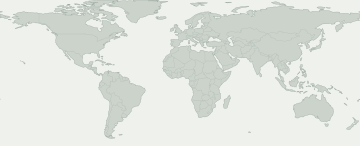
Select a colored area to see its firmware record. Blue shows a wider market such as Europe or the Caucasus, rather than a record for each country.
Wider firmware markets
Select a market to see its source record. Availability may differ within the shaded area.
No mapped firmware region matches this selection. Check CSC activity for the exact records.
Some firmware regions have no known map location. Their records are still in the table.
Models and firmware regions
Open a Galaxy product to compare its exact model codes. Beneath each code are markets with firmware records for this release. Find your code in About phone.
59 Galaxy products · 200 exact models · 201 firmware regions
Documented buildTracker observation
Numbers show how many exact models have a record in each firmware region. Open a product to view the models and their sources.
A source observation does not guarantee that an update is available on your phone. Check Settings → Software update on the handset.
Check my Galaxy
What do we know about your Galaxy?
Choose the exact model and firmware CSC, not your location.
Choose your device to inspect this release.
Rollout movement
Recorded rollout activity
First recorded appearance on each exact model/region pair. Repeated unchanged checks do not add to the total.
- 3
- 16
- 4
- 1
- 2
- 41
- 5
- 1
- 2
- 5
- 1
- 2
Model-family coverage
Galaxy models with firmware records
Expand a model to inspect exact model, CSC, first build, observation date and source record.
Galaxy A0443 Model/region pairs
SM-A045F / ACR
A045FXXU4DXA6Published build dateSM-A045F / AFRA045FXXU4DXA6Published build dateSM-A045F / CAUA045FXXU4DXA6Published build dateSM-A045F / ECTA045FXXU4DXA6Published build dateSM-A045F / EGYA045FXXU4DXA6Published build dateSM-A045F / GLBA045FXXU4DXA6Published build dateSM-A045F / ILOA045FXXU4DXA6Published build dateSM-A045F / KSAA045FXXU4DXA6Published build dateSM-A045F / LYSA045FXXU4DXA6Published build dateSM-A045F / MIDA045FXXU4DXA6Published build dateSM-A045F / PAKA045FXXU4DXA6Published build dateSM-A045F / PNGA045FXXU4DXA6Published build dateSM-A045F / SERA045FXXU4DXA6Published build dateSM-A045F / SKZA045FXXU4DXA6Published build dateSM-A045F / SLKA045FXXU4DXB3Published build dateSM-A045F / THLA045FXXU4DXA6Published build dateSM-A045F / VFJA045FXXU4DXA6Published build dateSM-A045F / XFAA045FXXU4DXA6Published build dateSM-A045F / XMEA045FXXU4DXA6Published build dateSM-A045F / XSGA045FXXU4DXA6Published build dateSM-A045F / XXVA045FXXU4DXA6Published build dateSM-A045M / ANCA045MUBU4DXA6Published build dateSM-A045M / AROA045MUBU4DXA6Published build dateSM-A045M / BVOA045MUBU4DXA6Published build dateSM-A045M / CHOA045MUBU4DXA6Published build dateSM-A045M / CHXA045MUBU4DXA6Published build dateSM-A045M / COLA045MUBU4DXA6Published build dateSM-A045M / COMA045MUBU4DXA6Published build dateSM-A045M / COOA045MUBU4DXA6Published build dateSM-A045M / CTIA045MUBU4DXA6Published build dateSM-A045M / CTUA045MUBU4DXA6Published build dateSM-A045M / IUSA045MUBU4DXB1Published build dateSM-A045M / MXOA045MUBU4DXB1Published build dateSM-A045M / NBSA045MUBU4DXA6Published build dateSM-A045M / PETA045MUBU4DXA6Published build dateSM-A045M / PGUA045MUBU4DXA6Published build dateSM-A045M / PNTA045MUBU4DXA6Published build dateSM-A045M / PSNA045MUBU4DXA6Published build dateSM-A045M / SAMA045MUBU4DXA6Published build dateSM-A045M / TCEA045MUBU4DXB1Published build dateSM-A045M / TGPA045MUBU4DXA6Published build dateSM-A045M / UFNA045MUBU4DXA6Published build dateSM-A045M / UYOA045MUBU4DXA6Published build dateView evidence →Galaxy A04s55 Model/region pairs
SM-A047F / AFG
A047FXXU6DXA2Published build dateSM-A047F / AFRA047FXXU6DXA2Published build dateSM-A047F / CAUA047FXXU6DXA2Published build dateSM-A047F / EGYA047FXXU6DXA2Published build dateSM-A047F / EVRA047FXXU6DXA2Published build dateSM-A047F / GLBA047FXXU6DXA2Published build dateSM-A047F / INSA047FXXU6DXA2Published build dateSM-A047F / KSAA047FXXU6DXA2Published build dateSM-A047F / MEOA047FXXU6DXA2Published build dateSM-A047F / META047FXXU6DXA2Published build dateSM-A047F / MIDA047FXXU6DXA2Published build dateSM-A047F / MOTA047FXXU6DXA2Published build dateSM-A047F / PLSA047FXXU6DXA2Published build dateSM-A047F / PRTA047FXXU6DXA2Published build dateSM-A047F / SEKA047FXXU6DXA2Published build dateSM-A047F / SFRA047FXXU6DXA2Published build dateSM-A047F / SKZA047FXXU6DXA2Published build dateSM-A047F / SLKA047FXXU6DXA2Published build dateSM-A047F / TIMA047FXXU6DXA2Published build dateSM-A047F / TURA047FXXU6DXA2Published build dateSM-A047F / VFJA047FXXU6DXA2Published build dateSM-A047F / XFAA047FXXU6DXA2Published build dateSM-A047F / XFEA047FXXU6DXA2Published build dateSM-A047F / XFVA047FXXU6DXA2Published build dateSM-A047F / XIDA047FXXU6DXA2Published build dateSM-A047F / XSAA047FXXU6DXA2Published build dateSM-A047F / XTCA047FXXU6DXA2Published build dateSM-A047F / XXVA047FXXU6DXA2Published build dateSM-A047M / AROA047MUBU5DXA2Published build dateSM-A047M / CDRA047MUBU5DXA2Published build dateSM-A047M / CGUA047MUBU5DXA2Published build dateSM-A047M / CHOA047MUBU5DXB2Published build dateSM-A047M / CHTA047MUBU5DXB2Published build dateSM-A047M / COBA047MUBU5DXA2Published build dateSM-A047M / COLA047MUBU5DXA2Published build dateSM-A047M / CTIA047MUBU5DXA2Published build dateSM-A047M / CTPA047MUBU5DXA2Published build dateSM-A047M / CTUA047MUBU5DXA2Published build dateSM-A047M / DORA047MUBU5DXA2Published build dateSM-A047M / EBEA047MUBU5DXA2Published build dateSM-A047M / ECOA047MUBU5DXA2Published build dateSM-A047M / EONA047MUBU5DXA2Published build dateSM-A047M / IUSA047MUBU5DXA2Published build dateSM-A047M / MXOA047MUBU5DXA2Published build dateSM-A047M / PGUA047MUBU5DXA2Published build dateSM-A047M / PNTA047MUBU5DXA2Published build dateSM-A047M / PSNA047MUBU5DXA2Published build dateSM-A047M / PSPA047MUBU5DXA2Published build dateSM-A047M / SAMA047MUBU5DXA2Published build dateSM-A047M / TGPA047MUBU5DXA2Published build dateSM-A047M / TMMA047MUBU5DXA2Published build dateSM-A047M / TPAA047MUBU5DXA2Published build dateSM-A047M / UFNA047MUBU5DXA2Published build dateSM-A047M / UFUA047MUBU5DXA2Published build dateSM-A047M / UPOA047MUBU5DXA2Published build dateView evidence →Galaxy A13117 Model/region pairs
SM-A135F / ACR
A135FXXU5DXA2Published build dateSM-A135F / AFGA135FXXU5DXA2Published build dateSM-A135F / AFRA135FXXU5DXA2Published build dateSM-A135F / BOGA135FXXU5DXA3Published build dateSM-A135F / CAUA135FXXU5DXA2Published build dateSM-A135F / ECTA135FXXU5DXA2Published build dateSM-A135F / EGYA135FXXU5DXA2Published build dateSM-A135F / GLBA135FXXU5DXA2Published build dateSM-A135F / ILOA135FXXU5DXA2Published build dateSM-A135F / KSAA135FXXU5DXA2Published build dateSM-A135F / LYSA135FXXU5DXA2Published build dateSM-A135F / MEOA135FXXU5DXA3Published build dateSM-A135F / META135FXXU5DXA3Published build dateSM-A135F / MIDA135FXXU5DXA2Published build dateSM-A135F / MM1A135FXXU5DXA2Published build dateSM-A135F / MOTA135FXXU5DXA3Published build dateSM-A135F / MSRA135FXXU5DXA3Published build dateSM-A135F / MWDA135FXXU5DXA2Published build dateSM-A135F / O2CA135FXXU5DXA3Published build dateSM-A135F / OPSA135FXXU5DXA2Published build dateSM-A135F / PAKA135FXXU5DXA2Published build dateSM-A135F / PLSA135FXXU5DXA3Published build dateSM-A135F / PRTA135FXXU5DXA3Published build dateSM-A135F / SEKA135FXXU5DXA2Published build dateSM-A135F / SINA135FXXU5DXA2Published build dateSM-A135F / SKZA135FXXU5DXA2Published build dateSM-A135F / SLKA135FXXU5DXA4Published build dateSM-A135F / STHA135FXXU5DXA2Published build dateSM-A135F / THLA135FXXU5DXA2Published build dateSM-A135F / TOPA135FXXU5DXA3Published build dateSM-A135F / TSIA135FXXU5DXA3Published build dateSM-A135F / TUNA135FXXU5DXA2Published build dateSM-A135F / TURA135FXXU5DXA2Published build dateSM-A135F / VAUA135FXXU5DXA2Published build dateSM-A135F / VFJA135FXXU5DXA2Published build dateSM-A135F / VIPA135FXXU5DXA3Published build dateSM-A135F / XFAA135FXXU5DXA2Published build dateSM-A135F / XFEA135FXXU5DXA2Published build dateSM-A135F / XIDA135FXXU5DXA2Published build dateSM-A135F / XMEA135FXXU5DXA2Published build dateSM-A135F / XSAA135FXXU5DXA2Published build dateSM-A135F / XSGA135FXXU5DXA2Published build dateSM-A135F / XSPA135FXXU5DXA2Published build dateSM-A135F / XTCA135FXXU5DXA2Published build dateSM-A135F / XXVA135FXXU5DXA2Published build dateSM-A135M / ANCA135MUBU4DXA2Published build dateSM-A135M / AROA135MUBU4DXA2Published build dateSM-A135M / BVOA135MUBU4DXA2Published build dateSM-A135M / BVTA135MUBU4DXA2Published build dateSM-A135M / CGUA135MUBU4DXA2Published build dateSM-A135M / CHLA135MUBU4DXC1Published build dateSM-A135M / CHOA135MUBU4DXC1Published build dateSM-A135M / CHTA135MUBU4DXC1Published build dateSM-A135M / COBA135MUBU4DXA2Published build dateSM-A135M / COLA135MUBU4DXA2Published build dateSM-A135M / COMA135MUBU4DXA2Published build dateSM-A135M / COOA135MUBU4DXA2Published build dateSM-A135M / CPAA135MUBU4DXA2Published build dateSM-A135M / CTIA135MUBU4DXA2Published build dateSM-A135M / CTPA135MUBU4DXA2Published build dateSM-A135M / CTUA135MUBU4DXA2Published build dateSM-A135M / CWWA135MUBU4DXA2Published build dateSM-A135M / DORA135MUBU4DXA2Published build dateSM-A135M / EONA135MUBU4DXA2Published build dateSM-A135M / IUSA135MUBU4DXC1Published build dateSM-A135M / NBSA135MUBU4DXA2Published build dateSM-A135M / PETA135MUBU4DXA2Published build dateSM-A135M / PSNA135MUBU4DXA2Published build dateSM-A135M / PSPA135MUBU4DXA2Published build dateSM-A135M / SAMA135MUBU4DXA2Published build dateSM-A135M / TCEA135MUBU4DXC1Published build dateSM-A135M / TMMA135MUBU4DXC1Published build dateSM-A135M / TPAA135MUBU4DXA2Published build dateSM-A135M / UFNA135MUBU4DXA2Published build dateSM-A135M / UFUA135MUBU4DXA2Published build dateSM-A135M / UPOA135MUBU4DXA2Published build dateSM-A135M / UYOA135MUBU4DXA2Published build dateSM-A135M / ZTAA135MUBU4DXA2Published build dateSM-A135M / ZTMA135MUBU4DXA2Published build dateSM-A135M / ZTOA135MUBU4DXA2Published build dateSM-A135M / ZVVA135MUBU4DXA2Published build dateSM-A135N / KTCA135NKSU5DWL5Published build dateSM-A135N / LUCA135NKSU5DWL5Published build dateSM-A135U / TMBA135USQU7DXA2Published build dateSM-A135U / TMKA135USQU7DXA2Published build dateSM-A135U / USCA135USQU7DXA2Published build dateSM-A135U1 / ACGA135U1UEU6DXA2Published build dateSM-A135U1 / AIOA135U1UEU6DXA2Published build dateSM-A135U1 / CCTA135U1UEU6DXA2Published build dateSM-A135U1 / CHAA135U1UEU6DXA2Published build dateSM-A135U1 / LRAA135U1UEU6DXA2Published build dateSM-A135U1 / PCTA135U1UEU6DXA2Published build dateSM-A135U1 / TMBA135U1UEU6DXA2Published build dateSM-A135U1 / USCA135U1UEU6DXA2Published build dateSM-A135U1 / XAAA135U1UEU6DXA2Published build dateSM-A135U1 / XAGA135U1UEU6DXA2Published build dateSM-A135U1 / XARA135U1UEU6DXA2Published build dateSM-A137F / AFGA137FXXU3DXA1Published build dateSM-A137F / BOGA137FXXU3DXA1Published build dateSM-A137F / EGYA137FXXU3DXA1Published build dateSM-A137F / EVRA137FXXU3DXA1Published build dateSM-A137F / ILOA137FXXU3DXA1Published build dateSM-A137F / KSAA137FXXU3DXA1Published build dateSM-A137F / LYSA137FXXU3DXA1Published build dateSM-A137F / MEOA137FXXU3DXA1Published build dateSM-A137F / MIDA137FXXU3DXA1Published build dateSM-A137F / MOTA137FXXU3DXA1Published build dateSM-A137F / MSRA137FXXU3DXA1Published build dateSM-A137F / MWDA137FXXU3DXA1Published build dateSM-A137F / O2CA137FXXU3DXA1Published build dateSM-A137F / PAKA137FXXU3DXA1Published build dateSM-A137F / PRTA137FXXU3DXA1Published build dateSM-A137F / SFRA137FXXU3DXA1Published build dateSM-A137F / TOPA137FXXU3DXA1Published build dateSM-A137F / TSIA137FXXU3DXA1Published build dateSM-A137F / TUNA137FXXU3DXA1Published build dateSM-A137F / XSGA137FXXU3DXA1Published build dateView evidence →Galaxy A13 5G32 Model/region pairs
SM-A136B / BOG
A136BXXU5DWK7Published build dateSM-A136B / BRIA136BZHU5DWK7Published build dateSM-A136B / EGYA136BXXU5DWK7Published build dateSM-A136B / EVRA136BXXU5DWK7Published build dateSM-A136B / GLBA136BXXU5DWK7Published build dateSM-A136B / MEOA136BXXU5DWK7Published build dateSM-A136B / META136BXXU5DWK7Published build dateSM-A136B / MIDA136BXXU5DWK7Published build dateSM-A136B / MOTA136BXXU5DWK7Published build dateSM-A136B / MSRA136BXXU5DWK7Published build dateSM-A136B / O2CA136BXXU5DWK7Published build dateSM-A136B / OPSA136BXXU5DXA4Published build dateSM-A136B / PLSA136BXXU5DWK7Published build dateSM-A136B / PRTA136BXXU5DWK7Published build dateSM-A136B / SINA136BXXU5DWK7Published build dateSM-A136B / STHA136BXXU5DWK7Published build dateSM-A136B / SWCA136BXXU5DWK7Published build dateSM-A136B / TELA136BXXU5DXA4Published build dateSM-A136B / TGYA136BZHU5DWK7Published build dateSM-A136B / THLA136BXXU5DWK7Published build dateSM-A136B / TSIA136BXXU5DWK7Published build dateSM-A136B / VIPA136BXXU5DWK7Published build dateSM-A136B / XFAA136BXXU5DWK7Published build dateSM-A136B / XFVA136BXXU5DWK7Published build dateSM-A136B / XMEA136BXXU5DWK7Published build dateSM-A136B / XSAA136BXXU5DXA4Published build dateSM-A136B / XSGA136BXXU5DWK7Published build dateSM-A136B / XSPA136BXXU5DWK7Published build dateSM-A136B / XTCA136BXXU5DWK7Published build dateSM-A136M / NBSA136MUBS5DXA4Published build dateSM-A136M / TPAA136MUBU5DWK7Published build dateSM-A136S / SKCA136SKSU4DXA2Published build dateView evidence →Galaxy A141 Model/region pairs
Galaxy A2360 Model/region pairs
SM-A235F / ACR
A235FXXU4DXA3Published build dateSM-A235F / AFGA235FXXU4DWL1Published build dateSM-A235F / CAUA235FXXU4DWL1Published build dateSM-A235F / ECTA235FXXU4DXA3Published build dateSM-A235F / EGYA235FXXU4DWL1Published build dateSM-A235F / ILOA235FXXU4DWL1Published build dateSM-A235F / INSA235FXXU4DWL1Published build dateSM-A235F / MIDA235FXXU4DWL1Published build dateSM-A235F / MWDA235FXXU4DWL1Published build dateSM-A235F / NPLA235FXXU4DWL1Published build dateSM-A235F / PNGA235FXXU4DXA3Published build dateSM-A235F / SERA235FXXU4DWL1Published build dateSM-A235F / SKZA235FXXU4DWL1Published build dateSM-A235F / SLKA235FXXU4DWL1Published build dateSM-A235F / THLA235FXXU4DWL1Published build dateSM-A235F / TUNA235FXXU4DWL1Published build dateSM-A235F / VFJA235FXXU4DXA3Published build dateSM-A235F / XFAA235FXXU4DXA3Published build dateSM-A235F / XFEA235FXXU4DXA3Published build dateSM-A235F / XFVA235FXXU4DXA3Published build dateSM-A235F / XIDA235FXXU4DWL1Published build dateSM-A235F / XSAA235FXXU4DWL1Published build dateSM-A235F / XSGA235FXXU4DWL1Published build dateSM-A235F / XTCA235FXXU4DWL1Published build dateSM-A235M / AROA235MUBU4DXA3Published build dateSM-A235M / BATA235MUBU4DXA3Published build dateSM-A235M / BVOA235MUBU4DXA3Published build dateSM-A235M / BVTA235MUBU4DXA3Published build dateSM-A235M / CGUA235MUBU4DXA3Published build dateSM-A235M / CHEA235MUBU4DXA3Published build dateSM-A235M / CHOA235MUBU4DXA3Published build dateSM-A235M / CHTA235MUBU4DXA3Published build dateSM-A235M / CHXA235MUBU4DXA3Published build dateSM-A235M / COBA235MUBU4DXA3Published build dateSM-A235M / COLA235MUBU4DXA3Published build dateSM-A235M / COOA235MUBU4DXA3Published build dateSM-A235M / CPAA235MUBU4DXA3Published build dateSM-A235M / CTPA235MUBU4DXA3Published build dateSM-A235M / CTUA235MUBU4DXA3Published build dateSM-A235M / CWWA235MUBU4DXA3Published build dateSM-A235M / DORA235MUBU4DXA3Published build dateSM-A235M / EONA235MUBU4DXA3Published build dateSM-A235M / IUSA235MUBU4DXA3Published build dateSM-A235M / MXOA235MUBU4DXA3Published build dateSM-A235M / NBSA235MUBU4DXA3Published build dateSM-A235M / PETA235MUBU4DXA3Published build dateSM-A235M / PGUA235MUBU4DXA3Published build dateSM-A235M / PSNA235MUBU4DXA3Published build dateSM-A235M / PSPA235MUBU4DXA3Published build dateSM-A235M / SAMA235MUBU4DXA3Published build dateSM-A235M / TGPA235MUBU4DXA3Published build dateSM-A235M / TMMA235MUBU4DXA3Published build dateSM-A235M / UFNA235MUBU4DXA3Published build dateSM-A235M / UFUA235MUBU4DXA3Published build dateSM-A235M / UPOA235MUBU4DXA3Published build dateSM-A235M / ZTAA235MUBU4DXA3Published build dateSM-A235M / ZTMA235MUBU4DXA3Published build dateSM-A235M / ZVVA235MUBU4DXA3Published build dateSM-A235N / KTCA235NKSU3DXA1Published build dateSM-A235N / SKCA235NKSU3DXA1Published build dateView evidence →Galaxy A23 5G57 Model/region pairs
SM-A2360 / TGY
A2360ZHU4DWKBPublished build dateSM-A236B / BOGA236BXXU4DWKAPublished build dateSM-A236B / EVRA236BXXU4DWKAPublished build dateSM-A236B / META236BXXU4DWKAPublished build dateSM-A236B / MOTA236BXXU4DWKAPublished build dateSM-A236B / MSRA236BXXU4DWKAPublished build dateSM-A236B / O2CA236BXXU4DWKAPublished build dateSM-A236B / PLSA236BXXU4DWKAPublished build dateSM-A236B / PRTA236BXXU4DWKAPublished build dateSM-A236B / SIMA236BXXU4DWKAPublished build dateSM-A236B / TIMA236BXXU4DWKAPublished build dateSM-A236B / VIPA236BXXU4DWKAPublished build dateSM-A236E / BRIA236EXXU4DWKAPublished build dateSM-A236E / GLBA236EXXU4DWKAPublished build dateSM-A236E / INSA236EXXU4DWKAPublished build dateSM-A236E / KSAA236EXXU4DWKAPublished build dateSM-A236E / MM1A236EXXU4DWKAPublished build dateSM-A236E / SINA236EXXU4DWKAPublished build dateSM-A236E / STHA236EXXU4DWKAPublished build dateSM-A236E / THLA236EXXU4DWKAPublished build dateSM-A236E / XIDA236EXXU4DWKAPublished build dateSM-A236E / XMEA236EXXU4DWKAPublished build dateSM-A236E / XSAA236EXXU4DWKAPublished build dateSM-A236E / XSGA236EXXU4DWKAPublished build dateSM-A236E / XSPA236EXXU4DWKAPublished build dateSM-A236E / XTCA236EXXU4DWKAPublished build dateSM-A236E / XXVA236EXXU4DWKAPublished build dateSM-A236M / AROA236MUBU4DWKAPublished build dateSM-A236M / CGUA236MUBU4DWKAPublished build dateSM-A236M / CHEA236MUBU4DWKAPublished build dateSM-A236M / CHLA236MUBU4DWKAPublished build dateSM-A236M / CHOA236MUBU4DWKAPublished build dateSM-A236M / CHTA236MUBU4DWKAPublished build dateSM-A236M / CHXA236MUBU4DWKAPublished build dateSM-A236M / CTIA236MUBU4DWKAPublished build dateSM-A236M / PSNA236MUBU4DWKAPublished build dateSM-A236M / TPAA236MUBU4DWKAPublished build dateSM-A236M / UFNA236MUBU4DWKAPublished build dateSM-A236M / ZTAA236MUBU4DWKAPublished build dateSM-A236M / ZTMA236MUBU4DWKAPublished build dateSM-A236M / ZTOA236MUBU4DWKAPublished build dateSM-A236M / ZVVA236MUBU4DWKAPublished build dateSM-A236U / TMBA236USQU4DXA1Published build dateSM-A236U1 / ACGA236U1UEU4DXA3Published build dateSM-A236U1 / AIOA236U1UEU4DXA3Published build dateSM-A236U1 / ATTA236U1UEU4DXA3Published build dateSM-A236U1 / CCTA236U1UEU4DXA3Published build dateSM-A236U1 / CHAA236U1UEU4DXA3Published build dateSM-A236U1 / LRAA236U1UEU4DXA3Published build dateSM-A236U1 / TMBA236U1UEU4DXA3Published build dateSM-A236U1 / TMKA236U1UEU4DXA3Published build dateSM-A236U1 / USCA236U1UEU4DXA3Published build dateSM-A236U1 / VZWA236U1UEU4DXA3Published build dateSM-A236U1 / XAAA236U1UEU4DXA3Published build dateSM-A236U1 / XAGA236U1UEU4DXA3Published build dateSM-A236U1 / XARA236U1UEU4DXA3Published build dateSM-S236DL / TFNS236DLUDU6EWL1Published build dateView evidence →Galaxy A23e 5G1 Model/region pairs
Galaxy A33 5G103 Model/region pairs
SM-A3360 / TGY
A3360ZHU7DWK6Published build dateSM-A336B / BOGA336BXXU7DWK6Published build dateSM-A336B / CAUA336BXXU7DWL1Published build dateSM-A336B / EVRA336BXXU7DWK6Published build dateSM-A336B / MEOA336BXXU7DWK6Published build dateSM-A336B / META336BXXU7DWK6Published build dateSM-A336B / MOBA336BXXU7DWK6Published build dateSM-A336B / MOTA336BXXU7DWK6Published build dateSM-A336B / MSRA336BXXU7DWK6Published build dateSM-A336B / O2CA336BXXU7DWK6Published build dateSM-A336B / PLSA336BXXU7DWK6Published build dateSM-A336B / PRTA336BXXU7DWK6Published build dateSM-A336B / SEKA336BXXU7DWL1Published build dateSM-A336B / SERA336BXXU7DWL1Published build dateSM-A336B / SFRA336BXXU7DWK6Published build dateSM-A336B / SIMA336BXXU7DWK6Published build dateSM-A336B / SKZA336BXXU7DWL1Published build dateSM-A336B / SWCA336BXXU7DWK6Published build dateSM-A336B / TIMA336BXXU7DWK6Published build dateSM-A336B / TOPA336BXXU7DWK6Published build dateSM-A336B / TSIA336BXXU7DWK6Published build dateSM-A336B / VIPA336BXXU7DWK6Published build dateSM-A336E / ACRA336EDXU7DWL1Published build dateSM-A336E / AFGA336EDXU7DWL1Published build dateSM-A336E / AFRA336EDXU7DWL1Published build dateSM-A336E / BRIA336EDXU7DWL1Published build dateSM-A336E / ECTA336EDXU7DWL1Published build dateSM-A336E / EGYA336EDXU7DWL1Published build dateSM-A336E / GLBA336EDXU7DWL1Published build dateSM-A336E / ILOA336EDXU7DWL1Published build dateSM-A336E / INSA336EDXU7DWL1Published build dateSM-A336E / KSAA336EDXU7DWL1Published build dateSM-A336E / LYSA336EDXU7DWL1Published build dateSM-A336E / MIDA336EDXU7DWL1Published build dateSM-A336E / MM1A336EDXU7DWL1Published build dateSM-A336E / MWDA336EDXU7DWL1Published build dateSM-A336E / OPSA336EDXU7DWL1Published build dateSM-A336E / PAKA336EDXU7DWL1Published build dateSM-A336E / SINA336EDXU7DWL1Published build dateSM-A336E / STHA336EDXU7DWL1Published build dateSM-A336E / TELA336EDXU7DWL1Published build dateSM-A336E / THLA336EDXU7DWL1Published build dateSM-A336E / TUNA336EDXU7DWL1Published build dateSM-A336E / TURA336EDXU7DWL1Published build dateSM-A336E / VAUA336EDXU7DWL1Published build dateSM-A336E / XFAA336EDXU7DWL1Published build dateSM-A336E / XFEA336EDXU7DWL1Published build dateSM-A336E / XFVA336EDXU7DWL1Published build dateSM-A336E / XIDA336EDXU7DWL1Published build dateSM-A336E / XMEA336EDXU7DWL1Published build dateSM-A336E / XSAA336EDXU7DWL1Published build dateSM-A336E / XSGA336EDXU7DWL1Published build dateSM-A336E / XSPA336EDXU7DWL1Published build dateSM-A336E / XTCA336EDXU7DWL1Published build dateSM-A336E / XXVA336EDXU7DWL1Published build dateSM-A336M / ANCA336MUBU7DWL2Published build dateSM-A336M / AROA336MUBU7DWL2Published build dateSM-A336M / BATA336MUBU7DWL2Published build dateSM-A336M / BVOA336MUBU7DWL2Published build dateSM-A336M / BVTA336MUBU7DWL2Published build dateSM-A336M / CDRA336MUBU7DWL2Published build dateSM-A336M / CGUA336MUBU7DWL2Published build dateSM-A336M / CHEA336MUBU7DXB2Published build dateSM-A336M / CHLA336MUBU7DXB2Published build dateSM-A336M / CHOA336MUBU7DXB2Published build dateSM-A336M / CHTA336MUBU7DXB2Published build dateSM-A336M / CHXA336MUBU7DXB2Published build dateSM-A336M / COBA336MUBU7DWL2Published build dateSM-A336M / COLA336MUBU7DWL2Published build dateSM-A336M / COMA336MUBU7DWL2Published build dateSM-A336M / COOA336MUBU7DWL2Published build dateSM-A336M / CRCA336MUBU7DWL2Published build dateSM-A336M / CTIA336MUBU7DWL2Published build dateSM-A336M / CTPA336MUBU7DWL2Published build dateSM-A336M / CTUA336MUBU7DWL2Published build dateSM-A336M / CWWA336MUBU7DWL2Published build dateSM-A336M / DORA336MUBU7DWL2Published build dateSM-A336M / EBEA336MUBU7DWL2Published build dateSM-A336M / ECOA336MUBU7DWL2Published build dateSM-A336M / EONA336MUBU7DWL2Published build dateSM-A336M / IUSA336MUBU7DWL2Published build dateSM-A336M / MXOA336MUBU7DWL2Published build dateSM-A336M / NBSA336MUBU7DWL2Published build dateSM-A336M / PETA336MUBU7DWL2Published build dateSM-A336M / PGUA336MUBU7DWL2Published build dateSM-A336M / PNTA336MUBU7DWL2Published build dateSM-A336M / PSNA336MUBU7DWL2Published build dateSM-A336M / PSPA336MUBU7DWL2Published build dateSM-A336M / SAMA336MUBU7DWL2Published build dateSM-A336M / TCEA336MUBU7DWL2Published build dateSM-A336M / TGPA336MUBU7DWL2Published build dateSM-A336M / TMMA336MUBU7DWL2Published build dateSM-A336M / TPAA336MUBU7DWK6Published build dateSM-A336M / UFNA336MUBU7DWL2Published build dateSM-A336M / UFUA336MUBU7DWL2Published build dateSM-A336M / UPOA336MUBU7DWL2Published build dateSM-A336M / UYOA336MUBU7DWL2Published build dateSM-A336M / ZTAA336MUBU7DWL2Published build dateSM-A336M / ZTMA336MUBU7DWL2Published build dateSM-A336M / ZTOA336MUBU7DWL2Published build dateSM-A336M / ZVVA336MUBU7DWL2Published build dateSM-A336N / KTCA336NKSU5DWL1Published build dateSM-A336N / SKCA336NKSU5DWL1Published build dateView evidence →Galaxy A34 5G1 Model/region pairs
Galaxy A5237 Model/region pairs
SM-A525F / GLB
A525FXXU6EXB3Published build dateSM-A525F / MOTA525FXXU6EXB3Published build dateSM-A525F / OROA525FXXU6EXB3Published build dateSM-A525F / ORSA525FXXU6EXB3Published build dateSM-A525F / SKZA525FXXU6EXB3Published build dateSM-A525F / THLA525FXXU6EXB3Published build dateSM-A525F / TOPA525FXXU6EXB3Published build dateSM-A525F / XIDA525FXXU6EXB3Published build dateSM-A525F / XMEA525FXXU6EXB3Published build dateSM-A525F / XSAA525FXXU6EXB3Published build dateSM-A525F / XTCA525FXXU6EXB3Published build dateSM-A525F / XXVA525FXXU6EXB3Published build dateSM-A525M / ANCA525MUBU6EXB2Published build dateSM-A525M / BATA525MUBU6EXB2Published build dateSM-A525M / BVOA525MUBU6EXB2Published build dateSM-A525M / BVTA525MUBU6EXB2Published build dateSM-A525M / CHOA525MUBU6EXB2Published build dateSM-A525M / CHTA525MUBU6EXB2Published build dateSM-A525M / CPAA525MUBU6EXB2Published build dateSM-A525M / CTIA525MUBU6EXB2Published build dateSM-A525M / CTPA525MUBU6EXB2Published build dateSM-A525M / CTUA525MUBU6EXB2Published build dateSM-A525M / CWWA525MUBU6EXB2Published build dateSM-A525M / EBEA525MUBU6EXB2Published build dateSM-A525M / EONA525MUBU6EXB2Published build dateSM-A525M / PCTA525MUBU6EXB2Published build dateSM-A525M / PETA525MUBU6EXB2Published build dateSM-A525M / PGUA525MUBU6EXB2Published build dateSM-A525M / PNTA525MUBU6EXB2Published build dateSM-A525M / PSPA525MUBU6EXB2Published build dateSM-A525M / TMMA525MUBU6EXB2Published build dateSM-A525M / UFNA525MUBU6EXB2Published build dateSM-A525M / UFUA525MUBU6EXB2Published build dateSM-A525M / UPOA525MUBU6EWL3Published build dateSM-A525M / UYOA525MUBU6EXB2Published build dateSM-A525M / ZTOA525MUBU6EXB2Published build dateSM-A525M / ZVVA525MUBU6EXB2Published build dateView evidence →Galaxy A52 5G90 Model/region pairs
SM-A5260 / BRI
A5260ZHU5FWL1Published build dateSM-A5260 / TGYA5260ZHU5FWL1Published build dateSM-A526B / 3IEA526BXXU5FWL1Published build dateSM-A526B / AMOA526BXXU5FWL1Published build dateSM-A526B / AUTA526BXXU5FWL1Published build dateSM-A526B / BOGA526BXXU5FWL1Published build dateSM-A526B / BTUA526BXXU5FWL1Published build dateSM-A526B / CDRA526BXXU5FWL1Published build dateSM-A526B / CHOA526BXXU5FWL1Published build dateSM-A526B / CNXA526BXXU5FWL1Published build dateSM-A526B / COMA526BXXU5FWL1Published build dateSM-A526B / CROA526BXXU5FWL1Published build dateSM-A526B / DBTA526BXXU5FWL1Published build dateSM-A526B / DTMA526BXXU5FWL1Published build dateSM-A526B / EURA526BXXU5FWL1Published build dateSM-A526B / EVRA526BXXU5FWL1Published build dateSM-A526B / GLBA526BXXU5FWL1Published build dateSM-A526B / H3GA526BXXU5FWL1Published build dateSM-A526B / HUIA526BXXU5FWL1Published build dateSM-A526B / ILOA526BXXU5FWL1Published build dateSM-A526B / ITVA526BXXU5FWL1Published build dateSM-A526B / KSAA526BXXU5FWL1Published build dateSM-A526B / LUXA526BXXU5FWL1Published build dateSM-A526B / MAXA526BXXU5FWL1Published build dateSM-A526B / MEOA526BXXU5FWL1Published build dateSM-A526B / MIDA526BXXU5FWL1Published build dateSM-A526B / MM1A526BXXU5FWL1Published build dateSM-A526B / MOBA526BXXU5FWL1Published build dateSM-A526B / O2CA526BXXU5FWL1Published build dateSM-A526B / O2UA526BXXU5FWL1Published build dateSM-A526B / OPSA526BXXU5FWL1Published build dateSM-A526B / OROA526BXXU5FWL1Published build dateSM-A526B / ORSA526BXXU5FWL1Published build dateSM-A526B / ORXA526BXXU5FWL1Published build dateSM-A526B / PHEA526BXXU5FWL1Published build dateSM-A526B / PLSA526BXXU5FWL1Published build dateSM-A526B / PRTA526BXXU5FWL1Published build dateSM-A526B / SEBA526BXXU5FWL1Published build dateSM-A526B / SFRA526BXXU5FWL1Published build dateSM-A526B / SIMA526BXXU5FWL1Published build dateSM-A526B / STHA526BXXU5FWL1Published build dateSM-A526B / SWCA526BXXU5FWL1Published build dateSM-A526B / TCLA526BXXU5FWL1Published build dateSM-A526B / THLA526BXXU5FWL1Published build dateSM-A526B / TIMA526BXXU5FWL1Published build dateSM-A526B / TMHA526BXXU5FWL1Published build dateSM-A526B / TMSA526BXXU5FWL1Published build dateSM-A526B / TMZA526BXXU5FWL1Published build dateSM-A526B / TNLA526BXXU5FWL1Published build dateSM-A526B / TPLA526BXXU5FWL1Published build dateSM-A526B / TSIA526BXXU5FWL1Published build dateSM-A526B / VAUA526BXXU5FWL1Published build dateSM-A526B / VD2A526BXXU5FWL1Published build dateSM-A526B / VDCA526BXXU5FWL1Published build dateSM-A526B / VDFA526BXXU5FWL1Published build dateSM-A526B / VDIA526BXXU5FWL1Published build dateSM-A526B / VGRA526BXXU5FWL1Published build dateSM-A526B / VIPA526BXXU5FWL1Published build dateSM-A526B / XECA526BXXU5FWL1Published build dateSM-A526B / XEHA526BXXU5FWL1Published build dateSM-A526B / XEOA526BXXU5FWL1Published build dateSM-A526B / XEZA526BXXU5FWL1Published build dateSM-A526B / XFAA526BXXU5FWL1Published build dateSM-A526B / XFVA526BXXU5FWL1Published build dateSM-A526B / XSAA526BXXU5FWL1Published build dateSM-A526B / XSGA526BXXU5FWL1Published build dateSM-A526B / XSPA526BXXU5FWL1Published build dateSM-A526B / XTCA526BXXU5FWL1Published build dateSM-A526B / XXVA526BXXU5FWL1Published build dateSM-A526U / CCTA526USQUCFWL1Published build dateSM-A526U / TMBA526USQUCFWL3Published build dateSM-A526U / USCA526USQUCFWL1Published build dateSM-A526U1 / ACGA526U1UEUCFWL3Published build dateSM-A526U1 / AIOA526U1UEUCFWL3Published build dateSM-A526U1 / CHAA526U1UEUCFWL3Published build dateSM-A526U1 / LRAA526U1UEUCFWL3Published build dateSM-A526U1 / SPRA526U1UEUCFWL3Published build dateSM-A526U1 / TMBA526U1UEUCFWL3Published build dateSM-A526U1 / TMKA526U1UEUCFWL3Published build dateSM-A526U1 / VZWA526U1UEUCFWL3Published build dateSM-A526W / BMCA526WVLUCFWL2Published build dateSM-A526W / CHRA526WVLUCFWL2Published build dateSM-A526W / ESKA526WVLUCFWL2Published build dateSM-A526W / FMCA526WVLUCFWL2Published build dateSM-A526W / GLWA526WVLUCFWL2Published build dateSM-A526W / KDOA526WVLUCFWL2Published build dateSM-A526W / TLSA526WVLUCFWL2Published build dateSM-A526W / VMCA526WVLUCFWL2Published build dateSM-A526W / VTRA526WVLUCFWL2Published build dateSM-A526W / XACA526WVLUCFWL2Published build dateView evidence →Galaxy A52s 5G107 Model/region pairs
SM-A528B / 3IE
A528BXXU5FWK4Published build dateSM-A528B / AMOA528BXXU5FWK4Published build dateSM-A528B / AROA528BXXU5FWK4Published build dateSM-A528B / ATLA528BXXU5FWK4Published build dateSM-A528B / ATOA528BXXU5FWK4Published build dateSM-A528B / AUTA528BXXU5FWK4Published build dateSM-A528B / BGLA528BXXU5FWK4Published build dateSM-A528B / BRIA528BZTU5FWK6Published build dateSM-A528B / BTUA528BXXU5FWK4Published build dateSM-A528B / BVOA528BXXU5FWK4Published build dateSM-A528B / CDRA528BXXU5FWK4Published build dateSM-A528B / CHEA528BXXU5FWK4Published build dateSM-A528B / CHOA528BXXU5FWK4Published build dateSM-A528B / CHTA528BXXU5FWK4Published build dateSM-A528B / CNXA528BXXU5FWK4Published build dateSM-A528B / COBA528BXXU5FWK4Published build dateSM-A528B / COLA528BXXU5FWK4Published build dateSM-A528B / COOA528BXXU5FWK4Published build dateSM-A528B / COSA528BXXU5FWK4Published build dateSM-A528B / CROA528BXXU5FWK4Published build dateSM-A528B / CTIA528BXXU5FWK4Published build dateSM-A528B / DTMA528BXXU5FWK4Published build dateSM-A528B / EGYA528BXXU5FWL2Published build dateSM-A528B / EURA528BXXU5FWK4Published build dateSM-A528B / EVRA528BXXU5FWK4Published build dateSM-A528B / GLBA528BXXU5FWL2Published build dateSM-A528B / H3GA528BXXU5FWK4Published build dateSM-A528B / HUIA528BXXU5FWK4Published build dateSM-A528B / ILOA528BXXU5FWL2Published build dateSM-A528B / INSA528BXXU5FWK4Published build dateSM-A528B / ITVA528BXXU5FWK4Published build dateSM-A528B / KSAA528BXXU5FWL2Published build dateSM-A528B / LUXA528BXXU5FWK4Published build dateSM-A528B / LYSA528BXXU5FWL2Published build dateSM-A528B / MAXA528BXXU5FWK4Published build dateSM-A528B / MBMA528BXXU5FWK4Published build dateSM-A528B / MEOA528BXXU5FWK4Published build dateSM-A528B / META528BXXU5FWK4Published build dateSM-A528B / MIDA528BXXU5FWL2Published build dateSM-A528B / MM1A528BXXU5FWL2Published build dateSM-A528B / MOTA528BXXU5FWK4Published build dateSM-A528B / MSRA528BXXU5FWK4Published build dateSM-A528B / MWDA528BXXU5FWL2Published build dateSM-A528B / MXOA528BXXU5FWL1Published build dateSM-A528B / NEEA528BXXU5FWK4Published build dateSM-A528B / O2CA528BXXU5FWK4Published build dateSM-A528B / OMNA528BXXU5FWK4Published build dateSM-A528B / OPSA528BXXU5FWL2Published build dateSM-A528B / OROA528BXXU5FWK4Published build dateSM-A528B / ORSA528BXXU5FWK4Published build dateSM-A528B / ORXA528BXXU5FWK4Published build dateSM-A528B / PETA528BXXU5FWK4Published build dateSM-A528B / PGUA528BXXU5FWK4Published build dateSM-A528B / PHEA528BXXU5FWK4Published build dateSM-A528B / PLSA528BXXU5FWK4Published build dateSM-A528B / PNTA528BXXU5FWK4Published build dateSM-A528B / PRTA528BXXU5FWK4Published build dateSM-A528B / PSNA528BXXU5FWK4Published build dateSM-A528B / SAMA528BXXU5FWK4Published build dateSM-A528B / SEBA528BXXU5FWK4Published build dateSM-A528B / SEEA528BXXU5FWK4Published build dateSM-A528B / SFRA528BXXU5FWK4Published build dateSM-A528B / SIMA528BXXU5FWK4Published build dateSM-A528B / SINA528BXXU5FWL2Published build dateSM-A528B / SIOA528BXXU5FWK4Published build dateSM-A528B / SLKA528BXXU5FWK4Published build dateSM-A528B / STHA528BXXU5FWL2Published build dateSM-A528B / TCEA528BXXU5FWL1Published build dateSM-A528B / TCLA528BXXU5FWK4Published build dateSM-A528B / TELA528BXXU5FWL2Published build dateSM-A528B / THLA528BXXU5FWL2Published build dateSM-A528B / TMHA528BXXU5FWK4Published build dateSM-A528B / TMMA528BXXU5FWL1Published build dateSM-A528B / TMZA528BXXU5FWK4Published build dateSM-A528B / TOPA528BXXU5FWK4Published build dateSM-A528B / TPHA528BXXU5FWK4Published build dateSM-A528B / TPLA528BXXU5FWK4Published build dateSM-A528B / TSIA528BXXU5FWK4Published build dateSM-A528B / TURA528BXXU5FWL2Published build dateSM-A528B / UFNA528BXXU5FWK4Published build dateSM-A528B / UPOA528BXXU5FWK4Published build dateSM-A528B / UYOA528BXXU5FWK4Published build dateSM-A528B / VAUA528BXXU5FWL2Published build dateSM-A528B / VD2A528BXXU5FWK4Published build dateSM-A528B / VDCA528BXXU5FWK4Published build dateSM-A528B / VDFA528BXXU5FWK4Published build dateSM-A528B / VDIA528BXXU5FWK4Published build dateSM-A528B / VGRA528BXXU5FWK4Published build dateSM-A528B / VIPA528BXXU5FWK4Published build dateSM-A528B / VODA528BXXU5FWK4Published build dateSM-A528B / XECA528BXXU5FWK4Published build dateSM-A528B / XEFA528BXXU5FWK4Published build dateSM-A528B / XEHA528BXXU5FWK4Published build dateSM-A528B / XEOA528BXXU5FWK4Published build dateSM-A528B / XEZA528BXXU5FWK4Published build dateSM-A528B / XFAA528BXXU5FWK8Published build dateSM-A528B / XFVA528BXXU5FWK8Published build dateSM-A528B / XIDA528BXXU5FWL2Published build dateSM-A528B / XMEA528BXXU5FWL2Published build dateSM-A528B / XSAA528BXXU5FWL2Published build dateSM-A528B / XSGA528BXXU5FWL2Published build dateSM-A528B / XSPA528BXXU5FWL2Published build dateSM-A528B / XTCA528BXXU5FWL2Published build dateSM-A528B / XXVA528BXXU5FWL2Published build dateSM-A528N / KTCA528NKSU2FWL2Published build dateSM-A528N / LUCA528NKSU2FWL2Published build dateSM-A528N / SKCA528NKSU2FWL2Published build dateView evidence →Galaxy A53 5G136 Model/region pairs
SM-A5360 / BRI
A5360ZHU7DWK7Published build dateSM-A5360 / CHCA5360ZCU7DWK7Published build dateSM-A5360 / TGYA5360ZHU7DWK7Published build dateSM-A536B / BOGA536BXXU7DWK6Published build dateSM-A536B / EVRA536BXXU7DWK6Published build dateSM-A536B / MEOA536BXXU7DWK6Published build dateSM-A536B / META536BXXU7DWK6Published build dateSM-A536B / MOBA536BXXU7DWK6Published build dateSM-A536B / MOTA536BXXU7DWK6Published build dateSM-A536B / MSRA536BXXU7DWK6Published build dateSM-A536B / O2CA536BXXU7DWK6Published build dateSM-A536B / PLSA536BXXU7DWK6Published build dateSM-A536B / PRTA536BXXU7DWK6Published build dateSM-A536B / SFRA536BXXU7DWK6Published build dateSM-A536B / SIMA536BXXU7DWK6Published build dateSM-A536B / SWCA536BXXU7DWK6Published build dateSM-A536B / TIMA536BXXU7DWK6Published build dateSM-A536B / TOPA536BXXU7DWK6Published build dateSM-A536B / TSIA536BXXU7DWK6Published build dateSM-A536B / VIPA536BXXU7DWK6Published build dateSM-A536E / ACRA536EXXU7DWL2Published build dateSM-A536E / AFGA536EXXU7DWL2Published build dateSM-A536E / AFRA536EXXU7DWL2Published build dateSM-A536E / ANCA536EXXU7DWL2Published build dateSM-A536E / AROA536EXXU7DWL2Published build dateSM-A536E / BATA536EXXU7DWL2Published build dateSM-A536E / BVOA536EXXU7DWL2Published build dateSM-A536E / CAUA536EXXU7DWL2Published build dateSM-A536E / CDRA536EXXU7DWL2Published build dateSM-A536E / CGUA536EXXU7DWL2Published build dateSM-A536E / CHEA536EXXU7DXB2Published build dateSM-A536E / CHLA536EXXU7DXB2Published build dateSM-A536E / CHOA536EXXU7DXB2Published build dateSM-A536E / CHTA536EXXU7DXB2Published build dateSM-A536E / CHXA536EXXU7DXB2Published build dateSM-A536E / COBA536EXXU7DWL2Published build dateSM-A536E / COLA536EXXU7DWL2Published build dateSM-A536E / COMA536EXXU7DWL2Published build dateSM-A536E / COOA536EXXU7DWL2Published build dateSM-A536E / CRCA536EXXU7DWL2Published build dateSM-A536E / CTIA536EXXU7DWL2Published build dateSM-A536E / CTPA536EXXU7DWL2Published build dateSM-A536E / CTUA536EXXU7DWL2Published build dateSM-A536E / CWWA536EXXU7DWL2Published build dateSM-A536E / DORA536EXXU7DWL2Published build dateSM-A536E / EBEA536EXXU7DWL2Published build dateSM-A536E / ECOA536EXXU7DWL2Published build dateSM-A536E / ECTA536EXXU7DWL2Published build dateSM-A536E / EGYA536EXXU7DWL2Published build dateSM-A536E / GLBA536EXXU7DWK6Published build dateSM-A536E / ILOA536EXXU7DWL2Published build dateSM-A536E / INSA536EXXU7DWK6Published build dateSM-A536E / IUSA536EXXU7DWL3Published build dateSM-A536E / KSAA536EXXU7DWL2Published build dateSM-A536E / LYSA536EXXU7DWL2Published build dateSM-A536E / MIDA536EXXU7DWL2Published build dateSM-A536E / MM1A536EXXU7DWL2Published build dateSM-A536E / MWDA536EXXU7DWL2Published build dateSM-A536E / MXOA536EXXU7DWL3Published build dateSM-A536E / NBSA536EXXU7DWL2Published build dateSM-A536E / OPSA536EXXU7DWK6Published build dateSM-A536E / PAKA536EXXU7DWL2Published build dateSM-A536E / PETA536EXXU7DWL2Published build dateSM-A536E / PGUA536EXXU7DWL2Published build dateSM-A536E / PNTA536EXXU7DWL2Published build dateSM-A536E / PSNA536EXXU7DWL2Published build dateSM-A536E / PSPA536EXXU7DWL2Published build dateSM-A536E / SAMA536EXXU7DWL2Published build dateSM-A536E / SEKA536EXXU7DWL2Published build dateSM-A536E / SERA536EXXU7DWK6Published build dateSM-A536E / SINA536EXXU7DWL2Published build dateSM-A536E / SKZA536EXXU7DWK6Published build dateSM-A536E / SLKA536EXXU7DWK6Published build dateSM-A536E / STHA536EXXU7DWL2Published build dateSM-A536E / TCEA536EXXU7DWL3Published build dateSM-A536E / TELA536EXXU7DWK6Published build dateSM-A536E / TGPA536EXXU7DWL2Published build dateSM-A536E / THLA536EXXU7DWK6Published build dateSM-A536E / TMMA536EXXU7DWL3Published build dateSM-A536E / TPAA536EXXU7DWL2Published build dateSM-A536E / TUNA536EXXU7DWL2Published build dateSM-A536E / TURA536EXXU7DWL2Published build dateSM-A536E / UFNA536EXXU7DWL2Published build dateSM-A536E / UFUA536EXXU7DWL2Published build dateSM-A536E / UPOA536EXXU7DWL2Published build dateSM-A536E / UYOA536EXXU7DWL2Published build dateSM-A536E / VAUA536EXXU7DWK6Published build dateSM-A536E / XFAA536EXXU7DXA4Published build dateSM-A536E / XFEA536EXXU7DXA4Published build dateSM-A536E / XFVA536EXXU7DXA4Published build dateSM-A536E / XIDA536EXXU7DWK6Published build dateSM-A536E / XMEA536EXXU7DWK6Published build dateSM-A536E / XSAA536EXXU7DWK6Published build dateSM-A536E / XSGA536EXXU7DWL2Published build dateSM-A536E / XSPA536EXXU7DWL2Published build dateSM-A536E / XTCA536EXXU7DWK6Published build dateSM-A536E / XXVA536EXXU7DWK6Published build dateSM-A536E / ZTAA536EXXU7DWL2Published build dateSM-A536E / ZTMA536EXXU7DWL2Published build dateSM-A536E / ZTOA536EXXU7DWL2Published build dateSM-A536E / ZVVA536EXXU7DWL2Published build dateSM-A536N / KTCA536NKSU4DWL1Published build dateSM-A536N / LUCA536NKSU4DWL1Published build dateSM-A536N / SKCA536NKSU4DWL1Published build dateSM-A536U / CCTA536USQU8DWL2Published build dateSM-A536U / CHAA536USQU8DWL2Published build dateSM-A536U / TMBA536USQU8DWK7Published build dateSM-A536U / TMKA536USQU8DWK7Published build dateSM-A536U / USCA536USQU8DWK6Published build dateSM-A536U1 / ACGA536U1UEU7DWL2Published build dateSM-A536U1 / AIOA536U1UEU7DWL2Published build dateSM-A536U1 / ATTA536U1UEU7DWL2Published build dateSM-A536U1 / CCTA536U1UEU7DWL2Published build dateSM-A536U1 / CHAA536U1UEU7DWL2Published build dateSM-A536U1 / LRAA536U1UEU7DWL2Published build dateSM-A536U1 / PCTA536U1UEU7DWL2Published build dateSM-A536U1 / TMBA536U1UEU7DWL2Published build dateSM-A536U1 / TMKA536U1UEU7DWL2Published build dateSM-A536U1 / USCA536U1UEU7DWL2Published build dateSM-A536U1 / VZWA536U1UEU7DWL2Published build dateSM-A536U1 / XAAA536U1UEU7DWL2Published build dateSM-A536U1 / XAGA536U1UEU7DWL2Published build dateSM-A536U1 / XARA536U1UEU7DWL2Published build dateSM-A536W / BMCA536WVLU7DWK3Published build dateSM-A536W / BWAA536WVLU7DWK3Published build dateSM-A536W / CHRA536WVLU7DWK3Published build dateSM-A536W / ESKA536WVLU7DWK3Published build dateSM-A536W / FMCA536WVLU7DWK3Published build dateSM-A536W / GLWA536WVLU7DWK3Published build dateSM-A536W / KDOA536WVLU7DWK3Published build dateSM-A536W / RWCA536WVLU7DWK3Published build dateSM-A536W / TLSA536WVLU7DWK3Published build dateSM-A536W / VMCA536WVLU7DWK3Published build dateSM-A536W / VTRA536WVLU7DWK3Published build dateSM-A536W / XACA536WVLU7DWK3Published build dateSM-S536DL / TFNS536DLUDU9DWKBPublished build dateView evidence →Galaxy A54 5G2 Model/region pairs
Galaxy A7293 Model/region pairs
SM-A725F / ACR
A725FXXU6EXB3Published build dateSM-A725F / AFGA725FXXU6EXB3Published build dateSM-A725F / AFRA725FXXU6EXB3Published build dateSM-A725F / ATLA725FXXU6EXB3Published build dateSM-A725F / ATOA725FXXU6EXB3Published build dateSM-A725F / AUTA725FXXU6EXB3Published build dateSM-A725F / BGLA725FXXU6EXB3Published build dateSM-A725F / BTCA725FXXU6EXB3Published build dateSM-A725F / BTUA725FXXU6EXB3Published build dateSM-A725F / CAUA725FXXU6EXB3Published build dateSM-A725F / CNXA725FXXU6EXB3Published build dateSM-A725F / COAA725FXXU6EXB3Published build dateSM-A725F / COSA725FXXU6EXB3Published build dateSM-A725F / DBTA725FXXU6EXB3Published build dateSM-A725F / DREA725FXXU6EXB3Published build dateSM-A725F / DTMA725FXXU6EXB3Published build dateSM-A725F / EGYA725FXXU6EXB3Published build dateSM-A725F / EURA725FXXU6EXB3Published build dateSM-A725F / GLBA725FXXU6EXB3Published build dateSM-A725F / INSA725FXXU6EXB3Published build dateSM-A725F / KSAA725FXXU6EXB3Published build dateSM-A725F / MAXA725FXXU6EXB3Published build dateSM-A725F / MBMA725FXXU6EXB3Published build dateSM-A725F / MEOA725FXXU6EXB3Published build dateSM-A725F / MIDA725FXXU6EXB3Published build dateSM-A725F / MOBA725FXXU6EXB3Published build dateSM-A725F / MOTA725FXXU6EXB3Published build dateSM-A725F / MSRA725FXXU6EXB3Published build dateSM-A725F / NEEA725FXXU6EXB3Published build dateSM-A725F / NPLA725FXXU6EXB3Published build dateSM-A725F / OMNA725FXXU6EXB3Published build dateSM-A725F / ORXA725FXXU6EXB3Published build dateSM-A725F / PAKA725FXXU6EXB3Published build dateSM-A725F / PHEA725FXXU6EXB3Published build dateSM-A725F / PHNA725FXXU6EXB3Published build dateSM-A725F / PLSA725FXXU6EXB3Published build dateSM-A725F / ROMA725FXXU6EXB3Published build dateSM-A725F / SEBA725FXXU6EXB3Published build dateSM-A725F / SEEA725FXXU6EXB3Published build dateSM-A725F / SERA725FXXU6EWL4Published build dateSM-A725F / SIOA725FXXU6EXB3Published build dateSM-A725F / SKZA725FXXU6EXB3Published build dateSM-A725F / SLKA725FXXU6EXB3Published build dateSM-A725F / THLA725FXXU6EXB3Published build dateSM-A725F / TIMA725FXXU6EXB3Published build dateSM-A725F / TMHA725FXXU6EXB3Published build dateSM-A725F / TOPA725FXXU6EXB3Published build dateSM-A725F / TPHA725FXXU6EXB3Published build dateSM-A725F / TPLA725FXXU6EXB3Published build dateSM-A725F / TUNA725FXXU6EXB3Published build dateSM-A725F / TURA725FXXU6EXB3Published build dateSM-A725F / VDCA725FXXU6EXB3Published build dateSM-A725F / VIPA725FXXU6EXB3Published build dateSM-A725F / XEHA725FXXU6EXB3Published build dateSM-A725F / XEZA725FXXU6EXB3Published build dateSM-A725F / XFAA725FXXU6EXB3Published build dateSM-A725F / XFEA725FXXU6EXB3Published build dateSM-A725F / XFVA725FXXU6EXB3Published build dateSM-A725F / XMEA725FXXU6EXB3Published build dateSM-A725F / XSAA725FXXU6EXB3Published build dateSM-A725F / XSGA725FXXU6EXB3Published build dateSM-A725F / XTCA725FXXU6EXB3Published build dateSM-A725F / XXVA725FXXU6EXB3Published build dateSM-A725M / ALEA725MUBU6EXB3Published build dateSM-A725M / BATA725MUBU6EXB3Published build dateSM-A725M / BVOA725MUBU6EXB3Published build dateSM-A725M / BVTA725MUBU6EXB3Published build dateSM-A725M / CGUA725MUBU6EXB3Published build dateSM-A725M / CHEA725MUBU6EXB3Published build dateSM-A725M / CHLA725MUBU6EXB3Published build dateSM-A725M / CHOA725MUBU6EXB3Published build dateSM-A725M / CHTA725MUBU6EXB3Published build dateSM-A725M / COBA725MUBU6EXB3Published build dateSM-A725M / COLA725MUBU6EXB3Published build dateSM-A725M / COMA725MUBU6EXB3Published build dateSM-A725M / COOA725MUBU6EXB3Published build dateSM-A725M / CRCA725MUBU6EXB3Published build dateSM-A725M / CTPA725MUBU6EXB3Published build dateSM-A725M / DORA725MUBU6EXB3Published build dateSM-A725M / EONA725MUBU6EXB3Published build dateSM-A725M / PETA725MUBU6EXB3Published build dateSM-A725M / PGUA725MUBU6EXB3Published build dateSM-A725M / PNTA725MUBU6EXB3Published build dateSM-A725M / PSNA725MUBU6EXB3Published build dateSM-A725M / SAMA725MUBU6EXB3Published build dateSM-A725M / TCEA725MUBU6EXB3Published build dateSM-A725M / TGPA725MUBU6EXB3Published build dateSM-A725M / TMMA725MUBU6EXB3Published build dateSM-A725M / TPAA725MUBU6EXB3Published build dateSM-A725M / UFNA725MUBU6EXB3Published build dateSM-A725M / UYOA725MUBU6EXB3Published build dateSM-A725M / ZTAA725MUBU6EXB3Published build dateSM-A725M / ZTOA725MUBU6EXB3Published build dateView evidence →Galaxy A73 5G37 Model/region pairs
SM-A736B / ACR
A736BXXU5DWL2Published build dateSM-A736B / AFGA736BXXU5DWL2Published build dateSM-A736B / AFRA736BXXU5DWL2Published build dateSM-A736B / BVOA736BXXU5DWK2Published build dateSM-A736B / BVTA736BXXU5DWK2Published build dateSM-A736B / CAUA736BXXU5DWL2Published build dateSM-A736B / CHEA736BXXU5DXB3Published build dateSM-A736B / CHLA736BXXU5DXB3Published build dateSM-A736B / CHOA736BXXU5DXB3Published build dateSM-A736B / CHTA736BXXU5DXB3Published build dateSM-A736B / CHXA736BXXU5DXB3Published build dateSM-A736B / ECTA736BXXU5DWL2Published build dateSM-A736B / EGYA736BXXU5DWL2Published build dateSM-A736B / GLBA736BXXU5DWK2Published build dateSM-A736B / ILOA736BXXU5DWL2Published build dateSM-A736B / INSA736BXXU5DWK2Published build dateSM-A736B / KSAA736BXXU5DWL2Published build dateSM-A736B / LYSA736BXXU5DWL2Published build dateSM-A736B / NPLA736BXXU5DWK2Published build dateSM-A736B / PAKA736BXXU5DWL2Published build dateSM-A736B / SEKA736BXXU5DWL2Published build dateSM-A736B / SERA736BXXU5DWK2Published build dateSM-A736B / SINA736BXXU5DWK2Published build dateSM-A736B / SKZA736BXXU5DWL2Published build dateSM-A736B / SLKA736BXXU5DWK2Published build dateSM-A736B / TELA736BXXU5DWK2Published build dateSM-A736B / TUNA736BXXU5DWL2Published build dateSM-A736B / TURA736BXXU5DWL2Published build dateSM-A736B / VAUA736BXXU5DWK2Published build dateSM-A736B / XFAA736BXXU5DWL2Published build dateSM-A736B / XFEA736BXXU5DWL2Published build dateSM-A736B / XFVA736BXXU5DWL2Published build dateSM-A736B / XIDA736BXXU5DWK2Published build dateSM-A736B / XMEA736BXXU5DWK2Published build dateSM-A736B / XSGA736BXXU5DWL2Published build dateSM-A736B / XXVA736BXXU5DWK2Published build dateSM-A736B / ZTOA736BXXU5DXA3Published build dateView evidence →Galaxy A82 5G1 Model/region pairs
Galaxy F131 Model/region pairs
Galaxy F14 5G1 Model/region pairs
Galaxy M1314 Model/region pairs
SM-M135F / BRI
M135FXXU4DXA1Published build dateSM-M135F / EGYM135FXXU4DXA1Published build dateSM-M135F / KSAM135FXXU4DXA1Published build dateSM-M135F / MIDM135FXXU4DXA1Published build dateSM-M135F / SEKM135FXXU4DXA1Published build dateSM-M135F / TUNM135FXXU4DXA1Published build dateSM-M135F / TURM135FXXU4DXA1Published build dateSM-M135F / XSGM135FXXU4DXA1Published build dateSM-M135FU / INSM135FUXXU5DXA1Published build dateSM-M135M / AROM135MUBU4DXA1Published build dateSM-M135M / BVOM135MUBU4DXA1Published build dateSM-M135M / CHOM135MUBU4DXA1Published build dateSM-M135M / TPAM135MUBU4DXA1Published build dateSM-M135M / ZTOM135MUBU4DXC1Published build dateView evidence →Galaxy M14 5G1 Model/region pairs
Galaxy M23 5G17 Model/region pairs
SM-E236B / INS
E236BXXU5DWL2Published build dateSM-M236B / BVOM236BXXS5DXA5Published build dateSM-M236B / EGYM236BXXU5DWL1Published build dateSM-M236B / EONM236BXXU5DWL1Published build dateSM-M236B / GLBM236BXXU5DWL1Published build dateSM-M236B / LYSM236BXXU5DWL1Published build dateSM-M236B / MIDM236BXXU5DWL1Published build dateSM-M236B / MXOM236BXXS5DXA5Published build dateSM-M236B / SEKM236BXXU5DWL1Published build dateSM-M236B / SERM236BXXU5DWL1Published build dateSM-M236B / THLM236BXXU5DWL1Published build dateSM-M236B / TPAM236BXXS5DXA5Published build dateSM-M236B / XIDM236BXXU5DWL1Published build dateSM-M236B / XMEM236BXXU5DWL1Published build dateSM-M236B / XSGM236BXXU5DWL1Published build dateSM-M236B / XTCM236BXXU5DWL1Published build dateSM-M236L / LUCM236LKSU4DWL1Published build dateView evidence →Galaxy M33 5G20 Model/region pairs
SM-M336B / BRI
M336BZHU5DWK6Published build dateSM-M336B / BVOM336BXXU5DWK6Published build dateSM-M336B / GLBM336BXXU5DWK6Published build dateSM-M336B / KSAM336BXXU5DWK6Published build dateSM-M336B / LYSM336BXXU5DWK6Published build dateSM-M336B / MIDM336BXXU5DWK6Published build dateSM-M336B / MWDM336BXXU5DWK6Published build dateSM-M336B / MXOM336BXXU5DWK6Published build dateSM-M336B / SEKM336BXXU5DWK6Published build dateSM-M336B / SERM336BXXU5DWK6Published build dateSM-M336B / SLKM336BXXU5DWK6Published build dateSM-M336B / THLM336BXXU5DWK6Published build dateSM-M336B / TPAM336BXXU5DWK6Published build dateSM-M336B / TURM336BXXU5DWK6Published build dateSM-M336B / XIDM336BXXU5DWK6Published build dateSM-M336B / XMEM336BXXU5DWK6Published build dateSM-M336B / XTCM336BXXU5DWK6Published build dateSM-M336B / XXVM336BXXU5DWK6Published build dateSM-M336BU / INSM336BUXXU5DWK6Published build dateSM-M336K / KTCM336KKSU5DWK6Published build dateView evidence →Galaxy S21 5G135 Model/region pairs
SM-G9910 / BRI
G9910ZHU6FWK7Published build dateSM-G9910 / CHCG9910ZCU6FWL2Published build dateSM-G9910 / TGYG9910ZHU6FWK7Published build dateSM-G991B / 3IEG991BXXU9FWK2Published build dateSM-G991B / AFRG991BXXU9FWL3Published build dateSM-G991B / AMOG991BXXU9FWK2Published build dateSM-G991B / ANCG991BXXU9FWK2Published build dateSM-G991B / ATLG991BXXU9FWK2Published build dateSM-G991B / AUTG991BXXU9FWK2Published build dateSM-G991B / AVFG991BXXU9FWK2Published build dateSM-G991B / BATG991BXXU9FWK2Published build dateSM-G991B / BGLG991BXXU9FWK2Published build dateSM-G991B / BOGG991BXXU9FWK2Published build dateSM-G991B / BTUG991BXXU9FWL3Published build dateSM-G991B / BVOG991BXXU9FWK2Published build dateSM-G991B / CAUG991BXXU9FWL3Published build dateSM-G991B / CDRG991BXXU9FWK2Published build dateSM-G991B / CGUG991BXXU9FWK2Published build dateSM-G991B / CHEG991BXXU9FWK2Published build dateSM-G991B / CHTG991BXXU9FWK2Published build dateSM-G991B / COAG991BXXU9FWK2Published build dateSM-G991B / COMG991BXXU9FWK2Published build dateSM-G991B / COOG991BXXU9FWK2Published build dateSM-G991B / COSG991BXXU9FWK2Published build dateSM-G991B / CRCG991BXXU9FWK2Published build dateSM-G991B / CROG991BXXU9FWK2Published build dateSM-G991B / CTIG991BXXU9FWK4Published build dateSM-G991B / CTUG991BXXU9FWK4Published build dateSM-G991B / CWWG991BXXU9FWK2Published build dateSM-G991B / DORG991BXXU9FWK2Published build dateSM-G991B / DTMG991BXXU9FWK2Published build dateSM-G991B / ECTG991BXXU9FWL3Published build dateSM-G991B / EGYG991BXXU9FWK5Published build dateSM-G991B / EONG991BXXU9FWK2Published build dateSM-G991B / EVRG991BXXU9FWK2Published build dateSM-G991B / FTMG991BXXU9FWK2Published build dateSM-G991B / GLBG991BXXU9FWL3Published build dateSM-G991B / H3GG991BXXU9FWK2Published build dateSM-G991B / HTSG991BXXU9FWK2Published build dateSM-G991B / HUIG991BXXU9FWK2Published build dateSM-G991B / ICEG991BXXU9FWK2Published build dateSM-G991B / ILOG991BXXU9FWL3Published build dateSM-G991B / INUG991BXXU9FWL3Published build dateSM-G991B / ITVG991BXXU9FWK2Published build dateSM-G991B / IUSG991BXXU9FWK2Published build dateSM-G991B / KSAG991BXXU9FWK5Published build dateSM-G991B / LUXG991BXXU9FWK2Published build dateSM-G991B / LYSG991BXXU9FWK5Published build dateSM-G991B / MAXG991BXXU9FWK2Published build dateSM-G991B / MBMG991BXXU9FWK2Published build dateSM-G991B / MEOG991BXXU9FWK2Published build dateSM-G991B / METG991BXXU9FWK2Published build dateSM-G991B / MM1G991BXXU9FWK3Published build dateSM-G991B / MOBG991BXXU9FWK2Published build dateSM-G991B / MOTG991BXXU9FWK2Published build dateSM-G991B / MSRG991BXXU9FWK2Published build dateSM-G991B / O2CG991BXXU9FWK2Published build dateSM-G991B / O2UG991BXXU9FWK2Published build dateSM-G991B / OMNG991BXXU9FWK2Published build dateSM-G991B / OROG991BXXU9FWK2Published build dateSM-G991B / ORSG991BXXU9FWK2Published build dateSM-G991B / ORXG991BXXU9FWK2Published build dateSM-G991B / PAKG991BXXU9FWK5Published build dateSM-G991B / PGUG991BXXU9FWK2Published build dateSM-G991B / PHEG991BXXU9FWK2Published build dateSM-G991B / PRTG991BXXU9FWK2Published build dateSM-G991B / PSPG991BXXU9FWK2Published build dateSM-G991B / ROMG991BXXU9FWK2Published build dateSM-G991B / SEBG991BXXU9FWK2Published build dateSM-G991B / SEEG991BXXU9FWK2Published build dateSM-G991B / SEKG991BXXU9FWL3Published build dateSM-G991B / SERG991BXXU9FWL3Published build dateSM-G991B / SFRG991BXXU9FWK2Published build dateSM-G991B / SIMG991BXXU9FWK2Published build dateSM-G991B / SIOG991BXXU9FWK2Published build dateSM-G991B / SKZG991BXXU9FWL3Published build dateSM-G991B / SLKG991BXXU9FWL3Published build dateSM-G991B / STHG991BXXU9FWK3Published build dateSM-G991B / TCEG991BXXU9FWK2Published build dateSM-G991B / TCLG991BXXU9FWK2Published build dateSM-G991B / TELG991BXXU9FWK3Published build dateSM-G991B / TGPG991BXXU9FWK2Published build dateSM-G991B / THLG991BXXU9FWL3Published build dateSM-G991B / TIMG991BXXU9FWK2Published build dateSM-G991B / TMSG991BXXU9FWK2Published build dateSM-G991B / TMZG991BXXU9FWK2Published build dateSM-G991B / TNLG991BXXU9FWK2Published build dateSM-G991B / TPAG991BXXU9FWK2Published build dateSM-G991B / TPHG991BXXU9FWK2Published build dateSM-G991B / TPLG991BXXU9FWK2Published build dateSM-G991B / TSIG991BXXU9FWK2Published build dateSM-G991B / TURG991BXXU9FWL3Published build dateSM-G991B / UFNG991BXXU9FWK4Published build dateSM-G991B / UFUG991BXXU9FWK2Published build dateSM-G991B / UYOG991BXXU9FWK2Published build dateSM-G991B / VAUG991BXXU9FWK3Published build dateSM-G991B / VD2G991BXXU9FWK2Published build dateSM-G991B / VDCG991BXXU9FWK2Published build dateSM-G991B / VDFG991BXXU9FWK2Published build dateSM-G991B / VDIG991BXXU9FWK2Published build dateSM-G991B / VGRG991BXXU9FWK2Published build dateSM-G991B / VODG991BXXU9FWL3Published build dateSM-G991B / XECG991BXXU9FWK2Published build dateSM-G991B / XEZG991BXXU9FWK2Published build dateSM-G991B / XFEG991BXXU9FWL3Published build dateSM-G991B / XFVG991BXXU9FWK5Published build dateSM-G991B / XIDG991BXXU9FWL3Published build dateSM-G991B / XMEG991BXXU9FWL3Published build dateSM-G991B / XSAG991BXXU9FWK3Published build dateSM-G991B / XSPG991BXXU9FWK3Published build dateSM-G991B / XTCG991BXXU9FWL3Published build dateSM-G991B / XXVG991BXXU9FWK3Published build dateSM-G991B / ZTAG991BXXU9FWK4Published build dateSM-G991B / ZTMG991BXXU9FWK4Published build dateSM-G991B / ZVVG991BXXU9FWK4Published build dateSM-G991N / KTCG991NKSU4FWK7Published build dateSM-G991N / SKCG991NKSU4FWK7Published build dateSM-G991U / CCTG991USQU9FWL6Published build dateSM-G991U / SPRG991USQU9FWK9Published build dateSM-G991U / TMBG991USQU9FWK9Published build dateSM-G991U1 / ACGG991U1UEU9FWL3Published build dateSM-G991U1 / AIOG991U1UEU9FWL3Published build dateSM-G991U1 / CCTG991U1UEU9FWL3Published build dateSM-G991U1 / CHAG991U1UEU9FWL3Published build dateSM-G991U1 / LRAG991U1UEU9FWL3Published build dateSM-G991U1 / PCTG991U1UEU9FWL3Published build dateSM-G991U1 / SPRG991U1UEU9FWL3Published build dateSM-G991U1 / TFNG991U1UEU9FWL3Published build dateSM-G991U1 / TMBG991U1UEU9FWL3Published build dateSM-G991U1 / TMKG991U1UEU9FWL3Published build dateSM-G991U1 / USCG991U1UEU9FWL3Published build dateSM-G991U1 / VZWG991U1UEU9FWL3Published build dateSM-G991U1 / XAAG991U1UEU9FWL3Published build dateSM-G991U1 / XAGG991U1UEU9FWL3Published build dateSM-G991U1 / XARG991U1UEU9FWL3Published build dateView evidence →Galaxy S21 FE 5G218 Model/region pairs
SM-G9900 / BRI
G9900ZHU6FWK7Published build dateSM-G9900 / CHCG9900ZCU6FWL1Published build dateSM-G9900 / TGYG9900ZHU6FWK7Published build dateSM-G990B / 3IEG990BXXU6FWK3Published build dateSM-G990B / AMOG990BXXU6FWK3Published build dateSM-G990B / ATLG990BXXU6FWK3Published build dateSM-G990B / BOGG990BXXU6FWK3Published build dateSM-G990B / CAUG990BXXU6FWL1Published build dateSM-G990B / CNXG990BXXU6FWK3Published build dateSM-G990B / COSG990BXXU6FWK3Published build dateSM-G990B / CROG990BXXU6FWK3Published build dateSM-G990B / DREG990BXXU6FWK3Published build dateSM-G990B / FTMG990BXXU6FWK3Published build dateSM-G990B / H3GG990BXXU6FWK3Published build dateSM-G990B / HUIG990BXXU6FWK3Published build dateSM-G990B / MAXG990BXXU6FWK3Published build dateSM-G990B / MBMG990BXXU6FWK3Published build dateSM-G990B / MEOG990BXXU6FWK3Published build dateSM-G990B / METG990BXXU6FWK3Published build dateSM-G990B / MSRG990BXXU6FWK3Published build dateSM-G990B / O2UG990BXXU6FWK3Published build dateSM-G990B / OMNG990BXXU6FWK3Published build dateSM-G990B / OROG990BXXU6FWK3Published build dateSM-G990B / ORSG990BXXU6FWK3Published build dateSM-G990B / PLSG990BXXU6FWK3Published build dateSM-G990B / SEKG990BXXU6FWL1Published build dateSM-G990B / SERG990BXXU6FWL1Published build dateSM-G990B / SFRG990BXXU6FWK3Published build dateSM-G990B / SIMG990BXXU6FWK3Published build dateSM-G990B / SKZG990BXXU6FWL1Published build dateSM-G990B / SWCG990BXXU6FWK3Published build dateSM-G990B / TCLG990BXXU6FWK3Published build dateSM-G990B / TIMG990BXXU6FWK3Published build dateSM-G990B / TMSG990BXXU6FWK3Published build dateSM-G990B / TNLG990BXXU6FWK3Published build dateSM-G990B / TPLG990BXXU6FWK3Published build dateSM-G990B / TSIG990BXXU6FWK3Published build dateSM-G990B / VD2G990BXXU6FWK3Published build dateSM-G990B / VDCG990BXXU6FWK3Published build dateSM-G990B / VDFG990BXXU6FWK3Published build dateSM-G990B / VDIG990BXXU6FWK3Published build dateSM-G990B / VIPG990BXXU6FWK3Published build dateSM-G990B / VODG990BXXU6FWK3Published build dateSM-G990B / XECG990BXXU6FWK3Published build dateSM-G990B2 / 3IEG990B2XXU5FWK3Published build dateSM-G990B2 / AMOG990B2XXU5FWK3Published build dateSM-G990B2 / ATLG990B2XXU5FWK3Published build dateSM-G990B2 / CAUG990B2XXU5FWL1Published build dateSM-G990B2 / CNXG990B2XXU5FWK3Published build dateSM-G990B2 / COSG990B2XXU5FWK3Published build dateSM-G990B2 / CROG990B2XXU5FWK3Published build dateSM-G990B2 / DTMG990B2XXU5FWK3Published build dateSM-G990B2 / EVRG990B2XXU5FWK3Published build dateSM-G990B2 / FTMG990B2XXU5FWK3Published build dateSM-G990B2 / H3GG990B2XXU5FWK3Published build dateSM-G990B2 / HTSG990B2XXU5FWK3Published build dateSM-G990B2 / HUIG990B2XXU5FWK3Published build dateSM-G990B2 / MAXG990B2XXU5FWK3Published build dateSM-G990B2 / MBMG990B2XXU5FWK3Published build dateSM-G990B2 / METG990B2XXU5FWK3Published build dateSM-G990B2 / MOTG990B2XXU5FWK3Published build dateSM-G990B2 / O2UG990B2XXU5FWK3Published build dateSM-G990B2 / ORSG990B2XXU5FWK3Published build dateSM-G990B2 / PLSG990B2XXU5FWK3Published build dateSM-G990B2 / SEKG990B2XXU5FWL1Published build dateSM-G990B2 / SERG990B2XXU5FWL1Published build dateSM-G990B2 / SFRG990B2XXU5FWK3Published build dateSM-G990B2 / SIMG990B2XXU5FWK3Published build dateSM-G990B2 / SKZG990B2XXU5FWL1Published build dateSM-G990B2 / SWCG990B2XXU5FWK3Published build dateSM-G990B2 / TCLG990B2XXU5FWK3Published build dateSM-G990B2 / TIMG990B2XXU5FWK3Published build dateSM-G990B2 / TMSG990B2XXU5FWK3Published build dateSM-G990B2 / TMZG990B2XXU5FWK3Published build dateSM-G990B2 / TNLG990B2XXU5FWK3Published build dateSM-G990B2 / TOPG990B2XXU5FWK3Published build dateSM-G990B2 / TSIG990B2XXU5FWK3Published build dateSM-G990B2 / VD2G990B2XXU5FWK3Published build dateSM-G990B2 / VDCG990B2XXU5FWK3Published build dateSM-G990B2 / VDFG990B2XXU5FWK3Published build dateSM-G990B2 / VDIG990B2XXU5FWK3Published build dateSM-G990B2 / VGRG990B2XXU5FWK3Published build dateSM-G990B2 / VIPG990B2XXU5FWK3Published build dateSM-G990B2 / VODG990B2XXU5FWK3Published build dateSM-G990B2 / XECG990B2XXU5FWK3Published build dateSM-G990E / ACRG990EXXU7FWK6Published build dateSM-G990E / AFGG990EXXU7FWK6Published build dateSM-G990E / AFRG990EXXU7FWK6Published build dateSM-G990E / ALEG990EXXU7FWK6Published build dateSM-G990E / AROG990EXXU7FWK6Published build dateSM-G990E / BVOG990EXXU7FWK6Published build dateSM-G990E / CGUG990EXXU7FXB1Published build dateSM-G990E / CHEG990EXXU7FWK6Published build dateSM-G990E / CHLG990EXXU7FXB1Published build dateSM-G990E / CHOG990EXXU7FWK6Published build dateSM-G990E / CHTG990EXXU7FWK6Published build dateSM-G990E / CHXG990EXXU7FWK6Published build dateSM-G990E / COBG990EXXU7FWK6Published build dateSM-G990E / COLG990EXXU7FWK6Published build dateSM-G990E / COMG990EXXU7FWK6Published build dateSM-G990E / COOG990EXXU7FWK6Published build dateSM-G990E / CRCG990EXXU7FWK6Published build dateSM-G990E / CTIG990EXXU7FWK6Published build dateSM-G990E / CTPG990EXXU7FWK6Published build dateSM-G990E / CTUG990EXXU7FWK6Published build dateSM-G990E / DORG990EXXU7FWK6Published build dateSM-G990E / EBEG990EXXU7FWK6Published build dateSM-G990E / ECOG990EXXU7FWK6Published build dateSM-G990E / ECTG990EXXU7FWK6Published build dateSM-G990E / EGYG990EXXU7FWK6Published build dateSM-G990E / EONG990EXXU7FWK6Published build dateSM-G990E / GLBG990EXXU7FWK6Published build dateSM-G990E / ILOG990EXXU7FWK6Published build dateSM-G990E / INSG990EXXU7FWK6Published build dateSM-G990E / IUSG990EXXU7FXA3Published build dateSM-G990E / KSAG990EXXU7FWK6Published build dateSM-G990E / LYSG990EXXU7FWK6Published build dateSM-G990E / MIDG990EXXU7FWK6Published build dateSM-G990E / MM1G990EXXU7FWK6Published build dateSM-G990E / MWDG990EXXU7FWK6Published build dateSM-G990E / MXOG990EXXU7FXA3Published build dateSM-G990E / NPLG990EXXU7FWK6Published build dateSM-G990E / OPSG990EXXU7FWK6Published build dateSM-G990E / PAKG990EXXU7FWK6Published build dateSM-G990E / PETG990EXXU7FWK6Published build dateSM-G990E / PGUG990EXXU7FWK6Published build dateSM-G990E / PNTG990EXXU7FWK6Published build dateSM-G990E / PSNG990EXXU7FWK6Published build dateSM-G990E / SAMG990EXXU7FWK6Published build dateSM-G990E / SING990EXXU7FWK6Published build dateSM-G990E / SLKG990EXXU7FWK6Published build dateSM-G990E / STHG990EXXU7FWK6Published build dateSM-G990E / TCEG990EXXU7FXA3Published build dateSM-G990E / TELG990EXXU7FWK6Published build dateSM-G990E / TGPG990EXXU7FWK6Published build dateSM-G990E / THLG990EXXU7FWK6Published build dateSM-G990E / TMMG990EXXU7FXA3Published build dateSM-G990E / TPAG990EXXU7FWK6Published build dateSM-G990E / TUNG990EXXU7FWK6Published build dateSM-G990E / TURG990EXXU7FWK6Published build dateSM-G990E / UFNG990EXXU7FWK6Published build dateSM-G990E / UFUG990EXXU7FWK6Published build dateSM-G990E / UPOG990EXXU7FWK6Published build dateSM-G990E / UYOG990EXXU7FWK6Published build dateSM-G990E / VAUG990EXXU7FWK6Published build dateSM-G990E / XFAG990EXXU7FWK6Published build dateSM-G990E / XFEG990EXXU7FWK6Published build dateSM-G990E / XFVG990EXXU7FWK6Published build dateSM-G990E / XIDG990EXXU7FWK6Published build dateSM-G990E / XMEG990EXXU7FWK6Published build dateSM-G990E / XSAG990EXXU7FWK6Published build dateSM-G990E / XSGG990EXXU7FWK6Published build dateSM-G990E / XSPG990EXXU7FWK6Published build dateSM-G990E / XTCG990EXXU7FWK6Published build dateSM-G990E / XXVG990EXXU7FWK6Published build dateSM-G990E / ZTAG990EXXU7FWK6Published build dateSM-G990E / ZTMG990EXXU7FWK6Published build dateSM-G990E / ZTOG990EXXU7FWK6Published build dateSM-G990E / ZVVG990EXXU7FWK6Published build dateSM-G990U / TMBG990USQU9FWL2Published build dateSM-G990U / TMKG990USQU9FWL2Published build dateSM-G990U / USCG990USQU9FWK5Published build dateSM-G990U1 / ACGG990U1UEU9FWL2Published build dateSM-G990U1 / AIOG990U1UEU9FWL2Published build dateSM-G990U1 / ATTG990U1UEU9FWL2Published build dateSM-G990U1 / CCTG990U1UEU9FWL2Published build dateSM-G990U1 / CHAG990U1UEU9FWL2Published build dateSM-G990U1 / LRAG990U1UEU9FWL2Published build dateSM-G990U1 / PCTG990U1UEU9FWL2Published build dateSM-G990U1 / TFNG990U1UEU9FWL2Published build dateSM-G990U1 / TMBG990U1UEU9FWL2Published build dateSM-G990U1 / TMKG990U1UEU9FWL2Published build dateSM-G990U1 / USCG990U1UEU9FWL2Published build dateSM-G990U1 / VZWG990U1UEU9FWL2Published build dateSM-G990U1 / XAAG990U1UEU9FWL2Published build dateSM-G990U1 / XAGG990U1UEU9FWL2Published build dateSM-G990U1 / XARG990U1UEU9FWL2Published build dateSM-G990U2 / CCTG990U2SQU7FWL2Published build dateSM-G990U2 / CHAG990U2SQU7FWL2Published build dateSM-G990U2 / USCG990U2SQU7FWK5Published build dateSM-G990U3 / ACGG990U3UEU7FWL2Published build dateSM-G990U3 / AIOG990U3UEU7FWL2Published build dateSM-G990U3 / ATTG990U3UEU7FWL2Published build dateSM-G990U3 / CCTG990U3UEU7FWL2Published build dateSM-G990U3 / CHAG990U3UEU7FWL2Published build dateSM-G990U3 / LRAG990U3UEU7FWL2Published build dateSM-G990U3 / TFNG990U3UEU7FWL2Published build dateSM-G990U3 / TMBG990U3UEU7FWL2Published build dateSM-G990U3 / TMKG990U3UEU7FWL2Published build dateSM-G990U3 / USCG990U3UEU7FWL2Published build dateSM-G990U3 / VZWG990U3UEU7FWL2Published build dateSM-G990U3 / XAAG990U3UEU7FWL2Published build dateSM-G990U3 / XAGG990U3UEU7FWL2Published build dateSM-G990U3 / XARG990U3UEU7FWL2Published build dateSM-G990W / BMCG990WVLU9FWK5Published build dateSM-G990W / BWAG990WVLU9FWK5Published build dateSM-G990W / CHRG990WVLU9FWK5Published build dateSM-G990W / ESKG990WVLU9FWK5Published build dateSM-G990W / FMCG990WVLU9FWK5Published build dateSM-G990W / GLWG990WVLU9FWK5Published build dateSM-G990W / KDOG990WVLU9FWK5Published build dateSM-G990W / RWCG990WVLU9FWK5Published build dateSM-G990W / TLSG990WVLU9FWK5Published build dateSM-G990W / VMCG990WVLU9FWK5Published build dateSM-G990W / VTRG990WVLU9FWK5Published build dateSM-G990W / XACG990WVLU9FWK5Published build dateSM-G990W2 / BMCG990W2VLU7FWK5Published build dateSM-G990W2 / BWAG990W2VLU7FWK5Published build dateSM-G990W2 / CHRG990W2VLU7FWK5Published build dateSM-G990W2 / ESKG990W2VLU7FWK5Published build dateSM-G990W2 / FMCG990W2VLU7FWK5Published build dateSM-G990W2 / GLWG990W2VLU7FWK5Published build dateSM-G990W2 / KDOG990W2VLU7FWK5Published build dateSM-G990W2 / RWCG990W2VLU7FWK5Published build dateSM-G990W2 / TLSG990W2VLU7FWK5Published build dateSM-G990W2 / VMCG990W2VLU7FWK5Published build dateSM-G990W2 / VTRG990W2VLU7FWK5Published build dateSM-G990W2 / XACG990W2VLU7FWK5Published build dateView evidence →Galaxy S21 Ultra 5G141 Model/region pairs
SM-G9980 / BRI
G9980ZHU6FWK7Published build dateSM-G9980 / CHCG9980ZCU6FWL2Published build dateSM-G998B / 3IEG998BXXU9FWK2Published build dateSM-G998B / ACRG998BXXU9FWL3Published build dateSM-G998B / AMOG998BXXU9FWK2Published build dateSM-G998B / AROG998BXXU9FWK4Published build dateSM-G998B / ATLG998BXXU9FWK2Published build dateSM-G998B / ATOG998BXXU9FWK2Published build dateSM-G998B / AUTG998BXXU9FWK2Published build dateSM-G998B / BATG998BXXU9FWK2Published build dateSM-G998B / BGLG998BXXU9FWK2Published build dateSM-G998B / BOGG998BXXU9FWK2Published build dateSM-G998B / BTUG998BXXU9FWL3Published build dateSM-G998B / BVOG998BXXU9FWK2Published build dateSM-G998B / BVTG998BXXU9FWK2Published build dateSM-G998B / CAUG998BXXU9FWL3Published build dateSM-G998B / CDRG998BXXU9FWK2Published build dateSM-G998B / CGUG998BXXU9FWK2Published build dateSM-G998B / CHLG998BXXU9FXB2Published build dateSM-G998B / CHTG998BXXU9FWK2Published build dateSM-G998B / CNXG998BXXU9FWK2Published build dateSM-G998B / COAG998BXXU9FWK2Published build dateSM-G998B / COMG998BXXU9FWK2Published build dateSM-G998B / COOG998BXXU9FWK2Published build dateSM-G998B / COSG998BXXU9FWK2Published build dateSM-G998B / CPAG998BXXU9FWK2Published build dateSM-G998B / CRCG998BXXU9FWK2Published build dateSM-G998B / CTIG998BXXU9FWK4Published build dateSM-G998B / CTUG998BXXU9FWK4Published build dateSM-G998B / DBTG998BXXU9FWK2Published build dateSM-G998B / DORG998BXXU9FWK2Published build dateSM-G998B / DREG998BXXU9FWK2Published build dateSM-G998B / DTMG998BXXU9FWK2Published build dateSM-G998B / EBEG998BXXU9FWK2Published build dateSM-G998B / ECTG998BXXU9FWL3Published build dateSM-G998B / EGYG998BXXU9FWK5Published build dateSM-G998B / EONG998BXXU9FWK2Published build dateSM-G998B / EURG998BXXU9FWK2Published build dateSM-G998B / FTMG998BXXU9FWK2Published build dateSM-G998B / GLBG998BXXU9FWL3Published build dateSM-G998B / H3GG998BXXU9FWK2Published build dateSM-G998B / HTSG998BXXU9FWK2Published build dateSM-G998B / ILOG998BXXU9FWL3Published build dateSM-G998B / INUG998BXXU9FWL3Published build dateSM-G998B / ITVG998BXXU9FWK2Published build dateSM-G998B / IUSG998BXXU9FWK2Published build dateSM-G998B / KSAG998BXXU9FWK5Published build dateSM-G998B / LUXG998BXXU9FWK2Published build dateSM-G998B / LYSG998BXXU9FWK5Published build dateSM-G998B / MAXG998BXXU9FWK2Published build dateSM-G998B / MBMG998BXXU9FWK2Published build dateSM-G998B / METG998BXXU9FWK2Published build dateSM-G998B / MIDG998BXXU9FWK5Published build dateSM-G998B / MM1G998BXXU9FWK3Published build dateSM-G998B / MOTG998BXXU9FWK2Published build dateSM-G998B / MSRG998BXXU9FWK2Published build dateSM-G998B / NEEG998BXXU9FWK2Published build dateSM-G998B / NPLG998BXXU9FWL3Published build dateSM-G998B / O2CG998BXXU9FWK2Published build dateSM-G998B / O2UG998BXXU9FWK2Published build dateSM-G998B / OMNG998BXXU9FWK2Published build dateSM-G998B / OPSG998BXXU9FWK3Published build dateSM-G998B / OROG998BXXU9FWK2Published build dateSM-G998B / ORSG998BXXU9FWK2Published build dateSM-G998B / ORXG998BXXU9FWK2Published build dateSM-G998B / PETG998BXXU9FWK2Published build dateSM-G998B / PHEG998BXXU9FWK2Published build dateSM-G998B / PHNG998BXXU9FWK2Published build dateSM-G998B / PLSG998BXXU9FWK2Published build dateSM-G998B / PNTG998BXXU9FWK2Published build dateSM-G998B / PRTG998BXXU9FWK2Published build dateSM-G998B / PSNG998BXXU9FWK4Published build dateSM-G998B / PSPG998BXXU9FWK2Published build dateSM-G998B / ROMG998BXXU9FWK2Published build dateSM-G998B / SAMG998BXXU9FWK2Published build dateSM-G998B / SEBG998BXXU9FWK2Published build dateSM-G998B / SEEG998BXXU9FWK2Published build dateSM-G998B / SEKG998BXXU9FWL3Published build dateSM-G998B / SIMG998BXXU9FWK2Published build dateSM-G998B / SIOG998BXXU9FWK2Published build dateSM-G998B / SKZG998BXXU9FWL3Published build dateSM-G998B / SLKG998BXXU9FWL3Published build dateSM-G998B / STHG998BXXU9FWK3Published build dateSM-G998B / SWCG998BXXU9FWK2Published build dateSM-G998B / TCEG998BXXU9FWK2Published build dateSM-G998B / TCLG998BXXU9FWK2Published build dateSM-G998B / TELG998BXXU9FWK3Published build dateSM-G998B / TGPG998BXXU9FWK2Published build dateSM-G998B / THLG998BXXU9FWL3Published build dateSM-G998B / TIMG998BXXU9FWK2Published build dateSM-G998B / TMHG998BXXU9FWK2Published build dateSM-G998B / TMSG998BXXU9FWK2Published build dateSM-G998B / TMZG998BXXU9FWK2Published build dateSM-G998B / TNLG998BXXU9FWK2Published build dateSM-G998B / TOPG998BXXU9FWK2Published build dateSM-G998B / TPAG998BXXU9FWK2Published build dateSM-G998B / TPHG998BXXU9FWK2Published build dateSM-G998B / TPLG998BXXU9FWK2Published build dateSM-G998B / TUNG998BXXU9FWK5Published build dateSM-G998B / TURG998BXXU9FWL3Published build dateSM-G998B / UFNG998BXXU9FWK4Published build dateSM-G998B / UFUG998BXXU9FWK2Published build dateSM-G998B / UYOG998BXXU9FWK2Published build dateSM-G998B / VDCG998BXXU9FWK2Published build dateSM-G998B / VDFG998BXXU9FWK2Published build dateSM-G998B / VDIG998BXXU9FWK2Published build dateSM-G998B / VIPG998BXXU9FWK2Published build dateSM-G998B / VODG998BXXU9FWL3Published build dateSM-G998B / XECG998BXXU9FWK2Published build dateSM-G998B / XEHG998BXXU9FWK2Published build dateSM-G998B / XEOG998BXXU9FWK2Published build dateSM-G998B / XEZG998BXXU9FWK2Published build dateSM-G998B / XFAG998BXXU9FWK5Published build dateSM-G998B / XFEG998BXXU9FWL3Published build dateSM-G998B / XFVG998BXXU9FWK5Published build dateSM-G998B / XMEG998BXXU9FWL3Published build dateSM-G998B / XSGG998BXXU9FWK5Published build dateSM-G998B / XXVG998BXXU9FWK3Published build dateSM-G998B / ZTAG998BXXU9FWK4Published build dateSM-G998B / ZTMG998BXXU9FWK4Published build dateSM-G998B / ZTOG998BXXU9FWK4Published build dateSM-G998B / ZVVG998BXXU9FWK4Published build dateSM-G998N / KTCG998NKSU4FWK7Published build dateSM-G998N / SKCG998NKSU4FWK7Published build dateSM-G998U / CCTG998USQU9FWL6Published build dateSM-G998U / SPRG998USQU9FWK9Published build dateSM-G998U1 / ACGG998U1UEU9FWL3Published build dateSM-G998U1 / AIOG998U1UEU9FWL3Published build dateSM-G998U1 / ATTG998U1UEU9FWL3Published build dateSM-G998U1 / CCTG998U1UEU9FWL3Published build dateSM-G998U1 / CHAG998U1UEU9FWL3Published build dateSM-G998U1 / LRAG998U1UEU9FWL3Published build dateSM-G998U1 / PCTG998U1UEU9FWL3Published build dateSM-G998U1 / SPRG998U1UEU9FWL3Published build dateSM-G998U1 / TFNG998U1UEU9FWL3Published build dateSM-G998U1 / TMBG998U1UEU9FWL3Published build dateSM-G998U1 / TMKG998U1UEU9FWL3Published build dateSM-G998U1 / USCG998U1UEU9FWL3Published build dateSM-G998U1 / VZWG998U1UEU9FWL3Published build dateSM-G998U1 / XAGG998U1UEU9FWL3Published build dateSM-G998U1 / XARG998U1UEU9FWL3Published build dateView evidence →Galaxy S21+ 5G127 Model/region pairs
SM-G9960 / BRI
G9960ZHU6FWK7Published build dateSM-G996B / 3IEG996BXXU9FWK2Published build dateSM-G996B / AFGG996BXXU9FWK5Published build dateSM-G996B / AFRG996BXXU9FWL3Published build dateSM-G996B / AMOG996BXXU9FWK2Published build dateSM-G996B / ANCG996BXXU9FWK2Published build dateSM-G996B / AROG996BXXU9FWK4Published build dateSM-G996B / ATLG996BXXU9FWK2Published build dateSM-G996B / AUTG996BXXU9FWK2Published build dateSM-G996B / AVFG996BXXU9FWK2Published build dateSM-G996B / BGLG996BXXU9FWK2Published build dateSM-G996B / BOGG996BXXU9FWK2Published build dateSM-G996B / BTUG996BXXU9FWL3Published build dateSM-G996B / BVOG996BXXU9FWK2Published build dateSM-G996B / BVTG996BXXU9FWK2Published build dateSM-G996B / CGUG996BXXU9FWK2Published build dateSM-G996B / CHLG996BXXU9FXB2Published build dateSM-G996B / CHOG996BXXU9FWK2Published build dateSM-G996B / CHTG996BXXU9FWK2Published build dateSM-G996B / COAG996BXXU9FWK2Published build dateSM-G996B / COLG996BXXU9FWK2Published build dateSM-G996B / COMG996BXXU9FWK2Published build dateSM-G996B / COOG996BXXU9FWK2Published build dateSM-G996B / COSG996BXXU9FWK2Published build dateSM-G996B / CPAG996BXXU9FWK2Published build dateSM-G996B / CRCG996BXXU9FWK2Published build dateSM-G996B / CTIG996BXXU9FWK4Published build dateSM-G996B / CTPG996BXXU9FWK4Published build dateSM-G996B / CTUG996BXXU9FWK4Published build dateSM-G996B / CWWG996BXXU9FWK2Published build dateSM-G996B / DREG996BXXU9FWK2Published build dateSM-G996B / DTMG996BXXU9FWK2Published build dateSM-G996B / ECTG996BXXU9FWL3Published build dateSM-G996B / EGYG996BXXU9FWK5Published build dateSM-G996B / EURG996BXXU9FWK2Published build dateSM-G996B / EVRG996BXXU9FWK2Published build dateSM-G996B / FTMG996BXXU9FWK2Published build dateSM-G996B / GLBG996BXXU9FWL3Published build dateSM-G996B / H3GG996BXXU9FWK2Published build dateSM-G996B / HUIG996BXXU9FWK2Published build dateSM-G996B / ILOG996BXXU9FWL3Published build dateSM-G996B / INUG996BXXU9FWL3Published build dateSM-G996B / ITVG996BXXU9FWK2Published build dateSM-G996B / IUSG996BXXU9FWK2Published build dateSM-G996B / LUXG996BXXU9FWK2Published build dateSM-G996B / LYSG996BXXU9FWK5Published build dateSM-G996B / MAXG996BXXU9FWK2Published build dateSM-G996B / MBMG996BXXU9FWK2Published build dateSM-G996B / MEOG996BXXU9FWK2Published build dateSM-G996B / MIDG996BXXU9FWK5Published build dateSM-G996B / MOBG996BXXU9FWK2Published build dateSM-G996B / MSRG996BXXU9FWK2Published build dateSM-G996B / MWDG996BXXU9FWL3Published build dateSM-G996B / MXOG996BXXU9FWK2Published build dateSM-G996B / NEEG996BXXU9FWK2Published build dateSM-G996B / NPLG996BXXU9FWL3Published build dateSM-G996B / O2CG996BXXU9FWK2Published build dateSM-G996B / O2UG996BXXU9FWK2Published build dateSM-G996B / OMNG996BXXU9FWK2Published build dateSM-G996B / ORSG996BXXU9FWK2Published build dateSM-G996B / PAKG996BXXU9FWK5Published build dateSM-G996B / PHEG996BXXU9FWK2Published build dateSM-G996B / PLSG996BXXU9FWK2Published build dateSM-G996B / PSNG996BXXU9FWK4Published build dateSM-G996B / PSPG996BXXU9FWK2Published build dateSM-G996B / ROMG996BXXU9FWK2Published build dateSM-G996B / SEEG996BXXU9FWK2Published build dateSM-G996B / SEKG996BXXU9FWL3Published build dateSM-G996B / SERG996BXXU9FWL3Published build dateSM-G996B / SFRG996BXXU9FWK2Published build dateSM-G996B / SIMG996BXXU9FWK2Published build dateSM-G996B / SING996BXXU9FWK3Published build dateSM-G996B / SIOG996BXXU9FWK2Published build dateSM-G996B / SLKG996BXXU9FWL3Published build dateSM-G996B / SWCG996BXXU9FWK2Published build dateSM-G996B / TCEG996BXXU9FWK2Published build dateSM-G996B / TCLG996BXXU9FWK2Published build dateSM-G996B / TELG996BXXU9FWK3Published build dateSM-G996B / TGPG996BXXU9FWK2Published build dateSM-G996B / THLG996BXXU9FWL3Published build dateSM-G996B / TMHG996BXXU9FWK2Published build dateSM-G996B / TMMG996BXXU9FWK2Published build dateSM-G996B / TMSG996BXXU9FWK2Published build dateSM-G996B / TOPG996BXXU9FWK2Published build dateSM-G996B / TPAG996BXXU9FWK2Published build dateSM-G996B / TPLG996BXXU9FWK2Published build dateSM-G996B / TSIG996BXXU9FWK2Published build dateSM-G996B / TUNG996BXXU9FWK5Published build dateSM-G996B / UFNG996BXXU9FWK4Published build dateSM-G996B / UFUG996BXXU9FWK2Published build dateSM-G996B / UYOG996BXXU9FWK2Published build dateSM-G996B / VAUG996BXXU9FWK3Published build dateSM-G996B / VDCG996BXXU9FWK2Published build dateSM-G996B / VDIG996BXXU9FWK2Published build dateSM-G996B / VGRG996BXXU9FWK2Published build dateSM-G996B / VIPG996BXXU9FWK2Published build dateSM-G996B / VODG996BXXU9FWL3Published build dateSM-G996B / XECG996BXXU9FWK2Published build dateSM-G996B / XEFG996BXXU9FWK2Published build dateSM-G996B / XEHG996BXXU9FWK2Published build dateSM-G996B / XEOG996BXXU9FWK2Published build dateSM-G996B / XEZG996BXXU9FWK2Published build dateSM-G996B / XFAG996BXXU9FWK5Published build dateSM-G996B / XFEG996BXXU9FWL3Published build dateSM-G996B / XFVG996BXXU9FWK5Published build dateSM-G996B / XSGG996BXXU9FWK5Published build dateSM-G996B / XSPG996BXXU9FWK3Published build dateSM-G996B / XTCG996BXXU9FWL3Published build dateSM-G996B / ZTMG996BXXU9FWK4Published build dateSM-G996B / ZVVG996BXXU9FWK4Published build dateSM-G996N / KTCG996NKSU4FWK7Published build dateSM-G996U / CCTG996USQU9FWL6Published build dateSM-G996U / SPRG996USQU9FWK9Published build dateSM-G996U1 / ACGG996U1UEU9FWL3Published build dateSM-G996U1 / AIOG996U1UEU9FWL3Published build dateSM-G996U1 / CCTG996U1UEU9FWL3Published build dateSM-G996U1 / CHAG996U1UEU9FWL3Published build dateSM-G996U1 / LRAG996U1UEU9FWL3Published build dateSM-G996U1 / PCTG996U1UEU9FWL3Published build dateSM-G996U1 / SPRG996U1UEU9FWL3Published build dateSM-G996U1 / TFNG996U1UEU9FWL3Published build dateSM-G996U1 / TMKG996U1UEU9FWL3Published build dateSM-G996U1 / USCG996U1UEU9FWL3Published build dateSM-G996U1 / VZWG996U1UEU9FWL3Published build dateSM-G996U1 / XAAG996U1UEU9FWL3Published build dateSM-G996U1 / XAGG996U1UEU9FWL3Published build dateSM-G996U1 / XARG996U1UEU9FWL3Published build dateView evidence →Galaxy S2299 Model/region pairs
SM-S9010 / BRI
S9010ZHU4DWK8Published build dateSM-S9010 / CHCS9010ZCU4DWL1Published build dateSM-S901B / BOGS901BXXU6DWK4Published build dateSM-S901B / CAUS901BXXU6DWK4Published build dateSM-S901B / EVRS901BXXU6DWK4Published build dateSM-S901B / MEOS901BXXU6DWK4Published build dateSM-S901B / METS901BXXU6DWK4Published build dateSM-S901B / MOTS901BXXU6DWK4Published build dateSM-S901B / O2CS901BXXU6DWK4Published build dateSM-S901B / SEKS901BXXU6DWK4Published build dateSM-S901B / SERS901BXXU6DWK4Published build dateSM-S901B / SFRS901BXXU6DWK4Published build dateSM-S901B / SIMS901BXXU6DWK4Published build dateSM-S901B / SKZS901BXXU6DWK4Published build dateSM-S901B / SWCS901BXXU6DWK4Published build dateSM-S901B / TIMS901BXXU6DWK4Published build dateSM-S901B / TOPS901BXXU6DWK4Published build dateSM-S901B / TSIS901BXXU6DWK4Published build dateSM-S901B / VIPS901BXXU6DWK4Published build dateSM-S901E / ACRS901EXXU7DWL1Published build dateSM-S901E / AFGS901EXXU7DWL1Published build dateSM-S901E / AFRS901EXXU7DWL1Published build dateSM-S901E / ANCS901EXXU7DWK6Published build dateSM-S901E / AROS901EXXU7DWK6Published build dateSM-S901E / BATS901EXXU7DWK6Published build dateSM-S901E / BVOS901EXXU7DWK6Published build dateSM-S901E / CDRS901EXXU7DWK6Published build dateSM-S901E / CHLS901EXXU7DWK6Published build dateSM-S901E / COBS901EXXU7DWK6Published build dateSM-S901E / COLS901EXXU7DWK6Published build dateSM-S901E / COMS901EXXU7DWK6Published build dateSM-S901E / COOS901EXXU7DWK6Published build dateSM-S901E / CRCS901EXXU7DWK6Published build dateSM-S901E / CTPS901EXXU7DWK6Published build dateSM-S901E / CTUS901EXXU7DWK6Published build dateSM-S901E / CWWS901EXXU7DWK6Published build dateSM-S901E / DORS901EXXU7DWK6Published build dateSM-S901E / ECOS901EXXU7DWK6Published build dateSM-S901E / ECTS901EXXU7DWL1Published build dateSM-S901E / EGYS901EXXU7DWL1Published build dateSM-S901E / ILOS901EXXU7DWL1Published build dateSM-S901E / INSS901EXXU7DWK4Published build dateSM-S901E / IUSS901EXXU7DWK6Published build dateSM-S901E / KSAS901EXXU7DWL1Published build dateSM-S901E / LYSS901EXXU7DWL1Published build dateSM-S901E / MWDS901EXXU7DWL1Published build dateSM-S901E / NPLS901EXXU7DWK4Published build dateSM-S901E / OPSS901EXXU7DWL1Published build dateSM-S901E / PNTS901EXXU7DWK6Published build dateSM-S901E / SAMS901EXXU7DWK6Published build dateSM-S901E / SLKS901EXXU7DWK4Published build dateSM-S901E / STHS901EXXU7DWL1Published build dateSM-S901E / TCES901EXXU7DXA1Published build dateSM-S901E / TGPS901EXXU7DWK6Published build dateSM-S901E / THLS901EXXU7DWK4Published build dateSM-S901E / TMMS901EXXU7DWK6Published build dateSM-S901E / TPAS901EXXU7DWK4Published build dateSM-S901E / TURS901EXXU7DWL1Published build dateSM-S901E / UFNS901EXXU7DWK6Published build dateSM-S901E / UFUS901EXXU7DWK6Published build dateSM-S901E / UYOS901EXXU7DWK6Published build dateSM-S901E / VAUS901EXXU7DWL1Published build dateSM-S901E / XFVS901EXXU7DWL1Published build dateSM-S901E / XMES901EXXU7DWK4Published build dateSM-S901E / XSGS901EXXU7DWL1Published build dateSM-S901E / XSPS901EXXU7DWL1Published build dateSM-S901E / XXVS901EXXU7DWK4Published build dateSM-S901E / ZTMS901EXXU7DWK6Published build dateSM-S901E / ZTOS901EXXU7DWK6Published build dateSM-S901E / ZVVS901EXXU7DWK6Published build dateSM-S901N / KTCS901NKSU3DWKAPublished build dateSM-S901N / LUCS901NKSU3DWKAPublished build dateSM-S901N / SKCS901NKSU3DWKAPublished build dateSM-S901U / CCTS901USQU3DWL2Published build dateSM-S901U / CHAS901USQU3DWL2Published build dateSM-S901U / TMBS901USQU3DWK5Published build dateSM-S901U / TMKS901USQU3DWK5Published build dateSM-S901U / USCS901USQU3DWK5Published build dateSM-S901U1 / ACGS901U1UEU3DWK5Published build dateSM-S901U1 / AIOS901U1UEU3DWK5Published build dateSM-S901U1 / ATTS901U1UEU3DWK5Published build dateSM-S901U1 / CCTS901U1UEU3DWK5Published build dateSM-S901U1 / CHAS901U1UEU3DWK5Published build dateSM-S901U1 / LRAS901U1UEU3DWK5Published build dateSM-S901U1 / PCTS901U1UEU3DWK6Published build dateSM-S901U1 / TFNS901U1UEU3DWK5Published build dateSM-S901U1 / TMKS901U1UEU3DWK5Published build dateSM-S901U1 / USCS901U1UEU3DWK5Published build dateSM-S901U1 / VZWS901U1UEU3DWK5Published build dateSM-S901U1 / XAAS901U1UEU3DWK5Published build dateSM-S901U1 / XAGS901U1UEU3DWK5Published build dateSM-S901W / BMCS901WVLU3DWK5Published build dateSM-S901W / BWAS901WVLU3DWK5Published build dateSM-S901W / GLWS901WVLU3DWK5Published build dateSM-S901W / KDOS901WVLU3DWK5Published build dateSM-S901W / RWCS901WVLU3DWK5Published build dateSM-S901W / TLSS901WVLU3DWK5Published build dateSM-S901W / VMCS901WVLU3DWK5Published build dateSM-S901W / VTRS901WVLU3DWK5Published build dateView evidence →Galaxy S22 Ultra100 Model/region pairs
SM-S9080 / BRI
S9080ZHU4DWK8Published build dateSM-S9080 / CHCS9080ZCU4DWL1Published build dateSM-S9080 / TGYS9080ZHU4DWK8Published build dateSM-S908B / BOGS908BXXU6DWK4Published build dateSM-S908B / CAUS908BXXU6DWK4Published build dateSM-S908B / METS908BXXU6DWK4Published build dateSM-S908B / MOBS908BXXU6DWK4Published build dateSM-S908B / MOTS908BXXU6DWK4Published build dateSM-S908B / MSRS908BXXU6DWK4Published build dateSM-S908B / O2CS908BXXU6DWK4Published build dateSM-S908B / PRTS908BXXU6DWK4Published build dateSM-S908B / SEKS908BXXU6DWK4Published build dateSM-S908B / SERS908BXXU6DWK4Published build dateSM-S908B / SFRS908BXXU6DWK4Published build dateSM-S908B / SKZS908BXXU6DWK4Published build dateSM-S908B / SWCS908BXXU6DWK4Published build dateSM-S908B / TOPS908BXXU6DWK4Published build dateSM-S908B / TSIS908BXXU6DWK4Published build dateSM-S908B / VIPS908BXXU6DWK4Published build dateSM-S908E / ACRS908EXXU7DWL1Published build dateSM-S908E / AFGS908EXXU7DWL1Published build dateSM-S908E / AFRS908EXXU7DWL1Published build dateSM-S908E / BATS908EXXU7DWK6Published build dateSM-S908E / BVOS908EXXU7DWK6Published build dateSM-S908E / CGUS908EXXU7DWK6Published build dateSM-S908E / CHLS908EXXU7DWK6Published build dateSM-S908E / COBS908EXXU7DWK6Published build dateSM-S908E / COLS908EXXU7DWK6Published build dateSM-S908E / COMS908EXXU7DWK6Published build dateSM-S908E / COOS908EXXU7DWK6Published build dateSM-S908E / CTIS908EXXU7DWK6Published build dateSM-S908E / CTPS908EXXU7DWK6Published build dateSM-S908E / CTUS908EXXU7DWK6Published build dateSM-S908E / CWWS908EXXU7DWK6Published build dateSM-S908E / DORS908EXXU7DWK6Published build dateSM-S908E / ECOS908EXXU7DWK6Published build dateSM-S908E / ECTS908EXXU7DWL1Published build dateSM-S908E / EGYS908EXXU7DWL1Published build dateSM-S908E / GLBS908EXXU7DWK4Published build dateSM-S908E / ILOS908EXXU7DWL1Published build dateSM-S908E / INSS908EXXU7DWK4Published build dateSM-S908E / KSAS908EXXU7DWL1Published build dateSM-S908E / LYSS908EXXU7DWL1Published build dateSM-S908E / MM1S908EXXU7DWL1Published build dateSM-S908E / MWDS908EXXU7DWL1Published build dateSM-S908E / MXOS908EXXU7DWK6Published build dateSM-S908E / NBSS908EXXU7DWK6Published build dateSM-S908E / NPLS908EXXU7DWK4Published build dateSM-S908E / PETS908EXXU7DWK6Published build dateSM-S908E / PGUS908EXXU7DWK6Published build dateSM-S908E / PNTS908EXXU7DWK6Published build dateSM-S908E / PSNS908EXXU7DWK6Published build dateSM-S908E / SAMS908EXXU7DWK6Published build dateSM-S908E / SINS908EXXU7DWL1Published build dateSM-S908E / STHS908EXXU7DWL1Published build dateSM-S908E / TELS908EXXU7DWL1Published build dateSM-S908E / TGPS908EXXU7DWK6Published build dateSM-S908E / THLS908EXXU7DWK4Published build dateSM-S908E / TMMS908EXXU7DWK6Published build dateSM-S908E / TPAS908EXXU7DWK4Published build dateSM-S908E / UFUS908EXXU7DWK6Published build dateSM-S908E / XFAS908EXXU7DWL1Published build dateSM-S908E / XFES908EXXU7DWL1Published build dateSM-S908E / XFVS908EXXU7DWL1Published build dateSM-S908E / XMES908EXXU7DWK4Published build dateSM-S908E / XSAS908EXXU7DWL1Published build dateSM-S908E / XSGS908EXXU7DWL1Published build dateSM-S908E / XSPS908EXXU7DWL1Published build dateSM-S908E / ZTAS908EXXU7DWK6Published build dateSM-S908E / ZTMS908EXXU7DWK6Published build dateSM-S908E / ZTOS908EXXU7DWK6Published build dateSM-S908E / ZVVS908EXXU7DWK6Published build dateSM-S908N / KTCS908NKSU3DWKAPublished build dateSM-S908N / LUCS908NKSU3DWKAPublished build dateSM-S908U / CCTS908USQU3DWL2Published build dateSM-S908U / CHAS908USQU3DWL2Published build dateSM-S908U / TMBS908USQU3DWK5Published build dateSM-S908U / TMKS908USQU3DWK5Published build dateSM-S908U / USCS908USQU3DWK5Published build dateSM-S908U1 / ACGS908U1UEU3DWK5Published build dateSM-S908U1 / AIOS908U1UEU3DWK5Published build dateSM-S908U1 / ATTS908U1UEU3DWK5Published build dateSM-S908U1 / CHAS908U1UEU3DWK5Published build dateSM-S908U1 / LRAS908U1UEU3DWK5Published build dateSM-S908U1 / PCTS908U1UEU3DWK6Published build dateSM-S908U1 / TFNS908U1UEU3DWK5Published build dateSM-S908U1 / TMBS908U1UEU3DWK5Published build dateSM-S908U1 / TMKS908U1UEU3DWK5Published build dateSM-S908U1 / USCS908U1UEU3DWK5Published build dateSM-S908U1 / VZWS908U1UEU3DWK5Published build dateSM-S908U1 / XARS908U1UEU3DWK5Published build dateSM-S908W / BMCS908WVLU3DWK5Published build dateSM-S908W / BWAS908WVLU3DWK5Published build dateSM-S908W / CHRS908WVLU3DWK5Published build dateSM-S908W / FMCS908WVLU3DWK5Published build dateSM-S908W / KDOS908WVLU3DWK5Published build dateSM-S908W / RWCS908WVLU3DWK5Published build dateSM-S908W / TLSS908WVLU3DWK5Published build dateSM-S908W / VTRS908WVLU3DWK5Published build dateSM-S908W / XACS908WVLU3DWK5Published build dateView evidence →Galaxy S22+106 Model/region pairs
SM-S9060 / BRI
S9060ZHU4DWK8Published build dateSM-S9060 / CHCS9060ZCU4DWL1Published build dateSM-S906B / BOGS906BXXU6DWK4Published build dateSM-S906B / CAUS906BXXU6DWK4Published build dateSM-S906B / EVRS906BXXU6DWK4Published build dateSM-S906B / MEOS906BXXU6DWK4Published build dateSM-S906B / METS906BXXU6DWK4Published build dateSM-S906B / MOTS906BXXU6DWK4Published build dateSM-S906B / PRTS906BXXU6DWK4Published build dateSM-S906B / SEKS906BXXU6DWK4Published build dateSM-S906B / SERS906BXXU6DWK4Published build dateSM-S906B / SFRS906BXXU6DWK4Published build dateSM-S906B / SIMS906BXXU6DWK4Published build dateSM-S906B / SKZS906BXXU6DWK4Published build dateSM-S906B / SWCS906BXXU6DWK4Published build dateSM-S906B / TOPS906BXXU6DWK4Published build dateSM-S906B / TSIS906BXXU6DWK4Published build dateSM-S906B / VIPS906BXXU6DWK4Published build dateSM-S906E / ACRS906EXXU7DWL1Published build dateSM-S906E / AFRS906EXXU7DWL1Published build dateSM-S906E / ANCS906EXXU7DWK6Published build dateSM-S906E / BATS906EXXU7DWK6Published build dateSM-S906E / BVOS906EXXU7DWK6Published build dateSM-S906E / CDRS906EXXU7DWK6Published build dateSM-S906E / CGUS906EXXU7DWK6Published build dateSM-S906E / CHLS906EXXU7DWK6Published build dateSM-S906E / COBS906EXXU7DWK6Published build dateSM-S906E / COLS906EXXU7DWK6Published build dateSM-S906E / CTIS906EXXU7DWK6Published build dateSM-S906E / CTUS906EXXU7DWK6Published build dateSM-S906E / CWWS906EXXU7DWK6Published build dateSM-S906E / DORS906EXXU7DWK6Published build dateSM-S906E / ECOS906EXXU7DWK6Published build dateSM-S906E / ECTS906EXXU7DWL1Published build dateSM-S906E / EGYS906EXXU7DWL1Published build dateSM-S906E / EONS906EXXU7DWK4Published build dateSM-S906E / ILOS906EXXU7DWL1Published build dateSM-S906E / INSS906EXXU7DWK4Published build dateSM-S906E / KSAS906EXXU7DWL1Published build dateSM-S906E / LYSS906EXXU7DWL1Published build dateSM-S906E / MIDS906EXXU7DWL1Published build dateSM-S906E / NBSS906EXXU7DWK6Published build dateSM-S906E / NPLS906EXXU7DWK4Published build dateSM-S906E / PSNS906EXXU7DWK6Published build dateSM-S906E / PSPS906EXXU7DWK6Published build dateSM-S906E / SAMS906EXXU7DWK6Published build dateSM-S906E / SINS906EXXU7DWL1Published build dateSM-S906E / STHS906EXXU7DWL1Published build dateSM-S906E / TCES906EXXU7DXA1Published build dateSM-S906E / TELS906EXXU7DWL1Published build dateSM-S906E / TGPS906EXXU7DWK6Published build dateSM-S906E / TMMS906EXXU7DWK6Published build dateSM-S906E / TPAS906EXXU7DWK4Published build dateSM-S906E / TUNS906EXXU7DWL1Published build dateSM-S906E / TURS906EXXU7DWL1Published build dateSM-S906E / UFNS906EXXU7DWK6Published build dateSM-S906E / UFUS906EXXU7DWK6Published build dateSM-S906E / UPOS906EXXU7DWK6Published build dateSM-S906E / UYOS906EXXU7DWK6Published build dateSM-S906E / VAUS906EXXU7DWL1Published build dateSM-S906E / XFAS906EXXU7DWL1Published build dateSM-S906E / XFES906EXXU7DWL1Published build dateSM-S906E / XFVS906EXXU7DWL1Published build dateSM-S906E / XIDS906EXXU7DWK4Published build dateSM-S906E / XSAS906EXXU7DWL1Published build dateSM-S906E / XSGS906EXXU7DWL1Published build dateSM-S906E / XSPS906EXXU7DWL1Published build dateSM-S906E / XTCS906EXXU7DWK4Published build dateSM-S906E / XXVS906EXXU7DWK4Published build dateSM-S906E / ZTAS906EXXU7DWK6Published build dateSM-S906E / ZTMS906EXXU7DWK6Published build dateSM-S906E / ZTOS906EXXU7DWK6Published build dateSM-S906E / ZVVS906EXXU7DWK6Published build dateSM-S906N / KTCS906NKSU3DWKAPublished build dateSM-S906N / LUCS906NKSU3DWKAPublished build dateSM-S906N / SKCS906NKSU3DWKAPublished build dateSM-S906U / CCTS906USQU3DWL2Published build dateSM-S906U / CHAS906USQU3DWL2Published build dateSM-S906U / TMBS906USQU3DWK5Published build dateSM-S906U / TMKS906USQU3DWK5Published build dateSM-S906U / USCS906USQU3DWK5Published build dateSM-S906U1 / ACGS906U1UEU3DWK5Published build dateSM-S906U1 / AIOS906U1UEU3DWK5Published build dateSM-S906U1 / ATTS906U1UEU3DWK5Published build dateSM-S906U1 / CCTS906U1UEU3DWK5Published build dateSM-S906U1 / CHAS906U1UEU3DWK5Published build dateSM-S906U1 / LRAS906U1UEU3DWK5Published build dateSM-S906U1 / PCTS906U1UEU3DWK6Published build dateSM-S906U1 / TFNS906U1UEU3DWK5Published build dateSM-S906U1 / TMBS906U1UEU3DWK5Published build dateSM-S906U1 / TMKS906U1UEU3DWK5Published build dateSM-S906U1 / USCS906U1UEU3DWK5Published build dateSM-S906U1 / VZWS906U1UEU3DWK5Published build dateSM-S906U1 / XAAS906U1UEU3DWK5Published build dateSM-S906U1 / XAGS906U1UEU3DWK5Published build dateSM-S906U1 / XARS906U1UEU3DWK5Published build dateSM-S906W / BMCS906WVLU3DWK5Published build dateSM-S906W / BWAS906WVLU3DWK5Published build dateSM-S906W / CHRS906WVLU3DWK5Published build dateSM-S906W / ESKS906WVLU3DWK5Published build dateSM-S906W / FMCS906WVLU3DWK5Published build dateSM-S906W / GLWS906WVLU3DWK5Published build dateSM-S906W / KDOS906WVLU3DWK5Published build dateSM-S906W / VMCS906WVLU3DWK5Published build dateSM-S906W / VTRS906WVLU3DWK5Published build dateSM-S906W / XACS906WVLU3DWK5Published build dateView evidence →Galaxy S2337 Model/region pairs
SM-S911B / XSG
S911BXXU3BWJMPublished build dateSM-S911C / RKTS911CONU1BWK2Published build dateSM-S911N / KTCS911NKSU2BWK7Published build dateSM-S911N / LUCS911NKSU2BWK7Published build dateSM-S911N / SKCS911NKSU2BWK7Published build dateSM-S911U / CCTS911USQU1BWK4Published build dateSM-S911U / CHAS911USQU1BWK4Published build dateSM-S911U / TMBS911USQU1BWK4Published build dateSM-S911U / TMKS911USQU1BWK4Published build dateSM-S911U / USCS911USQU1BWK4Published build dateSM-S911U1 / ACGS911U1UEU1BWK4Published build dateSM-S911U1 / AIOS911U1UEU1BWK4Published build dateSM-S911U1 / ATTS911U1UEU1BWK4Published build dateSM-S911U1 / CCTS911U1UEU1BWK4Published build dateSM-S911U1 / CHAS911U1UEU1BWK4Published build dateSM-S911U1 / LRAS911U1UEU1BWK4Published build dateSM-S911U1 / PCTS911U1UEU1BWK4Published build dateSM-S911U1 / TFNS911U1UEU1BWK4Published build dateSM-S911U1 / TMBS911U1UEU1BWK4Published build dateSM-S911U1 / TMKS911U1UEU1BWK4Published build dateSM-S911U1 / USCS911U1UEU1BWK4Published build dateSM-S911U1 / VZWS911U1UEU1BWK4Published build dateSM-S911U1 / XAAS911U1UEU1BWK4Published build dateSM-S911U1 / XAGS911U1UEU1BWK4Published build dateSM-S911U1 / XARS911U1UEU1BWK4Published build dateSM-S911W / BMCS911WVLU1BWK4Published build dateSM-S911W / BWAS911WVLU1BWK4Published build dateSM-S911W / CHRS911WVLU1BWK4Published build dateSM-S911W / ESKS911WVLU1BWK4Published build dateSM-S911W / FMCS911WVLU1BWK4Published build dateSM-S911W / GLWS911WVLU1BWK4Published build dateSM-S911W / KDOS911WVLU1BWK4Published build dateSM-S911W / RWCS911WVLU1BWK4Published build dateSM-S911W / TLSS911WVLU1BWK4Published build dateSM-S911W / VMCS911WVLU1BWK4Published build dateSM-S911W / VTRS911WVLU1BWK4Published build dateSM-S911W / XACS911WVLU1BWK4Published build dateView evidence →Galaxy S23 FE1 Model/region pairs
Galaxy S23 Ultra41 Model/region pairs
SM-S9180 / BRI
S9180ZHU2BWK7Published build dateSM-S918B / EUXS918BXXU3BWJMPublished build dateSM-S918B / XMES918BXXU3BWJMPublished build dateSM-S918B / XSGS918BXXU3BWJMPublished build dateSM-S918B / XXVS918BXXU3BWJMPublished build dateSM-S918N / KTCS918NKSU2BWK7Published build dateSM-S918N / LUCS918NKSU2BWK7Published build dateSM-S918N / SKCS918NKSU2BWK7Published build dateSM-S918Q / SJPS918QOPU2BWK2Published build dateSM-S918U / CCTS918USQU1BWK4Published build dateSM-S918U / CHAS918USQU1BWK4Published build dateSM-S918U / TMBS918USQU1BWK4Published build dateSM-S918U / TMKS918USQU1BWK4Published build dateSM-S918U / USCS918USQU1BWK4Published build dateSM-S918U1 / ACGS918U1UEU1BWK4Published build dateSM-S918U1 / AIOS918U1UEU1BWK4Published build dateSM-S918U1 / ATTS918U1UEU1BWK4Published build dateSM-S918U1 / CCTS918U1UEU1BWK4Published build dateSM-S918U1 / CHAS918U1UEU1BWK4Published build dateSM-S918U1 / LRAS918U1UEU1BWK4Published build dateSM-S918U1 / PCTS918U1UEU1BWK4Published build dateSM-S918U1 / TFNS918U1UEU1BWK4Published build dateSM-S918U1 / TMBS918U1UEU1BWK4Published build dateSM-S918U1 / TMKS918U1UEU1BWK4Published build dateSM-S918U1 / USCS918U1UEU1BWK4Published build dateSM-S918U1 / VZWS918U1UEU1BWK4Published build dateSM-S918U1 / XAAS918U1UEU1BWK4Published build dateSM-S918U1 / XAGS918U1UEU1BWK4Published build dateSM-S918U1 / XARS918U1UEU1BWK4Published build dateSM-S918W / BMCS918WVLU1BWK4Published build dateSM-S918W / BWAS918WVLU1BWK4Published build dateSM-S918W / CHRS918WVLU1BWK4Published build dateSM-S918W / ESKS918WVLU1BWK4Published build dateSM-S918W / FMCS918WVLU1BWK4Published build dateSM-S918W / GLWS918WVLU1BWK4Published build dateSM-S918W / KDOS918WVLU1BWK4Published build dateSM-S918W / RWCS918WVLU1BWK4Published build dateSM-S918W / TLSS918WVLU1BWK4Published build dateSM-S918W / VMCS918WVLU1BWK4Published build dateSM-S918W / VTRS918WVLU1BWK4Published build dateSM-S918W / XACS918WVLU1BWK4Published build dateView evidence →Galaxy S23+38 Model/region pairs
SM-S916B / CAU
S916BXXU3BWJMPublished build dateSM-S916B / EUXS916BXXU3BWJMPublished build dateSM-S916B / XXVS916BXXU3BWJMPublished build dateSM-S916N / KTCS916NKSU2BWK7Published build dateSM-S916N / LUCS916NKSU2BWK7Published build dateSM-S916N / SKCS916NKSU2BWK7Published build dateSM-S916U / CCTS916USQU1BWK4Published build dateSM-S916U / CHAS916USQU1BWK4Published build dateSM-S916U / TMBS916USQU1BWK4Published build dateSM-S916U / TMKS916USQU1BWK4Published build dateSM-S916U / USCS916USQU1BWK4Published build dateSM-S916U1 / ACGS916U1UEU1BWK4Published build dateSM-S916U1 / AIOS916U1UEU1BWK4Published build dateSM-S916U1 / ATTS916U1UEU1BWK4Published build dateSM-S916U1 / CCTS916U1UEU1BWK4Published build dateSM-S916U1 / CHAS916U1UEU1BWK4Published build dateSM-S916U1 / LRAS916U1UEU1BWK4Published build dateSM-S916U1 / PCTS916U1UEU1BWK4Published build dateSM-S916U1 / TFNS916U1UEU1BWK4Published build dateSM-S916U1 / TMBS916U1UEU1BWK4Published build dateSM-S916U1 / TMKS916U1UEU1BWK4Published build dateSM-S916U1 / USCS916U1UEU1BWK4Published build dateSM-S916U1 / VZWS916U1UEU1BWK4Published build dateSM-S916U1 / XAAS916U1UEU1BWK4Published build dateSM-S916U1 / XAGS916U1UEU1BWK4Published build dateSM-S916U1 / XARS916U1UEU1BWK4Published build dateSM-S916W / BMCS916WVLU1BWK4Published build dateSM-S916W / BWAS916WVLU1BWK4Published build dateSM-S916W / CHRS916WVLU1BWK4Published build dateSM-S916W / ESKS916WVLU1BWK4Published build dateSM-S916W / FMCS916WVLU1BWK4Published build dateSM-S916W / GLWS916WVLU1BWK4Published build dateSM-S916W / KDOS916WVLU1BWK4Published build dateSM-S916W / RWCS916WVLU1BWK4Published build dateSM-S916W / TLSS916WVLU1BWK4Published build dateSM-S916W / VMCS916WVLU1BWK4Published build dateSM-S916W / VTRS916WVLU1BWK4Published build dateSM-S916W / XACS916WVLU1BWK4Published build dateView evidence →Galaxy Tab A7 Lite94 Model/region pairs
SM-T220 / ARO
T220XXU6DWLBPublished build dateSM-T220 / BRIT220XXU6DWLBPublished build dateSM-T220 / CHNT220ZCU5DWL9Published build dateSM-T220 / CHOT220XXU6DWLBPublished build dateSM-T220 / EONT220XXU6DWLBPublished build dateSM-T220 / ILOT220XXU6DWLBPublished build dateSM-T220 / INST220XXU6DWLBPublished build dateSM-T220 / INUT220XXU6DWLBPublished build dateSM-T220 / NPLT220XXU6DWLBPublished build dateSM-T220 / SEKT220XXU6DWLBPublished build dateSM-T220 / SERT220XXU6DWLBPublished build dateSM-T220 / SKZT220XXU6DWLBPublished build dateSM-T220 / SLKT220XXU6DWLBPublished build dateSM-T220 / TGYT220XXU6DWLBPublished build dateSM-T220 / THLT220XXU6DWLBPublished build dateSM-T220 / TPAT220XXU6DWLBPublished build dateSM-T220 / TURT220XXU6DXA3Published build dateSM-T220 / UPOT220XXU6DWLBPublished build dateSM-T220 / UYOT220XXU6DWLBPublished build dateSM-T220 / XACT220XXU6DWLBPublished build dateSM-T220 / XIDT220XXU6DWLBPublished build dateSM-T220 / XMET220XXU6DWLBPublished build dateSM-T220 / XSAT220XXU6DWLBPublished build dateSM-T220 / XSGT220XXU6DWLBPublished build dateSM-T220 / XSPT220XXU6DWLBPublished build dateSM-T220 / ZTOT220XXU6DWLBPublished build dateSM-T225 / AROT225XXU6DWL9Published build dateSM-T225 / ATOT225XXU6DWL9Published build dateSM-T225 / AUTT225XXU6DWL9Published build dateSM-T225 / BGLT225XXU6DWL9Published build dateSM-T225 / BRIT225XXU6DWL9Published build dateSM-T225 / BTUT225XXU6DWL9Published build dateSM-T225 / CAUT225XXU6DWL9Published build dateSM-T225 / CHOT225XXU6DWL9Published build dateSM-T225 / COOT225XXU6DWL9Published build dateSM-T225 / COST225XXU6DWL9Published build dateSM-T225 / ECOT225XXU6DWL9Published build dateSM-T225 / EONT225XXU6DWL9Published build dateSM-T225 / EURT225XXU6DWL9Published build dateSM-T225 / INST225XXU6DWL9Published build dateSM-T225 / INUT225XXU6DWL9Published build dateSM-T225 / ITVT225XXU6DWL9Published build dateSM-T225 / MXOT225XXU6DWL9Published build dateSM-T225 / NEET225XXU6DWL9Published build dateSM-T225 / NPLT225XXU6DWL9Published build dateSM-T225 / ORXT225XXU6DWL9Published build dateSM-T225 / PHET225XXU6DWL9Published build dateSM-T225 / ROMT225XXU6DWL9Published build dateSM-T225 / SEET225XXU6DWL9Published build dateSM-T225 / SEKT225XXU6DWL9Published build dateSM-T225 / SERT225XXU6DWL9Published build dateSM-T225 / SINT225XXU6DWL9Published build dateSM-T225 / SKZT225XXU6DWL9Published build dateSM-T225 / SLKT225XXU6DWL9Published build dateSM-T225 / STHT225XXU6DWL9Published build dateSM-T225 / TGYT225XXU6DWL9Published build dateSM-T225 / TMHT225XXU6DWL9Published build dateSM-T225 / TPAT225XXU6DWL9Published build dateSM-T225 / TPHT225XXU6DWL9Published build dateSM-T225 / TPLT225XXU6DWL9Published build dateSM-T225 / UYOT225XXU6DWL9Published build dateSM-T225 / XEFT225XXU6DWL9Published build dateSM-T225 / XEOT225XXU6DWL9Published build dateSM-T225 / XEZT225XXU6DWL9Published build dateSM-T225 / XIDT225XXU6DWL9Published build dateSM-T225 / XSAT225XXU6DWL9Published build dateSM-T225 / XSPT225XXU6DWL9Published build dateSM-T225 / XTCT225XXU6DWL9Published build dateSM-T225C / CHCT225CZCU5DWL9Published build dateSM-T225N / ACRT225NDXU6DWLBPublished build dateSM-T225N / ECTT225NDXU6DWLBPublished build dateSM-T225N / EGYT225NDXU6DWLBPublished build dateSM-T225N / ILOT225NDXU6DWLBPublished build dateSM-T225N / LYST225NDXU6DWLBPublished build dateSM-T225N / PAKT225NDXU6DWLBPublished build dateSM-T225N / TUNT225NDXU6DWLBPublished build dateSM-T225N / XFAT225NDXU6DWLBPublished build dateSM-T225N / XFET225NDXU6DWLBPublished build dateSM-T225N / XFVT225NDXU6DWLBPublished build dateSM-T225N / XSGT225NDXU6DWLBPublished build dateSM-T227 / TURT227JXU6DWLBPublished build dateSM-T227U / BMCT227UVLU8EXA2Published build dateSM-T227U / CHAT227USQU8DXB1Published build dateSM-T227U / CHRT227UVLU8EXA2Published build dateSM-T227U / FMCT227UVLU8EXA2Published build dateSM-T227U / GLWT227UVLU8EXA2Published build dateSM-T227U / KDOT227UVLU8EXA2Published build dateSM-T227U / RWCT227UVLU8EXA2Published build dateSM-T227U / TLST227UVLU8EXA2Published build dateSM-T227U / TMBT227USQU8DXB4Published build dateSM-T227U / USCT227USQU8DXB1Published build dateSM-T227U / VMCT227UVLU8EXA2Published build dateSM-T227U / VTRT227UVLU8EXA2Published build dateSM-T227U / XACT227UVLU8EXA2Published build dateView evidence →Galaxy Tab A878 Model/region pairs
SM-X200 / ARO
X200XXU3DXB3Published build dateSM-X200 / BRIX200XXU3DXB3Published build dateSM-X200 / CAUX200XXU3DXB3Published build dateSM-X200 / CHNX200ZCU3DXB3Published build dateSM-X200 / CHOX200XXU3DXB3Published build dateSM-X200 / COOX200XXU3DXB3Published build dateSM-X200 / ILOX200XXU3DXB3Published build dateSM-X200 / INSX200XXU3DXB3Published build dateSM-X200 / NPLX200XXU3DXB3Published build dateSM-X200 / SEKX200XXU3DXB3Published build dateSM-X200 / SERX200XXU3DXB3Published build dateSM-X200 / TGYX200XXU3DXB3Published build dateSM-X200 / THLX200XXU3DXB3Published build dateSM-X200 / TPAX200XXU3DXB3Published build dateSM-X200 / UPOX200XXU3DXB3Published build dateSM-X200 / UYOX200XXU3DXB3Published build dateSM-X200 / XARX200XXU3DXB3Published build dateSM-X200 / XIDX200XXU3DXB3Published build dateSM-X200 / XMEX200XXU3DXB3Published build dateSM-X200 / XSGX200XXU3DXB3Published build dateSM-X200 / XSPX200XXU3DXB3Published build dateSM-X200 / XTCX200XXU3DXB3Published build dateSM-X200 / ZTOX200XXU3DXB3Published build dateSM-X205 / ACRX205XXU3DXB3Published build dateSM-X205 / AFRX205XXU3DXB3Published build dateSM-X205 / AROX205XXU3DXB3Published build dateSM-X205 / ATOX205XXU3DXB3Published build dateSM-X205 / AUTX205XXU3DXB3Published build dateSM-X205 / BGLX205XXU3DXB3Published build dateSM-X205 / BRIX205XXU3DXB3Published build dateSM-X205 / BVOX205XXU3DXB3Published build dateSM-X205 / CHOX205XXU3DXB3Published build dateSM-X205 / COOX205XXU3DXB3Published build dateSM-X205 / DBTX205XXU3DXB3Published build dateSM-X205 / EGYX205XXU3DXB3Published build dateSM-X205 / EONX205XXU3DXB3Published build dateSM-X205 / EURX205XXU3DXB3Published build dateSM-X205 / ILOX205XXU3DXB3Published build dateSM-X205 / INSX205XXU3DXB3Published build dateSM-X205 / INUX205XXU3DXB3Published build dateSM-X205 / ITVX205XXU3DXB3Published build dateSM-X205 / KSAX205XXU3DXB3Published build dateSM-X205 / LUXX205XXU3DXB3Published build dateSM-X205 / MM1X205XXU3DXB3Published build dateSM-X205 / MWDX205XXU3DXB3Published build dateSM-X205 / MXOX205XXU3DXB3Published build dateSM-X205 / NEEX205XXU3DXB3Published build dateSM-X205 / NPLX205XXU3DXB3Published build dateSM-X205 / ORXX205XXU3DXB3Published build dateSM-X205 / PAKX205XXU3DXB3Published build dateSM-X205 / PHEX205XXU3DXB3Published build dateSM-X205 / ROMX205XXU3DXB3Published build dateSM-X205 / SEEX205XXU3DXB3Published build dateSM-X205 / SERX205XXU3DXB3Published build dateSM-X205 / SINX205XXU3DXB3Published build dateSM-X205 / SLKX205XXU3DXB3Published build dateSM-X205 / STHX205XXU3DXB3Published build dateSM-X205 / TGYX205XXU3DXB3Published build dateSM-X205 / TPAX205XXU3DXB3Published build dateSM-X205 / TPHX205XXU3DXB3Published build dateSM-X205 / TUNX205XXU3DXB3Published build dateSM-X205 / UPOX205XXU3DXB3Published build dateSM-X205 / UYOX205XXU3DXB3Published build dateSM-X205 / XEFX205XXU3DXB3Published build dateSM-X205 / XEHX205XXU3DXB3Published build dateSM-X205 / XEOX205XXU3DXB3Published build dateSM-X205 / XEZX205XXU3DXB3Published build dateSM-X205 / XFAX205XXU3DXB3Published build dateSM-X205 / XFVX205XXU3DXB3Published build dateSM-X205 / XIDX205XXU3DXB3Published build dateSM-X205 / XMEX205XXU3DXB3Published build dateSM-X205 / XSAX205XXU3DXB3Published build dateSM-X205 / XSGX205XXU3DXB3Published build dateSM-X205 / XSPX205XXU3DXB3Published build dateSM-X205 / XTCX205XXU3DXB3Published build dateSM-X205 / ZTOX205XXU3DXC5Published build dateSM-X205C / CHCX205CZCU3DXB3Published build dateSM-X207 / TURX207JXU3DXB3Published build dateView evidence →Galaxy Tab Active4 Pro2 Model/region pairs
Galaxy Tab Active4 Pro 5G21 Model/region pairs
SM-T636B / CAU
T636BXXU4CXA5Published build dateSM-T636B / CHOT636BXXU4CWL5Published build dateSM-T636B / COOT636BXXU4CWL5Published build dateSM-T636B / EGYT636BXXU4CWL5Published build dateSM-T636B / ILOT636BXXU4CWL5Published build dateSM-T636B / MIDT636BXXU4CWL5Published build dateSM-T636B / MWDT636BXXU4CWL5Published build dateSM-T636B / THLT636BXXU4CWL5Published build dateSM-T636B / XMET636BXXU4CWL5Published build dateSM-T636B / XSAT636BXXU4CWL5Published build dateSM-T636B / XSGT636BXXU4CWL5Published build dateSM-T636B / XSPT636BXXU4CWL5Published build dateSM-T638U / ATTT638UUEU4DWL5Published build dateSM-T638U / BMCT638UVLU4DXA1Published build dateSM-T638U / CHRT638UVLU4DXA1Published build dateSM-T638U / FMCT638UVLU4DXA1Published build dateSM-T638U / RWCT638UVLU4DXA1Published build dateSM-T638U / TMBT638UUEU4DWL5Published build dateSM-T638U / VZWT638UUEU4DWL5Published build dateSM-T638U / XAAT638UUEU4DWL5Published build dateSM-T638U / XACT638UVLU4DXA1Published build dateView evidence →Galaxy Tab S6 Lite79 Model/region pairs
SM-P613 / ARO
P613XXU4CWL1Published build dateSM-P613 / ATOP613XXU4CWL1Published build dateSM-P613 / AUTP613XXU4CWL1Published build dateSM-P613 / BGLP613XXU4CWL1Published build dateSM-P613 / BRIP613XXU4CWL1Published build dateSM-P613 / BTUP613XXU4CWL1Published build dateSM-P613 / CAUP613XXU4CWL1Published build dateSM-P613 / CHOP613XXU4CWL1Published build dateSM-P613 / COOP613XXU4CWL1Published build dateSM-P613 / DBTP613XXU4CWL1Published build dateSM-P613 / ILOP613XXU4CWL1Published build dateSM-P613 / INUP613XXU4CWL1Published build dateSM-P613 / ITVP613XXU4CWL1Published build dateSM-P613 / LUXP613XXU4CWL1Published build dateSM-P613 / MXOP613XXU4CWL1Published build dateSM-P613 / NEEP613XXU4CWL1Published build dateSM-P613 / ORXP613XXU4CWL1Published build dateSM-P613 / PAKP613XXU4CWL1Published build dateSM-P613 / PHEP613XXU4CWL1Published build dateSM-P613 / ROMP613XXU4CWL1Published build dateSM-P613 / SEBP613XXU4CWL1Published build dateSM-P613 / SEEP613XXU4CWL1Published build dateSM-P613 / SERP613XXU4CWL1Published build dateSM-P613 / SIOP613XXU4CWL1Published build dateSM-P613 / TGYP613XXU4CWL1Published build dateSM-P613 / THLP613XXU4CWL1Published build dateSM-P613 / UPOP613XXU4CWL1Published build dateSM-P613 / UYOP613XXU4CWL1Published build dateSM-P613 / XACP613XXU4CWL1Published build dateSM-P613 / XARP613XXU4CWL1Published build dateSM-P613 / XEFP613XXU4CWL1Published build dateSM-P613 / XEHP613XXU4CWL1Published build dateSM-P613 / XEOP613XXU4CWL1Published build dateSM-P613 / XFAP613XXU4CWL1Published build dateSM-P613 / XMEP613XXU4CWL1Published build dateSM-P613 / XSAP613XXU4CWL1Published build dateSM-P613 / XSGP613XXU4CWL1Published build dateSM-P619 / ACRP619XXU4CWL1Published build dateSM-P619 / AUTP619XXU4CWL1Published build dateSM-P619 / BGLP619XXU4CWL1Published build dateSM-P619 / BRIP619XXU4CWL1Published build dateSM-P619 / BTUP619XXU4CWL1Published build dateSM-P619 / CAUP619XXU4CWL1Published build dateSM-P619 / CHOP619XXU4CWL1Published build dateSM-P619 / ECTP619XXU4CWL1Published build dateSM-P619 / EGYP619XXU4CWL1Published build dateSM-P619 / EURP619XXU4CWL1Published build dateSM-P619 / ILOP619XXU4CWL1Published build dateSM-P619 / INUP619XXU4CWL1Published build dateSM-P619 / ITVP619XXU4CWL1Published build dateSM-P619 / LUXP619XXU4CWL1Published build dateSM-P619 / MM1P619XXU4CWL1Published build dateSM-P619 / NEEP619XXU4CWL1Published build dateSM-P619 / NPLP619XXU4CWL1Published build dateSM-P619 / ORXP619XXU4CWL1Published build dateSM-P619 / PAKP619XXU4CWL1Published build dateSM-P619 / PHEP619XXU4CWL1Published build dateSM-P619 / PHNP619XXU4CWL1Published build dateSM-P619 / ROMP619XXU4CWL1Published build dateSM-P619 / SEBP619XXU4CWL1Published build dateSM-P619 / SEKP619XXU4CWL1Published build dateSM-P619 / SERP619XXU4CWL1Published build dateSM-P619 / SINP619XXU4CWL1Published build dateSM-P619 / SKZP619XXU4CWL1Published build dateSM-P619 / SLKP619XXU4CWL1Published build dateSM-P619 / STHP619XXU4CWL1Published build dateSM-P619 / TGYP619XXU4CWL1Published build dateSM-P619 / THLP619XXU4CWL1Published build dateSM-P619 / TPHP619XXU4CWL1Published build dateSM-P619 / UYOP619XXU4CWL1Published build dateSM-P619 / XEHP619XXU4CWL1Published build dateSM-P619 / XEOP619XXU4CWL1Published build dateSM-P619 / XEZP619XXU4CWL1Published build dateSM-P619 / XFAP619XXU4CWL1Published build dateSM-P619 / XFVP619XXU4CWL1Published build dateSM-P619 / XMEP619XXU4CWL1Published build dateSM-P619 / XSGP619XXU4CWL1Published build dateSM-P619 / XSPP619XXU4CWL1Published build dateSM-P619 / XTCP619XXU4CWL1Published build dateView evidence →Galaxy Tab S7 FE6 Model/region pairs
Galaxy Tab S7 FE 5G1 Model/region pairs
Galaxy Tab S815 Model/region pairs
SM-X700 / BRI
X700XXU5CWK7Published build dateSM-X700 / CAUX700XXU5CWK7Published build dateSM-X700 / CHNX700ZCU5CWK9Published build dateSM-X700 / ILOX700XXU5CWK7Published build dateSM-X700 / INUX700XXU5CWK7Published build dateSM-X700 / MXOX700XXU5CWK7Published build dateSM-X700 / SEKX700XXU5CWK7Published build dateSM-X700 / SERX700XXU5CWK7Published build dateSM-X700 / TGYX700XXU5CWK7Published build dateSM-X700 / TURX700XXU5CWK7Published build dateSM-X700 / XACX700XXU5CWK7Published build dateSM-X700 / XARX700XXU5CWK7Published build dateSM-X700 / XIDX700XXU5CWK7Published build dateSM-X700 / XSGX700XXU5CWK7Published build dateSM-X700 / XSPX700XXU5CWK7Published build dateView evidence →Galaxy Tab S8 5G37 Model/region pairs
SM-X706B / ACR
X706BXXU5CWKAPublished build dateSM-X706B / AFRX706BXXU5CWKAPublished build dateSM-X706B / BRIX706BXXU5CWK7Published build dateSM-X706B / BVOX706BXXU5CWKAPublished build dateSM-X706B / CAUX706BXXU5CWKAPublished build dateSM-X706B / CHOX706BXXU5CWKAPublished build dateSM-X706B / ECTX706BXXU5CWKAPublished build dateSM-X706B / EGYX706BXXU5CWKAPublished build dateSM-X706B / ILOX706BXXU5CWKAPublished build dateSM-X706B / INUX706BXXU5CWK7Published build dateSM-X706B / KSAX706BXXU5CWKAPublished build dateSM-X706B / MIDX706BXXU5CWKAPublished build dateSM-X706B / MM1X706BXXU5CWKAPublished build dateSM-X706B / MWDX706BXXU5CWKAPublished build dateSM-X706B / PAKX706BXXU5CWKAPublished build dateSM-X706B / SEKX706BXXU5CWKAPublished build dateSM-X706B / SERX706BXXU5CWK7Published build dateSM-X706B / SINX706BXXU5CWKAPublished build dateSM-X706B / SKZX706BXXU5CWK7Published build dateSM-X706B / STHX706BXXU5CWKAPublished build dateSM-X706B / TELX706BXXU5CWKAPublished build dateSM-X706B / TGYX706BXXU5CWK7Published build dateSM-X706B / THLX706BXXU5CWKAPublished build dateSM-X706B / TUNX706BXXU5CWKAPublished build dateSM-X706B / UPOX706BXXU5CWKAPublished build dateSM-X706B / XFAX706BXXU5CWKAPublished build dateSM-X706B / XFEX706BXXU5CWKAPublished build dateSM-X706B / XFVX706BXXU5CWKAPublished build dateSM-X706B / XIDX706BXXU5CWKAPublished build dateSM-X706B / XMEX706BXXU5CWKAPublished build dateSM-X706B / XSAX706BXXU5CWKAPublished build dateSM-X706B / XSGX706BXXU5CWKAPublished build dateSM-X706B / XSPX706BXXU5CWKAPublished build dateSM-X706B / XTCX706BXXU5CWKAPublished build dateSM-X706B / XXVX706BXXU5CWKAPublished build dateSM-X706B / ZTOX706BXXU5CWKAPublished build dateSM-X706C / CHCX706CZCU5CWK9Published build dateView evidence →Galaxy Tab S8 Ultra13 Model/region pairs
SM-X900 / BRI
X900XXU5CWK7Published build dateSM-X900 / CAUX900XXU5CWL1Published build dateSM-X900 / CHNX900ZCU5CWK9Published build dateSM-X900 / ILOX900XXU5CWL1Published build dateSM-X900 / INUX900XXU5CWL1Published build dateSM-X900 / MXOX900XXU5CWL1Published build dateSM-X900 / SERX900XXU5CWL1Published build dateSM-X900 / TGYX900XXU5CWK7Published build dateSM-X900 / TURX900XXU5CWL1Published build dateSM-X900 / XACX900XXU5CWL1Published build dateSM-X900 / XJPX900OPU5CWK7Published build dateSM-X900 / XSGX900XXU5CWL1Published build dateSM-X900 / XSPX900XXU5CWL1Published build dateView evidence →Galaxy Tab S8 Ultra 5G34 Model/region pairs
SM-X906B / ACR
X906BXXU5CWL1Published build dateSM-X906B / AFRX906BXXU5CWL1Published build dateSM-X906B / BVOX906BXXU5CWL1Published build dateSM-X906B / CAUX906BXXU5CWL1Published build dateSM-X906B / ECTX906BXXU5CWL1Published build dateSM-X906B / EGYX906BXXU5CWL1Published build dateSM-X906B / ILOX906BXXU5CWL1Published build dateSM-X906B / INUX906BXXU5CWK7Published build dateSM-X906B / KSAX906BXXU5CWL1Published build dateSM-X906B / MIDX906BXXU5CWL1Published build dateSM-X906B / MM1X906BXXU5CWL1Published build dateSM-X906B / MWDX906BXXU5CWL1Published build dateSM-X906B / SEKX906BXXU5CWL1Published build dateSM-X906B / SERX906BXXU5CWL1Published build dateSM-X906B / SINX906BXXU5CWL1Published build dateSM-X906B / SKZX906BXXU5CWL1Published build dateSM-X906B / STHX906BXXU5CWL1Published build dateSM-X906B / TELX906BXXU5CWL1Published build dateSM-X906B / TGYX906BXXU5CWK7Published build dateSM-X906B / THLX906BXXU5CWL1Published build dateSM-X906B / TUNX906BXXU5CWL1Published build dateSM-X906B / UPOX906BXXU5CWL1Published build dateSM-X906B / XFAX906BXXU5CWL1Published build dateSM-X906B / XFEX906BXXU5CWL1Published build dateSM-X906B / XFVX906BXXU5CWL1Published build dateSM-X906B / XIDX906BXXU5CWL1Published build dateSM-X906B / XMEX906BXXU5CWL1Published build dateSM-X906B / XSAX906BXXU5CWL1Published build dateSM-X906B / XSGX906BXXU5CWL1Published build dateSM-X906B / XSPX906BXXU5CWL1Published build dateSM-X906B / XTCX906BXXU5CWL1Published build dateSM-X906B / XXVX906BXXU5CWL1Published build dateSM-X906B / ZTOX906BXXU5CWL1Published build dateSM-X906C / CHCX906CZCU5CWK9Published build dateView evidence →Galaxy Tab S8+13 Model/region pairs
SM-X800 / BRI
X800XXU5CWK7Published build dateSM-X800 / CAUX800XXU5CWL1Published build dateSM-X800 / CHNX800ZCU5CWK9Published build dateSM-X800 / ILOX800XXU5CWL1Published build dateSM-X800 / INUX800XXU5CWL1Published build dateSM-X800 / MXOX800XXU5CWL1Published build dateSM-X800 / SERX800XXU5CWL1Published build dateSM-X800 / TGYX800XXU5CWK7Published build dateSM-X800 / TURX800XXU5CWL1Published build dateSM-X800 / XACX800XXU5CWL1Published build dateSM-X800 / XARX800XXU5CWL1Published build dateSM-X800 / XSGX800XXU5CWL1Published build dateSM-X800 / XSPX800XXU5CWL1Published build dateView evidence →Galaxy Tab S8+ 5G39 Model/region pairs
SM-X806B / ACR
X806BXXU5CWL1Published build dateSM-X806B / AFRX806BXXU5CWL1Published build dateSM-X806B / BRIX806BXXU5CWK7Published build dateSM-X806B / BVOX806BXXU5CWL1Published build dateSM-X806B / CAUX806BXXU5CWL1Published build dateSM-X806B / CHOX806BXXU5CWL1Published build dateSM-X806B / ECTX806BXXU5CWL1Published build dateSM-X806B / EGYX806BXXU5CWL1Published build dateSM-X806B / ILOX806BXXU5CWL1Published build dateSM-X806B / INUX806BXXU5CWK7Published build dateSM-X806B / KSAX806BXXU5CWL1Published build dateSM-X806B / MIDX806BXXU5CWL1Published build dateSM-X806B / MM1X806BXXU5CWL1Published build dateSM-X806B / MWDX806BXXU5CWL1Published build dateSM-X806B / SEKX806BXXU5CWL1Published build dateSM-X806B / SERX806BXXU5CWL1Published build dateSM-X806B / SINX806BXXU5CWL1Published build dateSM-X806B / SKZX806BXXU5CWL1Published build dateSM-X806B / STHX806BXXU5CWL1Published build dateSM-X806B / TELX806BXXU5CWL1Published build dateSM-X806B / TGYX806BXXU5CWK7Published build dateSM-X806B / THLX806BXXU5CWL1Published build dateSM-X806B / TUNX806BXXU5CWL1Published build dateSM-X806B / UPOX806BXXU5CWL1Published build dateSM-X806B / XFAX806BXXU5CWL1Published build dateSM-X806B / XFEX806BXXU5CWL1Published build dateSM-X806B / XFVX806BXXU5CWL1Published build dateSM-X806B / XIDX806BXXU5CWL1Published build dateSM-X806B / XMEX806BXXU5CWL1Published build dateSM-X806B / XSAX806BXXU5CWL1Published build dateSM-X806B / XSGX806BXXU5CWL1Published build dateSM-X806B / XSPX806BXXU5CWL1Published build dateSM-X806B / XTCX806BXXU5CWL1Published build dateSM-X806B / XXVX806BXXU5CWL1Published build dateSM-X806B / ZTOX806BXXU5CWL1Published build dateSM-X806C / CHCX806CZCU5CWK9Published build dateSM-X808U / CHAX808USQU4CWL3Published build dateSM-X808U / TMBX808USQU4CWL3Published build dateSM-X808U / USCX808USQU4CWL1Published build dateView evidence →Galaxy Tab S9 FE1 Model/region pairs
Galaxy Tab S9 Ultra1 Model/region pairs
Galaxy XCover546 Model/region pairs
SM-G525F / ARO
G525FXXUADXD3Published build dateSM-G525F / ATOG525FXXUADXD3Published build dateSM-G525F / AUTG525FXXUADXD3Published build dateSM-G525F / BGLG525FXXUADXD3Published build dateSM-G525F / BTUG525FXXUADXD3Published build dateSM-G525F / CAUG525FXXUADXE1Published build dateSM-G525F / CHOG525FXXUADXD3Published build dateSM-G525F / DBTG525FXXUADXD3Published build dateSM-G525F / DREG525FXXUADXD3Published build dateSM-G525F / EURG525FXXUADXD3Published build dateSM-G525F / ITVG525FXXUADXD3Published build dateSM-G525F / LUXG525FXXUADXD3Published build dateSM-G525F / MAXG525FXXUADXD3Published build dateSM-G525F / MBMG525FXXUADXD3Published build dateSM-G525F / MEOG525FXXUADXD3Published build dateSM-G525F / MSRG525FXXUADXD3Published build dateSM-G525F / MXOG525FXXUADXD3Published build dateSM-G525F / NEEG525FXXUADXD3Published build dateSM-G525F / O2CG525FXXUADXD3Published build dateSM-G525F / ORXG525FXXUADXD3Published build dateSM-G525F / PHEG525FXXUADXD3Published build dateSM-G525F / PHNG525FXXUADXD3Published build dateSM-G525F / ROMG525FXXUADXD3Published build dateSM-G525F / SEBG525FXXUADXD3Published build dateSM-G525F / SEEG525FXXUADXD3Published build dateSM-G525F / SERG525FXXUADXE1Published build dateSM-G525F / SIOG525FXXUADXD3Published build dateSM-G525F / SKZG525FXXUADXD3Published build dateSM-G525F / TCLG525FXXUADXD3Published build dateSM-G525F / THLG525FXXUADXE1Published build dateSM-G525F / TMSG525FXXUADXD3Published build dateSM-G525F / TMZG525FXXUADXD3Published build dateSM-G525F / TNLG525FXXUADXD3Published build dateSM-G525F / TOPG525FXXUADXD3Published build dateSM-G525F / TPHG525FXXUADXD3Published build dateSM-G525F / VDCG525FXXUADXD3Published build dateSM-G525F / XEFG525FXXUADXD3Published build dateSM-G525F / XEHG525FXXUADXD3Published build dateSM-G525F / XEOG525FXXUADXD3Published build dateSM-G525F / XEZG525FXXUADXD3Published build dateSM-G525F / XIDG525FXXUADXE1Published build dateSM-G525F / XMEG525FXXUADXE1Published build dateSM-G525F / XSAG525FXXUADXE1Published build dateSM-G525F / XSPG525FXXUADXE1Published build dateSM-G525F / XTCG525FXXUADXE1Published build dateSM-G525F / XXVG525FXXUADXE1Published build dateView evidence →Galaxy XCover6 Pro40 Model/region pairs
SM-G736B / BRI
G736BXXU5DWL2Published build dateSM-G736B / EGYG736BXXU5DWL2Published build dateSM-G736B / ILOG736BXXU5DWL2Published build dateSM-G736B / KSAG736BXXU5DWL2Published build dateSM-G736B / MIDG736BXXU5DWL2Published build dateSM-G736B / MSRG736BXXU5DWL2Published build dateSM-G736B / MWDG736BXXU5DWL2Published build dateSM-G736B / TELG736BXXU5DXA7Published build dateSM-G736B / THLG736BXXU5DWL2Published build dateSM-G736B / TOPG736BXXU5DWL2Published build dateSM-G736B / TURG736BXXU5DWL2Published build dateSM-G736B / XFAG736BXXU5DXA7Published build dateSM-G736B / XMEG736BXXU5DWL2Published build dateSM-G736B / XSAG736BXXU5DWL2Published build dateSM-G736B / XSGG736BXXU5DWL2Published build dateSM-G736B / XSPG736BXXU5DWL2Published build dateSM-G736U / TMBG736USQU7DXA5Published build dateSM-G736U / TMKG736USQU7DXA5Published build dateSM-G736U1 / ACGG736U1UEU5DXA5Published build dateSM-G736U1 / AIOG736U1UEU5DXA5Published build dateSM-G736U1 / ATTG736U1UEU5DXA5Published build dateSM-G736U1 / CCTG736U1UEU5DXA5Published build dateSM-G736U1 / CHAG736U1UEU5DXA5Published build dateSM-G736U1 / LRAG736U1UEU5DXA5Published build dateSM-G736U1 / TMBG736U1UEU5DXA5Published build dateSM-G736U1 / TMKG736U1UEU5DXA5Published build dateSM-G736U1 / USCG736U1UEU5DXA5Published build dateSM-G736U1 / VZWG736U1UEU5DXA5Published build dateSM-G736U1 / XAAG736U1UEU5DXA5Published build dateSM-G736U1 / XAGG736U1UEU5DXA5Published build dateSM-G736U1 / XARG736U1UEU5DXA5Published build dateSM-G736W / BMCG736WVLU7DXA7Published build dateSM-G736W / CHRG736WVLU7DXA7Published build dateSM-G736W / ESKG736WVLU7DXA7Published build dateSM-G736W / FMCG736WVLU7DXA7Published build dateSM-G736W / KDOG736WVLU7DXA7Published build dateSM-G736W / RWCG736WVLU7DXA7Published build dateSM-G736W / TLSG736WVLU7DXA7Published build dateSM-G736W / VTRG736WVLU7DXA7Published build dateSM-G736W / XACG736WVLU7DXA7Published build dateView evidence →Galaxy Z Flip3 5G73 Model/region pairs
SM-F7110 / BRI
F7110ZSU5GWL1Published build dateSM-F711B / 3IEF711BXXU6GWL1Published build dateSM-F711B / AFGF711BXXU6GWL1Published build dateSM-F711B / BVOF711BXXU6GWL1Published build dateSM-F711B / COSF711BXXU6GWL1Published build dateSM-F711B / ECTF711BXXU6GWL1Published build dateSM-F711B / EGYF711BXXU6GWL1Published build dateSM-F711B / EVRF711BXXU6GWL1Published build dateSM-F711B / GLBF711BXXU6GWL1Published build dateSM-F711B / H3GF711BXXU6GWL1Published build dateSM-F711B / HTSF711BXXU6GWL1Published build dateSM-F711B / HUIF711BXXU6GWL1Published build dateSM-F711B / INUF711BXXU6GWL1Published build dateSM-F711B / KSAF711BXXU6GWL1Published build dateSM-F711B / LYSF711BXXU6GWL1Published build dateSM-F711B / MAXF711BXXU6GWL1Published build dateSM-F711B / MBMF711BXXU6GWL1Published build dateSM-F711B / MEOF711BXXU6GWL1Published build dateSM-F711B / METF711BXXU6GWL1Published build dateSM-F711B / MIDF711BXXU6GWL1Published build dateSM-F711B / MOBF711BXXU6GWL1Published build dateSM-F711B / MSRF711BXXU6GWL1Published build dateSM-F711B / MWDF711BXXU6GWL1Published build dateSM-F711B / NPLF711BXXU6GWL1Published build dateSM-F711B / OPSF711BXXU6GWL1Published build dateSM-F711B / PRTF711BXXU6GWL1Published build dateSM-F711B / SEKF711BXXU6GWL1Published build dateSM-F711B / SERF711BXXU6GWL1Published build dateSM-F711B / SKZF711BXXU6GWL1Published build dateSM-F711B / SLKF711BXXU6GWL1Published build dateSM-F711B / SWCF711BXXU6GWL1Published build dateSM-F711B / TELF711BXXU6GWL1Published build dateSM-F711B / THLF711BTBU6GWL1Published build dateSM-F711B / TMSF711BXXU6GWL1Published build dateSM-F711B / TNLF711BXXU6GWL1Published build dateSM-F711B / TOPF711BXXU6GWL1Published build dateSM-F711B / TPAF711BXXU6GWL1Published build dateSM-F711B / TPLF711BXXU6GWL1Published build dateSM-F711B / TURF711BXXU6GWL1Published build dateSM-F711B / VAUF711BXXU6GWL1Published build dateSM-F711B / VIPF711BXXU6GWL1Published build dateSM-F711B / XECF711BXXU6GWL1Published build dateSM-F711B / XFAF711BXXU6GWL1Published build dateSM-F711B / XFEF711BXXU6GWL1Published build dateSM-F711B / XFVF711BXXU6GWL1Published build dateSM-F711B / XIDF711BTBU6GWL1Published build dateSM-F711B / XMEF711BXXU6GWL1Published build dateSM-F711B / XSPF711BXXU6GWL1Published build dateSM-F711B / XTCF711BXXU6GWL1Published build dateSM-F711B / XXVF711BTBU6GWL1Published build dateSM-F711B / ZTOF711BXXU6GWL1Published build dateSM-F711N / KTCF711NKSU3HWL1Published build dateSM-F711U / CCTF711USQU5HWL1Published build dateSM-F711U / CHAF711USQU5HWL1Published build dateSM-F711U / TMBF711USQU5HWL1Published build dateSM-F711U / TMKF711USQU5HWL1Published build dateSM-F711U / USCF711USQU5HWL1Published build dateSM-F711U1 / ACGF711U1UEU5HWL1Published build dateSM-F711U1 / AIOF711U1UEU5HWL1Published build dateSM-F711U1 / ATTF711U1UEU5HWL1Published build dateSM-F711U1 / CCTF711U1UEU5HWL1Published build dateSM-F711U1 / CHAF711U1UEU5HWL1Published build dateSM-F711U1 / LRAF711U1UEU5HWL1Published build dateSM-F711U1 / TFNF711U1UEU5HWL1Published build dateSM-F711U1 / USCF711U1UEU5HWL1Published build dateSM-F711U1 / VZWF711U1UEU5HWL1Published build dateSM-F711U1 / XAAF711U1UEU5HWL1Published build dateSM-F711U1 / XARF711U1UEU5HWL1Published build dateSM-F711W / BMCF711WVLU5HWL1Published build dateSM-F711W / BWAF711WVLU5HWL1Published build dateSM-F711W / FMCF711WVLU5HWL1Published build dateSM-F711W / TLSF711WVLU5HWL1Published build dateSM-F711W / VMCF711WVLU5HWL1Published build dateView evidence →Galaxy Z Flip485 Model/region pairs
SM-F7210 / CHC
F7210ZCU3EWL1Published build dateSM-F7210 / TGYF7210ZSU3EWL1Published build dateSM-F721B / ACRF721BXXU4EWL1Published build dateSM-F721B / AFGF721BXXU4EWL1Published build dateSM-F721B / AFRF721BXXU4EWL1Published build dateSM-F721B / AROF721BXXU4EWL1Published build dateSM-F721B / BOGF721BXXU4EWL1Published build dateSM-F721B / CAUF721BXXU4EWL1Published build dateSM-F721B / CDRF721BXXU4EWL1Published build dateSM-F721B / COMF721BXXU4EWL1Published build dateSM-F721B / COOF721BXXU4EWL1Published build dateSM-F721B / CRCF721BXXU4EWL1Published build dateSM-F721B / EBEF721BXXU4EWL1Published build dateSM-F721B / ECTF721BXXU4EWL1Published build dateSM-F721B / EGYF721BXXU4EWL1Published build dateSM-F721B / EVRF721BXXU4EWL1Published build dateSM-F721B / GLBF721BXXU4EWL1Published build dateSM-F721B / LYSF721BXXU4EWL1Published build dateSM-F721B / MEOF721BXXU4EWL1Published build dateSM-F721B / METF721BXXU4EWL1Published build dateSM-F721B / MM1F721BXXU4EWL1Published build dateSM-F721B / MOBF721BXXU4EWL1Published build dateSM-F721B / MOTF721BXXU4EWL1Published build dateSM-F721B / MSRF721BXXU4EWL1Published build dateSM-F721B / MWDF721BXXU4EWL1Published build dateSM-F721B / MXOF721BXXU4EWL1Published build dateSM-F721B / NPLF721BXXU4EWL1Published build dateSM-F721B / O2CF721BXXU4EWL1Published build dateSM-F721B / OPSF721BXXU4EWL1Published build dateSM-F721B / PETF721BXXU4EWL1Published build dateSM-F721B / PLSF721BXXU4EWL1Published build dateSM-F721B / PNTF721BXXU4EWL1Published build dateSM-F721B / PRTF721BXXU4EWL1Published build dateSM-F721B / SEKF721BXXU4EWL1Published build dateSM-F721B / SFRF721BXXU4EWL1Published build dateSM-F721B / SIMF721BXXU4EWL1Published build dateSM-F721B / SKZF721BXXU4EWL1Published build dateSM-F721B / SLKF721BXXU4EWL1Published build dateSM-F721B / STHF721BXXU4EWL1Published build dateSM-F721B / TCEF721BXXU4EWL1Published build dateSM-F721B / TELF721BXXU4EWL1Published build dateSM-F721B / TOPF721BXXU4EWL1Published build dateSM-F721B / TUNF721BXXU4EWL1Published build dateSM-F721B / UPOF721BXXU4EWL1Published build dateSM-F721B / VAUF721BXXU4EWL1Published build dateSM-F721B / XFAF721BXXU4EWL1Published build dateSM-F721B / XFEF721BXXU4EWL1Published build dateSM-F721B / XFVF721BXXU4EWL1Published build dateSM-F721B / XMEF721BXXU4EWL1Published build dateSM-F721B / XSGF721BXXU4EWL1Published build dateSM-F721B / XSPF721BXXU4EWL1Published build dateSM-F721B / XTCF721BXXU4EWL1Published build dateSM-F721B / XXVF721BXXU4EWL1Published build dateSM-F721B / ZTMF721BXXU4EWL1Published build dateSM-F721B / ZTOF721BXXU4EWL1Published build dateSM-F721C / RKTF721CONU1CWL1Published build dateSM-F721N / KTCF721NKSU2EWL1Published build dateSM-F721N / LUCF721NKSU2EWL1Published build dateSM-F721N / SKCF721NKSU2EWL1Published build dateSM-F721U / CCTF721USQU3EWL1Published build dateSM-F721U / CHAF721USQU3EWL1Published build dateSM-F721U / TMBF721USQU3EWL1Published build dateSM-F721U / USCF721USQU3EWL1Published build dateSM-F721U1 / ACGF721U1UEU3EWL1Published build dateSM-F721U1 / AIOF721U1UEU3EWL1Published build dateSM-F721U1 / ATTF721U1UEU3EWL1Published build dateSM-F721U1 / CCTF721U1UEU3EWL1Published build dateSM-F721U1 / CHAF721U1UEU3EWL1Published build dateSM-F721U1 / TFNF721U1UEU3EWL1Published build dateSM-F721U1 / TMKF721U1UEU3EWL1Published build dateSM-F721U1 / USCF721U1UEU3EWL1Published build dateSM-F721U1 / VZWF721U1UEU3EWL1Published build dateSM-F721U1 / XAAF721U1UEU3EWL1Published build dateSM-F721U1 / XAGF721U1UEU3EWL1Published build dateSM-F721W / BWAF721WVLU3EWL1Published build dateSM-F721W / CHRF721WVLU3EWL1Published build dateSM-F721W / ESKF721WVLU3EWL1Published build dateSM-F721W / FMCF721WVLU3EWL1Published build dateSM-F721W / GLWF721WVLU3EWL1Published build dateSM-F721W / KDOF721WVLU3EWL1Published build dateSM-F721W / RWCF721WVLU3EWL1Published build dateSM-F721W / TLSF721WVLU3EWL1Published build dateSM-F721W / VMCF721WVLU3EWL1Published build dateSM-F721W / VTRF721WVLU3EWL1Published build dateSM-F721W / XACF721WVLU3EWL1Published build dateView evidence →Galaxy Z Flip534 Model/region pairs
SM-F731N / KTC
F731NKSU1BWK9Published build dateSM-F731N / LUCF731NKSU1BWK9Published build dateSM-F731N / SKCF731NKSU1BWK9Published build dateSM-F731U / CCTF731USQU1BWL1Published build dateSM-F731U / CHAF731USQU1BWL1Published build dateSM-F731U / TMKF731USQU1BWK9Published build dateSM-F731U / USCF731USQU1BWK9Published build dateSM-F731U1 / ACGF731U1UEU1BWK9Published build dateSM-F731U1 / AIOF731U1UEU1BWK9Published build dateSM-F731U1 / ATTF731U1UEU1BWK9Published build dateSM-F731U1 / CCTF731U1UEU1BWK9Published build dateSM-F731U1 / CHAF731U1UEU1BWK9Published build dateSM-F731U1 / LRAF731U1UEU1BWK9Published build dateSM-F731U1 / PCTF731U1UEU1BWK9Published build dateSM-F731U1 / TFNF731U1UEU1BWK9Published build dateSM-F731U1 / TMBF731U1UEU1BWK9Published build dateSM-F731U1 / TMKF731U1UEU1BWK9Published build dateSM-F731U1 / USCF731U1UEU1BWK9Published build dateSM-F731U1 / VZWF731U1UEU1BWK9Published build dateSM-F731U1 / XAAF731U1UEU1BWK9Published build dateSM-F731U1 / XAGF731U1UEU1BWK9Published build dateSM-F731U1 / XARF731U1UEU1BWK9Published build dateSM-F731W / BMCF731WVLU1BWK9Published build dateSM-F731W / BWAF731WVLU1BWK9Published build dateSM-F731W / CHRF731WVLU1BWK9Published build dateSM-F731W / ESKF731WVLU1BWK9Published build dateSM-F731W / FMCF731WVLU1BWK9Published build dateSM-F731W / GLWF731WVLU1BWK9Published build dateSM-F731W / KDOF731WVLU1BWK9Published build dateSM-F731W / RWCF731WVLU1BWK9Published build dateSM-F731W / TLSF731WVLU1BWK9Published build dateSM-F731W / VMCF731WVLU1BWK9Published build dateSM-F731W / VTRF731WVLU1BWK9Published build dateSM-F731W / XACF731WVLU1BWK9Published build dateView evidence →Galaxy Z Fold3 5G82 Model/region pairs
SM-F9260 / BRI
F9260ZSU4HWL1Published build dateSM-F9260 / CHCF9260ZCU4HWL1Published build dateSM-F9260 / TGYF9260ZSU4HWL1Published build dateSM-F926B / AFGF926BXXU5GWL1Published build dateSM-F926B / AROF926BXXU5GWL1Published build dateSM-F926B / BOGF926BXXU5GWL1Published build dateSM-F926B / BVOF926BXXU5GWL1Published build dateSM-F926B / CAUF926BXXU5GWL1Published build dateSM-F926B / COSF926BXXU5GWL1Published build dateSM-F926B / CROF926BXXU5GWL1Published build dateSM-F926B / DTMF926BXXU5GWL1Published build dateSM-F926B / ECTF926BXXU5GWL1Published build dateSM-F926B / EGYF926BXXU5GWL1Published build dateSM-F926B / EONF926BXXU5GWL1Published build dateSM-F926B / EVRF926BXXU5GWL1Published build dateSM-F926B / H3GF926BXXU5GWL1Published build dateSM-F926B / HTSF926BXXU5GWL1Published build dateSM-F926B / HUIF926BXXU5GWL1Published build dateSM-F926B / ILOF926BXXU5GWL1Published build dateSM-F926B / KSAF926BXXU5GWL1Published build dateSM-F926B / MAXF926BXXU5GWL1Published build dateSM-F926B / MBMF926BXXU5GWL1Published build dateSM-F926B / MEOF926BXXU5GWL1Published build dateSM-F926B / METF926BXXU5GWL1Published build dateSM-F926B / MIDF926BXXU5GWL1Published build dateSM-F926B / MOBF926BXXU5GWL1Published build dateSM-F926B / MOTF926BXXU5GWL1Published build dateSM-F926B / MWDF926BXXU5GWL1Published build dateSM-F926B / MXOF926BXXU5GWL1Published build dateSM-F926B / NPLF926BXXU5GWL1Published build dateSM-F926B / O2CF926BXXU5GWL1Published build dateSM-F926B / O2UF926BXXU5GWL1Published build dateSM-F926B / OPSF926BXXU5GWL1Published build dateSM-F926B / PRTF926BXXU5GWL1Published build dateSM-F926B / SEKF926BXXU5GWL1Published build dateSM-F926B / SERF926BXXU5GWL1Published build dateSM-F926B / SFRF926BXXU5GWL1Published build dateSM-F926B / SIMF926BXXU5GWL1Published build dateSM-F926B / SKZF926BXXU5GWL1Published build dateSM-F926B / SLKF926BXXU5GWL1Published build dateSM-F926B / SWCF926BXXU5GWL1Published build dateSM-F926B / TELF926BXXU5GWL1Published build dateSM-F926B / THLF926BXXU5GWL1Published build dateSM-F926B / TMHF926BXXU5GWL1Published build dateSM-F926B / TMSF926BXXU5GWL1Published build dateSM-F926B / TNLF926BXXU5GWL1Published build dateSM-F926B / TOPF926BXXU5GWL1Published build dateSM-F926B / TPLF926BXXU5GWL1Published build dateSM-F926B / UPOF926BXXU5GWL1Published build dateSM-F926B / UYOF926BXXU5GWL1Published build dateSM-F926B / VAUF926BXXU5GWL1Published build dateSM-F926B / VIPF926BXXU5GWL1Published build dateSM-F926B / XECF926BXXU5GWL1Published build dateSM-F926B / XIDF926BTBU5GWL1Published build dateSM-F926B / XSGF926BXXU5GWL1Published build dateSM-F926B / XSPF926BXXU5GWL1Published build dateSM-F926B / XTCF926BXXU5GWL1Published build dateSM-F926B / XXVF926BXXU5GWL1Published build dateSM-F926B / ZTOF926BXXU5GWL1Published build dateSM-F926N / KTCF926NKSU2HWL1Published build dateSM-F926N / LUCF926NKSU2HWL1Published build dateSM-F926N / SKCF926NKSU2HWL1Published build dateSM-F926U / CCTF926USQU4HWL1Published build dateSM-F926U / CHAF926USQU4HWL1Published build dateSM-F926U / TMKF926USQU4HWL1Published build dateSM-F926U1 / ACGF926U1UEU4HWL1Published build dateSM-F926U1 / AIOF926U1UEU4HWL1Published build dateSM-F926U1 / CHAF926U1UEU4HWL1Published build dateSM-F926U1 / LRAF926U1UEU4HWL1Published build dateSM-F926U1 / TFNF926U1UEU4HWL1Published build dateSM-F926U1 / USCF926U1UEU4HWL1Published build dateSM-F926U1 / VZWF926U1UEU4HWL1Published build dateSM-F926U1 / XARF926U1UEU4HWL1Published build dateSM-F926W / BMCF926WVLU4HWL1Published build dateSM-F926W / CHRF926WVLU4HWL1Published build dateSM-F926W / FMCF926WVLU4HWL1Published build dateSM-F926W / KDOF926WVLU4HWL1Published build dateSM-F926W / RWCF926WVLU4HWL1Published build dateSM-F926W / TLSF926WVLU4HWL1Published build dateSM-F926W / VMCF926WVLU4HWL1Published build dateSM-F926W / VTRF926WVLU4HWL1Published build dateSM-F926W / XACF926WVLU4HWL1Published build dateView evidence →Galaxy Z Fold486 Model/region pairs
SM-F9360 / BRI
F9360ZSU3EWL1Published build dateSM-F9360 / CHCF9360ZCU3EWL1Published build dateSM-F9360 / TGYF9360ZSU3EWL1Published build dateSM-F936B / ACRF936BXXU4EWL1Published build dateSM-F936B / AFGF936BXXU4EWL1Published build dateSM-F936B / AFRF936BXXU4EWL1Published build dateSM-F936B / AROF936BXXU4EWL1Published build dateSM-F936B / BOGF936BXXU4EWL1Published build dateSM-F936B / BVOF936BXXU4EWL1Published build dateSM-F936B / CAUF936BXXU4EWL1Published build dateSM-F936B / CGUF936BXXU4EWL1Published build dateSM-F936B / CHOF936BXXU4EWL1Published build dateSM-F936B / COBF936BXXU4EWL1Published build dateSM-F936B / COOF936BXXU4EWL1Published build dateSM-F936B / CRCF936BXXU4EWL1Published build dateSM-F936B / EBEF936BXXU4EWL1Published build dateSM-F936B / EONF936BXXU4EWL1Published build dateSM-F936B / GLBF936BXXU4EWL1Published build dateSM-F936B / ILOF936BXXU4EWL1Published build dateSM-F936B / INSF936BXXU4EWL1Published build dateSM-F936B / KSAF936BXXU4EWL1Published build dateSM-F936B / MEOF936BXXU4EWL1Published build dateSM-F936B / MIDF936BXXU4EWL1Published build dateSM-F936B / MM1F936BXXU4EWL1Published build dateSM-F936B / MOTF936BXXU4EWL1Published build dateSM-F936B / MSRF936BXXU4EWL1Published build dateSM-F936B / MWDF936BXXU4EWL1Published build dateSM-F936B / MXOF936BXXU4EWL1Published build dateSM-F936B / O2CF936BXXU4EWL1Published build dateSM-F936B / OPSF936BXXU4EWL1Published build dateSM-F936B / PETF936BXXU4EWL1Published build dateSM-F936B / PGUF936BXXU4EWL1Published build dateSM-F936B / PNTF936BXXU4EWL1Published build dateSM-F936B / PRTF936BXXU4EWL1Published build dateSM-F936B / SAMF936BXXU4EWL1Published build dateSM-F936B / SEKF936BXXU4EWL1Published build dateSM-F936B / SFRF936BXXU4EWL1Published build dateSM-F936B / SINF936BXXU4EWL1Published build dateSM-F936B / SKZF936BXXU4EWL1Published build dateSM-F936B / SLKF936BXXU4EWL1Published build dateSM-F936B / STHF936BXXU4EWL1Published build dateSM-F936B / TCEF936BXXU4EWL1Published build dateSM-F936B / TELF936BXXU4EWL1Published build dateSM-F936B / THLF936BXXU4EWL1Published build dateSM-F936B / TIMF936BXXU4EWL1Published build dateSM-F936B / TPAF936BXXU4EWL1Published build dateSM-F936B / TURF936BXXU4EWL1Published build dateSM-F936B / UPOF936BXXU4EWL1Published build dateSM-F936B / UYOF936BXXU4EWL1Published build dateSM-F936B / VAUF936BXXU4EWL1Published build dateSM-F936B / VIPF936BXXU4EWL1Published build dateSM-F936B / XFAF936BXXU4EWL1Published build dateSM-F936B / XMEF936BXXU4EWL1Published build dateSM-F936B / XSAF936BXXU4EWL1Published build dateSM-F936B / XTCF936BXXU4EWL1Published build dateSM-F936B / XXVF936BXXU4EWL1Published build dateSM-F936B / ZTAF936BXXU4EWL1Published build dateSM-F936B / ZTMF936BXXU4EWL1Published build dateSM-F936B / ZVVF936BXXU4EWL1Published build dateSM-F936N / KTCF936NKSU2EWL1Published build dateSM-F936N / LUCF936NKSU2EWL1Published build dateSM-F936N / SKCF936NKSU2EWL1Published build dateSM-F936U / CCTF936USQU3EWL1Published build dateSM-F936U / TMBF936USQU3EWL1Published build dateSM-F936U / TMKF936USQU3EWL1Published build dateSM-F936U1 / ACGF936U1UEU3EWL1Published build dateSM-F936U1 / AIOF936U1UEU3EWL1Published build dateSM-F936U1 / ATTF936U1UEU3EWL1Published build dateSM-F936U1 / CCTF936U1UEU3EWL1Published build dateSM-F936U1 / CHAF936U1UEU3EWL1Published build dateSM-F936U1 / LRAF936U1UEU3EWL1Published build dateSM-F936U1 / PCTF936U1UEU3EWL1Published build dateSM-F936U1 / TFNF936U1UEU3EWL1Published build dateSM-F936U1 / TMBF936U1UEU3EWL1Published build dateSM-F936U1 / TMKF936U1UEU3EWL1Published build dateSM-F936U1 / VZWF936U1UEU3EWL1Published build dateSM-F936U1 / XAAF936U1UEU3EWL1Published build dateSM-F936U1 / XAGF936U1UEU3EWL1Published build dateSM-F936W / BWAF936WVLU3EWL1Published build dateSM-F936W / CHRF936WVLU3EWL1Published build dateSM-F936W / ESKF936WVLU3EWL1Published build dateSM-F936W / FMCF936WVLU3EWL1Published build dateSM-F936W / GLWF936WVLU3EWL1Published build dateSM-F936W / TLSF936WVLU3EWL1Published build dateSM-F936W / VMCF936WVLU3EWL1Published build dateSM-F936W / XACF936WVLU3EWL1Published build dateView evidence →Galaxy Z Fold534 Model/region pairs
SM-F946N / KTC
F946NKSU1BWK9Published build dateSM-F946N / LUCF946NKSU1BWK9Published build dateSM-F946N / SKCF946NKSU1BWK9Published build dateSM-F946U / CCTF946USQU1BWL1Published build dateSM-F946U / CHAF946USQU1BWL1Published build dateSM-F946U / TMBF946USQU1BWK9Published build dateSM-F946U / TMKF946USQU1BWK9Published build dateSM-F946U1 / ACGF946U1UEU1BWK9Published build dateSM-F946U1 / AIOF946U1UEU1BWK9Published build dateSM-F946U1 / ATTF946U1UEU1BWK9Published build dateSM-F946U1 / CCTF946U1UEU1BWK9Published build dateSM-F946U1 / CHAF946U1UEU1BWK9Published build dateSM-F946U1 / LRAF946U1UEU1BWK9Published build dateSM-F946U1 / PCTF946U1UEU1BWK9Published build dateSM-F946U1 / TFNF946U1UEU1BWK9Published build dateSM-F946U1 / TMBF946U1UEU1BWK9Published build dateSM-F946U1 / TMKF946U1UEU1BWK9Published build dateSM-F946U1 / USCF946U1UEU1BWK9Published build dateSM-F946U1 / VZWF946U1UEU1BWK9Published build dateSM-F946U1 / XAAF946U1UEU1BWK9Published build dateSM-F946U1 / XAGF946U1UEU1BWK9Published build dateSM-F946U1 / XARF946U1UEU1BWK9Published build dateSM-F946W / BMCF946WVLU1BWK9Published build dateSM-F946W / BWAF946WVLU1BWK9Published build dateSM-F946W / CHRF946WVLU1BWK9Published build dateSM-F946W / ESKF946WVLU1BWK9Published build dateSM-F946W / FMCF946WVLU1BWK9Published build dateSM-F946W / GLWF946WVLU1BWK9Published build dateSM-F946W / KDOF946WVLU1BWK9Published build dateSM-F946W / RWCF946WVLU1BWK9Published build dateSM-F946W / TLSF946WVLU1BWK9Published build dateSM-F946W / VMCF946WVLU1BWK9Published build dateSM-F946W / VTRF946WVLU1BWK9Published build dateSM-F946W / XACF946WVLU1BWK9Published build dateView evidence →W22 5G1 Model/region pairs
Official timing
Official timing
Samsung statements are shown separately from tracker observations. Their scope and delivery type still apply.
No verified official timing is recorded here.
Verified source metadata
Verified source metadata
Accepted build records for this release, each tied to an exact model, firmware region and source.
Galaxy S23 · SM-S911B / XSG
S911BXXU3BWJMBuild record for this exact model and firmware region.
Verified source metadata →Evidence ↗Source release notes
One UI 6.0 Upgrade Quick panel New button layout The quick panel has a new layout that makes it easier to access the features you use most. Wi-Fi and Bluetooth now have their own dedicated buttons at the top of the screen, while visual features, like Dark mode and Eye comfort shield have been moved to the bottom. Other quick settings buttons appear in a customizable area in the middle. Instantly access the full quick panel By default, a compact quick panel with notifications appears when you swipe down from the top of the screen. Swiping down again hides notifications and shows the expanded quick panel. If you turn on Quick settings instant access, you can view the expanded quick panel by swiping just once from the right side of the top of the screen. Swiping down from the left side shows notifications. Quickly access brightness control The brightness control bar now appears by default in the compact quick panel when you swipe down once from the top of the screen for quicker and easier brightness adjustments. Improved album art display While playing music or videos, album art will cover the entire media controller in the notification panel if the app playing the music or video provides album art. Enhanced layout for notifications Each notification now appears as a separate card, making it easier to recognize individual notifications. More vivid notification icons You can use the same full-color icons that are used for each app on the Home and Apps screens. You can turn this on in Settings. Sort notifications by time You can now change your notification settings to sort by time instead of priority so your newest notifications are always on top. Lock screen Reposition your clock You now have more freedom to move your clock to the position of your choice on the Lock screen. Home screen Simplified icon labels App icon labels are now limited to a single line for a cleaner and simpler look. "Galaxy" and "Samsung" have been removed from some app names to make them shorter and easier to scan. Drag and drop with 2 hands Start dragging app icons or widgets on your Home screen with one hand, then use your other hand to navigate to the screen where you want to drop them. Multitasking Keep pop-up windows open Instead of minimizing pop-up windows when you go to the Recents screen, pop-ups will now remain open after you leave the Recents screen so you can continue what you were working on. Samsung Keyboard New emoji design Emojis that appear in your messages, social media posts, and elsewhere on your phone have been updated with a fresh new design. Content sharing Picture previews When you share pictures from any app, preview images will appear at the top of the Share panel to give you one more chance to review the pictures before sharing them. Weather New Weather widget The Weather insights widget provides more information about your local weather conditions. You can see when severe thunderstorms, snow, rain, and other events are on the forecast. More information in Weather app Information about snowfall, moon phases and times, atmospheric pressure, visibility distance, dew point, and wind direction is now available in the Weather app. Interactive map view Swipe to move around the map and tap a location to view the local weather conditions. The map can help you find weather information even if you don’t know the name of the city. Enhanced illustrations Illustrations in the Weather widget and app have been enhanced to provide better information about the current weather conditions. Background colors also change depending on the time of the day. Camera Simple and intuitive design The overall layout of the Camera app has been simplified. Quick settings buttons on the preview screen have been redesigned to be easier to understand. Custom camera widgets You can add custom camera widgets to your Home screen. You can set each widget to start in a specific shooting mode and save pictures in an album of your choice. More alignment options for watermarks You can now choose whether your watermark appears at the top or bottom of your photos. Scan documents easily The Scan document feature has been separated from Scene optimizer so you can scan documents even if Scene optimizer is turned off. The new Auto scan lets you scan documents automatically whenever you take a picture of a document. After a document is scanned, you’ll be taken to the edit screen where you can rotate your document to align it the way you want. Quick access to resolution settings A resolution button is now available in the quick settings at the top of the screen in Photo and Pro modes so you can quickly change the resolution of photos you take. Easier video size options A pop-up now appears when you tap the video size button, making it easier to see all the options and choose the right ones. Keep your pictures level When grid lines are turned on in Camera settings, a level line will now appear in the middle of the screen while using the rear camera in all modes except Panorama. The line will move to show whether your picture is level with the ground. Quality optimization You can choose between 3 levels of quality optimization for the pictures you take. Choose Maximum to get the highest quality pictures. Choose Minimum to take pictures as quickly as possible. You can also choose Medium to get the best balance of speed and quality. New Auto FPS settings for videos Auto FPS can help you record brighter videos in low-light conditions. Auto FPS now has 3 options. You can turn it off, use it for 30 fps videos only, or use it for both 30 fps and 60 fps videos. Turn off swipe up/down to switch cameras Swiping up or down to switch between the front and rear cameras is now optional. If you’re concerned about accidental swipes, you can turn this off in Settings. Apply effects more easily Filter and face effects now use a dial instead of a slider making it easier to make precise adjustments with just one hand. Gallery Quick edits in detail view While viewing a picture or video, swipe up from the bottom of the screen to go to detail view. This screen now provides quick access to effects and editing features you can immediately apply. Drag and drop with 2 hands Touch and hold pictures and videos with one hand, then use your other hand to navigate to the album where you want to drop them. Save clipped images as stickers When you clip something from an image, you can easily save it as a sticker that you can use later when editing pictures or videos. Enhanced story view While viewing a story, a thumbnail view appears when you swipe up from the bottom of the screen. In thumbnail view, you can add or remove pictures and videos from your story. Photo Editor Enhanced layout The new Tools menu makes it easier to find the editing features you need. Straighten and Perspective options have been combined in the Transform menu. Adjust decorations after saving You can now make changes to drawings, stickers, and text that you've added to a photo even after saving. Undo and redo Don't worry about making mistakes. You can now easily undo or redo transformations, filters, and tones. Draw on custom stickers When creating custom stickers, you can now use the drawing tools to make your stickers even more personal and unique. New text backgrounds and styles When adding text to a photo, you can choose from several new backgrounds and styles to help you get the perfect look. Studio (Video Editor) More powerful video editing Studio is a new project-based video editor, allowing for more complex and powerful editing. You can access Studio from the Drawer menu in Gallery or add an icon to your Home screen for quicker access. Timeline layout Studio lets you view your entire project as a timeline containing multiple video clips. The multi-layered structure lets you add clips, stickers, subtitles, and other objects and adjust their position and length easily. Save and edit projects You can also save unfinished movie projects to continue editing them later. Video Player Enhanced layout Video player controls are now easier than ever. Buttons with similar functions have been grouped together, and the Play button has been moved to the center of the screen. Enhanced playback speed controls Choose between several video playback speeds between 0.25x and 2.0x. Speed controls are now easier to access with dedicated buttons instead of a slider. Samsung Health New look for the Home screen The Samsung Health Home screen has been completely revamped. More information is shown, while bold fonts and colors make it easier to see the information you need most. Your latest exercise result is shown at the top of the screen, and more feedback is provided about your sleep score as well as your daily goals for steps, activity, water, and food. Custom water cup sizes You can now customize the size of cups in the Samsung Health Water tracker to match the size of the cup you usually drink from. Calendar Your schedule at a glance The new schedule view provides your upcoming events, tasks, and reminders all together in chronological order. View your reminders in Calendar You can now view and add reminders in the Calendar app without opening the Reminder app. Move events with 2 hands In Day or Week view, touch and hold the event you want to move with one hand, then use your other hand to navigate to the day where you want to move it. Reminder Refined reminder list view The main list view has been redesigned. You can manage categories at the top of the screen. Below the categories, your reminders will be shown organized by date. The layout for reminders containing images and web links has also been enhanced. New reminder categories The Place category contains reminders that alert you when you're in a specific place, and the No alert category contains reminders that don't provide any alerts. More options for creating reminders When sharing content to the Reminder app, you'll get full editing options before your reminder is created. You can also take pictures using the camera when creating a reminder. Create all-day reminders You can now create reminders for an entire day and customize the time you want to be alerted about them. Samsung Internet Play videos in the background Keep playing video sound even if you leave the current tab or leave the Internet app. Enhanced tab list view for large screens When using Internet on a large screen, such as a tablet in landscape view or Samsung DeX, tab list view will be shown in 2 columns so you can see more information on the screen at the same time. Move bookmarks and tabs with 2 hands Touch and hold the bookmark or tab you want to move with one hand, then use your other hand to navigate to the bookmark folder or tab group where you want to move it. Smart select Resize and extract text from pinned content When you pin an image to the screen, you can now resize it or extract text from it. Magnified view When selecting an area of the screen, a magnified view will appear so you can start and end your selection at the perfect spot. Bixby text call Switch to Bixby during a call You can switch to Bixby text call at any time, even if the call is already in progress. Modes and Routines Change the appearance of your Lock screen Set up different Lock screens with their own wallpaper and clock style for when you're driving, working, exercising, and more. Try a dark wallpaper for Sleep mode or a calming wallpaper for Relax mode. When you edit the Lock screen for a mode, you’ll see that wallpaper whenever that mode is turned on. New conditions You can now start a routine when an app is playing media. New actions Your routines can now do more than ever before, such as changing your Samsung Keyboard settings. Smart suggestions New look and feel The Smart suggestions widget has been redesigned with a layout that better aligns with other icons on your Home screen. More customization You can now adjust transparency and choose between a white or black background. You can also set apps to exclude from suggestions. Finder Quick actions for apps When an app appears in your search results, you can touch and hold the app to get quick access to actions you can perform using the app. For example, if you search for the Calendar app, buttons for adding an event or searching your calendar will appear. App actions will also appear in search results on their own if you search for the name of the action instead of the app. My Files Free up storage space Recommendation cards will appear to help you free up storage space. My Files will recommend deleting unnecessary files, give you tips for setting up cloud storage, and also let you know which apps on your phone are using the most storage space. Integrated Trash with Gallery and Voice Recorder My Files, Gallery, and Voice Recorder Trash features have been combined into one. When you open the Trash in My Files, you’ll be able to see files, pictures, videos, and voice recordings you’ve deleted all together, along with options for restoring or permanently deleting. Copy files with 2 hands Touch and hold the file you want to copy with one hand, then use your other hand to navigate to the folder where you want to copy it. Samsung Pass Safer sign-ins with passkeys Use passkeys to sign in to supported apps and websites. Unlike passwords, your passkey is only stored on your phone and can't be leaked through a website security breach. Passkeys also protect you from phishing attacks because they only work on the website or app where they were registered. Settings Smarter Airplane mode If you turn on Wi-Fi or Bluetooth while Airplane mode is on, your phone will remember. The next time you use Airplane mode, Wi-Fi or Bluetooth will remain on instead of turning off. Easier access to battery settings Battery settings now have their own top-level settings menu so you can easily check your battery usage and manage battery settings. Block security threats Get an extra level of protection for your apps and data. Auto Blocker prevents unknown apps from being installed, checks for malware, and blocks malicious commands from being sent to your phone using a USB cable Accessibility Vision enhancements easier to find The Spoken assistance and Visibility enhancements menus have been combined into one Vision enhancements menu for quicker, simpler access. New magnification options Customize how your magnification window appears. You can choose full screen, partial screen, or allow switching between the two. Customize cursor thickness You can now increase the thickness of the cursor that appears while editing text so that it's easier to see. Learn more about accessibility A link to the Samsung Accessibility web page has been added to Accessibility settings so you can learn more about accessibility features and our efforts to make our products accessible to everyone. Digital Wellbeing Enhanced layout The main screen of Digital Wellbeing has been redesigned, making it easier to find the information you need. More content in your weekly report Your weekly usage report now lets you know about unusual usage patterns, your peak usage times, and how you balance your screen time.
Galaxy A73 5G · SM-A736B / CAU
A736BXXU5DWL2Build record for this exact model and firmware region.
Verified source metadata →Evidence ↗Source release notes
One UI 6.0 Upgrade Quick panel New button layout The quick panel has a new layout that makes it easier to access the features you use most. Wi-Fi and Bluetooth now have their own dedicated buttons at the top of the screen, while visual features, like Dark mode and Eye comfort shield have been moved to the bottom. Other quick settings buttons appear in a customizable area in the middle. Instantly access the full quick panel By default, a compact quick panel with notifications appears when you swipe down from the top of the screen. Swiping down again hides notifications and shows the expanded quick panel. If you turn on Quick settings instant access, you can view the expanded quick panel by swiping just once from the right side of the top of the screen. Swiping down from the left side shows notifications. Quickly access brightness control The brightness control bar now appears by default in the compact quick panel when you swipe down once from the top of the screen for quicker and easier brightness adjustments. Improved album art display While playing music or videos, album art will cover the entire media controller in the notification panel if the app playing the music or video provides album art. Enhanced layout for notifications Each notification now appears as a separate card, making it easier to recognize individual notifications. More vivid notification icons You can use the same full-color icons that are used for each app on the Home and Apps screens. You can turn this on in Settings. Sort notifications by time You can now change your notification settings to sort by time instead of priority so your newest notifications are always on top. Lock screen Reposition your clock You now have more freedom to move your clock to the position of your choice on the Lock screen. Home screen Simplified icon labels App icon labels are now limited to a single line for a cleaner and simpler look. "Galaxy" and "Samsung" have been removed from some app names to make them shorter and easier to scan. Drag and drop with 2 hands Start dragging app icons or widgets on your Home screen with one hand, then use your other hand to navigate to the screen where you want to drop them. Multitasking Keep pop-up windows open Instead of minimizing pop-up windows when you go to the Recents screen, pop-ups will now remain open after you leave the Recents screen so you can continue what you were working on. Samsung Keyboard New emoji design Emojis that appear in your messages, social media posts, and elsewhere on your phone have been updated with a fresh new design. Content sharing Picture previews When you share pictures from any app, preview images will appear at the top of the Share panel to give you one more chance to review the pictures before sharing them. Weather New Weather widget The Weather insights widget provides more information about your local weather conditions. You can see when severe thunderstorms, snow, rain, and other events are on the forecast. More information in Weather app Information about snowfall, moon phases and times, atmospheric pressure, visibility distance, dew point, and wind direction is now available in the Weather app. Interactive map view Swipe to move around the map and tap a location to view the local weather conditions. The map can help you find weather information even if you don’t know the name of the city. Enhanced illustrations Illustrations in the Weather widget and app have been enhanced to provide better information about the current weather conditions. Background colors also change depending on the time of the day. Camera Simple and intuitive design The overall layout of the Camera app has been simplified. Quick settings buttons on the preview screen have been redesigned to be easier to understand. Custom camera widgets You can add custom camera widgets to your Home screen. You can set each widget to start in a specific shooting mode and save pictures in an album of your choice. More alignment options for watermarks You can now choose whether your watermark appears at the top or bottom of your photos. Scan documents easily The Scan document feature has been separated from Scene optimizer so you can scan documents even if Scene optimizer is turned off. The new Auto scan lets you scan documents automatically whenever you take a picture of a document. After a document is scanned, you’ll be taken to the edit screen where you can rotate your document to align it the way you want. Quick access to resolution settings A resolution button is now available in the quick settings at the top of the screen in Photo and Pro modes so you can quickly change the resolution of photos you take. Easier video size options A pop-up now appears when you tap the video size button, making it easier to see all the options and choose the right ones. Keep your pictures level When grid lines are turned on in Camera settings, a level line will now appear in the middle of the screen while using the rear camera in all modes except Panorama. The line will move to show whether your picture is level with the ground. Turn off swipe up/down to switch cameras Swiping up or down to switch between the front and rear cameras is now optional. If you’re concerned about accidental swipes, you can turn this off in Settings. Apply effects more easily Filter and face effects now use a dial instead of a slider making it easier to make precise adjustments with just one hand. Gallery Quick edits in detail view While viewing a picture or video, swipe up from the bottom of the screen to go to detail view. This screen now provides quick access to effects and editing features you can immediately apply. Drag and drop with 2 hands Touch and hold pictures and videos with one hand, then use your other hand to navigate to the album where you want to drop them. Save clipped images as stickers When you clip something from an image, you can easily save it as a sticker that you can use later when editing pictures or videos. Enhanced story view While viewing a story, a thumbnail view appears when you swipe up from the bottom of the screen. In thumbnail view, you can add or remove pictures and videos from your story. Photo Editor Enhanced layout The new Tools menu makes it easier to find the editing features you need. Straighten and Perspective options have been combined in the Transform menu. Adjust decorations after saving You can now make changes to drawings, stickers, and text that you've added to a photo even after saving. Undo and redo Don't worry about making mistakes. You can now easily undo or redo transformations, filters, and tones. Draw on custom stickers When creating custom stickers, you can now use the drawing tools to make your stickers even more personal and unique. New text backgrounds and styles When adding text to a photo, you can choose from several new backgrounds and styles to help you get the perfect look. Studio (Video Editor) More powerful video editing Studio is a new project-based video editor, allowing for more complex and powerful editing. You can access Studio from the Drawer menu in Gallery or add an icon to your Home screen for quicker access. Timeline layout Studio lets you view your entire project as a timeline containing multiple video clips. The multi-layered structure lets you add clips, stickers, subtitles, and other objects and adjust their position and length easily. Save and edit projects You can also save unfinished movie projects to continue editing them later. Video Player Enhanced layout Video player controls are now easier than ever. Buttons with similar functions have been grouped together, and the Play button has been moved to the center of the screen. Enhanced playback speed controls Choose between several video playback speeds between 0.25x and 2.0x. Speed controls are now easier to access with dedicated buttons instead of a slider. Samsung Health New look for the Home screen The Samsung Health Home screen has been completely revamped. More information is shown, while bold fonts and colors make it easier to see the information you need most. Your latest exercise result is shown at the top of the screen, and more feedback is provided about your sleep score as well as your daily goals for steps, activity, water, and food. Custom water cup sizes You can now customize the size of cups in the Samsung Health Water tracker to match the size of the cup you usually drink from. Calendar Your schedule at a glance The new schedule view provides your upcoming events, tasks, and reminders all together in chronological order. View your reminders in Calendar You can now view and add reminders in the Calendar app without opening the Reminder app. Move events with 2 hands In Day or Week view, touch and hold the event you want to move with one hand, then use your other hand to navigate to the day where you want to move it. Reminder Refined reminder list view The main list view has been redesigned. You can manage categories at the top of the screen. Below the categories, your reminders will be shown organized by date. The layout for reminders containing images and web links has also been enhanced. New reminder categories The Place category contains reminders that alert you when you're in a specific place, and the No alert category contains reminders that don't provide any alerts. More options for creating reminders When sharing content to the Reminder app, you'll get full editing options before your reminder is created. You can also take pictures using the camera when creating a reminder. Create all-day reminders You can now create reminders for an entire day and customize the time you want to be alerted about them. Samsung Internet Play videos in the background Keep playing video sound even if you leave the current tab or leave the Internet app. Move bookmarks and tabs with 2 hands Touch and hold the bookmark or tab you want to move with one hand, then use your other hand to navigate to the bookmark folder or tab group where you want to move it. Smart select Resize and extract text from pinned content When you pin an image to the screen, you can now resize it or extract text from it. Magnified view When selecting an area of the screen, a magnified view will appear so you can start and end your selection at the perfect spot. Bixby text call Switch to Bixby during a call You can switch to Bixby text call at any time, even if the call is already in progress. Modes and Routines Change the appearance of your Lock screen Set up different Lock screens with their own wallpaper and clock style for when you're driving, working, exercising, and more. Try a dark wallpaper for Sleep mode or a calming wallpaper for Relax mode. When you edit the Lock screen for a mode, you’ll see that wallpaper whenever that mode is turned on. New conditions You can now start a routine when an app is playing media. New actions Your routines can now do more than ever before, such as changing your Samsung Keyboard settings. Finder Quick actions for apps When an app appears in your search results, you can touch and hold the app to get quick access to actions you can perform using the app. For example, if you search for the Calendar app, buttons for adding an event or searching your calendar will appear. App actions will also appear in search results on their own if you search for the name of the action instead of the app. My Files Free up storage space Recommendation cards will appear to help you free up storage space. My Files will recommend deleting unnecessary files, give you tips for setting up cloud storage, and also let you know which apps on your phone are using the most storage space. Integrated Trash with Gallery and Voice Recorder My Files, Gallery, and Voice Recorder Trash features have been combined into one. When you open the Trash in My Files, you’ll be able to see files, pictures, videos, and voice recordings you’ve deleted all together, along with options for restoring or permanently deleting. Copy files with 2 hands Touch and hold the file you want to copy with one hand, then use your other hand to navigate to the folder where you want to copy it. Samsung Pass Safer sign-ins with passkeys Use passkeys to sign in to supported apps and websites. Unlike passwords, your passkey is only stored on your phone and can't be leaked through a website security breach. Passkeys also protect you from phishing attacks because they only work on the website or app where they were registered. Settings Smarter Airplane mode If you turn on Wi-Fi or Bluetooth while Airplane mode is on, your phone will remember. The next time you use Airplane mode, Wi-Fi or Bluetooth will remain on instead of turning off. Easier access to battery settings Battery settings now have their own top-level settings menu so you can easily check your battery usage and manage battery settings. Block security threats Get an extra level of protection for your apps and data. Auto Blocker prevents unknown apps from being installed, checks for malware, and blocks malicious commands from being sent to your phone using a USB cable Accessibility Vision enhancements easier to find The Spoken assistance and Visibility enhancements menus have been combined into one Vision enhancements menu for quicker, simpler access. New magnification options Customize how your magnification window appears. You can choose full screen, partial screen, or allow switching between the two. Customize cursor thickness You can now increase the thickness of the cursor that appears while editing text so that it's easier to see. Learn more about accessibility A link to the Samsung Accessibility web page has been added to Accessibility settings so you can learn more about accessibility features and our efforts to make our products accessible to everyone. Digital Wellbeing Enhanced layout The main screen of Digital Wellbeing has been redesigned, making it easier to find the information you need. More content in your weekly report Your weekly usage report now lets you know about unusual usage patterns, your peak usage times, and how you balance your screen time.
Galaxy S23+ · SM-S916B / EUX
S916BXXU3BWJMBuild record for this exact model and firmware region.
Verified source metadata →Evidence ↗Source release notes
One UI 6.0 Upgrade Quick panel New button layout The quick panel has a new layout that makes it easier to access the features you use most. Wi-Fi and Bluetooth now have their own dedicated buttons at the top of the screen, while visual features, like Dark mode and Eye comfort shield have been moved to the bottom. Other quick settings buttons appear in a customizable area in the middle. Instantly access the full quick panel By default, a compact quick panel with notifications appears when you swipe down from the top of the screen. Swiping down again hides notifications and shows the expanded quick panel. If you turn on Quick settings instant access, you can view the expanded quick panel by swiping just once from the right side of the top of the screen. Swiping down from the left side shows notifications. Quickly access brightness control The brightness control bar now appears by default in the compact quick panel when you swipe down once from the top of the screen for quicker and easier brightness adjustments. Improved album art display While playing music or videos, album art will cover the entire media controller in the notification panel if the app playing the music or video provides album art. Enhanced layout for notifications Each notification now appears as a separate card, making it easier to recognize individual notifications. More vivid notification icons You can use the same full-color icons that are used for each app on the Home and Apps screens. You can turn this on in Settings. Sort notifications by time You can now change your notification settings to sort by time instead of priority so your newest notifications are always on top. Lock screen Reposition your clock You now have more freedom to move your clock to the position of your choice on the Lock screen. Home screen Simplified icon labels App icon labels are now limited to a single line for a cleaner and simpler look. "Galaxy" and "Samsung" have been removed from some app names to make them shorter and easier to scan. Drag and drop with 2 hands Start dragging app icons or widgets on your Home screen with one hand, then use your other hand to navigate to the screen where you want to drop them. Multitasking Keep pop-up windows open Instead of minimizing pop-up windows when you go to the Recents screen, pop-ups will now remain open after you leave the Recents screen so you can continue what you were working on. Samsung Keyboard New emoji design Emojis that appear in your messages, social media posts, and elsewhere on your phone have been updated with a fresh new design. Content sharing Picture previews When you share pictures from any app, preview images will appear at the top of the Share panel to give you one more chance to review the pictures before sharing them. Weather New Weather widget The Weather insights widget provides more information about your local weather conditions. You can see when severe thunderstorms, snow, rain, and other events are on the forecast. More information in Weather app Information about snowfall, moon phases and times, atmospheric pressure, visibility distance, dew point, and wind direction is now available in the Weather app. Interactive map view Swipe to move around the map and tap a location to view the local weather conditions. The map can help you find weather information even if you don’t know the name of the city. Enhanced illustrations Illustrations in the Weather widget and app have been enhanced to provide better information about the current weather conditions. Background colors also change depending on the time of the day. Camera Simple and intuitive design The overall layout of the Camera app has been simplified. Quick settings buttons on the preview screen have been redesigned to be easier to understand. Custom camera widgets You can add custom camera widgets to your Home screen. You can set each widget to start in a specific shooting mode and save pictures in an album of your choice. More alignment options for watermarks You can now choose whether your watermark appears at the top or bottom of your photos. Scan documents easily The Scan document feature has been separated from Scene optimizer so you can scan documents even if Scene optimizer is turned off. The new Auto scan lets you scan documents automatically whenever you take a picture of a document. After a document is scanned, you’ll be taken to the edit screen where you can rotate your document to align it the way you want. Quick access to resolution settings A resolution button is now available in the quick settings at the top of the screen in Photo and Pro modes so you can quickly change the resolution of photos you take. Easier video size options A pop-up now appears when you tap the video size button, making it easier to see all the options and choose the right ones. Keep your pictures level When grid lines are turned on in Camera settings, a level line will now appear in the middle of the screen while using the rear camera in all modes except Panorama. The line will move to show whether your picture is level with the ground. Quality optimization You can choose between 3 levels of quality optimization for the pictures you take. Choose Maximum to get the highest quality pictures. Choose Minimum to take pictures as quickly as possible. You can also choose Medium to get the best balance of speed and quality. New Auto FPS settings for videos Auto FPS can help you record brighter videos in low-light conditions. Auto FPS now has 3 options. You can turn it off, use it for 30 fps videos only, or use it for both 30 fps and 60 fps videos. Turn off swipe up/down to switch cameras Swiping up or down to switch between the front and rear cameras is now optional. If you’re concerned about accidental swipes, you can turn this off in Settings. Apply effects more easily Filter and face effects now use a dial instead of a slider making it easier to make precise adjustments with just one hand. Gallery Quick edits in detail view While viewing a picture or video, swipe up from the bottom of the screen to go to detail view. This screen now provides quick access to effects and editing features you can immediately apply. Drag and drop with 2 hands Touch and hold pictures and videos with one hand, then use your other hand to navigate to the album where you want to drop them. Save clipped images as stickers When you clip something from an image, you can easily save it as a sticker that you can use later when editing pictures or videos. Enhanced story view While viewing a story, a thumbnail view appears when you swipe up from the bottom of the screen. In thumbnail view, you can add or remove pictures and videos from your story. Photo Editor Enhanced layout The new Tools menu makes it easier to find the editing features you need. Straighten and Perspective options have been combined in the Transform menu. Adjust decorations after saving You can now make changes to drawings, stickers, and text that you've added to a photo even after saving. Undo and redo Don't worry about making mistakes. You can now easily undo or redo transformations, filters, and tones. Draw on custom stickers When creating custom stickers, you can now use the drawing tools to make your stickers even more personal and unique. New text backgrounds and styles When adding text to a photo, you can choose from several new backgrounds and styles to help you get the perfect look. Studio (Video Editor) More powerful video editing Studio is a new project-based video editor, allowing for more complex and powerful editing. You can access Studio from the Drawer menu in Gallery or add an icon to your Home screen for quicker access. Timeline layout Studio lets you view your entire project as a timeline containing multiple video clips. The multi-layered structure lets you add clips, stickers, subtitles, and other objects and adjust their position and length easily. Save and edit projects You can also save unfinished movie projects to continue editing them later. Video Player Enhanced layout Video player controls are now easier than ever. Buttons with similar functions have been grouped together, and the Play button has been moved to the center of the screen. Enhanced playback speed controls Choose between several video playback speeds between 0.25x and 2.0x. Speed controls are now easier to access with dedicated buttons instead of a slider. Samsung Health New look for the Home screen The Samsung Health Home screen has been completely revamped. More information is shown, while bold fonts and colors make it easier to see the information you need most. Your latest exercise result is shown at the top of the screen, and more feedback is provided about your sleep score as well as your daily goals for steps, activity, water, and food. Custom water cup sizes You can now customize the size of cups in the Samsung Health Water tracker to match the size of the cup you usually drink from. Calendar Your schedule at a glance The new schedule view provides your upcoming events, tasks, and reminders all together in chronological order. View your reminders in Calendar You can now view and add reminders in the Calendar app without opening the Reminder app. Move events with 2 hands In Day or Week view, touch and hold the event you want to move with one hand, then use your other hand to navigate to the day where you want to move it. Reminder Refined reminder list view The main list view has been redesigned. You can manage categories at the top of the screen. Below the categories, your reminders will be shown organized by date. The layout for reminders containing images and web links has also been enhanced. New reminder categories The Place category contains reminders that alert you when you're in a specific place, and the No alert category contains reminders that don't provide any alerts. More options for creating reminders When sharing content to the Reminder app, you'll get full editing options before your reminder is created. You can also take pictures using the camera when creating a reminder. Create all-day reminders You can now create reminders for an entire day and customize the time you want to be alerted about them. Samsung Internet Play videos in the background Keep playing video sound even if you leave the current tab or leave the Internet app. Enhanced tab list view for large screens When using Internet on a large screen, such as a tablet in landscape view or Samsung DeX, tab list view will be shown in 2 columns so you can see more information on the screen at the same time. Move bookmarks and tabs with 2 hands Touch and hold the bookmark or tab you want to move with one hand, then use your other hand to navigate to the bookmark folder or tab group where you want to move it. Smart select Resize and extract text from pinned content When you pin an image to the screen, you can now resize it or extract text from it. Magnified view When selecting an area of the screen, a magnified view will appear so you can start and end your selection at the perfect spot. Bixby text call Switch to Bixby during a call You can switch to Bixby text call at any time, even if the call is already in progress. Modes and Routines Change the appearance of your Lock screen Set up different Lock screens with their own wallpaper and clock style for when you're driving, working, exercising, and more. Try a dark wallpaper for Sleep mode or a calming wallpaper for Relax mode. When you edit the Lock screen for a mode, you’ll see that wallpaper whenever that mode is turned on. New conditions You can now start a routine when an app is playing media. New actions Your routines can now do more than ever before, such as changing your Samsung Keyboard settings. Smart suggestions New look and feel The Smart suggestions widget has been redesigned with a layout that better aligns with other icons on your Home screen. More customization You can now adjust transparency and choose between a white or black background. You can also set apps to exclude from suggestions. Finder Quick actions for apps When an app appears in your search results, you can touch and hold the app to get quick access to actions you can perform using the app. For example, if you search for the Calendar app, buttons for adding an event or searching your calendar will appear. App actions will also appear in search results on their own if you search for the name of the action instead of the app. My Files Free up storage space Recommendation cards will appear to help you free up storage space. My Files will recommend deleting unnecessary files, give you tips for setting up cloud storage, and also let you know which apps on your phone are using the most storage space. Integrated Trash with Gallery and Voice Recorder My Files, Gallery, and Voice Recorder Trash features have been combined into one. When you open the Trash in My Files, you’ll be able to see files, pictures, videos, and voice recordings you’ve deleted all together, along with options for restoring or permanently deleting. Copy files with 2 hands Touch and hold the file you want to copy with one hand, then use your other hand to navigate to the folder where you want to copy it. Samsung Pass Safer sign-ins with passkeys Use passkeys to sign in to supported apps and websites. Unlike passwords, your passkey is only stored on your phone and can't be leaked through a website security breach. Passkeys also protect you from phishing attacks because they only work on the website or app where they were registered. Settings Smarter Airplane mode If you turn on Wi-Fi or Bluetooth while Airplane mode is on, your phone will remember. The next time you use Airplane mode, Wi-Fi or Bluetooth will remain on instead of turning off. Easier access to battery settings Battery settings now have their own top-level settings menu so you can easily check your battery usage and manage battery settings. Block security threats Get an extra level of protection for your apps and data. Auto Blocker prevents unknown apps from being installed, checks for malware, and blocks malicious commands from being sent to your phone using a USB cable Accessibility Vision enhancements easier to find The Spoken assistance and Visibility enhancements menus have been combined into one Vision enhancements menu for quicker, simpler access. New magnification options Customize how your magnification window appears. You can choose full screen, partial screen, or allow switching between the two. Customize cursor thickness You can now increase the thickness of the cursor that appears while editing text so that it's easier to see. Learn more about accessibility A link to the Samsung Accessibility web page has been added to Accessibility settings so you can learn more about accessibility features and our efforts to make our products accessible to everyone. Digital Wellbeing Enhanced layout The main screen of Digital Wellbeing has been redesigned, making it easier to find the information you need. More content in your weekly report Your weekly usage report now lets you know about unusual usage patterns, your peak usage times, and how you balance your screen time.
Galaxy A34 5G · SM-A346E / SKZ
A346EXXU4BWK2Build record for this exact model and firmware region.
Verified source metadata →Evidence ↗Source release notes
One UI 6.0 Upgrade Quick panel New button layout The quick panel has a new layout that makes it easier to access the features you use most. Wi-Fi and Bluetooth now have their own dedicated buttons at the top of the screen, while visual features, like Dark mode and Eye comfort shield have been moved to the bottom. Other quick settings buttons appear in a customizable area in the middle. Instantly access the full quick panel By default, a compact quick panel with notifications appears when you swipe down from the top of the screen. Swiping down again hides notifications and shows the expanded quick panel. If you turn on Quick settings instant access, you can view the expanded quick panel by swiping just once from the right side of the top of the screen. Swiping down from the left side shows notifications. Quickly access brightness control The brightness control bar now appears by default in the compact quick panel when you swipe down once from the top of the screen for quicker and easier brightness adjustments. Improved album art display While playing music or videos, album art will cover the entire media controller in the notification panel if the app playing the music or video provides album art. Enhanced layout for notifications Each notification now appears as a separate card, making it easier to recognize individual notifications. More vivid notification icons You can use the same full-color icons that are used for each app on the Home and Apps screens. You can turn this on in Settings. Sort notifications by time You can now change your notification settings to sort by time instead of priority so your newest notifications are always on top. Lock screen Reposition your clock You now have more freedom to move your clock to the position of your choice on the Lock screen. Home screen Simplified icon labels App icon labels are now limited to a single line for a cleaner and simpler look. "Galaxy" and "Samsung" have been removed from some app names to make them shorter and easier to scan. Drag and drop with 2 hands Start dragging app icons or widgets on your Home screen with one hand, then use your other hand to navigate to the screen where you want to drop them. Multitasking Keep pop-up windows open Instead of minimizing pop-up windows when you go to the Recents screen, pop-ups will now remain open after you leave the Recents screen so you can continue what you were working on. Samsung Keyboard New emoji design Emojis that appear in your messages, social media posts, and elsewhere on your phone have been updated with a fresh new design. Content sharing Picture previews When you share pictures from any app, preview images will appear at the top of the Share panel to give you one more chance to review the pictures before sharing them. Weather New Weather widget The Weather insights widget provides more information about your local weather conditions. You can see when severe thunderstorms, snow, rain, and other events are on the forecast. More information in Weather app Information about snowfall, moon phases and times, atmospheric pressure, visibility distance, dew point, and wind direction is now available in the Weather app. Interactive map view Swipe to move around the map and tap a location to view the local weather conditions. The map can help you find weather information even if you don’t know the name of the city. Enhanced illustrations Illustrations in the Weather widget and app have been enhanced to provide better information about the current weather conditions. Background colors also change depending on the time of the day. Camera Simple and intuitive design The overall layout of the Camera app has been simplified. Quick settings buttons on the preview screen have been redesigned to be easier to understand. Custom camera widgets You can add custom camera widgets to your Home screen. You can set each widget to start in a specific shooting mode and save pictures in an album of your choice. More alignment options for watermarks You can now choose whether your watermark appears at the top or bottom of your photos. Scan documents easily The Scan document feature has been separated from Scene optimizer so you can scan documents even if Scene optimizer is turned off. The new Auto scan lets you scan documents automatically whenever you take a picture of a document. After a document is scanned, you’ll be taken to the edit screen where you can rotate your document to align it the way you want. Quick access to resolution settings A resolution button is now available in the quick settings at the top of the screen in Photo and Pro modes so you can quickly change the resolution of photos you take. Easier video size options A pop-up now appears when you tap the video size button, making it easier to see all the options and choose the right ones. Keep your pictures level When grid lines are turned on in Camera settings, a level line will now appear in the middle of the screen while using the rear camera in all modes except Panorama. The line will move to show whether your picture is level with the ground. Turn off swipe up/down to switch cameras Swiping up or down to switch between the front and rear cameras is now optional. If you’re concerned about accidental swipes, you can turn this off in Settings. Apply effects more easily Filter and face effects now use a dial instead of a slider making it easier to make precise adjustments with just one hand. Gallery Quick edits in detail view While viewing a picture or video, swipe up from the bottom of the screen to go to detail view. This screen now provides quick access to effects and editing features you can immediately apply. Drag and drop with 2 hands Touch and hold pictures and videos with one hand, then use your other hand to navigate to the album where you want to drop them. Save clipped images as stickers When you clip something from an image, you can easily save it as a sticker that you can use later when editing pictures or videos. Enhanced story view While viewing a story, a thumbnail view appears when you swipe up from the bottom of the screen. In thumbnail view, you can add or remove pictures and videos from your story. Photo Editor Enhanced layout The new Tools menu makes it easier to find the editing features you need. Straighten and Perspective options have been combined in the Transform menu. Adjust decorations after saving You can now make changes to drawings, stickers, and text that you've added to a photo even after saving. Undo and redo Don't worry about making mistakes. You can now easily undo or redo transformations, filters, and tones. Draw on custom stickers When creating custom stickers, you can now use the drawing tools to make your stickers even more personal and unique. New text backgrounds and styles When adding text to a photo, you can choose from several new backgrounds and styles to help you get the perfect look. Studio (Video Editor) More powerful video editing Studio is a new project-based video editor, allowing for more complex and powerful editing. You can access Studio from the Drawer menu in Gallery or add an icon to your Home screen for quicker access. Timeline layout Studio lets you view your entire project as a timeline containing multiple video clips. The multi-layered structure lets you add clips, stickers, subtitles, and other objects and adjust their position and length easily. Save and edit projects You can also save unfinished movie projects to continue editing them later. Video Player Enhanced layout Video player controls are now easier than ever. Buttons with similar functions have been grouped together, and the Play button has been moved to the center of the screen. Enhanced playback speed controls Choose between several video playback speeds between 0.25x and 2.0x. Speed controls are now easier to access with dedicated buttons instead of a slider. Samsung Health New look for the Home screen The Samsung Health Home screen has been completely revamped. More information is shown, while bold fonts and colors make it easier to see the information you need most. Your latest exercise result is shown at the top of the screen, and more feedback is provided about your sleep score as well as your daily goals for steps, activity, water, and food. Custom water cup sizes You can now customize the size of cups in the Samsung Health Water tracker to match the size of the cup you usually drink from. Calendar Your schedule at a glance The new schedule view provides your upcoming events, tasks, and reminders all together in chronological order. View your reminders in Calendar You can now view and add reminders in the Calendar app without opening the Reminder app. Move events with 2 hands In Day or Week view, touch and hold the event you want to move with one hand, then use your other hand to navigate to the day where you want to move it. Reminder Refined reminder list view The main list view has been redesigned. You can manage categories at the top of the screen. Below the categories, your reminders will be shown organized by date. The layout for reminders containing images and web links has also been enhanced. New reminder categories The Place category contains reminders that alert you when you're in a specific place, and the No alert category contains reminders that don't provide any alerts. More options for creating reminders When sharing content to the Reminder app, you'll get full editing options before your reminder is created. You can also take pictures using the camera when creating a reminder. Create all-day reminders You can now create reminders for an entire day and customize the time you want to be alerted about them. Samsung Internet Play videos in the background Keep playing video sound even if you leave the current tab or leave the Internet app. Move bookmarks and tabs with 2 hands Touch and hold the bookmark or tab you want to move with one hand, then use your other hand to navigate to the bookmark folder or tab group where you want to move it. Smart select Resize and extract text from pinned content When you pin an image to the screen, you can now resize it or extract text from it. Magnified view When selecting an area of the screen, a magnified view will appear so you can start and end your selection at the perfect spot. Bixby text call Switch to Bixby during a call You can switch to Bixby text call at any time, even if the call is already in progress. Modes and Routines Change the appearance of your Lock screen Set up different Lock screens with their own wallpaper and clock style for when you're driving, working, exercising, and more. Try a dark wallpaper for Sleep mode or a calming wallpaper for Relax mode. When you edit the Lock screen for a mode, you’ll see that wallpaper whenever that mode is turned on. New conditions You can now start a routine when an app is playing media. New actions Your routines can now do more than ever before, such as changing your Samsung Keyboard settings. Finder Quick actions for apps When an app appears in your search results, you can touch and hold the app to get quick access to actions you can perform using the app. For example, if you search for the Calendar app, buttons for adding an event or searching your calendar will appear. App actions will also appear in search results on their own if you search for the name of the action instead of the app. My Files Free up storage space Recommendation cards will appear to help you free up storage space. My Files will recommend deleting unnecessary files, give you tips for setting up cloud storage, and also let you know which apps on your phone are using the most storage space. Integrated Trash with Gallery and Voice Recorder My Files, Gallery, and Voice Recorder Trash features have been combined into one. When you open the Trash in My Files, you’ll be able to see files, pictures, videos, and voice recordings you’ve deleted all together, along with options for restoring or permanently deleting. Copy files with 2 hands Touch and hold the file you want to copy with one hand, then use your other hand to navigate to the folder where you want to copy it. Samsung Pass Safer sign-ins with passkeys Use passkeys to sign in to supported apps and websites. Unlike passwords, your passkey is only stored on your phone and can't be leaked through a website security breach. Passkeys also protect you from phishing attacks because they only work on the website or app where they were registered. Settings Smarter Airplane mode If you turn on Wi-Fi or Bluetooth while Airplane mode is on, your phone will remember. The next time you use Airplane mode, Wi-Fi or Bluetooth will remain on instead of turning off. Easier access to battery settings Battery settings now have their own top-level settings menu so you can easily check your battery usage and manage battery settings. Block security threats Get an extra level of protection for your apps and data. Auto Blocker prevents unknown apps from being installed, checks for malware, and blocks malicious commands from being sent to your phone using a USB cable Accessibility Vision enhancements easier to find The Spoken assistance and Visibility enhancements menus have been combined into one Vision enhancements menu for quicker, simpler access. New magnification options Customize how your magnification window appears. You can choose full screen, partial screen, or allow switching between the two. Customize cursor thickness You can now increase the thickness of the cursor that appears while editing text so that it's easier to see. Learn more about accessibility A link to the Samsung Accessibility web page has been added to Accessibility settings so you can learn more about accessibility features and our efforts to make our products accessible to everyone. Digital Wellbeing Enhanced layout The main screen of Digital Wellbeing has been redesigned, making it easier to find the information you need. More content in your weekly report Your weekly usage report now lets you know about unusual usage patterns, your peak usage times, and how you balance your screen time.
Galaxy Tab S8 · SM-X700 / SER
X700XXU5CWK7Build record for this exact model and firmware region.
Verified source metadata →Evidence ↗Source release notes
One UI 6.0 Upgrade (Android 14) Quick panel New button layout The quick panel has a new layout that makes it easier to access the features you use most. Wi-Fi and Bluetooth now have their own dedicated buttons at the top of the screen, while visual features, like Dark mode and Eye comfort shield have been moved to the bottom. Other quick settings buttons appear in a customizable area in the middle. Instantly access the full quick panel By default, a compact quick panel with notifications appears when you swipe down from the top of the screen. Swiping down again hides notifications and shows the expanded quick panel. If you turn on Quick settings instant access, you can view the expanded quick panel by swiping just once from the right side of the top of the screen. Swiping down from the left side shows notifications. Quickly access brightness control The brightness control bar now appears by default in the compact quick panel when you swipe down once from the top of the screen for quicker and easier brightness adjustments. Improved album art display While playing music or videos, album art will cover the entire media controller in the notification panel if the app playing the music or video provides album art. Enhanced layout for notifications Each notification now appears as a separate card, making it easier to recognize individual notifications. More vivid notification icons You can use the same full-color icons that are used for each app on the Home and Apps screens. You can turn this on in Settings. Sort notifications by time You can now change your notification settings to sort by time instead of priority so your newest notifications are always on top. Lock screen Reposition your clock You now have more freedom to move your clock to the position of your choice on the Lock screen. Home screen Simplified icon labels App icon labels are now limited to a single line for a cleaner and simpler look. "Galaxy" and "Samsung" have been removed from some app names to make them shorter and easier to scan. Drag and drop with 2 hands Start dragging app icons or widgets on your Home screen with one hand, then use your other hand to navigate to the screen where you want to drop them. Multitasking Keep pop-up windows open Instead of minimizing pop-up windows when you go to the Recents screen, pop-ups will now remain open after you leave the Recents screen so you can continue what you were working on. Samsung DeX Meet the new DeX The new Samsung DeX lets you switch between DeX mode and tablet mode with the same Home screen layout. All of your usual apps, widgets, and icons are available in DeX. You can also use DeX in both landscape and portrait orientations if Auto rotate is turned on for your tablet. Link to Windows Now available on tablets Connect your tablet to your Windows PC to check notifications and use apps from your tablet on your PC, transfer files between your devices, and more. Samsung Keyboard New emoji design Emojis that appear in your messages, social media posts, and elsewhere on your tablet have been updated with a fresh new design. Content sharing Picture previews When you share pictures from any app, preview images will appear at the top of the Share panel to give you one more chance to review the pictures before sharing them. Weather New Weather widget The Weather insights widget provides more information about your local weather conditions. You can see when severe thunderstorms, snow, rain, and other events are on the forecast. More information in Weather app Information about snowfall, moon phases and times, atmospheric pressure, visibility distance, dew point, and wind direction is now available in the Weather app. Interactive map view Swipe to move around the map and tap a location to view the local weather conditions. The map can help you find weather information even if you don’t know the name of the city. Enhanced illustrations Illustrations in the Weather widget and app have been enhanced to provide better information about the current weather conditions. Background colors also change depending on the time of the day. Camera Simple and intuitive design The overall layout of the Camera app has been simplified. Quick settings buttons on the preview screen have been redesigned to be easier to understand. Custom camera widgets You can add custom camera widgets to your Home screen. You can set each widget to start in a specific shooting mode and save pictures in an album of your choice. More alignment options for watermarks You can now choose whether your watermark appears at the top or bottom of your photos. Scan documents easily The Scan document feature has been separated from Scene optimizer so you can scan documents even if Scene optimizer is turned off. The new Auto scan lets you scan documents automatically whenever you take a picture of a document. After a document is scanned, you’ll be taken to the edit screen where you can rotate your document to align it the way you want. Easier video size options A pop-up now appears when you tap the video size button, making it easier to see all the options and choose the right ones. Keep your pictures level When grid lines are turned on in Camera settings, a level line will now appear in the middle of the screen while using the rear camera in all modes except Panorama. The line will move to show whether your picture is level with the ground. Turn off swipe up/down to switch cameras Swiping up or down to switch between the front and rear cameras is now optional. If you’re concerned about accidental swipes, you can turn this off in Settings. Apply effects more easily Filter and face effects now use a dial instead of a slider making it easier to make precise adjustments with just one hand. Gallery Quick edits in detail view While viewing a picture or video, swipe up from the bottom of the screen to go to detail view. This screen now provides quick access to effects and editing features you can immediately apply. Drag and drop with 2 hands Touch and hold pictures and videos with one hand, then use your other hand to navigate to the album where you want to drop them. Save clipped images as stickers When you clip something from an image, you can easily save it as a sticker that you can use later when editing pictures or videos. Enhanced story view While viewing a story, a thumbnail view appears when you swipe up from the bottom of the screen. In thumbnail view, you can add or remove pictures and videos from your story. Photo Editor Enhanced layout The new Tools menu makes it easier to find the editing features you need. Straighten and Perspective options have been combined in the Transform menu. Adjust decorations after saving You can now make changes to drawings, stickers, and text that you've added to a photo even after saving. Undo and redo Don't worry about making mistakes. You can now easily undo or redo transformations, filters, and tones. Draw on custom stickers When creating custom stickers, you can now use the drawing tools to make your stickers even more personal and unique. New text backgrounds and styles When adding text to a photo, you can choose from several new backgrounds and styles to help you get the perfect look. Studio (Video Editor) More powerful video editing Studio is a new project-based video editor, allowing for more complex and powerful editing. You can access Studio from the Drawer menu in Gallery or add an icon to your Home screen for quicker access. Timeline layout Studio lets you view your entire project as a timeline containing multiple video clips. The multi-layered structure lets you add clips, stickers, subtitles, and other objects and adjust their position and length easily. Save and edit projects You can also save unfinished movie projects to continue editing them later. Video Player Enhanced layout Video player controls are now easier than ever. Buttons with similar functions have been grouped together, and the Play button has been moved to the center of the screen. Enhanced playback speed controls Choose between several video playback speeds between 0.25x and 2.0x. Speed controls are now easier to access with dedicated buttons instead of a slider. Samsung Health New look for the Home screen The Samsung Health Home screen has been completely revamped. More information is shown, while bold fonts and colors make it easier to see the information you need most. Your latest exercise result is shown at the top of the screen, and more feedback is provided about your sleep score as well as your daily goals for steps, activity, water, and food. Custom water cup sizes You can now customize the size of cups in the Samsung Health Water tracker to match the size of the cup you usually drink from. Calendar Your schedule at a glance The new schedule view provides your upcoming events, tasks, and reminders all together in chronological order. View your reminders in Calendar You can now view and add reminders in the Calendar app without opening the Reminder app. Move events with 2 hands In Day or Week view, touch and hold the event you want to move with one hand, then use your other hand to navigate to the day where you want to move it. Reminder Refined reminder list view The main list view has been redesigned. You can manage categories at the top of the screen. Below the categories, your reminders will be shown organized by date. The layout for reminders containing images and web links has also been enhanced. More options for creating reminders When sharing content to the Reminder app, you'll get full editing options before your reminder is created. You can also take pictures using the camera when creating a reminder. Create all-day reminders You can now create reminders for an entire day and customize the time you want to be alerted about them. Samsung Internet Play videos in the background Keep playing video sound even if you leave the current tab or leave the Internet app. Enhanced tab list view for large screens When using Internet on a large screen, such as a tablet in landscape view or Samsung DeX, tab list view will be shown in 2 columns so you can see more information on the screen at the same time. Move bookmarks and tabs with 2 hands Touch and hold the bookmark or tab you want to move with one hand, then use your other hand to navigate to the bookmark folder or tab group where you want to move it. Smart select Resize and extract text from pinned content When you pin an image to the screen, you can now resize it or extract text from it. Magnified view When selecting an area of the screen, a magnified view will appear so you can start and end your selection at the perfect spot. Modes and Routines Change the appearance of your Lock screen Set up different Lock screens with their own wallpaper and clock style for when you're driving, working, exercising, and more. Try a dark wallpaper for Sleep mode or a calming wallpaper for Relax mode. When you edit the Lock screen for a mode, you’ll see that wallpaper whenever that mode is turned on. New conditions You can now start a routine when an app is playing media. New actions Your routines can now do more than ever before, such as changing your Samsung Keyboard settings. Smart suggestions New look and feel The Smart suggestions widget has been redesigned with a layout that better aligns with other icons on your Home screen. More customization You can now adjust transparency and choose between a white or black background. You can also set apps to exclude from suggestions. Finder Quick actions for apps When an app appears in your search results, you can touch and hold the app to get quick access to actions you can perform using the app. For example, if you search for the Calendar app, buttons for adding an event or searching your calendar will appear. App actions will also appear in search results on their own if you search for the name of the action instead of the app. My Files Free up storage space Recommendation cards will appear to help you free up storage space. My Files will recommend deleting unnecessary files, give you tips for setting up cloud storage, and also let you know which apps on your tablet are using the most storage space. Integrated Trash with Gallery and Voice Recorder My Files, Gallery, and Voice Recorder Trash features have been combined into one. When you open the Trash in My Files, you’ll be able to see files, pictures, videos, and voice recordings you’ve deleted all together, along with options for restoring or permanently deleting. Copy files with 2 hands Touch and hold the file you want to copy with one hand, then use your other hand to navigate to the folder where you want to copy it. Samsung Pass Safer sign-ins with passkeys Use passkeys to sign in to supported apps and websites. Unlike passwords, your passkey is only stored on your tablet and can't be leaked through a website security breach. Passkeys also protect you from phishing attacks because they only work on the website or app where they were registered. Settings Smarter Airplane mode If you turn on Wi-Fi or Bluetooth while Airplane mode is on, your tablet will remember. The next time you use Airplane mode, Wi-Fi or Bluetooth will remain on instead of turning off. Easier access to battery settings Battery settings now have their own top-level settings menu so you can easily check your battery usage and manage battery settings. Block security threats Get an extra level of protection for your apps and data. Auto Blocker prevents unknown apps from being installed, checks for malware, and blocks malicious commands from being sent to your tablet using a USB cable Accessibility Vision enhancements easier to find The Spoken assistance and Visibility enhancements menus have been combined into one Vision enhancements menu for quicker, simpler access. New magnification options Customize how your magnification window appears. You can choose full screen, partial screen, or allow switching between the two. Customize cursor thickness You can now increase the thickness of the cursor that appears while editing text so that it's easier to see. Learn more about accessibility A link to the Samsung Accessibility web page has been added to Accessibility settings so you can learn more about accessibility features and our efforts to make our products accessible to everyone. Digital Wellbeing Enhanced layout The main screen of Digital Wellbeing has been redesigned, making it easier to find the information you need. More content in your weekly report Your weekly usage report now lets you know about unusual usage patterns, your peak usage times, and how you balance your screen time.
Galaxy A04 · SM-A045F / LYS
A045FXXU4DXA6Build record for this exact model and firmware region.
Verified source metadata →Evidence ↗Source release notes
One UI 6.0 Upgrade (Android 14) Quick panel New button layout The quick panel has a new layout that makes it easier to access the features you use most. Wi-Fi and Bluetooth now have their own dedicated buttons at the top of the screen, while visual features, like Dark mode and Eye comfort shield have been moved to the bottom. Other quick settings buttons appear in a customizable area in the middle. Instantly access the full quick panel By default, a compact quick panel with notifications appears when you swipe down from the top of the screen. Swiping down again hides notifications and shows the expanded quick panel. If you turn on Quick settings instant access, you can view the expanded quick panel by swiping just once from the right side of the top of the screen. Swiping down from the left side shows notifications. Quickly access brightness control The brightness control bar now appears by default in the compact quick panel when you swipe down once from the top of the screen for quicker and easier brightness adjustments. Improved album art display While playing music or videos, album art will cover the entire media controller in the notification panel if the app playing the music or video provides album art. Enhanced layout for notifications Each notification now appears as a separate card, making it easier to recognize individual notifications. More vivid notification icons You can use the same full-color icons that are used for each app on the Home and Apps screens. You can turn this on in Settings. Sort notifications by time You can now change your notification settings to sort by time instead of priority so your newest notifications are always on top. Lock screen Reposition your clock You now have more freedom to move your clock to the position of your choice on the Lock screen. Home screen Simplified icon labels App icon labels are now limited to a single line for a cleaner and simpler look. "Galaxy" and "Samsung" have been removed from some app names to make them shorter and easier to scan. Drag and drop with 2 hands Start dragging app icons or widgets on your Home screen with one hand, then use your other hand to navigate to the screen where you want to drop them. Multitasking Keep pop-up windows open Instead of minimizing pop-up windows when you go to the Recents screen, pop-ups will now remain open after you leave the Recents screen so you can continue what you were working on. Samsung Keyboard New emoji design Emojis that appear in your messages, social media posts, and elsewhere on your phone have been updated with a fresh new design. Content sharing Picture previews When you share pictures from any app, preview images will appear at the top of the Share panel to give you one more chance to review the pictures before sharing them. Weather New Weather widget The Weather insights widget provides more information about your local weather conditions. You can see when severe thunderstorms, snow, rain, and other events are on the forecast. More information in Weather app Information about snowfall, moon phases and times, atmospheric pressure, visibility distance, dew point, and wind direction is now available in the Weather app. Interactive map view Swipe to move around the map and tap a location to view the local weather conditions. The map can help you find weather information even if you don’t know the name of the city. Enhanced illustrations Illustrations in the Weather widget and app have been enhanced to provide better information about the current weather conditions. Background colors also change depending on the time of the day. Camera Simple and intuitive design The overall layout of the Camera app has been simplified. Quick settings buttons on the preview screen have been redesigned to be easier to understand. Custom camera widgets You can add custom camera widgets to your Home screen. You can set each widget to start in a specific shooting mode and save pictures in an album of your choice. More alignment options for watermarks You can now choose whether your watermark appears at the top or bottom of your photos. Quick access to resolution settings A resolution button is now available in the quick settings at the top of the screen in Photo and Pro modes so you can quickly change the resolution of photos you take. Apply effects more easily Filter and face effects now use a dial instead of a slider making it easier to make precise adjustments with just one hand. Gallery Drag and drop with 2 hands Touch and hold pictures and videos with one hand, then use your other hand to navigate to the album where you want to drop them. Enhanced story view While viewing a story, a thumbnail view appears when you swipe up from the bottom of the screen. In thumbnail view, you can add or remove pictures and videos from your story. Photo Editor Enhanced layout The new Tools menu makes it easier to find the editing features you need. Straighten and Perspective options have been combined in the Transform menu. Adjust decorations after saving You can now make changes to drawings, stickers, and text that you've added to a photo even after saving. Undo and redo Don't worry about making mistakes. You can now easily undo or redo transformations, filters, and tones. Draw on custom stickers When creating custom stickers, you can now use the drawing tools to make your stickers even more personal and unique. New text backgrounds and styles When adding text to a photo, you can choose from several new backgrounds and styles to help you get the perfect look. Samsung Health New look for the Home screen The Samsung Health Home screen has been completely revamped. More information is shown, while bold fonts and colors make it easier to see the information you need most. Your latest exercise result is shown at the top of the screen, and more feedback is provided about your sleep score as well as your daily goals for steps, activity, water, and food. Custom water cup sizes You can now customize the size of cups in the Samsung Health Water tracker to match the size of the cup you usually drink from. Calendar Your schedule at a glance The new schedule view provides your upcoming events, tasks, and reminders all together in chronological order. View your reminders in Calendar You can now view and add reminders in the Calendar app without opening the Reminder app. Move events with 2 hands In Day or Week view, touch and hold the event you want to move with one hand, then use your other hand to navigate to the day where you want to move it. Reminder Refined reminder list view The main list view has been redesigned. You can manage categories at the top of the screen. Below the categories, your reminders will be shown organized by date. The layout for reminders containing images and web links has also been enhanced. New reminder categories The Place category contains reminders that alert you when you're in a specific place, and the No alert category contains reminders that don't provide any alerts. More options for creating reminders When sharing content to the Reminder app, you'll get full editing options before your reminder is created. You can also take pictures using the camera when creating a reminder. Create all-day reminders You can now create reminders for an entire day and customize the time you want to be alerted about them. Samsung Internet Play videos in the background Keep playing video sound even if you leave the current tab or leave the Internet app. Move bookmarks and tabs with 2 hands Touch and hold the bookmark or tab you want to move with one hand, then use your other hand to navigate to the bookmark folder or tab group where you want to move it. Modes and Routines Change the appearance of your Lock screen Set up different Lock screens with their own wallpaper and clock style for when you're driving, working, exercising, and more. Try a dark wallpaper for Sleep mode or a calming wallpaper for Relax mode. When you edit the Lock screen for a mode, you’ll see that wallpaper whenever that mode is turned on. New conditions You can now start a routine when an app is playing media. New actions Your routines can now do more than ever before, such as changing your Samsung Keyboard settings. Finder Quick actions for apps When an app appears in your search results, you can touch and hold the app to get quick access to actions you can perform using the app. For example, if you search for the Calendar app, buttons for adding an event or searching your calendar will appear. App actions will also appear in search results on their own if you search for the name of the action instead of the app. My Files Free up storage space Recommendation cards will appear to help you free up storage space. My Files will recommend deleting unnecessary files, give you tips for setting up cloud storage, and also let you know which apps on your phone are using the most storage space. Integrated Trash with Gallery and Voice Recorder My Files, Gallery, and Voice Recorder Trash features have been combined into one. When you open the Trash in My Files, you’ll be able to see files, pictures, videos, and voice recordings you’ve deleted all together, along with options for restoring or permanently deleting. Copy files with 2 hands Touch and hold the file you want to copy with one hand, then use your other hand to navigate to the folder where you want to copy it. Settings Smarter Airplane mode If you turn on Wi-Fi or Bluetooth while Airplane mode is on, your phone will remember. The next time you use Airplane mode, Wi-Fi or Bluetooth will remain on instead of turning off. Easier access to battery settings Battery settings now have their own top-level settings menu so you can easily check your battery usage and manage battery settings. Block security threats Get an extra level of protection for your apps and data. Auto Blocker prevents unknown apps from being installed, checks for malware, and blocks malicious commands from being sent to your phone using a USB cable Accessibility Vision enhancements easier to find The Spoken assistance and Visibility enhancements menus have been combined into one Vision enhancements menu for quicker, simpler access. New magnification options Customize how your magnification window appears. You can choose full screen, partial screen, or allow switching between the two. Customize cursor thickness You can now increase the thickness of the cursor that appears while editing text so that it's easier to see. Learn more about accessibility A link to the Samsung Accessibility web page has been added to Accessibility settings so you can learn more about accessibility features and our efforts to make our products accessible to everyone. Digital Wellbeing Enhanced layout The main screen of Digital Wellbeing has been redesigned, making it easier to find the information you need. More content in your weekly report Your weekly usage report now lets you know about unusual usage patterns, your peak usage times, and how you balance your screen time.
Galaxy S23 Ultra · SM-S9180 / BRI
S9180ZHU2BWK7Build record for this exact model and firmware region.
Verified source metadata →Evidence ↗Source release notes
One UI 6.0 Upgrade Quick panel New button layout The quick panel has a new layout that makes it easier to access the features you use most. Wi-Fi and Bluetooth now have their own dedicated buttons at the top of the screen, while visual features, like Dark mode and Eye comfort shield have been moved to the bottom. Other quick settings buttons appear in a customizable area in the middle. Instantly access the full quick panel By default, a compact quick panel with notifications appears when you swipe down from the top of the screen. Swiping down again hides notifications and shows the expanded quick panel. If you turn on Quick settings instant access, you can view the expanded quick panel by swiping just once from the right side of the top of the screen. Swiping down from the left side shows notifications. Quickly access brightness control The brightness control bar now appears by default in the compact quick panel when you swipe down once from the top of the screen for quicker and easier brightness adjustments. Improved album art display While playing music or videos, album art will cover the entire media controller in the notification panel if the app playing the music or video provides album art. Enhanced layout for notifications Each notification now appears as a separate card, making it easier to recognize individual notifications. More vivid notification icons You can use the same full-color icons that are used for each app on the Home and Apps screens. You can turn this on in Settings. Sort notifications by time You can now change your notification settings to sort by time instead of priority so your newest notifications are always on top. Lock screen Reposition your clock You now have more freedom to move your clock to the position of your choice on the Lock screen. Home screen Simplified icon labels App icon labels are now limited to a single line for a cleaner and simpler look. "Galaxy" and "Samsung" have been removed from some app names to make them shorter and easier to scan. Drag and drop with 2 hands Start dragging app icons or widgets on your Home screen with one hand, then use your other hand to navigate to the screen where you want to drop them. Multitasking Keep pop-up windows open Instead of minimizing pop-up windows when you go to the Recents screen, pop-ups will now remain open after you leave the Recents screen so you can continue what you were working on. Samsung Keyboard New emoji design Emojis that appear in your messages, social media posts, and elsewhere on your phone have been updated with a fresh new design. Content sharing Picture previews When you share pictures from any app, preview images will appear at the top of the Share panel to give you one more chance to review the pictures before sharing them. Weather New Weather widget The Weather insights widget provides more information about your local weather conditions. You can see when severe thunderstorms, snow, rain, and other events are on the forecast. More information in Weather app Information about snowfall, moon phases and times, atmospheric pressure, visibility distance, dew point, and wind direction is now available in the Weather app. Interactive map view Swipe to move around the map and tap a location to view the local weather conditions. The map can help you find weather information even if you don’t know the name of the city. Enhanced illustrations Illustrations in the Weather widget and app have been enhanced to provide better information about the current weather conditions. Background colors also change depending on the time of the day. Camera Simple and intuitive design The overall layout of the Camera app has been simplified. Quick settings buttons on the preview screen have been redesigned to be easier to understand. Custom camera widgets You can add custom camera widgets to your Home screen. You can set each widget to start in a specific shooting mode and save pictures in an album of your choice. More alignment options for watermarks You can now choose whether your watermark appears at the top or bottom of your photos. Scan documents easily The Scan document feature has been separated from Scene optimizer so you can scan documents even if Scene optimizer is turned off. The new Auto scan lets you scan documents automatically whenever you take a picture of a document. After a document is scanned, you’ll be taken to the edit screen where you can rotate your document to align it the way you want. Quick access to resolution settings A resolution button is now available in the quick settings at the top of the screen in Photo and Pro modes so you can quickly change the resolution of photos you take. Easier video size options A pop-up now appears when you tap the video size button, making it easier to see all the options and choose the right ones. Keep your pictures level When grid lines are turned on in Camera settings, a level line will now appear in the middle of the screen while using the rear camera in all modes except Panorama. The line will move to show whether your picture is level with the ground. Quality optimization You can choose between 3 levels of quality optimization for the pictures you take. Choose Maximum to get the highest quality pictures. Choose Minimum to take pictures as quickly as possible. You can also choose Medium to get the best balance of speed and quality. New Auto FPS settings for videos Auto FPS can help you record brighter videos in low-light conditions. Auto FPS now has 3 options. You can turn it off, use it for 30 fps videos only, or use it for both 30 fps and 60 fps videos. Turn off swipe up/down to switch cameras Swiping up or down to switch between the front and rear cameras is now optional. If you’re concerned about accidental swipes, you can turn this off in Settings. Apply effects more easily Filter and face effects now use a dial instead of a slider making it easier to make precise adjustments with just one hand. Gallery Quick edits in detail view While viewing a picture or video, swipe up from the bottom of the screen to go to detail view. This screen now provides quick access to effects and editing features you can immediately apply. Drag and drop with 2 hands Touch and hold pictures and videos with one hand, then use your other hand to navigate to the album where you want to drop them. Save clipped images as stickers When you clip something from an image, you can easily save it as a sticker that you can use later when editing pictures or videos. Enhanced story view While viewing a story, a thumbnail view appears when you swipe up from the bottom of the screen. In thumbnail view, you can add or remove pictures and videos from your story. Photo Editor Enhanced layout The new Tools menu makes it easier to find the editing features you need. Straighten and Perspective options have been combined in the Transform menu. Adjust decorations after saving You can now make changes to drawings, stickers, and text that you've added to a photo even after saving. Undo and redo Don't worry about making mistakes. You can now easily undo or redo transformations, filters, and tones. Draw on custom stickers When creating custom stickers, you can now use the drawing tools to make your stickers even more personal and unique. New text backgrounds and styles When adding text to a photo, you can choose from several new backgrounds and styles to help you get the perfect look. Studio (Video Editor) More powerful video editing Studio is a new project-based video editor, allowing for more complex and powerful editing. You can access Studio from the Drawer menu in Gallery or add an icon to your Home screen for quicker access. Timeline layout Studio lets you view your entire project as a timeline containing multiple video clips. The multi-layered structure lets you add clips, stickers, subtitles, and other objects and adjust their position and length easily. Save and edit projects You can also save unfinished movie projects to continue editing them later. Video Player Enhanced layout Video player controls are now easier than ever. Buttons with similar functions have been grouped together, and the Play button has been moved to the center of the screen. Enhanced playback speed controls Choose between several video playback speeds between 0.25x and 2.0x. Speed controls are now easier to access with dedicated buttons instead of a slider. Samsung Health New look for the Home screen The Samsung Health Home screen has been completely revamped. More information is shown, while bold fonts and colors make it easier to see the information you need most. Your latest exercise result is shown at the top of the screen, and more feedback is provided about your sleep score as well as your daily goals for steps, activity, water, and food. Custom water cup sizes You can now customize the size of cups in the Samsung Health Water tracker to match the size of the cup you usually drink from. Calendar Your schedule at a glance The new schedule view provides your upcoming events, tasks, and reminders all together in chronological order. View your reminders in Calendar You can now view and add reminders in the Calendar app without opening the Reminder app. Move events with 2 hands In Day or Week view, touch and hold the event you want to move with one hand, then use your other hand to navigate to the day where you want to move it. Reminder Refined reminder list view The main list view has been redesigned. You can manage categories at the top of the screen. Below the categories, your reminders will be shown organized by date. The layout for reminders containing images and web links has also been enhanced. New reminder categories The Place category contains reminders that alert you when you're in a specific place, and the No alert category contains reminders that don't provide any alerts. More options for creating reminders When sharing content to the Reminder app, you'll get full editing options before your reminder is created. You can also take pictures using the camera when creating a reminder. Create all-day reminders You can now create reminders for an entire day and customize the time you want to be alerted about them. Samsung Internet Play videos in the background Keep playing video sound even if you leave the current tab or leave the Internet app. Enhanced tab list view for large screens When using Internet on a large screen, such as a tablet in landscape view or Samsung DeX, tab list view will be shown in 2 columns so you can see more information on the screen at the same time. Move bookmarks and tabs with 2 hands Touch and hold the bookmark or tab you want to move with one hand, then use your other hand to navigate to the bookmark folder or tab group where you want to move it. Smart select Resize and extract text from pinned content When you pin an image to the screen, you can now resize it or extract text from it. Magnified view When selecting an area of the screen, a magnified view will appear so you can start and end your selection at the perfect spot. Bixby text call Switch to Bixby during a call You can switch to Bixby text call at any time, even if the call is already in progress. Modes and Routines Change the appearance of your Lock screen Set up different Lock screens with their own wallpaper and clock style for when you're driving, working, exercising, and more. Try a dark wallpaper for Sleep mode or a calming wallpaper for Relax mode. When you edit the Lock screen for a mode, you’ll see that wallpaper whenever that mode is turned on. New conditions You can now start a routine when an app is playing media. New actions Your routines can now do more than ever before, such as changing your Samsung Keyboard settings. Smart suggestions New look and feel The Smart suggestions widget has been redesigned with a layout that better aligns with other icons on your Home screen. More customization You can now adjust transparency and choose between a white or black background. You can also set apps to exclude from suggestions. Finder Quick actions for apps When an app appears in your search results, you can touch and hold the app to get quick access to actions you can perform using the app. For example, if you search for the Calendar app, buttons for adding an event or searching your calendar will appear. App actions will also appear in search results on their own if you search for the name of the action instead of the app. My Files Free up storage space Recommendation cards will appear to help you free up storage space. My Files will recommend deleting unnecessary files, give you tips for setting up cloud storage, and also let you know which apps on your phone are using the most storage space. Integrated Trash with Gallery and Voice Recorder My Files, Gallery, and Voice Recorder Trash features have been combined into one. When you open the Trash in My Files, you’ll be able to see files, pictures, videos, and voice recordings you’ve deleted all together, along with options for restoring or permanently deleting. Copy files with 2 hands Touch and hold the file you want to copy with one hand, then use your other hand to navigate to the folder where you want to copy it. Samsung Pass Safer sign-ins with passkeys Use passkeys to sign in to supported apps and websites. Unlike passwords, your passkey is only stored on your phone and can't be leaked through a website security breach. Passkeys also protect you from phishing attacks because they only work on the website or app where they were registered. Settings Smarter Airplane mode If you turn on Wi-Fi or Bluetooth while Airplane mode is on, your phone will remember. The next time you use Airplane mode, Wi-Fi or Bluetooth will remain on instead of turning off. Easier access to battery settings Battery settings now have their own top-level settings menu so you can easily check your battery usage and manage battery settings. Block security threats Get an extra level of protection for your apps and data. Auto Blocker prevents unknown apps from being installed, checks for malware, and blocks malicious commands from being sent to your phone using a USB cable Accessibility Vision enhancements easier to find The Spoken assistance and Visibility enhancements menus have been combined into one Vision enhancements menu for quicker, simpler access. New magnification options Customize how your magnification window appears. You can choose full screen, partial screen, or allow switching between the two. Customize cursor thickness You can now increase the thickness of the cursor that appears while editing text so that it's easier to see. Learn more about accessibility A link to the Samsung Accessibility web page has been added to Accessibility settings so you can learn more about accessibility features and our efforts to make our products accessible to everyone. Digital Wellbeing Enhanced layout The main screen of Digital Wellbeing has been redesigned, making it easier to find the information you need. More content in your weekly report Your weekly usage report now lets you know about unusual usage patterns, your peak usage times, and how you balance your screen time.
Galaxy A54 5G · SM-A546E / CAU
A546EXXU5BWK4Build record for this exact model and firmware region.
Verified source metadata →Evidence ↗Source release notes
One UI 6.0 Upgrade Quick panel New button layout The quick panel has a new layout that makes it easier to access the features you use most. Wi-Fi and Bluetooth now have their own dedicated buttons at the top of the screen, while visual features, like Dark mode and Eye comfort shield have been moved to the bottom. Other quick settings buttons appear in a customizable area in the middle. Instantly access the full quick panel By default, a compact quick panel with notifications appears when you swipe down from the top of the screen. Swiping down again hides notifications and shows the expanded quick panel. If you turn on Quick settings instant access, you can view the expanded quick panel by swiping just once from the right side of the top of the screen. Swiping down from the left side shows notifications. Quickly access brightness control The brightness control bar now appears by default in the compact quick panel when you swipe down once from the top of the screen for quicker and easier brightness adjustments. Improved album art display While playing music or videos, album art will cover the entire media controller in the notification panel if the app playing the music or video provides album art. Enhanced layout for notifications Each notification now appears as a separate card, making it easier to recognize individual notifications. More vivid notification icons You can use the same full-color icons that are used for each app on the Home and Apps screens. You can turn this on in Settings. Sort notifications by time You can now change your notification settings to sort by time instead of priority so your newest notifications are always on top. Lock screen Reposition your clock You now have more freedom to move your clock to the position of your choice on the Lock screen. Home screen Simplified icon labels App icon labels are now limited to a single line for a cleaner and simpler look. "Galaxy" and "Samsung" have been removed from some app names to make them shorter and easier to scan. Drag and drop with 2 hands Start dragging app icons or widgets on your Home screen with one hand, then use your other hand to navigate to the screen where you want to drop them. Multitasking Keep pop-up windows open Instead of minimizing pop-up windows when you go to the Recents screen, pop-ups will now remain open after you leave the Recents screen so you can continue what you were working on. Samsung Keyboard New emoji design Emojis that appear in your messages, social media posts, and elsewhere on your phone have been updated with a fresh new design. Content sharing Picture previews When you share pictures from any app, preview images will appear at the top of the Share panel to give you one more chance to review the pictures before sharing them. Weather New Weather widget The Weather insights widget provides more information about your local weather conditions. You can see when severe thunderstorms, snow, rain, and other events are on the forecast. More information in Weather app Information about snowfall, moon phases and times, atmospheric pressure, visibility distance, dew point, and wind direction is now available in the Weather app. Interactive map view Swipe to move around the map and tap a location to view the local weather conditions. The map can help you find weather information even if you don’t know the name of the city. Enhanced illustrations Illustrations in the Weather widget and app have been enhanced to provide better information about the current weather conditions. Background colors also change depending on the time of the day. Camera Simple and intuitive design The overall layout of the Camera app has been simplified. Quick settings buttons on the preview screen have been redesigned to be easier to understand. Custom camera widgets You can add custom camera widgets to your Home screen. You can set each widget to start in a specific shooting mode and save pictures in an album of your choice. More alignment options for watermarks You can now choose whether your watermark appears at the top or bottom of your photos. Scan documents easily The Scan document feature has been separated from Scene optimizer so you can scan documents even if Scene optimizer is turned off. The new Auto scan lets you scan documents automatically whenever you take a picture of a document. After a document is scanned, you’ll be taken to the edit screen where you can rotate your document to align it the way you want. Quick access to resolution settings A resolution button is now available in the quick settings at the top of the screen in Photo and Pro modes so you can quickly change the resolution of photos you take. Easier video size options A pop-up now appears when you tap the video size button, making it easier to see all the options and choose the right ones. Keep your pictures level When grid lines are turned on in Camera settings, a level line will now appear in the middle of the screen while using the rear camera in all modes except Panorama. The line will move to show whether your picture is level with the ground. Turn off swipe up/down to switch cameras Swiping up or down to switch between the front and rear cameras is now optional. If you’re concerned about accidental swipes, you can turn this off in Settings. Apply effects more easily Filter and face effects now use a dial instead of a slider making it easier to make precise adjustments with just one hand. Gallery Quick edits in detail view While viewing a picture or video, swipe up from the bottom of the screen to go to detail view. This screen now provides quick access to effects and editing features you can immediately apply. Drag and drop with 2 hands Touch and hold pictures and videos with one hand, then use your other hand to navigate to the album where you want to drop them. Save clipped images as stickers When you clip something from an image, you can easily save it as a sticker that you can use later when editing pictures or videos. Enhanced story view While viewing a story, a thumbnail view appears when you swipe up from the bottom of the screen. In thumbnail view, you can add or remove pictures and videos from your story. Photo Editor Enhanced layout The new Tools menu makes it easier to find the editing features you need. Straighten and Perspective options have been combined in the Transform menu. Adjust decorations after saving You can now make changes to drawings, stickers, and text that you've added to a photo even after saving. Undo and redo Don't worry about making mistakes. You can now easily undo or redo transformations, filters, and tones. Draw on custom stickers When creating custom stickers, you can now use the drawing tools to make your stickers even more personal and unique. New text backgrounds and styles When adding text to a photo, you can choose from several new backgrounds and styles to help you get the perfect look. Studio (Video Editor) More powerful video editing Studio is a new project-based video editor, allowing for more complex and powerful editing. You can access Studio from the Drawer menu in Gallery or add an icon to your Home screen for quicker access. Timeline layout Studio lets you view your entire project as a timeline containing multiple video clips. The multi-layered structure lets you add clips, stickers, subtitles, and other objects and adjust their position and length easily. Save and edit projects You can also save unfinished movie projects to continue editing them later. Video Player Enhanced layout Video player controls are now easier than ever. Buttons with similar functions have been grouped together, and the Play button has been moved to the center of the screen. Enhanced playback speed controls Choose between several video playback speeds between 0.25x and 2.0x. Speed controls are now easier to access with dedicated buttons instead of a slider. Samsung Health New look for the Home screen The Samsung Health Home screen has been completely revamped. More information is shown, while bold fonts and colors make it easier to see the information you need most. Your latest exercise result is shown at the top of the screen, and more feedback is provided about your sleep score as well as your daily goals for steps, activity, water, and food. Custom water cup sizes You can now customize the size of cups in the Samsung Health Water tracker to match the size of the cup you usually drink from. Calendar Your schedule at a glance The new schedule view provides your upcoming events, tasks, and reminders all together in chronological order. View your reminders in Calendar You can now view and add reminders in the Calendar app without opening the Reminder app. Move events with 2 hands In Day or Week view, touch and hold the event you want to move with one hand, then use your other hand to navigate to the day where you want to move it. Reminder Refined reminder list view The main list view has been redesigned. You can manage categories at the top of the screen. Below the categories, your reminders will be shown organized by date. The layout for reminders containing images and web links has also been enhanced. New reminder categories The Place category contains reminders that alert you when you're in a specific place, and the No alert category contains reminders that don't provide any alerts. More options for creating reminders When sharing content to the Reminder app, you'll get full editing options before your reminder is created. You can also take pictures using the camera when creating a reminder. Create all-day reminders You can now create reminders for an entire day and customize the time you want to be alerted about them. Samsung Internet Play videos in the background Keep playing video sound even if you leave the current tab or leave the Internet app. Move bookmarks and tabs with 2 hands Touch and hold the bookmark or tab you want to move with one hand, then use your other hand to navigate to the bookmark folder or tab group where you want to move it. Smart select Resize and extract text from pinned content When you pin an image to the screen, you can now resize it or extract text from it. Magnified view When selecting an area of the screen, a magnified view will appear so you can start and end your selection at the perfect spot. Bixby text call Switch to Bixby during a call You can switch to Bixby text call at any time, even if the call is already in progress. Modes and Routines Change the appearance of your Lock screen Set up different Lock screens with their own wallpaper and clock style for when you're driving, working, exercising, and more. Try a dark wallpaper for Sleep mode or a calming wallpaper for Relax mode. When you edit the Lock screen for a mode, you’ll see that wallpaper whenever that mode is turned on. New conditions You can now start a routine when an app is playing media. New actions Your routines can now do more than ever before, such as changing your Samsung Keyboard settings. Finder Quick actions for apps When an app appears in your search results, you can touch and hold the app to get quick access to actions you can perform using the app. For example, if you search for the Calendar app, buttons for adding an event or searching your calendar will appear. App actions will also appear in search results on their own if you search for the name of the action instead of the app. My Files Free up storage space Recommendation cards will appear to help you free up storage space. My Files will recommend deleting unnecessary files, give you tips for setting up cloud storage, and also let you know which apps on your phone are using the most storage space. Integrated Trash with Gallery and Voice Recorder My Files, Gallery, and Voice Recorder Trash features have been combined into one. When you open the Trash in My Files, you’ll be able to see files, pictures, videos, and voice recordings you’ve deleted all together, along with options for restoring or permanently deleting. Copy files with 2 hands Touch and hold the file you want to copy with one hand, then use your other hand to navigate to the folder where you want to copy it. Samsung Pass Safer sign-ins with passkeys Use passkeys to sign in to supported apps and websites. Unlike passwords, your passkey is only stored on your phone and can't be leaked through a website security breach. Passkeys also protect you from phishing attacks because they only work on the website or app where they were registered. Settings Smarter Airplane mode If you turn on Wi-Fi or Bluetooth while Airplane mode is on, your phone will remember. The next time you use Airplane mode, Wi-Fi or Bluetooth will remain on instead of turning off. Easier access to battery settings Battery settings now have their own top-level settings menu so you can easily check your battery usage and manage battery settings. Block security threats Get an extra level of protection for your apps and data. Auto Blocker prevents unknown apps from being installed, checks for malware, and blocks malicious commands from being sent to your phone using a USB cable Accessibility Vision enhancements easier to find The Spoken assistance and Visibility enhancements menus have been combined into one Vision enhancements menu for quicker, simpler access. New magnification options Customize how your magnification window appears. You can choose full screen, partial screen, or allow switching between the two. Customize cursor thickness You can now increase the thickness of the cursor that appears while editing text so that it's easier to see. Learn more about accessibility A link to the Samsung Accessibility web page has been added to Accessibility settings so you can learn more about accessibility features and our efforts to make our products accessible to everyone. Digital Wellbeing Enhanced layout The main screen of Digital Wellbeing has been redesigned, making it easier to find the information you need. More content in your weekly report Your weekly usage report now lets you know about unusual usage patterns, your peak usage times, and how you balance your screen time.
Galaxy Tab S8 Ultra 5G · SM-X906B / SKZ
X906BXXU5CWL1Build record for this exact model and firmware region.
Verified source metadata →Evidence ↗Source release notes
One UI 6.0 Upgrade Quick panel New button layout The quick panel has a new layout that makes it easier to access the features you use most. Wi-Fi and Bluetooth now have their own dedicated buttons at the top of the screen, while visual features, like Dark mode and Eye comfort shield have been moved to the bottom. Other quick settings buttons appear in a customizable area in the middle. Instantly access the full quick panel By default, a compact quick panel with notifications appears when you swipe down from the top of the screen. Swiping down again hides notifications and shows the expanded quick panel. If you turn on Quick settings instant access, you can view the expanded quick panel by swiping just once from the right side of the top of the screen. Swiping down from the left side shows notifications. Quickly access brightness control The brightness control bar now appears by default in the compact quick panel when you swipe down once from the top of the screen for quicker and easier brightness adjustments. Improved album art display While playing music or videos, album art will cover the entire media controller in the notification panel if the app playing the music or video provides album art. Enhanced layout for notifications Each notification now appears as a separate card, making it easier to recognize individual notifications. More vivid notification icons You can use the same full-color icons that are used for each app on the Home and Apps screens. You can turn this on in Settings. Sort notifications by time You can now change your notification settings to sort by time instead of priority so your newest notifications are always on top. Lock screen Reposition your clock You now have more freedom to move your clock to the position of your choice on the Lock screen. Home screen Simplified icon labels App icon labels are now limited to a single line for a cleaner and simpler look. "Galaxy" and "Samsung" have been removed from some app names to make them shorter and easier to scan. Drag and drop with 2 hands Start dragging app icons or widgets on your Home screen with one hand, then use your other hand to navigate to the screen where you want to drop them. Multitasking Keep pop-up windows open Instead of minimizing pop-up windows when you go to the Recents screen, pop-ups will now remain open after you leave the Recents screen so you can continue what you were working on. Samsung DeX Meet the new DeX The new Samsung DeX lets you switch between DeX mode and tablet mode with the same Home screen layout. All of your usual apps, widgets, and icons are available in DeX. You can also use DeX in both landscape and portrait orientations if Auto rotate is turned on for your tablet. Link to Windows Now available on tablets Connect your tablet to your Windows PC to check notifications and use apps from your tablet on your PC, transfer files between your devices, and more. Samsung Keyboard New emoji design Emojis that appear in your messages, social media posts, and elsewhere on your tablet have been updated with a fresh new design. Content sharing Picture previews When you share pictures from any app, preview images will appear at the top of the Share panel to give you one more chance to review the pictures before sharing them. Weather New Weather widget The Weather insights widget provides more information about your local weather conditions. You can see when severe thunderstorms, snow, rain, and other events are on the forecast. More information in Weather app Information about snowfall, moon phases and times, atmospheric pressure, visibility distance, dew point, and wind direction is now available in the Weather app. Interactive map view Swipe to move around the map and tap a location to view the local weather conditions. The map can help you find weather information even if you don’t know the name of the city. Enhanced illustrations Illustrations in the Weather widget and app have been enhanced to provide better information about the current weather conditions. Background colors also change depending on the time of the day. Camera Simple and intuitive design The overall layout of the Camera app has been simplified. Quick settings buttons on the preview screen have been redesigned to be easier to understand. Custom camera widgets You can add custom camera widgets to your Home screen. You can set each widget to start in a specific shooting mode and save pictures in an album of your choice. More alignment options for watermarks You can now choose whether your watermark appears at the top or bottom of your photos. Scan documents easily The Scan document feature has been separated from Scene optimizer so you can scan documents even if Scene optimizer is turned off. The new Auto scan lets you scan documents automatically whenever you take a picture of a document. After a document is scanned, you’ll be taken to the edit screen where you can rotate your document to align it the way you want. Easier video size options A pop-up now appears when you tap the video size button, making it easier to see all the options and choose the right ones. Keep your pictures level When grid lines are turned on in Camera settings, a level line will now appear in the middle of the screen while using the rear camera in all modes except Panorama. The line will move to show whether your picture is level with the ground. Turn off swipe up/down to switch cameras Swiping up or down to switch between the front and rear cameras is now optional. If you’re concerned about accidental swipes, you can turn this off in Settings. Apply effects more easily Filter and face effects now use a dial instead of a slider making it easier to make precise adjustments with just one hand. Gallery Quick edits in detail view While viewing a picture or video, swipe up from the bottom of the screen to go to detail view. This screen now provides quick access to effects and editing features you can immediately apply. Drag and drop with 2 hands Touch and hold pictures and videos with one hand, then use your other hand to navigate to the album where you want to drop them. Save clipped images as stickers When you clip something from an image, you can easily save it as a sticker that you can use later when editing pictures or videos. Enhanced story view While viewing a story, a thumbnail view appears when you swipe up from the bottom of the screen. In thumbnail view, you can add or remove pictures and videos from your story. Photo Editor Enhanced layout The new Tools menu makes it easier to find the editing features you need. Straighten and Perspective options have been combined in the Transform menu. Adjust decorations after saving You can now make changes to drawings, stickers, and text that you've added to a photo even after saving. Undo and redo Don't worry about making mistakes. You can now easily undo or redo transformations, filters, and tones. Draw on custom stickers When creating custom stickers, you can now use the drawing tools to make your stickers even more personal and unique. New text backgrounds and styles When adding text to a photo, you can choose from several new backgrounds and styles to help you get the perfect look. Studio (Video Editor) More powerful video editing Studio is a new project-based video editor, allowing for more complex and powerful editing. You can access Studio from the Drawer menu in Gallery or add an icon to your Home screen for quicker access. Timeline layout Studio lets you view your entire project as a timeline containing multiple video clips. The multi-layered structure lets you add clips, stickers, subtitles, and other objects and adjust their position and length easily. Save and edit projects You can also save unfinished movie projects to continue editing them later. Video Player Enhanced layout Video player controls are now easier than ever. Buttons with similar functions have been grouped together, and the Play button has been moved to the center of the screen. Enhanced playback speed controls Choose between several video playback speeds between 0.25x and 2.0x. Speed controls are now easier to access with dedicated buttons instead of a slider. Samsung Health New look for the Home screen The Samsung Health Home screen has been completely revamped. More information is shown, while bold fonts and colors make it easier to see the information you need most. Your latest exercise result is shown at the top of the screen, and more feedback is provided about your sleep score as well as your daily goals for steps, activity, water, and food. Custom water cup sizes You can now customize the size of cups in the Samsung Health Water tracker to match the size of the cup you usually drink from. Calendar Your schedule at a glance The new schedule view provides your upcoming events, tasks, and reminders all together in chronological order. View your reminders in Calendar You can now view and add reminders in the Calendar app without opening the Reminder app. Move events with 2 hands In Day or Week view, touch and hold the event you want to move with one hand, then use your other hand to navigate to the day where you want to move it. Reminder Refined reminder list view The main list view has been redesigned. You can manage categories at the top of the screen. Below the categories, your reminders will be shown organized by date. The layout for reminders containing images and web links has also been enhanced. New reminder categories The Place category contains reminders that alert you when you're in a specific place, and the No alert category contains reminders that don't provide any alerts. More options for creating reminders When sharing content to the Reminder app, you'll get full editing options before your reminder is created. You can also take pictures using the camera when creating a reminder. Create all-day reminders You can now create reminders for an entire day and customize the time you want to be alerted about them. Samsung Internet Play videos in the background Keep playing video sound even if you leave the current tab or leave the Internet app. Enhanced tab list view for large screens When using Internet on a large screen, such as a tablet in landscape view or Samsung DeX, tab list view will be shown in 2 columns so you can see more information on the screen at the same time. Move bookmarks and tabs with 2 hands Touch and hold the bookmark or tab you want to move with one hand, then use your other hand to navigate to the bookmark folder or tab group where you want to move it. Smart select Resize and extract text from pinned content When you pin an image to the screen, you can now resize it or extract text from it. Magnified view When selecting an area of the screen, a magnified view will appear so you can start and end your selection at the perfect spot. Bixby text call Switch to Bixby during a call You can switch to Bixby text call at any time, even if the call is already in progress. Modes and Routines Change the appearance of your Lock screen Set up different Lock screens with their own wallpaper and clock style for when you're driving, working, exercising, and more. Try a dark wallpaper for Sleep mode or a calming wallpaper for Relax mode. When you edit the Lock screen for a mode, you’ll see that wallpaper whenever that mode is turned on. New conditions You can now start a routine when an app is playing media. New actions Your routines can now do more than ever before, such as changing your Samsung Keyboard settings. Smart suggestions New look and feel The Smart suggestions widget has been redesigned with a layout that better aligns with other icons on your Home screen. More customization You can now adjust transparency and choose between a white or black background. You can also set apps to exclude from suggestions. Finder Quick actions for apps When an app appears in your search results, you can touch and hold the app to get quick access to actions you can perform using the app. For example, if you search for the Calendar app, buttons for adding an event or searching your calendar will appear. App actions will also appear in search results on their own if you search for the name of the action instead of the app. My Files Free up storage space Recommendation cards will appear to help you free up storage space. My Files will recommend deleting unnecessary files, give you tips for setting up cloud storage, and also let you know which apps on your tablet are using the most storage space. Integrated Trash with Gallery and Voice Recorder My Files, Gallery, and Voice Recorder Trash features have been combined into one. When you open the Trash in My Files, you’ll be able to see files, pictures, videos, and voice recordings you’ve deleted all together, along with options for restoring or permanently deleting. Copy files with 2 hands Touch and hold the file you want to copy with one hand, then use your other hand to navigate to the folder where you want to copy it. Samsung Pass Safer sign-ins with passkeys Use passkeys to sign in to supported apps and websites. Unlike passwords, your passkey is only stored on your tablet and can't be leaked through a website security breach. Passkeys also protect you from phishing attacks because they only work on the website or app where they were registered. Settings Smarter Airplane mode If you turn on Wi-Fi or Bluetooth while Airplane mode is on, your tablet will remember. The next time you use Airplane mode, Wi-Fi or Bluetooth will remain on instead of turning off. Easier access to battery settings Battery settings now have their own top-level settings menu so you can easily check your battery usage and manage battery settings. Block security threats Get an extra level of protection for your apps and data. Auto Blocker prevents unknown apps from being installed, checks for malware, and blocks malicious commands from being sent to your tablet using a USB cable Accessibility Vision enhancements easier to find The Spoken assistance and Visibility enhancements menus have been combined into one Vision enhancements menu for quicker, simpler access. New magnification options Customize how your magnification window appears. You can choose full screen, partial screen, or allow switching between the two. Customize cursor thickness You can now increase the thickness of the cursor that appears while editing text so that it's easier to see. Learn more about accessibility A link to the Samsung Accessibility web page has been added to Accessibility settings so you can learn more about accessibility features and our efforts to make our products accessible to everyone. Digital Wellbeing Enhanced layout The main screen of Digital Wellbeing has been redesigned, making it easier to find the information you need. More content in your weekly report Your weekly usage report now lets you know about unusual usage patterns, your peak usage times, and how you balance your screen time.
Galaxy Tab S8 5G · SM-X706B / PAK
X706BXXU5CWKABuild record for this exact model and firmware region.
Verified source metadata →Evidence ↗Source release notes
One UI 6.0 Upgrade Quick panel New button layout The quick panel has a new layout that makes it easier to access the features you use most. Wi-Fi and Bluetooth now have their own dedicated buttons at the top of the screen, while visual features, like Dark mode and Eye comfort shield have been moved to the bottom. Other quick settings buttons appear in a customizable area in the middle. Instantly access the full quick panel By default, a compact quick panel with notifications appears when you swipe down from the top of the screen. Swiping down again hides notifications and shows the expanded quick panel. If you turn on Quick settings instant access, you can view the expanded quick panel by swiping just once from the right side of the top of the screen. Swiping down from the left side shows notifications. Quickly access brightness control The brightness control bar now appears by default in the compact quick panel when you swipe down once from the top of the screen for quicker and easier brightness adjustments. Improved album art display While playing music or videos, album art will cover the entire media controller in the notification panel if the app playing the music or video provides album art. Enhanced layout for notifications Each notification now appears as a separate card, making it easier to recognize individual notifications. More vivid notification icons You can use the same full-color icons that are used for each app on the Home and Apps screens. You can turn this on in Settings. Sort notifications by time You can now change your notification settings to sort by time instead of priority so your newest notifications are always on top. Lock screen Reposition your clock You now have more freedom to move your clock to the position of your choice on the Lock screen. Home screen Simplified icon labels App icon labels are now limited to a single line for a cleaner and simpler look. "Galaxy" and "Samsung" have been removed from some app names to make them shorter and easier to scan. Drag and drop with 2 hands Start dragging app icons or widgets on your Home screen with one hand, then use your other hand to navigate to the screen where you want to drop them. Multitasking Keep pop-up windows open Instead of minimizing pop-up windows when you go to the Recents screen, pop-ups will now remain open after you leave the Recents screen so you can continue what you were working on. Samsung DeX Meet the new DeX The new Samsung DeX lets you switch between DeX mode and tablet mode with the same Home screen layout. All of your usual apps, widgets, and icons are available in DeX. You can also use DeX in both landscape and portrait orientations if Auto rotate is turned on for your tablet. Link to Windows Now available on tablets Connect your tablet to your Windows PC to check notifications and use apps from your tablet on your PC, transfer files between your devices, and more. Samsung Keyboard New emoji design Emojis that appear in your messages, social media posts, and elsewhere on your tablet have been updated with a fresh new design. Content sharing Picture previews When you share pictures from any app, preview images will appear at the top of the Share panel to give you one more chance to review the pictures before sharing them. Weather New Weather widget The Weather insights widget provides more information about your local weather conditions. You can see when severe thunderstorms, snow, rain, and other events are on the forecast. More information in Weather app Information about snowfall, moon phases and times, atmospheric pressure, visibility distance, dew point, and wind direction is now available in the Weather app. Interactive map view Swipe to move around the map and tap a location to view the local weather conditions. The map can help you find weather information even if you don’t know the name of the city. Enhanced illustrations Illustrations in the Weather widget and app have been enhanced to provide better information about the current weather conditions. Background colors also change depending on the time of the day. Camera Simple and intuitive design The overall layout of the Camera app has been simplified. Quick settings buttons on the preview screen have been redesigned to be easier to understand. Custom camera widgets You can add custom camera widgets to your Home screen. You can set each widget to start in a specific shooting mode and save pictures in an album of your choice. More alignment options for watermarks You can now choose whether your watermark appears at the top or bottom of your photos. Scan documents easily The Scan document feature has been separated from Scene optimizer so you can scan documents even if Scene optimizer is turned off. The new Auto scan lets you scan documents automatically whenever you take a picture of a document. After a document is scanned, you’ll be taken to the edit screen where you can rotate your document to align it the way you want. Easier video size options A pop-up now appears when you tap the video size button, making it easier to see all the options and choose the right ones. Keep your pictures level When grid lines are turned on in Camera settings, a level line will now appear in the middle of the screen while using the rear camera in all modes except Panorama. The line will move to show whether your picture is level with the ground. Turn off swipe up/down to switch cameras Swiping up or down to switch between the front and rear cameras is now optional. If you’re concerned about accidental swipes, you can turn this off in Settings. Apply effects more easily Filter and face effects now use a dial instead of a slider making it easier to make precise adjustments with just one hand. Gallery Quick edits in detail view While viewing a picture or video, swipe up from the bottom of the screen to go to detail view. This screen now provides quick access to effects and editing features you can immediately apply. Drag and drop with 2 hands Touch and hold pictures and videos with one hand, then use your other hand to navigate to the album where you want to drop them. Save clipped images as stickers When you clip something from an image, you can easily save it as a sticker that you can use later when editing pictures or videos. Enhanced story view While viewing a story, a thumbnail view appears when you swipe up from the bottom of the screen. In thumbnail view, you can add or remove pictures and videos from your story. Photo Editor Enhanced layout The new Tools menu makes it easier to find the editing features you need. Straighten and Perspective options have been combined in the Transform menu. Adjust decorations after saving You can now make changes to drawings, stickers, and text that you've added to a photo even after saving. Undo and redo Don't worry about making mistakes. You can now easily undo or redo transformations, filters, and tones. Draw on custom stickers When creating custom stickers, you can now use the drawing tools to make your stickers even more personal and unique. New text backgrounds and styles When adding text to a photo, you can choose from several new backgrounds and styles to help you get the perfect look. Studio (Video Editor) More powerful video editing Studio is a new project-based video editor, allowing for more complex and powerful editing. You can access Studio from the Drawer menu in Gallery or add an icon to your Home screen for quicker access. Timeline layout Studio lets you view your entire project as a timeline containing multiple video clips. The multi-layered structure lets you add clips, stickers, subtitles, and other objects and adjust their position and length easily. Save and edit projects You can also save unfinished movie projects to continue editing them later. Video Player Enhanced layout Video player controls are now easier than ever. Buttons with similar functions have been grouped together, and the Play button has been moved to the center of the screen. Enhanced playback speed controls Choose between several video playback speeds between 0.25x and 2.0x. Speed controls are now easier to access with dedicated buttons instead of a slider. Samsung Health New look for the Home screen The Samsung Health Home screen has been completely revamped. More information is shown, while bold fonts and colors make it easier to see the information you need most. Your latest exercise result is shown at the top of the screen, and more feedback is provided about your sleep score as well as your daily goals for steps, activity, water, and food. Custom water cup sizes You can now customize the size of cups in the Samsung Health Water tracker to match the size of the cup you usually drink from. Calendar Your schedule at a glance The new schedule view provides your upcoming events, tasks, and reminders all together in chronological order. View your reminders in Calendar You can now view and add reminders in the Calendar app without opening the Reminder app. Move events with 2 hands In Day or Week view, touch and hold the event you want to move with one hand, then use your other hand to navigate to the day where you want to move it. Reminder Refined reminder list view The main list view has been redesigned. You can manage categories at the top of the screen. Below the categories, your reminders will be shown organized by date. The layout for reminders containing images and web links has also been enhanced. New reminder categories The Place category contains reminders that alert you when you're in a specific place, and the No alert category contains reminders that don't provide any alerts. More options for creating reminders When sharing content to the Reminder app, you'll get full editing options before your reminder is created. You can also take pictures using the camera when creating a reminder. Create all-day reminders You can now create reminders for an entire day and customize the time you want to be alerted about them. Samsung Internet Play videos in the background Keep playing video sound even if you leave the current tab or leave the Internet app. Enhanced tab list view for large screens When using Internet on a large screen, such as a tablet in landscape view or Samsung DeX, tab list view will be shown in 2 columns so you can see more information on the screen at the same time. Move bookmarks and tabs with 2 hands Touch and hold the bookmark or tab you want to move with one hand, then use your other hand to navigate to the bookmark folder or tab group where you want to move it. Smart select Resize and extract text from pinned content When you pin an image to the screen, you can now resize it or extract text from it. Magnified view When selecting an area of the screen, a magnified view will appear so you can start and end your selection at the perfect spot. Bixby text call Switch to Bixby during a call You can switch to Bixby text call at any time, even if the call is already in progress. Modes and Routines Change the appearance of your Lock screen Set up different Lock screens with their own wallpaper and clock style for when you're driving, working, exercising, and more. Try a dark wallpaper for Sleep mode or a calming wallpaper for Relax mode. When you edit the Lock screen for a mode, you’ll see that wallpaper whenever that mode is turned on. New conditions You can now start a routine when an app is playing media. New actions Your routines can now do more than ever before, such as changing your Samsung Keyboard settings. Smart suggestions New look and feel The Smart suggestions widget has been redesigned with a layout that better aligns with other icons on your Home screen. More customization You can now adjust transparency and choose between a white or black background. You can also set apps to exclude from suggestions. Finder Quick actions for apps When an app appears in your search results, you can touch and hold the app to get quick access to actions you can perform using the app. For example, if you search for the Calendar app, buttons for adding an event or searching your calendar will appear. App actions will also appear in search results on their own if you search for the name of the action instead of the app. My Files Free up storage space Recommendation cards will appear to help you free up storage space. My Files will recommend deleting unnecessary files, give you tips for setting up cloud storage, and also let you know which apps on your tablet are using the most storage space. Integrated Trash with Gallery and Voice Recorder My Files, Gallery, and Voice Recorder Trash features have been combined into one. When you open the Trash in My Files, you’ll be able to see files, pictures, videos, and voice recordings you’ve deleted all together, along with options for restoring or permanently deleting. Copy files with 2 hands Touch and hold the file you want to copy with one hand, then use your other hand to navigate to the folder where you want to copy it. Samsung Pass Safer sign-ins with passkeys Use passkeys to sign in to supported apps and websites. Unlike passwords, your passkey is only stored on your tablet and can't be leaked through a website security breach. Passkeys also protect you from phishing attacks because they only work on the website or app where they were registered. Settings Smarter Airplane mode If you turn on Wi-Fi or Bluetooth while Airplane mode is on, your tablet will remember. The next time you use Airplane mode, Wi-Fi or Bluetooth will remain on instead of turning off. Easier access to battery settings Battery settings now have their own top-level settings menu so you can easily check your battery usage and manage battery settings. Block security threats Get an extra level of protection for your apps and data. Auto Blocker prevents unknown apps from being installed, checks for malware, and blocks malicious commands from being sent to your tablet using a USB cable Accessibility Vision enhancements easier to find The Spoken assistance and Visibility enhancements menus have been combined into one Vision enhancements menu for quicker, simpler access. New magnification options Customize how your magnification window appears. You can choose full screen, partial screen, or allow switching between the two. Customize cursor thickness You can now increase the thickness of the cursor that appears while editing text so that it's easier to see. Learn more about accessibility A link to the Samsung Accessibility web page has been added to Accessibility settings so you can learn more about accessibility features and our efforts to make our products accessible to everyone. Digital Wellbeing Enhanced layout The main screen of Digital Wellbeing has been redesigned, making it easier to find the information you need. More content in your weekly report Your weekly usage report now lets you know about unusual usage patterns, your peak usage times, and how you balance your screen time.
Galaxy Tab S8 5G · SM-X706B / ECT
X706BXXU5CWKABuild record for this exact model and firmware region.
Verified source metadata →Evidence ↗Source release notes
One UI 6.0 Upgrade Quick panel New button layout The quick panel has a new layout that makes it easier to access the features you use most. Wi-Fi and Bluetooth now have their own dedicated buttons at the top of the screen, while visual features, like Dark mode and Eye comfort shield have been moved to the bottom. Other quick settings buttons appear in a customizable area in the middle. Instantly access the full quick panel By default, a compact quick panel with notifications appears when you swipe down from the top of the screen. Swiping down again hides notifications and shows the expanded quick panel. If you turn on Quick settings instant access, you can view the expanded quick panel by swiping just once from the right side of the top of the screen. Swiping down from the left side shows notifications. Quickly access brightness control The brightness control bar now appears by default in the compact quick panel when you swipe down once from the top of the screen for quicker and easier brightness adjustments. Improved album art display While playing music or videos, album art will cover the entire media controller in the notification panel if the app playing the music or video provides album art. Enhanced layout for notifications Each notification now appears as a separate card, making it easier to recognize individual notifications. More vivid notification icons You can use the same full-color icons that are used for each app on the Home and Apps screens. You can turn this on in Settings. Sort notifications by time You can now change your notification settings to sort by time instead of priority so your newest notifications are always on top. Lock screen Reposition your clock You now have more freedom to move your clock to the position of your choice on the Lock screen. Home screen Simplified icon labels App icon labels are now limited to a single line for a cleaner and simpler look. "Galaxy" and "Samsung" have been removed from some app names to make them shorter and easier to scan. Drag and drop with 2 hands Start dragging app icons or widgets on your Home screen with one hand, then use your other hand to navigate to the screen where you want to drop them. Multitasking Keep pop-up windows open Instead of minimizing pop-up windows when you go to the Recents screen, pop-ups will now remain open after you leave the Recents screen so you can continue what you were working on. Samsung DeX Meet the new DeX The new Samsung DeX lets you switch between DeX mode and tablet mode with the same Home screen layout. All of your usual apps, widgets, and icons are available in DeX. You can also use DeX in both landscape and portrait orientations if Auto rotate is turned on for your tablet. Link to Windows Now available on tablets Connect your tablet to your Windows PC to check notifications and use apps from your tablet on your PC, transfer files between your devices, and more. Samsung Keyboard New emoji design Emojis that appear in your messages, social media posts, and elsewhere on your tablet have been updated with a fresh new design. Content sharing Picture previews When you share pictures from any app, preview images will appear at the top of the Share panel to give you one more chance to review the pictures before sharing them. Weather New Weather widget The Weather insights widget provides more information about your local weather conditions. You can see when severe thunderstorms, snow, rain, and other events are on the forecast. More information in Weather app Information about snowfall, moon phases and times, atmospheric pressure, visibility distance, dew point, and wind direction is now available in the Weather app. Interactive map view Swipe to move around the map and tap a location to view the local weather conditions. The map can help you find weather information even if you don’t know the name of the city. Enhanced illustrations Illustrations in the Weather widget and app have been enhanced to provide better information about the current weather conditions. Background colors also change depending on the time of the day. Camera Simple and intuitive design The overall layout of the Camera app has been simplified. Quick settings buttons on the preview screen have been redesigned to be easier to understand. Custom camera widgets You can add custom camera widgets to your Home screen. You can set each widget to start in a specific shooting mode and save pictures in an album of your choice. More alignment options for watermarks You can now choose whether your watermark appears at the top or bottom of your photos. Scan documents easily The Scan document feature has been separated from Scene optimizer so you can scan documents even if Scene optimizer is turned off. The new Auto scan lets you scan documents automatically whenever you take a picture of a document. After a document is scanned, you’ll be taken to the edit screen where you can rotate your document to align it the way you want. Easier video size options A pop-up now appears when you tap the video size button, making it easier to see all the options and choose the right ones. Keep your pictures level When grid lines are turned on in Camera settings, a level line will now appear in the middle of the screen while using the rear camera in all modes except Panorama. The line will move to show whether your picture is level with the ground. Turn off swipe up/down to switch cameras Swiping up or down to switch between the front and rear cameras is now optional. If you’re concerned about accidental swipes, you can turn this off in Settings. Apply effects more easily Filter and face effects now use a dial instead of a slider making it easier to make precise adjustments with just one hand. Gallery Quick edits in detail view While viewing a picture or video, swipe up from the bottom of the screen to go to detail view. This screen now provides quick access to effects and editing features you can immediately apply. Drag and drop with 2 hands Touch and hold pictures and videos with one hand, then use your other hand to navigate to the album where you want to drop them. Save clipped images as stickers When you clip something from an image, you can easily save it as a sticker that you can use later when editing pictures or videos. Enhanced story view While viewing a story, a thumbnail view appears when you swipe up from the bottom of the screen. In thumbnail view, you can add or remove pictures and videos from your story. Photo Editor Enhanced layout The new Tools menu makes it easier to find the editing features you need. Straighten and Perspective options have been combined in the Transform menu. Adjust decorations after saving You can now make changes to drawings, stickers, and text that you've added to a photo even after saving. Undo and redo Don't worry about making mistakes. You can now easily undo or redo transformations, filters, and tones. Draw on custom stickers When creating custom stickers, you can now use the drawing tools to make your stickers even more personal and unique. New text backgrounds and styles When adding text to a photo, you can choose from several new backgrounds and styles to help you get the perfect look. Studio (Video Editor) More powerful video editing Studio is a new project-based video editor, allowing for more complex and powerful editing. You can access Studio from the Drawer menu in Gallery or add an icon to your Home screen for quicker access. Timeline layout Studio lets you view your entire project as a timeline containing multiple video clips. The multi-layered structure lets you add clips, stickers, subtitles, and other objects and adjust their position and length easily. Save and edit projects You can also save unfinished movie projects to continue editing them later. Video Player Enhanced layout Video player controls are now easier than ever. Buttons with similar functions have been grouped together, and the Play button has been moved to the center of the screen. Enhanced playback speed controls Choose between several video playback speeds between 0.25x and 2.0x. Speed controls are now easier to access with dedicated buttons instead of a slider. Samsung Health New look for the Home screen The Samsung Health Home screen has been completely revamped. More information is shown, while bold fonts and colors make it easier to see the information you need most. Your latest exercise result is shown at the top of the screen, and more feedback is provided about your sleep score as well as your daily goals for steps, activity, water, and food. Custom water cup sizes You can now customize the size of cups in the Samsung Health Water tracker to match the size of the cup you usually drink from. Calendar Your schedule at a glance The new schedule view provides your upcoming events, tasks, and reminders all together in chronological order. View your reminders in Calendar You can now view and add reminders in the Calendar app without opening the Reminder app. Move events with 2 hands In Day or Week view, touch and hold the event you want to move with one hand, then use your other hand to navigate to the day where you want to move it. Reminder Refined reminder list view The main list view has been redesigned. You can manage categories at the top of the screen. Below the categories, your reminders will be shown organized by date. The layout for reminders containing images and web links has also been enhanced. New reminder categories The Place category contains reminders that alert you when you're in a specific place, and the No alert category contains reminders that don't provide any alerts. More options for creating reminders When sharing content to the Reminder app, you'll get full editing options before your reminder is created. You can also take pictures using the camera when creating a reminder. Create all-day reminders You can now create reminders for an entire day and customize the time you want to be alerted about them. Samsung Internet Play videos in the background Keep playing video sound even if you leave the current tab or leave the Internet app. Enhanced tab list view for large screens When using Internet on a large screen, such as a tablet in landscape view or Samsung DeX, tab list view will be shown in 2 columns so you can see more information on the screen at the same time. Move bookmarks and tabs with 2 hands Touch and hold the bookmark or tab you want to move with one hand, then use your other hand to navigate to the bookmark folder or tab group where you want to move it. Smart select Resize and extract text from pinned content When you pin an image to the screen, you can now resize it or extract text from it. Magnified view When selecting an area of the screen, a magnified view will appear so you can start and end your selection at the perfect spot. Bixby text call Switch to Bixby during a call You can switch to Bixby text call at any time, even if the call is already in progress. Modes and Routines Change the appearance of your Lock screen Set up different Lock screens with their own wallpaper and clock style for when you're driving, working, exercising, and more. Try a dark wallpaper for Sleep mode or a calming wallpaper for Relax mode. When you edit the Lock screen for a mode, you’ll see that wallpaper whenever that mode is turned on. New conditions You can now start a routine when an app is playing media. New actions Your routines can now do more than ever before, such as changing your Samsung Keyboard settings. Smart suggestions New look and feel The Smart suggestions widget has been redesigned with a layout that better aligns with other icons on your Home screen. More customization You can now adjust transparency and choose between a white or black background. You can also set apps to exclude from suggestions. Finder Quick actions for apps When an app appears in your search results, you can touch and hold the app to get quick access to actions you can perform using the app. For example, if you search for the Calendar app, buttons for adding an event or searching your calendar will appear. App actions will also appear in search results on their own if you search for the name of the action instead of the app. My Files Free up storage space Recommendation cards will appear to help you free up storage space. My Files will recommend deleting unnecessary files, give you tips for setting up cloud storage, and also let you know which apps on your tablet are using the most storage space. Integrated Trash with Gallery and Voice Recorder My Files, Gallery, and Voice Recorder Trash features have been combined into one. When you open the Trash in My Files, you’ll be able to see files, pictures, videos, and voice recordings you’ve deleted all together, along with options for restoring or permanently deleting. Copy files with 2 hands Touch and hold the file you want to copy with one hand, then use your other hand to navigate to the folder where you want to copy it. Samsung Pass Safer sign-ins with passkeys Use passkeys to sign in to supported apps and websites. Unlike passwords, your passkey is only stored on your tablet and can't be leaked through a website security breach. Passkeys also protect you from phishing attacks because they only work on the website or app where they were registered. Settings Smarter Airplane mode If you turn on Wi-Fi or Bluetooth while Airplane mode is on, your tablet will remember. The next time you use Airplane mode, Wi-Fi or Bluetooth will remain on instead of turning off. Easier access to battery settings Battery settings now have their own top-level settings menu so you can easily check your battery usage and manage battery settings. Block security threats Get an extra level of protection for your apps and data. Auto Blocker prevents unknown apps from being installed, checks for malware, and blocks malicious commands from being sent to your tablet using a USB cable Accessibility Vision enhancements easier to find The Spoken assistance and Visibility enhancements menus have been combined into one Vision enhancements menu for quicker, simpler access. New magnification options Customize how your magnification window appears. You can choose full screen, partial screen, or allow switching between the two. Customize cursor thickness You can now increase the thickness of the cursor that appears while editing text so that it's easier to see. Learn more about accessibility A link to the Samsung Accessibility web page has been added to Accessibility settings so you can learn more about accessibility features and our efforts to make our products accessible to everyone. Digital Wellbeing Enhanced layout The main screen of Digital Wellbeing has been redesigned, making it easier to find the information you need. More content in your weekly report Your weekly usage report now lets you know about unusual usage patterns, your peak usage times, and how you balance your screen time.
Galaxy Tab S8+ 5G · SM-X806B / ACR
X806BXXU5CWL1Build record for this exact model and firmware region.
Verified source metadata →Evidence ↗Source release notes
One UI 6.0 Upgrade Quick panel New button layout The quick panel has a new layout that makes it easier to access the features you use most. Wi-Fi and Bluetooth now have their own dedicated buttons at the top of the screen, while visual features, like Dark mode and Eye comfort shield have been moved to the bottom. Other quick settings buttons appear in a customizable area in the middle. Instantly access the full quick panel By default, a compact quick panel with notifications appears when you swipe down from the top of the screen. Swiping down again hides notifications and shows the expanded quick panel. If you turn on Quick settings instant access, you can view the expanded quick panel by swiping just once from the right side of the top of the screen. Swiping down from the left side shows notifications. Quickly access brightness control The brightness control bar now appears by default in the compact quick panel when you swipe down once from the top of the screen for quicker and easier brightness adjustments. Improved album art display While playing music or videos, album art will cover the entire media controller in the notification panel if the app playing the music or video provides album art. Enhanced layout for notifications Each notification now appears as a separate card, making it easier to recognize individual notifications. More vivid notification icons You can use the same full-color icons that are used for each app on the Home and Apps screens. You can turn this on in Settings. Sort notifications by time You can now change your notification settings to sort by time instead of priority so your newest notifications are always on top. Lock screen Reposition your clock You now have more freedom to move your clock to the position of your choice on the Lock screen. Home screen Simplified icon labels App icon labels are now limited to a single line for a cleaner and simpler look. "Galaxy" and "Samsung" have been removed from some app names to make them shorter and easier to scan. Drag and drop with 2 hands Start dragging app icons or widgets on your Home screen with one hand, then use your other hand to navigate to the screen where you want to drop them. Multitasking Keep pop-up windows open Instead of minimizing pop-up windows when you go to the Recents screen, pop-ups will now remain open after you leave the Recents screen so you can continue what you were working on. Samsung DeX Meet the new DeX The new Samsung DeX lets you switch between DeX mode and tablet mode with the same Home screen layout. All of your usual apps, widgets, and icons are available in DeX. You can also use DeX in both landscape and portrait orientations if Auto rotate is turned on for your tablet. Link to Windows Now available on tablets Connect your tablet to your Windows PC to check notifications and use apps from your tablet on your PC, transfer files between your devices, and more. Samsung Keyboard New emoji design Emojis that appear in your messages, social media posts, and elsewhere on your tablet have been updated with a fresh new design. Content sharing Picture previews When you share pictures from any app, preview images will appear at the top of the Share panel to give you one more chance to review the pictures before sharing them. Weather New Weather widget The Weather insights widget provides more information about your local weather conditions. You can see when severe thunderstorms, snow, rain, and other events are on the forecast. More information in Weather app Information about snowfall, moon phases and times, atmospheric pressure, visibility distance, dew point, and wind direction is now available in the Weather app. Interactive map view Swipe to move around the map and tap a location to view the local weather conditions. The map can help you find weather information even if you don’t know the name of the city. Enhanced illustrations Illustrations in the Weather widget and app have been enhanced to provide better information about the current weather conditions. Background colors also change depending on the time of the day. Camera Simple and intuitive design The overall layout of the Camera app has been simplified. Quick settings buttons on the preview screen have been redesigned to be easier to understand. Custom camera widgets You can add custom camera widgets to your Home screen. You can set each widget to start in a specific shooting mode and save pictures in an album of your choice. More alignment options for watermarks You can now choose whether your watermark appears at the top or bottom of your photos. Scan documents easily The Scan document feature has been separated from Scene optimizer so you can scan documents even if Scene optimizer is turned off. The new Auto scan lets you scan documents automatically whenever you take a picture of a document. After a document is scanned, you’ll be taken to the edit screen where you can rotate your document to align it the way you want. Easier video size options A pop-up now appears when you tap the video size button, making it easier to see all the options and choose the right ones. Keep your pictures level When grid lines are turned on in Camera settings, a level line will now appear in the middle of the screen while using the rear camera in all modes except Panorama. The line will move to show whether your picture is level with the ground. Turn off swipe up/down to switch cameras Swiping up or down to switch between the front and rear cameras is now optional. If you’re concerned about accidental swipes, you can turn this off in Settings. Apply effects more easily Filter and face effects now use a dial instead of a slider making it easier to make precise adjustments with just one hand. Gallery Quick edits in detail view While viewing a picture or video, swipe up from the bottom of the screen to go to detail view. This screen now provides quick access to effects and editing features you can immediately apply. Drag and drop with 2 hands Touch and hold pictures and videos with one hand, then use your other hand to navigate to the album where you want to drop them. Save clipped images as stickers When you clip something from an image, you can easily save it as a sticker that you can use later when editing pictures or videos. Enhanced story view While viewing a story, a thumbnail view appears when you swipe up from the bottom of the screen. In thumbnail view, you can add or remove pictures and videos from your story. Photo Editor Enhanced layout The new Tools menu makes it easier to find the editing features you need. Straighten and Perspective options have been combined in the Transform menu. Adjust decorations after saving You can now make changes to drawings, stickers, and text that you've added to a photo even after saving. Undo and redo Don't worry about making mistakes. You can now easily undo or redo transformations, filters, and tones. Draw on custom stickers When creating custom stickers, you can now use the drawing tools to make your stickers even more personal and unique. New text backgrounds and styles When adding text to a photo, you can choose from several new backgrounds and styles to help you get the perfect look. Studio (Video Editor) More powerful video editing Studio is a new project-based video editor, allowing for more complex and powerful editing. You can access Studio from the Drawer menu in Gallery or add an icon to your Home screen for quicker access. Timeline layout Studio lets you view your entire project as a timeline containing multiple video clips. The multi-layered structure lets you add clips, stickers, subtitles, and other objects and adjust their position and length easily. Save and edit projects You can also save unfinished movie projects to continue editing them later. Video Player Enhanced layout Video player controls are now easier than ever. Buttons with similar functions have been grouped together, and the Play button has been moved to the center of the screen. Enhanced playback speed controls Choose between several video playback speeds between 0.25x and 2.0x. Speed controls are now easier to access with dedicated buttons instead of a slider. Samsung Health New look for the Home screen The Samsung Health Home screen has been completely revamped. More information is shown, while bold fonts and colors make it easier to see the information you need most. Your latest exercise result is shown at the top of the screen, and more feedback is provided about your sleep score as well as your daily goals for steps, activity, water, and food. Custom water cup sizes You can now customize the size of cups in the Samsung Health Water tracker to match the size of the cup you usually drink from. Calendar Your schedule at a glance The new schedule view provides your upcoming events, tasks, and reminders all together in chronological order. View your reminders in Calendar You can now view and add reminders in the Calendar app without opening the Reminder app. Move events with 2 hands In Day or Week view, touch and hold the event you want to move with one hand, then use your other hand to navigate to the day where you want to move it. Reminder Refined reminder list view The main list view has been redesigned. You can manage categories at the top of the screen. Below the categories, your reminders will be shown organized by date. The layout for reminders containing images and web links has also been enhanced. New reminder categories The Place category contains reminders that alert you when you're in a specific place, and the No alert category contains reminders that don't provide any alerts. More options for creating reminders When sharing content to the Reminder app, you'll get full editing options before your reminder is created. You can also take pictures using the camera when creating a reminder. Create all-day reminders You can now create reminders for an entire day and customize the time you want to be alerted about them. Samsung Internet Play videos in the background Keep playing video sound even if you leave the current tab or leave the Internet app. Enhanced tab list view for large screens When using Internet on a large screen, such as a tablet in landscape view or Samsung DeX, tab list view will be shown in 2 columns so you can see more information on the screen at the same time. Move bookmarks and tabs with 2 hands Touch and hold the bookmark or tab you want to move with one hand, then use your other hand to navigate to the bookmark folder or tab group where you want to move it. Smart select Resize and extract text from pinned content When you pin an image to the screen, you can now resize it or extract text from it. Magnified view When selecting an area of the screen, a magnified view will appear so you can start and end your selection at the perfect spot. Bixby text call Switch to Bixby during a call You can switch to Bixby text call at any time, even if the call is already in progress. Modes and Routines Change the appearance of your Lock screen Set up different Lock screens with their own wallpaper and clock style for when you're driving, working, exercising, and more. Try a dark wallpaper for Sleep mode or a calming wallpaper for Relax mode. When you edit the Lock screen for a mode, you’ll see that wallpaper whenever that mode is turned on. New conditions You can now start a routine when an app is playing media. New actions Your routines can now do more than ever before, such as changing your Samsung Keyboard settings. Smart suggestions New look and feel The Smart suggestions widget has been redesigned with a layout that better aligns with other icons on your Home screen. More customization You can now adjust transparency and choose between a white or black background. You can also set apps to exclude from suggestions. Finder Quick actions for apps When an app appears in your search results, you can touch and hold the app to get quick access to actions you can perform using the app. For example, if you search for the Calendar app, buttons for adding an event or searching your calendar will appear. App actions will also appear in search results on their own if you search for the name of the action instead of the app. My Files Free up storage space Recommendation cards will appear to help you free up storage space. My Files will recommend deleting unnecessary files, give you tips for setting up cloud storage, and also let you know which apps on your tablet are using the most storage space. Integrated Trash with Gallery and Voice Recorder My Files, Gallery, and Voice Recorder Trash features have been combined into one. When you open the Trash in My Files, you’ll be able to see files, pictures, videos, and voice recordings you’ve deleted all together, along with options for restoring or permanently deleting. Copy files with 2 hands Touch and hold the file you want to copy with one hand, then use your other hand to navigate to the folder where you want to copy it. Samsung Pass Safer sign-ins with passkeys Use passkeys to sign in to supported apps and websites. Unlike passwords, your passkey is only stored on your tablet and can't be leaked through a website security breach. Passkeys also protect you from phishing attacks because they only work on the website or app where they were registered. Settings Smarter Airplane mode If you turn on Wi-Fi or Bluetooth while Airplane mode is on, your tablet will remember. The next time you use Airplane mode, Wi-Fi or Bluetooth will remain on instead of turning off. Easier access to battery settings Battery settings now have their own top-level settings menu so you can easily check your battery usage and manage battery settings. Block security threats Get an extra level of protection for your apps and data. Auto Blocker prevents unknown apps from being installed, checks for malware, and blocks malicious commands from being sent to your tablet using a USB cable Accessibility Vision enhancements easier to find The Spoken assistance and Visibility enhancements menus have been combined into one Vision enhancements menu for quicker, simpler access. New magnification options Customize how your magnification window appears. You can choose full screen, partial screen, or allow switching between the two. Customize cursor thickness You can now increase the thickness of the cursor that appears while editing text so that it's easier to see. Learn more about accessibility A link to the Samsung Accessibility web page has been added to Accessibility settings so you can learn more about accessibility features and our efforts to make our products accessible to everyone. Digital Wellbeing Enhanced layout The main screen of Digital Wellbeing has been redesigned, making it easier to find the information you need. More content in your weekly report Your weekly usage report now lets you know about unusual usage patterns, your peak usage times, and how you balance your screen time.
Galaxy Tab S8 Ultra 5G · SM-X906B / KSA
X906BXXU5CWL1Build record for this exact model and firmware region.
Verified source metadata →Evidence ↗Source release notes
One UI 6.0 Upgrade Quick panel New button layout The quick panel has a new layout that makes it easier to access the features you use most. Wi-Fi and Bluetooth now have their own dedicated buttons at the top of the screen, while visual features, like Dark mode and Eye comfort shield have been moved to the bottom. Other quick settings buttons appear in a customizable area in the middle. Instantly access the full quick panel By default, a compact quick panel with notifications appears when you swipe down from the top of the screen. Swiping down again hides notifications and shows the expanded quick panel. If you turn on Quick settings instant access, you can view the expanded quick panel by swiping just once from the right side of the top of the screen. Swiping down from the left side shows notifications. Quickly access brightness control The brightness control bar now appears by default in the compact quick panel when you swipe down once from the top of the screen for quicker and easier brightness adjustments. Improved album art display While playing music or videos, album art will cover the entire media controller in the notification panel if the app playing the music or video provides album art. Enhanced layout for notifications Each notification now appears as a separate card, making it easier to recognize individual notifications. More vivid notification icons You can use the same full-color icons that are used for each app on the Home and Apps screens. You can turn this on in Settings. Sort notifications by time You can now change your notification settings to sort by time instead of priority so your newest notifications are always on top. Lock screen Reposition your clock You now have more freedom to move your clock to the position of your choice on the Lock screen. Home screen Simplified icon labels App icon labels are now limited to a single line for a cleaner and simpler look. "Galaxy" and "Samsung" have been removed from some app names to make them shorter and easier to scan. Drag and drop with 2 hands Start dragging app icons or widgets on your Home screen with one hand, then use your other hand to navigate to the screen where you want to drop them. Multitasking Keep pop-up windows open Instead of minimizing pop-up windows when you go to the Recents screen, pop-ups will now remain open after you leave the Recents screen so you can continue what you were working on. Samsung DeX Meet the new DeX The new Samsung DeX lets you switch between DeX mode and tablet mode with the same Home screen layout. All of your usual apps, widgets, and icons are available in DeX. You can also use DeX in both landscape and portrait orientations if Auto rotate is turned on for your tablet. Link to Windows Now available on tablets Connect your tablet to your Windows PC to check notifications and use apps from your tablet on your PC, transfer files between your devices, and more. Samsung Keyboard New emoji design Emojis that appear in your messages, social media posts, and elsewhere on your tablet have been updated with a fresh new design. Content sharing Picture previews When you share pictures from any app, preview images will appear at the top of the Share panel to give you one more chance to review the pictures before sharing them. Weather New Weather widget The Weather insights widget provides more information about your local weather conditions. You can see when severe thunderstorms, snow, rain, and other events are on the forecast. More information in Weather app Information about snowfall, moon phases and times, atmospheric pressure, visibility distance, dew point, and wind direction is now available in the Weather app. Interactive map view Swipe to move around the map and tap a location to view the local weather conditions. The map can help you find weather information even if you don’t know the name of the city. Enhanced illustrations Illustrations in the Weather widget and app have been enhanced to provide better information about the current weather conditions. Background colors also change depending on the time of the day. Camera Simple and intuitive design The overall layout of the Camera app has been simplified. Quick settings buttons on the preview screen have been redesigned to be easier to understand. Custom camera widgets You can add custom camera widgets to your Home screen. You can set each widget to start in a specific shooting mode and save pictures in an album of your choice. More alignment options for watermarks You can now choose whether your watermark appears at the top or bottom of your photos. Scan documents easily The Scan document feature has been separated from Scene optimizer so you can scan documents even if Scene optimizer is turned off. The new Auto scan lets you scan documents automatically whenever you take a picture of a document. After a document is scanned, you’ll be taken to the edit screen where you can rotate your document to align it the way you want. Easier video size options A pop-up now appears when you tap the video size button, making it easier to see all the options and choose the right ones. Keep your pictures level When grid lines are turned on in Camera settings, a level line will now appear in the middle of the screen while using the rear camera in all modes except Panorama. The line will move to show whether your picture is level with the ground. Turn off swipe up/down to switch cameras Swiping up or down to switch between the front and rear cameras is now optional. If you’re concerned about accidental swipes, you can turn this off in Settings. Apply effects more easily Filter and face effects now use a dial instead of a slider making it easier to make precise adjustments with just one hand. Gallery Quick edits in detail view While viewing a picture or video, swipe up from the bottom of the screen to go to detail view. This screen now provides quick access to effects and editing features you can immediately apply. Drag and drop with 2 hands Touch and hold pictures and videos with one hand, then use your other hand to navigate to the album where you want to drop them. Save clipped images as stickers When you clip something from an image, you can easily save it as a sticker that you can use later when editing pictures or videos. Enhanced story view While viewing a story, a thumbnail view appears when you swipe up from the bottom of the screen. In thumbnail view, you can add or remove pictures and videos from your story. Photo Editor Enhanced layout The new Tools menu makes it easier to find the editing features you need. Straighten and Perspective options have been combined in the Transform menu. Adjust decorations after saving You can now make changes to drawings, stickers, and text that you've added to a photo even after saving. Undo and redo Don't worry about making mistakes. You can now easily undo or redo transformations, filters, and tones. Draw on custom stickers When creating custom stickers, you can now use the drawing tools to make your stickers even more personal and unique. New text backgrounds and styles When adding text to a photo, you can choose from several new backgrounds and styles to help you get the perfect look. Studio (Video Editor) More powerful video editing Studio is a new project-based video editor, allowing for more complex and powerful editing. You can access Studio from the Drawer menu in Gallery or add an icon to your Home screen for quicker access. Timeline layout Studio lets you view your entire project as a timeline containing multiple video clips. The multi-layered structure lets you add clips, stickers, subtitles, and other objects and adjust their position and length easily. Save and edit projects You can also save unfinished movie projects to continue editing them later. Video Player Enhanced layout Video player controls are now easier than ever. Buttons with similar functions have been grouped together, and the Play button has been moved to the center of the screen. Enhanced playback speed controls Choose between several video playback speeds between 0.25x and 2.0x. Speed controls are now easier to access with dedicated buttons instead of a slider. Samsung Health New look for the Home screen The Samsung Health Home screen has been completely revamped. More information is shown, while bold fonts and colors make it easier to see the information you need most. Your latest exercise result is shown at the top of the screen, and more feedback is provided about your sleep score as well as your daily goals for steps, activity, water, and food. Custom water cup sizes You can now customize the size of cups in the Samsung Health Water tracker to match the size of the cup you usually drink from. Calendar Your schedule at a glance The new schedule view provides your upcoming events, tasks, and reminders all together in chronological order. View your reminders in Calendar You can now view and add reminders in the Calendar app without opening the Reminder app. Move events with 2 hands In Day or Week view, touch and hold the event you want to move with one hand, then use your other hand to navigate to the day where you want to move it. Reminder Refined reminder list view The main list view has been redesigned. You can manage categories at the top of the screen. Below the categories, your reminders will be shown organized by date. The layout for reminders containing images and web links has also been enhanced. New reminder categories The Place category contains reminders that alert you when you're in a specific place, and the No alert category contains reminders that don't provide any alerts. More options for creating reminders When sharing content to the Reminder app, you'll get full editing options before your reminder is created. You can also take pictures using the camera when creating a reminder. Create all-day reminders You can now create reminders for an entire day and customize the time you want to be alerted about them. Samsung Internet Play videos in the background Keep playing video sound even if you leave the current tab or leave the Internet app. Enhanced tab list view for large screens When using Internet on a large screen, such as a tablet in landscape view or Samsung DeX, tab list view will be shown in 2 columns so you can see more information on the screen at the same time. Move bookmarks and tabs with 2 hands Touch and hold the bookmark or tab you want to move with one hand, then use your other hand to navigate to the bookmark folder or tab group where you want to move it. Smart select Resize and extract text from pinned content When you pin an image to the screen, you can now resize it or extract text from it. Magnified view When selecting an area of the screen, a magnified view will appear so you can start and end your selection at the perfect spot. Bixby text call Switch to Bixby during a call You can switch to Bixby text call at any time, even if the call is already in progress. Modes and Routines Change the appearance of your Lock screen Set up different Lock screens with their own wallpaper and clock style for when you're driving, working, exercising, and more. Try a dark wallpaper for Sleep mode or a calming wallpaper for Relax mode. When you edit the Lock screen for a mode, you’ll see that wallpaper whenever that mode is turned on. New conditions You can now start a routine when an app is playing media. New actions Your routines can now do more than ever before, such as changing your Samsung Keyboard settings. Smart suggestions New look and feel The Smart suggestions widget has been redesigned with a layout that better aligns with other icons on your Home screen. More customization You can now adjust transparency and choose between a white or black background. You can also set apps to exclude from suggestions. Finder Quick actions for apps When an app appears in your search results, you can touch and hold the app to get quick access to actions you can perform using the app. For example, if you search for the Calendar app, buttons for adding an event or searching your calendar will appear. App actions will also appear in search results on their own if you search for the name of the action instead of the app. My Files Free up storage space Recommendation cards will appear to help you free up storage space. My Files will recommend deleting unnecessary files, give you tips for setting up cloud storage, and also let you know which apps on your tablet are using the most storage space. Integrated Trash with Gallery and Voice Recorder My Files, Gallery, and Voice Recorder Trash features have been combined into one. When you open the Trash in My Files, you’ll be able to see files, pictures, videos, and voice recordings you’ve deleted all together, along with options for restoring or permanently deleting. Copy files with 2 hands Touch and hold the file you want to copy with one hand, then use your other hand to navigate to the folder where you want to copy it. Samsung Pass Safer sign-ins with passkeys Use passkeys to sign in to supported apps and websites. Unlike passwords, your passkey is only stored on your tablet and can't be leaked through a website security breach. Passkeys also protect you from phishing attacks because they only work on the website or app where they were registered. Settings Smarter Airplane mode If you turn on Wi-Fi or Bluetooth while Airplane mode is on, your tablet will remember. The next time you use Airplane mode, Wi-Fi or Bluetooth will remain on instead of turning off. Easier access to battery settings Battery settings now have their own top-level settings menu so you can easily check your battery usage and manage battery settings. Block security threats Get an extra level of protection for your apps and data. Auto Blocker prevents unknown apps from being installed, checks for malware, and blocks malicious commands from being sent to your tablet using a USB cable Accessibility Vision enhancements easier to find The Spoken assistance and Visibility enhancements menus have been combined into one Vision enhancements menu for quicker, simpler access. New magnification options Customize how your magnification window appears. You can choose full screen, partial screen, or allow switching between the two. Customize cursor thickness You can now increase the thickness of the cursor that appears while editing text so that it's easier to see. Learn more about accessibility A link to the Samsung Accessibility web page has been added to Accessibility settings so you can learn more about accessibility features and our efforts to make our products accessible to everyone. Digital Wellbeing Enhanced layout The main screen of Digital Wellbeing has been redesigned, making it easier to find the information you need. More content in your weekly report Your weekly usage report now lets you know about unusual usage patterns, your peak usage times, and how you balance your screen time.
Galaxy Tab S8 Ultra 5G · SM-X906B / TUN
X906BXXU5CWL1Build record for this exact model and firmware region.
Verified source metadata →Evidence ↗Source release notes
One UI 6.0 Upgrade Quick panel New button layout The quick panel has a new layout that makes it easier to access the features you use most. Wi-Fi and Bluetooth now have their own dedicated buttons at the top of the screen, while visual features, like Dark mode and Eye comfort shield have been moved to the bottom. Other quick settings buttons appear in a customizable area in the middle. Instantly access the full quick panel By default, a compact quick panel with notifications appears when you swipe down from the top of the screen. Swiping down again hides notifications and shows the expanded quick panel. If you turn on Quick settings instant access, you can view the expanded quick panel by swiping just once from the right side of the top of the screen. Swiping down from the left side shows notifications. Quickly access brightness control The brightness control bar now appears by default in the compact quick panel when you swipe down once from the top of the screen for quicker and easier brightness adjustments. Improved album art display While playing music or videos, album art will cover the entire media controller in the notification panel if the app playing the music or video provides album art. Enhanced layout for notifications Each notification now appears as a separate card, making it easier to recognize individual notifications. More vivid notification icons You can use the same full-color icons that are used for each app on the Home and Apps screens. You can turn this on in Settings. Sort notifications by time You can now change your notification settings to sort by time instead of priority so your newest notifications are always on top. Lock screen Reposition your clock You now have more freedom to move your clock to the position of your choice on the Lock screen. Home screen Simplified icon labels App icon labels are now limited to a single line for a cleaner and simpler look. "Galaxy" and "Samsung" have been removed from some app names to make them shorter and easier to scan. Drag and drop with 2 hands Start dragging app icons or widgets on your Home screen with one hand, then use your other hand to navigate to the screen where you want to drop them. Multitasking Keep pop-up windows open Instead of minimizing pop-up windows when you go to the Recents screen, pop-ups will now remain open after you leave the Recents screen so you can continue what you were working on. Samsung DeX Meet the new DeX The new Samsung DeX lets you switch between DeX mode and tablet mode with the same Home screen layout. All of your usual apps, widgets, and icons are available in DeX. You can also use DeX in both landscape and portrait orientations if Auto rotate is turned on for your tablet. Link to Windows Now available on tablets Connect your tablet to your Windows PC to check notifications and use apps from your tablet on your PC, transfer files between your devices, and more. Samsung Keyboard New emoji design Emojis that appear in your messages, social media posts, and elsewhere on your tablet have been updated with a fresh new design. Content sharing Picture previews When you share pictures from any app, preview images will appear at the top of the Share panel to give you one more chance to review the pictures before sharing them. Weather New Weather widget The Weather insights widget provides more information about your local weather conditions. You can see when severe thunderstorms, snow, rain, and other events are on the forecast. More information in Weather app Information about snowfall, moon phases and times, atmospheric pressure, visibility distance, dew point, and wind direction is now available in the Weather app. Interactive map view Swipe to move around the map and tap a location to view the local weather conditions. The map can help you find weather information even if you don’t know the name of the city. Enhanced illustrations Illustrations in the Weather widget and app have been enhanced to provide better information about the current weather conditions. Background colors also change depending on the time of the day. Camera Simple and intuitive design The overall layout of the Camera app has been simplified. Quick settings buttons on the preview screen have been redesigned to be easier to understand. Custom camera widgets You can add custom camera widgets to your Home screen. You can set each widget to start in a specific shooting mode and save pictures in an album of your choice. More alignment options for watermarks You can now choose whether your watermark appears at the top or bottom of your photos. Scan documents easily The Scan document feature has been separated from Scene optimizer so you can scan documents even if Scene optimizer is turned off. The new Auto scan lets you scan documents automatically whenever you take a picture of a document. After a document is scanned, you’ll be taken to the edit screen where you can rotate your document to align it the way you want. Easier video size options A pop-up now appears when you tap the video size button, making it easier to see all the options and choose the right ones. Keep your pictures level When grid lines are turned on in Camera settings, a level line will now appear in the middle of the screen while using the rear camera in all modes except Panorama. The line will move to show whether your picture is level with the ground. Turn off swipe up/down to switch cameras Swiping up or down to switch between the front and rear cameras is now optional. If you’re concerned about accidental swipes, you can turn this off in Settings. Apply effects more easily Filter and face effects now use a dial instead of a slider making it easier to make precise adjustments with just one hand. Gallery Quick edits in detail view While viewing a picture or video, swipe up from the bottom of the screen to go to detail view. This screen now provides quick access to effects and editing features you can immediately apply. Drag and drop with 2 hands Touch and hold pictures and videos with one hand, then use your other hand to navigate to the album where you want to drop them. Save clipped images as stickers When you clip something from an image, you can easily save it as a sticker that you can use later when editing pictures or videos. Enhanced story view While viewing a story, a thumbnail view appears when you swipe up from the bottom of the screen. In thumbnail view, you can add or remove pictures and videos from your story. Photo Editor Enhanced layout The new Tools menu makes it easier to find the editing features you need. Straighten and Perspective options have been combined in the Transform menu. Adjust decorations after saving You can now make changes to drawings, stickers, and text that you've added to a photo even after saving. Undo and redo Don't worry about making mistakes. You can now easily undo or redo transformations, filters, and tones. Draw on custom stickers When creating custom stickers, you can now use the drawing tools to make your stickers even more personal and unique. New text backgrounds and styles When adding text to a photo, you can choose from several new backgrounds and styles to help you get the perfect look. Studio (Video Editor) More powerful video editing Studio is a new project-based video editor, allowing for more complex and powerful editing. You can access Studio from the Drawer menu in Gallery or add an icon to your Home screen for quicker access. Timeline layout Studio lets you view your entire project as a timeline containing multiple video clips. The multi-layered structure lets you add clips, stickers, subtitles, and other objects and adjust their position and length easily. Save and edit projects You can also save unfinished movie projects to continue editing them later. Video Player Enhanced layout Video player controls are now easier than ever. Buttons with similar functions have been grouped together, and the Play button has been moved to the center of the screen. Enhanced playback speed controls Choose between several video playback speeds between 0.25x and 2.0x. Speed controls are now easier to access with dedicated buttons instead of a slider. Samsung Health New look for the Home screen The Samsung Health Home screen has been completely revamped. More information is shown, while bold fonts and colors make it easier to see the information you need most. Your latest exercise result is shown at the top of the screen, and more feedback is provided about your sleep score as well as your daily goals for steps, activity, water, and food. Custom water cup sizes You can now customize the size of cups in the Samsung Health Water tracker to match the size of the cup you usually drink from. Calendar Your schedule at a glance The new schedule view provides your upcoming events, tasks, and reminders all together in chronological order. View your reminders in Calendar You can now view and add reminders in the Calendar app without opening the Reminder app. Move events with 2 hands In Day or Week view, touch and hold the event you want to move with one hand, then use your other hand to navigate to the day where you want to move it. Reminder Refined reminder list view The main list view has been redesigned. You can manage categories at the top of the screen. Below the categories, your reminders will be shown organized by date. The layout for reminders containing images and web links has also been enhanced. New reminder categories The Place category contains reminders that alert you when you're in a specific place, and the No alert category contains reminders that don't provide any alerts. More options for creating reminders When sharing content to the Reminder app, you'll get full editing options before your reminder is created. You can also take pictures using the camera when creating a reminder. Create all-day reminders You can now create reminders for an entire day and customize the time you want to be alerted about them. Samsung Internet Play videos in the background Keep playing video sound even if you leave the current tab or leave the Internet app. Enhanced tab list view for large screens When using Internet on a large screen, such as a tablet in landscape view or Samsung DeX, tab list view will be shown in 2 columns so you can see more information on the screen at the same time. Move bookmarks and tabs with 2 hands Touch and hold the bookmark or tab you want to move with one hand, then use your other hand to navigate to the bookmark folder or tab group where you want to move it. Smart select Resize and extract text from pinned content When you pin an image to the screen, you can now resize it or extract text from it. Magnified view When selecting an area of the screen, a magnified view will appear so you can start and end your selection at the perfect spot. Bixby text call Switch to Bixby during a call You can switch to Bixby text call at any time, even if the call is already in progress. Modes and Routines Change the appearance of your Lock screen Set up different Lock screens with their own wallpaper and clock style for when you're driving, working, exercising, and more. Try a dark wallpaper for Sleep mode or a calming wallpaper for Relax mode. When you edit the Lock screen for a mode, you’ll see that wallpaper whenever that mode is turned on. New conditions You can now start a routine when an app is playing media. New actions Your routines can now do more than ever before, such as changing your Samsung Keyboard settings. Smart suggestions New look and feel The Smart suggestions widget has been redesigned with a layout that better aligns with other icons on your Home screen. More customization You can now adjust transparency and choose between a white or black background. You can also set apps to exclude from suggestions. Finder Quick actions for apps When an app appears in your search results, you can touch and hold the app to get quick access to actions you can perform using the app. For example, if you search for the Calendar app, buttons for adding an event or searching your calendar will appear. App actions will also appear in search results on their own if you search for the name of the action instead of the app. My Files Free up storage space Recommendation cards will appear to help you free up storage space. My Files will recommend deleting unnecessary files, give you tips for setting up cloud storage, and also let you know which apps on your tablet are using the most storage space. Integrated Trash with Gallery and Voice Recorder My Files, Gallery, and Voice Recorder Trash features have been combined into one. When you open the Trash in My Files, you’ll be able to see files, pictures, videos, and voice recordings you’ve deleted all together, along with options for restoring or permanently deleting. Copy files with 2 hands Touch and hold the file you want to copy with one hand, then use your other hand to navigate to the folder where you want to copy it. Samsung Pass Safer sign-ins with passkeys Use passkeys to sign in to supported apps and websites. Unlike passwords, your passkey is only stored on your tablet and can't be leaked through a website security breach. Passkeys also protect you from phishing attacks because they only work on the website or app where they were registered. Settings Smarter Airplane mode If you turn on Wi-Fi or Bluetooth while Airplane mode is on, your tablet will remember. The next time you use Airplane mode, Wi-Fi or Bluetooth will remain on instead of turning off. Easier access to battery settings Battery settings now have their own top-level settings menu so you can easily check your battery usage and manage battery settings. Block security threats Get an extra level of protection for your apps and data. Auto Blocker prevents unknown apps from being installed, checks for malware, and blocks malicious commands from being sent to your tablet using a USB cable Accessibility Vision enhancements easier to find The Spoken assistance and Visibility enhancements menus have been combined into one Vision enhancements menu for quicker, simpler access. New magnification options Customize how your magnification window appears. You can choose full screen, partial screen, or allow switching between the two. Customize cursor thickness You can now increase the thickness of the cursor that appears while editing text so that it's easier to see. Learn more about accessibility A link to the Samsung Accessibility web page has been added to Accessibility settings so you can learn more about accessibility features and our efforts to make our products accessible to everyone. Digital Wellbeing Enhanced layout The main screen of Digital Wellbeing has been redesigned, making it easier to find the information you need. More content in your weekly report Your weekly usage report now lets you know about unusual usage patterns, your peak usage times, and how you balance your screen time.
Galaxy Tab S8 5G · SM-X706B / XFV
X706BXXU5CWKABuild record for this exact model and firmware region.
Verified source metadata →Evidence ↗Source release notes
One UI 6.0 Upgrade Quick panel New button layout The quick panel has a new layout that makes it easier to access the features you use most. Wi-Fi and Bluetooth now have their own dedicated buttons at the top of the screen, while visual features, like Dark mode and Eye comfort shield have been moved to the bottom. Other quick settings buttons appear in a customizable area in the middle. Instantly access the full quick panel By default, a compact quick panel with notifications appears when you swipe down from the top of the screen. Swiping down again hides notifications and shows the expanded quick panel. If you turn on Quick settings instant access, you can view the expanded quick panel by swiping just once from the right side of the top of the screen. Swiping down from the left side shows notifications. Quickly access brightness control The brightness control bar now appears by default in the compact quick panel when you swipe down once from the top of the screen for quicker and easier brightness adjustments. Improved album art display While playing music or videos, album art will cover the entire media controller in the notification panel if the app playing the music or video provides album art. Enhanced layout for notifications Each notification now appears as a separate card, making it easier to recognize individual notifications. More vivid notification icons You can use the same full-color icons that are used for each app on the Home and Apps screens. You can turn this on in Settings. Sort notifications by time You can now change your notification settings to sort by time instead of priority so your newest notifications are always on top. Lock screen Reposition your clock You now have more freedom to move your clock to the position of your choice on the Lock screen. Home screen Simplified icon labels App icon labels are now limited to a single line for a cleaner and simpler look. "Galaxy" and "Samsung" have been removed from some app names to make them shorter and easier to scan. Drag and drop with 2 hands Start dragging app icons or widgets on your Home screen with one hand, then use your other hand to navigate to the screen where you want to drop them. Multitasking Keep pop-up windows open Instead of minimizing pop-up windows when you go to the Recents screen, pop-ups will now remain open after you leave the Recents screen so you can continue what you were working on. Samsung DeX Meet the new DeX The new Samsung DeX lets you switch between DeX mode and tablet mode with the same Home screen layout. All of your usual apps, widgets, and icons are available in DeX. You can also use DeX in both landscape and portrait orientations if Auto rotate is turned on for your tablet. Link to Windows Now available on tablets Connect your tablet to your Windows PC to check notifications and use apps from your tablet on your PC, transfer files between your devices, and more. Samsung Keyboard New emoji design Emojis that appear in your messages, social media posts, and elsewhere on your tablet have been updated with a fresh new design. Content sharing Picture previews When you share pictures from any app, preview images will appear at the top of the Share panel to give you one more chance to review the pictures before sharing them. Weather New Weather widget The Weather insights widget provides more information about your local weather conditions. You can see when severe thunderstorms, snow, rain, and other events are on the forecast. More information in Weather app Information about snowfall, moon phases and times, atmospheric pressure, visibility distance, dew point, and wind direction is now available in the Weather app. Interactive map view Swipe to move around the map and tap a location to view the local weather conditions. The map can help you find weather information even if you don’t know the name of the city. Enhanced illustrations Illustrations in the Weather widget and app have been enhanced to provide better information about the current weather conditions. Background colors also change depending on the time of the day. Camera Simple and intuitive design The overall layout of the Camera app has been simplified. Quick settings buttons on the preview screen have been redesigned to be easier to understand. Custom camera widgets You can add custom camera widgets to your Home screen. You can set each widget to start in a specific shooting mode and save pictures in an album of your choice. More alignment options for watermarks You can now choose whether your watermark appears at the top or bottom of your photos. Scan documents easily The Scan document feature has been separated from Scene optimizer so you can scan documents even if Scene optimizer is turned off. The new Auto scan lets you scan documents automatically whenever you take a picture of a document. After a document is scanned, you’ll be taken to the edit screen where you can rotate your document to align it the way you want. Easier video size options A pop-up now appears when you tap the video size button, making it easier to see all the options and choose the right ones. Keep your pictures level When grid lines are turned on in Camera settings, a level line will now appear in the middle of the screen while using the rear camera in all modes except Panorama. The line will move to show whether your picture is level with the ground. Turn off swipe up/down to switch cameras Swiping up or down to switch between the front and rear cameras is now optional. If you’re concerned about accidental swipes, you can turn this off in Settings. Apply effects more easily Filter and face effects now use a dial instead of a slider making it easier to make precise adjustments with just one hand. Gallery Quick edits in detail view While viewing a picture or video, swipe up from the bottom of the screen to go to detail view. This screen now provides quick access to effects and editing features you can immediately apply. Drag and drop with 2 hands Touch and hold pictures and videos with one hand, then use your other hand to navigate to the album where you want to drop them. Save clipped images as stickers When you clip something from an image, you can easily save it as a sticker that you can use later when editing pictures or videos. Enhanced story view While viewing a story, a thumbnail view appears when you swipe up from the bottom of the screen. In thumbnail view, you can add or remove pictures and videos from your story. Photo Editor Enhanced layout The new Tools menu makes it easier to find the editing features you need. Straighten and Perspective options have been combined in the Transform menu. Adjust decorations after saving You can now make changes to drawings, stickers, and text that you've added to a photo even after saving. Undo and redo Don't worry about making mistakes. You can now easily undo or redo transformations, filters, and tones. Draw on custom stickers When creating custom stickers, you can now use the drawing tools to make your stickers even more personal and unique. New text backgrounds and styles When adding text to a photo, you can choose from several new backgrounds and styles to help you get the perfect look. Studio (Video Editor) More powerful video editing Studio is a new project-based video editor, allowing for more complex and powerful editing. You can access Studio from the Drawer menu in Gallery or add an icon to your Home screen for quicker access. Timeline layout Studio lets you view your entire project as a timeline containing multiple video clips. The multi-layered structure lets you add clips, stickers, subtitles, and other objects and adjust their position and length easily. Save and edit projects You can also save unfinished movie projects to continue editing them later. Video Player Enhanced layout Video player controls are now easier than ever. Buttons with similar functions have been grouped together, and the Play button has been moved to the center of the screen. Enhanced playback speed controls Choose between several video playback speeds between 0.25x and 2.0x. Speed controls are now easier to access with dedicated buttons instead of a slider. Samsung Health New look for the Home screen The Samsung Health Home screen has been completely revamped. More information is shown, while bold fonts and colors make it easier to see the information you need most. Your latest exercise result is shown at the top of the screen, and more feedback is provided about your sleep score as well as your daily goals for steps, activity, water, and food. Custom water cup sizes You can now customize the size of cups in the Samsung Health Water tracker to match the size of the cup you usually drink from. Calendar Your schedule at a glance The new schedule view provides your upcoming events, tasks, and reminders all together in chronological order. View your reminders in Calendar You can now view and add reminders in the Calendar app without opening the Reminder app. Move events with 2 hands In Day or Week view, touch and hold the event you want to move with one hand, then use your other hand to navigate to the day where you want to move it. Reminder Refined reminder list view The main list view has been redesigned. You can manage categories at the top of the screen. Below the categories, your reminders will be shown organized by date. The layout for reminders containing images and web links has also been enhanced. New reminder categories The Place category contains reminders that alert you when you're in a specific place, and the No alert category contains reminders that don't provide any alerts. More options for creating reminders When sharing content to the Reminder app, you'll get full editing options before your reminder is created. You can also take pictures using the camera when creating a reminder. Create all-day reminders You can now create reminders for an entire day and customize the time you want to be alerted about them. Samsung Internet Play videos in the background Keep playing video sound even if you leave the current tab or leave the Internet app. Enhanced tab list view for large screens When using Internet on a large screen, such as a tablet in landscape view or Samsung DeX, tab list view will be shown in 2 columns so you can see more information on the screen at the same time. Move bookmarks and tabs with 2 hands Touch and hold the bookmark or tab you want to move with one hand, then use your other hand to navigate to the bookmark folder or tab group where you want to move it. Smart select Resize and extract text from pinned content When you pin an image to the screen, you can now resize it or extract text from it. Magnified view When selecting an area of the screen, a magnified view will appear so you can start and end your selection at the perfect spot. Bixby text call Switch to Bixby during a call You can switch to Bixby text call at any time, even if the call is already in progress. Modes and Routines Change the appearance of your Lock screen Set up different Lock screens with their own wallpaper and clock style for when you're driving, working, exercising, and more. Try a dark wallpaper for Sleep mode or a calming wallpaper for Relax mode. When you edit the Lock screen for a mode, you’ll see that wallpaper whenever that mode is turned on. New conditions You can now start a routine when an app is playing media. New actions Your routines can now do more than ever before, such as changing your Samsung Keyboard settings. Smart suggestions New look and feel The Smart suggestions widget has been redesigned with a layout that better aligns with other icons on your Home screen. More customization You can now adjust transparency and choose between a white or black background. You can also set apps to exclude from suggestions. Finder Quick actions for apps When an app appears in your search results, you can touch and hold the app to get quick access to actions you can perform using the app. For example, if you search for the Calendar app, buttons for adding an event or searching your calendar will appear. App actions will also appear in search results on their own if you search for the name of the action instead of the app. My Files Free up storage space Recommendation cards will appear to help you free up storage space. My Files will recommend deleting unnecessary files, give you tips for setting up cloud storage, and also let you know which apps on your tablet are using the most storage space. Integrated Trash with Gallery and Voice Recorder My Files, Gallery, and Voice Recorder Trash features have been combined into one. When you open the Trash in My Files, you’ll be able to see files, pictures, videos, and voice recordings you’ve deleted all together, along with options for restoring or permanently deleting. Copy files with 2 hands Touch and hold the file you want to copy with one hand, then use your other hand to navigate to the folder where you want to copy it. Samsung Pass Safer sign-ins with passkeys Use passkeys to sign in to supported apps and websites. Unlike passwords, your passkey is only stored on your tablet and can't be leaked through a website security breach. Passkeys also protect you from phishing attacks because they only work on the website or app where they were registered. Settings Smarter Airplane mode If you turn on Wi-Fi or Bluetooth while Airplane mode is on, your tablet will remember. The next time you use Airplane mode, Wi-Fi or Bluetooth will remain on instead of turning off. Easier access to battery settings Battery settings now have their own top-level settings menu so you can easily check your battery usage and manage battery settings. Block security threats Get an extra level of protection for your apps and data. Auto Blocker prevents unknown apps from being installed, checks for malware, and blocks malicious commands from being sent to your tablet using a USB cable Accessibility Vision enhancements easier to find The Spoken assistance and Visibility enhancements menus have been combined into one Vision enhancements menu for quicker, simpler access. New magnification options Customize how your magnification window appears. You can choose full screen, partial screen, or allow switching between the two. Customize cursor thickness You can now increase the thickness of the cursor that appears while editing text so that it's easier to see. Learn more about accessibility A link to the Samsung Accessibility web page has been added to Accessibility settings so you can learn more about accessibility features and our efforts to make our products accessible to everyone. Digital Wellbeing Enhanced layout The main screen of Digital Wellbeing has been redesigned, making it easier to find the information you need. More content in your weekly report Your weekly usage report now lets you know about unusual usage patterns, your peak usage times, and how you balance your screen time.
Galaxy Tab S8 Ultra · SM-X900 / SER
X900XXU5CWL1Build record for this exact model and firmware region.
Verified source metadata →Evidence ↗Source release notes
One UI 6.0 Upgrade (Android 14) Quick panel New button layout The quick panel has a new layout that makes it easier to access the features you use most. Wi-Fi and Bluetooth now have their own dedicated buttons at the top of the screen, while visual features, like Dark mode and Eye comfort shield have been moved to the bottom. Other quick settings buttons appear in a customizable area in the middle. Instantly access the full quick panel By default, a compact quick panel with notifications appears when you swipe down from the top of the screen. Swiping down again hides notifications and shows the expanded quick panel. If you turn on Quick settings instant access, you can view the expanded quick panel by swiping just once from the right side of the top of the screen. Swiping down from the left side shows notifications. Quickly access brightness control The brightness control bar now appears by default in the compact quick panel when you swipe down once from the top of the screen for quicker and easier brightness adjustments. Improved album art display While playing music or videos, album art will cover the entire media controller in the notification panel if the app playing the music or video provides album art. Enhanced layout for notifications Each notification now appears as a separate card, making it easier to recognize individual notifications. More vivid notification icons You can use the same full-color icons that are used for each app on the Home and Apps screens. You can turn this on in Settings. Sort notifications by time You can now change your notification settings to sort by time instead of priority so your newest notifications are always on top. Lock screen Reposition your clock You now have more freedom to move your clock to the position of your choice on the Lock screen. Home screen Simplified icon labels App icon labels are now limited to a single line for a cleaner and simpler look. "Galaxy" and "Samsung" have been removed from some app names to make them shorter and easier to scan. Drag and drop with 2 hands Start dragging app icons or widgets on your Home screen with one hand, then use your other hand to navigate to the screen where you want to drop them. Multitasking Keep pop-up windows open Instead of minimizing pop-up windows when you go to the Recents screen, pop-ups will now remain open after you leave the Recents screen so you can continue what you were working on. Samsung DeX Meet the new DeX The new Samsung DeX lets you switch between DeX mode and tablet mode with the same Home screen layout. All of your usual apps, widgets, and icons are available in DeX. You can also use DeX in both landscape and portrait orientations if Auto rotate is turned on for your tablet. Link to Windows Now available on tablets Connect your tablet to your Windows PC to check notifications and use apps from your tablet on your PC, transfer files between your devices, and more. Samsung Keyboard New emoji design Emojis that appear in your messages, social media posts, and elsewhere on your tablet have been updated with a fresh new design. Content sharing Picture previews When you share pictures from any app, preview images will appear at the top of the Share panel to give you one more chance to review the pictures before sharing them. Weather New Weather widget The Weather insights widget provides more information about your local weather conditions. You can see when severe thunderstorms, snow, rain, and other events are on the forecast. More information in Weather app Information about snowfall, moon phases and times, atmospheric pressure, visibility distance, dew point, and wind direction is now available in the Weather app. Interactive map view Swipe to move around the map and tap a location to view the local weather conditions. The map can help you find weather information even if you don’t know the name of the city. Enhanced illustrations Illustrations in the Weather widget and app have been enhanced to provide better information about the current weather conditions. Background colors also change depending on the time of the day. Camera Simple and intuitive design The overall layout of the Camera app has been simplified. Quick settings buttons on the preview screen have been redesigned to be easier to understand. Custom camera widgets You can add custom camera widgets to your Home screen. You can set each widget to start in a specific shooting mode and save pictures in an album of your choice. More alignment options for watermarks You can now choose whether your watermark appears at the top or bottom of your photos. Scan documents easily The Scan document feature has been separated from Scene optimizer so you can scan documents even if Scene optimizer is turned off. The new Auto scan lets you scan documents automatically whenever you take a picture of a document. After a document is scanned, you’ll be taken to the edit screen where you can rotate your document to align it the way you want. Easier video size options A pop-up now appears when you tap the video size button, making it easier to see all the options and choose the right ones. Keep your pictures level When grid lines are turned on in Camera settings, a level line will now appear in the middle of the screen while using the rear camera in all modes except Panorama. The line will move to show whether your picture is level with the ground. Turn off swipe up/down to switch cameras Swiping up or down to switch between the front and rear cameras is now optional. If you’re concerned about accidental swipes, you can turn this off in Settings. Apply effects more easily Filter and face effects now use a dial instead of a slider making it easier to make precise adjustments with just one hand. Gallery Quick edits in detail view While viewing a picture or video, swipe up from the bottom of the screen to go to detail view. This screen now provides quick access to effects and editing features you can immediately apply. Drag and drop with 2 hands Touch and hold pictures and videos with one hand, then use your other hand to navigate to the album where you want to drop them. Save clipped images as stickers When you clip something from an image, you can easily save it as a sticker that you can use later when editing pictures or videos. Enhanced story view While viewing a story, a thumbnail view appears when you swipe up from the bottom of the screen. In thumbnail view, you can add or remove pictures and videos from your story. Photo Editor Enhanced layout The new Tools menu makes it easier to find the editing features you need. Straighten and Perspective options have been combined in the Transform menu. Adjust decorations after saving You can now make changes to drawings, stickers, and text that you've added to a photo even after saving. Undo and redo Don't worry about making mistakes. You can now easily undo or redo transformations, filters, and tones. Draw on custom stickers When creating custom stickers, you can now use the drawing tools to make your stickers even more personal and unique. New text backgrounds and styles When adding text to a photo, you can choose from several new backgrounds and styles to help you get the perfect look. Studio (Video Editor) More powerful video editing Studio is a new project-based video editor, allowing for more complex and powerful editing. You can access Studio from the Drawer menu in Gallery or add an icon to your Home screen for quicker access. Timeline layout Studio lets you view your entire project as a timeline containing multiple video clips. The multi-layered structure lets you add clips, stickers, subtitles, and other objects and adjust their position and length easily. Save and edit projects You can also save unfinished movie projects to continue editing them later. Video Player Enhanced layout Video player controls are now easier than ever. Buttons with similar functions have been grouped together, and the Play button has been moved to the center of the screen. Enhanced playback speed controls Choose between several video playback speeds between 0.25x and 2.0x. Speed controls are now easier to access with dedicated buttons instead of a slider. Samsung Health New look for the Home screen The Samsung Health Home screen has been completely revamped. More information is shown, while bold fonts and colors make it easier to see the information you need most. Your latest exercise result is shown at the top of the screen, and more feedback is provided about your sleep score as well as your daily goals for steps, activity, water, and food. Custom water cup sizes You can now customize the size of cups in the Samsung Health Water tracker to match the size of the cup you usually drink from. Calendar Your schedule at a glance The new schedule view provides your upcoming events, tasks, and reminders all together in chronological order. View your reminders in Calendar You can now view and add reminders in the Calendar app without opening the Reminder app. Move events with 2 hands In Day or Week view, touch and hold the event you want to move with one hand, then use your other hand to navigate to the day where you want to move it. Reminder Refined reminder list view The main list view has been redesigned. You can manage categories at the top of the screen. Below the categories, your reminders will be shown organized by date. The layout for reminders containing images and web links has also been enhanced. More options for creating reminders When sharing content to the Reminder app, you'll get full editing options before your reminder is created. You can also take pictures using the camera when creating a reminder. Create all-day reminders You can now create reminders for an entire day and customize the time you want to be alerted about them. Samsung Internet Play videos in the background Keep playing video sound even if you leave the current tab or leave the Internet app. Enhanced tab list view for large screens When using Internet on a large screen, such as a tablet in landscape view or Samsung DeX, tab list view will be shown in 2 columns so you can see more information on the screen at the same time. Move bookmarks and tabs with 2 hands Touch and hold the bookmark or tab you want to move with one hand, then use your other hand to navigate to the bookmark folder or tab group where you want to move it. Smart select Resize and extract text from pinned content When you pin an image to the screen, you can now resize it or extract text from it. Magnified view When selecting an area of the screen, a magnified view will appear so you can start and end your selection at the perfect spot. Modes and Routines Change the appearance of your Lock screen Set up different Lock screens with their own wallpaper and clock style for when you're driving, working, exercising, and more. Try a dark wallpaper for Sleep mode or a calming wallpaper for Relax mode. When you edit the Lock screen for a mode, you’ll see that wallpaper whenever that mode is turned on. New conditions You can now start a routine when an app is playing media. New actions Your routines can now do more than ever before, such as changing your Samsung Keyboard settings. Smart suggestions New look and feel The Smart suggestions widget has been redesigned with a layout that better aligns with other icons on your Home screen. More customization You can now adjust transparency and choose between a white or black background. You can also set apps to exclude from suggestions. Finder Quick actions for apps When an app appears in your search results, you can touch and hold the app to get quick access to actions you can perform using the app. For example, if you search for the Calendar app, buttons for adding an event or searching your calendar will appear. App actions will also appear in search results on their own if you search for the name of the action instead of the app. My Files Free up storage space Recommendation cards will appear to help you free up storage space. My Files will recommend deleting unnecessary files, give you tips for setting up cloud storage, and also let you know which apps on your tablet are using the most storage space. Integrated Trash with Gallery and Voice Recorder My Files, Gallery, and Voice Recorder Trash features have been combined into one. When you open the Trash in My Files, you’ll be able to see files, pictures, videos, and voice recordings you’ve deleted all together, along with options for restoring or permanently deleting. Copy files with 2 hands Touch and hold the file you want to copy with one hand, then use your other hand to navigate to the folder where you want to copy it. Samsung Pass Safer sign-ins with passkeys Use passkeys to sign in to supported apps and websites. Unlike passwords, your passkey is only stored on your tablet and can't be leaked through a website security breach. Passkeys also protect you from phishing attacks because they only work on the website or app where they were registered. Settings Smarter Airplane mode If you turn on Wi-Fi or Bluetooth while Airplane mode is on, your tablet will remember. The next time you use Airplane mode, Wi-Fi or Bluetooth will remain on instead of turning off. Easier access to battery settings Battery settings now have their own top-level settings menu so you can easily check your battery usage and manage battery settings. Block security threats Get an extra level of protection for your apps and data. Auto Blocker prevents unknown apps from being installed, checks for malware, and blocks malicious commands from being sent to your tablet using a USB cable Accessibility Vision enhancements easier to find The Spoken assistance and Visibility enhancements menus have been combined into one Vision enhancements menu for quicker, simpler access. New magnification options Customize how your magnification window appears. You can choose full screen, partial screen, or allow switching between the two. Customize cursor thickness You can now increase the thickness of the cursor that appears while editing text so that it's easier to see. Learn more about accessibility A link to the Samsung Accessibility web page has been added to Accessibility settings so you can learn more about accessibility features and our efforts to make our products accessible to everyone. Digital Wellbeing Enhanced layout The main screen of Digital Wellbeing has been redesigned, making it easier to find the information you need. More content in your weekly report Your weekly usage report now lets you know about unusual usage patterns, your peak usage times, and how you balance your screen time.
Galaxy A04s · SM-A047F / GLB
A047FXXU6DXA2Build record for this exact model and firmware region.
Verified source metadata →Evidence ↗Source release notes
One UI 6.0 Upgrade (Android 14) Quick panel New button layout The quick panel has a new layout that makes it easier to access the features you use most. Wi-Fi and Bluetooth now have their own dedicated buttons at the top of the screen, while visual features, like Dark mode and Eye comfort shield have been moved to the bottom. Other quick settings buttons appear in a customizable area in the middle. Instantly access the full quick panel By default, a compact quick panel with notifications appears when you swipe down from the top of the screen. Swiping down again hides notifications and shows the expanded quick panel. If you turn on Quick settings instant access, you can view the expanded quick panel by swiping just once from the right side of the top of the screen. Swiping down from the left side shows notifications. Quickly access brightness control The brightness control bar now appears by default in the compact quick panel when you swipe down once from the top of the screen for quicker and easier brightness adjustments. Improved album art display While playing music or videos, album art will cover the entire media controller in the notification panel if the app playing the music or video provides album art. Enhanced layout for notifications Each notification now appears as a separate card, making it easier to recognize individual notifications. More vivid notification icons You can use the same full-color icons that are used for each app on the Home and Apps screens. You can turn this on in Settings. Sort notifications by time You can now change your notification settings to sort by time instead of priority so your newest notifications are always on top. Lock screen Reposition your clock You now have more freedom to move your clock to the position of your choice on the Lock screen. Home screen Simplified icon labels App icon labels are now limited to a single line for a cleaner and simpler look. "Galaxy" and "Samsung" have been removed from some app names to make them shorter and easier to scan. Drag and drop with 2 hands Start dragging app icons or widgets on your Home screen with one hand, then use your other hand to navigate to the screen where you want to drop them. Multitasking Keep pop-up windows open Instead of minimizing pop-up windows when you go to the Recents screen, pop-ups will now remain open after you leave the Recents screen so you can continue what you were working on. Samsung Keyboard New emoji design Emojis that appear in your messages, social media posts, and elsewhere on your phone have been updated with a fresh new design. Content sharing Picture previews When you share pictures from any app, preview images will appear at the top of the Share panel to give you one more chance to review the pictures before sharing them. Weather New Weather widget The Weather insights widget provides more information about your local weather conditions. You can see when severe thunderstorms, snow, rain, and other events are on the forecast. More information in Weather app Information about snowfall, moon phases and times, atmospheric pressure, visibility distance, dew point, and wind direction is now available in the Weather app. Interactive map view Swipe to move around the map and tap a location to view the local weather conditions. The map can help you find weather information even if you don’t know the name of the city. Enhanced illustrations Illustrations in the Weather widget and app have been enhanced to provide better information about the current weather conditions. Background colors also change depending on the time of the day. Camera Simple and intuitive design The overall layout of the Camera app has been simplified. Quick settings buttons on the preview screen have been redesigned to be easier to understand. Custom camera widgets You can add custom camera widgets to your Home screen. You can set each widget to start in a specific shooting mode and save pictures in an album of your choice. More alignment options for watermarks You can now choose whether your watermark appears at the top or bottom of your photos. Quick access to resolution settings A resolution button is now available in the quick settings at the top of the screen in Photo and Pro modes so you can quickly change the resolution of photos you take. Easier video size options A pop-up now appears when you tap the video size button, making it easier to see all the options and choose the right ones. Keep your pictures level When grid lines are turned on in Camera settings, a level line will now appear in the middle of the screen while using the rear camera in all modes except Panorama. The line will move to show whether your picture is level with the ground. Turn off swipe up/down to switch cameras Swiping up or down to switch between the front and rear cameras is now optional. If you’re concerned about accidental swipes, you can turn this off in Settings. Apply effects more easily Filter and face effects now use a dial instead of a slider making it easier to make precise adjustments with just one hand. Gallery Quick edits in detail view While viewing a picture, swipe up from the bottom of the screen to go to detail view. This screen now provides quick access to effects and editing features you can immediately apply. Drag and drop with 2 hands Touch and hold pictures and videos with one hand, then use your other hand to navigate to the album where you want to drop them. Enhanced story view While viewing a story, a thumbnail view appears when you swipe up from the bottom of the screen. In thumbnail view, you can add or remove pictures and videos from your story. Photo Editor Enhanced layout The new Tools menu makes it easier to find the editing features you need. Straighten and Perspective options have been combined in the Transform menu. Adjust decorations after saving You can now make changes to drawings, stickers, and text that you've added to a photo even after saving. Undo and redo Don't worry about making mistakes. You can now easily undo or redo transformations, filters, and tones. Draw on custom stickers When creating custom stickers, you can now use the drawing tools to make your stickers even more personal and unique. New text backgrounds and styles When adding text to a photo, you can choose from several new backgrounds and styles to help you get the perfect look. Video Player Enhanced layout Video player controls are now easier than ever. Buttons with similar functions have been grouped together, and the Play button has been moved to the center of the screen. Samsung Health New look for the Home screen The Samsung Health Home screen has been completely revamped. More information is shown, while bold fonts and colors make it easier to see the information you need most. Your latest exercise result is shown at the top of the screen, and more feedback is provided about your sleep score as well as your daily goals for steps, activity, water, and food. Custom water cup sizes You can now customize the size of cups in the Samsung Health Water tracker to match the size of the cup you usually drink from. Calendar Your schedule at a glance The new schedule view provides your upcoming events, tasks, and reminders all together in chronological order. View your reminders in Calendar You can now view and add reminders in the Calendar app without opening the Reminder app. Move events with 2 hands In Day or Week view, touch and hold the event you want to move with one hand, then use your other hand to navigate to the day where you want to move it. Reminder Refined reminder list view The main list view has been redesigned. You can manage categories at the top of the screen. Below the categories, your reminders will be shown organized by date. The layout for reminders containing images and web links has also been enhanced. New reminder categories The Place category contains reminders that alert you when you're in a specific place, and the No alert category contains reminders that don't provide any alerts. More options for creating reminders When sharing content to the Reminder app, you'll get full editing options before your reminder is created. You can also take pictures using the camera when creating a reminder. Create all-day reminders You can now create reminders for an entire day and customize the time you want to be alerted about them. Samsung Internet Play videos in the background Keep playing video sound even if you leave the current tab or leave the Internet app. Move bookmarks and tabs with 2 hands Touch and hold the bookmark or tab you want to move with one hand, then use your other hand to navigate to the bookmark folder or tab group where you want to move it. Modes and Routines Change the appearance of your Lock screen Set up different Lock screens with their own wallpaper and clock style for when you're driving, working, exercising, and more. Try a dark wallpaper for Sleep mode or a calming wallpaper for Relax mode. When you edit the Lock screen for a mode, you’ll see that wallpaper whenever that mode is turned on. New conditions You can now start a routine when an app is playing media. New actions Your routines can now do more than ever before, such as changing your Samsung Keyboard settings. Finder Quick actions for apps When an app appears in your search results, you can touch and hold the app to get quick access to actions you can perform using the app. For example, if you search for the Calendar app, buttons for adding an event or searching your calendar will appear. App actions will also appear in search results on their own if you search for the name of the action instead of the app. My Files Free up storage space Recommendation cards will appear to help you free up storage space. My Files will recommend deleting unnecessary files, give you tips for setting up cloud storage, and also let you know which apps on your phone are using the most storage space. Integrated Trash with Gallery and Voice Recorder My Files, Gallery, and Voice Recorder Trash features have been combined into one. When you open the Trash in My Files, you’ll be able to see files, pictures, videos, and voice recordings you’ve deleted all together, along with options for restoring or permanently deleting. Copy files with 2 hands Touch and hold the file you want to copy with one hand, then use your other hand to navigate to the folder where you want to copy it. Settings Smarter Airplane mode If you turn on Wi-Fi or Bluetooth while Airplane mode is on, your phone will remember. The next time you use Airplane mode, Wi-Fi or Bluetooth will remain on instead of turning off. Easier access to battery settings Battery settings now have their own top-level settings menu so you can easily check your battery usage and manage battery settings. Block security threats Get an extra level of protection for your apps and data. Auto Blocker prevents unknown apps from being installed, checks for malware, and blocks malicious commands from being sent to your phone using a USB cable Accessibility Vision enhancements easier to find The Spoken assistance and Visibility enhancements menus have been combined into one Vision enhancements menu for quicker, simpler access. New magnification options Customize how your magnification window appears. You can choose full screen, partial screen, or allow switching between the two. Customize cursor thickness You can now increase the thickness of the cursor that appears while editing text so that it's easier to see. Learn more about accessibility A link to the Samsung Accessibility web page has been added to Accessibility settings so you can learn more about accessibility features and our efforts to make our products accessible to everyone. Digital Wellbeing Enhanced layout The main screen of Digital Wellbeing has been redesigned, making it easier to find the information you need. More content in your weekly report Your weekly usage report now lets you know about unusual usage patterns, your peak usage times, and how you balance your screen time.
Galaxy Tab A8 · SM-X205 / BVO
X205XXU3DXB3Build record for this exact model and firmware region.
Verified source metadata →Evidence ↗Source release notes
One UI 6.0 Upgrade (Android 14) Quick panel New button layout The quick panel has a new layout that makes it easier to access the features you use most. Wi-Fi and Bluetooth now have their own dedicated buttons at the top of the screen, while visual features, like Dark mode and Eye comfort shield have been moved to the bottom. Other quick settings buttons appear in a customizable area in the middle. Instantly access the full quick panel By default, a compact quick panel with notifications appears when you swipe down from the top of the screen. Swiping down again hides notifications and shows the expanded quick panel. If you turn on Quick settings instant access, you can view the expanded quick panel by swiping just once from the right side of the top of the screen. Swiping down from the left side shows notifications. Quickly access brightness control The brightness control bar now appears by default in the compact quick panel when you swipe down once from the top of the screen for quicker and easier brightness adjustments. Improved album art display While playing music or videos, album art will cover the entire media controller in the notification panel if the app playing the music or video provides album art. Enhanced layout for notifications Each notification now appears as a separate card, making it easier to recognize individual notifications. More vivid notification icons You can use the same full-color icons that are used for each app on the Home and Apps screens. You can turn this on in Settings. Sort notifications by time You can now change your notification settings to sort by time instead of priority so your newest notifications are always on top. Lock screen Reposition your clock You now have more freedom to move your clock to the position of your choice on the Lock screen. Home screen Simplified icon labels App icon labels are now limited to a single line for a cleaner and simpler look. "Galaxy" and "Samsung" have been removed from some app names to make them shorter and easier to scan. Drag and drop with 2 hands Start dragging app icons or widgets on your Home screen with one hand, then use your other hand to navigate to the screen where you want to drop them. Multitasking Keep pop-up windows open Instead of minimizing pop-up windows when you go to the Recents screen, pop-ups will now remain open after you leave the Recents screen so you can continue what you were working on. Link to Windows Now available on tablets Connect your tablet to your Windows PC to check notifications and use apps from your tablet on your PC, transfer files between your devices, and more. Samsung Keyboard New emoji design Emojis that appear in your messages, social media posts, and elsewhere on your tablet have been updated with a fresh new design. Content sharing Picture previews When you share pictures from any app, preview images will appear at the top of the Share panel to give you one more chance to review the pictures before sharing them. Weather New Weather widget The Weather insights widget provides more information about your local weather conditions. You can see when severe thunderstorms, snow, rain, and other events are on the forecast. More information in Weather app Information about snowfall, moon phases and times, atmospheric pressure, visibility distance, dew point, and wind direction is now available in the Weather app. Interactive map view Swipe to move around the map and tap a location to view the local weather conditions. The map can help you find weather information even if you don’t know the name of the city. Enhanced illustrations Illustrations in the Weather widget and app have been enhanced to provide better information about the current weather conditions. Background colors also change depending on the time of the day. Camera Simple and intuitive design The overall layout of the Camera app has been simplified. Quick settings buttons on the preview screen have been redesigned to be easier to understand. Custom camera widgets You can add custom camera widgets to your Home screen. You can set each widget to start in a specific shooting mode and save pictures in an album of your choice. More alignment options for watermarks You can now choose whether your watermark appears at the top or bottom of your photos. Scan documents easily The Scan document feature has been separated from Scene optimizer so you can scan documents even if Scene optimizer is turned off. The new Auto scan lets you scan documents automatically whenever you take a picture of a document. After a document is scanned, you’ll be taken to the edit screen where you can rotate your document to align it the way you want. Easier video size options A pop-up now appears when you tap the video size button, making it easier to see all the options and choose the right ones. Keep your pictures level When grid lines are turned on in Camera settings, a level line will now appear in the middle of the screen while using the rear camera in all modes except Panorama. The line will move to show whether your picture is level with the ground. Turn off swipe up/down to switch cameras Swiping up or down to switch between the front and rear cameras is now optional. If you’re concerned about accidental swipes, you can turn this off in Settings. Apply effects more easily Filter and face effects now use a dial instead of a slider making it easier to make precise adjustments with just one hand. Gallery Quick edits in detail view While viewing a picture, swipe up from the bottom of the screen to go to detail view. This screen now provides quick access to effects and editing features you can immediately apply. Drag and drop with 2 hands Touch and hold pictures and videos with one hand, then use your other hand to navigate to the album where you want to drop them. Enhanced story view While viewing a story, a thumbnail view appears when you swipe up from the bottom of the screen. In thumbnail view, you can add or remove pictures and videos from your story. Photo Editor Enhanced layout The new Tools menu makes it easier to find the editing features you need. Straighten and Perspective options have been combined in the Transform menu. Adjust decorations after saving You can now make changes to drawings, stickers, and text that you've added to a photo even after saving. Undo and redo Don't worry about making mistakes. You can now easily undo or redo transformations, filters, and tones. Draw on custom stickers When creating custom stickers, you can now use the drawing tools to make your stickers even more personal and unique. New text backgrounds and styles When adding text to a photo, you can choose from several new backgrounds and styles to help you get the perfect look. Video Player Enhanced layout Video player controls are now easier than ever. Buttons with similar functions have been grouped together, and the Play button has been moved to the center of the screen. Enhanced playback speed controls Choose between several video playback speeds between 0.25x and 2.0x. Speed controls are now easier to access with dedicated buttons instead of a slider. Samsung Health New look for the Home screen The Samsung Health Home screen has been completely revamped. More information is shown, while bold fonts and colors make it easier to see the information you need most. Your latest exercise result is shown at the top of the screen, and more feedback is provided about your sleep score as well as your daily goals for steps, activity, water, and food. Custom water cup sizes You can now customize the size of cups in the Samsung Health Water tracker to match the size of the cup you usually drink from. Calendar Your schedule at a glance The new schedule view provides your upcoming events, tasks, and reminders all together in chronological order. View your reminders in Calendar You can now view and add reminders in the Calendar app without opening the Reminder app. Move events with 2 hands In Day or Week view, touch and hold the event you want to move with one hand, then use your other hand to navigate to the day where you want to move it. Reminder Refined reminder list view The main list view has been redesigned. You can manage categories at the top of the screen. Below the categories, your reminders will be shown organized by date. The layout for reminders containing images and web links has also been enhanced. New reminder categories The Place category contains reminders that alert you when you're in a specific place, and the No alert category contains reminders that don't provide any alerts. More options for creating reminders When sharing content to the Reminder app, you'll get full editing options before your reminder is created. You can also take pictures using the camera when creating a reminder. Create all-day reminders You can now create reminders for an entire day and customize the time you want to be alerted about them. Samsung Internet Play videos in the background Keep playing video sound even if you leave the current tab or leave the Internet app. Enhanced tab list view for large screens When using Internet on a large screen, such as a tablet in landscape view or Samsung DeX, tab list view will be shown in 2 columns so you can see more information on the screen at the same time. Move bookmarks and tabs with 2 hands Touch and hold the bookmark or tab you want to move with one hand, then use your other hand to navigate to the bookmark folder or tab group where you want to move it. Smart select Resize and extract text from pinned content When you pin an image to the screen, you can now resize it or extract text from it. Magnified view When selecting an area of the screen, a magnified view will appear so you can start and end your selection at the perfect spot. Modes and Routines Change the appearance of your Lock screen Set up different Lock screens with their own wallpaper and clock style for when you're driving, working, exercising, and more. Try a dark wallpaper for Sleep mode or a calming wallpaper for Relax mode. When you edit the Lock screen for a mode, you’ll see that wallpaper whenever that mode is turned on. New conditions You can now start a routine when an app is playing media. New actions Your routines can now do more than ever before, such as changing your Samsung Keyboard settings. Finder Quick actions for apps When an app appears in your search results, you can touch and hold the app to get quick access to actions you can perform using the app. For example, if you search for the Calendar app, buttons for adding an event or searching your calendar will appear. App actions will also appear in search results on their own if you search for the name of the action instead of the app. My Files Free up storage space Recommendation cards will appear to help you free up storage space. My Files will recommend deleting unnecessary files, give you tips for setting up cloud storage, and also let you know which apps on your tablet are using the most storage space. Integrated Trash with Gallery and Voice Recorder My Files, Gallery, and Voice Recorder Trash features have been combined into one. When you open the Trash in My Files, you’ll be able to see files, pictures, videos, and voice recordings you’ve deleted all together, along with options for restoring or permanently deleting. Copy files with 2 hands Touch and hold the file you want to copy with one hand, then use your other hand to navigate to the folder where you want to copy it. Settings Smarter Airplane mode If you turn on Wi-Fi or Bluetooth while Airplane mode is on, your tablet will remember. The next time you use Airplane mode, Wi-Fi or Bluetooth will remain on instead of turning off. Easier access to battery settings Battery settings now have their own top-level settings menu so you can easily check your battery usage and manage battery settings. Block security threats Get an extra level of protection for your apps and data. Auto Blocker prevents unknown apps from being installed, checks for malware, and blocks malicious commands from being sent to your tablet using a USB cable Accessibility Vision enhancements easier to find The Spoken assistance and Visibility enhancements menus have been combined into one Vision enhancements menu for quicker, simpler access. New magnification options Customize how your magnification window appears. You can choose full screen, partial screen, or allow switching between the two. Customize cursor thickness You can now increase the thickness of the cursor that appears while editing text so that it's easier to see. Learn more about accessibility A link to the Samsung Accessibility web page has been added to Accessibility settings so you can learn more about accessibility features and our efforts to make our products accessible to everyone. Digital Wellbeing Enhanced layout The main screen of Digital Wellbeing has been redesigned, making it easier to find the information you need. More content in your weekly report Your weekly usage report now lets you know about unusual usage patterns, your peak usage times, and how you balance your screen time.
Galaxy Z Fold3 5G · SM-F926B / HUI
F926BXXU5GWL1Build record for this exact model and firmware region.
Verified source metadata →Evidence ↗Source release notes
One UI 6.0 Upgrade Quick panel New button layout The quick panel has a new layout that makes it easier to access the features you use most. Wi-Fi and Bluetooth now have their own dedicated buttons at the top of the screen, while visual features, like Dark mode and Eye comfort shield have been moved to the bottom. Other quick settings buttons appear in a customizable area in the middle. Instantly access the full quick panel By default, a compact quick panel with notifications appears when you swipe down from the top of the screen. Swiping down again hides notifications and shows the expanded quick panel. If you turn on Quick settings instant access, you can view the expanded quick panel by swiping just once from the right side of the top of the screen. Swiping down from the left side shows notifications. Quickly access brightness control The brightness control bar now appears by default in the compact quick panel when you swipe down once from the top of the screen for quicker and easier brightness adjustments. Improved album art display While playing music or videos, album art will cover the entire media controller in the notification panel if the app playing the music or video provides album art. Enhanced layout for notifications Each notification now appears as a separate card, making it easier to recognize individual notifications. More vivid notification icons You can use the same full-color icons that are used for each app on the Home and Apps screens. You can turn this on in Settings. Sort notifications by time You can now change your notification settings to sort by time instead of priority so your newest notifications are always on top. Lock screen Reposition your clock You now have more freedom to move your clock to the position of your choice on the Lock screen. Home screen Simplified icon labels App icon labels are now limited to a single line for a cleaner and simpler look. "Galaxy" and "Samsung" have been removed from some app names to make them shorter and easier to scan. Multitasking Keep pop-up windows open Instead of minimizing pop-up windows when you go to the Recents screen, pop-ups will now remain open after you leave the Recents screen so you can continue what you were working on. Samsung Keyboard New emoji design Emojis that appear in your messages, social media posts, and elsewhere on your phone have been updated with a fresh new design. Content sharing Picture previews When you share pictures from any app, preview images will appear at the top of the Share panel to give you one more chance to review the pictures before sharing them. Weather New Weather widget The Weather insights widget provides more information about your local weather conditions. You can see when severe thunderstorms, snow, rain, and other events are on the forecast. More information in Weather app Information about snowfall, moon phases and times, atmospheric pressure, visibility distance, dew point, and wind direction is now available in the Weather app. Interactive map view Swipe to move around the map and tap a location to view the local weather conditions. The map can help you find weather information even if you don’t know the name of the city. Enhanced illustrations Illustrations in the Weather widget and app have been enhanced to provide better information about the current weather conditions. Background colors also change depending on the time of the day. Camera Simple and intuitive design The overall layout of the Camera app has been simplified. Quick settings buttons on the preview screen have been redesigned to be easier to understand. Custom camera widgets You can add custom camera widgets to your Home screen. You can set each widget to start in a specific shooting mode and save pictures in an album of your choice. More alignment options for watermarks You can now choose whether your watermark appears at the top or bottom of your photos. Scan documents easily The Scan document feature has been separated from Scene optimizer so you can scan documents even if Scene optimizer is turned off. The new Auto scan lets you scan documents automatically whenever you take a picture of a document. After a document is scanned, you’ll be taken to the edit screen where you can rotate your document to align it the way you want. Quick access to resolution settings A resolution button is now available in the quick settings at the top of the screen in Photo and Pro modes so you can quickly change the resolution of photos you take. Easier video size options A pop-up now appears when you tap the video size button, making it easier to see all the options and choose the right ones. Keep your pictures level When grid lines are turned on in Camera settings, a level line will now appear in the middle of the screen while using the rear camera in all modes except Panorama. The line will move to show whether your picture is level with the ground. Quality optimization You can choose between 3 levels of quality optimization for the pictures you take. Choose Maximum to get the highest quality pictures. Choose Minimum to take pictures as quickly as possible. You can also choose Medium to get the best balance of speed and quality. Turn off swipe up/down to switch cameras Swiping up or down to switch between the front and rear cameras is now optional. If you’re concerned about accidental swipes, you can turn this off in Settings. Apply effects more easily Filter and face effects now use a dial instead of a slider making it easier to make precise adjustments with just one hand. Gallery Quick edits in detail view While viewing a picture or video, swipe up from the bottom of the screen to go to detail view. This screen now provides quick access to effects and editing features you can immediately apply. Drag and drop with 2 hands Touch and hold pictures and videos with one hand, then use your other hand to navigate to the album where you want to drop them. Save clipped images as stickers When you clip something from an image, you can easily save it as a sticker that you can use later when editing pictures or videos. Enhanced story view While viewing a story, a thumbnail view appears when you swipe up from the bottom of the screen. In thumbnail view, you can add or remove pictures and videos from your story. Photo Editor Enhanced layout The new Tools menu makes it easier to find the editing features you need. Straighten and Perspective options have been combined in the Transform menu. Adjust decorations after saving You can now make changes to drawings, stickers, and text that you've added to a photo even after saving. Undo and redo Don't worry about making mistakes. You can now easily undo or redo transformations, filters, and tones. Draw on custom stickers When creating custom stickers, you can now use the drawing tools to make your stickers even more personal and unique. New text backgrounds and styles When adding text to a photo, you can choose from several new backgrounds and styles to help you get the perfect look. Studio (Video Editor) More powerful video editing Studio is a new project-based video editor, allowing for more complex and powerful editing. You can access Studio from the Drawer menu in Gallery or add an icon to your Home screen for quicker access. Timeline layout Studio lets you view your entire project as a timeline containing multiple video clips. The multi-layered structure lets you add clips, stickers, subtitles, and other objects and adjust their position and length easily. Save and edit projects You can also save unfinished movie projects to continue editing them later. Video Player Enhanced layout Video player controls are now easier than ever. Buttons with similar functions have been grouped together, and the Play button has been moved to the center of the screen. Enhanced playback speed controls Choose between several video playback speeds between 0.25x and 2.0x. Speed controls are now easier to access with dedicated buttons instead of a slider. Samsung Health New look for the Home screen The Samsung Health Home screen has been completely revamped. More information is shown, while bold fonts and colors make it easier to see the information you need most. Your latest exercise result is shown at the top of the screen, and more feedback is provided about your sleep score as well as your daily goals for steps, activity, water, and food. Custom water cup sizes You can now customize the size of cups in the Samsung Health Water tracker to match the size of the cup you usually drink from. Calendar Your schedule at a glance The new schedule view provides your upcoming events, tasks, and reminders all together in chronological order. View your reminders in Calendar You can now view and add reminders in the Calendar app without opening the Reminder app. Move events with 2 hands In Day or Week view, touch and hold the event you want to move with one hand, then use your other hand to navigate to the day where you want to move it. Reminder Refined reminder list view The main list view has been redesigned. You can manage categories at the top of the screen. Below the categories, your reminders will be shown organized by date. The layout for reminders containing images and web links has also been enhanced. New reminder categories The Place category contains reminders that alert you when you're in a specific place, and the No alert category contains reminders that don't provide any alerts. More options for creating reminders When sharing content to the Reminder app, you'll get full editing options before your reminder is created. You can also take pictures using the camera when creating a reminder. Create all-day reminders You can now create reminders for an entire day and customize the time you want to be alerted about them. Samsung Internet Play videos in the background Keep playing video sound even if you leave the current tab or leave the Internet app. Enhanced tab list view for large screens When using Internet on a large screen, such as a tablet in landscape view or Samsung DeX, tab list view will be shown in 2 columns so you can see more information on the screen at the same time. Move bookmarks and tabs with 2 hands Touch and hold the bookmark or tab you want to move with one hand, then use your other hand to navigate to the bookmark folder or tab group where you want to move it. Smart select Resize and extract text from pinned content When you pin an image to the screen, you can now resize it or extract text from it. Magnified view When selecting an area of the screen, a magnified view will appear so you can start and end your selection at the perfect spot. Bixby text call Switch to Bixby during a call You can switch to Bixby text call at any time, even if the call is already in progress. Modes and Routines Change the appearance of your Lock screen Set up different Lock screens with their own wallpaper and clock style for when you're driving, working, exercising, and more. Try a dark wallpaper for Sleep mode or a calming wallpaper for Relax mode. When you edit the Lock screen for a mode, you’ll see that wallpaper whenever that mode is turned on. New conditions You can now start a routine when an app is playing media. New actions Your routines can now do more than ever before, such as changing your Samsung Keyboard settings. Smart suggestions New look and feel The Smart suggestions widget has been redesigned with a layout that better aligns with other icons on your Home screen. More customization You can now adjust transparency and choose between a white or black background. You can also set apps to exclude from suggestions. Finder Quick actions for apps When an app appears in your search results, you can touch and hold the app to get quick access to actions you can perform using the app. For example, if you search for the Calendar app, buttons for adding an event or searching your calendar will appear. App actions will also appear in search results on their own if you search for the name of the action instead of the app. My Files Free up storage space Recommendation cards will appear to help you free up storage space. My Files will recommend deleting unnecessary files, give you tips for setting up cloud storage, and also let you know which apps on your phone are using the most storage space. Integrated Trash with Gallery and Voice Recorder My Files, Gallery, and Voice Recorder Trash features have been combined into one. When you open the Trash in My Files, you’ll be able to see files, pictures, videos, and voice recordings you’ve deleted all together, along with options for restoring or permanently deleting. Samsung Pass Safer sign-ins with passkeys Use passkeys to sign in to supported apps and websites. Unlike passwords, your passkey is only stored on your phone and can't be leaked through a website security breach. Passkeys also protect you from phishing attacks because they only work on the website or app where they were registered. Settings Smarter Airplane mode If you turn on Wi-Fi or Bluetooth while Airplane mode is on, your phone will remember. The next time you use Airplane mode, Wi-Fi or Bluetooth will remain on instead of turning off. Easier access to battery settings Battery settings now have their own top-level settings menu so you can easily check your battery usage and manage battery settings. Block security threats Get an extra level of protection for your apps and data. Auto Blocker prevents unknown apps from being installed, checks for malware, and blocks malicious commands from being sent to your phone using a USB cable Accessibility Vision enhancements easier to find The Spoken assistance and Visibility enhancements menus have been combined into one Vision enhancements menu for quicker, simpler access. New magnification options Customize how your magnification window appears. You can choose full screen, partial screen, or allow switching between the two. Customize cursor thickness You can now increase the thickness of the cursor that appears while editing text so that it's easier to see. Learn more about accessibility A link to the Samsung Accessibility web page has been added to Accessibility settings so you can learn more about accessibility features and our efforts to make our products accessible to everyone. Digital Wellbeing Enhanced layout The main screen of Digital Wellbeing has been redesigned, making it easier to find the information you need. More content in your weekly report Your weekly usage report now lets you know about unusual usage patterns, your peak usage times, and how you balance your screen time.
Galaxy Tab S8+ 5G · SM-X806B / XME
X806BXXU5CWL1Build record for this exact model and firmware region.
Verified source metadata →Evidence ↗Source release notes
One UI 6.0 Upgrade Quick panel New button layout The quick panel has a new layout that makes it easier to access the features you use most. Wi-Fi and Bluetooth now have their own dedicated buttons at the top of the screen, while visual features, like Dark mode and Eye comfort shield have been moved to the bottom. Other quick settings buttons appear in a customizable area in the middle. Instantly access the full quick panel By default, a compact quick panel with notifications appears when you swipe down from the top of the screen. Swiping down again hides notifications and shows the expanded quick panel. If you turn on Quick settings instant access, you can view the expanded quick panel by swiping just once from the right side of the top of the screen. Swiping down from the left side shows notifications. Quickly access brightness control The brightness control bar now appears by default in the compact quick panel when you swipe down once from the top of the screen for quicker and easier brightness adjustments. Improved album art display While playing music or videos, album art will cover the entire media controller in the notification panel if the app playing the music or video provides album art. Enhanced layout for notifications Each notification now appears as a separate card, making it easier to recognize individual notifications. More vivid notification icons You can use the same full-color icons that are used for each app on the Home and Apps screens. You can turn this on in Settings. Sort notifications by time You can now change your notification settings to sort by time instead of priority so your newest notifications are always on top. Lock screen Reposition your clock You now have more freedom to move your clock to the position of your choice on the Lock screen. Home screen Simplified icon labels App icon labels are now limited to a single line for a cleaner and simpler look. "Galaxy" and "Samsung" have been removed from some app names to make them shorter and easier to scan. Drag and drop with 2 hands Start dragging app icons or widgets on your Home screen with one hand, then use your other hand to navigate to the screen where you want to drop them. Multitasking Keep pop-up windows open Instead of minimizing pop-up windows when you go to the Recents screen, pop-ups will now remain open after you leave the Recents screen so you can continue what you were working on. Samsung DeX Meet the new DeX The new Samsung DeX lets you switch between DeX mode and tablet mode with the same Home screen layout. All of your usual apps, widgets, and icons are available in DeX. You can also use DeX in both landscape and portrait orientations if Auto rotate is turned on for your tablet. Link to Windows Now available on tablets Connect your tablet to your Windows PC to check notifications and use apps from your tablet on your PC, transfer files between your devices, and more. Samsung Keyboard New emoji design Emojis that appear in your messages, social media posts, and elsewhere on your tablet have been updated with a fresh new design. Content sharing Picture previews When you share pictures from any app, preview images will appear at the top of the Share panel to give you one more chance to review the pictures before sharing them. Weather New Weather widget The Weather insights widget provides more information about your local weather conditions. You can see when severe thunderstorms, snow, rain, and other events are on the forecast. More information in Weather app Information about snowfall, moon phases and times, atmospheric pressure, visibility distance, dew point, and wind direction is now available in the Weather app. Interactive map view Swipe to move around the map and tap a location to view the local weather conditions. The map can help you find weather information even if you don’t know the name of the city. Enhanced illustrations Illustrations in the Weather widget and app have been enhanced to provide better information about the current weather conditions. Background colors also change depending on the time of the day. Camera Simple and intuitive design The overall layout of the Camera app has been simplified. Quick settings buttons on the preview screen have been redesigned to be easier to understand. Custom camera widgets You can add custom camera widgets to your Home screen. You can set each widget to start in a specific shooting mode and save pictures in an album of your choice. More alignment options for watermarks You can now choose whether your watermark appears at the top or bottom of your photos. Scan documents easily The Scan document feature has been separated from Scene optimizer so you can scan documents even if Scene optimizer is turned off. The new Auto scan lets you scan documents automatically whenever you take a picture of a document. After a document is scanned, you’ll be taken to the edit screen where you can rotate your document to align it the way you want. Easier video size options A pop-up now appears when you tap the video size button, making it easier to see all the options and choose the right ones. Keep your pictures level When grid lines are turned on in Camera settings, a level line will now appear in the middle of the screen while using the rear camera in all modes except Panorama. The line will move to show whether your picture is level with the ground. Turn off swipe up/down to switch cameras Swiping up or down to switch between the front and rear cameras is now optional. If you’re concerned about accidental swipes, you can turn this off in Settings. Apply effects more easily Filter and face effects now use a dial instead of a slider making it easier to make precise adjustments with just one hand. Gallery Quick edits in detail view While viewing a picture or video, swipe up from the bottom of the screen to go to detail view. This screen now provides quick access to effects and editing features you can immediately apply. Drag and drop with 2 hands Touch and hold pictures and videos with one hand, then use your other hand to navigate to the album where you want to drop them. Save clipped images as stickers When you clip something from an image, you can easily save it as a sticker that you can use later when editing pictures or videos. Enhanced story view While viewing a story, a thumbnail view appears when you swipe up from the bottom of the screen. In thumbnail view, you can add or remove pictures and videos from your story. Photo Editor Enhanced layout The new Tools menu makes it easier to find the editing features you need. Straighten and Perspective options have been combined in the Transform menu. Adjust decorations after saving You can now make changes to drawings, stickers, and text that you've added to a photo even after saving. Undo and redo Don't worry about making mistakes. You can now easily undo or redo transformations, filters, and tones. Draw on custom stickers When creating custom stickers, you can now use the drawing tools to make your stickers even more personal and unique. New text backgrounds and styles When adding text to a photo, you can choose from several new backgrounds and styles to help you get the perfect look. Studio (Video Editor) More powerful video editing Studio is a new project-based video editor, allowing for more complex and powerful editing. You can access Studio from the Drawer menu in Gallery or add an icon to your Home screen for quicker access. Timeline layout Studio lets you view your entire project as a timeline containing multiple video clips. The multi-layered structure lets you add clips, stickers, subtitles, and other objects and adjust their position and length easily. Save and edit projects You can also save unfinished movie projects to continue editing them later. Video Player Enhanced layout Video player controls are now easier than ever. Buttons with similar functions have been grouped together, and the Play button has been moved to the center of the screen. Enhanced playback speed controls Choose between several video playback speeds between 0.25x and 2.0x. Speed controls are now easier to access with dedicated buttons instead of a slider. Samsung Health New look for the Home screen The Samsung Health Home screen has been completely revamped. More information is shown, while bold fonts and colors make it easier to see the information you need most. Your latest exercise result is shown at the top of the screen, and more feedback is provided about your sleep score as well as your daily goals for steps, activity, water, and food. Custom water cup sizes You can now customize the size of cups in the Samsung Health Water tracker to match the size of the cup you usually drink from. Calendar Your schedule at a glance The new schedule view provides your upcoming events, tasks, and reminders all together in chronological order. View your reminders in Calendar You can now view and add reminders in the Calendar app without opening the Reminder app. Move events with 2 hands In Day or Week view, touch and hold the event you want to move with one hand, then use your other hand to navigate to the day where you want to move it. Reminder Refined reminder list view The main list view has been redesigned. You can manage categories at the top of the screen. Below the categories, your reminders will be shown organized by date. The layout for reminders containing images and web links has also been enhanced. New reminder categories The Place category contains reminders that alert you when you're in a specific place, and the No alert category contains reminders that don't provide any alerts. More options for creating reminders When sharing content to the Reminder app, you'll get full editing options before your reminder is created. You can also take pictures using the camera when creating a reminder. Create all-day reminders You can now create reminders for an entire day and customize the time you want to be alerted about them. Samsung Internet Play videos in the background Keep playing video sound even if you leave the current tab or leave the Internet app. Enhanced tab list view for large screens When using Internet on a large screen, such as a tablet in landscape view or Samsung DeX, tab list view will be shown in 2 columns so you can see more information on the screen at the same time. Move bookmarks and tabs with 2 hands Touch and hold the bookmark or tab you want to move with one hand, then use your other hand to navigate to the bookmark folder or tab group where you want to move it. Smart select Resize and extract text from pinned content When you pin an image to the screen, you can now resize it or extract text from it. Magnified view When selecting an area of the screen, a magnified view will appear so you can start and end your selection at the perfect spot. Bixby text call Switch to Bixby during a call You can switch to Bixby text call at any time, even if the call is already in progress. Modes and Routines Change the appearance of your Lock screen Set up different Lock screens with their own wallpaper and clock style for when you're driving, working, exercising, and more. Try a dark wallpaper for Sleep mode or a calming wallpaper for Relax mode. When you edit the Lock screen for a mode, you’ll see that wallpaper whenever that mode is turned on. New conditions You can now start a routine when an app is playing media. New actions Your routines can now do more than ever before, such as changing your Samsung Keyboard settings. Smart suggestions New look and feel The Smart suggestions widget has been redesigned with a layout that better aligns with other icons on your Home screen. More customization You can now adjust transparency and choose between a white or black background. You can also set apps to exclude from suggestions. Finder Quick actions for apps When an app appears in your search results, you can touch and hold the app to get quick access to actions you can perform using the app. For example, if you search for the Calendar app, buttons for adding an event or searching your calendar will appear. App actions will also appear in search results on their own if you search for the name of the action instead of the app. My Files Free up storage space Recommendation cards will appear to help you free up storage space. My Files will recommend deleting unnecessary files, give you tips for setting up cloud storage, and also let you know which apps on your tablet are using the most storage space. Integrated Trash with Gallery and Voice Recorder My Files, Gallery, and Voice Recorder Trash features have been combined into one. When you open the Trash in My Files, you’ll be able to see files, pictures, videos, and voice recordings you’ve deleted all together, along with options for restoring or permanently deleting. Copy files with 2 hands Touch and hold the file you want to copy with one hand, then use your other hand to navigate to the folder where you want to copy it. Samsung Pass Safer sign-ins with passkeys Use passkeys to sign in to supported apps and websites. Unlike passwords, your passkey is only stored on your tablet and can't be leaked through a website security breach. Passkeys also protect you from phishing attacks because they only work on the website or app where they were registered. Settings Smarter Airplane mode If you turn on Wi-Fi or Bluetooth while Airplane mode is on, your tablet will remember. The next time you use Airplane mode, Wi-Fi or Bluetooth will remain on instead of turning off. Easier access to battery settings Battery settings now have their own top-level settings menu so you can easily check your battery usage and manage battery settings. Block security threats Get an extra level of protection for your apps and data. Auto Blocker prevents unknown apps from being installed, checks for malware, and blocks malicious commands from being sent to your tablet using a USB cable Accessibility Vision enhancements easier to find The Spoken assistance and Visibility enhancements menus have been combined into one Vision enhancements menu for quicker, simpler access. New magnification options Customize how your magnification window appears. You can choose full screen, partial screen, or allow switching between the two. Customize cursor thickness You can now increase the thickness of the cursor that appears while editing text so that it's easier to see. Learn more about accessibility A link to the Samsung Accessibility web page has been added to Accessibility settings so you can learn more about accessibility features and our efforts to make our products accessible to everyone. Digital Wellbeing Enhanced layout The main screen of Digital Wellbeing has been redesigned, making it easier to find the information you need. More content in your weekly report Your weekly usage report now lets you know about unusual usage patterns, your peak usage times, and how you balance your screen time.
Observed
Latest observations
No accepted release observations in this snapshot.