One UI 릴리스 · 펌웨어 기록
One UI 7.0
정식정확한 갤럭시 모델과 펌웨어 지역별로 One UI 7.0의 문서화된 빌드와 추적 기록을 살펴보세요.
문서에 기록된 정확한 빌드 2116개 →펌웨어 기록 있음모든 갤럭시 기종 · 2025-08-04까지
출처 기록은 휴대전화 업데이트 도착을 확인하지 않습니다.
47기종
2114모델/지역 조합
199펌웨어 지역
90색칠된 국가
One UI 릴리스 · 펌웨어 기록
모델과 지역별 One UI 7.0 살펴보기
모든 갤럭시 기종2025-08-04까지일치하는 모델/CSC 조합 2114개
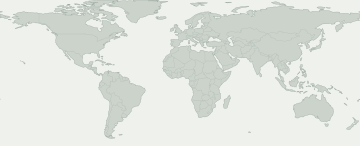
출처에 기록된 빌드추적기 관측여러 국가에 걸친 펌웨어 시장
색칠된 지역을 선택하면 펌웨어 기록을 볼 수 있습니다. 파란색은 국가별 기록이 아닌 유럽이나 코카서스 같은 넓은 시장을 나타냅니다.
여러 국가에 걸친 펌웨어 시장
시장을 선택해 출처 기록을 확인하세요. 색칠된 지역 안에서도 제공 여부는 다를 수 있습니다.
이 선택에 맞는 지도상의 펌웨어 지역이 없습니다. 정확한 기록은 CSC 기록에서 확인하세요.
일부 펌웨어 지역은 지도에서 위치를 특정할 수 없습니다. 해당 기록은 표에서 볼 수 있습니다.
모델과 펌웨어 지역
Galaxy 제품을 열어 정확한 모델 코드를 비교하세요. 코드 아래에는 이 버전의 펌웨어 기록이 있는 시장이 표시됩니다. 내 모델 코드는 휴대전화 정보에서 확인할 수 있습니다.
Galaxy 제품 47개 · 정확한 모델 213개 · 펌웨어 지역 199개
출처에 기록된 빌드추적기 관측
숫자는 각 펌웨어 지역에 기록이 있는 정확한 모델 수입니다. 제품을 열어 모델과 출처를 확인하세요.
출처에서 확인된 기록이 내 휴대전화의 업데이트 가능 여부를 보장하지는 않습니다. 기기의 설정 → 소프트웨어 업데이트에서 확인하세요.
내 갤럭시 확인
내 갤럭시에 대해 무엇을 알 수 있나요?
현재 위치가 아닌 정확한 모델과 펌웨어 CSC를 선택하세요.
이 릴리스를 확인할 기기를 선택하세요.
배포 변화
기록된 배포 활동
각 모델/지역 조합의 최초 확인 기록입니다. 변경 없는 반복 확인은 합계에 포함하지 않습니다.
- 10
- 8
- 23
- 9
- 8
- 8
- 1
- 1
- 1
- 3
- 1
- 1
모델별 확인 현황
펌웨어 기록이 있는 갤럭시 기종
기종을 펼치면 정확한 모델, CSC, 최초 빌드, 기록 날짜와 출처를 볼 수 있습니다.
Galaxy A061 모델/지역 조합
Galaxy A141 모델/지역 조합
Galaxy A25 5G1 모델/지역 조합
Galaxy A33 5G101 모델/지역 조합
SM-A3360 / TGY
A3360ZHUDFYE3빌드 게시 날짜SM-A336B / BOGA336BXXUDFYE3빌드 게시 날짜SM-A336B / CAUA336BXXUDFYE3빌드 게시 날짜SM-A336B / EVRA336BXXUDFYE3빌드 게시 날짜SM-A336B / MEOA336BXXUDFYE3빌드 게시 날짜SM-A336B / META336BXXUDFYE3빌드 게시 날짜SM-A336B / MOBA336BXXUDFYE3빌드 게시 날짜SM-A336B / MOTA336BXXUDFYE3빌드 게시 날짜SM-A336B / MSRA336BXXUDFYE3빌드 게시 날짜SM-A336B / O2CA336BXXUDFYE3빌드 게시 날짜SM-A336B / PLSA336BXXUDFYE3빌드 게시 날짜SM-A336B / PRTA336BXXUDFYE3빌드 게시 날짜SM-A336B / SEKA336BXXUDFYE3빌드 게시 날짜SM-A336B / SERA336BXXUDFYE3빌드 게시 날짜SM-A336B / SFRA336BXXUDFYE3빌드 게시 날짜SM-A336B / SIMA336BXXUDFYE3빌드 게시 날짜SM-A336B / SKZA336BXXUDFYE3빌드 게시 날짜SM-A336B / SWCA336BXXUDFYE3빌드 게시 날짜SM-A336B / TIMA336BXXUDFYE3빌드 게시 날짜SM-A336B / TOPA336BXXUDFYE3빌드 게시 날짜SM-A336B / TSIA336BXXUDFYE3빌드 게시 날짜SM-A336B / VIPA336BXXUDFYE3빌드 게시 날짜SM-A336E / ACRA336EDXUDFYE3빌드 게시 날짜SM-A336E / AFGA336EDXUDFYE3빌드 게시 날짜SM-A336E / AFRA336EDXUDFYE3빌드 게시 날짜SM-A336E / BRIA336EDXUDFYE3빌드 게시 날짜SM-A336E / ECTA336EDXUDFYE3빌드 게시 날짜SM-A336E / EGYA336EDXUDFYE3빌드 게시 날짜SM-A336E / GLBA336EDXUDFYE3빌드 게시 날짜SM-A336E / ILOA336EDXUDFYE3빌드 게시 날짜SM-A336E / INSA336EDXUDFYE3빌드 게시 날짜SM-A336E / KSAA336EDXUDFYE3빌드 게시 날짜SM-A336E / LYSA336EDXUDFYE3빌드 게시 날짜SM-A336E / MIDA336EDXUDFYE3빌드 게시 날짜SM-A336E / MM1A336EDXUDFYE3빌드 게시 날짜SM-A336E / MWDA336EDXUDFYE3빌드 게시 날짜SM-A336E / OPSA336EDXUDFYE3빌드 게시 날짜SM-A336E / PAKA336EDXUDFYE3빌드 게시 날짜SM-A336E / SINA336EDXUDFYE3빌드 게시 날짜SM-A336E / STHA336EDXUDFYE3빌드 게시 날짜SM-A336E / TELA336EDXUDFYE3빌드 게시 날짜SM-A336E / THLA336EDXUDFYE3빌드 게시 날짜SM-A336E / TUNA336EDXUDFYE3빌드 게시 날짜SM-A336E / TURA336EDXUDFYE3빌드 게시 날짜SM-A336E / VAUA336EDXUDFYE3빌드 게시 날짜SM-A336E / XFAA336EDXUDFYE3빌드 게시 날짜SM-A336E / XFEA336EDXUDFYE3빌드 게시 날짜SM-A336E / XFVA336EDXUDFYE3빌드 게시 날짜SM-A336E / XIDA336EDXUDFYE3빌드 게시 날짜SM-A336E / XMEA336EDXUDFYE3빌드 게시 날짜SM-A336E / XSAA336EDXUDFYE3빌드 게시 날짜SM-A336E / XSGA336EDXUDFYE3빌드 게시 날짜SM-A336E / XSPA336EDXUDFYE3빌드 게시 날짜SM-A336E / XTCA336EDXUDFYE3빌드 게시 날짜SM-A336E / XXVA336EDXUDFYE3빌드 게시 날짜SM-A336M / ANCA336MUBUDFYE3빌드 게시 날짜SM-A336M / AROA336MUBUDFYE3빌드 게시 날짜SM-A336M / BATA336MUBUDFYE3빌드 게시 날짜SM-A336M / BVOA336MUBUDFYE3빌드 게시 날짜SM-A336M / BVTA336MUBUDFYE3빌드 게시 날짜SM-A336M / CDRA336MUBUDFYE3빌드 게시 날짜SM-A336M / CGUA336MUBUDFYE3빌드 게시 날짜SM-A336M / CHEA336MUBUDFYE3빌드 게시 날짜SM-A336M / CHLA336MUBUDFYE3빌드 게시 날짜SM-A336M / CHOA336MUBUDFYE3빌드 게시 날짜SM-A336M / CHTA336MUBUDFYE3빌드 게시 날짜SM-A336M / CHXA336MUBUDFYE3빌드 게시 날짜SM-A336M / COBA336MUBUDFYE3빌드 게시 날짜SM-A336M / COLA336MUBUDFYE3빌드 게시 날짜SM-A336M / COMA336MUBUDFYE3빌드 게시 날짜SM-A336M / COOA336MUBUDFYE3빌드 게시 날짜SM-A336M / CRCA336MUBUDFYE3빌드 게시 날짜SM-A336M / CTIA336MUBUDFYE3빌드 게시 날짜SM-A336M / CTPA336MUBUDFYE3빌드 게시 날짜SM-A336M / CTUA336MUBUDFYE3빌드 게시 날짜SM-A336M / CWWA336MUBUDFYE3빌드 게시 날짜SM-A336M / DORA336MUBUDFYE3빌드 게시 날짜SM-A336M / EBEA336MUBUDFYE3빌드 게시 날짜SM-A336M / ECOA336MUBUDFYE3빌드 게시 날짜SM-A336M / EONA336MUBUDFYE3빌드 게시 날짜SM-A336M / IUSA336MUBUDFYE3빌드 게시 날짜SM-A336M / MXOA336MUBUDFYE3빌드 게시 날짜SM-A336M / PETA336MUBUDFYE3빌드 게시 날짜SM-A336M / PGUA336MUBUDFYE3빌드 게시 날짜SM-A336M / PNTA336MUBUDFYE3빌드 게시 날짜SM-A336M / PSNA336MUBUDFYE3빌드 게시 날짜SM-A336M / PSPA336MUBUDFYE3빌드 게시 날짜SM-A336M / SAMA336MUBUDFYE3빌드 게시 날짜SM-A336M / TCEA336MUBUDFYE3빌드 게시 날짜SM-A336M / TMMA336MUBUDFYE3빌드 게시 날짜SM-A336M / TPAA336MUBUDFYE3빌드 게시 날짜SM-A336M / UFNA336MUBUDFYE3빌드 게시 날짜SM-A336M / UFUA336MUBUDFYE3빌드 게시 날짜SM-A336M / UPOA336MUBUDFYE3빌드 게시 날짜SM-A336M / UYOA336MUBUDFYE3빌드 게시 날짜SM-A336M / ZTAA336MUBUDFYE3빌드 게시 날짜SM-A336M / ZTMA336MUBUDFYE3빌드 게시 날짜SM-A336M / ZTOA336MUBUDFYE3빌드 게시 날짜SM-A336M / ZVVA336MUBUDFYE3빌드 게시 날짜SM-A336N / KTCA336NKSUAFYE3빌드 게시 날짜SM-A336N / SKCA336NKSUAFYE3빌드 게시 날짜확인 기록 보기 →Galaxy A34 5G1 모델/지역 조합
Galaxy A35 5G3 모델/지역 조합
Galaxy A53 5G127 모델/지역 조합
SC-53C / DCM
SC53COMU1DYF2빌드 게시 날짜SCG15 / KDISCG15KDU1DYF1빌드 게시 날짜SM-A5360 / BRIA5360ZHUEFYE2빌드 게시 날짜SM-A5360 / CHCA5360ZCUEFYE2빌드 게시 날짜SM-A5360 / TGYA5360ZHUEFYE2빌드 게시 날짜SM-A536B / BOGA536BXXUEFYE2빌드 게시 날짜SM-A536B / EVRA536BXXUEFYE2빌드 게시 날짜SM-A536B / MEOA536BXXUEFYE2빌드 게시 날짜SM-A536B / META536BXXUEFYE2빌드 게시 날짜SM-A536B / MOBA536BXXUEFYE2빌드 게시 날짜SM-A536B / MOTA536BXXUEFYE2빌드 게시 날짜SM-A536B / MSRA536BXXUEFYE2빌드 게시 날짜SM-A536B / O2CA536BXXUEFYE2빌드 게시 날짜SM-A536B / PLSA536BXXUEFYE2빌드 게시 날짜SM-A536B / PRTA536BXXUEFYE2빌드 게시 날짜SM-A536B / SFRA536BXXUEFYE2빌드 게시 날짜SM-A536B / SIMA536BXXUEFYE2빌드 게시 날짜SM-A536B / SWCA536BXXUEFYE2빌드 게시 날짜SM-A536B / TIMA536BXXUEFYE2빌드 게시 날짜SM-A536B / TOPA536BXXUEFYE2빌드 게시 날짜SM-A536B / TSIA536BXXUEFYE2빌드 게시 날짜SM-A536B / VIPA536BXXUEFYE2빌드 게시 날짜SM-A536E / ACRA536EXXUEFYE2빌드 게시 날짜SM-A536E / AFGA536EXXUEFYE2빌드 게시 날짜SM-A536E / AFRA536EXXUEFYE2빌드 게시 날짜SM-A536E / BATA536EXXUEFYE2빌드 게시 날짜SM-A536E / BVOA536EXXUEFYE2빌드 게시 날짜SM-A536E / CAUA536EXXUEFYE2빌드 게시 날짜SM-A536E / CGUA536EXXUEFYE2빌드 게시 날짜SM-A536E / CHEA536EXXUEFYE2빌드 게시 날짜SM-A536E / CHLA536EXXUEFYE2빌드 게시 날짜SM-A536E / CHOA536EXXUEFYE2빌드 게시 날짜SM-A536E / CHTA536EXXUEFYE2빌드 게시 날짜SM-A536E / CHXA536EXXUEFYE2빌드 게시 날짜SM-A536E / COBA536EXXUEFYE2빌드 게시 날짜SM-A536E / COLA536EXXUEFYE2빌드 게시 날짜SM-A536E / COMA536EXXUEFYE2빌드 게시 날짜SM-A536E / COOA536EXXUEFYE2빌드 게시 날짜SM-A536E / CTPA536EXXUEFYE2빌드 게시 날짜SM-A536E / CTUA536EXXUEFYE2빌드 게시 날짜SM-A536E / CWWA536EXXUEFYE2빌드 게시 날짜SM-A536E / DORA536EXXUEFYE2빌드 게시 날짜SM-A536E / EBEA536EXXUEFYE2빌드 게시 날짜SM-A536E / ECTA536EXXUEFYE2빌드 게시 날짜SM-A536E / EGYA536EXXUEFYE2빌드 게시 날짜SM-A536E / GLBA536EXXUEFYE2빌드 게시 날짜SM-A536E / ILOA536EXXUEFYE2빌드 게시 날짜SM-A536E / INSA536EXXUEFYE2빌드 게시 날짜SM-A536E / IUSA536EXXUEFYE2빌드 게시 날짜SM-A536E / KSAA536EXXUEFYE2빌드 게시 날짜SM-A536E / LYSA536EXXUEFYE2빌드 게시 날짜SM-A536E / MIDA536EXXUEFYE2빌드 게시 날짜SM-A536E / MM1A536EXXUEFYE2빌드 게시 날짜SM-A536E / MWDA536EXXUEFYE2빌드 게시 날짜SM-A536E / MXOA536EXXUEFYE2빌드 게시 날짜SM-A536E / OPSA536EXXUEFYE2빌드 게시 날짜SM-A536E / PAKA536EXXUEFYE2빌드 게시 날짜SM-A536E / PETA536EXXUEFYE2빌드 게시 날짜SM-A536E / PGUA536EXXUEFYE2빌드 게시 날짜SM-A536E / PNTA536EXXUEFYE2빌드 게시 날짜SM-A536E / PSNA536EXXUEFYE2빌드 게시 날짜SM-A536E / PSPA536EXXUEFYE2빌드 게시 날짜SM-A536E / SAMA536EXXUEFYE2빌드 게시 날짜SM-A536E / SEKA536EXXUEFYE2빌드 게시 날짜SM-A536E / SERA536EXXUEFYE2빌드 게시 날짜SM-A536E / SINA536EXXUEFYE2빌드 게시 날짜SM-A536E / SKZA536EXXUEFYE2빌드 게시 날짜SM-A536E / SLKA536EXXUEFYE2빌드 게시 날짜SM-A536E / STHA536EXXUEFYE2빌드 게시 날짜SM-A536E / TCEA536EXXUEFYE2빌드 게시 날짜SM-A536E / TELA536EXXUEFYE2빌드 게시 날짜SM-A536E / TGPA536EXXUEFYE2빌드 게시 날짜SM-A536E / THLA536EXXUEFYE2빌드 게시 날짜SM-A536E / TMMA536EXXUEFYE2빌드 게시 날짜SM-A536E / TPAA536EXXUEFYE2빌드 게시 날짜SM-A536E / TUNA536EXXUEFYE2빌드 게시 날짜SM-A536E / TURA536EXXUEFYE2빌드 게시 날짜SM-A536E / UFNA536EXXUEFYE2빌드 게시 날짜SM-A536E / UFUA536EXXUEFYE2빌드 게시 날짜SM-A536E / UPOA536EXXUEFYE2빌드 게시 날짜SM-A536E / UYOA536EXXUEFYE2빌드 게시 날짜SM-A536E / VAUA536EXXUEFYE2빌드 게시 날짜SM-A536E / XFAA536EXXUEFYE2빌드 게시 날짜SM-A536E / XFEA536EXXUEFYE2빌드 게시 날짜SM-A536E / XFVA536EXXUEFYE2빌드 게시 날짜SM-A536E / XIDA536EXXUEFYE2빌드 게시 날짜SM-A536E / XMEA536EXXUEFYE2빌드 게시 날짜SM-A536E / XSAA536EXXUEFYE2빌드 게시 날짜SM-A536E / XSGA536EXXUEFYE2빌드 게시 날짜SM-A536E / XSPA536EXXUEFYE2빌드 게시 날짜SM-A536E / XTCA536EXXUEFYE2빌드 게시 날짜SM-A536E / XXVA536EXXUEFYE2빌드 게시 날짜SM-A536N / KTCA536NKSU9FYE1빌드 게시 날짜SM-A536N / LUCA536NKSU9FYE1빌드 게시 날짜SM-A536N / SKCA536NKSU9FYE1빌드 게시 날짜SM-A536U / CCTA536USQUEFYE4빌드 게시 날짜SM-A536U / CHAA536USQUEFYE4빌드 게시 날짜SM-A536U / TMBA536USQUEFYE4빌드 게시 날짜SM-A536U / TMKA536USQUEFYE4빌드 게시 날짜SM-A536U / USCA536USQUEFYE4빌드 게시 날짜SM-A536U1 / ACGA536U1UEUDFYE4빌드 게시 날짜SM-A536U1 / AIOA536U1UEUDFYE4빌드 게시 날짜SM-A536U1 / ATTA536U1UEUDFYE4빌드 게시 날짜SM-A536U1 / CCTA536U1UEUDFYE4빌드 게시 날짜SM-A536U1 / CHAA536U1UEUDFYE4빌드 게시 날짜SM-A536U1 / LRAA536U1UEUDFYE4빌드 게시 날짜SM-A536U1 / PCTA536U1UEUDFYE4빌드 게시 날짜SM-A536U1 / TMBA536U1UEUDFYE4빌드 게시 날짜SM-A536U1 / TMKA536U1UEUDFYE4빌드 게시 날짜SM-A536U1 / USCA536U1UEUDFYE4빌드 게시 날짜SM-A536U1 / VZWA536U1UEUDFYE4빌드 게시 날짜SM-A536U1 / XAAA536U1UEUDFYE4빌드 게시 날짜SM-A536U1 / XAGA536U1UEUDFYE4빌드 게시 날짜SM-A536U1 / XARA536U1UEUDFYE4빌드 게시 날짜SM-A536W / BMCA536WVLUDFYE4빌드 게시 날짜SM-A536W / BWAA536WVLUDFYE4빌드 게시 날짜SM-A536W / CHRA536WVLUDFYE4빌드 게시 날짜SM-A536W / ESKA536WVLUDFYE4빌드 게시 날짜SM-A536W / FMCA536WVLUDFYE4빌드 게시 날짜SM-A536W / GLWA536WVLUDFYE4빌드 게시 날짜SM-A536W / KDOA536WVLUDFYE4빌드 게시 날짜SM-A536W / RWCA536WVLUDFYE4빌드 게시 날짜SM-A536W / TLSA536WVLUDFYE4빌드 게시 날짜SM-A536W / VMCA536WVLUDFYE4빌드 게시 날짜SM-A536W / VTRA536WVLUDFYE4빌드 게시 날짜SM-A536W / XACA536WVLUDFYE4빌드 게시 날짜SM-S536DL / TFNS536DLUDUEFYE5빌드 게시 날짜확인 기록 보기 →Galaxy A54 5G4 모델/지역 조합
Galaxy A55 5G2 모델/지역 조합
Galaxy A73 5G36 모델/지역 조합
SM-A736B / ACR
A736BXXUAFYE6빌드 게시 날짜SM-A736B / AFGA736BXXUAFYE6빌드 게시 날짜SM-A736B / AFRA736BXXUAFYE6빌드 게시 날짜SM-A736B / BVOA736BXXUAFYE6빌드 게시 날짜SM-A736B / BVTA736BXXUAFYE6빌드 게시 날짜SM-A736B / CAUA736BXXUAFYE6빌드 게시 날짜SM-A736B / CHEA736BXXUAFYE6빌드 게시 날짜SM-A736B / CHLA736BXXUAFYE6빌드 게시 날짜SM-A736B / CHOA736BXXUAFYE6빌드 게시 날짜SM-A736B / CHTA736BXXUAFYE6빌드 게시 날짜SM-A736B / CHXA736BXXUAFYE6빌드 게시 날짜SM-A736B / ECTA736BXXUAFYE6빌드 게시 날짜SM-A736B / EGYA736BXXUAFYE6빌드 게시 날짜SM-A736B / GLBA736BXXUAFYE6빌드 게시 날짜SM-A736B / ILOA736BXXUAFYE6빌드 게시 날짜SM-A736B / INSA736BXXUAFYE6빌드 게시 날짜SM-A736B / KSAA736BXXUAFYE6빌드 게시 날짜SM-A736B / LYSA736BXXUAFYE6빌드 게시 날짜SM-A736B / NPLA736BXXUAFYE6빌드 게시 날짜SM-A736B / PAKA736BXXUAFYE6빌드 게시 날짜SM-A736B / SEKA736BXXUAFYE6빌드 게시 날짜SM-A736B / SERA736BXXUAFYE6빌드 게시 날짜SM-A736B / SINA736BXXUAFYE6빌드 게시 날짜SM-A736B / SKZA736BXXUAFYE6빌드 게시 날짜SM-A736B / TELA736BXXUAFYE6빌드 게시 날짜SM-A736B / TUNA736BXXUAFYE6빌드 게시 날짜SM-A736B / TURA736BXXUAFYE6빌드 게시 날짜SM-A736B / VAUA736BXXUAFYE6빌드 게시 날짜SM-A736B / XFAA736BXXUAFYE6빌드 게시 날짜SM-A736B / XFEA736BXXUAFYE6빌드 게시 날짜SM-A736B / XFVA736BXXUAFYE6빌드 게시 날짜SM-A736B / XIDA736BXXUAFYE6빌드 게시 날짜SM-A736B / XMEA736BXXUAFYE6빌드 게시 날짜SM-A736B / XSGA736BXXUAFYE6빌드 게시 날짜SM-A736B / XXVA736BXXUAFYE6빌드 게시 날짜SM-A736B / ZTOA736BXXUAFYE6빌드 게시 날짜확인 기록 보기 →Galaxy F14 5G1 모델/지역 조합
Galaxy M14 5G1 모델/지역 조합
Galaxy M33 5G20 모델/지역 조합
SM-M336B / BRI
M336BZHUCFYE3빌드 게시 날짜SM-M336B / BVOM336BXXUCFYE5빌드 게시 날짜SM-M336B / GLBM336BXXUCFYE5빌드 게시 날짜SM-M336B / KSAM336BXXUCFYE5빌드 게시 날짜SM-M336B / LYSM336BXXUCFYE5빌드 게시 날짜SM-M336B / MIDM336BXXUCFYE5빌드 게시 날짜SM-M336B / MWDM336BXXUCFYE5빌드 게시 날짜SM-M336B / MXOM336BXXUCFYE5빌드 게시 날짜SM-M336B / SEKM336BXXUCFYE5빌드 게시 날짜SM-M336B / SERM336BXXUCFYE5빌드 게시 날짜SM-M336B / SLKM336BXXUCFYE5빌드 게시 날짜SM-M336B / THLM336BXXUCFYE5빌드 게시 날짜SM-M336B / TPAM336BXXUCFYE5빌드 게시 날짜SM-M336B / TURM336BXXUCFYE5빌드 게시 날짜SM-M336B / XIDM336BXXUCFYE5빌드 게시 날짜SM-M336B / XMEM336BXXUCFYE5빌드 게시 날짜SM-M336B / XTCM336BXXUCFYE5빌드 게시 날짜SM-M336B / XXVM336BXXUCFYE5빌드 게시 날짜SM-M336BU / INSM336BUXXUCFYE5빌드 게시 날짜SM-M336K / KTCM336KKSUAFYE3빌드 게시 날짜확인 기록 보기 →Galaxy S21 5G137 모델/지역 조합
SC-51B / DCM
SC51BOMU1EYF3빌드 게시 날짜SCG09 / KDISCG09KDU1EYF3빌드 게시 날짜SM-G9910 / BRIG9910ZHUBHYD9빌드 게시 날짜SM-G9910 / CHCG9910ZCUBHYDA빌드 게시 날짜SM-G9910 / TGYG9910ZHUBHYD9빌드 게시 날짜SM-G991B / 3IEG991BXXUEHYD5빌드 게시 날짜SM-G991B / AFRG991BXXUEHYD5빌드 게시 날짜SM-G991B / AMOG991BXXUEHYD5빌드 게시 날짜SM-G991B / ANCG991BXXUEHYD5빌드 게시 날짜SM-G991B / ATLG991BXXUEHYD5빌드 게시 날짜SM-G991B / AUTG991BXXUEHYD5빌드 게시 날짜SM-G991B / AVFG991BXXUEHYD5빌드 게시 날짜SM-G991B / BATG991BXXUEHYD5빌드 게시 날짜SM-G991B / BGLG991BXXUEHYD5빌드 게시 날짜SM-G991B / BOGG991BXXUEHYD5빌드 게시 날짜SM-G991B / BTUG991BXXUEHYD5빌드 게시 날짜SM-G991B / BVOG991BXXUEHYD5빌드 게시 날짜SM-G991B / CAUG991BXXUEHYD5빌드 게시 날짜SM-G991B / CDRG991BXXUEHYD5빌드 게시 날짜SM-G991B / CGUG991BXXUEHYD5빌드 게시 날짜SM-G991B / CHEG991BXXUEHYD5빌드 게시 날짜SM-G991B / CHTG991BXXUEHYD5빌드 게시 날짜SM-G991B / COAG991BXXUEHYD5빌드 게시 날짜SM-G991B / COMG991BXXUEHYD5빌드 게시 날짜SM-G991B / COOG991BXXUEHYD5빌드 게시 날짜SM-G991B / COSG991BXXUEHYD5빌드 게시 날짜SM-G991B / CRCG991BXXUEHYD5빌드 게시 날짜SM-G991B / CROG991BXXUEHYD5빌드 게시 날짜SM-G991B / CTIG991BXXUEHYD5빌드 게시 날짜SM-G991B / CTUG991BXXUEHYD5빌드 게시 날짜SM-G991B / CWWG991BXXUEHYD5빌드 게시 날짜SM-G991B / DORG991BXXUEHYD5빌드 게시 날짜SM-G991B / DTMG991BXXUEHYD5빌드 게시 날짜SM-G991B / ECTG991BXXUEHYD5빌드 게시 날짜SM-G991B / EGYG991BXXUEHYD5빌드 게시 날짜SM-G991B / EONG991BXXUEHYD5빌드 게시 날짜SM-G991B / EVRG991BXXUEHYD5빌드 게시 날짜SM-G991B / FTMG991BXXUEHYD5빌드 게시 날짜SM-G991B / GLBG991BXXUEHYD5빌드 게시 날짜SM-G991B / H3GG991BXXUEHYD5빌드 게시 날짜SM-G991B / HTSG991BXXUEHYD5빌드 게시 날짜SM-G991B / HUIG991BXXUEHYD5빌드 게시 날짜SM-G991B / ICEG991BXXUEHYD5빌드 게시 날짜SM-G991B / ILOG991BXXUEHYD5빌드 게시 날짜SM-G991B / INUG991BXXUEHYD5빌드 게시 날짜SM-G991B / ITVG991BXXUEHYD5빌드 게시 날짜SM-G991B / IUSG991BXXUEHYD5빌드 게시 날짜SM-G991B / KSAG991BXXUEHYD5빌드 게시 날짜SM-G991B / LUXG991BXXUEHYD5빌드 게시 날짜SM-G991B / LYSG991BXXUEHYD5빌드 게시 날짜SM-G991B / MAXG991BXXUEHYD5빌드 게시 날짜SM-G991B / MBMG991BXXUEHYD5빌드 게시 날짜SM-G991B / MEOG991BXXUEHYD5빌드 게시 날짜SM-G991B / METG991BXXUEHYD5빌드 게시 날짜SM-G991B / MM1G991BXXUEHYD5빌드 게시 날짜SM-G991B / MOBG991BXXUEHYD5빌드 게시 날짜SM-G991B / MOTG991BXXUEHYD5빌드 게시 날짜SM-G991B / MSRG991BXXUEHYD5빌드 게시 날짜SM-G991B / O2CG991BXXUEHYD5빌드 게시 날짜SM-G991B / O2UG991BXXUEHYD5빌드 게시 날짜SM-G991B / OMNG991BXXUEHYD5빌드 게시 날짜SM-G991B / OROG991BXXUEHYD5빌드 게시 날짜SM-G991B / ORSG991BXXUEHYD5빌드 게시 날짜SM-G991B / ORXG991BXXUEHYD5빌드 게시 날짜SM-G991B / PAKG991BXXUEHYD5빌드 게시 날짜SM-G991B / PGUG991BXXUEHYD5빌드 게시 날짜SM-G991B / PHEG991BXXUEHYD5빌드 게시 날짜SM-G991B / PRTG991BXXUEHYD5빌드 게시 날짜SM-G991B / PSPG991BXXUEHYD5빌드 게시 날짜SM-G991B / ROMG991BXXUEHYD5빌드 게시 날짜SM-G991B / SEBG991BXXUEHYD5빌드 게시 날짜SM-G991B / SEEG991BXXUEHYD5빌드 게시 날짜SM-G991B / SEKG991BXXUEHYD5빌드 게시 날짜SM-G991B / SERG991BXXUEHYD5빌드 게시 날짜SM-G991B / SFRG991BXXUEHYD5빌드 게시 날짜SM-G991B / SIMG991BXXUEHYD5빌드 게시 날짜SM-G991B / SIOG991BXXUEHYD5빌드 게시 날짜SM-G991B / SKZG991BXXUEHYD5빌드 게시 날짜SM-G991B / SLKG991BXXUEHYD5빌드 게시 날짜SM-G991B / STHG991BXXUEHYD5빌드 게시 날짜SM-G991B / TCEG991BXXUEHYD5빌드 게시 날짜SM-G991B / TCLG991BXXUEHYD5빌드 게시 날짜SM-G991B / TELG991BXXUEHYD5빌드 게시 날짜SM-G991B / TGPG991BXXUEHYD5빌드 게시 날짜SM-G991B / THLG991BXXUEHYD5빌드 게시 날짜SM-G991B / TIMG991BXXUEHYD5빌드 게시 날짜SM-G991B / TMSG991BXXUEHYD5빌드 게시 날짜SM-G991B / TMZG991BXXUEHYD5빌드 게시 날짜SM-G991B / TNLG991BXXUEHYD5빌드 게시 날짜SM-G991B / TPAG991BXXUEHYD5빌드 게시 날짜SM-G991B / TPHG991BXXUEHYD5빌드 게시 날짜SM-G991B / TPLG991BXXUEHYD5빌드 게시 날짜SM-G991B / TSIG991BXXUEHYD5빌드 게시 날짜SM-G991B / TURG991BXXUEHYD5빌드 게시 날짜SM-G991B / UFNG991BXXUEHYD5빌드 게시 날짜SM-G991B / UFUG991BXXUEHYD5빌드 게시 날짜SM-G991B / UYOG991BXXUEHYD5빌드 게시 날짜SM-G991B / VAUG991BXXUEHYD5빌드 게시 날짜SM-G991B / VD2G991BXXUEHYD5빌드 게시 날짜SM-G991B / VDCG991BXXUEHYD5빌드 게시 날짜SM-G991B / VDFG991BXXUEHYD5빌드 게시 날짜SM-G991B / VDIG991BXXUEHYD5빌드 게시 날짜SM-G991B / VGRG991BXXUEHYD5빌드 게시 날짜SM-G991B / VODG991BXXUEHYD5빌드 게시 날짜SM-G991B / XECG991BXXUEHYD5빌드 게시 날짜SM-G991B / XEZG991BXXUEHYD5빌드 게시 날짜SM-G991B / XFEG991BXXUEHYD5빌드 게시 날짜SM-G991B / XFVG991BXXUEHYD5빌드 게시 날짜SM-G991B / XIDG991BXXUEHYD5빌드 게시 날짜SM-G991B / XMEG991BXXUEHYD5빌드 게시 날짜SM-G991B / XSAG991BXXUEHYD5빌드 게시 날짜SM-G991B / XSPG991BXXUEHYD5빌드 게시 날짜SM-G991B / XTCG991BXXUEHYD5빌드 게시 날짜SM-G991B / XXVG991BXXUEHYD5빌드 게시 날짜SM-G991B / ZTAG991BXXUEHYD5빌드 게시 날짜SM-G991B / ZTMG991BXXUEHYD5빌드 게시 날짜SM-G991B / ZVVG991BXXUEHYD5빌드 게시 날짜SM-G991N / KTCG991NKSU8HYD9빌드 게시 날짜SM-G991N / SKCG991NKSU8HYD9빌드 게시 날짜SM-G991U / CCTG991USQUEHYDA빌드 게시 날짜SM-G991U / SPRG991USQUEHYDA빌드 게시 날짜SM-G991U / TMBG991USQUEHYDA빌드 게시 날짜SM-G991U1 / ACGG991U1UEUEHYDA빌드 게시 날짜SM-G991U1 / AIOG991U1UEUEHYDA빌드 게시 날짜SM-G991U1 / CCTG991U1UEUEHYDA빌드 게시 날짜SM-G991U1 / CHAG991U1UEUEHYDA빌드 게시 날짜SM-G991U1 / LRAG991U1UEUEHYDA빌드 게시 날짜SM-G991U1 / PCTG991U1UEUEHYDA빌드 게시 날짜SM-G991U1 / SPRG991U1UEUEHYDA빌드 게시 날짜SM-G991U1 / TFNG991U1UEUEHYDA빌드 게시 날짜SM-G991U1 / TMBG991U1UEUEHYDA빌드 게시 날짜SM-G991U1 / TMKG991U1UEUEHYDA빌드 게시 날짜SM-G991U1 / USCG991U1UEUEHYDA빌드 게시 날짜SM-G991U1 / VZWG991U1UEUEHYDA빌드 게시 날짜SM-G991U1 / XAAG991U1UEUEHYDA빌드 게시 날짜SM-G991U1 / XAGG991U1UEUEHYDA빌드 게시 날짜SM-G991U1 / XARG991U1UEUEHYDA빌드 게시 날짜확인 기록 보기 →Galaxy S21 FE 5G217 모델/지역 조합
SM-G9900 / BRI
G9900ZHUCHYD9빌드 게시 날짜SM-G9900 / CHCG9900ZCUCHYDA빌드 게시 날짜SM-G9900 / TGYG9900ZHUCHYD9빌드 게시 날짜SM-G990B / 3IEG990BXXUCHYDB빌드 게시 날짜SM-G990B / AMOG990BXXUCHYDB빌드 게시 날짜SM-G990B / ATLG990BXXUCHYDB빌드 게시 날짜SM-G990B / BOGG990BXXUCHYDB빌드 게시 날짜SM-G990B / CAUG990BXXUCHYDB빌드 게시 날짜SM-G990B / CNXG990BXXUCHYDB빌드 게시 날짜SM-G990B / COSG990BXXUCHYDB빌드 게시 날짜SM-G990B / CROG990BXXUCHYDB빌드 게시 날짜SM-G990B / DREG990BXXUCHYDB빌드 게시 날짜SM-G990B / FTMG990BXXUCHYDB빌드 게시 날짜SM-G990B / H3GG990BXXUCHYDB빌드 게시 날짜SM-G990B / HUIG990BXXUCHYDB빌드 게시 날짜SM-G990B / MAXG990BXXUCHYDB빌드 게시 날짜SM-G990B / MBMG990BXXUCHYDB빌드 게시 날짜SM-G990B / MEOG990BXXUCHYDB빌드 게시 날짜SM-G990B / METG990BXXUCHYDB빌드 게시 날짜SM-G990B / MSRG990BXXUCHYDB빌드 게시 날짜SM-G990B / O2UG990BXXUCHYDB빌드 게시 날짜SM-G990B / OMNG990BXXUCHYDB빌드 게시 날짜SM-G990B / OROG990BXXUCHYDB빌드 게시 날짜SM-G990B / ORSG990BXXUCHYDB빌드 게시 날짜SM-G990B / PLSG990BXXUCHYDB빌드 게시 날짜SM-G990B / SEKG990BXXUCHYDB빌드 게시 날짜SM-G990B / SERG990BXXUCHYDB빌드 게시 날짜SM-G990B / SFRG990BXXUCHYDB빌드 게시 날짜SM-G990B / SIMG990BXXUCHYDB빌드 게시 날짜SM-G990B / SKZG990BXXUCHYDB빌드 게시 날짜SM-G990B / SWCG990BXXUCHYDB빌드 게시 날짜SM-G990B / TCLG990BXXUCHYDB빌드 게시 날짜SM-G990B / TIMG990BXXUCHYDB빌드 게시 날짜SM-G990B / TMSG990BXXUCHYDB빌드 게시 날짜SM-G990B / TNLG990BXXUCHYDB빌드 게시 날짜SM-G990B / TPLG990BXXUCHYDB빌드 게시 날짜SM-G990B / TSIG990BXXUCHYDB빌드 게시 날짜SM-G990B / VD2G990BXXUCHYDB빌드 게시 날짜SM-G990B / VDCG990BXXUCHYDB빌드 게시 날짜SM-G990B / VDFG990BXXUCHYDB빌드 게시 날짜SM-G990B / VDIG990BXXUCHYDB빌드 게시 날짜SM-G990B / VIPG990BXXUCHYDB빌드 게시 날짜SM-G990B / VODG990BXXUCHYDB빌드 게시 날짜SM-G990B / XECG990BXXUCHYDB빌드 게시 날짜SM-G990B2 / 3IEG990B2XXUBHYDB빌드 게시 날짜SM-G990B2 / AMOG990B2XXUBHYDB빌드 게시 날짜SM-G990B2 / ATLG990B2XXUBHYDB빌드 게시 날짜SM-G990B2 / CAUG990B2XXUBHYDB빌드 게시 날짜SM-G990B2 / CNXG990B2XXUBHYDB빌드 게시 날짜SM-G990B2 / COSG990B2XXUBHYDB빌드 게시 날짜SM-G990B2 / CROG990B2XXUBHYDB빌드 게시 날짜SM-G990B2 / DTMG990B2XXUBHYDB빌드 게시 날짜SM-G990B2 / EVRG990B2XXUBHYDB빌드 게시 날짜SM-G990B2 / FTMG990B2XXUBHYDB빌드 게시 날짜SM-G990B2 / H3GG990B2XXUBHYDB빌드 게시 날짜SM-G990B2 / HTSG990B2XXUBHYDB빌드 게시 날짜SM-G990B2 / HUIG990B2XXUBHYDB빌드 게시 날짜SM-G990B2 / MAXG990B2XXUBHYDB빌드 게시 날짜SM-G990B2 / MBMG990B2XXUBHYDB빌드 게시 날짜SM-G990B2 / METG990B2XXUBHYDB빌드 게시 날짜SM-G990B2 / MOTG990B2XXUBHYDB빌드 게시 날짜SM-G990B2 / O2UG990B2XXUBHYDB빌드 게시 날짜SM-G990B2 / ORSG990B2XXUBHYDB빌드 게시 날짜SM-G990B2 / PLSG990B2XXUBHYDB빌드 게시 날짜SM-G990B2 / SEKG990B2XXUBHYDB빌드 게시 날짜SM-G990B2 / SERG990B2XXUBHYDB빌드 게시 날짜SM-G990B2 / SFRG990B2XXUBHYDB빌드 게시 날짜SM-G990B2 / SIMG990B2XXUBHYDB빌드 게시 날짜SM-G990B2 / SKZG990B2XXUBHYDB빌드 게시 날짜SM-G990B2 / SWCG990B2XXUBHYDB빌드 게시 날짜SM-G990B2 / TCLG990B2XXUBHYDB빌드 게시 날짜SM-G990B2 / TIMG990B2XXUBHYDB빌드 게시 날짜SM-G990B2 / TMSG990B2XXUBHYDB빌드 게시 날짜SM-G990B2 / TMZG990B2XXUBHYDB빌드 게시 날짜SM-G990B2 / TNLG990B2XXUBHYDB빌드 게시 날짜SM-G990B2 / TOPG990B2XXUBHYDB빌드 게시 날짜SM-G990B2 / TSIG990B2XXUBHYDB빌드 게시 날짜SM-G990B2 / VD2G990B2XXUBHYDB빌드 게시 날짜SM-G990B2 / VDCG990B2XXUBHYDB빌드 게시 날짜SM-G990B2 / VDFG990B2XXUBHYDB빌드 게시 날짜SM-G990B2 / VDIG990B2XXUBHYDB빌드 게시 날짜SM-G990B2 / VGRG990B2XXUBHYDB빌드 게시 날짜SM-G990B2 / VIPG990B2XXUBHYDB빌드 게시 날짜SM-G990B2 / VODG990B2XXUBHYDB빌드 게시 날짜SM-G990B2 / XECG990B2XXUBHYDB빌드 게시 날짜SM-G990E / ACRG990EXXUDGYD4빌드 게시 날짜SM-G990E / AFGG990EXXUDGYD4빌드 게시 날짜SM-G990E / AFRG990EXXUDGYD4빌드 게시 날짜SM-G990E / AROG990EXXUDGYD4빌드 게시 날짜SM-G990E / BVOG990EXXUDGYD4빌드 게시 날짜SM-G990E / CGUG990EXXUDGYD4빌드 게시 날짜SM-G990E / CHEG990EXXUDGYD4빌드 게시 날짜SM-G990E / CHLG990EXXUDGYD4빌드 게시 날짜SM-G990E / CHOG990EXXUDGYD4빌드 게시 날짜SM-G990E / CHTG990EXXUDGYD4빌드 게시 날짜SM-G990E / CHXG990EXXUDGYD4빌드 게시 날짜SM-G990E / COBG990EXXUDGYD4빌드 게시 날짜SM-G990E / COLG990EXXUDGYD4빌드 게시 날짜SM-G990E / COMG990EXXUDGYD4빌드 게시 날짜SM-G990E / COOG990EXXUDGYD4빌드 게시 날짜SM-G990E / CRCG990EXXUDGYD4빌드 게시 날짜SM-G990E / CTIG990EXXUDGYD4빌드 게시 날짜SM-G990E / CTPG990EXXUDGYD4빌드 게시 날짜SM-G990E / CTUG990EXXUDGYD4빌드 게시 날짜SM-G990E / DORG990EXXUDGYD4빌드 게시 날짜SM-G990E / EBEG990EXXUDGYD4빌드 게시 날짜SM-G990E / ECOG990EXXUDGYD4빌드 게시 날짜SM-G990E / ECTG990EXXUDGYD4빌드 게시 날짜SM-G990E / EGYG990EXXUDGYD4빌드 게시 날짜SM-G990E / EONG990EXXUDGYD4빌드 게시 날짜SM-G990E / GLBG990EXXUDGYD4빌드 게시 날짜SM-G990E / ILOG990EXXUDGYD4빌드 게시 날짜SM-G990E / INSG990EXXUDGYD4빌드 게시 날짜SM-G990E / IUSG990EXXUDGYD4빌드 게시 날짜SM-G990E / KSAG990EXXUDGYD4빌드 게시 날짜SM-G990E / LYSG990EXXUDGYD4빌드 게시 날짜SM-G990E / MIDG990EXXUDGYD4빌드 게시 날짜SM-G990E / MM1G990EXXUDGYD4빌드 게시 날짜SM-G990E / MWDG990EXXUDGYD4빌드 게시 날짜SM-G990E / MXOG990EXXUDGYD4빌드 게시 날짜SM-G990E / NPLG990EXXUDGYD4빌드 게시 날짜SM-G990E / OPSG990EXXUDGYD4빌드 게시 날짜SM-G990E / PAKG990EXXUDGYD4빌드 게시 날짜SM-G990E / PETG990EXXUDGYD4빌드 게시 날짜SM-G990E / PGUG990EXXUDGYD4빌드 게시 날짜SM-G990E / PNTG990EXXUDGYD4빌드 게시 날짜SM-G990E / PSNG990EXXUDGYD4빌드 게시 날짜SM-G990E / SAMG990EXXUDGYD4빌드 게시 날짜SM-G990E / SING990EXXUDGYD4빌드 게시 날짜SM-G990E / SLKG990EXXUDGYD4빌드 게시 날짜SM-G990E / STHG990EXXUDGYD4빌드 게시 날짜SM-G990E / TCEG990EXXUDGYD4빌드 게시 날짜SM-G990E / TELG990EXXUDGYD4빌드 게시 날짜SM-G990E / TGPG990EXXUDGYD4빌드 게시 날짜SM-G990E / THLG990EXXUDGYD4빌드 게시 날짜SM-G990E / TMMG990EXXUDGYD4빌드 게시 날짜SM-G990E / TPAG990EXXUDGYD4빌드 게시 날짜SM-G990E / TUNG990EXXUDGYD4빌드 게시 날짜SM-G990E / TURG990EXXUDGYD5빌드 게시 날짜SM-G990E / UFNG990EXXUDGYD4빌드 게시 날짜SM-G990E / UFUG990EXXUDGYD4빌드 게시 날짜SM-G990E / UPOG990EXXUDGYD4빌드 게시 날짜SM-G990E / UYOG990EXXUDGYD4빌드 게시 날짜SM-G990E / VAUG990EXXUDGYD4빌드 게시 날짜SM-G990E / XFAG990EXXUDGYD4빌드 게시 날짜SM-G990E / XFEG990EXXUDGYD4빌드 게시 날짜SM-G990E / XFVG990EXXUDGYD4빌드 게시 날짜SM-G990E / XIDG990EXXUDGYD4빌드 게시 날짜SM-G990E / XMEG990EXXUDGYD4빌드 게시 날짜SM-G990E / XSAG990EXXUDGYD4빌드 게시 날짜SM-G990E / XSGG990EXXUDGYD4빌드 게시 날짜SM-G990E / XSPG990EXXUDGYD4빌드 게시 날짜SM-G990E / XTCG990EXXUDGYD4빌드 게시 날짜SM-G990E / XXVG990EXXUDGYD4빌드 게시 날짜SM-G990E / ZTAG990EXXUDGYD4빌드 게시 날짜SM-G990E / ZTMG990EXXUDGYD4빌드 게시 날짜SM-G990E / ZTOG990EXXUDGYD4빌드 게시 날짜SM-G990E / ZVVG990EXXUDGYD4빌드 게시 날짜SM-G990U / TMBG990USQUFHYDA빌드 게시 날짜SM-G990U / TMKG990USQUFHYDA빌드 게시 날짜SM-G990U / USCG990USQUFHYDA빌드 게시 날짜SM-G990U1 / ACGG990U1UEUFHYDA빌드 게시 날짜SM-G990U1 / AIOG990U1UEUFHYDA빌드 게시 날짜SM-G990U1 / ATTG990U1UEUFHYDA빌드 게시 날짜SM-G990U1 / CCTG990U1UEUFHYDA빌드 게시 날짜SM-G990U1 / CHAG990U1UEUFHYDA빌드 게시 날짜SM-G990U1 / LRAG990U1UEUFHYDA빌드 게시 날짜SM-G990U1 / PCTG990U1UEUFHYE1빌드 게시 날짜SM-G990U1 / TFNG990U1UEUFHYDA빌드 게시 날짜SM-G990U1 / TMBG990U1UEUFHYDA빌드 게시 날짜SM-G990U1 / TMKG990U1UEUFHYDA빌드 게시 날짜SM-G990U1 / USCG990U1UEUFHYDA빌드 게시 날짜SM-G990U1 / VZWG990U1UEUFHYDA빌드 게시 날짜SM-G990U1 / XAAG990U1UEUFHYDA빌드 게시 날짜SM-G990U1 / XAGG990U1UEUFHYDA빌드 게시 날짜SM-G990U1 / XARG990U1UEUFHYDA빌드 게시 날짜SM-G990U2 / CCTG990U2SQUDHYDA빌드 게시 날짜SM-G990U2 / CHAG990U2SQUDHYDA빌드 게시 날짜SM-G990U2 / USCG990U2SQUDHYDA빌드 게시 날짜SM-G990U3 / ACGG990U3UEUDHYDA빌드 게시 날짜SM-G990U3 / AIOG990U3UEUDHYDA빌드 게시 날짜SM-G990U3 / ATTG990U3UEUDHYDA빌드 게시 날짜SM-G990U3 / CCTG990U3UEUDHYDA빌드 게시 날짜SM-G990U3 / CHAG990U3UEUDHYDA빌드 게시 날짜SM-G990U3 / LRAG990U3UEUDHYDA빌드 게시 날짜SM-G990U3 / TFNG990U3UEUDHYDA빌드 게시 날짜SM-G990U3 / TMBG990U3UEUDHYDA빌드 게시 날짜SM-G990U3 / TMKG990U3UEUDHYDA빌드 게시 날짜SM-G990U3 / USCG990U3UEUDHYDA빌드 게시 날짜SM-G990U3 / VZWG990U3UEUDHYDA빌드 게시 날짜SM-G990U3 / XAAG990U3UEUDHYDA빌드 게시 날짜SM-G990U3 / XAGG990U3UEUDHYDA빌드 게시 날짜SM-G990U3 / XARG990U3UEUDHYDA빌드 게시 날짜SM-G990W / BMCG990WVLUFHYDA빌드 게시 날짜SM-G990W / BWAG990WVLUFHYDA빌드 게시 날짜SM-G990W / CHRG990WVLUFHYDA빌드 게시 날짜SM-G990W / ESKG990WVLUFHYDA빌드 게시 날짜SM-G990W / FMCG990WVLUFHYDA빌드 게시 날짜SM-G990W / GLWG990WVLUFHYDA빌드 게시 날짜SM-G990W / KDOG990WVLUFHYDA빌드 게시 날짜SM-G990W / RWCG990WVLUFHYDA빌드 게시 날짜SM-G990W / TLSG990WVLUFHYDA빌드 게시 날짜SM-G990W / VMCG990WVLUFHYDA빌드 게시 날짜SM-G990W / VTRG990WVLUFHYDA빌드 게시 날짜SM-G990W / XACG990WVLUFHYDA빌드 게시 날짜SM-G990W2 / BMCG990W2VLUDHYDA빌드 게시 날짜SM-G990W2 / BWAG990W2VLUDHYDA빌드 게시 날짜SM-G990W2 / CHRG990W2VLUDHYDA빌드 게시 날짜SM-G990W2 / ESKG990W2VLUDHYDA빌드 게시 날짜SM-G990W2 / FMCG990W2VLUDHYDA빌드 게시 날짜SM-G990W2 / GLWG990W2VLUDHYDA빌드 게시 날짜SM-G990W2 / KDOG990W2VLUDHYDA빌드 게시 날짜SM-G990W2 / RWCG990W2VLUDHYDA빌드 게시 날짜SM-G990W2 / TLSG990W2VLUDHYDA빌드 게시 날짜SM-G990W2 / VMCG990W2VLUDHYDA빌드 게시 날짜SM-G990W2 / VTRG990W2VLUDHYDA빌드 게시 날짜SM-G990W2 / XACG990W2VLUDHYDA빌드 게시 날짜확인 기록 보기 →Galaxy S21 Ultra 5G142 모델/지역 조합
SC-52B / DCM
SC52BOMU1EYF3빌드 게시 날짜SM-G9980 / BRIG9980ZHUBHYD9빌드 게시 날짜SM-G9980 / CHCG9980ZCUBHYDA빌드 게시 날짜SM-G998B / 3IEG998BXXUEHYD5빌드 게시 날짜SM-G998B / ACRG998BXXUEHYD5빌드 게시 날짜SM-G998B / AMOG998BXXUEHYD5빌드 게시 날짜SM-G998B / AROG998BXXUEHYD5빌드 게시 날짜SM-G998B / ATLG998BXXUEHYD5빌드 게시 날짜SM-G998B / ATOG998BXXUEHYD5빌드 게시 날짜SM-G998B / AUTG998BXXUEHYD5빌드 게시 날짜SM-G998B / BATG998BXXUEHYD5빌드 게시 날짜SM-G998B / BGLG998BXXUEHYD5빌드 게시 날짜SM-G998B / BOGG998BXXUEHYD5빌드 게시 날짜SM-G998B / BTUG998BXXUEHYD5빌드 게시 날짜SM-G998B / BVOG998BXXUEHYD5빌드 게시 날짜SM-G998B / BVTG998BXXUEHYD5빌드 게시 날짜SM-G998B / CAUG998BXXUEHYD5빌드 게시 날짜SM-G998B / CDRG998BXXUEHYD5빌드 게시 날짜SM-G998B / CGUG998BXXUEHYD5빌드 게시 날짜SM-G998B / CHLG998BXXUEHYD5빌드 게시 날짜SM-G998B / CHTG998BXXUEHYD5빌드 게시 날짜SM-G998B / CNXG998BXXUEHYD5빌드 게시 날짜SM-G998B / COAG998BXXUEHYD5빌드 게시 날짜SM-G998B / COMG998BXXUEHYD5빌드 게시 날짜SM-G998B / COOG998BXXUEHYD5빌드 게시 날짜SM-G998B / COSG998BXXUEHYD5빌드 게시 날짜SM-G998B / CPAG998BXXUEHYD5빌드 게시 날짜SM-G998B / CRCG998BXXUEHYD5빌드 게시 날짜SM-G998B / CTIG998BXXUEHYD5빌드 게시 날짜SM-G998B / CTUG998BXXUEHYD5빌드 게시 날짜SM-G998B / DBTG998BXXUEHYD5빌드 게시 날짜SM-G998B / DORG998BXXUEHYD5빌드 게시 날짜SM-G998B / DREG998BXXUEHYD5빌드 게시 날짜SM-G998B / DTMG998BXXUEHYD5빌드 게시 날짜SM-G998B / EBEG998BXXUEHYD5빌드 게시 날짜SM-G998B / ECTG998BXXUEHYD5빌드 게시 날짜SM-G998B / EGYG998BXXUEHYD5빌드 게시 날짜SM-G998B / EONG998BXXUEHYD5빌드 게시 날짜SM-G998B / EURG998BXXUEHYD5빌드 게시 날짜SM-G998B / FTMG998BXXUEHYD5빌드 게시 날짜SM-G998B / GLBG998BXXUEHYD5빌드 게시 날짜SM-G998B / H3GG998BXXUEHYD5빌드 게시 날짜SM-G998B / HTSG998BXXUEHYD5빌드 게시 날짜SM-G998B / ILOG998BXXUEHYD5빌드 게시 날짜SM-G998B / INUG998BXXUEHYD5빌드 게시 날짜SM-G998B / ITVG998BXXUEHYD5빌드 게시 날짜SM-G998B / IUSG998BXXUEHYD5빌드 게시 날짜SM-G998B / KSAG998BXXUEHYD5빌드 게시 날짜SM-G998B / LUXG998BXXUEHYD5빌드 게시 날짜SM-G998B / LYSG998BXXUEHYD5빌드 게시 날짜SM-G998B / MAXG998BXXUEHYD5빌드 게시 날짜SM-G998B / MBMG998BXXUEHYD5빌드 게시 날짜SM-G998B / METG998BXXUEHYD5빌드 게시 날짜SM-G998B / MIDG998BXXUEHYD5빌드 게시 날짜SM-G998B / MM1G998BXXUEHYD5빌드 게시 날짜SM-G998B / MOTG998BXXUEHYD5빌드 게시 날짜SM-G998B / MSRG998BXXUEHYD5빌드 게시 날짜SM-G998B / NEEG998BXXUEHYD5빌드 게시 날짜SM-G998B / NPLG998BXXUEHYD5빌드 게시 날짜SM-G998B / O2CG998BXXUEHYD5빌드 게시 날짜SM-G998B / O2UG998BXXUEHYD5빌드 게시 날짜SM-G998B / OMNG998BXXUEHYD5빌드 게시 날짜SM-G998B / OPSG998BXXUEHYD5빌드 게시 날짜SM-G998B / OROG998BXXUEHYD5빌드 게시 날짜SM-G998B / ORSG998BXXUEHYD5빌드 게시 날짜SM-G998B / ORXG998BXXUEHYD5빌드 게시 날짜SM-G998B / PETG998BXXUEHYD5빌드 게시 날짜SM-G998B / PHEG998BXXUEHYD5빌드 게시 날짜SM-G998B / PHNG998BXXUEHYD5빌드 게시 날짜SM-G998B / PLSG998BXXUEHYD5빌드 게시 날짜SM-G998B / PNTG998BXXUEHYD5빌드 게시 날짜SM-G998B / PRTG998BXXUEHYD5빌드 게시 날짜SM-G998B / PSNG998BXXUEHYD5빌드 게시 날짜SM-G998B / PSPG998BXXUEHYD5빌드 게시 날짜SM-G998B / ROMG998BXXUEHYD5빌드 게시 날짜SM-G998B / SAMG998BXXUEHYD5빌드 게시 날짜SM-G998B / SEBG998BXXUEHYD5빌드 게시 날짜SM-G998B / SEEG998BXXUEHYD5빌드 게시 날짜SM-G998B / SEKG998BXXUEHYD5빌드 게시 날짜SM-G998B / SIMG998BXXUEHYD5빌드 게시 날짜SM-G998B / SIOG998BXXUEHYD5빌드 게시 날짜SM-G998B / SKZG998BXXUEHYD5빌드 게시 날짜SM-G998B / SLKG998BXXUEHYD5빌드 게시 날짜SM-G998B / STHG998BXXUEHYD5빌드 게시 날짜SM-G998B / SWCG998BXXUEHYD5빌드 게시 날짜SM-G998B / TCEG998BXXUEHYD5빌드 게시 날짜SM-G998B / TCLG998BXXUEHYD5빌드 게시 날짜SM-G998B / TELG998BXXUEHYD5빌드 게시 날짜SM-G998B / TGPG998BXXUEHYD5빌드 게시 날짜SM-G998B / THLG998BXXUEHYD5빌드 게시 날짜SM-G998B / TIMG998BXXUEHYD5빌드 게시 날짜SM-G998B / TMHG998BXXUEHYD5빌드 게시 날짜SM-G998B / TMSG998BXXUEHYD5빌드 게시 날짜SM-G998B / TMZG998BXXUEHYD5빌드 게시 날짜SM-G998B / TNLG998BXXUEHYD5빌드 게시 날짜SM-G998B / TOPG998BXXUEHYD5빌드 게시 날짜SM-G998B / TPAG998BXXUEHYD5빌드 게시 날짜SM-G998B / TPHG998BXXUEHYD5빌드 게시 날짜SM-G998B / TPLG998BXXUEHYD5빌드 게시 날짜SM-G998B / TUNG998BXXUEHYD5빌드 게시 날짜SM-G998B / TURG998BXXUEHYD5빌드 게시 날짜SM-G998B / UFNG998BXXUEHYD5빌드 게시 날짜SM-G998B / UFUG998BXXUEHYD5빌드 게시 날짜SM-G998B / UYOG998BXXUEHYD5빌드 게시 날짜SM-G998B / VDCG998BXXUEHYD5빌드 게시 날짜SM-G998B / VDFG998BXXUEHYD5빌드 게시 날짜SM-G998B / VDIG998BXXUEHYD5빌드 게시 날짜SM-G998B / VIPG998BXXUEHYD5빌드 게시 날짜SM-G998B / VODG998BXXUEHYD5빌드 게시 날짜SM-G998B / XECG998BXXUEHYD5빌드 게시 날짜SM-G998B / XEHG998BXXUEHYD5빌드 게시 날짜SM-G998B / XEOG998BXXUEHYD5빌드 게시 날짜SM-G998B / XEZG998BXXUEHYD5빌드 게시 날짜SM-G998B / XFAG998BXXUEHYD5빌드 게시 날짜SM-G998B / XFEG998BXXUEHYD5빌드 게시 날짜SM-G998B / XFVG998BXXUEHYD5빌드 게시 날짜SM-G998B / XMEG998BXXUEHYD5빌드 게시 날짜SM-G998B / XSGG998BXXUEHYD5빌드 게시 날짜SM-G998B / XXVG998BXXUEHYD5빌드 게시 날짜SM-G998B / ZTAG998BXXUEHYD5빌드 게시 날짜SM-G998B / ZTMG998BXXUEHYD5빌드 게시 날짜SM-G998B / ZTOG998BXXUEHYD5빌드 게시 날짜SM-G998B / ZVVG998BXXUEHYD5빌드 게시 날짜SM-G998N / KTCG998NKSU8HYD9빌드 게시 날짜SM-G998N / SKCG998NKSU8HYD9빌드 게시 날짜SM-G998U / CCTG998USQUEHYDA빌드 게시 날짜SM-G998U / SPRG998USQUEHYDA빌드 게시 날짜SM-G998U1 / ACGG998U1UEUEHYDA빌드 게시 날짜SM-G998U1 / AIOG998U1UEUEHYDA빌드 게시 날짜SM-G998U1 / ATTG998U1UEUEHYDA빌드 게시 날짜SM-G998U1 / CCTG998U1UEUEHYDA빌드 게시 날짜SM-G998U1 / CHAG998U1UEUEHYDA빌드 게시 날짜SM-G998U1 / LRAG998U1UEUEHYDA빌드 게시 날짜SM-G998U1 / PCTG998U1UEUEHYDA빌드 게시 날짜SM-G998U1 / SPRG998U1UEUEHYDA빌드 게시 날짜SM-G998U1 / TFNG998U1UEUEHYDA빌드 게시 날짜SM-G998U1 / TMBG998U1UEUEHYDA빌드 게시 날짜SM-G998U1 / TMKG998U1UEUEHYDA빌드 게시 날짜SM-G998U1 / USCG998U1UEUEHYDA빌드 게시 날짜SM-G998U1 / VZWG998U1UEUEHYDA빌드 게시 날짜SM-G998U1 / XAGG998U1UEUEHYDA빌드 게시 날짜SM-G998U1 / XARG998U1UEUEHYDA빌드 게시 날짜확인 기록 보기 →Galaxy S21+ 5G128 모델/지역 조합
SCG10 / KDI
SCG10KDU1EYF3빌드 게시 날짜SM-G9960 / BRIG9960ZHUBHYD9빌드 게시 날짜SM-G996B / 3IEG996BXXUEHYD5빌드 게시 날짜SM-G996B / AFGG996BXXUEHYD5빌드 게시 날짜SM-G996B / AFRG996BXXUEHYD5빌드 게시 날짜SM-G996B / AMOG996BXXUEHYD5빌드 게시 날짜SM-G996B / ANCG996BXXUEHYD5빌드 게시 날짜SM-G996B / AROG996BXXUEHYD5빌드 게시 날짜SM-G996B / ATLG996BXXUEHYD5빌드 게시 날짜SM-G996B / AUTG996BXXUEHYD5빌드 게시 날짜SM-G996B / AVFG996BXXUEHYD5빌드 게시 날짜SM-G996B / BGLG996BXXUEHYD5빌드 게시 날짜SM-G996B / BOGG996BXXUEHYD5빌드 게시 날짜SM-G996B / BTUG996BXXUEHYD5빌드 게시 날짜SM-G996B / BVOG996BXXUEHYD5빌드 게시 날짜SM-G996B / BVTG996BXXUEHYD5빌드 게시 날짜SM-G996B / CGUG996BXXUEHYD5빌드 게시 날짜SM-G996B / CHLG996BXXUEHYD5빌드 게시 날짜SM-G996B / CHOG996BXXUEHYD5빌드 게시 날짜SM-G996B / CHTG996BXXUEHYD5빌드 게시 날짜SM-G996B / COAG996BXXUEHYD5빌드 게시 날짜SM-G996B / COLG996BXXUEHYD5빌드 게시 날짜SM-G996B / COMG996BXXUEHYD5빌드 게시 날짜SM-G996B / COOG996BXXUEHYD5빌드 게시 날짜SM-G996B / COSG996BXXUEHYD5빌드 게시 날짜SM-G996B / CPAG996BXXUEHYD5빌드 게시 날짜SM-G996B / CRCG996BXXUEHYD5빌드 게시 날짜SM-G996B / CTIG996BXXUEHYD5빌드 게시 날짜SM-G996B / CTPG996BXXUEHYD5빌드 게시 날짜SM-G996B / CTUG996BXXUEHYD5빌드 게시 날짜SM-G996B / CWWG996BXXUEHYD5빌드 게시 날짜SM-G996B / DREG996BXXUEHYD5빌드 게시 날짜SM-G996B / DTMG996BXXUEHYD5빌드 게시 날짜SM-G996B / ECTG996BXXUEHYD5빌드 게시 날짜SM-G996B / EGYG996BXXUEHYD5빌드 게시 날짜SM-G996B / EURG996BXXUEHYD5빌드 게시 날짜SM-G996B / EVRG996BXXUEHYD5빌드 게시 날짜SM-G996B / FTMG996BXXUEHYD5빌드 게시 날짜SM-G996B / GLBG996BXXUEHYD5빌드 게시 날짜SM-G996B / H3GG996BXXUEHYD5빌드 게시 날짜SM-G996B / HUIG996BXXUEHYD5빌드 게시 날짜SM-G996B / ILOG996BXXUEHYD5빌드 게시 날짜SM-G996B / INUG996BXXUEHYD5빌드 게시 날짜SM-G996B / ITVG996BXXUEHYD5빌드 게시 날짜SM-G996B / IUSG996BXXUEHYD5빌드 게시 날짜SM-G996B / LUXG996BXXUEHYD5빌드 게시 날짜SM-G996B / LYSG996BXXUEHYD5빌드 게시 날짜SM-G996B / MAXG996BXXUEHYD5빌드 게시 날짜SM-G996B / MBMG996BXXUEHYD5빌드 게시 날짜SM-G996B / MEOG996BXXUEHYD5빌드 게시 날짜SM-G996B / MIDG996BXXUEHYD5빌드 게시 날짜SM-G996B / MOBG996BXXUEHYD5빌드 게시 날짜SM-G996B / MSRG996BXXUEHYD5빌드 게시 날짜SM-G996B / MWDG996BXXUEHYD5빌드 게시 날짜SM-G996B / MXOG996BXXUEHYD5빌드 게시 날짜SM-G996B / NEEG996BXXUEHYD5빌드 게시 날짜SM-G996B / NPLG996BXXUEHYD5빌드 게시 날짜SM-G996B / O2CG996BXXUEHYD5빌드 게시 날짜SM-G996B / O2UG996BXXUEHYD5빌드 게시 날짜SM-G996B / OMNG996BXXUEHYD5빌드 게시 날짜SM-G996B / ORSG996BXXUEHYD5빌드 게시 날짜SM-G996B / PAKG996BXXUEHYD5빌드 게시 날짜SM-G996B / PHEG996BXXUEHYD5빌드 게시 날짜SM-G996B / PLSG996BXXUEHYD5빌드 게시 날짜SM-G996B / PSNG996BXXUEHYD5빌드 게시 날짜SM-G996B / PSPG996BXXUEHYD5빌드 게시 날짜SM-G996B / ROMG996BXXUEHYD5빌드 게시 날짜SM-G996B / SEEG996BXXUEHYD5빌드 게시 날짜SM-G996B / SEKG996BXXUEHYD5빌드 게시 날짜SM-G996B / SERG996BXXUEHYD5빌드 게시 날짜SM-G996B / SFRG996BXXUEHYD5빌드 게시 날짜SM-G996B / SIMG996BXXUEHYD5빌드 게시 날짜SM-G996B / SING996BXXUEHYD5빌드 게시 날짜SM-G996B / SIOG996BXXUEHYD5빌드 게시 날짜SM-G996B / SLKG996BXXUEHYD5빌드 게시 날짜SM-G996B / SWCG996BXXUEHYD5빌드 게시 날짜SM-G996B / TCEG996BXXUEHYD5빌드 게시 날짜SM-G996B / TCLG996BXXUEHYD5빌드 게시 날짜SM-G996B / TELG996BXXUEHYD5빌드 게시 날짜SM-G996B / TGPG996BXXUEHYD5빌드 게시 날짜SM-G996B / THLG996BXXUEHYD5빌드 게시 날짜SM-G996B / TMHG996BXXUEHYD5빌드 게시 날짜SM-G996B / TMMG996BXXUEHYD5빌드 게시 날짜SM-G996B / TMSG996BXXUEHYD5빌드 게시 날짜SM-G996B / TOPG996BXXUEHYD5빌드 게시 날짜SM-G996B / TPAG996BXXUEHYD5빌드 게시 날짜SM-G996B / TPLG996BXXUEHYD5빌드 게시 날짜SM-G996B / TSIG996BXXUEHYD5빌드 게시 날짜SM-G996B / TUNG996BXXUEHYD5빌드 게시 날짜SM-G996B / UFNG996BXXUEHYD5빌드 게시 날짜SM-G996B / UFUG996BXXUEHYD5빌드 게시 날짜SM-G996B / UYOG996BXXUEHYD5빌드 게시 날짜SM-G996B / VAUG996BXXUEHYD5빌드 게시 날짜SM-G996B / VDCG996BXXUEHYD5빌드 게시 날짜SM-G996B / VDIG996BXXUEHYD5빌드 게시 날짜SM-G996B / VGRG996BXXUEHYD5빌드 게시 날짜SM-G996B / VIPG996BXXUEHYD5빌드 게시 날짜SM-G996B / VODG996BXXUEHYD5빌드 게시 날짜SM-G996B / XECG996BXXUEHYD5빌드 게시 날짜SM-G996B / XEFG996BXXUEHYD5빌드 게시 날짜SM-G996B / XEHG996BXXUEHYD5빌드 게시 날짜SM-G996B / XEOG996BXXUEHYD5빌드 게시 날짜SM-G996B / XEZG996BXXUEHYD5빌드 게시 날짜SM-G996B / XFAG996BXXUEHYD5빌드 게시 날짜SM-G996B / XFEG996BXXUEHYD5빌드 게시 날짜SM-G996B / XFVG996BXXUEHYD5빌드 게시 날짜SM-G996B / XSGG996BXXUEHYD5빌드 게시 날짜SM-G996B / XSPG996BXXUEHYD5빌드 게시 날짜SM-G996B / XTCG996BXXUEHYD5빌드 게시 날짜SM-G996B / ZTMG996BXXUEHYD5빌드 게시 날짜SM-G996B / ZVVG996BXXUEHYD5빌드 게시 날짜SM-G996N / KTCG996NKSU8HYD9빌드 게시 날짜SM-G996U / CCTG996USQUEHYDA빌드 게시 날짜SM-G996U / SPRG996USQUEHYDA빌드 게시 날짜SM-G996U1 / ACGG996U1UEUEHYDA빌드 게시 날짜SM-G996U1 / AIOG996U1UEUEHYDA빌드 게시 날짜SM-G996U1 / CCTG996U1UEUEHYDA빌드 게시 날짜SM-G996U1 / CHAG996U1UEUEHYDA빌드 게시 날짜SM-G996U1 / LRAG996U1UEUEHYDA빌드 게시 날짜SM-G996U1 / PCTG996U1UEUEHYDA빌드 게시 날짜SM-G996U1 / SPRG996U1UEUEHYDA빌드 게시 날짜SM-G996U1 / TFNG996U1UEUEHYDA빌드 게시 날짜SM-G996U1 / TMKG996U1UEUEHYDA빌드 게시 날짜SM-G996U1 / USCG996U1UEUEHYDA빌드 게시 날짜SM-G996U1 / VZWG996U1UEUEHYDA빌드 게시 날짜SM-G996U1 / XAAG996U1UEUEHYDA빌드 게시 날짜SM-G996U1 / XAGG996U1UEUEHYDA빌드 게시 날짜SM-G996U1 / XARG996U1UEUEHYDA빌드 게시 날짜확인 기록 보기 →Galaxy S2290 모델/지역 조합
SC-51C / DCM
SC51COMU1DYF2빌드 게시 날짜SCG13 / KDISCG13KDU1DYE8빌드 게시 날짜SM-S9010 / BRIS9010ZHU9FYD9빌드 게시 날짜SM-S9010 / CHCS9010ZCU9FYDA빌드 게시 날짜SM-S901B / BOGS901BXXUDFYD9빌드 게시 날짜SM-S901B / CAUS901BXXUDFYD9빌드 게시 날짜SM-S901B / EVRS901BXXUDFYD9빌드 게시 날짜SM-S901B / MEOS901BXXUDFYD9빌드 게시 날짜SM-S901B / METS901BXXUDFYD9빌드 게시 날짜SM-S901B / MOTS901BXXUDFYD9빌드 게시 날짜SM-S901B / O2CS901BXXUDFYD9빌드 게시 날짜SM-S901B / SEKS901BXXUDFYD9빌드 게시 날짜SM-S901B / SERS901BXXUDFYD9빌드 게시 날짜SM-S901B / SFRS901BXXUDFYD9빌드 게시 날짜SM-S901B / SIMS901BXXUDFYD9빌드 게시 날짜SM-S901B / SKZS901BXXUDFYD9빌드 게시 날짜SM-S901B / SWCS901BXXUDFYD9빌드 게시 날짜SM-S901B / TIMS901BXXUDFYD9빌드 게시 날짜SM-S901B / TOPS901BXXUDFYD9빌드 게시 날짜SM-S901B / TSIS901BXXUDFYD9빌드 게시 날짜SM-S901B / VIPS901BXXUDFYD9빌드 게시 날짜SM-S901E / ACRS901EXXUCFYDA빌드 게시 날짜SM-S901E / AFGS901EXXUCFYDA빌드 게시 날짜SM-S901E / AFRS901EXXUCFYDA빌드 게시 날짜SM-S901E / AROS901EXXUCFYDA빌드 게시 날짜SM-S901E / CHES901EXXUCFYDA빌드 게시 날짜SM-S901E / CHLS901EXXUCFYDA빌드 게시 날짜SM-S901E / COLS901EXXUCFYDA빌드 게시 날짜SM-S901E / COOS901EXXUCFYDA빌드 게시 날짜SM-S901E / CRCS901EXXUCFYDA빌드 게시 날짜SM-S901E / CTPS901EXXUCFYDA빌드 게시 날짜SM-S901E / CTUS901EXXUCFYDA빌드 게시 날짜SM-S901E / DORS901EXXUCFYDA빌드 게시 날짜SM-S901E / ECOS901EXXUCFYDA빌드 게시 날짜SM-S901E / ECTS901EXXUCFYDA빌드 게시 날짜SM-S901E / EGYS901EXXUCFYDA빌드 게시 날짜SM-S901E / ILOS901EXXUCFYDA빌드 게시 날짜SM-S901E / INSS901EXXUCFYDA빌드 게시 날짜SM-S901E / IUSS901EXXUCFYDA빌드 게시 날짜SM-S901E / KSAS901EXXUCFYDA빌드 게시 날짜SM-S901E / LYSS901EXXUCFYDA빌드 게시 날짜SM-S901E / MWDS901EXXUCFYDA빌드 게시 날짜SM-S901E / NPLS901EXXUCFYDA빌드 게시 날짜SM-S901E / OPSS901EXXUCFYDA빌드 게시 날짜SM-S901E / PNTS901EXXUCFYDA빌드 게시 날짜SM-S901E / SAMS901EXXUCFYDA빌드 게시 날짜SM-S901E / SLKS901EXXUCFYDA빌드 게시 날짜SM-S901E / STHS901EXXUCFYDA빌드 게시 날짜SM-S901E / TCES901EXXUCFYDA빌드 게시 날짜SM-S901E / THLS901EXXUCFYDA빌드 게시 날짜SM-S901E / TMMS901EXXUCFYDA빌드 게시 날짜SM-S901E / TPAS901EXXUCFYDA빌드 게시 날짜SM-S901E / TURS901EXXUCFYDA빌드 게시 날짜SM-S901E / UFNS901EXXUCFYDA빌드 게시 날짜SM-S901E / UFUS901EXXUCFYDA빌드 게시 날짜SM-S901E / UYOS901EXXUCFYDA빌드 게시 날짜SM-S901E / VAUS901EXXUCFYDA빌드 게시 날짜SM-S901E / XFVS901EXXUCFYDA빌드 게시 날짜SM-S901E / XMES901EXXUCFYDA빌드 게시 날짜SM-S901E / XSGS901EXXUCFYDA빌드 게시 날짜SM-S901E / XSPS901EXXUCFYDA빌드 게시 날짜SM-S901E / XXVS901EXXUCFYDA빌드 게시 날짜SM-S901N / KTCS901NKSU7FYD9빌드 게시 날짜SM-S901N / LUCS901NKSU7FYD9빌드 게시 날짜SM-S901N / SKCS901NKSU7FYD9빌드 게시 날짜SM-S901U / CCTS901USQU8FYDB빌드 게시 날짜SM-S901U / CHAS901USQU8FYDB빌드 게시 날짜SM-S901U / TMBS901USQU8FYDB빌드 게시 날짜SM-S901U / TMKS901USQU8FYDB빌드 게시 날짜SM-S901U / USCS901USQU8FYDB빌드 게시 날짜SM-S901U1 / ACGS901U1UEU8FYDB빌드 게시 날짜SM-S901U1 / AIOS901U1UEU8FYDB빌드 게시 날짜SM-S901U1 / ATTS901U1UEU8FYDB빌드 게시 날짜SM-S901U1 / CCTS901U1UEU8FYDB빌드 게시 날짜SM-S901U1 / CHAS901U1UEU8FYDB빌드 게시 날짜SM-S901U1 / LRAS901U1UEU8FYDB빌드 게시 날짜SM-S901U1 / TFNS901U1UEU8FYDB빌드 게시 날짜SM-S901U1 / TMKS901U1UEU8FYDB빌드 게시 날짜SM-S901U1 / USCS901U1UEU8FYDB빌드 게시 날짜SM-S901U1 / VZWS901U1UEU8FYDB빌드 게시 날짜SM-S901U1 / XAAS901U1UEU8FYDB빌드 게시 날짜SM-S901U1 / XAGS901U1UEU8FYDB빌드 게시 날짜SM-S901W / BMCS901WVLU8FYDB빌드 게시 날짜SM-S901W / BWAS901WVLU8FYDB빌드 게시 날짜SM-S901W / GLWS901WVLU8FYDB빌드 게시 날짜SM-S901W / KDOS901WVLU8FYDB빌드 게시 날짜SM-S901W / RWCS901WVLU8FYDB빌드 게시 날짜SM-S901W / TLSS901WVLU8FYDB빌드 게시 날짜SM-S901W / VMCS901WVLU8FYDB빌드 게시 날짜SM-S901W / VTRS901WVLU8FYDB빌드 게시 날짜확인 기록 보기 →Galaxy S22 Ultra96 모델/지역 조합
SC-52C / DCM
SC52COMU1DYF2빌드 게시 날짜SCG14 / KDISCG14KDU1DYE8빌드 게시 날짜SM-S9080 / BRIS9080ZHU9FYD9빌드 게시 날짜SM-S9080 / CHCS9080ZCU9FYDA빌드 게시 날짜SM-S9080 / TGYS9080ZHU9FYD9빌드 게시 날짜SM-S908B / BOGS908BXXUDFYD9빌드 게시 날짜SM-S908B / CAUS908BXXUDFYD9빌드 게시 날짜SM-S908B / METS908BXXUDFYD9빌드 게시 날짜SM-S908B / MOBS908BXXUDFYD9빌드 게시 날짜SM-S908B / MOTS908BXXUDFYD9빌드 게시 날짜SM-S908B / MSRS908BXXUDFYD9빌드 게시 날짜SM-S908B / O2CS908BXXUDFYD9빌드 게시 날짜SM-S908B / PRTS908BXXUDFYD9빌드 게시 날짜SM-S908B / SEKS908BXXUDFYD9빌드 게시 날짜SM-S908B / SERS908BXXUDFYD9빌드 게시 날짜SM-S908B / SFRS908BXXUDFYD9빌드 게시 날짜SM-S908B / SKZS908BXXUDFYD9빌드 게시 날짜SM-S908B / SWCS908BXXUDFYD9빌드 게시 날짜SM-S908B / TOPS908BXXUDFYD9빌드 게시 날짜SM-S908B / TSIS908BXXUDFYD9빌드 게시 날짜SM-S908B / VIPS908BXXUDFYD9빌드 게시 날짜SM-S908E / ACRS908EXXUCFYDA빌드 게시 날짜SM-S908E / AFGS908EXXUCFYDA빌드 게시 날짜SM-S908E / AFRS908EXXUCFYDA빌드 게시 날짜SM-S908E / CGUS908EXXUCFYDA빌드 게시 날짜SM-S908E / CHES908EXXUCFYDA빌드 게시 날짜SM-S908E / CHLS908EXXUCFYDA빌드 게시 날짜SM-S908E / COLS908EXXUCFYDA빌드 게시 날짜SM-S908E / COOS908EXXUCFYDA빌드 게시 날짜SM-S908E / CTIS908EXXUCFYDA빌드 게시 날짜SM-S908E / CTPS908EXXUCFYDA빌드 게시 날짜SM-S908E / CTUS908EXXUCFYDA빌드 게시 날짜SM-S908E / CWWS908EXXUCFYDA빌드 게시 날짜SM-S908E / DORS908EXXUCFYDA빌드 게시 날짜SM-S908E / ECOS908EXXUCFYDA빌드 게시 날짜SM-S908E / ECTS908EXXUCFYDA빌드 게시 날짜SM-S908E / EGYS908EXXUCFYDA빌드 게시 날짜SM-S908E / GLBS908EXXUCFYDA빌드 게시 날짜SM-S908E / ILOS908EXXUCFYDA빌드 게시 날짜SM-S908E / INSS908EXXUCFYDA빌드 게시 날짜SM-S908E / KSAS908EXXUCFYDA빌드 게시 날짜SM-S908E / LYSS908EXXUCFYDA빌드 게시 날짜SM-S908E / MM1S908EXXUCFYDA빌드 게시 날짜SM-S908E / MWDS908EXXUCFYDA빌드 게시 날짜SM-S908E / MXOS908EXXUCFYDA빌드 게시 날짜SM-S908E / NPLS908EXXUCFYDA빌드 게시 날짜SM-S908E / PETS908EXXUCFYDA빌드 게시 날짜SM-S908E / PGUS908EXXUCFYDA빌드 게시 날짜SM-S908E / PNTS908EXXUCFYDA빌드 게시 날짜SM-S908E / PSNS908EXXUCFYDA빌드 게시 날짜SM-S908E / SAMS908EXXUCFYDA빌드 게시 날짜SM-S908E / SINS908EXXUCFYDA빌드 게시 날짜SM-S908E / STHS908EXXUCFYDA빌드 게시 날짜SM-S908E / TELS908EXXUCFYDA빌드 게시 날짜SM-S908E / THLS908EXXUCFYDA빌드 게시 날짜SM-S908E / TMMS908EXXUCFYDA빌드 게시 날짜SM-S908E / TPAS908EXXUCFYDA빌드 게시 날짜SM-S908E / UFUS908EXXUCFYDA빌드 게시 날짜SM-S908E / XFAS908EXXUCFYDA빌드 게시 날짜SM-S908E / XFES908EXXUCFYDA빌드 게시 날짜SM-S908E / XFVS908EXXUCFYDA빌드 게시 날짜SM-S908E / XMES908EXXUCFYDA빌드 게시 날짜SM-S908E / XSAS908EXXUCFYDA빌드 게시 날짜SM-S908E / XSGS908EXXUCFYDA빌드 게시 날짜SM-S908E / XSPS908EXXUCFYDA빌드 게시 날짜SM-S908E / ZTAS908EXXUCFYDA빌드 게시 날짜SM-S908E / ZTMS908EXXUCFYDA빌드 게시 날짜SM-S908E / ZTOS908EXXUCFYDA빌드 게시 날짜SM-S908E / ZVVS908EXXUCFYDA빌드 게시 날짜SM-S908N / KTCS908NKSU7FYD9빌드 게시 날짜SM-S908N / LUCS908NKSU7FYD9빌드 게시 날짜SM-S908U / CCTS908USQU8FYDB빌드 게시 날짜SM-S908U / CHAS908USQU8FYDB빌드 게시 날짜SM-S908U / TMBS908USQU8FYDB빌드 게시 날짜SM-S908U / TMKS908USQU8FYDB빌드 게시 날짜SM-S908U / USCS908USQU8FYDB빌드 게시 날짜SM-S908U1 / ACGS908U1UEU8FYDB빌드 게시 날짜SM-S908U1 / AIOS908U1UEU8FYDB빌드 게시 날짜SM-S908U1 / ATTS908U1UEU8FYDB빌드 게시 날짜SM-S908U1 / CHAS908U1UEU8FYDB빌드 게시 날짜SM-S908U1 / LRAS908U1UEU8FYDB빌드 게시 날짜SM-S908U1 / TFNS908U1UEU8FYDB빌드 게시 날짜SM-S908U1 / TMBS908U1UEU8FYDB빌드 게시 날짜SM-S908U1 / TMKS908U1UEU8FYDB빌드 게시 날짜SM-S908U1 / USCS908U1UEU8FYDB빌드 게시 날짜SM-S908U1 / VZWS908U1UEU8FYDB빌드 게시 날짜SM-S908U1 / XARS908U1UEU8FYDB빌드 게시 날짜SM-S908W / BMCS908WVLU8FYDB빌드 게시 날짜SM-S908W / BWAS908WVLU8FYDB빌드 게시 날짜SM-S908W / CHRS908WVLU8FYDB빌드 게시 날짜SM-S908W / FMCS908WVLU8FYDB빌드 게시 날짜SM-S908W / KDOS908WVLU8FYDB빌드 게시 날짜SM-S908W / RWCS908WVLU8FYDB빌드 게시 날짜SM-S908W / TLSS908WVLU8FYDB빌드 게시 날짜SM-S908W / VTRS908WVLU8FYDB빌드 게시 날짜SM-S908W / XACS908WVLU8FYDB빌드 게시 날짜확인 기록 보기 →Galaxy S22+90 모델/지역 조합
SM-S9060 / BRI
S9060ZHU9FYD9빌드 게시 날짜SM-S9060 / CHCS9060ZCU9FYDA빌드 게시 날짜SM-S906B / BOGS906BXXUDFYD9빌드 게시 날짜SM-S906B / CAUS906BXXUDFYD9빌드 게시 날짜SM-S906B / EVRS906BXXUDFYD9빌드 게시 날짜SM-S906B / MEOS906BXXUDFYD9빌드 게시 날짜SM-S906B / METS906BXXUDFYD9빌드 게시 날짜SM-S906B / MOTS906BXXUDFYD9빌드 게시 날짜SM-S906B / PRTS906BXXUDFYD9빌드 게시 날짜SM-S906B / SEKS906BXXUDFYD9빌드 게시 날짜SM-S906B / SERS906BXXUDFYD9빌드 게시 날짜SM-S906B / SFRS906BXXUDFYD9빌드 게시 날짜SM-S906B / SIMS906BXXUDFYD9빌드 게시 날짜SM-S906B / SKZS906BXXUDFYD9빌드 게시 날짜SM-S906B / SWCS906BXXUDFYD9빌드 게시 날짜SM-S906B / TOPS906BXXUDFYD9빌드 게시 날짜SM-S906B / TSIS906BXXUDFYD9빌드 게시 날짜SM-S906B / VIPS906BXXUDFYD9빌드 게시 날짜SM-S906E / ACRS906EXXUCFYDA빌드 게시 날짜SM-S906E / AFRS906EXXUCFYDA빌드 게시 날짜SM-S906E / CHLS906EXXUCFYDA빌드 게시 날짜SM-S906E / COLS906EXXUCFYDA빌드 게시 날짜SM-S906E / CTIS906EXXUCFYDA빌드 게시 날짜SM-S906E / CTUS906EXXUCFYDA빌드 게시 날짜SM-S906E / DORS906EXXUCFYDA빌드 게시 날짜SM-S906E / ECOS906EXXUCFYDA빌드 게시 날짜SM-S906E / ECTS906EXXUCFYDA빌드 게시 날짜SM-S906E / EGYS906EXXUCFYDA빌드 게시 날짜SM-S906E / EONS906EXXUCFYDA빌드 게시 날짜SM-S906E / ILOS906EXXUCFYDA빌드 게시 날짜SM-S906E / INSS906EXXUCFYDA빌드 게시 날짜SM-S906E / KSAS906EXXUCFYDA빌드 게시 날짜SM-S906E / LYSS906EXXUCFYDA빌드 게시 날짜SM-S906E / MIDS906EXXUCFYDA빌드 게시 날짜SM-S906E / NPLS906EXXUCFYDA빌드 게시 날짜SM-S906E / PSNS906EXXUCFYDA빌드 게시 날짜SM-S906E / SAMS906EXXUCFYDA빌드 게시 날짜SM-S906E / SINS906EXXUCFYDA빌드 게시 날짜SM-S906E / STHS906EXXUCFYDA빌드 게시 날짜SM-S906E / TCES906EXXUCFYDA빌드 게시 날짜SM-S906E / TELS906EXXUCFYDA빌드 게시 날짜SM-S906E / TMMS906EXXUCFYDA빌드 게시 날짜SM-S906E / TPAS906EXXUCFYDA빌드 게시 날짜SM-S906E / TUNS906EXXUCFYDA빌드 게시 날짜SM-S906E / TURS906EXXUCFYDA빌드 게시 날짜SM-S906E / UFNS906EXXUCFYDA빌드 게시 날짜SM-S906E / UFUS906EXXUCFYDA빌드 게시 날짜SM-S906E / UYOS906EXXUCFYDA빌드 게시 날짜SM-S906E / VAUS906EXXUCFYDA빌드 게시 날짜SM-S906E / XFAS906EXXUCFYDA빌드 게시 날짜SM-S906E / XFES906EXXUCFYDA빌드 게시 날짜SM-S906E / XFVS906EXXUCFYDA빌드 게시 날짜SM-S906E / XIDS906EXXUCFYDA빌드 게시 날짜SM-S906E / XSAS906EXXUCFYDA빌드 게시 날짜SM-S906E / XSGS906EXXUCFYDA빌드 게시 날짜SM-S906E / XSPS906EXXUCFYDA빌드 게시 날짜SM-S906E / XTCS906EXXUCFYDA빌드 게시 날짜SM-S906E / XXVS906EXXUCFYDA빌드 게시 날짜SM-S906N / KTCS906NKSU7FYD9빌드 게시 날짜SM-S906N / LUCS906NKSU7FYD9빌드 게시 날짜SM-S906N / SKCS906NKSU7FYD9빌드 게시 날짜SM-S906U / CCTS906USQU8FYDB빌드 게시 날짜SM-S906U / CHAS906USQU8FYDB빌드 게시 날짜SM-S906U / TMBS906USQU8FYDB빌드 게시 날짜SM-S906U / TMKS906USQU8FYDB빌드 게시 날짜SM-S906U / USCS906USQU8FYDB빌드 게시 날짜SM-S906U1 / ACGS906U1UEU8FYDB빌드 게시 날짜SM-S906U1 / AIOS906U1UEU8FYDB빌드 게시 날짜SM-S906U1 / ATTS906U1UEU8FYDB빌드 게시 날짜SM-S906U1 / CCTS906U1UEU8FYDB빌드 게시 날짜SM-S906U1 / CHAS906U1UEU8FYDB빌드 게시 날짜SM-S906U1 / LRAS906U1UEU8FYDB빌드 게시 날짜SM-S906U1 / TFNS906U1UEU8FYDB빌드 게시 날짜SM-S906U1 / TMBS906U1UEU8FYDB빌드 게시 날짜SM-S906U1 / TMKS906U1UEU8FYDB빌드 게시 날짜SM-S906U1 / USCS906U1UEU8FYDB빌드 게시 날짜SM-S906U1 / VZWS906U1UEU8FYDB빌드 게시 날짜SM-S906U1 / XAAS906U1UEU8FYDB빌드 게시 날짜SM-S906U1 / XAGS906U1UEU8FYDB빌드 게시 날짜SM-S906U1 / XARS906U1UEU8FYDB빌드 게시 날짜SM-S906W / BMCS906WVLU8FYDB빌드 게시 날짜SM-S906W / BWAS906WVLU8FYDB빌드 게시 날짜SM-S906W / CHRS906WVLU8FYDB빌드 게시 날짜SM-S906W / ESKS906WVLU8FYDB빌드 게시 날짜SM-S906W / FMCS906WVLU8FYDB빌드 게시 날짜SM-S906W / GLWS906WVLU8FYDB빌드 게시 날짜SM-S906W / KDOS906WVLU8FYDB빌드 게시 날짜SM-S906W / VMCS906WVLU8FYDB빌드 게시 날짜SM-S906W / VTRS906WVLU8FYDB빌드 게시 날짜SM-S906W / XACS906WVLU8FYDB빌드 게시 날짜확인 기록 보기 →Galaxy S2339 모델/지역 조합
SC-51D / DCM
SC51DOMU1CYE9빌드 게시 날짜SCG19 / KDISCG19KDU1CYE8빌드 게시 날짜SM-S911B / XSGS911BXXU8DYD9빌드 게시 날짜SM-S911C / RKTS911CONU1CYE8빌드 게시 날짜SM-S911N / KTCS911NKSU6DYD9빌드 게시 날짜SM-S911N / LUCS911NKSU6DYD9빌드 게시 날짜SM-S911N / SKCS911NKSU6DYD9빌드 게시 날짜SM-S911U / CCTS911USQU6DYD9빌드 게시 날짜SM-S911U / CHAS911USQU6DYD9빌드 게시 날짜SM-S911U / TMBS911USQU6DYD9빌드 게시 날짜SM-S911U / TMKS911USQU6DYD9빌드 게시 날짜SM-S911U / USCS911USQU6DYD9빌드 게시 날짜SM-S911U1 / ACGS911U1UEU6DYD9빌드 게시 날짜SM-S911U1 / AIOS911U1UEU6DYD9빌드 게시 날짜SM-S911U1 / ATTS911U1UEU6DYD9빌드 게시 날짜SM-S911U1 / CCTS911U1UEU6DYD9빌드 게시 날짜SM-S911U1 / CHAS911U1UEU6DYD9빌드 게시 날짜SM-S911U1 / LRAS911U1UEU6DYD9빌드 게시 날짜SM-S911U1 / PCTS911U1UEU6DYD9빌드 게시 날짜SM-S911U1 / TFNS911U1UEU6DYD9빌드 게시 날짜SM-S911U1 / TMBS911U1UEU6DYD9빌드 게시 날짜SM-S911U1 / TMKS911U1UEU6DYD9빌드 게시 날짜SM-S911U1 / USCS911U1UEU6DYD9빌드 게시 날짜SM-S911U1 / VZWS911U1UEU6DYD9빌드 게시 날짜SM-S911U1 / XAAS911U1UEU6DYD9빌드 게시 날짜SM-S911U1 / XAGS911U1UEU6DYD9빌드 게시 날짜SM-S911U1 / XARS911U1UEU6DYD9빌드 게시 날짜SM-S911W / BMCS911WVLU6DYD9빌드 게시 날짜SM-S911W / BWAS911WVLU6DYD9빌드 게시 날짜SM-S911W / CHRS911WVLU6DYD9빌드 게시 날짜SM-S911W / ESKS911WVLU6DYD9빌드 게시 날짜SM-S911W / FMCS911WVLU6DYD9빌드 게시 날짜SM-S911W / GLWS911WVLU6DYD9빌드 게시 날짜SM-S911W / KDOS911WVLU6DYD9빌드 게시 날짜SM-S911W / RWCS911WVLU6DYD9빌드 게시 날짜SM-S911W / TLSS911WVLU6DYD9빌드 게시 날짜SM-S911W / VMCS911WVLU6DYD9빌드 게시 날짜SM-S911W / VTRS911WVLU6DYD9빌드 게시 날짜SM-S911W / XACS911WVLU6DYD9빌드 게시 날짜확인 기록 보기 →Galaxy S23 FE2 모델/지역 조합
Galaxy S23 Ultra43 모델/지역 조합
SC-52D / DCM
SC52DOMU1CYE9빌드 게시 날짜SCG20 / KDISCG20KDU1CYE8빌드 게시 날짜SM-S9180 / BRIS9180ZHU6DYD9빌드 게시 날짜SM-S918B / EUXS918BXXU8DYD9빌드 게시 날짜SM-S918B / XMES918BXXU8DYD9빌드 게시 날짜SM-S918B / XSGS918BXXU8DYD9빌드 게시 날짜SM-S918B / XXVS918BXXU8DYD9빌드 게시 날짜SM-S918N / KTCS918NKSU6DYD9빌드 게시 날짜SM-S918N / LUCS918NKSU6DYD9빌드 게시 날짜SM-S918N / SKCS918NKSU6DYD9빌드 게시 날짜SM-S918Q / SJPS918QOPU6CYE8빌드 게시 날짜SM-S918U / CCTS918USQU6DYD9빌드 게시 날짜SM-S918U / CHAS918USQU6DYD9빌드 게시 날짜SM-S918U / TMBS918USQU6DYD9빌드 게시 날짜SM-S918U / TMKS918USQU6DYD9빌드 게시 날짜SM-S918U / USCS918USQU6DYD9빌드 게시 날짜SM-S918U1 / ACGS918U1UEU6DYD9빌드 게시 날짜SM-S918U1 / AIOS918U1UEU6DYD9빌드 게시 날짜SM-S918U1 / ATTS918U1UEU6DYD9빌드 게시 날짜SM-S918U1 / CCTS918U1UEU6DYD9빌드 게시 날짜SM-S918U1 / CHAS918U1UEU6DYD9빌드 게시 날짜SM-S918U1 / LRAS918U1UEU6DYD9빌드 게시 날짜SM-S918U1 / PCTS918U1UEU6DYD9빌드 게시 날짜SM-S918U1 / TFNS918U1UEU6DYD9빌드 게시 날짜SM-S918U1 / TMBS918U1UEU6DYD9빌드 게시 날짜SM-S918U1 / TMKS918U1UEU6DYD9빌드 게시 날짜SM-S918U1 / USCS918U1UEU6DYD9빌드 게시 날짜SM-S918U1 / VZWS918U1UEU6DYD9빌드 게시 날짜SM-S918U1 / XAAS918U1UEU6DYD9빌드 게시 날짜SM-S918U1 / XAGS918U1UEU6DYD9빌드 게시 날짜SM-S918U1 / XARS918U1UEU6DYD9빌드 게시 날짜SM-S918W / BMCS918WVLU6DYD9빌드 게시 날짜SM-S918W / BWAS918WVLU6DYD9빌드 게시 날짜SM-S918W / CHRS918WVLU6DYD9빌드 게시 날짜SM-S918W / ESKS918WVLU6DYD9빌드 게시 날짜SM-S918W / FMCS918WVLU6DYD9빌드 게시 날짜SM-S918W / GLWS918WVLU6DYD9빌드 게시 날짜SM-S918W / KDOS918WVLU6DYD9빌드 게시 날짜SM-S918W / RWCS918WVLU6DYD9빌드 게시 날짜SM-S918W / TLSS918WVLU6DYD9빌드 게시 날짜SM-S918W / VMCS918WVLU6DYD9빌드 게시 날짜SM-S918W / VTRS918WVLU6DYD9빌드 게시 날짜SM-S918W / XACS918WVLU6DYD9빌드 게시 날짜확인 기록 보기 →Galaxy S23+38 모델/지역 조합
SM-S916B / CAU
S916BXXU8DYD9빌드 게시 날짜SM-S916B / EUXS916BXXU8DYD9빌드 게시 날짜SM-S916B / XXVS916BXXU8DYD9빌드 게시 날짜SM-S916N / KTCS916NKSU6DYD9빌드 게시 날짜SM-S916N / LUCS916NKSU6DYD9빌드 게시 날짜SM-S916N / SKCS916NKSU6DYD9빌드 게시 날짜SM-S916U / CCTS916USQU6DYD9빌드 게시 날짜SM-S916U / CHAS916USQU6DYD9빌드 게시 날짜SM-S916U / TMBS916USQU6DYD9빌드 게시 날짜SM-S916U / TMKS916USQU6DYD9빌드 게시 날짜SM-S916U / USCS916USQU6DYD9빌드 게시 날짜SM-S916U1 / ACGS916U1UEU6DYD9빌드 게시 날짜SM-S916U1 / AIOS916U1UEU6DYD9빌드 게시 날짜SM-S916U1 / ATTS916U1UEU6DYD9빌드 게시 날짜SM-S916U1 / CCTS916U1UEU6DYD9빌드 게시 날짜SM-S916U1 / CHAS916U1UEU6DYD9빌드 게시 날짜SM-S916U1 / LRAS916U1UEU6DYD9빌드 게시 날짜SM-S916U1 / PCTS916U1UEU6DYD9빌드 게시 날짜SM-S916U1 / TFNS916U1UEU6DYD9빌드 게시 날짜SM-S916U1 / TMBS916U1UEU6DYD9빌드 게시 날짜SM-S916U1 / TMKS916U1UEU6DYD9빌드 게시 날짜SM-S916U1 / USCS916U1UEU6DYD9빌드 게시 날짜SM-S916U1 / VZWS916U1UEU6DYD9빌드 게시 날짜SM-S916U1 / XAAS916U1UEU6DYD9빌드 게시 날짜SM-S916U1 / XAGS916U1UEU6DYD9빌드 게시 날짜SM-S916U1 / XARS916U1UEU6DYD9빌드 게시 날짜SM-S916W / BMCS916WVLU6DYD9빌드 게시 날짜SM-S916W / BWAS916WVLU6DYD9빌드 게시 날짜SM-S916W / CHRS916WVLU6DYD9빌드 게시 날짜SM-S916W / ESKS916WVLU6DYD9빌드 게시 날짜SM-S916W / FMCS916WVLU6DYD9빌드 게시 날짜SM-S916W / GLWS916WVLU6DYD9빌드 게시 날짜SM-S916W / KDOS916WVLU6DYD9빌드 게시 날짜SM-S916W / RWCS916WVLU6DYD9빌드 게시 날짜SM-S916W / TLSS916WVLU6DYD9빌드 게시 날짜SM-S916W / VMCS916WVLU6DYD9빌드 게시 날짜SM-S916W / VTRS916WVLU6DYD9빌드 게시 날짜SM-S916W / XACS916WVLU6DYD9빌드 게시 날짜확인 기록 보기 →Galaxy S2440 모델/지역 조합
SC-51E / DCM
SC51EOMU1BYE9빌드 게시 날짜SCG25 / KDISCG25KDU1BYE3빌드 게시 날짜SM-S921B / CAUS921BXXU5BYD9빌드 게시 날짜SM-S921B / XFAS921BXXU5BYD9빌드 게시 날짜SM-S921N / KTCS921NKSU5BYCG빌드 게시 날짜SM-S921N / LUCS921NKSU5BYCG빌드 게시 날짜SM-S921N / SKCS921NKSU5BYCG빌드 게시 날짜SM-S921Q / SJPS921QOPU1BYE3빌드 게시 날짜SM-S921U / CCTS921USQU4BYCH빌드 게시 날짜SM-S921U / CHAS921USQU4BYCH빌드 게시 날짜SM-S921U / TMBS921USQU4BYCH빌드 게시 날짜SM-S921U / TMKS921USQU4BYCH빌드 게시 날짜SM-S921U / USCS921USQU4BYCH빌드 게시 날짜SM-S921U1 / ACGS921U1UEU4BYCH빌드 게시 날짜SM-S921U1 / AIOS921U1UEU4BYCH빌드 게시 날짜SM-S921U1 / ATTS921U1UEU4BYCH빌드 게시 날짜SM-S921U1 / CCTS921U1UEU4BYCH빌드 게시 날짜SM-S921U1 / CHAS921U1UEU4BYCH빌드 게시 날짜SM-S921U1 / LRAS921U1UEU4BYCH빌드 게시 날짜SM-S921U1 / PCTS921U1UEU4BYD9빌드 게시 날짜SM-S921U1 / TFNS921U1UEU4BYCH빌드 게시 날짜SM-S921U1 / TMBS921U1UEU4BYCH빌드 게시 날짜SM-S921U1 / TMKS921U1UEU4BYCH빌드 게시 날짜SM-S921U1 / USCS921U1UEU4BYCH빌드 게시 날짜SM-S921U1 / VZWS921U1UEU4BYCH빌드 게시 날짜SM-S921U1 / XAAS921U1UEU4BYCH빌드 게시 날짜SM-S921U1 / XAGS921U1UEU4BYCH빌드 게시 날짜SM-S921U1 / XARS921U1UEU4BYCH빌드 게시 날짜SM-S921W / BMCS921WVLU4BYCG빌드 게시 날짜SM-S921W / BWAS921WVLU4BYCG빌드 게시 날짜SM-S921W / CHRS921WVLU4BYCG빌드 게시 날짜SM-S921W / ESKS921WVLU4BYCG빌드 게시 날짜SM-S921W / FMCS921WVLU4BYCG빌드 게시 날짜SM-S921W / GLWS921WVLU4BYCG빌드 게시 날짜SM-S921W / KDOS921WVLU4BYCG빌드 게시 날짜SM-S921W / RWCS921WVLU4BYCG빌드 게시 날짜SM-S921W / TLSS921WVLU4BYCG빌드 게시 날짜SM-S921W / VMCS921WVLU4BYCG빌드 게시 날짜SM-S921W / VTRS921WVLU4BYCG빌드 게시 날짜SM-S921W / XACS921WVLU4BYCG빌드 게시 날짜확인 기록 보기 →Galaxy S24 FE2 모델/지역 조합
Galaxy S24 Ultra46 모델/지역 조합
SC-52E / DCM
SC52EOMU1BYE9빌드 게시 날짜SCG26 / KDISCG26KDU1BYE3빌드 게시 날짜SM-S928B / CAUS928BXXU4BYD9빌드 게시 날짜SM-S928B / EUXS928BXXU4BYCG빌드 게시 날짜SM-S928B / LYSS928BXXU4BYD9빌드 게시 날짜SM-S928B / SERS928BXXU4BYD9빌드 게시 날짜SM-S928B / SKZS928BXXU4BYD9빌드 게시 날짜SM-S928B / THLS928BXXU4BYD9빌드 게시 날짜SM-S928B / XSGS928BXXU4BYD9빌드 게시 날짜SM-S928B / XXVS928BXXU4BYD9빌드 게시 날짜SM-S928N / KTCS928NKSU4BYCG빌드 게시 날짜SM-S928N / LUCS928NKSU4BYCG빌드 게시 날짜SM-S928N / SKCS928NKSU4BYCG빌드 게시 날짜SM-S928Q / SJPS928QOPU1BYE3빌드 게시 날짜SM-S928U / CCTS928USQU4BYCH빌드 게시 날짜SM-S928U / CHAS928USQU4BYCH빌드 게시 날짜SM-S928U / TMBS928USQU4BYCH빌드 게시 날짜SM-S928U / TMKS928USQU4BYCH빌드 게시 날짜SM-S928U / USCS928USQU4BYCH빌드 게시 날짜SM-S928U1 / ACGS928U1UEU4BYCH빌드 게시 날짜SM-S928U1 / AIOS928U1UEU4BYCH빌드 게시 날짜SM-S928U1 / ATTS928U1UEU4BYCH빌드 게시 날짜SM-S928U1 / CCTS928U1UEU4BYCH빌드 게시 날짜SM-S928U1 / CHAS928U1UEU4BYCH빌드 게시 날짜SM-S928U1 / LRAS928U1UEU4BYCH빌드 게시 날짜SM-S928U1 / PCTS928U1UEU4BYD9빌드 게시 날짜SM-S928U1 / TFNS928U1UEU4BYCH빌드 게시 날짜SM-S928U1 / TMBS928U1UEU4BYCH빌드 게시 날짜SM-S928U1 / TMKS928U1UEU4BYCH빌드 게시 날짜SM-S928U1 / USCS928U1UEU4BYCH빌드 게시 날짜SM-S928U1 / VZWS928U1UEU4BYCH빌드 게시 날짜SM-S928U1 / XAAS928U1UEU4BYCH빌드 게시 날짜SM-S928U1 / XAGS928U1UEU4BYCH빌드 게시 날짜SM-S928U1 / XARS928U1UEU4BYCH빌드 게시 날짜SM-S928W / BMCS928WVLU4BYCG빌드 게시 날짜SM-S928W / BWAS928WVLU4BYCG빌드 게시 날짜SM-S928W / CHRS928WVLU4BYCG빌드 게시 날짜SM-S928W / ESKS928WVLU4BYCG빌드 게시 날짜SM-S928W / FMCS928WVLU4BYCG빌드 게시 날짜SM-S928W / GLWS928WVLU4BYCG빌드 게시 날짜SM-S928W / KDOS928WVLU4BYCG빌드 게시 날짜SM-S928W / RWCS928WVLU4BYCG빌드 게시 날짜SM-S928W / TLSS928WVLU4BYCG빌드 게시 날짜SM-S928W / VMCS928WVLU4BYCG빌드 게시 날짜SM-S928W / VTRS928WVLU4BYCG빌드 게시 날짜SM-S928W / XACS928WVLU4BYCG빌드 게시 날짜확인 기록 보기 →Galaxy S24+36 모델/지역 조합
SM-S926B / CAU
S926BXXU5BYD9빌드 게시 날짜SM-S926N / KTCS926NKSU5BYCG빌드 게시 날짜SM-S926N / LUCS926NKSU5BYCG빌드 게시 날짜SM-S926N / SKCS926NKSU5BYCG빌드 게시 날짜SM-S926U / CCTS926USQU4BYCH빌드 게시 날짜SM-S926U / CHAS926USQU4BYCH빌드 게시 날짜SM-S926U / TMBS926USQU4BYCH빌드 게시 날짜SM-S926U / TMKS926USQU4BYCH빌드 게시 날짜SM-S926U / USCS926USQU4BYCH빌드 게시 날짜SM-S926U1 / ACGS926U1UEU4BYCH빌드 게시 날짜SM-S926U1 / AIOS926U1UEU4BYCH빌드 게시 날짜SM-S926U1 / ATTS926U1UEU4BYCH빌드 게시 날짜SM-S926U1 / CCTS926U1UEU4BYCH빌드 게시 날짜SM-S926U1 / CHAS926U1UEU4BYCH빌드 게시 날짜SM-S926U1 / LRAS926U1UEU4BYCH빌드 게시 날짜SM-S926U1 / PCTS926U1UEU4BYD9빌드 게시 날짜SM-S926U1 / TFNS926U1UEU4BYCH빌드 게시 날짜SM-S926U1 / TMBS926U1UEU4BYCH빌드 게시 날짜SM-S926U1 / TMKS926U1UEU4BYCH빌드 게시 날짜SM-S926U1 / USCS926U1UEU4BYCH빌드 게시 날짜SM-S926U1 / VZWS926U1UEU4BYCH빌드 게시 날짜SM-S926U1 / XAAS926U1UEU4BYCH빌드 게시 날짜SM-S926U1 / XAGS926U1UEU4BYCH빌드 게시 날짜SM-S926U1 / XARS926U1UEU4BYCH빌드 게시 날짜SM-S926W / BMCS926WVLU4BYCG빌드 게시 날짜SM-S926W / BWAS926WVLU4BYCG빌드 게시 날짜SM-S926W / CHRS926WVLU4BYCG빌드 게시 날짜SM-S926W / ESKS926WVLU4BYCG빌드 게시 날짜SM-S926W / FMCS926WVLU4BYCG빌드 게시 날짜SM-S926W / GLWS926WVLU4BYCG빌드 게시 날짜SM-S926W / KDOS926WVLU4BYCG빌드 게시 날짜SM-S926W / RWCS926WVLU4BYCG빌드 게시 날짜SM-S926W / TLSS926WVLU4BYCG빌드 게시 날짜SM-S926W / VMCS926WVLU4BYCG빌드 게시 날짜SM-S926W / VTRS926WVLU4BYCG빌드 게시 날짜SM-S926W / XACS926WVLU4BYCG빌드 게시 날짜확인 기록 보기 →Galaxy Tab Active4 Pro2 모델/지역 조합
Galaxy Tab Active4 Pro 5G21 모델/지역 조합
SM-T636B / CAU
T636BXXU8DYE8빌드 게시 날짜SM-T636B / CHOT636BXXU8DYE8빌드 게시 날짜SM-T636B / COOT636BXXU8DYE8빌드 게시 날짜SM-T636B / EGYT636BXXU8DYE8빌드 게시 날짜SM-T636B / ILOT636BXXU8DYE8빌드 게시 날짜SM-T636B / MIDT636BXXU8DYE8빌드 게시 날짜SM-T636B / MWDT636BXXU8DYE8빌드 게시 날짜SM-T636B / THLT636BXXU8DYE8빌드 게시 날짜SM-T636B / XMET636BXXU8DYE8빌드 게시 날짜SM-T636B / XSAT636BXXU8DYE8빌드 게시 날짜SM-T636B / XSGT636BXXU8DYE8빌드 게시 날짜SM-T636B / XSPT636BXXU8DYE8빌드 게시 날짜SM-T638U / ATTT638UUEU8EYE8빌드 게시 날짜SM-T638U / BMCT638UVLU8EYE8빌드 게시 날짜SM-T638U / CHRT638UVLU8EYE8빌드 게시 날짜SM-T638U / FMCT638UVLU8EYE8빌드 게시 날짜SM-T638U / RWCT638UVLU8EYE8빌드 게시 날짜SM-T638U / TMBT638UUEU8EYE8빌드 게시 날짜SM-T638U / VZWT638UUEU8EYE8빌드 게시 날짜SM-T638U / XAAT638UUEU8EYE8빌드 게시 날짜SM-T638U / XACT638UVLU8EYE8빌드 게시 날짜확인 기록 보기 →Galaxy Tab S815 모델/지역 조합
SM-X700 / BRI
X700XXU9DYDC빌드 게시 날짜SM-X700 / CAUX700XXU9DYDC빌드 게시 날짜SM-X700 / CHNX700ZCU9DYDC빌드 게시 날짜SM-X700 / ILOX700XXU9DYDC빌드 게시 날짜SM-X700 / INUX700XXU9DYDC빌드 게시 날짜SM-X700 / MXOX700XXU9DYDC빌드 게시 날짜SM-X700 / SEKX700XXU9DYDC빌드 게시 날짜SM-X700 / SERX700XXU9DYDC빌드 게시 날짜SM-X700 / TGYX700XXU9DYDC빌드 게시 날짜SM-X700 / TURX700XXU9DYDC빌드 게시 날짜SM-X700 / XACX700XXU9DYDC빌드 게시 날짜SM-X700 / XARX700XXU9DYDC빌드 게시 날짜SM-X700 / XIDX700XXU9DYDC빌드 게시 날짜SM-X700 / XSGX700XXU9DYDC빌드 게시 날짜SM-X700 / XSPX700XXU9DYDC빌드 게시 날짜확인 기록 보기 →Galaxy Tab S8 5G33 모델/지역 조합
SM-X706B / ACR
X706BXXU9DYDC빌드 게시 날짜SM-X706B / AFRX706BXXU9DYDC빌드 게시 날짜SM-X706B / BRIX706BXXU9DYDC빌드 게시 날짜SM-X706B / CAUX706BXXU9DYDC빌드 게시 날짜SM-X706B / ECTX706BXXU9DYDC빌드 게시 날짜SM-X706B / EGYX706BXXU9DYDC빌드 게시 날짜SM-X706B / ILOX706BXXU9DYDC빌드 게시 날짜SM-X706B / INUX706BXXU9DYDC빌드 게시 날짜SM-X706B / KSAX706BXXU9DYDC빌드 게시 날짜SM-X706B / MIDX706BXXU9DYDC빌드 게시 날짜SM-X706B / MM1X706BXXU9DYDC빌드 게시 날짜SM-X706B / MWDX706BXXU9DYDC빌드 게시 날짜SM-X706B / PAKX706BXXU9DYDC빌드 게시 날짜SM-X706B / SEKX706BXXU9DYDC빌드 게시 날짜SM-X706B / SERX706BXXU9DYDC빌드 게시 날짜SM-X706B / SINX706BXXU9DYDC빌드 게시 날짜SM-X706B / SKZX706BXXU9DYDC빌드 게시 날짜SM-X706B / STHX706BXXU9DYDC빌드 게시 날짜SM-X706B / TELX706BXXU9DYDC빌드 게시 날짜SM-X706B / TGYX706BXXU9DYDC빌드 게시 날짜SM-X706B / THLX706BXXU9DYDC빌드 게시 날짜SM-X706B / TUNX706BXXU9DYDC빌드 게시 날짜SM-X706B / XFAX706BXXU9DYDC빌드 게시 날짜SM-X706B / XFEX706BXXU9DYDC빌드 게시 날짜SM-X706B / XFVX706BXXU9DYDC빌드 게시 날짜SM-X706B / XIDX706BXXU9DYDC빌드 게시 날짜SM-X706B / XMEX706BXXU9DYDC빌드 게시 날짜SM-X706B / XSAX706BXXU9DYDC빌드 게시 날짜SM-X706B / XSGX706BXXU9DYDC빌드 게시 날짜SM-X706B / XSPX706BXXU9DYDC빌드 게시 날짜SM-X706B / XTCX706BXXU9DYDC빌드 게시 날짜SM-X706B / XXVX706BXXU9DYDC빌드 게시 날짜SM-X706C / CHCX706CZCU9DYDC빌드 게시 날짜확인 기록 보기 →Galaxy Tab S8 Ultra13 모델/지역 조합
SM-X900 / BRI
X900XXU9DYE3빌드 게시 날짜SM-X900 / CAUX900XXU9DYE5빌드 게시 날짜SM-X900 / CHNX900ZCU9DYDC빌드 게시 날짜SM-X900 / ILOX900XXU9DYE5빌드 게시 날짜SM-X900 / INUX900XXU9DYDC빌드 게시 날짜SM-X900 / MXOX900XXU9DYDC빌드 게시 날짜SM-X900 / SERX900XXU9DYDC빌드 게시 날짜SM-X900 / TGYX900XXU9DYE3빌드 게시 날짜SM-X900 / TURX900XXU9DYE5빌드 게시 날짜SM-X900 / XACX900XXU9DYDC빌드 게시 날짜SM-X900 / XJPX900OPU9DYDC빌드 게시 날짜SM-X900 / XSGX900XXU9DYE5빌드 게시 날짜SM-X900 / XSPX900XXU9DYE5빌드 게시 날짜확인 기록 보기 →Galaxy Tab S8 Ultra 5G31 모델/지역 조합
SM-X906B / ACR
X906BXXU9DYDC빌드 게시 날짜SM-X906B / AFRX906BXXU9DYDC빌드 게시 날짜SM-X906B / CAUX906BXXU9DYDC빌드 게시 날짜SM-X906B / ECTX906BXXU9DYDC빌드 게시 날짜SM-X906B / EGYX906BXXU9DYDC빌드 게시 날짜SM-X906B / ILOX906BXXU9DYDC빌드 게시 날짜SM-X906B / INUX906BXXU9DYDC빌드 게시 날짜SM-X906B / KSAX906BXXU9DYDC빌드 게시 날짜SM-X906B / MIDX906BXXU9DYDC빌드 게시 날짜SM-X906B / MM1X906BXXU9DYDC빌드 게시 날짜SM-X906B / MWDX906BXXU9DYDC빌드 게시 날짜SM-X906B / SEKX906BXXU9DYDC빌드 게시 날짜SM-X906B / SERX906BXXU9DYDC빌드 게시 날짜SM-X906B / SINX906BXXU9DYDC빌드 게시 날짜SM-X906B / SKZX906BXXU9DYDC빌드 게시 날짜SM-X906B / STHX906BXXU9DYDC빌드 게시 날짜SM-X906B / TELX906BXXU9DYDC빌드 게시 날짜SM-X906B / TGYX906BXXU9DYDC빌드 게시 날짜SM-X906B / THLX906BXXU9DYDC빌드 게시 날짜SM-X906B / TUNX906BXXU9DYDC빌드 게시 날짜SM-X906B / XFAX906BXXU9DYDC빌드 게시 날짜SM-X906B / XFEX906BXXU9DYDC빌드 게시 날짜SM-X906B / XFVX906BXXU9DYDC빌드 게시 날짜SM-X906B / XIDX906BXXU9DYDC빌드 게시 날짜SM-X906B / XMEX906BXXU9DYDC빌드 게시 날짜SM-X906B / XSAX906BXXU9DYDC빌드 게시 날짜SM-X906B / XSGX906BXXU9DYDC빌드 게시 날짜SM-X906B / XSPX906BXXU9DYDC빌드 게시 날짜SM-X906B / XTCX906BXXU9DYDC빌드 게시 날짜SM-X906B / XXVX906BXXU9DYDC빌드 게시 날짜SM-X906C / CHCX906CZCU9DYDC빌드 게시 날짜확인 기록 보기 →Galaxy Tab S8+13 모델/지역 조합
SM-X800 / BRI
X800XXU9DYDC빌드 게시 날짜SM-X800 / CAUX800XXU9DYDC빌드 게시 날짜SM-X800 / CHNX800ZCU9DYDC빌드 게시 날짜SM-X800 / ILOX800XXU9DYDC빌드 게시 날짜SM-X800 / INUX800XXU9DYDC빌드 게시 날짜SM-X800 / MXOX800XXU9DYDC빌드 게시 날짜SM-X800 / SERX800XXU9DYDC빌드 게시 날짜SM-X800 / TGYX800XXU9DYDC빌드 게시 날짜SM-X800 / TURX800XXU9DYDC빌드 게시 날짜SM-X800 / XACX800XXU9DYDC빌드 게시 날짜SM-X800 / XARX800XXU9DYDC빌드 게시 날짜SM-X800 / XSGX800XXU9DYDC빌드 게시 날짜SM-X800 / XSPX800XXU9DYDC빌드 게시 날짜확인 기록 보기 →Galaxy Tab S8+ 5G36 모델/지역 조합
SM-X806B / ACR
X806BXXU9DYDC빌드 게시 날짜SM-X806B / AFRX806BXXU9DYDC빌드 게시 날짜SM-X806B / BRIX806BXXU9DYDC빌드 게시 날짜SM-X806B / BVOX806BXXU9DYDC빌드 게시 날짜SM-X806B / CAUX806BXXU9DYDC빌드 게시 날짜SM-X806B / ECTX806BXXU9DYDC빌드 게시 날짜SM-X806B / EGYX806BXXU9DYDC빌드 게시 날짜SM-X806B / ILOX806BXXU9DYDC빌드 게시 날짜SM-X806B / INUX806BXXU9DYDC빌드 게시 날짜SM-X806B / KSAX806BXXU9DYDC빌드 게시 날짜SM-X806B / MIDX806BXXU9DYDC빌드 게시 날짜SM-X806B / MM1X806BXXU9DYDC빌드 게시 날짜SM-X806B / MWDX806BXXU9DYDC빌드 게시 날짜SM-X806B / SEKX806BXXU9DYDC빌드 게시 날짜SM-X806B / SERX806BXXU9DYDC빌드 게시 날짜SM-X806B / SINX806BXXU9DYDC빌드 게시 날짜SM-X806B / SKZX806BXXU9DYDC빌드 게시 날짜SM-X806B / STHX806BXXU9DYDC빌드 게시 날짜SM-X806B / TELX806BXXU9DYDC빌드 게시 날짜SM-X806B / TGYX806BXXU9DYDC빌드 게시 날짜SM-X806B / THLX806BXXU9DYDC빌드 게시 날짜SM-X806B / TUNX806BXXU9DYDC빌드 게시 날짜SM-X806B / XFAX806BXXU9DYDC빌드 게시 날짜SM-X806B / XFEX806BXXU9DYDC빌드 게시 날짜SM-X806B / XFVX806BXXU9DYDC빌드 게시 날짜SM-X806B / XIDX806BXXU9DYDC빌드 게시 날짜SM-X806B / XMEX806BXXU9DYDC빌드 게시 날짜SM-X806B / XSAX806BXXU9DYDC빌드 게시 날짜SM-X806B / XSGX806BXXU9DYDC빌드 게시 날짜SM-X806B / XSPX806BXXU9DYDC빌드 게시 날짜SM-X806B / XTCX806BXXU9DYDC빌드 게시 날짜SM-X806B / XXVX806BXXU9DYDC빌드 게시 날짜SM-X806C / CHCX806CZCU9DYDC빌드 게시 날짜SM-X808U / CHAX808USQU8DYDC빌드 게시 날짜SM-X808U / TMBX808USQU8DYDD빌드 게시 날짜SM-X808U / USCX808USQU8DYDC빌드 게시 날짜확인 기록 보기 →Galaxy Tab S9 Ultra1 모델/지역 조합
Galaxy XCover6 Pro40 모델/지역 조합
SM-G736B / BRI
G736BXXUAFYE6빌드 게시 날짜SM-G736B / EGYG736BXXUAFYE6빌드 게시 날짜SM-G736B / ILOG736BXXUAFYE6빌드 게시 날짜SM-G736B / KSAG736BXXUAFYE6빌드 게시 날짜SM-G736B / MIDG736BXXUAFYE6빌드 게시 날짜SM-G736B / MSRG736BXXUAFYE6빌드 게시 날짜SM-G736B / MWDG736BXXUAFYE6빌드 게시 날짜SM-G736B / TELG736BXXUAFYE6빌드 게시 날짜SM-G736B / THLG736BXXUAFYE6빌드 게시 날짜SM-G736B / TOPG736BXXUAFYE6빌드 게시 날짜SM-G736B / TURG736BXXUAFYE6빌드 게시 날짜SM-G736B / XFAG736BXXUAFYE6빌드 게시 날짜SM-G736B / XMEG736BXXUAFYE6빌드 게시 날짜SM-G736B / XSAG736BXXUAFYE6빌드 게시 날짜SM-G736B / XSGG736BXXUAFYE6빌드 게시 날짜SM-G736B / XSPG736BXXUAFYE6빌드 게시 날짜SM-G736U / TMBG736USQUCFYE7빌드 게시 날짜SM-G736U / TMKG736USQUCFYE7빌드 게시 날짜SM-G736U1 / ACGG736U1UEUAFYE7빌드 게시 날짜SM-G736U1 / AIOG736U1UEUAFYE7빌드 게시 날짜SM-G736U1 / ATTG736U1UEUAFYE7빌드 게시 날짜SM-G736U1 / CCTG736U1UEUAFYE7빌드 게시 날짜SM-G736U1 / CHAG736U1UEUAFYE7빌드 게시 날짜SM-G736U1 / LRAG736U1UEUAFYE7빌드 게시 날짜SM-G736U1 / TMBG736U1UEUAFYE7빌드 게시 날짜SM-G736U1 / TMKG736U1UEUAFYE7빌드 게시 날짜SM-G736U1 / USCG736U1UEUAFYE7빌드 게시 날짜SM-G736U1 / VZWG736U1UEUAFYE7빌드 게시 날짜SM-G736U1 / XAAG736U1UEUAFYE7빌드 게시 날짜SM-G736U1 / XAGG736U1UEUAFYE7빌드 게시 날짜SM-G736U1 / XARG736U1UEUAFYE7빌드 게시 날짜SM-G736W / BMCG736WVLUBFYE6빌드 게시 날짜SM-G736W / CHRG736WVLUBFYE6빌드 게시 날짜SM-G736W / ESKG736WVLUBFYE6빌드 게시 날짜SM-G736W / FMCG736WVLUBFYE6빌드 게시 날짜SM-G736W / KDOG736WVLUBFYE6빌드 게시 날짜SM-G736W / RWCG736WVLUBFYE6빌드 게시 날짜SM-G736W / TLSG736WVLUBFYE6빌드 게시 날짜SM-G736W / VTRG736WVLUBFYE6빌드 게시 날짜SM-G736W / XACG736WVLUBFYE6빌드 게시 날짜확인 기록 보기 →Galaxy Z Flip3 5G74 모델/지역 조합
SC-54B / DCM
SC54BOMU1EYF4빌드 게시 날짜SCG12 / KDISCG12KDU1EYF4빌드 게시 날짜SM-F7110 / BRIF7110ZSUBJYDA빌드 게시 날짜SM-F711B / 3IEF711BXXUCJYD9빌드 게시 날짜SM-F711B / AFGF711BXXUCJYD9빌드 게시 날짜SM-F711B / BVOF711BXXUCJYD9빌드 게시 날짜SM-F711B / COSF711BXXUCJYD9빌드 게시 날짜SM-F711B / ECTF711BXXUCJYD9빌드 게시 날짜SM-F711B / EGYF711BXXUCJYD9빌드 게시 날짜SM-F711B / EVRF711BXXUCJYD9빌드 게시 날짜SM-F711B / GLBF711BXXUCJYD9빌드 게시 날짜SM-F711B / H3GF711BXXUCJYD9빌드 게시 날짜SM-F711B / HTSF711BXXUCJYD9빌드 게시 날짜SM-F711B / HUIF711BXXUCJYD9빌드 게시 날짜SM-F711B / INUF711BXXUCJYD9빌드 게시 날짜SM-F711B / KSAF711BXXUCJYD9빌드 게시 날짜SM-F711B / LYSF711BXXUCJYD9빌드 게시 날짜SM-F711B / MAXF711BXXUCJYD9빌드 게시 날짜SM-F711B / MBMF711BXXUCJYD9빌드 게시 날짜SM-F711B / MEOF711BXXUCJYD9빌드 게시 날짜SM-F711B / METF711BXXUCJYD9빌드 게시 날짜SM-F711B / MIDF711BXXUCJYD9빌드 게시 날짜SM-F711B / MOBF711BXXUCJYD9빌드 게시 날짜SM-F711B / MSRF711BXXUCJYD9빌드 게시 날짜SM-F711B / MWDF711BXXUCJYD9빌드 게시 날짜SM-F711B / NPLF711BXXUCJYD9빌드 게시 날짜SM-F711B / OPSF711BXXUCJYD9빌드 게시 날짜SM-F711B / PRTF711BXXUCJYD9빌드 게시 날짜SM-F711B / SEKF711BXXUCJYD9빌드 게시 날짜SM-F711B / SERF711BXXUCJYD9빌드 게시 날짜SM-F711B / SKZF711BXXUCJYD9빌드 게시 날짜SM-F711B / SLKF711BXXUCJYD9빌드 게시 날짜SM-F711B / SWCF711BXXUCJYD9빌드 게시 날짜SM-F711B / TELF711BXXUCJYD9빌드 게시 날짜SM-F711B / THLF711BTBUCJYDA빌드 게시 날짜SM-F711B / TMSF711BXXUCJYD9빌드 게시 날짜SM-F711B / TNLF711BXXUCJYD9빌드 게시 날짜SM-F711B / TOPF711BXXUCJYD9빌드 게시 날짜SM-F711B / TPLF711BXXUCJYD9빌드 게시 날짜SM-F711B / TURF711BXXUCJYD9빌드 게시 날짜SM-F711B / VAUF711BXXUCJYD9빌드 게시 날짜SM-F711B / VIPF711BXXUCJYD9빌드 게시 날짜SM-F711B / XECF711BXXUCJYD9빌드 게시 날짜SM-F711B / XFAF711BXXUCJYD9빌드 게시 날짜SM-F711B / XFEF711BXXUCJYD9빌드 게시 날짜SM-F711B / XFVF711BXXUCJYD9빌드 게시 날짜SM-F711B / XIDF711BTBUCJYDA빌드 게시 날짜SM-F711B / XMEF711BXXUCJYD9빌드 게시 날짜SM-F711B / XSPF711BXXUCJYD9빌드 게시 날짜SM-F711B / XTCF711BXXUCJYD9빌드 게시 날짜SM-F711B / XXVF711BTBUCJYDA빌드 게시 날짜SM-F711B / ZTOF711BXXUCJYD9빌드 게시 날짜SM-F711N / KTCF711NKSU8KYD9빌드 게시 날짜SM-F711U / CCTF711USQUBKYD9빌드 게시 날짜SM-F711U / CHAF711USQUBKYD9빌드 게시 날짜SM-F711U / TMBF711USQUBKYD9빌드 게시 날짜SM-F711U / TMKF711USQUBKYD9빌드 게시 날짜SM-F711U / USCF711USQUBKYD9빌드 게시 날짜SM-F711U1 / ACGF711U1UEUBKYD9빌드 게시 날짜SM-F711U1 / AIOF711U1UEUBKYD9빌드 게시 날짜SM-F711U1 / ATTF711U1UEUBKYD9빌드 게시 날짜SM-F711U1 / CCTF711U1UEUBKYD9빌드 게시 날짜SM-F711U1 / CHAF711U1UEUBKYD9빌드 게시 날짜SM-F711U1 / LRAF711U1UEUBKYD9빌드 게시 날짜SM-F711U1 / TFNF711U1UEUBKYD9빌드 게시 날짜SM-F711U1 / USCF711U1UEUBKYD9빌드 게시 날짜SM-F711U1 / VZWF711U1UEUBKYD9빌드 게시 날짜SM-F711U1 / XAAF711U1UEUBKYD9빌드 게시 날짜SM-F711U1 / XARF711U1UEUBKYD9빌드 게시 날짜SM-F711W / BMCF711WVLUBKYD9빌드 게시 날짜SM-F711W / BWAF711WVLUBKYD9빌드 게시 날짜SM-F711W / FMCF711WVLUBKYD9빌드 게시 날짜SM-F711W / TLSF711WVLUBKYD9빌드 게시 날짜SM-F711W / VMCF711WVLUBKYD9빌드 게시 날짜확인 기록 보기 →Galaxy Z Flip468 모델/지역 조합
SC-54C / DCM
SC54COMU1DYF3빌드 게시 날짜SCG17 / KDISCG17KDU1DYE6빌드 게시 날짜SM-F7210 / CHCF7210ZCU8HYDB빌드 게시 날짜SM-F7210 / TGYF7210ZSU8HYD9빌드 게시 날짜SM-F721B / AFGF721BXXUAHYD9빌드 게시 날짜SM-F721B / AFRF721BXXUAHYD9빌드 게시 날짜SM-F721B / CAUF721BXXUAHYD9빌드 게시 날짜SM-F721B / COMF721BXXUAHYD9빌드 게시 날짜SM-F721B / COOF721BXXUAHYD9빌드 게시 날짜SM-F721B / ECTF721BXXUAHYD9빌드 게시 날짜SM-F721B / EGYF721BXXUAHYD9빌드 게시 날짜SM-F721B / EVRF721BXXUAHYD9빌드 게시 날짜SM-F721B / GLBF721BXXUAHYD9빌드 게시 날짜SM-F721B / LYSF721BXXUAHYD9빌드 게시 날짜SM-F721B / MEOF721BXXUAHYD9빌드 게시 날짜SM-F721B / METF721BXXUAHYD9빌드 게시 날짜SM-F721B / MM1F721BXXUAHYD9빌드 게시 날짜SM-F721B / MOBF721BXXUAHYD9빌드 게시 날짜SM-F721B / MOTF721BXXUAHYD9빌드 게시 날짜SM-F721B / MSRF721BXXUAHYD9빌드 게시 날짜SM-F721B / MWDF721BXXUAHYD9빌드 게시 날짜SM-F721B / NPLF721BXXUAHYD9빌드 게시 날짜SM-F721B / O2CF721BXXUAHYD9빌드 게시 날짜SM-F721B / OPSF721BXXUAHYD9빌드 게시 날짜SM-F721B / PLSF721BXXUAHYD9빌드 게시 날짜SM-F721B / PRTF721BXXUAHYD9빌드 게시 날짜SM-F721B / SEKF721BXXUAHYD9빌드 게시 날짜SM-F721B / SFRF721BXXUAHYD9빌드 게시 날짜SM-F721B / SIMF721BXXUAHYD9빌드 게시 날짜SM-F721B / SKZF721BXXUAHYD9빌드 게시 날짜SM-F721B / SLKF721BXXUAHYD9빌드 게시 날짜SM-F721B / STHF721BXXUAHYD9빌드 게시 날짜SM-F721B / TELF721BXXUAHYD9빌드 게시 날짜SM-F721B / TUNF721BXXUAHYD9빌드 게시 날짜SM-F721B / VAUF721BXXUAHYD9빌드 게시 날짜SM-F721B / XFEF721BXXUAHYD9빌드 게시 날짜SM-F721B / XFVF721BXXUAHYD9빌드 게시 날짜SM-F721B / XMEF721BXXUAHYD9빌드 게시 날짜SM-F721B / XSGF721BXXUAHYD9빌드 게시 날짜SM-F721B / XSPF721BXXUAHYD9빌드 게시 날짜SM-F721B / XTCF721BXXUAHYD9빌드 게시 날짜SM-F721B / XXVF721BXXUAHYD9빌드 게시 날짜SM-F721C / RKTF721CONU1DYE6빌드 게시 날짜SM-F721N / KTCF721NKSU6HYD9빌드 게시 날짜SM-F721N / LUCF721NKSU6HYD9빌드 게시 날짜SM-F721N / SKCF721NKSU6HYD9빌드 게시 날짜SM-F721U / CCTF721USQU8HYD9빌드 게시 날짜SM-F721U / CHAF721USQU8HYD9빌드 게시 날짜SM-F721U / TMBF721USQU8HYD9빌드 게시 날짜SM-F721U / USCF721USQU8HYD9빌드 게시 날짜SM-F721U1 / ACGF721U1UEU8HYD9빌드 게시 날짜SM-F721U1 / AIOF721U1UEU8HYD9빌드 게시 날짜SM-F721U1 / ATTF721U1UEU8HYD9빌드 게시 날짜SM-F721U1 / TMKF721U1UEU8HYD9빌드 게시 날짜SM-F721U1 / USCF721U1UEU8HYD9빌드 게시 날짜SM-F721U1 / VZWF721U1UEU8HYD9빌드 게시 날짜SM-F721U1 / XAGF721U1UEU8HYD9빌드 게시 날짜SM-F721W / BWAF721WVLU8HYD9빌드 게시 날짜SM-F721W / CHRF721WVLU8HYD9빌드 게시 날짜SM-F721W / ESKF721WVLU8HYD9빌드 게시 날짜SM-F721W / FMCF721WVLU8HYD9빌드 게시 날짜SM-F721W / GLWF721WVLU8HYD9빌드 게시 날짜SM-F721W / KDOF721WVLU8HYD9빌드 게시 날짜SM-F721W / RWCF721WVLU8HYD9빌드 게시 날짜SM-F721W / TLSF721WVLU8HYD9빌드 게시 날짜SM-F721W / VMCF721WVLU8HYD9빌드 게시 날짜SM-F721W / VTRF721WVLU8HYD9빌드 게시 날짜SM-F721W / XACF721WVLU8HYD9빌드 게시 날짜확인 기록 보기 →Galaxy Z Flip538 모델/지역 조합
SC-54D / DCM
SC54DOMU1CYF1빌드 게시 날짜SCG23 / KDISCG23KDU1CYE5빌드 게시 날짜SM-F731N / KTCF731NKSU5EYD9빌드 게시 날짜SM-F731N / LUCF731NKSU5EYD9빌드 게시 날짜SM-F731N / SKCF731NKSU5EYD9빌드 게시 날짜SM-F731Q / SJPF731QOPU1BYE5빌드 게시 날짜SM-F731U / CCTF731USQU6EYD9빌드 게시 날짜SM-F731U / CHAF731USQU6EYD9빌드 게시 날짜SM-F731U / TMBF731USQU6EYD9빌드 게시 날짜SM-F731U / TMKF731USQU6EYD9빌드 게시 날짜SM-F731U / USCF731USQU6EYD9빌드 게시 날짜SM-F731U1 / ACGF731U1UEU6EYD9빌드 게시 날짜SM-F731U1 / AIOF731U1UEU6EYD9빌드 게시 날짜SM-F731U1 / ATTF731U1UEU6EYD9빌드 게시 날짜SM-F731U1 / CCTF731U1UEU6EYD9빌드 게시 날짜SM-F731U1 / CHAF731U1UEU6EYD9빌드 게시 날짜SM-F731U1 / LRAF731U1UEU6EYD9빌드 게시 날짜SM-F731U1 / PCTF731U1UEU6EYD9빌드 게시 날짜SM-F731U1 / TFNF731U1UEU6EYD9빌드 게시 날짜SM-F731U1 / TMBF731U1UEU6EYD9빌드 게시 날짜SM-F731U1 / TMKF731U1UEU6EYD9빌드 게시 날짜SM-F731U1 / USCF731U1UEU6EYD9빌드 게시 날짜SM-F731U1 / VZWF731U1UEU6EYD9빌드 게시 날짜SM-F731U1 / XAAF731U1UEU6EYD9빌드 게시 날짜SM-F731U1 / XAGF731U1UEU6EYD9빌드 게시 날짜SM-F731U1 / XARF731U1UEU6EYD9빌드 게시 날짜SM-F731W / BMCF731WVLU6EYD9빌드 게시 날짜SM-F731W / BWAF731WVLU6EYD9빌드 게시 날짜SM-F731W / CHRF731WVLU6EYD9빌드 게시 날짜SM-F731W / ESKF731WVLU6EYD9빌드 게시 날짜SM-F731W / FMCF731WVLU6EYD9빌드 게시 날짜SM-F731W / GLWF731WVLU6EYD9빌드 게시 날짜SM-F731W / KDOF731WVLU6EYD9빌드 게시 날짜SM-F731W / RWCF731WVLU6EYD9빌드 게시 날짜SM-F731W / TLSF731WVLU6EYD9빌드 게시 날짜SM-F731W / VMCF731WVLU6EYD9빌드 게시 날짜SM-F731W / VTRF731WVLU6EYD9빌드 게시 날짜SM-F731W / XACF731WVLU6EYD9빌드 게시 날짜확인 기록 보기 →Galaxy Z Flip638 모델/지역 조합
SC-54E / DCM
SC54EOMU1BYF1빌드 게시 날짜SCG29 / KDISCG29KDU1BYE2빌드 게시 날짜SM-F741N / KTCF741NKSU2BYCJ빌드 게시 날짜SM-F741N / LUCF741NKSU2BYCJ빌드 게시 날짜SM-F741N / SKCF741NKSU2BYCJ빌드 게시 날짜SM-F741Q / SJPF741QOPU1BYE2빌드 게시 날짜SM-F741U / CCTF741USQU2BYCK빌드 게시 날짜SM-F741U / CHAF741USQU2BYCK빌드 게시 날짜SM-F741U / TMBF741USQU2BYCK빌드 게시 날짜SM-F741U / TMKF741USQU2BYCK빌드 게시 날짜SM-F741U / USCF741USQU2BYCK빌드 게시 날짜SM-F741U1 / ACGF741U1UEU2BYCK빌드 게시 날짜SM-F741U1 / AIOF741U1UEU2BYCK빌드 게시 날짜SM-F741U1 / ATTF741U1UEU2BYCK빌드 게시 날짜SM-F741U1 / CCTF741U1UEU2BYCK빌드 게시 날짜SM-F741U1 / CHAF741U1UEU2BYCK빌드 게시 날짜SM-F741U1 / LRAF741U1UEU2BYCK빌드 게시 날짜SM-F741U1 / PCTF741U1UEU2BYD9빌드 게시 날짜SM-F741U1 / TFNF741U1UEU2BYCK빌드 게시 날짜SM-F741U1 / TMBF741U1UEU2BYCK빌드 게시 날짜SM-F741U1 / TMKF741U1UEU2BYCK빌드 게시 날짜SM-F741U1 / USCF741U1UEU2BYCK빌드 게시 날짜SM-F741U1 / VZWF741U1UEU2BYCK빌드 게시 날짜SM-F741U1 / XAAF741U1UEU2BYCK빌드 게시 날짜SM-F741U1 / XAGF741U1UEU2BYCK빌드 게시 날짜SM-F741U1 / XARF741U1UEU2BYCK빌드 게시 날짜SM-F741W / BMCF741WVLU2BYCJ빌드 게시 날짜SM-F741W / BWAF741WVLU2BYCJ빌드 게시 날짜SM-F741W / CHRF741WVLU2BYCJ빌드 게시 날짜SM-F741W / ESKF741WVLU2BYCJ빌드 게시 날짜SM-F741W / FMCF741WVLU2BYCJ빌드 게시 날짜SM-F741W / GLWF741WVLU2BYCJ빌드 게시 날짜SM-F741W / KDOF741WVLU2BYCJ빌드 게시 날짜SM-F741W / RWCF741WVLU2BYCJ빌드 게시 날짜SM-F741W / TLSF741WVLU2BYCJ빌드 게시 날짜SM-F741W / VMCF741WVLU2BYCJ빌드 게시 날짜SM-F741W / VTRF741WVLU2BYCJ빌드 게시 날짜SM-F741W / XACF741WVLU2BYCJ빌드 게시 날짜확인 기록 보기 →Galaxy Z Fold3 5G83 모델/지역 조합
SC-55B / DCM
SC55BOMU1EYF4빌드 게시 날짜SCG11 / KDISCG11KDU1EYF4빌드 게시 날짜SM-F9260 / BRIF9260ZSUAKYDA빌드 게시 날짜SM-F9260 / CHCF9260ZCUAKYDA빌드 게시 날짜SM-F9260 / TGYF9260ZSUAKYDA빌드 게시 날짜SM-F926B / AFGF926BXXUBJYD9빌드 게시 날짜SM-F926B / AROF926BXXUBJYD9빌드 게시 날짜SM-F926B / BOGF926BXXUBJYD9빌드 게시 날짜SM-F926B / BVOF926BXXUBJYD9빌드 게시 날짜SM-F926B / CAUF926BXXUBJYD9빌드 게시 날짜SM-F926B / COSF926BXXUBJYD9빌드 게시 날짜SM-F926B / CROF926BXXUBJYD9빌드 게시 날짜SM-F926B / DTMF926BXXUBJYD9빌드 게시 날짜SM-F926B / ECTF926BXXUBJYD9빌드 게시 날짜SM-F926B / EGYF926BXXUBJYD9빌드 게시 날짜SM-F926B / EONF926BXXUBJYD9빌드 게시 날짜SM-F926B / EVRF926BXXUBJYD9빌드 게시 날짜SM-F926B / H3GF926BXXUBJYD9빌드 게시 날짜SM-F926B / HTSF926BXXUBJYD9빌드 게시 날짜SM-F926B / HUIF926BXXUBJYD9빌드 게시 날짜SM-F926B / ILOF926BXXUBJYD9빌드 게시 날짜SM-F926B / KSAF926BXXUBJYD9빌드 게시 날짜SM-F926B / MAXF926BXXUBJYD9빌드 게시 날짜SM-F926B / MBMF926BXXUBJYD9빌드 게시 날짜SM-F926B / MEOF926BXXUBJYD9빌드 게시 날짜SM-F926B / METF926BXXUBJYD9빌드 게시 날짜SM-F926B / MIDF926BXXUBJYD9빌드 게시 날짜SM-F926B / MOBF926BXXUBJYD9빌드 게시 날짜SM-F926B / MOTF926BXXUBJYD9빌드 게시 날짜SM-F926B / MWDF926BXXUBJYD9빌드 게시 날짜SM-F926B / NPLF926BXXUBJYD9빌드 게시 날짜SM-F926B / O2CF926BXXUBJYD9빌드 게시 날짜SM-F926B / O2UF926BXXUBJYD9빌드 게시 날짜SM-F926B / OPSF926BXXUBJYD9빌드 게시 날짜SM-F926B / PRTF926BXXUBJYD9빌드 게시 날짜SM-F926B / SEKF926BXXUBJYD9빌드 게시 날짜SM-F926B / SERF926BXXUBJYD9빌드 게시 날짜SM-F926B / SFRF926BXXUBJYD9빌드 게시 날짜SM-F926B / SIMF926BXXUBJYD9빌드 게시 날짜SM-F926B / SKZF926BXXUBJYD9빌드 게시 날짜SM-F926B / SLKF926BXXUBJYD9빌드 게시 날짜SM-F926B / SWCF926BXXUBJYD9빌드 게시 날짜SM-F926B / TELF926BXXUBJYD9빌드 게시 날짜SM-F926B / THLF926BXXUBJYD9빌드 게시 날짜SM-F926B / TMHF926BXXUBJYD9빌드 게시 날짜SM-F926B / TMSF926BXXUBJYD9빌드 게시 날짜SM-F926B / TNLF926BXXUBJYD9빌드 게시 날짜SM-F926B / TOPF926BXXUBJYD9빌드 게시 날짜SM-F926B / TPLF926BXXUBJYD9빌드 게시 날짜SM-F926B / UPOF926BXXUBJYD9빌드 게시 날짜SM-F926B / UYOF926BXXUBJYD9빌드 게시 날짜SM-F926B / VAUF926BXXUBJYD9빌드 게시 날짜SM-F926B / VIPF926BXXUBJYD9빌드 게시 날짜SM-F926B / XECF926BXXUBJYD9빌드 게시 날짜SM-F926B / XIDF926BTBUBJYDA빌드 게시 날짜SM-F926B / XSGF926BXXUBJYD9빌드 게시 날짜SM-F926B / XSPF926BXXUBJYD9빌드 게시 날짜SM-F926B / XTCF926BXXUBJYD9빌드 게시 날짜SM-F926B / XXVF926BXXUBJYD9빌드 게시 날짜SM-F926B / ZTOF926BXXUBJYD9빌드 게시 날짜SM-F926N / KTCF926NKSU7KYD9빌드 게시 날짜SM-F926N / LUCF926NKSU7KYD9빌드 게시 날짜SM-F926N / SKCF926NKSU7KYD9빌드 게시 날짜SM-F926U / CCTF926USQUAKYD9빌드 게시 날짜SM-F926U / CHAF926USQUAKYD9빌드 게시 날짜SM-F926U / TMKF926USQUAKYD9빌드 게시 날짜SM-F926U1 / ACGF926U1UEUAKYD9빌드 게시 날짜SM-F926U1 / AIOF926U1UEUAKYD9빌드 게시 날짜SM-F926U1 / CHAF926U1UEUAKYD9빌드 게시 날짜SM-F926U1 / LRAF926U1UEUAKYD9빌드 게시 날짜SM-F926U1 / TFNF926U1UEUAKYD9빌드 게시 날짜SM-F926U1 / USCF926U1UEUAKYD9빌드 게시 날짜SM-F926U1 / VZWF926U1UEUAKYD9빌드 게시 날짜SM-F926U1 / XARF926U1UEUAKYD9빌드 게시 날짜SM-F926W / BMCF926WVLUAKYD9빌드 게시 날짜SM-F926W / CHRF926WVLUAKYD9빌드 게시 날짜SM-F926W / FMCF926WVLUAKYD9빌드 게시 날짜SM-F926W / KDOF926WVLUAKYD9빌드 게시 날짜SM-F926W / RWCF926WVLUAKYD9빌드 게시 날짜SM-F926W / TLSF926WVLUAKYD9빌드 게시 날짜SM-F926W / VMCF926WVLUAKYD9빌드 게시 날짜SM-F926W / VTRF926WVLUAKYD9빌드 게시 날짜SM-F926W / XACF926WVLUAKYD9빌드 게시 날짜확인 기록 보기 →Galaxy Z Fold488 모델/지역 조합
SC-55C / DCM
SC55COMU1DYF3빌드 게시 날짜SCG16 / KDISCG16KDU1DYE2빌드 게시 날짜SM-F9360 / BRIF9360ZSU8HYD9빌드 게시 날짜SM-F9360 / CHCF9360ZCU8HYDB빌드 게시 날짜SM-F9360 / TGYF9360ZSU8HYD9빌드 게시 날짜SM-F936B / ACRF936BXXUAHYD9빌드 게시 날짜SM-F936B / AFGF936BXXUAHYD9빌드 게시 날짜SM-F936B / AFRF936BXXUAHYD9빌드 게시 날짜SM-F936B / AROF936BXXUAHYD9빌드 게시 날짜SM-F936B / BOGF936BXXUAHYD9빌드 게시 날짜SM-F936B / BVOF936BXXUAHYD9빌드 게시 날짜SM-F936B / CAUF936BXXUAHYD9빌드 게시 날짜SM-F936B / CGUF936BXXUAHYD9빌드 게시 날짜SM-F936B / CHOF936BXXUAHYD9빌드 게시 날짜SM-F936B / COBF936BXXUAHYD9빌드 게시 날짜SM-F936B / COOF936BXXUAHYD9빌드 게시 날짜SM-F936B / CRCF936BXXUAHYD9빌드 게시 날짜SM-F936B / EBEF936BXXUAHYD9빌드 게시 날짜SM-F936B / EONF936BXXUAHYD9빌드 게시 날짜SM-F936B / GLBF936BXXUAHYD9빌드 게시 날짜SM-F936B / ILOF936BXXUAHYD9빌드 게시 날짜SM-F936B / INSF936BXXUAHYD9빌드 게시 날짜SM-F936B / KSAF936BXXUAHYD9빌드 게시 날짜SM-F936B / MEOF936BXXUAHYD9빌드 게시 날짜SM-F936B / MIDF936BXXUAHYD9빌드 게시 날짜SM-F936B / MM1F936BXXUAHYD9빌드 게시 날짜SM-F936B / MOTF936BXXUAHYD9빌드 게시 날짜SM-F936B / MSRF936BXXUAHYD9빌드 게시 날짜SM-F936B / MWDF936BXXUAHYD9빌드 게시 날짜SM-F936B / MXOF936BXXUAHYD9빌드 게시 날짜SM-F936B / O2CF936BXXUAHYD9빌드 게시 날짜SM-F936B / OPSF936BXXUAHYD9빌드 게시 날짜SM-F936B / PETF936BXXUAHYD9빌드 게시 날짜SM-F936B / PGUF936BXXUAHYD9빌드 게시 날짜SM-F936B / PNTF936BXXUAHYD9빌드 게시 날짜SM-F936B / PRTF936BXXUAHYD9빌드 게시 날짜SM-F936B / SAMF936BXXUAHYD9빌드 게시 날짜SM-F936B / SEKF936BXXUAHYD9빌드 게시 날짜SM-F936B / SFRF936BXXUAHYD9빌드 게시 날짜SM-F936B / SINF936BXXUAHYD9빌드 게시 날짜SM-F936B / SKZF936BXXUAHYD9빌드 게시 날짜SM-F936B / SLKF936BXXUAHYD9빌드 게시 날짜SM-F936B / STHF936BXXUAHYD9빌드 게시 날짜SM-F936B / TCEF936BXXUAHYD9빌드 게시 날짜SM-F936B / TELF936BXXUAHYD9빌드 게시 날짜SM-F936B / THLF936BXXUAHYD9빌드 게시 날짜SM-F936B / TIMF936BXXUAHYD9빌드 게시 날짜SM-F936B / TPAF936BXXUAHYD9빌드 게시 날짜SM-F936B / TURF936BXXUAHYD9빌드 게시 날짜SM-F936B / UPOF936BXXUAHYD9빌드 게시 날짜SM-F936B / UYOF936BXXUAHYD9빌드 게시 날짜SM-F936B / VAUF936BXXUAHYD9빌드 게시 날짜SM-F936B / VIPF936BXXUAHYD9빌드 게시 날짜SM-F936B / XFAF936BXXUAHYD9빌드 게시 날짜SM-F936B / XMEF936BXXUAHYD9빌드 게시 날짜SM-F936B / XSAF936BXXUAHYD9빌드 게시 날짜SM-F936B / XTCF936BXXUAHYD9빌드 게시 날짜SM-F936B / XXVF936BXXUAHYD9빌드 게시 날짜SM-F936B / ZTAF936BXXUAHYD9빌드 게시 날짜SM-F936B / ZTMF936BXXUAHYD9빌드 게시 날짜SM-F936B / ZVVF936BXXUAHYD9빌드 게시 날짜SM-F936N / KTCF936NKSU6HYD9빌드 게시 날짜SM-F936N / LUCF936NKSU6HYD9빌드 게시 날짜SM-F936N / SKCF936NKSU6HYD9빌드 게시 날짜SM-F936U / CCTF936USQU8HYD9빌드 게시 날짜SM-F936U / TMBF936USQU8HYD9빌드 게시 날짜SM-F936U / TMKF936USQU8HYD9빌드 게시 날짜SM-F936U1 / ACGF936U1UEU8HYD9빌드 게시 날짜SM-F936U1 / AIOF936U1UEU8HYD9빌드 게시 날짜SM-F936U1 / ATTF936U1UEU8HYD9빌드 게시 날짜SM-F936U1 / CCTF936U1UEU8HYD9빌드 게시 날짜SM-F936U1 / CHAF936U1UEU8HYD9빌드 게시 날짜SM-F936U1 / LRAF936U1UEU8HYD9빌드 게시 날짜SM-F936U1 / PCTF936U1UEU8HYD9빌드 게시 날짜SM-F936U1 / TFNF936U1UEU8HYD9빌드 게시 날짜SM-F936U1 / TMBF936U1UEU8HYD9빌드 게시 날짜SM-F936U1 / TMKF936U1UEU8HYD9빌드 게시 날짜SM-F936U1 / VZWF936U1UEU8HYD9빌드 게시 날짜SM-F936U1 / XAAF936U1UEU8HYD9빌드 게시 날짜SM-F936U1 / XAGF936U1UEU8HYD9빌드 게시 날짜SM-F936W / BWAF936WVLU8HYD9빌드 게시 날짜SM-F936W / CHRF936WVLU8HYD9빌드 게시 날짜SM-F936W / ESKF936WVLU8HYD9빌드 게시 날짜SM-F936W / FMCF936WVLU8HYD9빌드 게시 날짜SM-F936W / GLWF936WVLU8HYD9빌드 게시 날짜SM-F936W / TLSF936WVLU8HYD9빌드 게시 날짜SM-F936W / VMCF936WVLU8HYD9빌드 게시 날짜SM-F936W / XACF936WVLU8HYD9빌드 게시 날짜확인 기록 보기 →Galaxy Z Fold537 모델/지역 조합
SC-55D / DCM
SC55DOMU1CYF1빌드 게시 날짜SCG22 / KDISCG22KDU1CYE5빌드 게시 날짜SM-F946N / KTCF946NKSU5EYD9빌드 게시 날짜SM-F946N / LUCF946NKSU5EYD9빌드 게시 날짜SM-F946N / SKCF946NKSU5EYD9빌드 게시 날짜SM-F946Q / SJPF946QOPU1BYE5빌드 게시 날짜SM-F946U / CCTF946USQU6EYD9빌드 게시 날짜SM-F946U / CHAF946USQU6EYD9빌드 게시 날짜SM-F946U / TMBF946USQU6EYD9빌드 게시 날짜SM-F946U / TMKF946USQU6EYD9빌드 게시 날짜SM-F946U1 / ACGF946U1UEU6EYD9빌드 게시 날짜SM-F946U1 / AIOF946U1UEU6EYD9빌드 게시 날짜SM-F946U1 / ATTF946U1UEU6EYD9빌드 게시 날짜SM-F946U1 / CCTF946U1UEU6EYD9빌드 게시 날짜SM-F946U1 / CHAF946U1UEU6EYD9빌드 게시 날짜SM-F946U1 / LRAF946U1UEU6EYD9빌드 게시 날짜SM-F946U1 / PCTF946U1UEU6EYD9빌드 게시 날짜SM-F946U1 / TFNF946U1UEU6EYD9빌드 게시 날짜SM-F946U1 / TMBF946U1UEU6EYD9빌드 게시 날짜SM-F946U1 / TMKF946U1UEU6EYD9빌드 게시 날짜SM-F946U1 / USCF946U1UEU6EYD9빌드 게시 날짜SM-F946U1 / VZWF946U1UEU6EYD9빌드 게시 날짜SM-F946U1 / XAAF946U1UEU6EYD9빌드 게시 날짜SM-F946U1 / XAGF946U1UEU6EYD9빌드 게시 날짜SM-F946U1 / XARF946U1UEU6EYD9빌드 게시 날짜SM-F946W / BMCF946WVLU6EYD9빌드 게시 날짜SM-F946W / BWAF946WVLU6EYD9빌드 게시 날짜SM-F946W / CHRF946WVLU6EYD9빌드 게시 날짜SM-F946W / ESKF946WVLU6EYD9빌드 게시 날짜SM-F946W / FMCF946WVLU6EYD9빌드 게시 날짜SM-F946W / GLWF946WVLU6EYD9빌드 게시 날짜SM-F946W / KDOF946WVLU6EYD9빌드 게시 날짜SM-F946W / RWCF946WVLU6EYD9빌드 게시 날짜SM-F946W / TLSF946WVLU6EYD9빌드 게시 날짜SM-F946W / VMCF946WVLU6EYD9빌드 게시 날짜SM-F946W / VTRF946WVLU6EYD9빌드 게시 날짜SM-F946W / XACF946WVLU6EYD9빌드 게시 날짜확인 기록 보기 →Galaxy Z Fold637 모델/지역 조합
SC-55E / DCM
SC55EOMU1BYF1빌드 게시 날짜SCG28 / KDISCG28KDU1BYE2빌드 게시 날짜SM-F956N / KTCF956NKSU2BYCK빌드 게시 날짜SM-F956N / LUCF956NKSU2BYCK빌드 게시 날짜SM-F956N / SKCF956NKSU2BYCK빌드 게시 날짜SM-F956Q / SJPF956QOPU1BYE2빌드 게시 날짜SM-F956U / CCTF956USQU2BYCK빌드 게시 날짜SM-F956U / CHAF956USQU2BYCK빌드 게시 날짜SM-F956U / TMBF956USQU2BYCK빌드 게시 날짜SM-F956U / TMKF956USQU2BYCK빌드 게시 날짜SM-F956U1 / ACGF956U1UEU2BYCK빌드 게시 날짜SM-F956U1 / AIOF956U1UEU2BYCK빌드 게시 날짜SM-F956U1 / ATTF956U1UEU2BYCK빌드 게시 날짜SM-F956U1 / CCTF956U1UEU2BYCK빌드 게시 날짜SM-F956U1 / CHAF956U1UEU2BYCK빌드 게시 날짜SM-F956U1 / LRAF956U1UEU2BYCK빌드 게시 날짜SM-F956U1 / PCTF956U1UEU2BYD9빌드 게시 날짜SM-F956U1 / TFNF956U1UEU2BYCK빌드 게시 날짜SM-F956U1 / TMBF956U1UEU2BYCK빌드 게시 날짜SM-F956U1 / TMKF956U1UEU2BYCK빌드 게시 날짜SM-F956U1 / USCF956U1UEU2BYCK빌드 게시 날짜SM-F956U1 / VZWF956U1UEU2BYCK빌드 게시 날짜SM-F956U1 / XAAF956U1UEU2BYCK빌드 게시 날짜SM-F956U1 / XAGF956U1UEU2BYCK빌드 게시 날짜SM-F956U1 / XARF956U1UEU2BYCK빌드 게시 날짜SM-F956W / BMCF956WVLU2BYCK빌드 게시 날짜SM-F956W / BWAF956WVLU2BYCK빌드 게시 날짜SM-F956W / CHRF956WVLU2BYCK빌드 게시 날짜SM-F956W / ESKF956WVLU2BYCK빌드 게시 날짜SM-F956W / FMCF956WVLU2BYCK빌드 게시 날짜SM-F956W / GLWF956WVLU2BYCK빌드 게시 날짜SM-F956W / KDOF956WVLU2BYCK빌드 게시 날짜SM-F956W / RWCF956WVLU2BYCK빌드 게시 날짜SM-F956W / TLSF956WVLU2BYCK빌드 게시 날짜SM-F956W / VMCF956WVLU2BYCK빌드 게시 날짜SM-F956W / VTRF956WVLU2BYCK빌드 게시 날짜SM-F956W / XACF956WVLU2BYCK빌드 게시 날짜확인 기록 보기 →W22 5G1 모델/지역 조합
공식 일정
공식 일정
삼성 발표는 추적 기록과 별도로 표시합니다. 발표의 적용 범위와 배포 유형을 확인하세요.
검증된 공식 일정 기록이 없습니다.
검증된 출처 메타데이터
검증된 출처 메타데이터
이 버전의 승인된 빌드 기록이며, 각각 정확한 모델, 펌웨어 지역 및 출처와 연결됩니다.
Galaxy A35 5G · SM-A356E / XFV
A356EXXU4BYDC이 정확한 모델과 펌웨어 지역의 빌드 기록입니다.
검증된 출처 메타데이터 →근거 ↗출처의 릴리스 노트
One UI 7.0 Upgrade (Android 15) Bold new look Visual enhancements Enjoy a more sophisticated and unique look. One UI 7 introduces a stunning redesign to key components including buttons, menus, notifications and control bars, providing a more consistent visual experience with curves and circles. Beautiful new colors, soft animations, and an innovative blur effect that's unique to One UI make information hierarchy clearer and help you focus on important information. Reimagined Home screen Fresh new app icons will look great on your Home screen with new visual metaphors and color schemes that make it easier to recognize the app you need. Widgets have been completely redesigned with more colorful images and more consistent layouts. Folders on your Home screen can also be made larger so you can instantly access apps without opening the folder first. Simplified Home screen grid Your Home screen now looks even better than before. A new standard grid layout keeps things symmetrical and makes it easier to use One UI widgets in standard sizes. Improved Home screen landscape view Get a more consistent look for your Home screen, even when using your phone horizontally. Widgets now have a similar aspect ratio in landscape view, and text labels appear below icons instead of beside them. Customize your app and widget style Make your Home screen look just the way you like it. You can now adjust the size of app icons and choose whether or not to show text labels below app icons and featured widgets. You can also adjust shape, background color, and transparency in the settings for each widget. Lock screen and Always On Display Stay on top of important tasks with the Now bar Check the information you need right now and start essential features without unlocking your phone. Ongoing tasks will appear in the Now bar at the bottom of your Lock screen so you can check key information quickly. Information includes media controls, Stopwatch, Timer, Voice Recorder, Samsung Health, and more. Make your clock look just the way you like it Discover a variety of new clock styles for your Lock screen. You can adjust the thickness of lines in the default clock style, or try one of the new animated clocks to match your tastes. You can also resize your clock to any size you like and drag it to your desired position on the Lock screen. More widgets and shortcuts You can now see more and do more even when your phone is locked. Add a widget to show pictures and stories from your Gallery, or try a shortcut that opens the QR code scanner with a quick swipe. Quick panel and notifications Separate notification and quick panels Instantly access the panel you need with more space for quick settings. Swipe down from the top right corner of the screen to open the quick settings panel. Swipe down from anywhere else on the top of the screen to open the notification panel. Customize your quick panel Create the quick panel layout that's right for you. You can tap the pencil icon at the top of the quick panel to enter Edit mode, then move buttons and controls up and down to match your preferences. Live notifications Stay on top of what's happening right now. Live notifications show you the progress of ongoing activities like timers, voice recordings, exercises, and more so you can take quick actions related to them. Live notifications will appear in the Now bar on the Lock screen, on the status bar, and at the top of the notification panel. New notification layout Icons on notifications are now the same as the icon that appears on your Home screen, making it easy to recognize which app sent each notification. Grouped notifications appear as a stack of cards. Tap a stack to show all notifications in the group. Instantly access useful information Press and hold the Side button to access Google Gemini The Side button is a new way to access Google Gemini or other digital assistant app quickly instead of using the corner swipe. You can change what the Side button does in Settings. Complete multiple tasks with one ask Google Gemini is now seamlessly integrated with Samsung apps such as Calendar, Notes, Reminder, and Clock. You can complete tasks in these apps using information from Gemini with one simple command. Try asking Google Gemini to ask about a YouTube video and save the result in Samsung Notes, or try asking Google Gemini to find your favorite sports team’s schedule and add the games to your calendar. Circle it, find it. Hear it, find it Circle to Search with Google allows you to search anything on your screen and get information faster with AI Overviews. Just circle an object—including images, videos, or text—and you'll get results immediately. You can even search for a song that you hear in the moment without switching apps. Capture images with ease New Camera layout Camera buttons, controls, and modes have been reorganized to make it easier to find the features you need and to give you a clearer preview of the picture you're taking or the video you're recording. Mode selection improvements The More modes menu has been redesigned. Instead of filling the whole screen and blocking the camera view, you can now choose a mode from a small pop-up that only covers the bottom of the screen. Enhanced zoom controls It's now easier to choose the right zoom level. A 2x zoom button is now available by default, and additional zoom options appear after you select a lens. Upgraded filter experience Camera filters have been completely revamped. New filters are now available and existing filters have been improved. Each filter allows fine-tuned adjustments of intensity, color temperature, contrast and saturation, making it easier to get the look you want. You can also create custom filters based on the style and mood of pictures you choose. Line up the perfect shot Get help adjusting the camera's position with grid lines and levels. Grid lines can now be turned on and off separately from the horizontal level. There's also a new option to show a vertical level. Enjoy your special moments Free-form collages Go beyond the preset layouts for collages in Gallery. You can now adjust the size, position, and rotation of images in your collage to create your own unique layout. Edit collages in stories Make your story’s collage look just the way you like it. You now have full control to edit collages created in stories. Replace images, remove or add images, or adjust the position and size. Powerful video editing Easily undo your edits Don't worry about making mistakes. Undo and Redo options are now available when editing videos for actions such as transformations, filters, and tone changes. Animate your videos Add fun animation effects to stickers and text in your videos in Studio. Choose from fade in, fade out, wipes, rotation, and more. Manage your health Stay mindful The new Mindfulness feature in Samsung Health can help you manage stress and anxiety in your daily life. Keep track of your moods and emotions, practice breathing exercises and meditation, and more. New Samsung Health badges Stay motivated and work toward your health goals while earning new badges in Samsung Health. Challenge yourself to earn the new badges for energy score, exercise, activity, food, water, body composition, and more. Boost your productivity Previews for minimized apps When multiple pop-up windows from the same app are minimized, they'll be combined into a single icon. Tapping the icon will show a preview of all open windows from the app, allowing you to easily select the window you want. Group your alarms Create groups of alarms that you want to control together in the Clock app. You can turn off all the alarms in one group with a single tap. Keep all your alarms at the same volume For simpler setup, all of your alarms will use the same volume by default. If you prefer to set different volumes for each alarm, you can choose this in Clock Settings. Enhanced file selection The new File Picker makes it easier to attach and select files in a variety of apps. It's easy to switch between different storage locations and categories, and previews are shown to make sure you get the right files. Advanced options for routines Program your phone to do almost anything you want. Routines are more powerful than ever before with If-Else logic and the ability to get data as variables. Routine Gallery Find useful routines created by other Galaxy users. You can use them right away or edit them to meet your needs. You can also share your own routines so others can try them. Requires installation of Galaxy To Share in Good Lock. Plan tasks and events Easily reschedule calendar events Just drag and drop an event from one date to another on your calendar in Month view to change the event date. Show separate calendars on widgets You now have more control over which calendars appear on your calendar widgets. You can choose just one calendar and show only events from it on your Home screen, or create 2 separate calendar widgets with a different calendar on each one. Count down the days to an important event It's easier than ever to create a countdown widget for an event on your calendar. Go to the event details, then select Add countdown widget from the more options menu. A widget will appear on your home screen showing the number of days until your birthday, anniversary, vacation, or any other event that you choose. Move all events from one calendar to another Avoid the hassle of moving events one at a time. You can now move all events from one calendar to another, such as moving all events from the calendar on your phone to a cloud-based calendar. More options for repeating reminders When you create a repeating reminder, you can now choose multiple dates for repeating instead of just one. Enhanced quick add menu It's now easier to create reminders quickly. The quick add menu now provides preset options for time and location conditions. Manage your completed reminders It’s easier to clear out the clutter from your reminder list. A new setting lets you automatically delete completed reminders after a certain period of time. You can also duplicate completed reminders so you can reuse them without entering all of the information again. Connect and share Easily connect to nearby devices It's easier than ever before to connect to other Samsung devices such as TVs, tablets, PCs, watches, earbuds, and more. Tap Nearby devices in the quick panel to see devices available near you, then drag a device to your phone to instantly connect. You can also tap on a device to see the features available when connected to your phone. For example, when you tap on a TV, you’ll see an option to start Smart View. Recommended devices for Quick Share Easily find the right device to share with. Devices signed in to your Samsung account and devices you've shared with in the past will appear at the top of the list so they're easy to find. Continue sharing over the internet Finish file transfers even when devices are far apart. When sharing files using Quick Share, if the devices become too far apart to continue a direct transfer, the transfer will continue seamlessly over the internet using Wi-Fi or mobile data. Protect your security Check the security status of your devices Find out about security risks and solve them quickly. Knox Matrix monitors supported devices signed in to your Samsung account and lets you how to solve security risks if any are found. Stay safe from security threats Auto Blocker does even more to protect you from cyber attacks when Maximum restrictions is turned on. 2G networks are now blocked, and your phone won't automatically reconnect to non-secure Wi-Fi networks. These restrictions can help prevent an attacker from intercepting your network traffic. Battery and charging More options for power saving You now have more control over what happens when your phone is in Power saving mode. Choose exactly the features you want to limit to save the amount of battery that's right for you. You can even change these options while Power saving is on. More control over battery protection When you turn on Battery protection, you can now adjust the maximum charging level anywhere between 80% and 95%. New charging effect When you plug in a charger, the charging confirmation is smaller and appears at the bottom of the screen instead of the middle to prevent interruptions while still making it easy to check the charging status. Accessible to everyone Zoom in and out with just one finger Zooming in and out just got easier. For people who have difficulty using pinch zoom, you can now activate 1-finger zoom from the Assistant menu. Swipe up or right to zoom in. Swipe down or left to zoom out. Enhanced screen controls The Assistant menu now does even more to help you control the screen. You can now double tap and touch and hold just by tapping a single button. New scrolling controls let you move around the screen a specific distance by tapping the start and end points on the screen. Customize your touch interactions Get help choosing the settings that are most comfortable for you. New tests are available for the Touch and hold delay, Tap duration, and Ignore repeated touches settings. The test can tell you if your current settings are appropriate or need adjustments. Even more improvements Get useful suggestions in Smart select When you select part of the screen with Smart select, useful actions will be suggested based on what you selected. If event details are part of your selection, you’ll have an option to add it to your calendar. If you select an image, options for editing the image or improving its quality will be suggested. Watch videos again In Video Player, a button will appear at the end of each video that lets you start the video over again from the beginning. Improved contacts list For a more consistent experience, the same contact list now appears in both the Phone app and Contacts app. Menus and options are the same in both locations so you can always find what you're looking for. When searching for contacts, contacts you’ve searched for frequently appear at the top of the search results, helping you find the right person quickly. Quickly add boarding passes to Samsung Wallet When you view a supported airline or travel webpage that includes a boarding pass in Samsung Internet, a button will appear so you can add it to Samsung Wallet quickly and easily. Activity forecasts It's now easy to check if the weather is suitable for outdoor activities such as running, gardening, camping, and more. You can choose up to 3 activities to show in the Weather app. Custom place labels It's easier to keep track of different locations in the Weather app. You can now set custom labels to the locations you add, such as Home, Office, School, or any other place where you want to check the weather. Boost your gaming Game Booster's in-game panel has been redesigned, making it easier to change settings quickly without leaving the action. Set performance for each game Game Booster now lets you adjust performance settings separately for each game. You can set some games to high performance and others to save battery for longer gameplay time. Find the settings that work best for you. End of support for downloading Edge panels Edge panels can no longer be downloaded from the Galaxy Store in One UI 7. Edge panels that you’ve already downloaded can continue to be used.
Galaxy S23 · SM-S911B / XSG
S911BXXU8DYD9이 정확한 모델과 펌웨어 지역의 빌드 기록입니다.
검증된 출처 메타데이터 →근거 ↗출처의 릴리스 노트
One UI 7.0 Upgrade (Android 15) Galaxy AI Write like a pro Let Galaxy AI help you with writing tasks by tapping the 4-star icon that appears whenever you select text. You can correct spelling and grammar, change tone, summarize, or apply formatting. You can even start with a short snippet and let the AI do the writing for you. Transcribe and summarize recorded calls It's easier than ever to review the content of your recorded calls in the Samsung Phone app. You can view the entire conversation as a text transcript on the Recents screen or summarize the transcript for quick review. Availability of this feature may vary depending on your country, region, or lauguage. Effortlessly create images Drawing assist makes it easier than ever to create fun images. Start with a simple sketch, add an image, or type in what you want to create. You can generate images in a variety of different styles. Read webpage highlights aloud Listen to highlights from articles and websites as you browse, or queue up top stories from a news site for seamless listening in Samsung Internet. Some websites may not be supported. Get useful suggestions in AI select When you select part of the screen with AI select, useful actions will be suggested based on what you selected. If event details are part of your selection, you’ll have an option to add it to your calendar. If you select an image, options for editing the image will be suggested. Quickly access AI features Galaxy AI features are now available with a quick swipe no matter which app you're using. When you swipe inward from the edge of the screen to open the Apps edge panel, useful Galaxy AI features will appear at the top of the panel. Instantly access useful information Press and hold the Side button to access Google Gemini The Side button is a new way to access Google Gemini or other digital assistant app quickly instead of using the corner swipe. You can change what the Side button does in Settings. Complete multiple tasks with one ask Google Gemini is now seamlessly integrated with Samsung apps such as Calendar, Notes, Reminder, and Clock. You can complete tasks in these apps using information from Gemini with one simple command. Try asking Google Gemini to ask about a YouTube video and save the result in Samsung Notes, or try asking Google Gemini to find your favorite sports team’s schedule and add the games to your calendar. Circle it, find it. Hear it, find it Circle to Search with Google allows you to search anything on your screen and get information faster with AI Overviews. Just circle an object—including images, videos, or text—and you'll get results immediately. You can even search for a song that you hear in the moment without switching apps. Bold new look Visual enhancements Enjoy a more sophisticated and unique look. One UI 7 introduces a stunning redesign to key components including buttons, menus, notifications and control bars, providing a more consistent visual experience with curves and circles. Beautiful new colors, soft animations, and an innovative blur effect that's unique to One UI make information hierarchy clearer and help you focus on important information. Reimagined Home screen Fresh new app icons will look great on your Home screen with new visual metaphors and color schemes that make it easier to recognize the app you need. Widgets have been completely redesigned with more colorful images and more consistent layouts. Folders on your Home screen can also be made larger so you can instantly access apps without opening the folder first. Simplified Home screen grid Your Home screen now looks even better than before. A new standard grid layout keeps things symmetrical and makes it easier to use One UI widgets in standard sizes. Improved Home screen landscape view Get a more consistent look for your Home screen, even when using your phone horizontally. Widgets now have a similar aspect ratio in landscape view, and text labels appear below icons instead of beside them. Customize your app and widget style Make your Home screen look just the way you like it. You can now adjust the size of app icons and choose whether or not to show text labels below app icons and featured widgets. You can also adjust shape, background color, and transparency in the settings for each widget. Lock screen and Always On Display Stay on top of important tasks with the Now bar Check the information you need right now and start essential features without unlocking your phone. Ongoing tasks will appear in the Now bar at the bottom of your Lock screen so you can check key information quickly. Information includes media controls, Interpreter, Stopwatch, Timer, Voice Recorder, Samsung Health, and more. Make your clock look just the way you like it Discover a variety of new clock styles for your Lock screen. You can adjust the thickness of lines in the default clock style, or try one of the new animated clocks to match your tastes. You can also resize your clock to any size you like and drag it to your desired position on the Lock screen. More widgets and shortcuts You can now see more and do more even when your phone is locked. Add a widget to show pictures and stories from your Gallery, or try a shortcut that opens the QR code scanner with a quick swipe. Quick panel and notifications Separate notification and quick panels Instantly access the panel you need with more space for quick settings. Swipe down from the top right corner of the screen to open the quick settings panel. Swipe down from anywhere else on the top of the screen to open the notification panel. Customize your quick panel Create the quick panel layout that's right for you. You can tap the pencil icon at the top of the quick panel to enter Edit mode, then move buttons and controls up and down to match your preferences. Live notifications Stay on top of what's happening right now. Live notifications show you the progress of ongoing activities like timers, voice recordings, exercises, and more so you can take quick actions related to them. Live notifications will appear in the Now bar on the Lock screen, on the status bar, and at the top of the notification panel. New notification layout Icons on notifications are now the same as the icon that appears on your Home screen, making it easy to recognize which app sent each notification. Grouped notifications appear as a stack of cards. Tap a stack to show all notifications in the group. Capture images with ease New Camera layout Camera buttons, controls, and modes have been reorganized to make it easier to find the features you need and to give you a clearer preview of the picture you're taking or the video you're recording. Mode selection improvements The More modes menu has been redesigned. Instead of filling the whole screen and blocking the camera view, you can now choose a mode from a small pop-up that only covers the bottom of the screen. Enhanced zoom controls It's now easier to choose the right zoom level. A 2x zoom button is now available by default, and additional zoom options appear after you select a lens. Upgraded filter experience Camera filters have been completely revamped. New filters are now available and existing filters have been improved. Each filter allows fine-tuned adjustments of intensity, color temperature, contrast and saturation, making it easier to get the look you want. You can also create custom filters based on the style and mood of pictures you choose. Save exposure settings for each mode Control how bright or dark your images are with the Exposure option in the camera quick controls. After you set the exposure for a mode, it will stay set in that mode even if you switch to a new mode and come back. Improved Pro/Pro video modes Pro and Pro video modes have a simplified layout that makes it easier to focus on the picture you're taking or the video you're recording. A new zoom control is available whenever you're recording in pro video mode that lets you control the zoom speed for smooth transitions. Mic controls in Pro video mode have been moved to quick controls. Play audio while recording videos You can now record videos without interrupting music, podcasts, or other audio content you’re listening to. Just turn on Audio playback in Advanced video options. Line up the perfect shot Get help adjusting the camera's position with grid lines and levels. Grid lines can now be turned on and off separately from the horizontal level. There's also a new option to show a vertical level. Enjoy your special moments Free-form collages Go beyond the preset layouts for collages in Gallery. You can now adjust the size, position, and rotation of images in your collage to create your own unique layout. Edit collages in stories Make your story’s collage look just the way you like it. You now have full control to edit collages created in stories. Replace images, remove or add images, or adjust the position and size. Put your best face forward Replace a face with closed eyes or an awkward expression with one you like better. When you take motion photos, each frame is analyzed to suggest faces you might want to choose. Motion photo effects Apply fun playback effects to your motion photos such as slow motion or boomerang. After applying an effect, you can instantly share the result as a video. Powerful video editing Easily undo your edits Don't worry about making mistakes. Undo and Redo options are now available when editing videos for actions such as transformations, filters, and tone changes. Animate your videos Add fun animation effects to stickers and text in your videos in Studio. Choose from fade in, fade out, wipes, rotation, and more. Manage your health Stay mindful The new Mindfulness feature in Samsung Health can help you manage stress and anxiety in your daily life. Keep track of your moods and emotions, practice breathing exercises and meditation, and more. New Samsung Health badges Stay motivated and work toward your health goals while earning new badges in Samsung Health. Challenge yourself to earn the new badges for energy score, exercise, activity, food, water, body composition, and more. Boost your productivity Previews for minimized apps When multiple pop-up windows from the same app are minimized, they'll be combined into a single icon. Tapping the icon will show a preview of all open windows from the app, allowing you to easily select the window you want. Group your alarms Create groups of alarms that you want to control together in the Clock app. You can turn off all the alarms in one group with a single tap. Keep all your alarms at the same volume For simpler setup, all of your alarms will use the same volume by default. If you prefer to set different volumes for each alarm, you can choose this in Clock Settings. Enhanced file selection The new File Picker makes it easier to attach and select files in a variety of apps. It's easy to switch between different storage locations and categories, and previews are shown to make sure you get the right files. Advanced options for routines Program your phone to do almost anything you want. Routines are more powerful than ever before with If-Else logic and the ability to get data as variables. Plan tasks and events Easily reschedule calendar events Just drag and drop an event from one date to another on your calendar in Month view to change the event date. Show separate calendars on widgets You now have more control over which calendars appear on your calendar widgets. You can choose just one calendar and show only events from it on your Home screen, or create 2 separate calendar widgets with a different calendar on each one. Count down the days to an important event It's easier than ever to create a countdown widget for an event on your calendar. Go to the event details, then select Add countdown widget from the more options menu. A widget will appear on your home screen showing the number of days until your birthday, anniversary, vacation, or any other event that you choose. Move all events from one calendar to another Avoid the hassle of moving events one at a time. You can now move all events from one calendar to another, such as moving all events from the calendar on your phone to a cloud-based calendar. More options for repeating reminders When you create a repeating reminder, you can now choose multiple dates for repeating instead of just one. Enhanced quick add menu It's now easier to create reminders quickly. The quick add menu now provides preset options for time and location conditions. Manage your completed reminders It’s easier to clear out the clutter from your reminder list. A new setting lets you automatically delete completed reminders after a certain period of time. You can also duplicate completed reminders so you can reuse them without entering all of the information again. Connect and share Easily connect to nearby devices It's easier than ever before to connect to other Samsung devices such as TVs, tablets, PCs, watches, earbuds, and more. Tap Nearby devices in the quick panel to see devices available near you, then drag a device to your phone to instantly connect. You can also tap on a device to see the features available when connected to your phone. For example, when you tap on a TV, you’ll see an option to start Smart View. Recommended devices for Quick Share Easily find the right device to share with. Devices signed in to your Samsung account and devices you've shared with in the past will appear at the top of the list so they're easy to find. Continue sharing over the internet Finish file transfers even when devices are far apart. When sharing files using Quick Share, if the devices become too far apart to continue a direct transfer, the transfer will continue seamlessly over the internet using Wi-Fi or mobile data. Protect your security Check the security status of your devices Find out about security risks and solve them quickly. Knox Matrix monitors supported devices signed in to your Samsung account and lets you how to solve security risks if any are found. Stay safe from security threats Auto Blocker does even more to protect you from cyber attacks when Maximum restrictions is turned on. 2G networks are now blocked, and your phone won't automatically reconnect to non-secure Wi-Fi networks. These restrictions can help prevent an attacker from intercepting your network traffic. Battery and charging More options for power saving You now have more control over what happens when your phone is in Power saving mode. Choose exactly the features you want to limit to save the amount of battery that's right for you. You can even change these options while Power saving is on. More control over battery protection When you turn on Battery protection, you can now adjust the maximum charging level anywhere between 80% and 95%. New charging effect When you plug in a charger, the charging confirmation is smaller and appears at the bottom of the screen instead of the middle to prevent interruptions while still making it easy to check the charging status. Accessible to everyone Zoom in and out with just one finger Zooming in and out just got easier. For people who have difficulty using pinch zoom, you can now activate 1-finger zoom from the Assistant menu. Swipe up or right to zoom in. Swipe down or left to zoom out. Enhanced screen controls The Assistant menu now does even more to help you control the screen. You can now double tap and touch and hold just by tapping a single button. New scrolling controls let you move around the screen a specific distance by tapping the start and end points on the screen. Customize your touch interactions Get help choosing the settings that are most comfortable for you. New tests are available for the Touch and hold delay, Tap duration, and Ignore repeated touches settings. The test can tell you if your current settings are appropriate or need adjustments. Even more improvements Watch videos again In Video Player, a button will appear at the end of each video that lets you start the video over again from the beginning. Improved contacts list For a more consistent experience, the same contact list now appears in both the Phone app and Contacts app. Menus and options are the same in both locations so you can always find what you're looking for. When searching for contacts, contacts you’ve searched for frequently appear at the top of the search results, helping you find the right person quickly. Quickly add boarding passes to Samsung Wallet When you view a supported airline or travel webpage that includes a boarding pass in Samsung Internet, a button will appear so you can add it to Samsung Wallet quickly and easily. Activity forecasts It's now easy to check if the weather is suitable for outdoor activities such as running, gardening, camping, and more. You can choose up to 3 activities to show in the Weather app. Custom place labels It's easier to keep track of different locations in the Weather app. You can now set custom labels to the locations you add, such as Home, Office, School, or any other place where you want to check the weather. Boost your gaming Game Booster's in-game panel has been redesigned, making it easier to change settings quickly without leaving the action. Set performance for each game Game Booster now lets you adjust performance settings separately for each game. You can set some games to high performance and others to save battery for longer gameplay time. Find the settings that work best for you. End of support for downloading Edge panels Edge panels can no longer be downloaded from the Galaxy Store in One UI 7. Edge panels that you’ve already downloaded can continue to be used.
Galaxy S24 Ultra · SM-S928B / SER
S928BXXU4BYD9이 정확한 모델과 펌웨어 지역의 빌드 기록입니다.
검증된 출처 메타데이터 →근거 ↗출처의 릴리스 노트
One UI 7.0 Upgrade (Android 15) Galaxy AI Write like a pro Let Galaxy AI help you with writing tasks by tapping the 4-star icon that appears whenever you select text. You can correct spelling and grammar, change tone, summarize, or apply formatting. You can even start with a short snippet and let the AI do the writing for you. Transcribe and summarize recorded calls It's easier than ever to review the content of your recorded calls in the Samsung Phone app. You can view the entire conversation as a text transcript on the Recents screen or summarize the transcript for quick review. Availability of this feature may vary depending on your country, region, or lauguage. Remove or adjust sounds in your videos Audio eraser helps you get the sound in your videos just right. You can remove unwanted sounds such as wind or crowd noise. Effortlessly create images Drawing assist makes it easier than ever to create fun images. Start with a simple sketch, add an image, or type in what you want to create. You can generate images in a variety of different styles. Read webpage highlights aloud Listen to highlights from articles and websites as you browse, or queue up top stories from a news site for seamless listening in Samsung Internet. Some websites may not be supported. Get useful suggestions in AI select When you select part of the screen with AI select, useful actions will be suggested based on what you selected. If event details are part of your selection, you’ll have an option to add it to your calendar. If you select an image, options for editing the image will be suggested. Search smarter in Settings It’s easier to find what you need with natural language search powered by AI. When you search in Settings, you now get more accurate and relevant results, even if you don’t know the exact name of the setting you’re trying to find. Supported languages: Korean, English (US, UK, India), Spanish (Spain, Mexico), Portuguese (Brazil), German, Italian, Japanese, French, and Chinese. Quickly access AI features Galaxy AI features are now available with a quick swipe no matter which app you're using. When you swipe inward from the edge of the screen to open the Apps edge panel, useful Galaxy AI features will appear at the top of the panel. Bold new look Visual enhancements Enjoy a more sophisticated and unique look. One UI 7 introduces a stunning redesign to key components including buttons, menus, notifications and control bars, providing a more consistent visual experience with curves and circles. Beautiful new colors, soft animations, and an innovative blur effect that's unique to One UI make information hierarchy clearer and help you focus on important information. Reimagined Home screen Fresh new app icons will look great on your Home screen with new visual metaphors and color schemes that make it easier to recognize the app you need. Widgets have been completely redesigned with more colorful images and more consistent layouts. Folders on your Home screen can also be made larger so you can instantly access apps without opening the folder first. Simplified Home screen grid Your Home screen now looks even better than before. A new standard grid layout keeps things symmetrical and makes it easier to use One UI widgets in standard sizes. Improved Home screen landscape view Get a more consistent look for your Home screen, even when using your phone horizontally. Widgets now have a similar aspect ratio in landscape view, and text labels appear below icons instead of beside them. Customize your app and widget style Make your Home screen look just the way you like it. You can now adjust the size of app icons and choose whether or not to show text labels below app icons and featured widgets. You can also adjust shape, background color, and transparency in the settings for each widget. Lock screen and Always On Display Stay on top of important tasks with the Now bar Check the information you need right now and start essential features without unlocking your phone. Ongoing tasks will appear in the Now bar at the bottom of your Lock screen so you can check key information quickly. Information includes media controls, Interpreter, Stopwatch, Timer, Voice Recorder, Samsung Health, and more. Make your clock look just the way you like it Discover a variety of new clock styles for your Lock screen. You can adjust the thickness of lines in the default clock style, or try one of the new animated clocks to match your tastes. You can also resize your clock to any size you like and drag it to your desired position on the Lock screen. More widgets and shortcuts You can now see more and do more even when your phone is locked. Add a widget to show pictures and stories from your Gallery, or try a shortcut that opens the QR code scanner with a quick swipe. Quick panel and notifications Separate notification and quick panels Instantly access the panel you need with more space for quick settings. Swipe down from the top right corner of the screen to open the quick settings panel. Swipe down from anywhere else on the top of the screen to open the notification panel. Customize your quick panel Create the quick panel layout that's right for you. You can tap the pencil icon at the top of the quick panel to enter Edit mode, then move buttons and controls up and down to match your preferences. Live notifications Stay on top of what's happening right now. Live notifications show you the progress of ongoing activities like timers, voice recordings, exercises, and more so you can take quick actions related to them. Live notifications will appear in the Now bar on the Lock screen, on the status bar, and at the top of the notification panel. New notification layout Icons on notifications are now the same as the icon that appears on your Home screen, making it easy to recognize which app sent each notification. Grouped notifications appear as a stack of cards. Tap a stack to show all notifications in the group. Capture images with ease New Camera layout Camera buttons, controls, and modes have been reorganized to make it easier to find the features you need and to give you a clearer preview of the picture you're taking or the video you're recording. Mode selection improvements The More modes menu has been redesigned. Instead of filling the whole screen and blocking the camera view, you can now choose a mode from a small pop-up that only covers the bottom of the screen. Enhanced zoom controls It's now easier to choose the right zoom level. A 2x zoom button is now available by default, and additional zoom options appear after you select a lens. Upgraded filter experience Camera filters have been completely revamped. New filters are now available and existing filters have been improved. Each filter allows fine-tuned adjustments of intensity, color temperature, contrast and saturation, making it easier to get the look you want. You can also create custom filters based on the style and mood of pictures you choose. Save exposure settings for each mode Control how bright or dark your images are with the Exposure option in the camera quick controls. After you set the exposure for a mode, it will stay set in that mode even if you switch to a new mode and come back. Improved Pro/Pro video modes Pro and Pro video modes have a simplified layout that makes it easier to focus on the picture you're taking or the video you're recording. A new zoom control is available whenever you're recording in pro video mode that lets you control the zoom speed for smooth transitions. Mic controls in Pro video mode have been moved to quick controls. Get perfect lighting with exposure monitors The new Exposure monitor for Pro and Pro video modes helps you get the right exposure in your pictures and videos. Choose Zebra pattern to show stripes on areas that are under or over-exposed, or choose False color to color-code everything based on its exposure level. Advanced editing with log videos Get pro-level control over video color grading by recording in log format. Just turn on Log in Camera settings and the preview, then start shooting. Works in Video and Pro Video modes. Play audio while recording videos You can now record videos without interrupting music, podcasts, or other audio content you’re listening to. Just turn on Audio playback in Advanced video options. Line up the perfect shot Get help adjusting the camera's position with grid lines and levels. Grid lines can now be turned on and off separately from the horizontal level. There's also a new option to show a vertical level. Enjoy your special moments Free-form collages Go beyond the preset layouts for collages in Gallery. You can now adjust the size, position, and rotation of images in your collage to create your own unique layout. Edit collages in stories Make your story’s collage look just the way you like it. You now have full control to edit collages created in stories. Replace images, remove or add images, or adjust the position and size. Put your best face forward Replace a face with closed eyes or an awkward expression with one you like better. When you take motion photos, each frame is analyzed to suggest faces you might want to choose. Motion photo effects Apply fun playback effects to your motion photos such as slow motion or boomerang. After applying an effect, you can instantly share the result as a video. Powerful video editing Easily undo your edits Don't worry about making mistakes. Undo and Redo options are now available when editing videos for actions such as transformations, filters, and tone changes. Auto trim your videos Save time and avoid complicated video edits. Auto trim finds the best sections of your video and automatically trims away the unnecessary parts so your video is ready to share or edit further. Animate your videos Add fun animation effects to stickers and text in your videos in Studio. Choose from fade in, fade out, wipes, rotation, and more. Manage your health Stay mindful The new Mindfulness feature in Samsung Health can help you manage stress and anxiety in your daily life. Keep track of your moods and emotions, practice breathing exercises and meditation, and more. New Samsung Health badges Stay motivated and work toward your health goals while earning new badges in Samsung Health. Challenge yourself to earn the new badges for energy score, exercise, activity, food, water, body composition, and more. Boost your productivity Previews for minimized apps When multiple pop-up windows from the same app are minimized, they'll be combined into a single icon. Tapping the icon will show a preview of all open windows from the app, allowing you to easily select the window you want. Group your alarms Create groups of alarms that you want to control together in the Clock app. You can turn off all the alarms in one group with a single tap. Keep all your alarms at the same volume For simpler setup, all of your alarms will use the same volume by default. If you prefer to set different volumes for each alarm, you can choose this in Clock Settings. Enhanced file selection The new File Picker makes it easier to attach and select files in a variety of apps. It's easy to switch between different storage locations and categories, and previews are shown to make sure you get the right files. Advanced options for routines Program your phone to do almost anything you want. Routines are more powerful than ever before with If-Else logic and the ability to get data as variables. Plan tasks and events Easily reschedule calendar events Just drag and drop an event from one date to another on your calendar in Month view to change the event date. Show separate calendars on widgets You now have more control over which calendars appear on your calendar widgets. You can choose just one calendar and show only events from it on your Home screen, or create 2 separate calendar widgets with a different calendar on each one. Count down the days to an important event It's easier than ever to create a countdown widget for an event on your calendar. Go to the event details, then select Add countdown widget from the more options menu. A widget will appear on your home screen showing the number of days until your birthday, anniversary, vacation, or any other event that you choose. Move all events from one calendar to another Avoid the hassle of moving events one at a time. You can now move all events from one calendar to another, such as moving all events from the calendar on your phone to a cloud-based calendar. More options for repeating reminders When you create a repeating reminder, you can now choose multiple dates for repeating instead of just one. Enhanced quick add menu It's now easier to create reminders quickly. The quick add menu now provides preset options for time and location conditions. Manage your completed reminders It’s easier to clear out the clutter from your reminder list. A new setting lets you automatically delete completed reminders after a certain period of time. You can also duplicate completed reminders so you can reuse them without entering all of the information again. Connect and share Easily connect to nearby devices It's easier than ever before to connect to other Samsung devices such as TVs, tablets, PCs, watches, earbuds, and more. Tap Nearby devices in the quick panel to see devices available near you, then drag a device to your phone to instantly connect. You can also tap on a device to see the features available when connected to your phone. For example, when you tap on a TV, you’ll see an option to start Smart View. Recommended devices for Quick Share Easily find the right device to share with. Devices signed in to your Samsung account and devices you've shared with in the past will appear at the top of the list so they're easy to find. Continue sharing over the internet Finish file transfers even when devices are far apart. When sharing files using Quick Share, if the devices become too far apart to continue a direct transfer, the transfer will continue seamlessly over the internet using Wi-Fi or mobile data. Protect your security Protect your data in case your phone is stolen New theft protection features help protect your apps and data in case your phone is stolen. The screen will lock automatically if theft is detected or if your network connection is lost, or you can lock the screen manually by going to android.com/lock. You can also require biometric verification before changing sensitive settings. Check the security status of your devices Find out about security risks and solve them quickly. Knox Matrix monitors supported devices signed in to your Samsung account and lets you how to solve security risks if any are found. Stay safe from security threats Auto Blocker does even more to protect you from cyber attacks when Maximum restrictions is turned on. 2G networks are now blocked, and your phone won't automatically reconnect to non-secure Wi-Fi networks. These restrictions can help prevent an attacker from intercepting your network traffic. Battery and charging More options for power saving You now have more control over what happens when your phone is in Power saving mode. Choose exactly the features you want to limit to save the amount of battery that's right for you. You can even change these options while Power saving is on. More control over battery protection When you turn on Battery protection, you can now adjust the maximum charging level anywhere between 80% and 95%. New charging effect When you plug in a charger, the charging confirmation is smaller and appears at the bottom of the screen instead of the middle to prevent interruptions while still making it easy to check the charging status. Accessible to everyone Zoom in and out with just one finger Zooming in and out just got easier. For people who have difficulty using pinch zoom, you can now activate 1-finger zoom from the Assistant menu. Swipe up or right to zoom in. Swipe down or left to zoom out. Enhanced screen controls The Assistant menu now does even more to help you control the screen. You can now double tap and touch and hold just by tapping a single button. New scrolling controls let you move around the screen a specific distance by tapping the start and end points on the screen. Customize your touch interactions Get help choosing the settings that are most comfortable for you. New tests are available for the Touch and hold delay, Tap duration, and Ignore repeated touches settings. The test can tell you if your current settings are appropriate or need adjustments. Even more improvements Watch videos again In Video Player, a button will appear at the end of each video that lets you start the video over again from the beginning. Improved contacts list For a more consistent experience, the same contact list now appears in both the Phone app and Contacts app. Menus and options are the same in both locations so you can always find what you're looking for. When searching for contacts, contacts you’ve searched for frequently appear at the top of the search results, helping you find the right person quickly. Quickly add boarding passes to Samsung Wallet When you view a supported airline or travel webpage that includes a boarding pass in Samsung Internet, a button will appear so you can add it to Samsung Wallet quickly and easily. Activity forecasts It's now easy to check if the weather is suitable for outdoor activities such as running, gardening, camping, and more. You can choose up to 3 activities to show in the Weather app. Custom place labels It's easier to keep track of different locations in the Weather app. You can now set custom labels to the locations you add, such as Home, Office, School, or any other place where you want to check the weather. Boost your gaming Game Booster's in-game panel has been redesigned, making it easier to change settings quickly without leaving the action. Set performance for each game Game Booster now lets you adjust performance settings separately for each game. You can set some games to high performance and others to save battery for longer gameplay time. Find the settings that work best for you. End of support for downloading Edge panels Edge panels can no longer be downloaded from the Galaxy Store in One UI 7. Edge panels that you’ve already downloaded can continue to be used.
Galaxy S24 Ultra · SM-S928U1 / XAA
S928U1UEU4BYCH이 정확한 모델과 펌웨어 지역의 빌드 기록입니다.
검증된 출처 메타데이터 →근거 ↗출처의 릴리스 노트
One UI 7.0 Upgrade (Android 15) Galaxy AI Write like a pro Let Galaxy AI help you with writing tasks by tapping the 4-star icon that appears whenever you select text. You can correct spelling and grammar, change tone, summarize, or apply formatting. You can even start with a short snippet and let the AI do the writing for you. Transcribe and summarize recorded calls It's easier than ever to review the content of your recorded calls in the Samsung Phone app. You can view the entire conversation as a text transcript on the Recents screen or summarize the transcript for quick review. Availability of this feature may vary depending on your country, region, or lauguage. Remove or adjust sounds in your videos Audio eraser helps you get the sound in your videos just right. You can remove unwanted sounds such as wind or crowd noise. Effortlessly create images Drawing assist makes it easier than ever to create fun images. Start with a simple sketch, add an image, or type in what you want to create. You can generate images in a variety of different styles. Read webpage highlights aloud Listen to highlights from articles and websites as you browse, or queue up top stories from a news site for seamless listening in Samsung Internet. Some websites may not be supported. Get useful suggestions in AI select When you select part of the screen with AI select, useful actions will be suggested based on what you selected. If event details are part of your selection, you’ll have an option to add it to your calendar. If you select an image, options for editing the image will be suggested. Search smarter in Settings It’s easier to find what you need with natural language search powered by AI. When you search in Settings, you now get more accurate and relevant results, even if you don’t know the exact name of the setting you’re trying to find. Supported languages: Korean, English (US, UK, India), Spanish (Spain, Mexico), Portuguese (Brazil), German, Italian, Japanese, French, and Chinese. Quickly access AI features Galaxy AI features are now available with a quick swipe no matter which app you're using. When you swipe inward from the edge of the screen to open the Apps edge panel, useful Galaxy AI features will appear at the top of the panel. Instantly access useful information Press and hold the Side button to access Google Gemini The Side button is a new way to access Google Gemini or other digital assistant app quickly instead of using the corner swipe. You can change what the Side button does in Settings. Complete multiple tasks with one ask Google Gemini is now seamlessly integrated with Samsung apps such as Calendar, Notes, Reminder, and Clock. You can complete tasks in these apps using information from Gemini with one simple command. Try asking Google Gemini to ask about a YouTube video and save the result in Samsung Notes, or try asking Google Gemini to find your favorite sports team’s schedule and add the games to your calendar. Circle it, find it. Hear it, find it Circle to Search with Google allows you to search anything on your screen and get information faster with AI Overviews. Just circle an object—including images, videos, or text—and you'll get results immediately. You can even search for a song that you hear in the moment without switching apps. Bold new look Visual enhancements Enjoy a more sophisticated and unique look. One UI 7 introduces a stunning redesign to key components including buttons, menus, notifications and control bars, providing a more consistent visual experience with curves and circles. Beautiful new colors, soft animations, and an innovative blur effect that's unique to One UI make information hierarchy clearer and help you focus on important information. Reimagined Home screen Fresh new app icons will look great on your Home screen with new visual metaphors and color schemes that make it easier to recognize the app you need. Widgets have been completely redesigned with more colorful images and more consistent layouts. Folders on your Home screen can also be made larger so you can instantly access apps without opening the folder first. Simplified Home screen grid Your Home screen now looks even better than before. A new standard grid layout keeps things symmetrical and makes it easier to use One UI widgets in standard sizes. Improved Home screen landscape view Get a more consistent look for your Home screen, even when using your phone horizontally. Widgets now have a similar aspect ratio in landscape view, and text labels appear below icons instead of beside them. Customize your app and widget style Make your Home screen look just the way you like it. You can now adjust the size of app icons and choose whether or not to show text labels below app icons and featured widgets. You can also adjust shape, background color, and transparency in the settings for each widget. Lock screen and Always On Display Stay on top of important tasks with the Now bar Check the information you need right now and start essential features without unlocking your phone. Ongoing tasks will appear in the Now bar at the bottom of your Lock screen so you can check key information quickly. Information includes media controls, Interpreter, Stopwatch, Timer, Voice Recorder, Samsung Health, and more. Make your clock look just the way you like it Discover a variety of new clock styles for your Lock screen. You can adjust the thickness of lines in the default clock style, or try one of the new animated clocks to match your tastes. You can also resize your clock to any size you like and drag it to your desired position on the Lock screen. More widgets and shortcuts You can now see more and do more even when your phone is locked. Add a widget to show pictures and stories from your Gallery, or try a shortcut that opens the QR code scanner with a quick swipe. Quick panel and notifications Separate notification and quick panels Instantly access the panel you need with more space for quick settings. Swipe down from the top right corner of the screen to open the quick settings panel. Swipe down from anywhere else on the top of the screen to open the notification panel. Customize your quick panel Create the quick panel layout that's right for you. You can tap the pencil icon at the top of the quick panel to enter Edit mode, then move buttons and controls up and down to match your preferences. Live notifications Stay on top of what's happening right now. Live notifications show you the progress of ongoing activities like timers, voice recordings, exercises, and more so you can take quick actions related to them. Live notifications will appear in the Now bar on the Lock screen, on the status bar, and at the top of the notification panel. New notification layout Icons on notifications are now the same as the icon that appears on your Home screen, making it easy to recognize which app sent each notification. Grouped notifications appear as a stack of cards. Tap a stack to show all notifications in the group. Capture images with ease New Camera layout Camera buttons, controls, and modes have been reorganized to make it easier to find the features you need and to give you a clearer preview of the picture you're taking or the video you're recording. Mode selection improvements The More modes menu has been redesigned. Instead of filling the whole screen and blocking the camera view, you can now choose a mode from a small pop-up that only covers the bottom of the screen. Enhanced zoom controls It's now easier to choose the right zoom level. A 2x zoom button is now available by default, and additional zoom options appear after you select a lens. Upgraded filter experience Camera filters have been completely revamped. New filters are now available and existing filters have been improved. Each filter allows fine-tuned adjustments of intensity, color temperature, contrast and saturation, making it easier to get the look you want. You can also create custom filters based on the style and mood of pictures you choose. Save exposure settings for each mode Control how bright or dark your images are with the Exposure option in the camera quick controls. After you set the exposure for a mode, it will stay set in that mode even if you switch to a new mode and come back. Improved Pro/Pro video modes Pro and Pro video modes have a simplified layout that makes it easier to focus on the picture you're taking or the video you're recording. A new zoom control is available whenever you're recording in pro video mode that lets you control the zoom speed for smooth transitions. Mic controls in Pro video mode have been moved to quick controls. Get perfect lighting with exposure monitors The new Exposure monitor for Pro and Pro video modes helps you get the right exposure in your pictures and videos. Choose Zebra pattern to show stripes on areas that are under or over-exposed, or choose False color to color-code everything based on its exposure level. Advanced editing with log videos Get pro-level control over video color grading by recording in log format. Just turn on Log in Camera settings and the preview, then start shooting. Works in Video and Pro Video modes. Play audio while recording videos You can now record videos without interrupting music, podcasts, or other audio content you’re listening to. Just turn on Audio playback in Advanced video options. Line up the perfect shot Get help adjusting the camera's position with grid lines and levels. Grid lines can now be turned on and off separately from the horizontal level. There's also a new option to show a vertical level. Enjoy your special moments Free-form collages Go beyond the preset layouts for collages in Gallery. You can now adjust the size, position, and rotation of images in your collage to create your own unique layout. Edit collages in stories Make your story’s collage look just the way you like it. You now have full control to edit collages created in stories. Replace images, remove or add images, or adjust the position and size. Put your best face forward Replace a face with closed eyes or an awkward expression with one you like better. When you take motion photos, each frame is analyzed to suggest faces you might want to choose. Motion photo effects Apply fun playback effects to your motion photos such as slow motion or boomerang. After applying an effect, you can instantly share the result as a video. Powerful video editing Easily undo your edits Don't worry about making mistakes. Undo and Redo options are now available when editing videos for actions such as transformations, filters, and tone changes. Auto trim your videos Save time and avoid complicated video edits. Auto trim finds the best sections of your video and automatically trims away the unnecessary parts so your video is ready to share or edit further. Animate your videos Add fun animation effects to stickers and text in your videos in Studio. Choose from fade in, fade out, wipes, rotation, and more. Manage your health Stay mindful The new Mindfulness feature in Samsung Health can help you manage stress and anxiety in your daily life. Keep track of your moods and emotions, practice breathing exercises and meditation, and more. Never forget your medications You can now set up medication reminders in Samsung Health so you always know when it's time to take your medicine. You can also check precautions and interactions for the medication you take. Check your health records Securely access your health records from hospitals, clinics, and other healthcare providers all in one place in Samsung Health. New Samsung Health badges Stay motivated and work toward your health goals while earning new badges in Samsung Health. Challenge yourself to earn the new badges for energy score, exercise, activity, food, water, body composition, and more. Easier food recording It's easier than ever to keep track of what you eat. Just scan the barcode on the food's packaging to automatically add its information to Samsung Health. Boost your productivity Previews for minimized apps When multiple pop-up windows from the same app are minimized, they'll be combined into a single icon. Tapping the icon will show a preview of all open windows from the app, allowing you to easily select the window you want. Group your alarms Create groups of alarms that you want to control together in the Clock app. You can turn off all the alarms in one group with a single tap. Keep all your alarms at the same volume For simpler setup, all of your alarms will use the same volume by default. If you prefer to set different volumes for each alarm, you can choose this in Clock Settings. Enhanced file selection The new File Picker makes it easier to attach and select files in a variety of apps. It's easy to switch between different storage locations and categories, and previews are shown to make sure you get the right files. Advanced options for routines Program your phone to do almost anything you want. Routines are more powerful than ever before with If-Else logic and the ability to get data as variables. Plan tasks and events Easily reschedule calendar events Just drag and drop an event from one date to another on your calendar in Month view to change the event date. Show separate calendars on widgets You now have more control over which calendars appear on your calendar widgets. You can choose just one calendar and show only events from it on your Home screen, or create 2 separate calendar widgets with a different calendar on each one. Count down the days to an important event It's easier than ever to create a countdown widget for an event on your calendar. Go to the event details, then select Add countdown widget from the more options menu. A widget will appear on your home screen showing the number of days until your birthday, anniversary, vacation, or any other event that you choose. Move all events from one calendar to another Avoid the hassle of moving events one at a time. You can now move all events from one calendar to another, such as moving all events from the calendar on your phone to a cloud-based calendar. More options for repeating reminders When you create a repeating reminder, you can now choose multiple dates for repeating instead of just one. Enhanced quick add menu It's now easier to create reminders quickly. The quick add menu now provides preset options for time and location conditions. Manage your completed reminders It’s easier to clear out the clutter from your reminder list. A new setting lets you automatically delete completed reminders after a certain period of time. You can also duplicate completed reminders so you can reuse them without entering all of the information again. Connect and share Easily connect to nearby devices It's easier than ever before to connect to other Samsung devices such as TVs, tablets, PCs, watches, earbuds, and more. Tap Nearby devices in the quick panel to see devices available near you, then drag a device to your phone to instantly connect. You can also tap on a device to see the features available when connected to your phone. For example, when you tap on a TV, you’ll see an option to start Smart View. Recommended devices for Quick Share Easily find the right device to share with. Devices signed in to your Samsung account and devices you've shared with in the past will appear at the top of the list so they're easy to find. Continue sharing over the internet Finish file transfers even when devices are far apart. When sharing files using Quick Share, if the devices become too far apart to continue a direct transfer, the transfer will continue seamlessly over the internet using Wi-Fi or mobile data. Protect your security Protect your data in case your phone is stolen New theft protection features help protect your apps and data in case your phone is stolen. The screen will lock automatically if theft is detected or if your network connection is lost, or you can lock the screen manually by going to android.com/lock. You can also require biometric verification before changing sensitive settings. Check the security status of your devices Find out about security risks and solve them quickly. Knox Matrix monitors supported devices signed in to your Samsung account and lets you how to solve security risks if any are found. Stay safe from security threats Auto Blocker does even more to protect you from cyber attacks when Maximum restrictions is turned on. 2G networks are now blocked, and your phone won't automatically reconnect to non-secure Wi-Fi networks. These restrictions can help prevent an attacker from intercepting your network traffic. Battery and charging More options for power saving You now have more control over what happens when your phone is in Power saving mode. Choose exactly the features you want to limit to save the amount of battery that's right for you. You can even change these options while Power saving is on. More control over battery protection When you turn on Battery protection, you can now adjust the maximum charging level anywhere between 80% and 95%. New charging effect When you plug in a charger, the charging confirmation is smaller and appears at the bottom of the screen instead of the middle to prevent interruptions while still making it easy to check the charging status. Accessible to everyone Zoom in and out with just one finger Zooming in and out just got easier. For people who have difficulty using pinch zoom, you can now activate 1-finger zoom from the Assistant menu. Swipe up or right to zoom in. Swipe down or left to zoom out. Enhanced screen controls The Assistant menu now does even more to help you control the screen. You can now double tap and touch and hold just by tapping a single button. New scrolling controls let you move around the screen a specific distance by tapping the start and end points on the screen. Customize your touch interactions Get help choosing the settings that are most comfortable for you. New tests are available for the Touch and hold delay, Tap duration, and Ignore repeated touches settings. The test can tell you if your current settings are appropriate or need adjustments. Even more improvements Watch videos again In Video Player, a button will appear at the end of each video that lets you start the video over again from the beginning. Improved contacts list For a more consistent experience, the same contact list now appears in both the Phone app and Contacts app. Menus and options are the same in both locations so you can always find what you're looking for. When searching for contacts, contacts you’ve searched for frequently appear at the top of the search results, helping you find the right person quickly. Quickly add boarding passes to Samsung Wallet When you view a supported airline or travel webpage that includes a boarding pass in Samsung Internet, a button will appear so you can add it to Samsung Wallet quickly and easily. Activity forecasts It's now easy to check if the weather is suitable for outdoor activities such as running, gardening, camping, and more. You can choose up to 3 activities to show in the Weather app. Custom place labels It's easier to keep track of different locations in the Weather app. You can now set custom labels to the locations you add, such as Home, Office, School, or any other place where you want to check the weather. Boost your gaming Game Booster's in-game panel has been redesigned, making it easier to change settings quickly without leaving the action. Set performance for each game Game Booster now lets you adjust performance settings separately for each game. You can set some games to high performance and others to save battery for longer gameplay time. Find the settings that work best for you. End of support for downloading Edge panels Edge panels can no longer be downloaded from the Galaxy Store in One UI 7. Edge panels that you’ve already downloaded can continue to be used.
Galaxy A73 5G · SM-A736B / CAU
A736BXXUAFYE6이 정확한 모델과 펌웨어 지역의 빌드 기록입니다.
검증된 출처 메타데이터 →근거 ↗출처의 릴리스 노트
One UI 7.0 Upgrade (Android 15) Bold new look Visual enhancements Enjoy a more sophisticated and unique look. One UI 7 introduces a stunning redesign to key components including buttons, menus, notifications and control bars, providing a more consistent visual experience with curves and circles. Beautiful new colors, soft animations, and an innovative blur effect that's unique to One UI make information hierarchy clearer and help you focus on important information. Reimagined Home screen Fresh new app icons will look great on your Home screen with new visual metaphors and color schemes that make it easier to recognize the app you need. Widgets have been completely redesigned with more colorful images and more consistent layouts. Folders on your Home screen can also be made larger so you can instantly access apps without opening the folder first. Simplified Home screen grid Your Home screen now looks even better than before. A new standard grid layout keeps things symmetrical and makes it easier to use One UI widgets in standard sizes. Improved Home screen landscape view Get a more consistent look for your Home screen, even when using your phone horizontally. Widgets now have a similar aspect ratio in landscape view, and text labels appear below icons instead of beside them. Customize your app and widget style Make your Home screen look just the way you like it. You can now adjust the size of app icons and choose whether or not to show text labels below app icons and featured widgets. You can also adjust shape, background color, and transparency in the settings for each widget. Lock screen and Always On Display Stay on top of important tasks with the Now bar Check the information you need right now and start essential features without unlocking your phone. Ongoing tasks will appear in the Now bar at the bottom of your Lock screen so you can check key information quickly. Information includes media controls, Stopwatch, Timer, Voice Recorder, Samsung Health, and more. Make your clock look just the way you like it Discover a variety of new clock styles for your Lock screen. You can adjust the thickness of lines in the default clock style, or try one of the new animated clocks to match your tastes. You can also resize your clock to any size you like and drag it to your desired position on the Lock screen. More widgets and shortcuts You can now see more and do more even when your phone is locked. Add a widget to show pictures and stories from your Gallery, or try a shortcut that opens the QR code scanner with a quick swipe. Quick panel and notifications Separate notification and quick panels Instantly access the panel you need with more space for quick settings. Swipe down from the top right corner of the screen to open the quick settings panel. Swipe down from anywhere else on the top of the screen to open the notification panel. Customize your quick panel Create the quick panel layout that's right for you. You can tap the pencil icon at the top of the quick panel to enter Edit mode, then move buttons and controls up and down to match your preferences. Live notifications Stay on top of what's happening right now. Live notifications show you the progress of ongoing activities like timers, voice recordings, exercises, and more so you can take quick actions related to them. Live notifications will appear in the Now bar on the Lock screen, on the status bar, and at the top of the notification panel. New notification layout Icons on notifications are now the same as the icon that appears on your Home screen, making it easy to recognize which app sent each notification. Grouped notifications appear as a stack of cards. Tap a stack to show all notifications in the group. Capture images with ease New Camera layout Camera buttons, controls, and modes have been reorganized to make it easier to find the features you need and to give you a clearer preview of the picture you're taking or the video you're recording. Mode selection improvements The More modes menu has been redesigned. Instead of filling the whole screen and blocking the camera view, you can now choose a mode from a small pop-up that only covers the bottom of the screen. Enhanced zoom controls It's now easier to choose the right zoom level. A 2x zoom button is now available by default, and additional zoom options appear after you select a lens. Upgraded filter experience Camera filters have been completely revamped. New filters are now available and existing filters have been improved. Each filter allows fine-tuned adjustments of intensity, color temperature, contrast and saturation, making it easier to get the look you want. You can also create custom filters based on the style and mood of pictures you choose. Improved Pro/Pro video modes Pro and Pro video modes have a simplified layout that makes it easier to focus on the picture you're taking or the video you're recording. Line up the perfect shot Get help adjusting the camera's position with grid lines and levels. Grid lines can now be turned on and off separately from the horizontal level. There's also a new option to show a vertical level. Enjoy your special moments Free-form collages Go beyond the preset layouts for collages in Gallery. You can now adjust the size, position, and rotation of images in your collage to create your own unique layout. Edit collages in stories Make your story’s collage look just the way you like it. You now have full control to edit collages created in stories. Replace images, remove or add images, or adjust the position and size. Powerful video editing Easily undo your edits Don't worry about making mistakes. Undo and Redo options are now available when editing videos for actions such as transformations, filters, and tone changes. Animate your videos Add fun animation effects to stickers and text in your videos in Studio. Choose from fade in, fade out, wipes, rotation, and more. Manage your health Stay mindful The new Mindfulness feature in Samsung Health can help you manage stress and anxiety in your daily life. Keep track of your moods and emotions, practice breathing exercises and meditation, and more. New Samsung Health badges Stay motivated and work toward your health goals while earning new badges in Samsung Health. Challenge yourself to earn the new badges for energy score, exercise, activity, food, water, body composition, and more. Boost your productivity Previews for minimized apps When multiple pop-up windows from the same app are minimized, they'll be combined into a single icon. Tapping the icon will show a preview of all open windows from the app, allowing you to easily select the window you want. Group your alarms Create groups of alarms that you want to control together in the Clock app. You can turn off all the alarms in one group with a single tap. Keep all your alarms at the same volume For simpler setup, all of your alarms will use the same volume by default. If you prefer to set different volumes for each alarm, you can choose this in Clock Settings. Enhanced file selection The new File Picker makes it easier to attach and select files in a variety of apps. It's easy to switch between different storage locations and categories, and previews are shown to make sure you get the right files. Advanced options for routines Program your phone to do almost anything you want. Routines are more powerful than ever before with If-Else logic and the ability to get data as variables. Plan tasks and events Easily reschedule calendar events Just drag and drop an event from one date to another on your calendar in Month view to change the event date. Show separate calendars on widgets You now have more control over which calendars appear on your calendar widgets. You can choose just one calendar and show only events from it on your Home screen, or create 2 separate calendar widgets with a different calendar on each one. Count down the days to an important event It's easier than ever to create a countdown widget for an event on your calendar. Go to the event details, then select Add countdown widget from the more options menu. A widget will appear on your home screen showing the number of days until your birthday, anniversary, vacation, or any other event that you choose. Move all events from one calendar to another Avoid the hassle of moving events one at a time. You can now move all events from one calendar to another, such as moving all events from the calendar on your phone to a cloud-based calendar. More options for repeating reminders When you create a repeating reminder, you can now choose multiple dates for repeating instead of just one. Enhanced quick add menu It's now easier to create reminders quickly. The quick add menu now provides preset options for time and location conditions. Manage your completed reminders It’s easier to clear out the clutter from your reminder list. A new setting lets you automatically delete completed reminders after a certain period of time. You can also duplicate completed reminders so you can reuse them without entering all of the information again. Connect and share Easily connect to nearby devices It's easier than ever before to connect to other Samsung devices such as TVs, tablets, PCs, watches, earbuds, and more. Tap Nearby devices in the quick panel to see devices available near you, then drag a device to your phone to instantly connect. You can also tap on a device to see the features available when connected to your phone. For example, when you tap on a TV, you’ll see an option to start Smart View. Recommended devices for Quick Share Easily find the right device to share with. Devices signed in to your Samsung account and devices you've shared with in the past will appear at the top of the list so they're easy to find. Continue sharing over the internet Finish file transfers even when devices are far apart. When sharing files using Quick Share, if the devices become too far apart to continue a direct transfer, the transfer will continue seamlessly over the internet using Wi-Fi or mobile data. Protect your security Protect your data in case your phone is stolen New theft protection features help protect your apps and data in case your phone is stolen. The screen will lock automatically if theft is detected or if your network connection is lost, or you can lock the screen manually by going to android.com/lock. You can also require biometric verification before changing sensitive settings. Check the security status of your devices Find out about security risks and solve them quickly. Knox Matrix monitors supported devices signed in to your Samsung account and lets you how to solve security risks if any are found. Stay safe from security threats Auto Blocker does even more to protect you from cyber attacks when Maximum restrictions is turned on. 2G networks are now blocked, and your phone won't automatically reconnect to non-secure Wi-Fi networks. These restrictions can help prevent an attacker from intercepting your network traffic. Battery and charging More options for power saving You now have more control over what happens when your phone is in Power saving mode. Choose exactly the features you want to limit to save the amount of battery that's right for you. You can even change these options while Power saving is on. More control over battery protection When you turn on Battery protection, you can now adjust the maximum charging level anywhere between 80% and 95%. New charging effect When you plug in a charger, the charging confirmation is smaller and appears at the bottom of the screen instead of the middle to prevent interruptions while still making it easy to check the charging status. Accessible to everyone Zoom in and out with just one finger Zooming in and out just got easier. For people who have difficulty using pinch zoom, you can now activate 1-finger zoom from the Assistant menu. Swipe up or right to zoom in. Swipe down or left to zoom out. Enhanced screen controls The Assistant menu now does even more to help you control the screen. You can now double tap and touch and hold just by tapping a single button. New scrolling controls let you move around the screen a specific distance by tapping the start and end points on the screen. Customize your touch interactions Get help choosing the settings that are most comfortable for you. New tests are available for the Touch and hold delay, Tap duration, and Ignore repeated touches settings. The test can tell you if your current settings are appropriate or need adjustments. Even more improvements Press and hold the side button to access your digital assistant The Side button is a new way to access your default digital assistant app quickly instead of using the corner swipe. You can change what the Side button does in Settings. Get useful suggestions in Smart select When you select part of the screen with Smart select, useful actions will be suggested based on what you selected. If event details are part of your selection, you’ll have an option to add it to your calendar. If you select an image, options for editing the image or improving its quality will be suggested. Watch videos again In Video Player, a button will appear at the end of each video that lets you start the video over again from the beginning. Improved contacts list For a more consistent experience, the same contact list now appears in both the Phone app and Contacts app. Menus and options are the same in both locations so you can always find what you're looking for. When searching for contacts, contacts you’ve searched for frequently appear at the top of the search results, helping you find the right person quickly. Quickly add boarding passes to Samsung Wallet When you view a supported airline or travel webpage that includes a boarding pass in Samsung Internet, a button will appear so you can add it to Samsung Wallet quickly and easily. Activity forecasts It's now easy to check if the weather is suitable for outdoor activities such as running, gardening, camping, and more. You can choose up to 3 activities to show in the Weather app. Custom place labels It's easier to keep track of different locations in the Weather app. You can now set custom labels to the locations you add, such as Home, Office, School, or any other place where you want to check the weather. Boost your gaming Game Booster's in-game panel has been redesigned, making it easier to change settings quickly without leaving the action. Set performance for each game Game Booster now lets you adjust performance settings separately for each game. You can set some games to high performance and others to save battery for longer gameplay time. Find the settings that work best for you. End of support for downloading Edge panels Edge panels can no longer be downloaded from the Galaxy Store in One UI 7. Edge panels that you’ve already downloaded can continue to be used.
Galaxy S24 Ultra · SM-S928B / CAU
S928BXXU4BYD9이 정확한 모델과 펌웨어 지역의 빌드 기록입니다.
검증된 출처 메타데이터 →근거 ↗출처의 릴리스 노트
One UI 7.0 Upgrade (Android 15) Galaxy AI Write like a pro Let Galaxy AI help you with writing tasks by tapping the 4-star icon that appears whenever you select text. You can correct spelling and grammar, change tone, summarize, or apply formatting. You can even start with a short snippet and let the AI do the writing for you. Transcribe and summarize recorded calls It's easier than ever to review the content of your recorded calls in the Samsung Phone app. You can view the entire conversation as a text transcript on the Recents screen or summarize the transcript for quick review. Availability of this feature may vary depending on your country, region, or lauguage. Remove or adjust sounds in your videos Audio eraser helps you get the sound in your videos just right. You can remove unwanted sounds such as wind or crowd noise. Effortlessly create images Drawing assist makes it easier than ever to create fun images. Start with a simple sketch, add an image, or type in what you want to create. You can generate images in a variety of different styles. Read webpage highlights aloud Listen to highlights from articles and websites as you browse, or queue up top stories from a news site for seamless listening in Samsung Internet. Some websites may not be supported. Get useful suggestions in AI select When you select part of the screen with AI select, useful actions will be suggested based on what you selected. If event details are part of your selection, you’ll have an option to add it to your calendar. If you select an image, options for editing the image will be suggested. Search smarter in Settings It’s easier to find what you need with natural language search powered by AI. When you search in Settings, you now get more accurate and relevant results, even if you don’t know the exact name of the setting you’re trying to find. Supported languages: Korean, English (US, UK, India), Spanish (Spain, Mexico), Portuguese (Brazil), German, Italian, Japanese, French, and Chinese. Quickly access AI features Galaxy AI features are now available with a quick swipe no matter which app you're using. When you swipe inward from the edge of the screen to open the Apps edge panel, useful Galaxy AI features will appear at the top of the panel. Instantly access useful information Press and hold the Side button to access Google Gemini The Side button is a new way to access Google Gemini or other digital assistant app quickly instead of using the corner swipe. You can change what the Side button does in Settings. Complete multiple tasks with one ask Google Gemini is now seamlessly integrated with Samsung apps such as Calendar, Notes, Reminder, and Clock. You can complete tasks in these apps using information from Gemini with one simple command. Try asking Google Gemini to ask about a YouTube video and save the result in Samsung Notes, or try asking Google Gemini to find your favorite sports team’s schedule and add the games to your calendar. Circle it, find it. Hear it, find it Circle to Search with Google allows you to search anything on your screen and get information faster with AI Overviews. Just circle an object—including images, videos, or text—and you'll get results immediately. You can even search for a song that you hear in the moment without switching apps. Bold new look Visual enhancements Enjoy a more sophisticated and unique look. One UI 7 introduces a stunning redesign to key components including buttons, menus, notifications and control bars, providing a more consistent visual experience with curves and circles. Beautiful new colors, soft animations, and an innovative blur effect that's unique to One UI make information hierarchy clearer and help you focus on important information. Reimagined Home screen Fresh new app icons will look great on your Home screen with new visual metaphors and color schemes that make it easier to recognize the app you need. Widgets have been completely redesigned with more colorful images and more consistent layouts. Folders on your Home screen can also be made larger so you can instantly access apps without opening the folder first. Simplified Home screen grid Your Home screen now looks even better than before. A new standard grid layout keeps things symmetrical and makes it easier to use One UI widgets in standard sizes. Improved Home screen landscape view Get a more consistent look for your Home screen, even when using your phone horizontally. Widgets now have a similar aspect ratio in landscape view, and text labels appear below icons instead of beside them. Customize your app and widget style Make your Home screen look just the way you like it. You can now adjust the size of app icons and choose whether or not to show text labels below app icons and featured widgets. You can also adjust shape, background color, and transparency in the settings for each widget. Lock screen and Always On Display Stay on top of important tasks with the Now bar Check the information you need right now and start essential features without unlocking your phone. Ongoing tasks will appear in the Now bar at the bottom of your Lock screen so you can check key information quickly. Information includes media controls, Interpreter, Stopwatch, Timer, Voice Recorder, Samsung Health, and more. Make your clock look just the way you like it Discover a variety of new clock styles for your Lock screen. You can adjust the thickness of lines in the default clock style, or try one of the new animated clocks to match your tastes. You can also resize your clock to any size you like and drag it to your desired position on the Lock screen. More widgets and shortcuts You can now see more and do more even when your phone is locked. Add a widget to show pictures and stories from your Gallery, or try a shortcut that opens the QR code scanner with a quick swipe. Quick panel and notifications Separate notification and quick panels Instantly access the panel you need with more space for quick settings. Swipe down from the top right corner of the screen to open the quick settings panel. Swipe down from anywhere else on the top of the screen to open the notification panel. Customize your quick panel Create the quick panel layout that's right for you. You can tap the pencil icon at the top of the quick panel to enter Edit mode, then move buttons and controls up and down to match your preferences. Live notifications Stay on top of what's happening right now. Live notifications show you the progress of ongoing activities like timers, voice recordings, exercises, and more so you can take quick actions related to them. Live notifications will appear in the Now bar on the Lock screen, on the status bar, and at the top of the notification panel. New notification layout Icons on notifications are now the same as the icon that appears on your Home screen, making it easy to recognize which app sent each notification. Grouped notifications appear as a stack of cards. Tap a stack to show all notifications in the group. Capture images with ease New Camera layout Camera buttons, controls, and modes have been reorganized to make it easier to find the features you need and to give you a clearer preview of the picture you're taking or the video you're recording. Mode selection improvements The More modes menu has been redesigned. Instead of filling the whole screen and blocking the camera view, you can now choose a mode from a small pop-up that only covers the bottom of the screen. Enhanced zoom controls It's now easier to choose the right zoom level. A 2x zoom button is now available by default, and additional zoom options appear after you select a lens. Upgraded filter experience Camera filters have been completely revamped. New filters are now available and existing filters have been improved. Each filter allows fine-tuned adjustments of intensity, color temperature, contrast and saturation, making it easier to get the look you want. You can also create custom filters based on the style and mood of pictures you choose. Save exposure settings for each mode Control how bright or dark your images are with the Exposure option in the camera quick controls. After you set the exposure for a mode, it will stay set in that mode even if you switch to a new mode and come back. Improved Pro/Pro video modes Pro and Pro video modes have a simplified layout that makes it easier to focus on the picture you're taking or the video you're recording. A new zoom control is available whenever you're recording in pro video mode that lets you control the zoom speed for smooth transitions. Mic controls in Pro video mode have been moved to quick controls. Get perfect lighting with exposure monitors The new Exposure monitor for Pro and Pro video modes helps you get the right exposure in your pictures and videos. Choose Zebra pattern to show stripes on areas that are under or over-exposed, or choose False color to color-code everything based on its exposure level. Advanced editing with log videos Get pro-level control over video color grading by recording in log format. Just turn on Log in Camera settings and the preview, then start shooting. Works in Video and Pro Video modes. Play audio while recording videos You can now record videos without interrupting music, podcasts, or other audio content you’re listening to. Just turn on Audio playback in Advanced video options. Line up the perfect shot Get help adjusting the camera's position with grid lines and levels. Grid lines can now be turned on and off separately from the horizontal level. There's also a new option to show a vertical level. Enjoy your special moments Free-form collages Go beyond the preset layouts for collages in Gallery. You can now adjust the size, position, and rotation of images in your collage to create your own unique layout. Edit collages in stories Make your story’s collage look just the way you like it. You now have full control to edit collages created in stories. Replace images, remove or add images, or adjust the position and size. Put your best face forward Replace a face with closed eyes or an awkward expression with one you like better. When you take motion photos, each frame is analyzed to suggest faces you might want to choose. Motion photo effects Apply fun playback effects to your motion photos such as slow motion or boomerang. After applying an effect, you can instantly share the result as a video. Powerful video editing Easily undo your edits Don't worry about making mistakes. Undo and Redo options are now available when editing videos for actions such as transformations, filters, and tone changes. Auto trim your videos Save time and avoid complicated video edits. Auto trim finds the best sections of your video and automatically trims away the unnecessary parts so your video is ready to share or edit further. Animate your videos Add fun animation effects to stickers and text in your videos in Studio. Choose from fade in, fade out, wipes, rotation, and more. Manage your health Stay mindful The new Mindfulness feature in Samsung Health can help you manage stress and anxiety in your daily life. Keep track of your moods and emotions, practice breathing exercises and meditation, and more. New Samsung Health badges Stay motivated and work toward your health goals while earning new badges in Samsung Health. Challenge yourself to earn the new badges for energy score, exercise, activity, food, water, body composition, and more. Boost your productivity Previews for minimized apps When multiple pop-up windows from the same app are minimized, they'll be combined into a single icon. Tapping the icon will show a preview of all open windows from the app, allowing you to easily select the window you want. Group your alarms Create groups of alarms that you want to control together in the Clock app. You can turn off all the alarms in one group with a single tap. Keep all your alarms at the same volume For simpler setup, all of your alarms will use the same volume by default. If you prefer to set different volumes for each alarm, you can choose this in Clock Settings. Enhanced file selection The new File Picker makes it easier to attach and select files in a variety of apps. It's easy to switch between different storage locations and categories, and previews are shown to make sure you get the right files. Advanced options for routines Program your phone to do almost anything you want. Routines are more powerful than ever before with If-Else logic and the ability to get data as variables. Plan tasks and events Easily reschedule calendar events Just drag and drop an event from one date to another on your calendar in Month view to change the event date. Show separate calendars on widgets You now have more control over which calendars appear on your calendar widgets. You can choose just one calendar and show only events from it on your Home screen, or create 2 separate calendar widgets with a different calendar on each one. Count down the days to an important event It's easier than ever to create a countdown widget for an event on your calendar. Go to the event details, then select Add countdown widget from the more options menu. A widget will appear on your home screen showing the number of days until your birthday, anniversary, vacation, or any other event that you choose. Move all events from one calendar to another Avoid the hassle of moving events one at a time. You can now move all events from one calendar to another, such as moving all events from the calendar on your phone to a cloud-based calendar. More options for repeating reminders When you create a repeating reminder, you can now choose multiple dates for repeating instead of just one. Enhanced quick add menu It's now easier to create reminders quickly. The quick add menu now provides preset options for time and location conditions. Manage your completed reminders It’s easier to clear out the clutter from your reminder list. A new setting lets you automatically delete completed reminders after a certain period of time. You can also duplicate completed reminders so you can reuse them without entering all of the information again. Connect and share Easily connect to nearby devices It's easier than ever before to connect to other Samsung devices such as TVs, tablets, PCs, watches, earbuds, and more. Tap Nearby devices in the quick panel to see devices available near you, then drag a device to your phone to instantly connect. You can also tap on a device to see the features available when connected to your phone. For example, when you tap on a TV, you’ll see an option to start Smart View. Recommended devices for Quick Share Easily find the right device to share with. Devices signed in to your Samsung account and devices you've shared with in the past will appear at the top of the list so they're easy to find. Continue sharing over the internet Finish file transfers even when devices are far apart. When sharing files using Quick Share, if the devices become too far apart to continue a direct transfer, the transfer will continue seamlessly over the internet using Wi-Fi or mobile data. Protect your security Protect your data in case your phone is stolen New theft protection features help protect your apps and data in case your phone is stolen. The screen will lock automatically if theft is detected or if your network connection is lost, or you can lock the screen manually by going to android.com/lock. You can also require biometric verification before changing sensitive settings. Check the security status of your devices Find out about security risks and solve them quickly. Knox Matrix monitors supported devices signed in to your Samsung account and lets you how to solve security risks if any are found. Stay safe from security threats Auto Blocker does even more to protect you from cyber attacks when Maximum restrictions is turned on. 2G networks are now blocked, and your phone won't automatically reconnect to non-secure Wi-Fi networks. These restrictions can help prevent an attacker from intercepting your network traffic. Battery and charging More options for power saving You now have more control over what happens when your phone is in Power saving mode. Choose exactly the features you want to limit to save the amount of battery that's right for you. You can even change these options while Power saving is on. More control over battery protection When you turn on Battery protection, you can now adjust the maximum charging level anywhere between 80% and 95%. New charging effect When you plug in a charger, the charging confirmation is smaller and appears at the bottom of the screen instead of the middle to prevent interruptions while still making it easy to check the charging status. Accessible to everyone Zoom in and out with just one finger Zooming in and out just got easier. For people who have difficulty using pinch zoom, you can now activate 1-finger zoom from the Assistant menu. Swipe up or right to zoom in. Swipe down or left to zoom out. Enhanced screen controls The Assistant menu now does even more to help you control the screen. You can now double tap and touch and hold just by tapping a single button. New scrolling controls let you move around the screen a specific distance by tapping the start and end points on the screen. Customize your touch interactions Get help choosing the settings that are most comfortable for you. New tests are available for the Touch and hold delay, Tap duration, and Ignore repeated touches settings. The test can tell you if your current settings are appropriate or need adjustments. Even more improvements Watch videos again In Video Player, a button will appear at the end of each video that lets you start the video over again from the beginning. Improved contacts list For a more consistent experience, the same contact list now appears in both the Phone app and Contacts app. Menus and options are the same in both locations so you can always find what you're looking for. When searching for contacts, contacts you’ve searched for frequently appear at the top of the search results, helping you find the right person quickly. Quickly add boarding passes to Samsung Wallet When you view a supported airline or travel webpage that includes a boarding pass in Samsung Internet, a button will appear so you can add it to Samsung Wallet quickly and easily. Activity forecasts It's now easy to check if the weather is suitable for outdoor activities such as running, gardening, camping, and more. You can choose up to 3 activities to show in the Weather app. Custom place labels It's easier to keep track of different locations in the Weather app. You can now set custom labels to the locations you add, such as Home, Office, School, or any other place where you want to check the weather. Boost your gaming Game Booster's in-game panel has been redesigned, making it easier to change settings quickly without leaving the action. Set performance for each game Game Booster now lets you adjust performance settings separately for each game. You can set some games to high performance and others to save battery for longer gameplay time. Find the settings that work best for you. End of support for downloading Edge panels Edge panels can no longer be downloaded from the Galaxy Store in One UI 7. Edge panels that you’ve already downloaded can continue to be used.
Galaxy S23+ · SM-S916B / EUX
S916BXXU8DYD9이 정확한 모델과 펌웨어 지역의 빌드 기록입니다.
검증된 출처 메타데이터 →근거 ↗출처의 릴리스 노트
One UI 7.0 Upgrade (Android 15) Galaxy AI Write like a pro Let Galaxy AI help you with writing tasks by tapping the 4-star icon that appears whenever you select text. You can correct spelling and grammar, change tone, summarize, or apply formatting. You can even start with a short snippet and let the AI do the writing for you. Transcribe and summarize recorded calls It's easier than ever to review the content of your recorded calls in the Samsung Phone app. You can view the entire conversation as a text transcript on the Recents screen or summarize the transcript for quick review. Availability of this feature may vary depending on your country, region, or lauguage. Effortlessly create images Drawing assist makes it easier than ever to create fun images. Start with a simple sketch, add an image, or type in what you want to create. You can generate images in a variety of different styles. Read webpage highlights aloud Listen to highlights from articles and websites as you browse, or queue up top stories from a news site for seamless listening in Samsung Internet. Some websites may not be supported. Get useful suggestions in AI select When you select part of the screen with AI select, useful actions will be suggested based on what you selected. If event details are part of your selection, you’ll have an option to add it to your calendar. If you select an image, options for editing the image will be suggested. Quickly access AI features Galaxy AI features are now available with a quick swipe no matter which app you're using. When you swipe inward from the edge of the screen to open the Apps edge panel, useful Galaxy AI features will appear at the top of the panel. Instantly access useful information Press and hold the Side button to access Google Gemini The Side button is a new way to access Google Gemini or other digital assistant app quickly instead of using the corner swipe. You can change what the Side button does in Settings. Complete multiple tasks with one ask Google Gemini is now seamlessly integrated with Samsung apps such as Calendar, Notes, Reminder, and Clock. You can complete tasks in these apps using information from Gemini with one simple command. Try asking Google Gemini to ask about a YouTube video and save the result in Samsung Notes, or try asking Google Gemini to find your favorite sports team’s schedule and add the games to your calendar. Circle it, find it. Hear it, find it Circle to Search with Google allows you to search anything on your screen and get information faster with AI Overviews. Just circle an object—including images, videos, or text—and you'll get results immediately. You can even search for a song that you hear in the moment without switching apps. Bold new look Visual enhancements Enjoy a more sophisticated and unique look. One UI 7 introduces a stunning redesign to key components including buttons, menus, notifications and control bars, providing a more consistent visual experience with curves and circles. Beautiful new colors, soft animations, and an innovative blur effect that's unique to One UI make information hierarchy clearer and help you focus on important information. Reimagined Home screen Fresh new app icons will look great on your Home screen with new visual metaphors and color schemes that make it easier to recognize the app you need. Widgets have been completely redesigned with more colorful images and more consistent layouts. Folders on your Home screen can also be made larger so you can instantly access apps without opening the folder first. Simplified Home screen grid Your Home screen now looks even better than before. A new standard grid layout keeps things symmetrical and makes it easier to use One UI widgets in standard sizes. Improved Home screen landscape view Get a more consistent look for your Home screen, even when using your phone horizontally. Widgets now have a similar aspect ratio in landscape view, and text labels appear below icons instead of beside them. Customize your app and widget style Make your Home screen look just the way you like it. You can now adjust the size of app icons and choose whether or not to show text labels below app icons and featured widgets. You can also adjust shape, background color, and transparency in the settings for each widget. Lock screen and Always On Display Stay on top of important tasks with the Now bar Check the information you need right now and start essential features without unlocking your phone. Ongoing tasks will appear in the Now bar at the bottom of your Lock screen so you can check key information quickly. Information includes media controls, Interpreter, Stopwatch, Timer, Voice Recorder, Samsung Health, and more. Make your clock look just the way you like it Discover a variety of new clock styles for your Lock screen. You can adjust the thickness of lines in the default clock style, or try one of the new animated clocks to match your tastes. You can also resize your clock to any size you like and drag it to your desired position on the Lock screen. More widgets and shortcuts You can now see more and do more even when your phone is locked. Add a widget to show pictures and stories from your Gallery, or try a shortcut that opens the QR code scanner with a quick swipe. Quick panel and notifications Separate notification and quick panels Instantly access the panel you need with more space for quick settings. Swipe down from the top right corner of the screen to open the quick settings panel. Swipe down from anywhere else on the top of the screen to open the notification panel. Customize your quick panel Create the quick panel layout that's right for you. You can tap the pencil icon at the top of the quick panel to enter Edit mode, then move buttons and controls up and down to match your preferences. Live notifications Stay on top of what's happening right now. Live notifications show you the progress of ongoing activities like timers, voice recordings, exercises, and more so you can take quick actions related to them. Live notifications will appear in the Now bar on the Lock screen, on the status bar, and at the top of the notification panel. New notification layout Icons on notifications are now the same as the icon that appears on your Home screen, making it easy to recognize which app sent each notification. Grouped notifications appear as a stack of cards. Tap a stack to show all notifications in the group. Capture images with ease New Camera layout Camera buttons, controls, and modes have been reorganized to make it easier to find the features you need and to give you a clearer preview of the picture you're taking or the video you're recording. Mode selection improvements The More modes menu has been redesigned. Instead of filling the whole screen and blocking the camera view, you can now choose a mode from a small pop-up that only covers the bottom of the screen. Enhanced zoom controls It's now easier to choose the right zoom level. A 2x zoom button is now available by default, and additional zoom options appear after you select a lens. Upgraded filter experience Camera filters have been completely revamped. New filters are now available and existing filters have been improved. Each filter allows fine-tuned adjustments of intensity, color temperature, contrast and saturation, making it easier to get the look you want. You can also create custom filters based on the style and mood of pictures you choose. Save exposure settings for each mode Control how bright or dark your images are with the Exposure option in the camera quick controls. After you set the exposure for a mode, it will stay set in that mode even if you switch to a new mode and come back. Improved Pro/Pro video modes Pro and Pro video modes have a simplified layout that makes it easier to focus on the picture you're taking or the video you're recording. A new zoom control is available whenever you're recording in pro video mode that lets you control the zoom speed for smooth transitions. Mic controls in Pro video mode have been moved to quick controls. Play audio while recording videos You can now record videos without interrupting music, podcasts, or other audio content you’re listening to. Just turn on Audio playback in Advanced video options. Line up the perfect shot Get help adjusting the camera's position with grid lines and levels. Grid lines can now be turned on and off separately from the horizontal level. There's also a new option to show a vertical level. Enjoy your special moments Free-form collages Go beyond the preset layouts for collages in Gallery. You can now adjust the size, position, and rotation of images in your collage to create your own unique layout. Edit collages in stories Make your story’s collage look just the way you like it. You now have full control to edit collages created in stories. Replace images, remove or add images, or adjust the position and size. Put your best face forward Replace a face with closed eyes or an awkward expression with one you like better. When you take motion photos, each frame is analyzed to suggest faces you might want to choose. Motion photo effects Apply fun playback effects to your motion photos such as slow motion or boomerang. After applying an effect, you can instantly share the result as a video. Powerful video editing Easily undo your edits Don't worry about making mistakes. Undo and Redo options are now available when editing videos for actions such as transformations, filters, and tone changes. Animate your videos Add fun animation effects to stickers and text in your videos in Studio. Choose from fade in, fade out, wipes, rotation, and more. Manage your health Stay mindful The new Mindfulness feature in Samsung Health can help you manage stress and anxiety in your daily life. Keep track of your moods and emotions, practice breathing exercises and meditation, and more. New Samsung Health badges Stay motivated and work toward your health goals while earning new badges in Samsung Health. Challenge yourself to earn the new badges for energy score, exercise, activity, food, water, body composition, and more. Boost your productivity Previews for minimized apps When multiple pop-up windows from the same app are minimized, they'll be combined into a single icon. Tapping the icon will show a preview of all open windows from the app, allowing you to easily select the window you want. Group your alarms Create groups of alarms that you want to control together in the Clock app. You can turn off all the alarms in one group with a single tap. Keep all your alarms at the same volume For simpler setup, all of your alarms will use the same volume by default. If you prefer to set different volumes for each alarm, you can choose this in Clock Settings. Enhanced file selection The new File Picker makes it easier to attach and select files in a variety of apps. It's easy to switch between different storage locations and categories, and previews are shown to make sure you get the right files. Advanced options for routines Program your phone to do almost anything you want. Routines are more powerful than ever before with If-Else logic and the ability to get data as variables. Plan tasks and events Easily reschedule calendar events Just drag and drop an event from one date to another on your calendar in Month view to change the event date. Show separate calendars on widgets You now have more control over which calendars appear on your calendar widgets. You can choose just one calendar and show only events from it on your Home screen, or create 2 separate calendar widgets with a different calendar on each one. Count down the days to an important event It's easier than ever to create a countdown widget for an event on your calendar. Go to the event details, then select Add countdown widget from the more options menu. A widget will appear on your home screen showing the number of days until your birthday, anniversary, vacation, or any other event that you choose. Move all events from one calendar to another Avoid the hassle of moving events one at a time. You can now move all events from one calendar to another, such as moving all events from the calendar on your phone to a cloud-based calendar. More options for repeating reminders When you create a repeating reminder, you can now choose multiple dates for repeating instead of just one. Enhanced quick add menu It's now easier to create reminders quickly. The quick add menu now provides preset options for time and location conditions. Manage your completed reminders It’s easier to clear out the clutter from your reminder list. A new setting lets you automatically delete completed reminders after a certain period of time. You can also duplicate completed reminders so you can reuse them without entering all of the information again. Connect and share Easily connect to nearby devices It's easier than ever before to connect to other Samsung devices such as TVs, tablets, PCs, watches, earbuds, and more. Tap Nearby devices in the quick panel to see devices available near you, then drag a device to your phone to instantly connect. You can also tap on a device to see the features available when connected to your phone. For example, when you tap on a TV, you’ll see an option to start Smart View. Recommended devices for Quick Share Easily find the right device to share with. Devices signed in to your Samsung account and devices you've shared with in the past will appear at the top of the list so they're easy to find. Continue sharing over the internet Finish file transfers even when devices are far apart. When sharing files using Quick Share, if the devices become too far apart to continue a direct transfer, the transfer will continue seamlessly over the internet using Wi-Fi or mobile data. Protect your security Check the security status of your devices Find out about security risks and solve them quickly. Knox Matrix monitors supported devices signed in to your Samsung account and lets you how to solve security risks if any are found. Stay safe from security threats Auto Blocker does even more to protect you from cyber attacks when Maximum restrictions is turned on. 2G networks are now blocked, and your phone won't automatically reconnect to non-secure Wi-Fi networks. These restrictions can help prevent an attacker from intercepting your network traffic. Battery and charging More options for power saving You now have more control over what happens when your phone is in Power saving mode. Choose exactly the features you want to limit to save the amount of battery that's right for you. You can even change these options while Power saving is on. More control over battery protection When you turn on Battery protection, you can now adjust the maximum charging level anywhere between 80% and 95%. New charging effect When you plug in a charger, the charging confirmation is smaller and appears at the bottom of the screen instead of the middle to prevent interruptions while still making it easy to check the charging status. Accessible to everyone Zoom in and out with just one finger Zooming in and out just got easier. For people who have difficulty using pinch zoom, you can now activate 1-finger zoom from the Assistant menu. Swipe up or right to zoom in. Swipe down or left to zoom out. Enhanced screen controls The Assistant menu now does even more to help you control the screen. You can now double tap and touch and hold just by tapping a single button. New scrolling controls let you move around the screen a specific distance by tapping the start and end points on the screen. Customize your touch interactions Get help choosing the settings that are most comfortable for you. New tests are available for the Touch and hold delay, Tap duration, and Ignore repeated touches settings. The test can tell you if your current settings are appropriate or need adjustments. Even more improvements Watch videos again In Video Player, a button will appear at the end of each video that lets you start the video over again from the beginning. Improved contacts list For a more consistent experience, the same contact list now appears in both the Phone app and Contacts app. Menus and options are the same in both locations so you can always find what you're looking for. When searching for contacts, contacts you’ve searched for frequently appear at the top of the search results, helping you find the right person quickly. Quickly add boarding passes to Samsung Wallet When you view a supported airline or travel webpage that includes a boarding pass in Samsung Internet, a button will appear so you can add it to Samsung Wallet quickly and easily. Activity forecasts It's now easy to check if the weather is suitable for outdoor activities such as running, gardening, camping, and more. You can choose up to 3 activities to show in the Weather app. Custom place labels It's easier to keep track of different locations in the Weather app. You can now set custom labels to the locations you add, such as Home, Office, School, or any other place where you want to check the weather. Boost your gaming Game Booster's in-game panel has been redesigned, making it easier to change settings quickly without leaving the action. Set performance for each game Game Booster now lets you adjust performance settings separately for each game. You can set some games to high performance and others to save battery for longer gameplay time. Find the settings that work best for you. End of support for downloading Edge panels Edge panels can no longer be downloaded from the Galaxy Store in One UI 7. Edge panels that you’ve already downloaded can continue to be used.
Galaxy A34 5G · SM-A346E / SKZ
A346EXXU9DYE7이 정확한 모델과 펌웨어 지역의 빌드 기록입니다.
검증된 출처 메타데이터 →근거 ↗출처의 릴리스 노트
One UI 7.0 Upgrade (Android 15) Bold new look Visual enhancements Enjoy a more sophisticated and unique look. One UI 7 introduces a stunning redesign to key components including buttons, menus, notifications and control bars, providing a more consistent visual experience with curves and circles. Beautiful new colors, soft animations, and an innovative blur effect that's unique to One UI make information hierarchy clearer and help you focus on important information. Reimagined Home screen Fresh new app icons will look great on your Home screen with new visual metaphors and color schemes that make it easier to recognize the app you need. Widgets have been completely redesigned with more colorful images and more consistent layouts. Folders on your Home screen can also be made larger so you can instantly access apps without opening the folder first. Simplified Home screen grid Your Home screen now looks even better than before. A new standard grid layout keeps things symmetrical and makes it easier to use One UI widgets in standard sizes. Improved Home screen landscape view Get a more consistent look for your Home screen, even when using your phone horizontally. Widgets now have a similar aspect ratio in landscape view, and text labels appear below icons instead of beside them. Customize your app and widget style Make your Home screen look just the way you like it. You can now adjust the size of app icons and choose whether or not to show text labels below app icons and featured widgets. You can also adjust shape, background color, and transparency in the settings for each widget. Lock screen and Always On Display Stay on top of important tasks with the Now bar Check the information you need right now and start essential features without unlocking your phone. Ongoing tasks will appear in the Now bar at the bottom of your Lock screen so you can check key information quickly. Information includes media controls, Stopwatch, Timer, Voice Recorder, Samsung Health, and more. More widgets and shortcuts You can now see more and do more even when your phone is locked. Add a widget to show pictures and stories from your Gallery, or try a shortcut that opens the QR code scanner with a quick swipe. Quick panel and notifications Separate notification and quick panels Instantly access the panel you need with more space for quick settings. Swipe down from the top right corner of the screen to open the quick settings panel. Swipe down from anywhere else on the top of the screen to open the notification panel. Customize your quick panel Create the quick panel layout that's right for you. You can tap the pencil icon at the top of the quick panel to enter Edit mode, then move buttons and controls up and down to match your preferences. Live notifications Stay on top of what's happening right now. Live notifications show you the progress of ongoing activities like timers, voice recordings, exercises, and more so you can take quick actions related to them. Live notifications will appear in the Now bar on the Lock screen, on the status bar, and at the top of the notification panel. New notification layout Icons on notifications are now the same as the icon that appears on your Home screen, making it easy to recognize which app sent each notification. Grouped notifications appear as a stack of cards. Tap a stack to show all notifications in the group. Instantly access useful information Press and hold the Side button to access Google Gemini The Side button is a new way to access Google Gemini or other digital assistant app quickly instead of using the corner swipe. You can change what the Side button does in Settings. Complete multiple tasks with one ask Google Gemini is now seamlessly integrated with Samsung apps such as Calendar, Notes, Reminder, and Clock. You can complete tasks in these apps using information from Gemini with one simple command. Try asking Google Gemini to ask about a YouTube video and save the result in Samsung Notes, or try asking Google Gemini to find your favorite sports team’s schedule and add the games to your calendar. Circle it, find it. Hear it, find it Circle to Search with Google allows you to search anything on your screen and get information faster with AI Overviews. Just circle an object—including images, videos, or text—and you'll get results immediately. You can even search for a song that you hear in the moment without switching apps. Capture images with ease New Camera layout Camera buttons, controls, and modes have been reorganized to make it easier to find the features you need and to give you a clearer preview of the picture you're taking or the video you're recording. Mode selection improvements The More modes menu has been redesigned. Instead of filling the whole screen and blocking the camera view, you can now choose a mode from a small pop-up that only covers the bottom of the screen. Enhanced zoom controls It's now easier to choose the right zoom level. A 2x zoom button is now available by default, and additional zoom options appear after you select a lens. Upgraded filter experience Camera filters have been completely revamped. New filters are now available and existing filters have been improved. Each filter allows fine-tuned adjustments of intensity, color temperature, contrast and saturation, making it easier to get the look you want. You can also create custom filters based on the style and mood of pictures you choose. Line up the perfect shot Get help adjusting the camera's position with grid lines and levels. Grid lines can now be turned on and off separately from the horizontal level. There's also a new option to show a vertical level. Enjoy your special moments Free-form collages Go beyond the preset layouts for collages in Gallery. You can now adjust the size, position, and rotation of images in your collage to create your own unique layout. Edit collages in stories Make your story’s collage look just the way you like it. You now have full control to edit collages created in stories. Replace images, remove or add images, or adjust the position and size. Powerful video editing Easily undo your edits Don't worry about making mistakes. Undo and Redo options are now available when editing videos for actions such as transformations, filters, and tone changes. Animate your videos Add fun animation effects to stickers and text in your videos in Studio. Choose from fade in, fade out, wipes, rotation, and more. Manage your health Stay mindful The new Mindfulness feature in Samsung Health can help you manage stress and anxiety in your daily life. Keep track of your moods and emotions, practice breathing exercises and meditation, and more. New Samsung Health badges Stay motivated and work toward your health goals while earning new badges in Samsung Health. Challenge yourself to earn the new badges for energy score, exercise, activity, food, water, body composition, and more. Boost your productivity Previews for minimized apps When multiple pop-up windows from the same app are minimized, they'll be combined into a single icon. Tapping the icon will show a preview of all open windows from the app, allowing you to easily select the window you want. Group your alarms Create groups of alarms that you want to control together in the Clock app. You can turn off all the alarms in one group with a single tap. Keep all your alarms at the same volume For simpler setup, all of your alarms will use the same volume by default. If you prefer to set different volumes for each alarm, you can choose this in Clock Settings. Enhanced file selection The new File Picker makes it easier to attach and select files in a variety of apps. It's easy to switch between different storage locations and categories, and previews are shown to make sure you get the right files. Advanced options for routines Program your phone to do almost anything you want. Routines are more powerful than ever before with If-Else logic and the ability to get data as variables. Routine Gallery Find useful routines created by other Galaxy users. You can use them right away or edit them to meet your needs. You can also share your own routines so others can try them. Requires installation of Galaxy To Share in Good Lock. Plan tasks and events Easily reschedule calendar events Just drag and drop an event from one date to another on your calendar in Month view to change the event date. Show separate calendars on widgets You now have more control over which calendars appear on your calendar widgets. You can choose just one calendar and show only events from it on your Home screen, or create 2 separate calendar widgets with a different calendar on each one. Count down the days to an important event It's easier than ever to create a countdown widget for an event on your calendar. Go to the event details, then select Add countdown widget from the more options menu. A widget will appear on your home screen showing the number of days until your birthday, anniversary, vacation, or any other event that you choose. Move all events from one calendar to another Avoid the hassle of moving events one at a time. You can now move all events from one calendar to another, such as moving all events from the calendar on your phone to a cloud-based calendar. More options for repeating reminders When you create a repeating reminder, you can now choose multiple dates for repeating instead of just one. Enhanced quick add menu It's now easier to create reminders quickly. The quick add menu now provides preset options for time and location conditions. Manage your completed reminders It’s easier to clear out the clutter from your reminder list. A new setting lets you automatically delete completed reminders after a certain period of time. You can also duplicate completed reminders so you can reuse them without entering all of the information again. Connect and share Easily connect to nearby devices It's easier than ever before to connect to other Samsung devices such as TVs, tablets, PCs, watches, earbuds, and more. Tap Nearby devices in the quick panel to see devices available near you, then drag a device to your phone to instantly connect. You can also tap on a device to see the features available when connected to your phone. For example, when you tap on a TV, you’ll see an option to start Smart View. Recommended devices for Quick Share Easily find the right device to share with. Devices signed in to your Samsung account and devices you've shared with in the past will appear at the top of the list so they're easy to find. Continue sharing over the internet Finish file transfers even when devices are far apart. When sharing files using Quick Share, if the devices become too far apart to continue a direct transfer, the transfer will continue seamlessly over the internet using Wi-Fi or mobile data. Protect your security Check the security status of your devices Find out about security risks and solve them quickly. Knox Matrix monitors supported devices signed in to your Samsung account and lets you how to solve security risks if any are found. Stay safe from security threats Auto Blocker does even more to protect you from cyber attacks when Maximum restrictions is turned on. 2G networks are now blocked, and your phone won't automatically reconnect to non-secure Wi-Fi networks. These restrictions can help prevent an attacker from intercepting your network traffic. Battery and charging More options for power saving You now have more control over what happens when your phone is in Power saving mode. Choose exactly the features you want to limit to save the amount of battery that's right for you. You can even change these options while Power saving is on. More control over battery protection When you turn on Battery protection, you can now adjust the maximum charging level anywhere between 80% and 95%. New charging effect When you plug in a charger, the charging confirmation is smaller and appears at the bottom of the screen instead of the middle to prevent interruptions while still making it easy to check the charging status. Accessible to everyone Zoom in and out with just one finger Zooming in and out just got easier. For people who have difficulty using pinch zoom, you can now activate 1-finger zoom from the Assistant menu. Swipe up or right to zoom in. Swipe down or left to zoom out. Enhanced screen controls The Assistant menu now does even more to help you control the screen. You can now double tap and touch and hold just by tapping a single button. New scrolling controls let you move around the screen a specific distance by tapping the start and end points on the screen. Customize your touch interactions Get help choosing the settings that are most comfortable for you. New tests are available for the Touch and hold delay, Tap duration, and Ignore repeated touches settings. The test can tell you if your current settings are appropriate or need adjustments. Even more improvements Get useful suggestions in Smart select When you select part of the screen with Smart select, useful actions will be suggested based on what you selected. If event details are part of your selection, you’ll have an option to add it to your calendar. If you select an image, options for editing the image or improving its quality will be suggested. Watch videos again In Video Player, a button will appear at the end of each video that lets you start the video over again from the beginning. Improved contacts list For a more consistent experience, the same contact list now appears in both the Phone app and Contacts app. Menus and options are the same in both locations so you can always find what you're looking for. When searching for contacts, contacts you’ve searched for frequently appear at the top of the search results, helping you find the right person quickly. Quickly add boarding passes to Samsung Wallet When you view a supported airline or travel webpage that includes a boarding pass in Samsung Internet, a button will appear so you can add it to Samsung Wallet quickly and easily. Activity forecasts It's now easy to check if the weather is suitable for outdoor activities such as running, gardening, camping, and more. You can choose up to 3 activities to show in the Weather app. Custom place labels It's easier to keep track of different locations in the Weather app. You can now set custom labels to the locations you add, such as Home, Office, School, or any other place where you want to check the weather. Boost your gaming Game Booster's in-game panel has been redesigned, making it easier to change settings quickly without leaving the action. Set performance for each game Game Booster now lets you adjust performance settings separately for each game. You can set some games to high performance and others to save battery for longer gameplay time. Find the settings that work best for you. End of support for downloading Edge panels Edge panels can no longer be downloaded from the Galaxy Store in One UI 7. Edge panels that you’ve already downloaded can continue to be used.
Galaxy Tab S8 · SM-X700 / SER
X700XXU9DYDC이 정확한 모델과 펌웨어 지역의 빌드 기록입니다.
검증된 출처 메타데이터 →근거 ↗출처의 릴리스 노트
One UI 7.0 Upgrade (Android 15) Galaxy AI Effortlessly create images Drawing assist makes it easier than ever to create fun images. Start with a simple sketch, add an image, or type in what you want to create. You can generate images in a variety of different styles. Get useful suggestions in AI select When you select part of the screen with AI select, useful actions will be suggested based on what you selected. If event details are part of your selection, you’ll have an option to add it to your calendar. If you select an image, options for editing the image will be suggested. Quickly access AI features Galaxy AI features are now available with a quick swipe no matter which app you're using. When you swipe inward from the edge of the screen to open the Apps edge panel, useful Galaxy AI features will appear at the top of the panel. Instantly access useful information Press and hold the Side button to access Google Gemini The Side button is a new way to access Google Gemini or other digital assistant app quickly instead of using the corner swipe. You can change what the Side button does in Settings. Complete multiple tasks with one ask Google Gemini is now seamlessly integrated with Samsung apps such as Calendar, Notes, Reminder, and Clock. You can complete tasks in these apps using information from Gemini with one simple command. Try asking Google Gemini to ask about a YouTube video and save the result in Samsung Notes, or try asking Google Gemini to find your favorite sports team’s schedule and add the games to your calendar. Circle it, find it. Hear it, find it Circle to Search with Google allows you to search anything on your screen and get information faster with AI Overviews. Just circle an object—including images, videos, or text—and you'll get results immediately. You can even search for a song that you hear in the moment without switching apps. Bold new look Visual enhancements Enjoy a more sophisticated and unique look. One UI 7 introduces a stunning redesign to key components including buttons, menus, notifications and control bars, providing a more consistent visual experience with curves and circles. Beautiful new colors, soft animations, and an innovative blur effect that's unique to One UI make information hierarchy clearer and help you focus on important information. Reimagined Home screen Fresh new app icons will look great on your Home screen with new visual metaphors and color schemes that make it easier to recognize the app you need. Widgets have been completely redesigned with more colorful images and more consistent layouts. Folders on your Home screen can also be made larger so you can instantly access apps without opening the folder first. Simplified Home screen grid Your Home screen now looks even better than before. A new standard grid layout keeps things symmetrical and makes it easier to use One UI widgets in standard sizes. Portrait/landscape Home screen customization Keep your Home screen looking its best no matter how you're holding your tablet. You can customize your portrait and landscape Home screen layouts separately. The same apps and widgets will appear in both layouts, but you can move them around and resize them separately. Customize your app and widget style Make your Home screen look just the way you like it. You can now adjust the size of app icons and choose whether or not to show text labels below app icons and featured widgets. You can also adjust shape, background color, and transparency in the settings for each widget. Auto hide taskbar Save more screen space for your apps by automatically hiding the taskbar when you open an app. To make it come back, swipe up slowly from the bottom of the screen. Lock screen Stay on top of important tasks with the Now bar Check the information you need right now and start essential features without unlocking your tablet. Ongoing tasks will appear in the Now bar at the bottom of your Lock screen so you can check key information quickly. Information includes media controls, Interpreter, Stopwatch, Timer, Voice Recorder, Samsung Health, and more. Make your clock look just the way you like it Discover a variety of new clock styles for your Lock screen. You can adjust the thickness of lines in the default clock style, or try one of the new animated clocks to match your tastes. You can also resize your clock to any size you like and drag it to your desired position on the Lock screen. More widgets and shortcuts You can now see more and do more even when your tablet is locked. Add a widget to show pictures and stories from your Gallery, or try a shortcut that opens the QR code scanner with a quick swipe. Quick panel and notifications Separate notification and quick panels Instantly access the panel you need with more space for quick settings. Swipe down from the top right corner of the screen to open the quick settings panel. Swipe down from anywhere else on the top of the screen to open the notification panel. Customize your quick panel Create the quick panel layout that's right for you. You can tap the pencil icon at the top of the quick panel to enter Edit mode, then move buttons and controls up and down to match your preferences. Live notifications Stay on top of what's happening right now. Live notifications show you the progress of ongoing activities like timers, voice recordings, exercises, and more so you can take quick actions related to them. Live notifications will appear in the Now bar on the Lock screen, on the status bar, and at the top of the notification panel. New notification layout Icons on notifications are now the same as the icon that appears on your Home screen, making it easy to recognize which app sent each notification. Grouped notifications appear as a stack of cards. Tap a stack to show all notifications in the group. Capture images with ease New Camera layout Camera buttons, controls, and modes have been reorganized to make it easier to find the features you need and to give you a clearer preview of the picture you're taking or the video you're recording. Mode selection improvements The More modes menu has been redesigned. Instead of filling the whole screen and blocking the camera view, you can now choose a mode from a small pop-up that only covers the bottom of the screen. Upgraded filter experience Camera filters have been completely revamped. New filters are now available and existing filters have been improved. Each filter allows fine-tuned adjustments of intensity, color temperature, contrast and saturation, making it easier to get the look you want. You can also create custom filters based on the style and mood of pictures you choose. Play audio while recording videos You can now record videos without interrupting music, podcasts, or other audio content you’re listening to. Just turn on Audio playback in Advanced video options. Line up the perfect shot Get help adjusting the camera's position with grid lines and levels. Grid lines can now be turned on and off separately from the horizontal level. There's also a new option to show a vertical level. Enjoy your special moments Free-form collages Go beyond the preset layouts for collages in Gallery. You can now adjust the size, position, and rotation of images in your collage to create your own unique layout. Edit collages in stories Make your story’s collage look just the way you like it. You now have full control to edit collages created in stories. Replace images, remove or add images, or adjust the position and size. Powerful video editing Easily undo your edits Don't worry about making mistakes. Undo and Redo options are now available when editing videos for actions such as transformations, filters, and tone changes. Animate your videos Add fun animation effects to stickers and text in your videos in Studio. Choose from fade in, fade out, wipes, rotation, and more. Manage your health Stay mindful The new Mindfulness feature in Samsung Health can help you manage stress and anxiety in your daily life. Keep track of your moods and emotions, practice breathing exercises and meditation, and more. New Samsung Health badges Stay motivated and work toward your health goals while earning new badges in Samsung Health. Challenge yourself to earn the new badges for energy score, exercise, activity, food, water, body composition, and more. Boost your productivity Previews for minimized apps When multiple pop-up windows from the same app are minimized, they'll be combined into a single icon. Tapping the icon will show a preview of all open windows from the app, allowing you to easily select the window you want. Group your alarms Create groups of alarms that you want to control together in the Clock app. You can turn off all the alarms in one group with a single tap. Keep all your alarms at the same volume For simpler setup, all of your alarms will use the same volume by default. If you prefer to set different volumes for each alarm, you can choose this in Clock Settings. Enhanced file selection The new File Picker makes it easier to attach and select files in a variety of apps. It's easy to switch between different storage locations and categories, and previews are shown to make sure you get the right files. View more on large screens My Files lets you see even more than before on large screen devices. On the right side of the screen, you can see a preview of supported files along with the file path, size, and modified date. Advanced options for routines Program your tablet to do almost anything you want. Routines are more powerful than ever before with If-Else logic and the ability to get data as variables. Plan tasks and events Easily reschedule calendar events Just drag and drop an event from one date to another on your calendar in Month view to change the event date. Show separate calendars on widgets You now have more control over which calendars appear on your calendar widgets. You can choose just one calendar and show only events from it on your Home screen, or create 2 separate calendar widgets with a different calendar on each one. Count down the days to an important event It's easier than ever to create a countdown widget for an event on your calendar. Go to the event details, then select Add countdown widget from the more options menu. A widget will appear on your home screen showing the number of days until your birthday, anniversary, vacation, or any other event that you choose. Move all events from one calendar to another Avoid the hassle of moving events one at a time. You can now move all events from one calendar to another, such as moving all events from the calendar on your tablet to a cloud-based calendar. More options for repeating reminders When you create a repeating reminder, you can now choose multiple dates for repeating instead of just one. Enhanced quick add menu It's now easier to create reminders quickly. The quick add menu now provides preset options for time and location conditions. Manage your completed reminders It’s easier to clear out the clutter from your reminder list. A new setting lets you automatically delete completed reminders after a certain period of time. You can also duplicate completed reminders so you can reuse them without entering all of the information again. Connect and share Easily connect to nearby devices It's easier than ever before to connect to other Samsung devices such as TVs, phones, PCs, earbuds, and more. Tap Nearby devices in the quick panel to see devices available near you, then drag a device to your tablet to instantly connect. You can also tap on a device to see the features available when connected to your tablet. For example, when you tap on a TV, you’ll see an option to start Smart View. Recommended devices for Quick Share Easily find the right device to share with. Devices signed in to your Samsung account and devices you've shared with in the past will appear at the top of the list so they're easy to find. Continue sharing over the internet Finish file transfers even when devices are far apart. When sharing files using Quick Share, if the devices become too far apart to continue a direct transfer, the transfer will continue seamlessly over the internet using Wi-Fi or mobile data. Protect your security Check the security status of your devices Find out about security risks and solve them quickly. Knox Matrix monitors supported devices signed in to your Samsung account and lets you how to solve security risks if any are found. Stay safe from security threats Auto Blocker does even more to protect you from cyber attacks when Maximum restrictions is turned on. 2G networks are now blocked, and your tablet won't automatically reconnect to non-secure Wi-Fi networks. These restrictions can help prevent an attacker from intercepting your network traffic. Battery and charging More options for power saving You now have more control over what happens when your tablet is in Power saving mode. Choose exactly the features you want to limit to save the amount of battery that's right for you. You can even change these options while Power saving is on. More control over battery protection When you turn on Battery protection, you can now adjust the maximum charging level anywhere between 80% and 95%. New charging effect When you plug in a charger, the charging confirmation is smaller and appears at the bottom of the screen instead of the middle to prevent interruptions while still making it easy to check the charging status. Accessible to everyone Zoom in and out with just one finger Zooming in and out just got easier. For people who have difficulty using pinch zoom, you can now activate 1-finger zoom from the Assistant menu. Swipe up or right to zoom in. Swipe down or left to zoom out. Enhanced screen controls The Assistant menu now does even more to help you control the screen. You can now double tap and touch and hold just by tapping a single button. New scrolling controls let you move around the screen a specific distance by tapping the start and end points on the screen. Customize your touch interactions Get help choosing the settings that are most comfortable for you. New tests are available for the Touch and hold delay, Tap duration, and Ignore repeated touches settings. The test can tell you if your current settings are appropriate or need adjustments. Even more improvements Watch videos again In Video Player, a button will appear at the end of each video that lets you start the video over again from the beginning. Improved contacts list For a more consistent experience, the same contact list now appears in both the Phone app and Contacts app. Menus and options are the same in both locations so you can always find what you're looking for. When searching for contacts, contacts you’ve searched for frequently appear at the top of the search results, helping you find the right person quickly. Activity forecasts It's now easy to check if the weather is suitable for outdoor activities such as running, gardening, camping, and more. You can choose up to 3 activities to show in the Weather app. Custom place labels It's easier to keep track of different locations in the Weather app. You can now set custom labels to the locations you add, such as Home, Office, School, or any other place where you want to check the weather. Boost your gaming Game Booster's in-game panel has been redesigned, making it easier to change settings quickly without leaving the action. Set performance for each game Game Booster now lets you adjust performance settings separately for each game. You can set some games to high performance and others to save battery for longer gameplay time. Find the settings that work best for you.
Galaxy A06 · SM-A065F / ECT
A065FXXS4BYG5이 정확한 모델과 펌웨어 지역의 빌드 기록입니다.
검증된 출처 메타데이터 →근거 ↗출처의 릴리스 노트
One UI 7.0 Upgrade (Android 15) Bold new look Visual enhancements Enjoy a more sophisticated and unique look. One UI 7 introduces a stunning redesign to key components including buttons, menus, notifications and control bars, providing a more consistent visual experience with curves and circles. Beautiful new colors, soft animations, and an innovative blur effect that's unique to One UI make information hierarchy clearer and help you focus on important information. Reimagined Home screen Fresh new app icons will look great on your Home screen with new visual metaphors and color schemes that make it easier to recognize the app you need. Widgets have been completely redesigned with more colorful images and more consistent layouts. Folders on your Home screen can also be made larger so you can instantly access apps without opening the folder first. Simplified Home screen grid Your Home screen now looks even better than before. A new standard grid layout keeps things symmetrical and makes it easier to use One UI widgets in standard sizes. Improved Home screen landscape view Get a more consistent look for your Home screen, even when using your phone horizontally. Widgets now have a similar aspect ratio in landscape view, and text labels appear below icons instead of beside them. Customize your app and widget style Make your Home screen look just the way you like it. You can now adjust the size of app icons and choose whether or not to show text labels below app icons and featured widgets. You can also adjust shape, background color, and transparency in the settings for each widget. Lock screen Stay on top of important tasks with the Now bar Check the information you need right now and start essential features without unlocking your phone. Ongoing tasks will appear in the Now bar at the bottom of your Lock screen so you can check key information quickly. Information includes media controls, Stopwatch, Timer, Voice Recorder, Samsung Health, and more. More widgets and shortcuts You can now see more and do more even when your phone is locked. Add a widget to show pictures and stories from your Gallery, or try a shortcut that opens the QR code scanner with a quick swipe. Quick panel and notifications Separate notification and quick panels Instantly access the panel you need with more space for quick settings. Swipe down from the top right corner of the screen to open the quick settings panel. Swipe down from anywhere else on the top of the screen to open the notification panel. Customize your quick panel Create the quick panel layout that's right for you. You can tap the pencil icon at the top of the quick panel to enter Edit mode, then move buttons and controls up and down to match your preferences. Live notifications Stay on top of what's happening right now. Live notifications show you the progress of ongoing activities like timers, voice recordings, exercises, and more so you can take quick actions related to them. Live notifications will appear in the Now bar on the Lock screen, on the status bar, and at the top of the notification panel. New notification layout Icons on notifications are now the same as the icon that appears on your Home screen, making it easy to recognize which app sent each notification. Grouped notifications appear as a stack of cards. Tap a stack to show all notifications in the group. Capture images with ease New Camera layout Camera buttons, controls, and modes have been reorganized to make it easier to find the features you need and to give you a clearer preview of the picture you're taking or the video you're recording. Mode selection improvements The More modes menu has been redesigned. Instead of filling the whole screen and blocking the camera view, you can now choose a mode from a small pop-up that only covers the bottom of the screen. Enhanced zoom controls It's now easier to choose the right zoom level. A 2x zoom button is now available by default, and additional zoom options appear after you select a lens. Upgraded filter experience Camera filters have been completely revamped. New filters are now available and existing filters have been improved. Each filter allows fine-tuned adjustments of intensity, color temperature, contrast and saturation, making it easier to get the look you want. You can also create custom filters based on the style and mood of pictures you choose. Improved Pro/Pro video modes Pro and Pro video modes have a simplified layout that makes it easier to focus on the picture you're taking or the video you're recording. A new zoom control is available whenever you're recording in pro video mode that lets you control the zoom speed for smooth transitions. Mic controls in Pro video mode have been moved to quick controls. Line up the perfect shot Get help adjusting the camera's position with grid lines and levels. Grid lines can now be turned on and off separately from the horizontal level. There's also a new option to show a vertical level. Enjoy your special moments Free-form collages Go beyond the preset layouts for collages in Gallery. You can now adjust the size, position, and rotation of images in your collage to create your own unique layout. Edit collages in stories Make your story’s collage look just the way you like it. You now have full control to edit collages created in stories. Replace images, remove or add images, or adjust the position and size. Manage your health Stay mindful The new Mindfulness feature in Samsung Health can help you manage stress and anxiety in your daily life. Keep track of your moods and emotions, practice breathing exercises and meditation, and more. New Samsung Health badges Stay motivated and work toward your health goals while earning new badges in Samsung Health. Challenge yourself to earn the new badges for energy score, exercise, activity, food, water, body composition, and more. Boost your productivity Previews for minimized apps When multiple pop-up windows from the same app are minimized, they'll be combined into a single icon. Tapping the icon will show a preview of all open windows from the app, allowing you to easily select the window you want. Group your alarms Create groups of alarms that you want to control together in the Clock app. You can turn off all the alarms in one group with a single tap. Keep all your alarms at the same volume For simpler setup, all of your alarms will use the same volume by default. If you prefer to set different volumes for each alarm, you can choose this in Clock Settings. Enhanced file selection The new File Picker makes it easier to attach and select files in a variety of apps. It's easy to switch between different storage locations and categories, and previews are shown to make sure you get the right files. Advanced options for routines Program your phone to do almost anything you want. Routines are more powerful than ever before with If-Else logic and the ability to get data as variables. Plan tasks and events Easily reschedule calendar events Just drag and drop an event from one date to another on your calendar in Month view to change the event date. Show separate calendars on widgets You now have more control over which calendars appear on your calendar widgets. You can choose just one calendar and show only events from it on your Home screen, or create 2 separate calendar widgets with a different calendar on each one. Count down the days to an important event It's easier than ever to create a countdown widget for an event on your calendar. Go to the event details, then select Add countdown widget from the more options menu. A widget will appear on your home screen showing the number of days until your birthday, anniversary, vacation, or any other event that you choose. Move all events from one calendar to another Avoid the hassle of moving events one at a time. You can now move all events from one calendar to another, such as moving all events from the calendar on your phone to a cloud-based calendar. More options for repeating reminders When you create a repeating reminder, you can now choose multiple dates for repeating instead of just one. Enhanced quick add menu It's now easier to create reminders quickly. The quick add menu now provides preset options for time and location conditions. Manage your completed reminders It’s easier to clear out the clutter from your reminder list. A new setting lets you automatically delete completed reminders after a certain period of time. You can also duplicate completed reminders so you can reuse them without entering all of the information again. Connect and share Easily connect to nearby devices It's easier than ever before to connect to other Samsung devices such as TVs, tablets, PCs, watches, earbuds, and more. Tap Nearby devices in the quick panel to see devices available near you, then drag a device to your phone to instantly connect. You can also tap on a device to see the features available when connected to your phone. For example, when you tap on a TV, you’ll see an option to start Smart View. Recommended devices for Quick Share Easily find the right device to share with. Devices signed in to your Samsung account and devices you've shared with in the past will appear at the top of the list so they're easy to find. Continue sharing over the internet Finish file transfers even when devices are far apart. When sharing files using Quick Share, if the devices become too far apart to continue a direct transfer, the transfer will continue seamlessly over the internet using Wi-Fi or mobile data. Protect your security Protect your data in case your phone is stolen New theft protection features help protect your apps and data in case your phone is stolen. The screen will lock automatically if theft is detected or if your network connection is lost, or you can lock the screen manually by going to android.com/lock. You can also require biometric verification before changing sensitive settings. Check the security status of your devices Find out about security risks and solve them quickly. Knox Matrix monitors supported devices signed in to your Samsung account and lets you how to solve security risks if any are found. Stay safe from security threats Auto Blocker does even more to protect you from cyber attacks when Maximum restrictions is turned on. 2G networks are now blocked, and your phone won't automatically reconnect to non-secure Wi-Fi networks. These restrictions can help prevent an attacker from intercepting your network traffic. Battery and charging More options for power saving You now have more control over what happens when your phone is in Power saving mode. Choose exactly the features you want to limit to save the amount of battery that's right for you. You can even change these options while Power saving is on. More control over battery protection When you turn on Battery protection, you can now adjust the maximum charging level anywhere between 80% and 95%. New charging effect When you plug in a charger, the charging confirmation is smaller and appears at the bottom of the screen instead of the middle to prevent interruptions while still making it easy to check the charging status. Accessible to everyone Zoom in and out with just one finger Zooming in and out just got easier. For people who have difficulty using pinch zoom, you can now activate 1-finger zoom from the Assistant menu. Swipe up or right to zoom in. Swipe down or left to zoom out. Enhanced screen controls The Assistant menu now does even more to help you control the screen. You can now double tap and touch and hold just by tapping a single button. New scrolling controls let you move around the screen a specific distance by tapping the start and end points on the screen. Customize your touch interactions Get help choosing the settings that are most comfortable for you. New tests are available for the Touch and hold delay, Tap duration, and Ignore repeated touches settings. The test can tell you if your current settings are appropriate or need adjustments. Even more improvements Get useful suggestions in Smart select When you select part of the screen with Smart select, useful actions will be suggested based on what you selected. If event details are part of your selection, you’ll have an option to add it to your calendar. If you select an image, options for editing the image or improving its quality will be suggested. Watch videos again In Video Player, a button will appear at the end of each video that lets you start the video over again from the beginning. Improved contacts list For a more consistent experience, the same contact list now appears in both the Phone app and Contacts app. Menus and options are the same in both locations so you can always find what you're looking for. When searching for contacts, contacts you’ve searched for frequently appear at the top of the search results, helping you find the right person quickly. Activity forecasts It's now easy to check if the weather is suitable for outdoor activities such as running, gardening, camping, and more. You can choose up to 3 activities to show in the Weather app. Custom place labels It's easier to keep track of different locations in the Weather app. You can now set custom labels to the locations you add, such as Home, Office, School, or any other place where you want to check the weather.
Galaxy A25 5G · SM-A256E / CAU
A256EXXU7CYE1이 정확한 모델과 펌웨어 지역의 빌드 기록입니다.
검증된 출처 메타데이터 →근거 ↗출처의 릴리스 노트
One UI 7.0 Upgrade (Android 15) Bold new look Visual enhancements Enjoy a more sophisticated and unique look. One UI 7 introduces a stunning redesign to key components including buttons, menus, notifications and control bars, providing a more consistent visual experience with curves and circles. Beautiful new colors, soft animations, and an innovative blur effect that's unique to One UI make information hierarchy clearer and help you focus on important information. Reimagined Home screen Fresh new app icons will look great on your Home screen with new visual metaphors and color schemes that make it easier to recognize the app you need. Widgets have been completely redesigned with more colorful images and more consistent layouts. Folders on your Home screen can also be made larger so you can instantly access apps without opening the folder first. Simplified Home screen grid Your Home screen now looks even better than before. A new standard grid layout keeps things symmetrical and makes it easier to use One UI widgets in standard sizes. Improved Home screen landscape view Get a more consistent look for your Home screen, even when using your phone horizontally. Widgets now have a similar aspect ratio in landscape view, and text labels appear below icons instead of beside them. Customize your app and widget style Make your Home screen look just the way you like it. You can now adjust the size of app icons and choose whether or not to show text labels below app icons and featured widgets. You can also adjust shape, background color, and transparency in the settings for each widget. Lock screen and Always On Display Stay on top of important tasks with the Now bar Check the information you need right now and start essential features without unlocking your phone. Ongoing tasks will appear in the Now bar at the bottom of your Lock screen so you can check key information quickly. Information includes media controls, Stopwatch, Timer, Voice Recorder, Samsung Health, and more. Make your clock look just the way you like it Discover a variety of new clock styles for your Lock screen. You can adjust the thickness of lines in the default clock style, or try one of the new animated clocks to match your tastes. You can also resize your clock to any size you like and drag it to your desired position on the Lock screen. More widgets and shortcuts You can now see more and do more even when your phone is locked. Add a widget to show pictures and stories from your Gallery, or try a shortcut that opens the QR code scanner with a quick swipe. Quick panel and notifications Separate notification and quick panels Instantly access the panel you need with more space for quick settings. Swipe down from the top right corner of the screen to open the quick settings panel. Swipe down from anywhere else on the top of the screen to open the notification panel. Customize your quick panel Create the quick panel layout that's right for you. You can tap the pencil icon at the top of the quick panel to enter Edit mode, then move buttons and controls up and down to match your preferences. Live notifications Stay on top of what's happening right now. Live notifications show you the progress of ongoing activities like timers, voice recordings, exercises, and more so you can take quick actions related to them. Live notifications will appear in the Now bar on the Lock screen, on the status bar, and at the top of the notification panel. New notification layout Icons on notifications are now the same as the icon that appears on your Home screen, making it easy to recognize which app sent each notification. Grouped notifications appear as a stack of cards. Tap a stack to show all notifications in the group. Instantly access useful information Press and hold the Side button to access Google Gemini The Side button is a new way to access Google Gemini or other digital assistant app quickly instead of using the corner swipe. You can change what the Side button does in Settings. Complete multiple tasks with one ask Google Gemini is now seamlessly integrated with Samsung apps such as Calendar, Notes, Reminder, and Clock. You can complete tasks in these apps using information from Gemini with one simple command. Try asking Google Gemini to ask about a YouTube video and save the result in Samsung Notes, or try asking Google Gemini to find your favorite sports team’s schedule and add the games to your calendar. Circle it, find it. Hear it, find it Circle to Search with Google allows you to search anything on your screen and get information faster with AI Overviews. Just circle an object—including images, videos, or text—and you'll get results immediately. You can even search for a song that you hear in the moment without switching apps. Capture images with ease New Camera layout Camera buttons, controls, and modes have been reorganized to make it easier to find the features you need and to give you a clearer preview of the picture you're taking or the video you're recording. Mode selection improvements The More modes menu has been redesigned. Instead of filling the whole screen and blocking the camera view, you can now choose a mode from a small pop-up that only covers the bottom of the screen. Enhanced zoom controls It's now easier to choose the right zoom level. A 2x zoom button is now available by default, and additional zoom options appear after you select a lens. Upgraded filter experience Camera filters have been completely revamped. New filters are now available and existing filters have been improved. Each filter allows fine-tuned adjustments of intensity, color temperature, contrast and saturation, making it easier to get the look you want. You can also create custom filters based on the style and mood of pictures you choose. Line up the perfect shot Get help adjusting the camera's position with grid lines and levels. Grid lines can now be turned on and off separately from the horizontal level. There's also a new option to show a vertical level. Enjoy your special moments Free-form collages Go beyond the preset layouts for collages in Gallery. You can now adjust the size, position, and rotation of images in your collage to create your own unique layout. Edit collages in stories Make your story’s collage look just the way you like it. You now have full control to edit collages created in stories. Replace images, remove or add images, or adjust the position and size. Powerful video editing Easily undo your edits Don't worry about making mistakes. Undo and Redo options are now available when editing videos for actions such as transformations, filters, and tone changes. Animate your videos Add fun animation effects to stickers and text in your videos in Studio. Choose from fade in, fade out, wipes, rotation, and more. Manage your health Stay mindful The new Mindfulness feature in Samsung Health can help you manage stress and anxiety in your daily life. Keep track of your moods and emotions, practice breathing exercises and meditation, and more. New Samsung Health badges Stay motivated and work toward your health goals while earning new badges in Samsung Health. Challenge yourself to earn the new badges for energy score, exercise, activity, food, water, body composition, and more. Boost your productivity Previews for minimized apps When multiple pop-up windows from the same app are minimized, they'll be combined into a single icon. Tapping the icon will show a preview of all open windows from the app, allowing you to easily select the window you want. Group your alarms Create groups of alarms that you want to control together in the Clock app. You can turn off all the alarms in one group with a single tap. Keep all your alarms at the same volume For simpler setup, all of your alarms will use the same volume by default. If you prefer to set different volumes for each alarm, you can choose this in Clock Settings. Enhanced file selection The new File Picker makes it easier to attach and select files in a variety of apps. It's easy to switch between different storage locations and categories, and previews are shown to make sure you get the right files. Advanced options for routines Program your phone to do almost anything you want. Routines are more powerful than ever before with If-Else logic and the ability to get data as variables. Plan tasks and events Easily reschedule calendar events Just drag and drop an event from one date to another on your calendar in Month view to change the event date. Show separate calendars on widgets You now have more control over which calendars appear on your calendar widgets. You can choose just one calendar and show only events from it on your Home screen, or create 2 separate calendar widgets with a different calendar on each one. Count down the days to an important event It's easier than ever to create a countdown widget for an event on your calendar. Go to the event details, then select Add countdown widget from the more options menu. A widget will appear on your home screen showing the number of days until your birthday, anniversary, vacation, or any other event that you choose. Move all events from one calendar to another Avoid the hassle of moving events one at a time. You can now move all events from one calendar to another, such as moving all events from the calendar on your phone to a cloud-based calendar. More options for repeating reminders When you create a repeating reminder, you can now choose multiple dates for repeating instead of just one. Enhanced quick add menu It's now easier to create reminders quickly. The quick add menu now provides preset options for time and location conditions. Manage your completed reminders It’s easier to clear out the clutter from your reminder list. A new setting lets you automatically delete completed reminders after a certain period of time. You can also duplicate completed reminders so you can reuse them without entering all of the information again. Connect and share Easily connect to nearby devices It's easier than ever before to connect to other Samsung devices such as TVs, tablets, PCs, watches, earbuds, and more. Tap Nearby devices in the quick panel to see devices available near you, then drag a device to your phone to instantly connect. You can also tap on a device to see the features available when connected to your phone. For example, when you tap on a TV, you’ll see an option to start Smart View. Recommended devices for Quick Share Easily find the right device to share with. Devices signed in to your Samsung account and devices you've shared with in the past will appear at the top of the list so they're easy to find. Continue sharing over the internet Finish file transfers even when devices are far apart. When sharing files using Quick Share, if the devices become too far apart to continue a direct transfer, the transfer will continue seamlessly over the internet using Wi-Fi or mobile data. Protect your security Protect your data in case your phone is stolen New theft protection features help protect your apps and data in case your phone is stolen. The screen will lock automatically if theft is detected or if your network connection is lost, or you can lock the screen manually by going to android.com/lock. You can also require biometric verification before changing sensitive settings. Check the security status of your devices Find out about security risks and solve them quickly. Knox Matrix monitors supported devices signed in to your Samsung account and lets you how to solve security risks if any are found. Stay safe from security threats Auto Blocker does even more to protect you from cyber attacks when Maximum restrictions is turned on. 2G networks are now blocked, and your phone won't automatically reconnect to non-secure Wi-Fi networks. These restrictions can help prevent an attacker from intercepting your network traffic. Battery and charging More options for power saving You now have more control over what happens when your phone is in Power saving mode. Choose exactly the features you want to limit to save the amount of battery that's right for you. You can even change these options while Power saving is on. More control over battery protection When you turn on Battery protection, you can now adjust the maximum charging level anywhere between 80% and 95%. New charging effect When you plug in a charger, the charging confirmation is smaller and appears at the bottom of the screen instead of the middle to prevent interruptions while still making it easy to check the charging status. Accessible to everyone Zoom in and out with just one finger Zooming in and out just got easier. For people who have difficulty using pinch zoom, you can now activate 1-finger zoom from the Assistant menu. Swipe up or right to zoom in. Swipe down or left to zoom out. Enhanced screen controls The Assistant menu now does even more to help you control the screen. You can now double tap and touch and hold just by tapping a single button. New scrolling controls let you move around the screen a specific distance by tapping the start and end points on the screen. Customize your touch interactions Get help choosing the settings that are most comfortable for you. New tests are available for the Touch and hold delay, Tap duration, and Ignore repeated touches settings. The test can tell you if your current settings are appropriate or need adjustments. Even more improvements Get useful suggestions in Smart select When you select part of the screen with Smart select, useful actions will be suggested based on what you selected. If event details are part of your selection, you’ll have an option to add it to your calendar. If you select an image, options for editing the image or improving its quality will be suggested. Watch videos again In Video Player, a button will appear at the end of each video that lets you start the video over again from the beginning. Improved contacts list For a more consistent experience, the same contact list now appears in both the Phone app and Contacts app. Menus and options are the same in both locations so you can always find what you're looking for. When searching for contacts, contacts you’ve searched for frequently appear at the top of the search results, helping you find the right person quickly. Quickly add boarding passes to Samsung Wallet When you view a supported airline or travel webpage that includes a boarding pass in Samsung Internet, a button will appear so you can add it to Samsung Wallet quickly and easily. Activity forecasts It's now easy to check if the weather is suitable for outdoor activities such as running, gardening, camping, and more. You can choose up to 3 activities to show in the Weather app. Custom place labels It's easier to keep track of different locations in the Weather app. You can now set custom labels to the locations you add, such as Home, Office, School, or any other place where you want to check the weather. Boost your gaming Game Booster's in-game panel has been redesigned, making it easier to change settings quickly without leaving the action. Set performance for each game Game Booster now lets you adjust performance settings separately for each game. You can set some games to high performance and others to save battery for longer gameplay time. Find the settings that work best for you. End of support for downloading Edge panels Edge panels can no longer be downloaded from the Galaxy Store in One UI 7. Edge panels that you’ve already downloaded can continue to be used.
Galaxy S23 Ultra · SM-S9180 / BRI
S9180ZHU6DYD9이 정확한 모델과 펌웨어 지역의 빌드 기록입니다.
검증된 출처 메타데이터 →근거 ↗출처의 릴리스 노트
One UI 7.0 Upgrade (Android 15) Galaxy AI Write like a pro Let Galaxy AI help you with writing tasks by tapping the 4-star icon that appears whenever you select text. You can correct spelling and grammar, change tone, summarize, or apply formatting. You can even start with a short snippet and let the AI do the writing for you. Transcribe and summarize recorded calls It's easier than ever to review the content of your recorded calls in the Samsung Phone app. You can view the entire conversation as a text transcript on the Recents screen or summarize the transcript for quick review. Availability of this feature may vary depending on your country, region, or lauguage. Effortlessly create images Drawing assist makes it easier than ever to create fun images. Start with a simple sketch, add an image, or type in what you want to create. You can generate images in a variety of different styles. Read webpage highlights aloud Listen to highlights from articles and websites as you browse, or queue up top stories from a news site for seamless listening in Samsung Internet. Some websites may not be supported. Get useful suggestions in AI select When you select part of the screen with AI select, useful actions will be suggested based on what you selected. If event details are part of your selection, you’ll have an option to add it to your calendar. If you select an image, options for editing the image will be suggested. Quickly access AI features Galaxy AI features are now available with a quick swipe no matter which app you're using. When you swipe inward from the edge of the screen to open the Apps edge panel, useful Galaxy AI features will appear at the top of the panel. Instantly access useful information Press and hold the Side button to access Google Gemini The Side button is a new way to access Google Gemini or other digital assistant app quickly instead of using the corner swipe. You can change what the Side button does in Settings. Complete multiple tasks with one ask Google Gemini is now seamlessly integrated with Samsung apps such as Calendar, Notes, Reminder, and Clock. You can complete tasks in these apps using information from Gemini with one simple command. Try asking Google Gemini to ask about a YouTube video and save the result in Samsung Notes, or try asking Google Gemini to find your favorite sports team’s schedule and add the games to your calendar. Circle it, find it. Hear it, find it Circle to Search with Google allows you to search anything on your screen and get information faster with AI Overviews. Just circle an object—including images, videos, or text—and you'll get results immediately. You can even search for a song that you hear in the moment without switching apps. Bold new look Visual enhancements Enjoy a more sophisticated and unique look. One UI 7 introduces a stunning redesign to key components including buttons, menus, notifications and control bars, providing a more consistent visual experience with curves and circles. Beautiful new colors, soft animations, and an innovative blur effect that's unique to One UI make information hierarchy clearer and help you focus on important information. Reimagined Home screen Fresh new app icons will look great on your Home screen with new visual metaphors and color schemes that make it easier to recognize the app you need. Widgets have been completely redesigned with more colorful images and more consistent layouts. Folders on your Home screen can also be made larger so you can instantly access apps without opening the folder first. Simplified Home screen grid Your Home screen now looks even better than before. A new standard grid layout keeps things symmetrical and makes it easier to use One UI widgets in standard sizes. Improved Home screen landscape view Get a more consistent look for your Home screen, even when using your phone horizontally. Widgets now have a similar aspect ratio in landscape view, and text labels appear below icons instead of beside them. Customize your app and widget style Make your Home screen look just the way you like it. You can now adjust the size of app icons and choose whether or not to show text labels below app icons and featured widgets. You can also adjust shape, background color, and transparency in the settings for each widget. Lock screen and Always On Display Stay on top of important tasks with the Now bar Check the information you need right now and start essential features without unlocking your phone. Ongoing tasks will appear in the Now bar at the bottom of your Lock screen so you can check key information quickly. Information includes media controls, Interpreter, Stopwatch, Timer, Voice Recorder, Samsung Health, and more. Make your clock look just the way you like it Discover a variety of new clock styles for your Lock screen. You can adjust the thickness of lines in the default clock style, or try one of the new animated clocks to match your tastes. You can also resize your clock to any size you like and drag it to your desired position on the Lock screen. More widgets and shortcuts You can now see more and do more even when your phone is locked. Add a widget to show pictures and stories from your Gallery, or try a shortcut that opens the QR code scanner with a quick swipe. Quick panel and notifications Separate notification and quick panels Instantly access the panel you need with more space for quick settings. Swipe down from the top right corner of the screen to open the quick settings panel. Swipe down from anywhere else on the top of the screen to open the notification panel. Customize your quick panel Create the quick panel layout that's right for you. You can tap the pencil icon at the top of the quick panel to enter Edit mode, then move buttons and controls up and down to match your preferences. Live notifications Stay on top of what's happening right now. Live notifications show you the progress of ongoing activities like timers, voice recordings, exercises, and more so you can take quick actions related to them. Live notifications will appear in the Now bar on the Lock screen, on the status bar, and at the top of the notification panel. New notification layout Icons on notifications are now the same as the icon that appears on your Home screen, making it easy to recognize which app sent each notification. Grouped notifications appear as a stack of cards. Tap a stack to show all notifications in the group. Capture images with ease New Camera layout Camera buttons, controls, and modes have been reorganized to make it easier to find the features you need and to give you a clearer preview of the picture you're taking or the video you're recording. Mode selection improvements The More modes menu has been redesigned. Instead of filling the whole screen and blocking the camera view, you can now choose a mode from a small pop-up that only covers the bottom of the screen. Enhanced zoom controls It's now easier to choose the right zoom level. A 2x zoom button is now available by default, and additional zoom options appear after you select a lens. Upgraded filter experience Camera filters have been completely revamped. New filters are now available and existing filters have been improved. Each filter allows fine-tuned adjustments of intensity, color temperature, contrast and saturation, making it easier to get the look you want. You can also create custom filters based on the style and mood of pictures you choose. Save exposure settings for each mode Control how bright or dark your images are with the Exposure option in the camera quick controls. After you set the exposure for a mode, it will stay set in that mode even if you switch to a new mode and come back. Improved Pro/Pro video modes Pro and Pro video modes have a simplified layout that makes it easier to focus on the picture you're taking or the video you're recording. A new zoom control is available whenever you're recording in pro video mode that lets you control the zoom speed for smooth transitions. Mic controls in Pro video mode have been moved to quick controls. Play audio while recording videos You can now record videos without interrupting music, podcasts, or other audio content you’re listening to. Just turn on Audio playback in Advanced video options. Line up the perfect shot Get help adjusting the camera's position with grid lines and levels. Grid lines can now be turned on and off separately from the horizontal level. There's also a new option to show a vertical level. Enjoy your special moments Free-form collages Go beyond the preset layouts for collages in Gallery. You can now adjust the size, position, and rotation of images in your collage to create your own unique layout. Edit collages in stories Make your story’s collage look just the way you like it. You now have full control to edit collages created in stories. Replace images, remove or add images, or adjust the position and size. Put your best face forward Replace a face with closed eyes or an awkward expression with one you like better. When you take motion photos, each frame is analyzed to suggest faces you might want to choose. Motion photo effects Apply fun playback effects to your motion photos such as slow motion or boomerang. After applying an effect, you can instantly share the result as a video. Powerful video editing Easily undo your edits Don't worry about making mistakes. Undo and Redo options are now available when editing videos for actions such as transformations, filters, and tone changes. Animate your videos Add fun animation effects to stickers and text in your videos in Studio. Choose from fade in, fade out, wipes, rotation, and more. Manage your health Stay mindful The new Mindfulness feature in Samsung Health can help you manage stress and anxiety in your daily life. Keep track of your moods and emotions, practice breathing exercises and meditation, and more. New Samsung Health badges Stay motivated and work toward your health goals while earning new badges in Samsung Health. Challenge yourself to earn the new badges for energy score, exercise, activity, food, water, body composition, and more. Boost your productivity Previews for minimized apps When multiple pop-up windows from the same app are minimized, they'll be combined into a single icon. Tapping the icon will show a preview of all open windows from the app, allowing you to easily select the window you want. Group your alarms Create groups of alarms that you want to control together in the Clock app. You can turn off all the alarms in one group with a single tap. Keep all your alarms at the same volume For simpler setup, all of your alarms will use the same volume by default. If you prefer to set different volumes for each alarm, you can choose this in Clock Settings. Enhanced file selection The new File Picker makes it easier to attach and select files in a variety of apps. It's easy to switch between different storage locations and categories, and previews are shown to make sure you get the right files. Advanced options for routines Program your phone to do almost anything you want. Routines are more powerful than ever before with If-Else logic and the ability to get data as variables. Plan tasks and events Easily reschedule calendar events Just drag and drop an event from one date to another on your calendar in Month view to change the event date. Show separate calendars on widgets You now have more control over which calendars appear on your calendar widgets. You can choose just one calendar and show only events from it on your Home screen, or create 2 separate calendar widgets with a different calendar on each one. Count down the days to an important event It's easier than ever to create a countdown widget for an event on your calendar. Go to the event details, then select Add countdown widget from the more options menu. A widget will appear on your home screen showing the number of days until your birthday, anniversary, vacation, or any other event that you choose. Move all events from one calendar to another Avoid the hassle of moving events one at a time. You can now move all events from one calendar to another, such as moving all events from the calendar on your phone to a cloud-based calendar. More options for repeating reminders When you create a repeating reminder, you can now choose multiple dates for repeating instead of just one. Enhanced quick add menu It's now easier to create reminders quickly. The quick add menu now provides preset options for time and location conditions. Manage your completed reminders It’s easier to clear out the clutter from your reminder list. A new setting lets you automatically delete completed reminders after a certain period of time. You can also duplicate completed reminders so you can reuse them without entering all of the information again. Connect and share Easily connect to nearby devices It's easier than ever before to connect to other Samsung devices such as TVs, tablets, PCs, watches, earbuds, and more. Tap Nearby devices in the quick panel to see devices available near you, then drag a device to your phone to instantly connect. You can also tap on a device to see the features available when connected to your phone. For example, when you tap on a TV, you’ll see an option to start Smart View. Recommended devices for Quick Share Easily find the right device to share with. Devices signed in to your Samsung account and devices you've shared with in the past will appear at the top of the list so they're easy to find. Continue sharing over the internet Finish file transfers even when devices are far apart. When sharing files using Quick Share, if the devices become too far apart to continue a direct transfer, the transfer will continue seamlessly over the internet using Wi-Fi or mobile data. Protect your security Protect your data in case your phone is stolen New theft protection features help protect your apps and data in case your phone is stolen. You can require biometric verification and a security delay to prevent a thief from changing sensitive settings on your phone, even if they know your PIN, pattern, or password. Check the security status of your devices Find out about security risks and solve them quickly. Knox Matrix monitors supported devices signed in to your Samsung account and lets you how to solve security risks if any are found. Stay safe from security threats Auto Blocker does even more to protect you from cyber attacks when Maximum restrictions is turned on. 2G networks are now blocked, and your phone won't automatically reconnect to non-secure Wi-Fi networks. These restrictions can help prevent an attacker from intercepting your network traffic. Battery and charging More options for power saving You now have more control over what happens when your phone is in Power saving mode. Choose exactly the features you want to limit to save the amount of battery that's right for you. You can even change these options while Power saving is on. More control over battery protection When you turn on Battery protection, you can now adjust the maximum charging level anywhere between 80% and 95%. New charging effect When you plug in a charger, the charging confirmation is smaller and appears at the bottom of the screen instead of the middle to prevent interruptions while still making it easy to check the charging status. Accessible to everyone Zoom in and out with just one finger Zooming in and out just got easier. For people who have difficulty using pinch zoom, you can now activate 1-finger zoom from the Assistant menu. Swipe up or right to zoom in. Swipe down or left to zoom out. Enhanced screen controls The Assistant menu now does even more to help you control the screen. You can now double tap and touch and hold just by tapping a single button. New scrolling controls let you move around the screen a specific distance by tapping the start and end points on the screen. Customize your touch interactions Get help choosing the settings that are most comfortable for you. New tests are available for the Touch and hold delay, Tap duration, and Ignore repeated touches settings. The test can tell you if your current settings are appropriate or need adjustments. Even more improvements Watch videos again In Video Player, a button will appear at the end of each video that lets you start the video over again from the beginning. Improved contacts list For a more consistent experience, the same contact list now appears in both the Phone app and Contacts app. Menus and options are the same in both locations so you can always find what you're looking for. When searching for contacts, contacts you’ve searched for frequently appear at the top of the search results, helping you find the right person quickly. Quickly add boarding passes to Samsung Wallet When you view a supported airline or travel webpage that includes a boarding pass in Samsung Internet, a button will appear so you can add it to Samsung Wallet quickly and easily. Activity forecasts It's now easy to check if the weather is suitable for outdoor activities such as running, gardening, camping, and more. You can choose up to 3 activities to show in the Weather app. Custom place labels It's easier to keep track of different locations in the Weather app. You can now set custom labels to the locations you add, such as Home, Office, School, or any other place where you want to check the weather. Boost your gaming Game Booster's in-game panel has been redesigned, making it easier to change settings quickly without leaving the action. Set performance for each game Game Booster now lets you adjust performance settings separately for each game. You can set some games to high performance and others to save battery for longer gameplay time. Find the settings that work best for you. End of support for downloading Edge panels Edge panels can no longer be downloaded from the Galaxy Store in One UI 7. Edge panels that you’ve already downloaded can continue to be used.
Galaxy S24 Ultra · SM-S928B / XXV
S928BXXU4BYD9이 정확한 모델과 펌웨어 지역의 빌드 기록입니다.
검증된 출처 메타데이터 →근거 ↗출처의 릴리스 노트
One UI 7.0 Upgrade (Android 15) Galaxy AI Write like a pro Let Galaxy AI help you with writing tasks by tapping the 4-star icon that appears whenever you select text. You can correct spelling and grammar, change tone, summarize, or apply formatting. You can even start with a short snippet and let the AI do the writing for you. Transcribe and summarize recorded calls It's easier than ever to review the content of your recorded calls in the Samsung Phone app. You can view the entire conversation as a text transcript on the Recents screen or summarize the transcript for quick review. Availability of this feature may vary depending on your country, region, or lauguage. Remove or adjust sounds in your videos Audio eraser helps you get the sound in your videos just right. You can remove unwanted sounds such as wind or crowd noise. Effortlessly create images Drawing assist makes it easier than ever to create fun images. Start with a simple sketch, add an image, or type in what you want to create. You can generate images in a variety of different styles. Read webpage highlights aloud Listen to highlights from articles and websites as you browse, or queue up top stories from a news site for seamless listening in Samsung Internet. Some websites may not be supported. Get useful suggestions in AI select When you select part of the screen with AI select, useful actions will be suggested based on what you selected. If event details are part of your selection, you’ll have an option to add it to your calendar. If you select an image, options for editing the image will be suggested. Search smarter in Settings It’s easier to find what you need with natural language search powered by AI. When you search in Settings, you now get more accurate and relevant results, even if you don’t know the exact name of the setting you’re trying to find. Supported languages: Korean, English (US, UK, India), Spanish (Spain, Mexico), Portuguese (Brazil), German, Italian, Japanese, French, and Chinese. Quickly access AI features Galaxy AI features are now available with a quick swipe no matter which app you're using. When you swipe inward from the edge of the screen to open the Apps edge panel, useful Galaxy AI features will appear at the top of the panel. Instantly access useful information Press and hold the Side button to access Google Gemini The Side button is a new way to access Google Gemini or other digital assistant app quickly instead of using the corner swipe. You can change what the Side button does in Settings. Complete multiple tasks with one ask Google Gemini is now seamlessly integrated with Samsung apps such as Calendar, Notes, Reminder, and Clock. You can complete tasks in these apps using information from Gemini with one simple command. Try asking Google Gemini to ask about a YouTube video and save the result in Samsung Notes, or try asking Google Gemini to find your favorite sports team’s schedule and add the games to your calendar. Circle it, find it. Hear it, find it Circle to Search with Google allows you to search anything on your screen and get information faster with AI Overviews. Just circle an object—including images, videos, or text—and you'll get results immediately. You can even search for a song that you hear in the moment without switching apps. Bold new look Visual enhancements Enjoy a more sophisticated and unique look. One UI 7 introduces a stunning redesign to key components including buttons, menus, notifications and control bars, providing a more consistent visual experience with curves and circles. Beautiful new colors, soft animations, and an innovative blur effect that's unique to One UI make information hierarchy clearer and help you focus on important information. Reimagined Home screen Fresh new app icons will look great on your Home screen with new visual metaphors and color schemes that make it easier to recognize the app you need. Widgets have been completely redesigned with more colorful images and more consistent layouts. Folders on your Home screen can also be made larger so you can instantly access apps without opening the folder first. Simplified Home screen grid Your Home screen now looks even better than before. A new standard grid layout keeps things symmetrical and makes it easier to use One UI widgets in standard sizes. Improved Home screen landscape view Get a more consistent look for your Home screen, even when using your phone horizontally. Widgets now have a similar aspect ratio in landscape view, and text labels appear below icons instead of beside them. Customize your app and widget style Make your Home screen look just the way you like it. You can now adjust the size of app icons and choose whether or not to show text labels below app icons and featured widgets. You can also adjust shape, background color, and transparency in the settings for each widget. Lock screen and Always On Display Stay on top of important tasks with the Now bar Check the information you need right now and start essential features without unlocking your phone. Ongoing tasks will appear in the Now bar at the bottom of your Lock screen so you can check key information quickly. Information includes media controls, Interpreter, Stopwatch, Timer, Voice Recorder, Samsung Health, and more. Make your clock look just the way you like it Discover a variety of new clock styles for your Lock screen. You can adjust the thickness of lines in the default clock style, or try one of the new animated clocks to match your tastes. You can also resize your clock to any size you like and drag it to your desired position on the Lock screen. More widgets and shortcuts You can now see more and do more even when your phone is locked. Add a widget to show pictures and stories from your Gallery, or try a shortcut that opens the QR code scanner with a quick swipe. Quick panel and notifications Separate notification and quick panels Instantly access the panel you need with more space for quick settings. Swipe down from the top right corner of the screen to open the quick settings panel. Swipe down from anywhere else on the top of the screen to open the notification panel. Customize your quick panel Create the quick panel layout that's right for you. You can tap the pencil icon at the top of the quick panel to enter Edit mode, then move buttons and controls up and down to match your preferences. Live notifications Stay on top of what's happening right now. Live notifications show you the progress of ongoing activities like timers, voice recordings, exercises, and more so you can take quick actions related to them. Live notifications will appear in the Now bar on the Lock screen, on the status bar, and at the top of the notification panel. New notification layout Icons on notifications are now the same as the icon that appears on your Home screen, making it easy to recognize which app sent each notification. Grouped notifications appear as a stack of cards. Tap a stack to show all notifications in the group. Capture images with ease New Camera layout Camera buttons, controls, and modes have been reorganized to make it easier to find the features you need and to give you a clearer preview of the picture you're taking or the video you're recording. Mode selection improvements The More modes menu has been redesigned. Instead of filling the whole screen and blocking the camera view, you can now choose a mode from a small pop-up that only covers the bottom of the screen. Enhanced zoom controls It's now easier to choose the right zoom level. A 2x zoom button is now available by default, and additional zoom options appear after you select a lens. Upgraded filter experience Camera filters have been completely revamped. New filters are now available and existing filters have been improved. Each filter allows fine-tuned adjustments of intensity, color temperature, contrast and saturation, making it easier to get the look you want. You can also create custom filters based on the style and mood of pictures you choose. Save exposure settings for each mode Control how bright or dark your images are with the Exposure option in the camera quick controls. After you set the exposure for a mode, it will stay set in that mode even if you switch to a new mode and come back. Improved Pro/Pro video modes Pro and Pro video modes have a simplified layout that makes it easier to focus on the picture you're taking or the video you're recording. A new zoom control is available whenever you're recording in pro video mode that lets you control the zoom speed for smooth transitions. Mic controls in Pro video mode have been moved to quick controls. Get perfect lighting with exposure monitors The new Exposure monitor for Pro and Pro video modes helps you get the right exposure in your pictures and videos. Choose Zebra pattern to show stripes on areas that are under or over-exposed, or choose False color to color-code everything based on its exposure level. Advanced editing with log videos Get pro-level control over video color grading by recording in log format. Just turn on Log in Camera settings and the preview, then start shooting. Works in Video and Pro Video modes. Play audio while recording videos You can now record videos without interrupting music, podcasts, or other audio content you’re listening to. Just turn on Audio playback in Advanced video options. Line up the perfect shot Get help adjusting the camera's position with grid lines and levels. Grid lines can now be turned on and off separately from the horizontal level. There's also a new option to show a vertical level. Enjoy your special moments Free-form collages Go beyond the preset layouts for collages in Gallery. You can now adjust the size, position, and rotation of images in your collage to create your own unique layout. Edit collages in stories Make your story’s collage look just the way you like it. You now have full control to edit collages created in stories. Replace images, remove or add images, or adjust the position and size. Put your best face forward Replace a face with closed eyes or an awkward expression with one you like better. When you take motion photos, each frame is analyzed to suggest faces you might want to choose. Motion photo effects Apply fun playback effects to your motion photos such as slow motion or boomerang. After applying an effect, you can instantly share the result as a video. Powerful video editing Easily undo your edits Don't worry about making mistakes. Undo and Redo options are now available when editing videos for actions such as transformations, filters, and tone changes. Auto trim your videos Save time and avoid complicated video edits. Auto trim finds the best sections of your video and automatically trims away the unnecessary parts so your video is ready to share or edit further. Animate your videos Add fun animation effects to stickers and text in your videos in Studio. Choose from fade in, fade out, wipes, rotation, and more. Manage your health Stay mindful The new Mindfulness feature in Samsung Health can help you manage stress and anxiety in your daily life. Keep track of your moods and emotions, practice breathing exercises and meditation, and more. New Samsung Health badges Stay motivated and work toward your health goals while earning new badges in Samsung Health. Challenge yourself to earn the new badges for energy score, exercise, activity, food, water, body composition, and more. Boost your productivity Previews for minimized apps When multiple pop-up windows from the same app are minimized, they'll be combined into a single icon. Tapping the icon will show a preview of all open windows from the app, allowing you to easily select the window you want. Group your alarms Create groups of alarms that you want to control together in the Clock app. You can turn off all the alarms in one group with a single tap. Keep all your alarms at the same volume For simpler setup, all of your alarms will use the same volume by default. If you prefer to set different volumes for each alarm, you can choose this in Clock Settings. Enhanced file selection The new File Picker makes it easier to attach and select files in a variety of apps. It's easy to switch between different storage locations and categories, and previews are shown to make sure you get the right files. Advanced options for routines Program your phone to do almost anything you want. Routines are more powerful than ever before with If-Else logic and the ability to get data as variables. Plan tasks and events Easily reschedule calendar events Just drag and drop an event from one date to another on your calendar in Month view to change the event date. Show separate calendars on widgets You now have more control over which calendars appear on your calendar widgets. You can choose just one calendar and show only events from it on your Home screen, or create 2 separate calendar widgets with a different calendar on each one. Count down the days to an important event It's easier than ever to create a countdown widget for an event on your calendar. Go to the event details, then select Add countdown widget from the more options menu. A widget will appear on your home screen showing the number of days until your birthday, anniversary, vacation, or any other event that you choose. Move all events from one calendar to another Avoid the hassle of moving events one at a time. You can now move all events from one calendar to another, such as moving all events from the calendar on your phone to a cloud-based calendar. More options for repeating reminders When you create a repeating reminder, you can now choose multiple dates for repeating instead of just one. Enhanced quick add menu It's now easier to create reminders quickly. The quick add menu now provides preset options for time and location conditions. Manage your completed reminders It’s easier to clear out the clutter from your reminder list. A new setting lets you automatically delete completed reminders after a certain period of time. You can also duplicate completed reminders so you can reuse them without entering all of the information again. Connect and share Easily connect to nearby devices It's easier than ever before to connect to other Samsung devices such as TVs, tablets, PCs, watches, earbuds, and more. Tap Nearby devices in the quick panel to see devices available near you, then drag a device to your phone to instantly connect. You can also tap on a device to see the features available when connected to your phone. For example, when you tap on a TV, you’ll see an option to start Smart View. Recommended devices for Quick Share Easily find the right device to share with. Devices signed in to your Samsung account and devices you've shared with in the past will appear at the top of the list so they're easy to find. Continue sharing over the internet Finish file transfers even when devices are far apart. When sharing files using Quick Share, if the devices become too far apart to continue a direct transfer, the transfer will continue seamlessly over the internet using Wi-Fi or mobile data. Protect your security Protect your data in case your phone is stolen New theft protection features help protect your apps and data in case your phone is stolen. The screen will lock automatically if theft is detected or if your network connection is lost, or you can lock the screen manually by going to android.com/lock. You can also require biometric verification before changing sensitive settings. Check the security status of your devices Find out about security risks and solve them quickly. Knox Matrix monitors supported devices signed in to your Samsung account and lets you how to solve security risks if any are found. Stay safe from security threats Auto Blocker does even more to protect you from cyber attacks when Maximum restrictions is turned on. 2G networks are now blocked, and your phone won't automatically reconnect to non-secure Wi-Fi networks. These restrictions can help prevent an attacker from intercepting your network traffic. Battery and charging More options for power saving You now have more control over what happens when your phone is in Power saving mode. Choose exactly the features you want to limit to save the amount of battery that's right for you. You can even change these options while Power saving is on. More control over battery protection When you turn on Battery protection, you can now adjust the maximum charging level anywhere between 80% and 95%. New charging effect When you plug in a charger, the charging confirmation is smaller and appears at the bottom of the screen instead of the middle to prevent interruptions while still making it easy to check the charging status. Accessible to everyone Zoom in and out with just one finger Zooming in and out just got easier. For people who have difficulty using pinch zoom, you can now activate 1-finger zoom from the Assistant menu. Swipe up or right to zoom in. Swipe down or left to zoom out. Enhanced screen controls The Assistant menu now does even more to help you control the screen. You can now double tap and touch and hold just by tapping a single button. New scrolling controls let you move around the screen a specific distance by tapping the start and end points on the screen. Customize your touch interactions Get help choosing the settings that are most comfortable for you. New tests are available for the Touch and hold delay, Tap duration, and Ignore repeated touches settings. The test can tell you if your current settings are appropriate or need adjustments. Even more improvements Watch videos again In Video Player, a button will appear at the end of each video that lets you start the video over again from the beginning. Improved contacts list For a more consistent experience, the same contact list now appears in both the Phone app and Contacts app. Menus and options are the same in both locations so you can always find what you're looking for. When searching for contacts, contacts you’ve searched for frequently appear at the top of the search results, helping you find the right person quickly. Quickly add boarding passes to Samsung Wallet When you view a supported airline or travel webpage that includes a boarding pass in Samsung Internet, a button will appear so you can add it to Samsung Wallet quickly and easily. Activity forecasts It's now easy to check if the weather is suitable for outdoor activities such as running, gardening, camping, and more. You can choose up to 3 activities to show in the Weather app. Custom place labels It's easier to keep track of different locations in the Weather app. You can now set custom labels to the locations you add, such as Home, Office, School, or any other place where you want to check the weather. Boost your gaming Game Booster's in-game panel has been redesigned, making it easier to change settings quickly without leaving the action. Set performance for each game Game Booster now lets you adjust performance settings separately for each game. You can set some games to high performance and others to save battery for longer gameplay time. Find the settings that work best for you. End of support for downloading Edge panels Edge panels can no longer be downloaded from the Galaxy Store in One UI 7. Edge panels that you’ve already downloaded can continue to be used.
Galaxy A54 5G · SM-A546E / CAU
A546EXXUCDYDB이 정확한 모델과 펌웨어 지역의 빌드 기록입니다.
검증된 출처 메타데이터 →근거 ↗출처의 릴리스 노트
One UI 7.0 Upgrade (Android 15) Bold new look Visual enhancements Enjoy a more sophisticated and unique look. One UI 7 introduces a stunning redesign to key components including buttons, menus, notifications and control bars, providing a more consistent visual experience with curves and circles. Beautiful new colors, soft animations, and an innovative blur effect that's unique to One UI make information hierarchy clearer and help you focus on important information. Reimagined Home screen Fresh new app icons will look great on your Home screen with new visual metaphors and color schemes that make it easier to recognize the app you need. Widgets have been completely redesigned with more colorful images and more consistent layouts. Folders on your Home screen can also be made larger so you can instantly access apps without opening the folder first. Simplified Home screen grid Your Home screen now looks even better than before. A new standard grid layout keeps things symmetrical and makes it easier to use One UI widgets in standard sizes. Improved Home screen landscape view Get a more consistent look for your Home screen, even when using your phone horizontally. Widgets now have a similar aspect ratio in landscape view, and text labels appear below icons instead of beside them. Customize your app and widget style Make your Home screen look just the way you like it. You can now adjust the size of app icons and choose whether or not to show text labels below app icons and featured widgets. You can also adjust shape, background color, and transparency in the settings for each widget. Lock screen and Always On Display Stay on top of important tasks with the Now bar Check the information you need right now and start essential features without unlocking your phone. Ongoing tasks will appear in the Now bar at the bottom of your Lock screen so you can check key information quickly. Information includes media controls, Stopwatch, Timer, Voice Recorder, Samsung Health, and more. More widgets and shortcuts You can now see more and do more even when your phone is locked. Add a widget to show pictures and stories from your Gallery, or try a shortcut that opens the QR code scanner with a quick swipe. Quick panel and notifications Separate notification and quick panels Instantly access the panel you need with more space for quick settings. Swipe down from the top right corner of the screen to open the quick settings panel. Swipe down from anywhere else on the top of the screen to open the notification panel. Customize your quick panel Create the quick panel layout that's right for you. You can tap the pencil icon at the top of the quick panel to enter Edit mode, then move buttons and controls up and down to match your preferences. Live notifications Stay on top of what's happening right now. Live notifications show you the progress of ongoing activities like timers, voice recordings, exercises, and more so you can take quick actions related to them. Live notifications will appear in the Now bar on the Lock screen, on the status bar, and at the top of the notification panel. New notification layout Icons on notifications are now the same as the icon that appears on your Home screen, making it easy to recognize which app sent each notification. Grouped notifications appear as a stack of cards. Tap a stack to show all notifications in the group. Instantly access useful information Press and hold the Side button to access Google Gemini The Side button is a new way to access Google Gemini or other digital assistant app quickly instead of using the corner swipe. You can change what the Side button does in Settings. Complete multiple tasks with one ask Google Gemini is now seamlessly integrated with Samsung apps such as Calendar, Notes, Reminder, and Clock. You can complete tasks in these apps using information from Gemini with one simple command. Try asking Google Gemini to ask about a YouTube video and save the result in Samsung Notes, or try asking Google Gemini to find your favorite sports team’s schedule and add the games to your calendar. Circle it, find it. Hear it, find it Circle to Search with Google allows you to search anything on your screen and get information faster with AI Overviews. Just circle an object—including images, videos, or text—and you'll get results immediately. You can even search for a song that you hear in the moment without switching apps. Capture images with ease New Camera layout Camera buttons, controls, and modes have been reorganized to make it easier to find the features you need and to give you a clearer preview of the picture you're taking or the video you're recording. Mode selection improvements The More modes menu has been redesigned. Instead of filling the whole screen and blocking the camera view, you can now choose a mode from a small pop-up that only covers the bottom of the screen. Enhanced zoom controls It's now easier to choose the right zoom level. A 2x zoom button is now available by default, and additional zoom options appear after you select a lens. Upgraded filter experience Camera filters have been completely revamped. New filters are now available and existing filters have been improved. Each filter allows fine-tuned adjustments of intensity, color temperature, contrast and saturation, making it easier to get the look you want. You can also create custom filters based on the style and mood of pictures you choose. Play audio while recording videos You can now record videos without interrupting music, podcasts, or other audio content you’re listening to. Just turn on Audio playback in Advanced video options. Line up the perfect shot Get help adjusting the camera's position with grid lines and levels. Grid lines can now be turned on and off separately from the horizontal level. There's also a new option to show a vertical level. Enjoy your special moments Free-form collages Go beyond the preset layouts for collages in Gallery. You can now adjust the size, position, and rotation of images in your collage to create your own unique layout. Edit collages in stories Make your story’s collage look just the way you like it. You now have full control to edit collages created in stories. Replace images, remove or add images, or adjust the position and size. Powerful video editing Easily undo your edits Don't worry about making mistakes. Undo and Redo options are now available when editing videos for actions such as transformations, filters, and tone changes. Animate your videos Add fun animation effects to stickers and text in your videos in Studio. Choose from fade in, fade out, wipes, rotation, and more. Manage your health Stay mindful The new Mindfulness feature in Samsung Health can help you manage stress and anxiety in your daily life. Keep track of your moods and emotions, practice breathing exercises and meditation, and more. New Samsung Health badges Stay motivated and work toward your health goals while earning new badges in Samsung Health. Challenge yourself to earn the new badges for energy score, exercise, activity, food, water, body composition, and more. Boost your productivity Previews for minimized apps When multiple pop-up windows from the same app are minimized, they'll be combined into a single icon. Tapping the icon will show a preview of all open windows from the app, allowing you to easily select the window you want. Group your alarms Create groups of alarms that you want to control together in the Clock app. You can turn off all the alarms in one group with a single tap. Keep all your alarms at the same volume For simpler setup, all of your alarms will use the same volume by default. If you prefer to set different volumes for each alarm, you can choose this in Clock Settings. Enhanced file selection The new File Picker makes it easier to attach and select files in a variety of apps. It's easy to switch between different storage locations and categories, and previews are shown to make sure you get the right files. Advanced options for routines Program your phone to do almost anything you want. Routines are more powerful than ever before with If-Else logic and the ability to get data as variables. Routine Gallery Find useful routines created by other Galaxy users. You can use them right away or edit them to meet your needs. You can also share your own routines so others can try them. Requires installation of Galaxy To Share in Good Lock. Plan tasks and events Easily reschedule calendar events Just drag and drop an event from one date to another on your calendar in Month view to change the event date. Show separate calendars on widgets You now have more control over which calendars appear on your calendar widgets. You can choose just one calendar and show only events from it on your Home screen, or create 2 separate calendar widgets with a different calendar on each one. Count down the days to an important event It's easier than ever to create a countdown widget for an event on your calendar. Go to the event details, then select Add countdown widget from the more options menu. A widget will appear on your home screen showing the number of days until your birthday, anniversary, vacation, or any other event that you choose. Move all events from one calendar to another Avoid the hassle of moving events one at a time. You can now move all events from one calendar to another, such as moving all events from the calendar on your phone to a cloud-based calendar. More options for repeating reminders When you create a repeating reminder, you can now choose multiple dates for repeating instead of just one. Enhanced quick add menu It's now easier to create reminders quickly. The quick add menu now provides preset options for time and location conditions. Manage your completed reminders It’s easier to clear out the clutter from your reminder list. A new setting lets you automatically delete completed reminders after a certain period of time. You can also duplicate completed reminders so you can reuse them without entering all of the information again. Connect and share Easily connect to nearby devices It's easier than ever before to connect to other Samsung devices such as TVs, tablets, PCs, watches, earbuds, and more. Tap Nearby devices in the quick panel to see devices available near you, then drag a device to your phone to instantly connect. You can also tap on a device to see the features available when connected to your phone. For example, when you tap on a TV, you’ll see an option to start Smart View. Recommended devices for Quick Share Easily find the right device to share with. Devices signed in to your Samsung account and devices you've shared with in the past will appear at the top of the list so they're easy to find. Continue sharing over the internet Finish file transfers even when devices are far apart. When sharing files using Quick Share, if the devices become too far apart to continue a direct transfer, the transfer will continue seamlessly over the internet using Wi-Fi or mobile data. Protect your security Check the security status of your devices Find out about security risks and solve them quickly. Knox Matrix monitors supported devices signed in to your Samsung account and lets you how to solve security risks if any are found. Stay safe from security threats Auto Blocker does even more to protect you from cyber attacks when Maximum restrictions is turned on. 2G networks are now blocked, and your phone won't automatically reconnect to non-secure Wi-Fi networks. These restrictions can help prevent an attacker from intercepting your network traffic. Battery and charging More options for power saving You now have more control over what happens when your phone is in Power saving mode. Choose exactly the features you want to limit to save the amount of battery that's right for you. You can even change these options while Power saving is on. More control over battery protection When you turn on Battery protection, you can now adjust the maximum charging level anywhere between 80% and 95%. New charging effect When you plug in a charger, the charging confirmation is smaller and appears at the bottom of the screen instead of the middle to prevent interruptions while still making it easy to check the charging status. Accessible to everyone Zoom in and out with just one finger Zooming in and out just got easier. For people who have difficulty using pinch zoom, you can now activate 1-finger zoom from the Assistant menu. Swipe up or right to zoom in. Swipe down or left to zoom out. Enhanced screen controls The Assistant menu now does even more to help you control the screen. You can now double tap and touch and hold just by tapping a single button. New scrolling controls let you move around the screen a specific distance by tapping the start and end points on the screen. Customize your touch interactions Get help choosing the settings that are most comfortable for you. New tests are available for the Touch and hold delay, Tap duration, and Ignore repeated touches settings. The test can tell you if your current settings are appropriate or need adjustments. Even more improvements Get useful suggestions in Smart select When you select part of the screen with Smart select, useful actions will be suggested based on what you selected. If event details are part of your selection, you’ll have an option to add it to your calendar. If you select an image, options for editing the image or improving its quality will be suggested. Watch videos again In Video Player, a button will appear at the end of each video that lets you start the video over again from the beginning. Improved contacts list For a more consistent experience, the same contact list now appears in both the Phone app and Contacts app. Menus and options are the same in both locations so you can always find what you're looking for. When searching for contacts, contacts you’ve searched for frequently appear at the top of the search results, helping you find the right person quickly. Quickly add boarding passes to Samsung Wallet When you view a supported airline or travel webpage that includes a boarding pass in Samsung Internet, a button will appear so you can add it to Samsung Wallet quickly and easily. Activity forecasts It's now easy to check if the weather is suitable for outdoor activities such as running, gardening, camping, and more. You can choose up to 3 activities to show in the Weather app. Custom place labels It's easier to keep track of different locations in the Weather app. You can now set custom labels to the locations you add, such as Home, Office, School, or any other place where you want to check the weather. Boost your gaming Game Booster's in-game panel has been redesigned, making it easier to change settings quickly without leaving the action. Set performance for each game Game Booster now lets you adjust performance settings separately for each game. You can set some games to high performance and others to save battery for longer gameplay time. Find the settings that work best for you. End of support for downloading Edge panels Edge panels can no longer be downloaded from the Galaxy Store in One UI 7. Edge panels that you’ve already downloaded can continue to be used.
Galaxy Tab S8 Ultra 5G · SM-X906B / SKZ
X906BXXU9DYDC이 정확한 모델과 펌웨어 지역의 빌드 기록입니다.
검증된 출처 메타데이터 →근거 ↗출처의 릴리스 노트
One UI 7.0 Upgrade (Android 15) Galaxy AI Transcribe and summarize recorded calls It's easier than ever to review the content of your recorded calls in the Samsung Phone app. You can view the entire conversation as a text transcript on the Recents screen or summarize the transcript for quick review. Availability of this feature may vary depending on your country, region, or lauguage. Effortlessly create images Drawing assist makes it easier than ever to create fun images. Start with a simple sketch, add an image, or type in what you want to create. You can generate images in a variety of different styles. Get useful suggestions in AI select When you select part of the screen with AI select, useful actions will be suggested based on what you selected. If event details are part of your selection, you’ll have an option to add it to your calendar. If you select an image, options for editing the image will be suggested. Quickly access AI features Galaxy AI features are now available with a quick swipe no matter which app you're using. When you swipe inward from the edge of the screen to open the Apps edge panel, useful Galaxy AI features will appear at the top of the panel. Instantly access useful information Press and hold the Side button to access Google Gemini The Side button is a new way to access Google Gemini or other digital assistant app quickly instead of using the corner swipe. You can change what the Side button does in Settings. Complete multiple tasks with one ask Google Gemini is now seamlessly integrated with Samsung apps such as Calendar, Notes, Reminder, and Clock. You can complete tasks in these apps using information from Gemini with one simple command. Try asking Google Gemini to ask about a YouTube video and save the result in Samsung Notes, or try asking Google Gemini to find your favorite sports team’s schedule and add the games to your calendar. Circle it, find it. Hear it, find it Circle to Search with Google allows you to search anything on your screen and get information faster with AI Overviews. Just circle an object—including images, videos, or text—and you'll get results immediately. You can even search for a song that you hear in the moment without switching apps. Bold new look Visual enhancements Enjoy a more sophisticated and unique look. One UI 7 introduces a stunning redesign to key components including buttons, menus, notifications and control bars, providing a more consistent visual experience with curves and circles. Beautiful new colors, soft animations, and an innovative blur effect that's unique to One UI make information hierarchy clearer and help you focus on important information. Reimagined Home screen Fresh new app icons will look great on your Home screen with new visual metaphors and color schemes that make it easier to recognize the app you need. Widgets have been completely redesigned with more colorful images and more consistent layouts. Folders on your Home screen can also be made larger so you can instantly access apps without opening the folder first. Simplified Home screen grid Your Home screen now looks even better than before. A new standard grid layout keeps things symmetrical and makes it easier to use One UI widgets in standard sizes. Portrait/landscape Home screen customization Keep your Home screen looking its best no matter how you're holding your tablet. You can customize your portrait and landscape Home screen layouts separately. The same apps and widgets will appear in both layouts, but you can move them around and resize them separately. Customize your app and widget style Make your Home screen look just the way you like it. You can now adjust the size of app icons and choose whether or not to show text labels below app icons and featured widgets. You can also adjust shape, background color, and transparency in the settings for each widget. Auto hide taskbar Save more screen space for your apps by automatically hiding the taskbar when you open an app. To make it come back, swipe up slowly from the bottom of the screen. Lock screen Stay on top of important tasks with the Now bar Check the information you need right now and start essential features without unlocking your tablet. Ongoing tasks will appear in the Now bar at the bottom of your Lock screen so you can check key information quickly. Information includes media controls, Interpreter, Stopwatch, Timer, Voice Recorder, Samsung Health, and more. Make your clock look just the way you like it Discover a variety of new clock styles for your Lock screen. You can adjust the thickness of lines in the default clock style, or try one of the new animated clocks to match your tastes. You can also resize your clock to any size you like and drag it to your desired position on the Lock screen. More widgets and shortcuts You can now see more and do more even when your tablet is locked. Add a widget to show pictures and stories from your Gallery, or try a shortcut that opens the QR code scanner with a quick swipe. Quick panel and notifications Separate notification and quick panels Instantly access the panel you need with more space for quick settings. Swipe down from the top right corner of the screen to open the quick settings panel. Swipe down from anywhere else on the top of the screen to open the notification panel. Customize your quick panel Create the quick panel layout that's right for you. You can tap the pencil icon at the top of the quick panel to enter Edit mode, then move buttons and controls up and down to match your preferences. Live notifications Stay on top of what's happening right now. Live notifications show you the progress of ongoing activities like timers, voice recordings, exercises, and more so you can take quick actions related to them. Live notifications will appear in the Now bar on the Lock screen, on the status bar, and at the top of the notification panel. New notification layout Icons on notifications are now the same as the icon that appears on your Home screen, making it easy to recognize which app sent each notification. Grouped notifications appear as a stack of cards. Tap a stack to show all notifications in the group. Capture images with ease New Camera layout Camera buttons, controls, and modes have been reorganized to make it easier to find the features you need and to give you a clearer preview of the picture you're taking or the video you're recording. Mode selection improvements The More modes menu has been redesigned. Instead of filling the whole screen and blocking the camera view, you can now choose a mode from a small pop-up that only covers the bottom of the screen. Upgraded filter experience Camera filters have been completely revamped. New filters are now available and existing filters have been improved. Each filter allows fine-tuned adjustments of intensity, color temperature, contrast and saturation, making it easier to get the look you want. You can also create custom filters based on the style and mood of pictures you choose. Play audio while recording videos You can now record videos without interrupting music, podcasts, or other audio content you’re listening to. Just turn on Audio playback in Advanced video options. Line up the perfect shot Get help adjusting the camera's position with grid lines and levels. Grid lines can now be turned on and off separately from the horizontal level. There's also a new option to show a vertical level. Enjoy your special moments Free-form collages Go beyond the preset layouts for collages in Gallery. You can now adjust the size, position, and rotation of images in your collage to create your own unique layout. Edit collages in stories Make your story’s collage look just the way you like it. You now have full control to edit collages created in stories. Replace images, remove or add images, or adjust the position and size. Powerful video editing Easily undo your edits Don't worry about making mistakes. Undo and Redo options are now available when editing videos for actions such as transformations, filters, and tone changes. Animate your videos Add fun animation effects to stickers and text in your videos in Studio. Choose from fade in, fade out, wipes, rotation, and more. Manage your health Stay mindful The new Mindfulness feature in Samsung Health can help you manage stress and anxiety in your daily life. Keep track of your moods and emotions, practice breathing exercises and meditation, and more. New Samsung Health badges Stay motivated and work toward your health goals while earning new badges in Samsung Health. Challenge yourself to earn the new badges for energy score, exercise, activity, food, water, body composition, and more. Boost your productivity Previews for minimized apps When multiple pop-up windows from the same app are minimized, they'll be combined into a single icon. Tapping the icon will show a preview of all open windows from the app, allowing you to easily select the window you want. Group your alarms Create groups of alarms that you want to control together in the Clock app. You can turn off all the alarms in one group with a single tap. Keep all your alarms at the same volume For simpler setup, all of your alarms will use the same volume by default. If you prefer to set different volumes for each alarm, you can choose this in Clock Settings. Enhanced file selection The new File Picker makes it easier to attach and select files in a variety of apps. It's easy to switch between different storage locations and categories, and previews are shown to make sure you get the right files. View more on large screens My Files lets you see even more than before on large screen devices. On the right side of the screen, you can see a preview of supported files along with the file path, size, and modified date. Advanced options for routines Program your tablet to do almost anything you want. Routines are more powerful than ever before with If-Else logic and the ability to get data as variables. Plan tasks and events Easily reschedule calendar events Just drag and drop an event from one date to another on your calendar in Month view to change the event date. Show separate calendars on widgets You now have more control over which calendars appear on your calendar widgets. You can choose just one calendar and show only events from it on your Home screen, or create 2 separate calendar widgets with a different calendar on each one. Count down the days to an important event It's easier than ever to create a countdown widget for an event on your calendar. Go to the event details, then select Add countdown widget from the more options menu. A widget will appear on your home screen showing the number of days until your birthday, anniversary, vacation, or any other event that you choose. Move all events from one calendar to another Avoid the hassle of moving events one at a time. You can now move all events from one calendar to another, such as moving all events from the calendar on your tablet to a cloud-based calendar. More options for repeating reminders When you create a repeating reminder, you can now choose multiple dates for repeating instead of just one. Enhanced quick add menu It's now easier to create reminders quickly. The quick add menu now provides preset options for time and location conditions. Manage your completed reminders It’s easier to clear out the clutter from your reminder list. A new setting lets you automatically delete completed reminders after a certain period of time. You can also duplicate completed reminders so you can reuse them without entering all of the information again. Connect and share Easily connect to nearby devices It's easier than ever before to connect to other Samsung devices such as TVs, phones, PCs, earbuds, and more. Tap Nearby devices in the quick panel to see devices available near you, then drag a device to your tablet to instantly connect. You can also tap on a device to see the features available when connected to your tablet. For example, when you tap on a TV, you’ll see an option to start Smart View. Recommended devices for Quick Share Easily find the right device to share with. Devices signed in to your Samsung account and devices you've shared with in the past will appear at the top of the list so they're easy to find. Continue sharing over the internet Finish file transfers even when devices are far apart. When sharing files using Quick Share, if the devices become too far apart to continue a direct transfer, the transfer will continue seamlessly over the internet using Wi-Fi or mobile data. Protect your security Check the security status of your devices Find out about security risks and solve them quickly. Knox Matrix monitors supported devices signed in to your Samsung account and lets you how to solve security risks if any are found. Stay safe from security threats Auto Blocker does even more to protect you from cyber attacks when Maximum restrictions is turned on. 2G networks are now blocked, and your tablet won't automatically reconnect to non-secure Wi-Fi networks. These restrictions can help prevent an attacker from intercepting your network traffic. Battery and charging More options for power saving You now have more control over what happens when your tablet is in Power saving mode. Choose exactly the features you want to limit to save the amount of battery that's right for you. You can even change these options while Power saving is on. More control over battery protection When you turn on Battery protection, you can now adjust the maximum charging level anywhere between 80% and 95%. New charging effect When you plug in a charger, the charging confirmation is smaller and appears at the bottom of the screen instead of the middle to prevent interruptions while still making it easy to check the charging status. Accessible to everyone Zoom in and out with just one finger Zooming in and out just got easier. For people who have difficulty using pinch zoom, you can now activate 1-finger zoom from the Assistant menu. Swipe up or right to zoom in. Swipe down or left to zoom out. Enhanced screen controls The Assistant menu now does even more to help you control the screen. You can now double tap and touch and hold just by tapping a single button. New scrolling controls let you move around the screen a specific distance by tapping the start and end points on the screen. Customize your touch interactions Get help choosing the settings that are most comfortable for you. New tests are available for the Touch and hold delay, Tap duration, and Ignore repeated touches settings. The test can tell you if your current settings are appropriate or need adjustments. Even more improvements Watch videos again In Video Player, a button will appear at the end of each video that lets you start the video over again from the beginning. Improved contacts list For a more consistent experience, the same contact list now appears in both the Phone app and Contacts app. Menus and options are the same in both locations so you can always find what you're looking for. When searching for contacts, contacts you’ve searched for frequently appear at the top of the search results, helping you find the right person quickly. Activity forecasts It's now easy to check if the weather is suitable for outdoor activities such as running, gardening, camping, and more. You can choose up to 3 activities to show in the Weather app. Custom place labels It's easier to keep track of different locations in the Weather app. You can now set custom labels to the locations you add, such as Home, Office, School, or any other place where you want to check the weather. Boost your gaming Game Booster's in-game panel has been redesigned, making it easier to change settings quickly without leaving the action. Set performance for each game Game Booster now lets you adjust performance settings separately for each game. You can set some games to high performance and others to save battery for longer gameplay time. Find the settings that work best for you.
Galaxy Tab S8 5G · SM-X706B / PAK
X706BXXU9DYDC이 정확한 모델과 펌웨어 지역의 빌드 기록입니다.
검증된 출처 메타데이터 →근거 ↗출처의 릴리스 노트
One UI 7.0 Upgrade (Android 15) Galaxy AI Transcribe and summarize recorded calls It's easier than ever to review the content of your recorded calls in the Samsung Phone app. You can view the entire conversation as a text transcript on the Recents screen or summarize the transcript for quick review. Availability of this feature may vary depending on your country, region, or lauguage. Effortlessly create images Drawing assist makes it easier than ever to create fun images. Start with a simple sketch, add an image, or type in what you want to create. You can generate images in a variety of different styles. Get useful suggestions in AI select When you select part of the screen with AI select, useful actions will be suggested based on what you selected. If event details are part of your selection, you’ll have an option to add it to your calendar. If you select an image, options for editing the image will be suggested. Quickly access AI features Galaxy AI features are now available with a quick swipe no matter which app you're using. When you swipe inward from the edge of the screen to open the Apps edge panel, useful Galaxy AI features will appear at the top of the panel. Instantly access useful information Press and hold the Side button to access Google Gemini The Side button is a new way to access Google Gemini or other digital assistant app quickly instead of using the corner swipe. You can change what the Side button does in Settings. Complete multiple tasks with one ask Google Gemini is now seamlessly integrated with Samsung apps such as Calendar, Notes, Reminder, and Clock. You can complete tasks in these apps using information from Gemini with one simple command. Try asking Google Gemini to ask about a YouTube video and save the result in Samsung Notes, or try asking Google Gemini to find your favorite sports team’s schedule and add the games to your calendar. Circle it, find it. Hear it, find it Circle to Search with Google allows you to search anything on your screen and get information faster with AI Overviews. Just circle an object—including images, videos, or text—and you'll get results immediately. You can even search for a song that you hear in the moment without switching apps. Bold new look Visual enhancements Enjoy a more sophisticated and unique look. One UI 7 introduces a stunning redesign to key components including buttons, menus, notifications and control bars, providing a more consistent visual experience with curves and circles. Beautiful new colors, soft animations, and an innovative blur effect that's unique to One UI make information hierarchy clearer and help you focus on important information. Reimagined Home screen Fresh new app icons will look great on your Home screen with new visual metaphors and color schemes that make it easier to recognize the app you need. Widgets have been completely redesigned with more colorful images and more consistent layouts. Folders on your Home screen can also be made larger so you can instantly access apps without opening the folder first. Simplified Home screen grid Your Home screen now looks even better than before. A new standard grid layout keeps things symmetrical and makes it easier to use One UI widgets in standard sizes. Portrait/landscape Home screen customization Keep your Home screen looking its best no matter how you're holding your tablet. You can customize your portrait and landscape Home screen layouts separately. The same apps and widgets will appear in both layouts, but you can move them around and resize them separately. Customize your app and widget style Make your Home screen look just the way you like it. You can now adjust the size of app icons and choose whether or not to show text labels below app icons and featured widgets. You can also adjust shape, background color, and transparency in the settings for each widget. Auto hide taskbar Save more screen space for your apps by automatically hiding the taskbar when you open an app. To make it come back, swipe up slowly from the bottom of the screen. Lock screen Stay on top of important tasks with the Now bar Check the information you need right now and start essential features without unlocking your tablet. Ongoing tasks will appear in the Now bar at the bottom of your Lock screen so you can check key information quickly. Information includes media controls, Interpreter, Stopwatch, Timer, Voice Recorder, Samsung Health, and more. Make your clock look just the way you like it Discover a variety of new clock styles for your Lock screen. You can adjust the thickness of lines in the default clock style, or try one of the new animated clocks to match your tastes. You can also resize your clock to any size you like and drag it to your desired position on the Lock screen. More widgets and shortcuts You can now see more and do more even when your tablet is locked. Add a widget to show pictures and stories from your Gallery, or try a shortcut that opens the QR code scanner with a quick swipe. Quick panel and notifications Separate notification and quick panels Instantly access the panel you need with more space for quick settings. Swipe down from the top right corner of the screen to open the quick settings panel. Swipe down from anywhere else on the top of the screen to open the notification panel. Customize your quick panel Create the quick panel layout that's right for you. You can tap the pencil icon at the top of the quick panel to enter Edit mode, then move buttons and controls up and down to match your preferences. Live notifications Stay on top of what's happening right now. Live notifications show you the progress of ongoing activities like timers, voice recordings, exercises, and more so you can take quick actions related to them. Live notifications will appear in the Now bar on the Lock screen, on the status bar, and at the top of the notification panel. New notification layout Icons on notifications are now the same as the icon that appears on your Home screen, making it easy to recognize which app sent each notification. Grouped notifications appear as a stack of cards. Tap a stack to show all notifications in the group. Capture images with ease New Camera layout Camera buttons, controls, and modes have been reorganized to make it easier to find the features you need and to give you a clearer preview of the picture you're taking or the video you're recording. Mode selection improvements The More modes menu has been redesigned. Instead of filling the whole screen and blocking the camera view, you can now choose a mode from a small pop-up that only covers the bottom of the screen. Upgraded filter experience Camera filters have been completely revamped. New filters are now available and existing filters have been improved. Each filter allows fine-tuned adjustments of intensity, color temperature, contrast and saturation, making it easier to get the look you want. You can also create custom filters based on the style and mood of pictures you choose. Play audio while recording videos You can now record videos without interrupting music, podcasts, or other audio content you’re listening to. Just turn on Audio playback in Advanced video options. Line up the perfect shot Get help adjusting the camera's position with grid lines and levels. Grid lines can now be turned on and off separately from the horizontal level. There's also a new option to show a vertical level. Enjoy your special moments Free-form collages Go beyond the preset layouts for collages in Gallery. You can now adjust the size, position, and rotation of images in your collage to create your own unique layout. Edit collages in stories Make your story’s collage look just the way you like it. You now have full control to edit collages created in stories. Replace images, remove or add images, or adjust the position and size. Powerful video editing Easily undo your edits Don't worry about making mistakes. Undo and Redo options are now available when editing videos for actions such as transformations, filters, and tone changes. Animate your videos Add fun animation effects to stickers and text in your videos in Studio. Choose from fade in, fade out, wipes, rotation, and more. Manage your health Stay mindful The new Mindfulness feature in Samsung Health can help you manage stress and anxiety in your daily life. Keep track of your moods and emotions, practice breathing exercises and meditation, and more. New Samsung Health badges Stay motivated and work toward your health goals while earning new badges in Samsung Health. Challenge yourself to earn the new badges for energy score, exercise, activity, food, water, body composition, and more. Boost your productivity Previews for minimized apps When multiple pop-up windows from the same app are minimized, they'll be combined into a single icon. Tapping the icon will show a preview of all open windows from the app, allowing you to easily select the window you want. Group your alarms Create groups of alarms that you want to control together in the Clock app. You can turn off all the alarms in one group with a single tap. Keep all your alarms at the same volume For simpler setup, all of your alarms will use the same volume by default. If you prefer to set different volumes for each alarm, you can choose this in Clock Settings. Enhanced file selection The new File Picker makes it easier to attach and select files in a variety of apps. It's easy to switch between different storage locations and categories, and previews are shown to make sure you get the right files. View more on large screens My Files lets you see even more than before on large screen devices. On the right side of the screen, you can see a preview of supported files along with the file path, size, and modified date. Advanced options for routines Program your tablet to do almost anything you want. Routines are more powerful than ever before with If-Else logic and the ability to get data as variables. Plan tasks and events Easily reschedule calendar events Just drag and drop an event from one date to another on your calendar in Month view to change the event date. Show separate calendars on widgets You now have more control over which calendars appear on your calendar widgets. You can choose just one calendar and show only events from it on your Home screen, or create 2 separate calendar widgets with a different calendar on each one. Count down the days to an important event It's easier than ever to create a countdown widget for an event on your calendar. Go to the event details, then select Add countdown widget from the more options menu. A widget will appear on your home screen showing the number of days until your birthday, anniversary, vacation, or any other event that you choose. Move all events from one calendar to another Avoid the hassle of moving events one at a time. You can now move all events from one calendar to another, such as moving all events from the calendar on your tablet to a cloud-based calendar. More options for repeating reminders When you create a repeating reminder, you can now choose multiple dates for repeating instead of just one. Enhanced quick add menu It's now easier to create reminders quickly. The quick add menu now provides preset options for time and location conditions. Manage your completed reminders It’s easier to clear out the clutter from your reminder list. A new setting lets you automatically delete completed reminders after a certain period of time. You can also duplicate completed reminders so you can reuse them without entering all of the information again. Connect and share Easily connect to nearby devices It's easier than ever before to connect to other Samsung devices such as TVs, phones, PCs, earbuds, and more. Tap Nearby devices in the quick panel to see devices available near you, then drag a device to your tablet to instantly connect. You can also tap on a device to see the features available when connected to your tablet. For example, when you tap on a TV, you’ll see an option to start Smart View. Recommended devices for Quick Share Easily find the right device to share with. Devices signed in to your Samsung account and devices you've shared with in the past will appear at the top of the list so they're easy to find. Continue sharing over the internet Finish file transfers even when devices are far apart. When sharing files using Quick Share, if the devices become too far apart to continue a direct transfer, the transfer will continue seamlessly over the internet using Wi-Fi or mobile data. Protect your security Check the security status of your devices Find out about security risks and solve them quickly. Knox Matrix monitors supported devices signed in to your Samsung account and lets you how to solve security risks if any are found. Stay safe from security threats Auto Blocker does even more to protect you from cyber attacks when Maximum restrictions is turned on. 2G networks are now blocked, and your tablet won't automatically reconnect to non-secure Wi-Fi networks. These restrictions can help prevent an attacker from intercepting your network traffic. Battery and charging More options for power saving You now have more control over what happens when your tablet is in Power saving mode. Choose exactly the features you want to limit to save the amount of battery that's right for you. You can even change these options while Power saving is on. More control over battery protection When you turn on Battery protection, you can now adjust the maximum charging level anywhere between 80% and 95%. New charging effect When you plug in a charger, the charging confirmation is smaller and appears at the bottom of the screen instead of the middle to prevent interruptions while still making it easy to check the charging status. Accessible to everyone Zoom in and out with just one finger Zooming in and out just got easier. For people who have difficulty using pinch zoom, you can now activate 1-finger zoom from the Assistant menu. Swipe up or right to zoom in. Swipe down or left to zoom out. Enhanced screen controls The Assistant menu now does even more to help you control the screen. You can now double tap and touch and hold just by tapping a single button. New scrolling controls let you move around the screen a specific distance by tapping the start and end points on the screen. Customize your touch interactions Get help choosing the settings that are most comfortable for you. New tests are available for the Touch and hold delay, Tap duration, and Ignore repeated touches settings. The test can tell you if your current settings are appropriate or need adjustments. Even more improvements Watch videos again In Video Player, a button will appear at the end of each video that lets you start the video over again from the beginning. Improved contacts list For a more consistent experience, the same contact list now appears in both the Phone app and Contacts app. Menus and options are the same in both locations so you can always find what you're looking for. When searching for contacts, contacts you’ve searched for frequently appear at the top of the search results, helping you find the right person quickly. Activity forecasts It's now easy to check if the weather is suitable for outdoor activities such as running, gardening, camping, and more. You can choose up to 3 activities to show in the Weather app. Custom place labels It's easier to keep track of different locations in the Weather app. You can now set custom labels to the locations you add, such as Home, Office, School, or any other place where you want to check the weather. Boost your gaming Game Booster's in-game panel has been redesigned, making it easier to change settings quickly without leaving the action. Set performance for each game Game Booster now lets you adjust performance settings separately for each game. You can set some games to high performance and others to save battery for longer gameplay time. Find the settings that work best for you.
Galaxy Tab S8 5G · SM-X706B / ECT
X706BXXU9DYDC이 정확한 모델과 펌웨어 지역의 빌드 기록입니다.
검증된 출처 메타데이터 →근거 ↗출처의 릴리스 노트
One UI 7.0 Upgrade (Android 15) Galaxy AI Transcribe and summarize recorded calls It's easier than ever to review the content of your recorded calls in the Samsung Phone app. You can view the entire conversation as a text transcript on the Recents screen or summarize the transcript for quick review. Availability of this feature may vary depending on your country, region, or lauguage. Effortlessly create images Drawing assist makes it easier than ever to create fun images. Start with a simple sketch, add an image, or type in what you want to create. You can generate images in a variety of different styles. Get useful suggestions in AI select When you select part of the screen with AI select, useful actions will be suggested based on what you selected. If event details are part of your selection, you’ll have an option to add it to your calendar. If you select an image, options for editing the image will be suggested. Quickly access AI features Galaxy AI features are now available with a quick swipe no matter which app you're using. When you swipe inward from the edge of the screen to open the Apps edge panel, useful Galaxy AI features will appear at the top of the panel. Instantly access useful information Press and hold the Side button to access Google Gemini The Side button is a new way to access Google Gemini or other digital assistant app quickly instead of using the corner swipe. You can change what the Side button does in Settings. Complete multiple tasks with one ask Google Gemini is now seamlessly integrated with Samsung apps such as Calendar, Notes, Reminder, and Clock. You can complete tasks in these apps using information from Gemini with one simple command. Try asking Google Gemini to ask about a YouTube video and save the result in Samsung Notes, or try asking Google Gemini to find your favorite sports team’s schedule and add the games to your calendar. Circle it, find it. Hear it, find it Circle to Search with Google allows you to search anything on your screen and get information faster with AI Overviews. Just circle an object—including images, videos, or text—and you'll get results immediately. You can even search for a song that you hear in the moment without switching apps. Bold new look Visual enhancements Enjoy a more sophisticated and unique look. One UI 7 introduces a stunning redesign to key components including buttons, menus, notifications and control bars, providing a more consistent visual experience with curves and circles. Beautiful new colors, soft animations, and an innovative blur effect that's unique to One UI make information hierarchy clearer and help you focus on important information. Reimagined Home screen Fresh new app icons will look great on your Home screen with new visual metaphors and color schemes that make it easier to recognize the app you need. Widgets have been completely redesigned with more colorful images and more consistent layouts. Folders on your Home screen can also be made larger so you can instantly access apps without opening the folder first. Simplified Home screen grid Your Home screen now looks even better than before. A new standard grid layout keeps things symmetrical and makes it easier to use One UI widgets in standard sizes. Portrait/landscape Home screen customization Keep your Home screen looking its best no matter how you're holding your tablet. You can customize your portrait and landscape Home screen layouts separately. The same apps and widgets will appear in both layouts, but you can move them around and resize them separately. Customize your app and widget style Make your Home screen look just the way you like it. You can now adjust the size of app icons and choose whether or not to show text labels below app icons and featured widgets. You can also adjust shape, background color, and transparency in the settings for each widget. Auto hide taskbar Save more screen space for your apps by automatically hiding the taskbar when you open an app. To make it come back, swipe up slowly from the bottom of the screen. Lock screen Stay on top of important tasks with the Now bar Check the information you need right now and start essential features without unlocking your tablet. Ongoing tasks will appear in the Now bar at the bottom of your Lock screen so you can check key information quickly. Information includes media controls, Interpreter, Stopwatch, Timer, Voice Recorder, Samsung Health, and more. Make your clock look just the way you like it Discover a variety of new clock styles for your Lock screen. You can adjust the thickness of lines in the default clock style, or try one of the new animated clocks to match your tastes. You can also resize your clock to any size you like and drag it to your desired position on the Lock screen. More widgets and shortcuts You can now see more and do more even when your tablet is locked. Add a widget to show pictures and stories from your Gallery, or try a shortcut that opens the QR code scanner with a quick swipe. Quick panel and notifications Separate notification and quick panels Instantly access the panel you need with more space for quick settings. Swipe down from the top right corner of the screen to open the quick settings panel. Swipe down from anywhere else on the top of the screen to open the notification panel. Customize your quick panel Create the quick panel layout that's right for you. You can tap the pencil icon at the top of the quick panel to enter Edit mode, then move buttons and controls up and down to match your preferences. Live notifications Stay on top of what's happening right now. Live notifications show you the progress of ongoing activities like timers, voice recordings, exercises, and more so you can take quick actions related to them. Live notifications will appear in the Now bar on the Lock screen, on the status bar, and at the top of the notification panel. New notification layout Icons on notifications are now the same as the icon that appears on your Home screen, making it easy to recognize which app sent each notification. Grouped notifications appear as a stack of cards. Tap a stack to show all notifications in the group. Capture images with ease New Camera layout Camera buttons, controls, and modes have been reorganized to make it easier to find the features you need and to give you a clearer preview of the picture you're taking or the video you're recording. Mode selection improvements The More modes menu has been redesigned. Instead of filling the whole screen and blocking the camera view, you can now choose a mode from a small pop-up that only covers the bottom of the screen. Upgraded filter experience Camera filters have been completely revamped. New filters are now available and existing filters have been improved. Each filter allows fine-tuned adjustments of intensity, color temperature, contrast and saturation, making it easier to get the look you want. You can also create custom filters based on the style and mood of pictures you choose. Play audio while recording videos You can now record videos without interrupting music, podcasts, or other audio content you’re listening to. Just turn on Audio playback in Advanced video options. Line up the perfect shot Get help adjusting the camera's position with grid lines and levels. Grid lines can now be turned on and off separately from the horizontal level. There's also a new option to show a vertical level. Enjoy your special moments Free-form collages Go beyond the preset layouts for collages in Gallery. You can now adjust the size, position, and rotation of images in your collage to create your own unique layout. Edit collages in stories Make your story’s collage look just the way you like it. You now have full control to edit collages created in stories. Replace images, remove or add images, or adjust the position and size. Powerful video editing Easily undo your edits Don't worry about making mistakes. Undo and Redo options are now available when editing videos for actions such as transformations, filters, and tone changes. Animate your videos Add fun animation effects to stickers and text in your videos in Studio. Choose from fade in, fade out, wipes, rotation, and more. Manage your health Stay mindful The new Mindfulness feature in Samsung Health can help you manage stress and anxiety in your daily life. Keep track of your moods and emotions, practice breathing exercises and meditation, and more. New Samsung Health badges Stay motivated and work toward your health goals while earning new badges in Samsung Health. Challenge yourself to earn the new badges for energy score, exercise, activity, food, water, body composition, and more. Boost your productivity Previews for minimized apps When multiple pop-up windows from the same app are minimized, they'll be combined into a single icon. Tapping the icon will show a preview of all open windows from the app, allowing you to easily select the window you want. Group your alarms Create groups of alarms that you want to control together in the Clock app. You can turn off all the alarms in one group with a single tap. Keep all your alarms at the same volume For simpler setup, all of your alarms will use the same volume by default. If you prefer to set different volumes for each alarm, you can choose this in Clock Settings. Enhanced file selection The new File Picker makes it easier to attach and select files in a variety of apps. It's easy to switch between different storage locations and categories, and previews are shown to make sure you get the right files. View more on large screens My Files lets you see even more than before on large screen devices. On the right side of the screen, you can see a preview of supported files along with the file path, size, and modified date. Advanced options for routines Program your tablet to do almost anything you want. Routines are more powerful than ever before with If-Else logic and the ability to get data as variables. Plan tasks and events Easily reschedule calendar events Just drag and drop an event from one date to another on your calendar in Month view to change the event date. Show separate calendars on widgets You now have more control over which calendars appear on your calendar widgets. You can choose just one calendar and show only events from it on your Home screen, or create 2 separate calendar widgets with a different calendar on each one. Count down the days to an important event It's easier than ever to create a countdown widget for an event on your calendar. Go to the event details, then select Add countdown widget from the more options menu. A widget will appear on your home screen showing the number of days until your birthday, anniversary, vacation, or any other event that you choose. Move all events from one calendar to another Avoid the hassle of moving events one at a time. You can now move all events from one calendar to another, such as moving all events from the calendar on your tablet to a cloud-based calendar. More options for repeating reminders When you create a repeating reminder, you can now choose multiple dates for repeating instead of just one. Enhanced quick add menu It's now easier to create reminders quickly. The quick add menu now provides preset options for time and location conditions. Manage your completed reminders It’s easier to clear out the clutter from your reminder list. A new setting lets you automatically delete completed reminders after a certain period of time. You can also duplicate completed reminders so you can reuse them without entering all of the information again. Connect and share Easily connect to nearby devices It's easier than ever before to connect to other Samsung devices such as TVs, phones, PCs, earbuds, and more. Tap Nearby devices in the quick panel to see devices available near you, then drag a device to your tablet to instantly connect. You can also tap on a device to see the features available when connected to your tablet. For example, when you tap on a TV, you’ll see an option to start Smart View. Recommended devices for Quick Share Easily find the right device to share with. Devices signed in to your Samsung account and devices you've shared with in the past will appear at the top of the list so they're easy to find. Continue sharing over the internet Finish file transfers even when devices are far apart. When sharing files using Quick Share, if the devices become too far apart to continue a direct transfer, the transfer will continue seamlessly over the internet using Wi-Fi or mobile data. Protect your security Check the security status of your devices Find out about security risks and solve them quickly. Knox Matrix monitors supported devices signed in to your Samsung account and lets you how to solve security risks if any are found. Stay safe from security threats Auto Blocker does even more to protect you from cyber attacks when Maximum restrictions is turned on. 2G networks are now blocked, and your tablet won't automatically reconnect to non-secure Wi-Fi networks. These restrictions can help prevent an attacker from intercepting your network traffic. Battery and charging More options for power saving You now have more control over what happens when your tablet is in Power saving mode. Choose exactly the features you want to limit to save the amount of battery that's right for you. You can even change these options while Power saving is on. More control over battery protection When you turn on Battery protection, you can now adjust the maximum charging level anywhere between 80% and 95%. New charging effect When you plug in a charger, the charging confirmation is smaller and appears at the bottom of the screen instead of the middle to prevent interruptions while still making it easy to check the charging status. Accessible to everyone Zoom in and out with just one finger Zooming in and out just got easier. For people who have difficulty using pinch zoom, you can now activate 1-finger zoom from the Assistant menu. Swipe up or right to zoom in. Swipe down or left to zoom out. Enhanced screen controls The Assistant menu now does even more to help you control the screen. You can now double tap and touch and hold just by tapping a single button. New scrolling controls let you move around the screen a specific distance by tapping the start and end points on the screen. Customize your touch interactions Get help choosing the settings that are most comfortable for you. New tests are available for the Touch and hold delay, Tap duration, and Ignore repeated touches settings. The test can tell you if your current settings are appropriate or need adjustments. Even more improvements Watch videos again In Video Player, a button will appear at the end of each video that lets you start the video over again from the beginning. Improved contacts list For a more consistent experience, the same contact list now appears in both the Phone app and Contacts app. Menus and options are the same in both locations so you can always find what you're looking for. When searching for contacts, contacts you’ve searched for frequently appear at the top of the search results, helping you find the right person quickly. Activity forecasts It's now easy to check if the weather is suitable for outdoor activities such as running, gardening, camping, and more. You can choose up to 3 activities to show in the Weather app. Custom place labels It's easier to keep track of different locations in the Weather app. You can now set custom labels to the locations you add, such as Home, Office, School, or any other place where you want to check the weather. Boost your gaming Game Booster's in-game panel has been redesigned, making it easier to change settings quickly without leaving the action. Set performance for each game Game Booster now lets you adjust performance settings separately for each game. You can set some games to high performance and others to save battery for longer gameplay time. Find the settings that work best for you.
Galaxy Tab S8+ 5G · SM-X806B / ACR
X806BXXU9DYDC이 정확한 모델과 펌웨어 지역의 빌드 기록입니다.
검증된 출처 메타데이터 →근거 ↗출처의 릴리스 노트
One UI 7.0 Upgrade (Android 15) Galaxy AI Transcribe and summarize recorded calls It's easier than ever to review the content of your recorded calls in the Samsung Phone app. You can view the entire conversation as a text transcript on the Recents screen or summarize the transcript for quick review. Availability of this feature may vary depending on your country, region, or lauguage. Effortlessly create images Drawing assist makes it easier than ever to create fun images. Start with a simple sketch, add an image, or type in what you want to create. You can generate images in a variety of different styles. Get useful suggestions in AI select When you select part of the screen with AI select, useful actions will be suggested based on what you selected. If event details are part of your selection, you’ll have an option to add it to your calendar. If you select an image, options for editing the image will be suggested. Quickly access AI features Galaxy AI features are now available with a quick swipe no matter which app you're using. When you swipe inward from the edge of the screen to open the Apps edge panel, useful Galaxy AI features will appear at the top of the panel. Instantly access useful information Press and hold the Side button to access Google Gemini The Side button is a new way to access Google Gemini or other digital assistant app quickly instead of using the corner swipe. You can change what the Side button does in Settings. Complete multiple tasks with one ask Google Gemini is now seamlessly integrated with Samsung apps such as Calendar, Notes, Reminder, and Clock. You can complete tasks in these apps using information from Gemini with one simple command. Try asking Google Gemini to ask about a YouTube video and save the result in Samsung Notes, or try asking Google Gemini to find your favorite sports team’s schedule and add the games to your calendar. Circle it, find it. Hear it, find it Circle to Search with Google allows you to search anything on your screen and get information faster with AI Overviews. Just circle an object—including images, videos, or text—and you'll get results immediately. You can even search for a song that you hear in the moment without switching apps. Bold new look Visual enhancements Enjoy a more sophisticated and unique look. One UI 7 introduces a stunning redesign to key components including buttons, menus, notifications and control bars, providing a more consistent visual experience with curves and circles. Beautiful new colors, soft animations, and an innovative blur effect that's unique to One UI make information hierarchy clearer and help you focus on important information. Reimagined Home screen Fresh new app icons will look great on your Home screen with new visual metaphors and color schemes that make it easier to recognize the app you need. Widgets have been completely redesigned with more colorful images and more consistent layouts. Folders on your Home screen can also be made larger so you can instantly access apps without opening the folder first. Simplified Home screen grid Your Home screen now looks even better than before. A new standard grid layout keeps things symmetrical and makes it easier to use One UI widgets in standard sizes. Portrait/landscape Home screen customization Keep your Home screen looking its best no matter how you're holding your tablet. You can customize your portrait and landscape Home screen layouts separately. The same apps and widgets will appear in both layouts, but you can move them around and resize them separately. Customize your app and widget style Make your Home screen look just the way you like it. You can now adjust the size of app icons and choose whether or not to show text labels below app icons and featured widgets. You can also adjust shape, background color, and transparency in the settings for each widget. Auto hide taskbar Save more screen space for your apps by automatically hiding the taskbar when you open an app. To make it come back, swipe up slowly from the bottom of the screen. Lock screen Stay on top of important tasks with the Now bar Check the information you need right now and start essential features without unlocking your tablet. Ongoing tasks will appear in the Now bar at the bottom of your Lock screen so you can check key information quickly. Information includes media controls, Interpreter, Stopwatch, Timer, Voice Recorder, Samsung Health, and more. Make your clock look just the way you like it Discover a variety of new clock styles for your Lock screen. You can adjust the thickness of lines in the default clock style, or try one of the new animated clocks to match your tastes. You can also resize your clock to any size you like and drag it to your desired position on the Lock screen. More widgets and shortcuts You can now see more and do more even when your tablet is locked. Add a widget to show pictures and stories from your Gallery, or try a shortcut that opens the QR code scanner with a quick swipe. Quick panel and notifications Separate notification and quick panels Instantly access the panel you need with more space for quick settings. Swipe down from the top right corner of the screen to open the quick settings panel. Swipe down from anywhere else on the top of the screen to open the notification panel. Customize your quick panel Create the quick panel layout that's right for you. You can tap the pencil icon at the top of the quick panel to enter Edit mode, then move buttons and controls up and down to match your preferences. Live notifications Stay on top of what's happening right now. Live notifications show you the progress of ongoing activities like timers, voice recordings, exercises, and more so you can take quick actions related to them. Live notifications will appear in the Now bar on the Lock screen, on the status bar, and at the top of the notification panel. New notification layout Icons on notifications are now the same as the icon that appears on your Home screen, making it easy to recognize which app sent each notification. Grouped notifications appear as a stack of cards. Tap a stack to show all notifications in the group. Capture images with ease New Camera layout Camera buttons, controls, and modes have been reorganized to make it easier to find the features you need and to give you a clearer preview of the picture you're taking or the video you're recording. Mode selection improvements The More modes menu has been redesigned. Instead of filling the whole screen and blocking the camera view, you can now choose a mode from a small pop-up that only covers the bottom of the screen. Upgraded filter experience Camera filters have been completely revamped. New filters are now available and existing filters have been improved. Each filter allows fine-tuned adjustments of intensity, color temperature, contrast and saturation, making it easier to get the look you want. You can also create custom filters based on the style and mood of pictures you choose. Play audio while recording videos You can now record videos without interrupting music, podcasts, or other audio content you’re listening to. Just turn on Audio playback in Advanced video options. Line up the perfect shot Get help adjusting the camera's position with grid lines and levels. Grid lines can now be turned on and off separately from the horizontal level. There's also a new option to show a vertical level. Enjoy your special moments Free-form collages Go beyond the preset layouts for collages in Gallery. You can now adjust the size, position, and rotation of images in your collage to create your own unique layout. Edit collages in stories Make your story’s collage look just the way you like it. You now have full control to edit collages created in stories. Replace images, remove or add images, or adjust the position and size. Powerful video editing Easily undo your edits Don't worry about making mistakes. Undo and Redo options are now available when editing videos for actions such as transformations, filters, and tone changes. Animate your videos Add fun animation effects to stickers and text in your videos in Studio. Choose from fade in, fade out, wipes, rotation, and more. Manage your health Stay mindful The new Mindfulness feature in Samsung Health can help you manage stress and anxiety in your daily life. Keep track of your moods and emotions, practice breathing exercises and meditation, and more. New Samsung Health badges Stay motivated and work toward your health goals while earning new badges in Samsung Health. Challenge yourself to earn the new badges for energy score, exercise, activity, food, water, body composition, and more. Boost your productivity Previews for minimized apps When multiple pop-up windows from the same app are minimized, they'll be combined into a single icon. Tapping the icon will show a preview of all open windows from the app, allowing you to easily select the window you want. Group your alarms Create groups of alarms that you want to control together in the Clock app. You can turn off all the alarms in one group with a single tap. Keep all your alarms at the same volume For simpler setup, all of your alarms will use the same volume by default. If you prefer to set different volumes for each alarm, you can choose this in Clock Settings. Enhanced file selection The new File Picker makes it easier to attach and select files in a variety of apps. It's easy to switch between different storage locations and categories, and previews are shown to make sure you get the right files. View more on large screens My Files lets you see even more than before on large screen devices. On the right side of the screen, you can see a preview of supported files along with the file path, size, and modified date. Advanced options for routines Program your tablet to do almost anything you want. Routines are more powerful than ever before with If-Else logic and the ability to get data as variables. Plan tasks and events Easily reschedule calendar events Just drag and drop an event from one date to another on your calendar in Month view to change the event date. Show separate calendars on widgets You now have more control over which calendars appear on your calendar widgets. You can choose just one calendar and show only events from it on your Home screen, or create 2 separate calendar widgets with a different calendar on each one. Count down the days to an important event It's easier than ever to create a countdown widget for an event on your calendar. Go to the event details, then select Add countdown widget from the more options menu. A widget will appear on your home screen showing the number of days until your birthday, anniversary, vacation, or any other event that you choose. Move all events from one calendar to another Avoid the hassle of moving events one at a time. You can now move all events from one calendar to another, such as moving all events from the calendar on your tablet to a cloud-based calendar. More options for repeating reminders When you create a repeating reminder, you can now choose multiple dates for repeating instead of just one. Enhanced quick add menu It's now easier to create reminders quickly. The quick add menu now provides preset options for time and location conditions. Manage your completed reminders It’s easier to clear out the clutter from your reminder list. A new setting lets you automatically delete completed reminders after a certain period of time. You can also duplicate completed reminders so you can reuse them without entering all of the information again. Connect and share Easily connect to nearby devices It's easier than ever before to connect to other Samsung devices such as TVs, phones, PCs, earbuds, and more. Tap Nearby devices in the quick panel to see devices available near you, then drag a device to your tablet to instantly connect. You can also tap on a device to see the features available when connected to your tablet. For example, when you tap on a TV, you’ll see an option to start Smart View. Recommended devices for Quick Share Easily find the right device to share with. Devices signed in to your Samsung account and devices you've shared with in the past will appear at the top of the list so they're easy to find. Continue sharing over the internet Finish file transfers even when devices are far apart. When sharing files using Quick Share, if the devices become too far apart to continue a direct transfer, the transfer will continue seamlessly over the internet using Wi-Fi or mobile data. Protect your security Check the security status of your devices Find out about security risks and solve them quickly. Knox Matrix monitors supported devices signed in to your Samsung account and lets you how to solve security risks if any are found. Stay safe from security threats Auto Blocker does even more to protect you from cyber attacks when Maximum restrictions is turned on. 2G networks are now blocked, and your tablet won't automatically reconnect to non-secure Wi-Fi networks. These restrictions can help prevent an attacker from intercepting your network traffic. Battery and charging More options for power saving You now have more control over what happens when your tablet is in Power saving mode. Choose exactly the features you want to limit to save the amount of battery that's right for you. You can even change these options while Power saving is on. More control over battery protection When you turn on Battery protection, you can now adjust the maximum charging level anywhere between 80% and 95%. New charging effect When you plug in a charger, the charging confirmation is smaller and appears at the bottom of the screen instead of the middle to prevent interruptions while still making it easy to check the charging status. Accessible to everyone Zoom in and out with just one finger Zooming in and out just got easier. For people who have difficulty using pinch zoom, you can now activate 1-finger zoom from the Assistant menu. Swipe up or right to zoom in. Swipe down or left to zoom out. Enhanced screen controls The Assistant menu now does even more to help you control the screen. You can now double tap and touch and hold just by tapping a single button. New scrolling controls let you move around the screen a specific distance by tapping the start and end points on the screen. Customize your touch interactions Get help choosing the settings that are most comfortable for you. New tests are available for the Touch and hold delay, Tap duration, and Ignore repeated touches settings. The test can tell you if your current settings are appropriate or need adjustments. Even more improvements Watch videos again In Video Player, a button will appear at the end of each video that lets you start the video over again from the beginning. Improved contacts list For a more consistent experience, the same contact list now appears in both the Phone app and Contacts app. Menus and options are the same in both locations so you can always find what you're looking for. When searching for contacts, contacts you’ve searched for frequently appear at the top of the search results, helping you find the right person quickly. Activity forecasts It's now easy to check if the weather is suitable for outdoor activities such as running, gardening, camping, and more. You can choose up to 3 activities to show in the Weather app. Custom place labels It's easier to keep track of different locations in the Weather app. You can now set custom labels to the locations you add, such as Home, Office, School, or any other place where you want to check the weather. Boost your gaming Game Booster's in-game panel has been redesigned, making it easier to change settings quickly without leaving the action. Set performance for each game Game Booster now lets you adjust performance settings separately for each game. You can set some games to high performance and others to save battery for longer gameplay time. Find the settings that work best for you.
Galaxy Tab S8 Ultra 5G · SM-X906B / KSA
X906BXXU9DYDC이 정확한 모델과 펌웨어 지역의 빌드 기록입니다.
검증된 출처 메타데이터 →근거 ↗출처의 릴리스 노트
One UI 7.0 Upgrade (Android 15) Galaxy AI Transcribe and summarize recorded calls It's easier than ever to review the content of your recorded calls in the Samsung Phone app. You can view the entire conversation as a text transcript on the Recents screen or summarize the transcript for quick review. Availability of this feature may vary depending on your country, region, or lauguage. Effortlessly create images Drawing assist makes it easier than ever to create fun images. Start with a simple sketch, add an image, or type in what you want to create. You can generate images in a variety of different styles. Get useful suggestions in AI select When you select part of the screen with AI select, useful actions will be suggested based on what you selected. If event details are part of your selection, you’ll have an option to add it to your calendar. If you select an image, options for editing the image will be suggested. Quickly access AI features Galaxy AI features are now available with a quick swipe no matter which app you're using. When you swipe inward from the edge of the screen to open the Apps edge panel, useful Galaxy AI features will appear at the top of the panel. Instantly access useful information Press and hold the Side button to access Google Gemini The Side button is a new way to access Google Gemini or other digital assistant app quickly instead of using the corner swipe. You can change what the Side button does in Settings. Complete multiple tasks with one ask Google Gemini is now seamlessly integrated with Samsung apps such as Calendar, Notes, Reminder, and Clock. You can complete tasks in these apps using information from Gemini with one simple command. Try asking Google Gemini to ask about a YouTube video and save the result in Samsung Notes, or try asking Google Gemini to find your favorite sports team’s schedule and add the games to your calendar. Circle it, find it. Hear it, find it Circle to Search with Google allows you to search anything on your screen and get information faster with AI Overviews. Just circle an object—including images, videos, or text—and you'll get results immediately. You can even search for a song that you hear in the moment without switching apps. Bold new look Visual enhancements Enjoy a more sophisticated and unique look. One UI 7 introduces a stunning redesign to key components including buttons, menus, notifications and control bars, providing a more consistent visual experience with curves and circles. Beautiful new colors, soft animations, and an innovative blur effect that's unique to One UI make information hierarchy clearer and help you focus on important information. Reimagined Home screen Fresh new app icons will look great on your Home screen with new visual metaphors and color schemes that make it easier to recognize the app you need. Widgets have been completely redesigned with more colorful images and more consistent layouts. Folders on your Home screen can also be made larger so you can instantly access apps without opening the folder first. Simplified Home screen grid Your Home screen now looks even better than before. A new standard grid layout keeps things symmetrical and makes it easier to use One UI widgets in standard sizes. Portrait/landscape Home screen customization Keep your Home screen looking its best no matter how you're holding your tablet. You can customize your portrait and landscape Home screen layouts separately. The same apps and widgets will appear in both layouts, but you can move them around and resize them separately. Customize your app and widget style Make your Home screen look just the way you like it. You can now adjust the size of app icons and choose whether or not to show text labels below app icons and featured widgets. You can also adjust shape, background color, and transparency in the settings for each widget. Auto hide taskbar Save more screen space for your apps by automatically hiding the taskbar when you open an app. To make it come back, swipe up slowly from the bottom of the screen. Lock screen Stay on top of important tasks with the Now bar Check the information you need right now and start essential features without unlocking your tablet. Ongoing tasks will appear in the Now bar at the bottom of your Lock screen so you can check key information quickly. Information includes media controls, Interpreter, Stopwatch, Timer, Voice Recorder, Samsung Health, and more. Make your clock look just the way you like it Discover a variety of new clock styles for your Lock screen. You can adjust the thickness of lines in the default clock style, or try one of the new animated clocks to match your tastes. You can also resize your clock to any size you like and drag it to your desired position on the Lock screen. More widgets and shortcuts You can now see more and do more even when your tablet is locked. Add a widget to show pictures and stories from your Gallery, or try a shortcut that opens the QR code scanner with a quick swipe. Quick panel and notifications Separate notification and quick panels Instantly access the panel you need with more space for quick settings. Swipe down from the top right corner of the screen to open the quick settings panel. Swipe down from anywhere else on the top of the screen to open the notification panel. Customize your quick panel Create the quick panel layout that's right for you. You can tap the pencil icon at the top of the quick panel to enter Edit mode, then move buttons and controls up and down to match your preferences. Live notifications Stay on top of what's happening right now. Live notifications show you the progress of ongoing activities like timers, voice recordings, exercises, and more so you can take quick actions related to them. Live notifications will appear in the Now bar on the Lock screen, on the status bar, and at the top of the notification panel. New notification layout Icons on notifications are now the same as the icon that appears on your Home screen, making it easy to recognize which app sent each notification. Grouped notifications appear as a stack of cards. Tap a stack to show all notifications in the group. Capture images with ease New Camera layout Camera buttons, controls, and modes have been reorganized to make it easier to find the features you need and to give you a clearer preview of the picture you're taking or the video you're recording. Mode selection improvements The More modes menu has been redesigned. Instead of filling the whole screen and blocking the camera view, you can now choose a mode from a small pop-up that only covers the bottom of the screen. Upgraded filter experience Camera filters have been completely revamped. New filters are now available and existing filters have been improved. Each filter allows fine-tuned adjustments of intensity, color temperature, contrast and saturation, making it easier to get the look you want. You can also create custom filters based on the style and mood of pictures you choose. Play audio while recording videos You can now record videos without interrupting music, podcasts, or other audio content you’re listening to. Just turn on Audio playback in Advanced video options. Line up the perfect shot Get help adjusting the camera's position with grid lines and levels. Grid lines can now be turned on and off separately from the horizontal level. There's also a new option to show a vertical level. Enjoy your special moments Free-form collages Go beyond the preset layouts for collages in Gallery. You can now adjust the size, position, and rotation of images in your collage to create your own unique layout. Edit collages in stories Make your story’s collage look just the way you like it. You now have full control to edit collages created in stories. Replace images, remove or add images, or adjust the position and size. Powerful video editing Easily undo your edits Don't worry about making mistakes. Undo and Redo options are now available when editing videos for actions such as transformations, filters, and tone changes. Animate your videos Add fun animation effects to stickers and text in your videos in Studio. Choose from fade in, fade out, wipes, rotation, and more. Manage your health Stay mindful The new Mindfulness feature in Samsung Health can help you manage stress and anxiety in your daily life. Keep track of your moods and emotions, practice breathing exercises and meditation, and more. New Samsung Health badges Stay motivated and work toward your health goals while earning new badges in Samsung Health. Challenge yourself to earn the new badges for energy score, exercise, activity, food, water, body composition, and more. Boost your productivity Previews for minimized apps When multiple pop-up windows from the same app are minimized, they'll be combined into a single icon. Tapping the icon will show a preview of all open windows from the app, allowing you to easily select the window you want. Group your alarms Create groups of alarms that you want to control together in the Clock app. You can turn off all the alarms in one group with a single tap. Keep all your alarms at the same volume For simpler setup, all of your alarms will use the same volume by default. If you prefer to set different volumes for each alarm, you can choose this in Clock Settings. Enhanced file selection The new File Picker makes it easier to attach and select files in a variety of apps. It's easy to switch between different storage locations and categories, and previews are shown to make sure you get the right files. View more on large screens My Files lets you see even more than before on large screen devices. On the right side of the screen, you can see a preview of supported files along with the file path, size, and modified date. Advanced options for routines Program your tablet to do almost anything you want. Routines are more powerful than ever before with If-Else logic and the ability to get data as variables. Plan tasks and events Easily reschedule calendar events Just drag and drop an event from one date to another on your calendar in Month view to change the event date. Show separate calendars on widgets You now have more control over which calendars appear on your calendar widgets. You can choose just one calendar and show only events from it on your Home screen, or create 2 separate calendar widgets with a different calendar on each one. Count down the days to an important event It's easier than ever to create a countdown widget for an event on your calendar. Go to the event details, then select Add countdown widget from the more options menu. A widget will appear on your home screen showing the number of days until your birthday, anniversary, vacation, or any other event that you choose. Move all events from one calendar to another Avoid the hassle of moving events one at a time. You can now move all events from one calendar to another, such as moving all events from the calendar on your tablet to a cloud-based calendar. More options for repeating reminders When you create a repeating reminder, you can now choose multiple dates for repeating instead of just one. Enhanced quick add menu It's now easier to create reminders quickly. The quick add menu now provides preset options for time and location conditions. Manage your completed reminders It’s easier to clear out the clutter from your reminder list. A new setting lets you automatically delete completed reminders after a certain period of time. You can also duplicate completed reminders so you can reuse them without entering all of the information again. Connect and share Easily connect to nearby devices It's easier than ever before to connect to other Samsung devices such as TVs, phones, PCs, earbuds, and more. Tap Nearby devices in the quick panel to see devices available near you, then drag a device to your tablet to instantly connect. You can also tap on a device to see the features available when connected to your tablet. For example, when you tap on a TV, you’ll see an option to start Smart View. Recommended devices for Quick Share Easily find the right device to share with. Devices signed in to your Samsung account and devices you've shared with in the past will appear at the top of the list so they're easy to find. Continue sharing over the internet Finish file transfers even when devices are far apart. When sharing files using Quick Share, if the devices become too far apart to continue a direct transfer, the transfer will continue seamlessly over the internet using Wi-Fi or mobile data. Protect your security Check the security status of your devices Find out about security risks and solve them quickly. Knox Matrix monitors supported devices signed in to your Samsung account and lets you how to solve security risks if any are found. Stay safe from security threats Auto Blocker does even more to protect you from cyber attacks when Maximum restrictions is turned on. 2G networks are now blocked, and your tablet won't automatically reconnect to non-secure Wi-Fi networks. These restrictions can help prevent an attacker from intercepting your network traffic. Battery and charging More options for power saving You now have more control over what happens when your tablet is in Power saving mode. Choose exactly the features you want to limit to save the amount of battery that's right for you. You can even change these options while Power saving is on. More control over battery protection When you turn on Battery protection, you can now adjust the maximum charging level anywhere between 80% and 95%. New charging effect When you plug in a charger, the charging confirmation is smaller and appears at the bottom of the screen instead of the middle to prevent interruptions while still making it easy to check the charging status. Accessible to everyone Zoom in and out with just one finger Zooming in and out just got easier. For people who have difficulty using pinch zoom, you can now activate 1-finger zoom from the Assistant menu. Swipe up or right to zoom in. Swipe down or left to zoom out. Enhanced screen controls The Assistant menu now does even more to help you control the screen. You can now double tap and touch and hold just by tapping a single button. New scrolling controls let you move around the screen a specific distance by tapping the start and end points on the screen. Customize your touch interactions Get help choosing the settings that are most comfortable for you. New tests are available for the Touch and hold delay, Tap duration, and Ignore repeated touches settings. The test can tell you if your current settings are appropriate or need adjustments. Even more improvements Watch videos again In Video Player, a button will appear at the end of each video that lets you start the video over again from the beginning. Improved contacts list For a more consistent experience, the same contact list now appears in both the Phone app and Contacts app. Menus and options are the same in both locations so you can always find what you're looking for. When searching for contacts, contacts you’ve searched for frequently appear at the top of the search results, helping you find the right person quickly. Activity forecasts It's now easy to check if the weather is suitable for outdoor activities such as running, gardening, camping, and more. You can choose up to 3 activities to show in the Weather app. Custom place labels It's easier to keep track of different locations in the Weather app. You can now set custom labels to the locations you add, such as Home, Office, School, or any other place where you want to check the weather. Boost your gaming Game Booster's in-game panel has been redesigned, making it easier to change settings quickly without leaving the action. Set performance for each game Game Booster now lets you adjust performance settings separately for each game. You can set some games to high performance and others to save battery for longer gameplay time. Find the settings that work best for you.
Galaxy Tab S8 Ultra 5G · SM-X906B / TUN
X906BXXU9DYDC이 정확한 모델과 펌웨어 지역의 빌드 기록입니다.
검증된 출처 메타데이터 →근거 ↗출처의 릴리스 노트
One UI 7.0 Upgrade (Android 15) Galaxy AI Transcribe and summarize recorded calls It's easier than ever to review the content of your recorded calls in the Samsung Phone app. You can view the entire conversation as a text transcript on the Recents screen or summarize the transcript for quick review. Availability of this feature may vary depending on your country, region, or lauguage. Effortlessly create images Drawing assist makes it easier than ever to create fun images. Start with a simple sketch, add an image, or type in what you want to create. You can generate images in a variety of different styles. Get useful suggestions in AI select When you select part of the screen with AI select, useful actions will be suggested based on what you selected. If event details are part of your selection, you’ll have an option to add it to your calendar. If you select an image, options for editing the image will be suggested. Quickly access AI features Galaxy AI features are now available with a quick swipe no matter which app you're using. When you swipe inward from the edge of the screen to open the Apps edge panel, useful Galaxy AI features will appear at the top of the panel. Instantly access useful information Press and hold the Side button to access Google Gemini The Side button is a new way to access Google Gemini or other digital assistant app quickly instead of using the corner swipe. You can change what the Side button does in Settings. Complete multiple tasks with one ask Google Gemini is now seamlessly integrated with Samsung apps such as Calendar, Notes, Reminder, and Clock. You can complete tasks in these apps using information from Gemini with one simple command. Try asking Google Gemini to ask about a YouTube video and save the result in Samsung Notes, or try asking Google Gemini to find your favorite sports team’s schedule and add the games to your calendar. Circle it, find it. Hear it, find it Circle to Search with Google allows you to search anything on your screen and get information faster with AI Overviews. Just circle an object—including images, videos, or text—and you'll get results immediately. You can even search for a song that you hear in the moment without switching apps. Bold new look Visual enhancements Enjoy a more sophisticated and unique look. One UI 7 introduces a stunning redesign to key components including buttons, menus, notifications and control bars, providing a more consistent visual experience with curves and circles. Beautiful new colors, soft animations, and an innovative blur effect that's unique to One UI make information hierarchy clearer and help you focus on important information. Reimagined Home screen Fresh new app icons will look great on your Home screen with new visual metaphors and color schemes that make it easier to recognize the app you need. Widgets have been completely redesigned with more colorful images and more consistent layouts. Folders on your Home screen can also be made larger so you can instantly access apps without opening the folder first. Simplified Home screen grid Your Home screen now looks even better than before. A new standard grid layout keeps things symmetrical and makes it easier to use One UI widgets in standard sizes. Portrait/landscape Home screen customization Keep your Home screen looking its best no matter how you're holding your tablet. You can customize your portrait and landscape Home screen layouts separately. The same apps and widgets will appear in both layouts, but you can move them around and resize them separately. Customize your app and widget style Make your Home screen look just the way you like it. You can now adjust the size of app icons and choose whether or not to show text labels below app icons and featured widgets. You can also adjust shape, background color, and transparency in the settings for each widget. Auto hide taskbar Save more screen space for your apps by automatically hiding the taskbar when you open an app. To make it come back, swipe up slowly from the bottom of the screen. Lock screen Stay on top of important tasks with the Now bar Check the information you need right now and start essential features without unlocking your tablet. Ongoing tasks will appear in the Now bar at the bottom of your Lock screen so you can check key information quickly. Information includes media controls, Interpreter, Stopwatch, Timer, Voice Recorder, Samsung Health, and more. Make your clock look just the way you like it Discover a variety of new clock styles for your Lock screen. You can adjust the thickness of lines in the default clock style, or try one of the new animated clocks to match your tastes. You can also resize your clock to any size you like and drag it to your desired position on the Lock screen. More widgets and shortcuts You can now see more and do more even when your tablet is locked. Add a widget to show pictures and stories from your Gallery, or try a shortcut that opens the QR code scanner with a quick swipe. Quick panel and notifications Separate notification and quick panels Instantly access the panel you need with more space for quick settings. Swipe down from the top right corner of the screen to open the quick settings panel. Swipe down from anywhere else on the top of the screen to open the notification panel. Customize your quick panel Create the quick panel layout that's right for you. You can tap the pencil icon at the top of the quick panel to enter Edit mode, then move buttons and controls up and down to match your preferences. Live notifications Stay on top of what's happening right now. Live notifications show you the progress of ongoing activities like timers, voice recordings, exercises, and more so you can take quick actions related to them. Live notifications will appear in the Now bar on the Lock screen, on the status bar, and at the top of the notification panel. New notification layout Icons on notifications are now the same as the icon that appears on your Home screen, making it easy to recognize which app sent each notification. Grouped notifications appear as a stack of cards. Tap a stack to show all notifications in the group. Capture images with ease New Camera layout Camera buttons, controls, and modes have been reorganized to make it easier to find the features you need and to give you a clearer preview of the picture you're taking or the video you're recording. Mode selection improvements The More modes menu has been redesigned. Instead of filling the whole screen and blocking the camera view, you can now choose a mode from a small pop-up that only covers the bottom of the screen. Upgraded filter experience Camera filters have been completely revamped. New filters are now available and existing filters have been improved. Each filter allows fine-tuned adjustments of intensity, color temperature, contrast and saturation, making it easier to get the look you want. You can also create custom filters based on the style and mood of pictures you choose. Play audio while recording videos You can now record videos without interrupting music, podcasts, or other audio content you’re listening to. Just turn on Audio playback in Advanced video options. Line up the perfect shot Get help adjusting the camera's position with grid lines and levels. Grid lines can now be turned on and off separately from the horizontal level. There's also a new option to show a vertical level. Enjoy your special moments Free-form collages Go beyond the preset layouts for collages in Gallery. You can now adjust the size, position, and rotation of images in your collage to create your own unique layout. Edit collages in stories Make your story’s collage look just the way you like it. You now have full control to edit collages created in stories. Replace images, remove or add images, or adjust the position and size. Powerful video editing Easily undo your edits Don't worry about making mistakes. Undo and Redo options are now available when editing videos for actions such as transformations, filters, and tone changes. Animate your videos Add fun animation effects to stickers and text in your videos in Studio. Choose from fade in, fade out, wipes, rotation, and more. Manage your health Stay mindful The new Mindfulness feature in Samsung Health can help you manage stress and anxiety in your daily life. Keep track of your moods and emotions, practice breathing exercises and meditation, and more. New Samsung Health badges Stay motivated and work toward your health goals while earning new badges in Samsung Health. Challenge yourself to earn the new badges for energy score, exercise, activity, food, water, body composition, and more. Boost your productivity Previews for minimized apps When multiple pop-up windows from the same app are minimized, they'll be combined into a single icon. Tapping the icon will show a preview of all open windows from the app, allowing you to easily select the window you want. Group your alarms Create groups of alarms that you want to control together in the Clock app. You can turn off all the alarms in one group with a single tap. Keep all your alarms at the same volume For simpler setup, all of your alarms will use the same volume by default. If you prefer to set different volumes for each alarm, you can choose this in Clock Settings. Enhanced file selection The new File Picker makes it easier to attach and select files in a variety of apps. It's easy to switch between different storage locations and categories, and previews are shown to make sure you get the right files. View more on large screens My Files lets you see even more than before on large screen devices. On the right side of the screen, you can see a preview of supported files along with the file path, size, and modified date. Advanced options for routines Program your tablet to do almost anything you want. Routines are more powerful than ever before with If-Else logic and the ability to get data as variables. Plan tasks and events Easily reschedule calendar events Just drag and drop an event from one date to another on your calendar in Month view to change the event date. Show separate calendars on widgets You now have more control over which calendars appear on your calendar widgets. You can choose just one calendar and show only events from it on your Home screen, or create 2 separate calendar widgets with a different calendar on each one. Count down the days to an important event It's easier than ever to create a countdown widget for an event on your calendar. Go to the event details, then select Add countdown widget from the more options menu. A widget will appear on your home screen showing the number of days until your birthday, anniversary, vacation, or any other event that you choose. Move all events from one calendar to another Avoid the hassle of moving events one at a time. You can now move all events from one calendar to another, such as moving all events from the calendar on your tablet to a cloud-based calendar. More options for repeating reminders When you create a repeating reminder, you can now choose multiple dates for repeating instead of just one. Enhanced quick add menu It's now easier to create reminders quickly. The quick add menu now provides preset options for time and location conditions. Manage your completed reminders It’s easier to clear out the clutter from your reminder list. A new setting lets you automatically delete completed reminders after a certain period of time. You can also duplicate completed reminders so you can reuse them without entering all of the information again. Connect and share Easily connect to nearby devices It's easier than ever before to connect to other Samsung devices such as TVs, phones, PCs, earbuds, and more. Tap Nearby devices in the quick panel to see devices available near you, then drag a device to your tablet to instantly connect. You can also tap on a device to see the features available when connected to your tablet. For example, when you tap on a TV, you’ll see an option to start Smart View. Recommended devices for Quick Share Easily find the right device to share with. Devices signed in to your Samsung account and devices you've shared with in the past will appear at the top of the list so they're easy to find. Continue sharing over the internet Finish file transfers even when devices are far apart. When sharing files using Quick Share, if the devices become too far apart to continue a direct transfer, the transfer will continue seamlessly over the internet using Wi-Fi or mobile data. Protect your security Check the security status of your devices Find out about security risks and solve them quickly. Knox Matrix monitors supported devices signed in to your Samsung account and lets you how to solve security risks if any are found. Stay safe from security threats Auto Blocker does even more to protect you from cyber attacks when Maximum restrictions is turned on. 2G networks are now blocked, and your tablet won't automatically reconnect to non-secure Wi-Fi networks. These restrictions can help prevent an attacker from intercepting your network traffic. Battery and charging More options for power saving You now have more control over what happens when your tablet is in Power saving mode. Choose exactly the features you want to limit to save the amount of battery that's right for you. You can even change these options while Power saving is on. More control over battery protection When you turn on Battery protection, you can now adjust the maximum charging level anywhere between 80% and 95%. New charging effect When you plug in a charger, the charging confirmation is smaller and appears at the bottom of the screen instead of the middle to prevent interruptions while still making it easy to check the charging status. Accessible to everyone Zoom in and out with just one finger Zooming in and out just got easier. For people who have difficulty using pinch zoom, you can now activate 1-finger zoom from the Assistant menu. Swipe up or right to zoom in. Swipe down or left to zoom out. Enhanced screen controls The Assistant menu now does even more to help you control the screen. You can now double tap and touch and hold just by tapping a single button. New scrolling controls let you move around the screen a specific distance by tapping the start and end points on the screen. Customize your touch interactions Get help choosing the settings that are most comfortable for you. New tests are available for the Touch and hold delay, Tap duration, and Ignore repeated touches settings. The test can tell you if your current settings are appropriate or need adjustments. Even more improvements Watch videos again In Video Player, a button will appear at the end of each video that lets you start the video over again from the beginning. Improved contacts list For a more consistent experience, the same contact list now appears in both the Phone app and Contacts app. Menus and options are the same in both locations so you can always find what you're looking for. When searching for contacts, contacts you’ve searched for frequently appear at the top of the search results, helping you find the right person quickly. Activity forecasts It's now easy to check if the weather is suitable for outdoor activities such as running, gardening, camping, and more. You can choose up to 3 activities to show in the Weather app. Custom place labels It's easier to keep track of different locations in the Weather app. You can now set custom labels to the locations you add, such as Home, Office, School, or any other place where you want to check the weather. Boost your gaming Game Booster's in-game panel has been redesigned, making it easier to change settings quickly without leaving the action. Set performance for each game Game Booster now lets you adjust performance settings separately for each game. You can set some games to high performance and others to save battery for longer gameplay time. Find the settings that work best for you.
확인일
최신 확인 기록
이 기준 시점에는 승인된 릴리스 기록이 없습니다.